Compare file and folder versions using Diff viewer
DataGrip allows you to examine the differences between two revisions of a file/folder or between their current local copy and the repository version. The differences are displayed in the Diff Viewer.
Compare a modified file with its Git repository version
Open the Commit tool window (Alt+0) .
Locate the required file in a changelist and do one of the following:
Right-click the file and select .
Select the file and press Ctrl+D.
Double-click the file.
The diff view opens where changes to the file are highlighted.
The right pane contains the modified version of the file. You can edit it in the diff view.
The left pane contains the initial version of the file. It is read-only. You can click
 (Revert) to undo a change.
If you hover over the commit hash on top of the left pane, a tooltip will show the commit details, such as commit message, author, date and time, and full commit hash. You can click the full commit hash to open the corresponding commit in the Log tab of the Git tool window Alt+9.
Compare the current revision of a file or folder with a revision in the same Git branch
Select a file or a folder in the Files tool window (Alt+2) , and choose from the context menu.
Choose a revision you want to compare the current file or folder version with from the dialog that opens.
Compare the current revision of a file or folder with another Git branch or tag
Select a file or a folder in the Files tool window (Alt+2) , and choose from the context menu.
Choose the branch or tag you want to compare the current file or folder version with from the dialog that opens.
Compare local changes with the base revision
Apart from navigating through your local changes within a file in the editor, you can review these changes compared to the base revision of the file.
To preview the diff, select a modified file in the Commit tool window and double-click it or press Ctrl+D.
The left pane shows the affected code as it was in the base revision, and the right page shows the affected code after you've made changes locally.
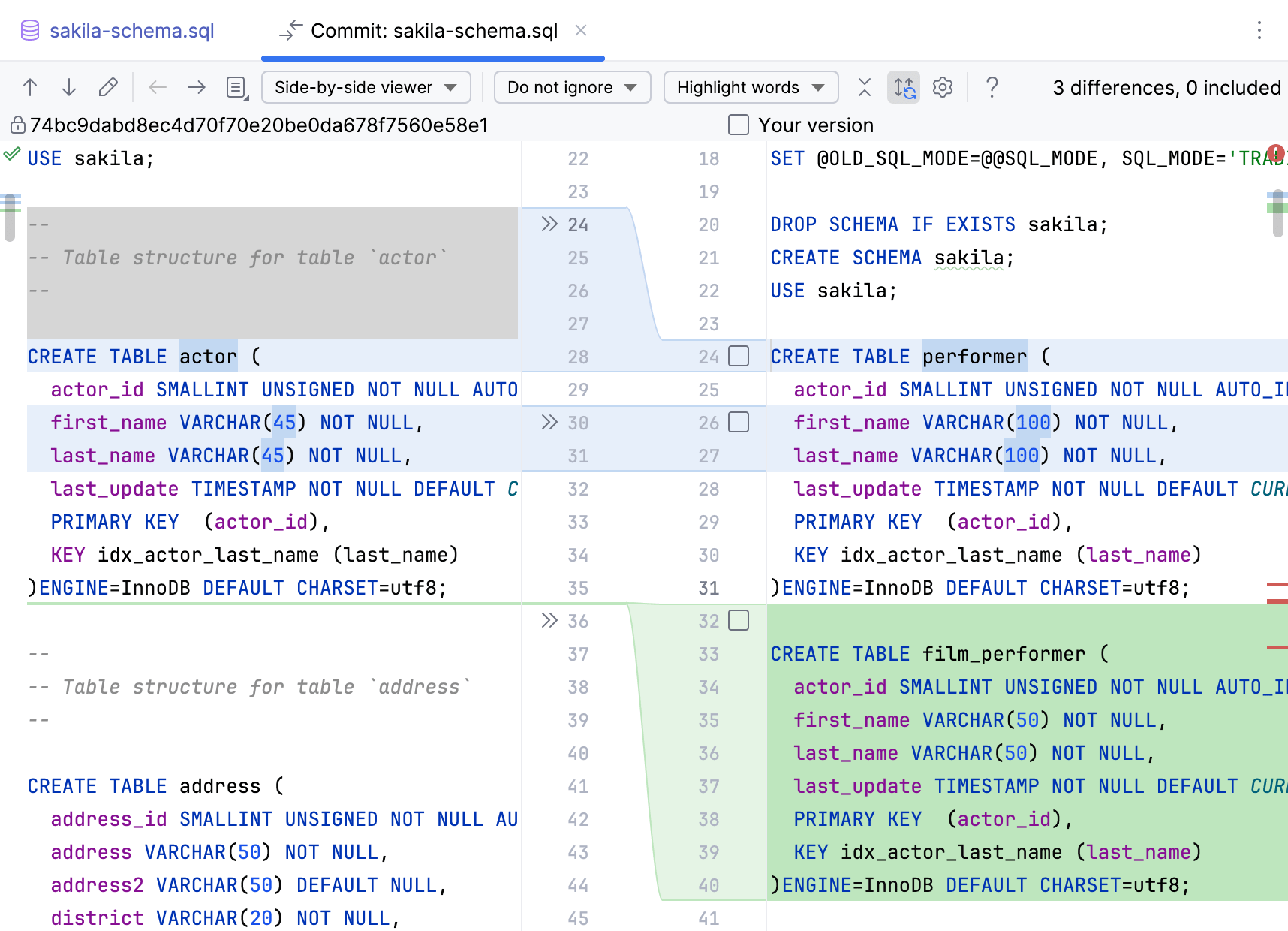
Use the toolbar buttons and controls to navigate between changes and configure the appearance of the Change Details pane or the Diff Viewer:
Item | Tooltip and Shortcut | Description |
|---|---|---|
| Previous Difference / Next Difference Shift+F7 F7 | Jump to the next or previous difference. When the last or the first difference is reached, DataGrip suggests clicking the arrow buttons or pressing F7/Shift+F7 once more and comparing other files modified locally. This behavior depends on the Go to the next file after reaching last change option in the Diff Viewer settings. |
| Jump to Source F4 | Open the selected file in the editor. The caret is placed in the same position as in the Diff Viewer. |
| Compare Previous/Next File Alt+LeftAlt+Right | Compare the local copy of the previous or next file with its update from the server. |
Side-by-side viewer / Unified viewer | Select a viewer mode: side-by-side or unified. The side-by-side mode has two panels, and the unified mode has one panel. You can edit code and perform the Accept, Append, Revert actions in both viewers. You can change text only in the right part of the side-by-side viewer or in the lower line in the unified viewer. You can edit only local versions of your files. You cannot edit files that have read-only status. | |
| Collapse Unchanged Fragments | Collapse all the unchanged fragments in both files. The number of non-collapsible unchanged lines is configurable on the Diff & Merge settings page. To open the Diff & Merge page, open settings by pressing Ctrl+Alt+S and navigate to . . |
| Settings | Some of these commands are also available from the context menu of the Diff Viewer gutter. Align Changes in Side-by-Side Diff: vertically aligns the corresponding lines by padding differences with empty space. Synchronize Scrolling: scroll both diff panes simultaneously. Show Diff in Editor Tab: displays the Diff viewer as an editor tab instead of a separate window. Show Diff in Separate Window: displays the Diff viewer as a separate window instead of an editor tab. Ignore Differences: define how the Diff Viewer should treat whitespaces.
Highlighting Differences: select the way differences granularity is highlighted.
|
| Show diff in external tool | Invoke an external diff viewer specified on the External Diff Tools settings page. This button is available only on the toolbar when the Use external diff tool option is enabled on the External Diff Tools settings page. |
| Help F1 | Open a browser and show the corresponding help page. |
Annotate with GitBlame | This option is only available from the context menu of the gutter. Use this option to explore who introduced which changes to the repository version of the file and when. The annotations view lets you see detailed information for each line of code, such as the version from which this line originated, the ID of the user who committed this line, and the commit date. For more information about annotations, refer to Locate code author (Annotate with Git Blame). | |
 /
/


The most useful shortcuts are the following:
Shortcut | Description |
|---|---|
Ctrl+Shift+D | Use this keyboard shortcut to show the popup menu of the most commonly used diff commands. |
Ctrl+Shift+Tab | Use this keyboard shortcut to switch between the left and the right panes. |
Ctrl+Z/Ctrl+Shift+Z | Use this keyboard shortcut to undo/redo a merge operation. Conflicts will be kept in sync with the text. |