Docker Compose
Docker Compose is used to run multi-container applications. For example, you can run a web server or a backend database as separate services. Each service can be scaled by adding more containers if necessary. This enables you to perform efficient development and testing in a dynamic environment, similar to production.
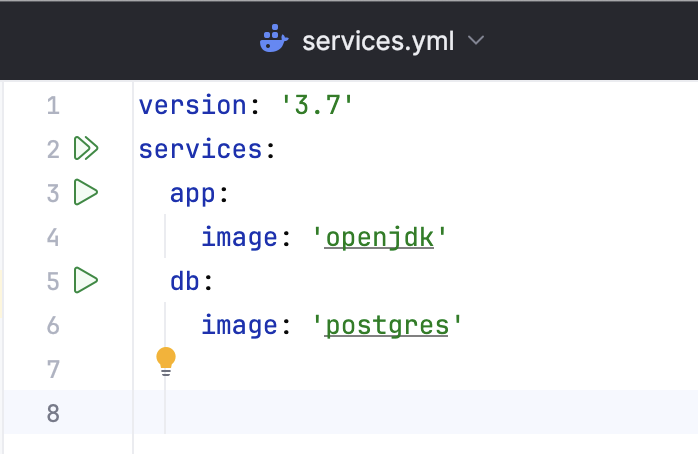
DataGrip recognizes Docker Compose files and marks them with the  icon. It also adds gutter icons to run various services defined in the Docker Compose file.
Create a Docker Compose file
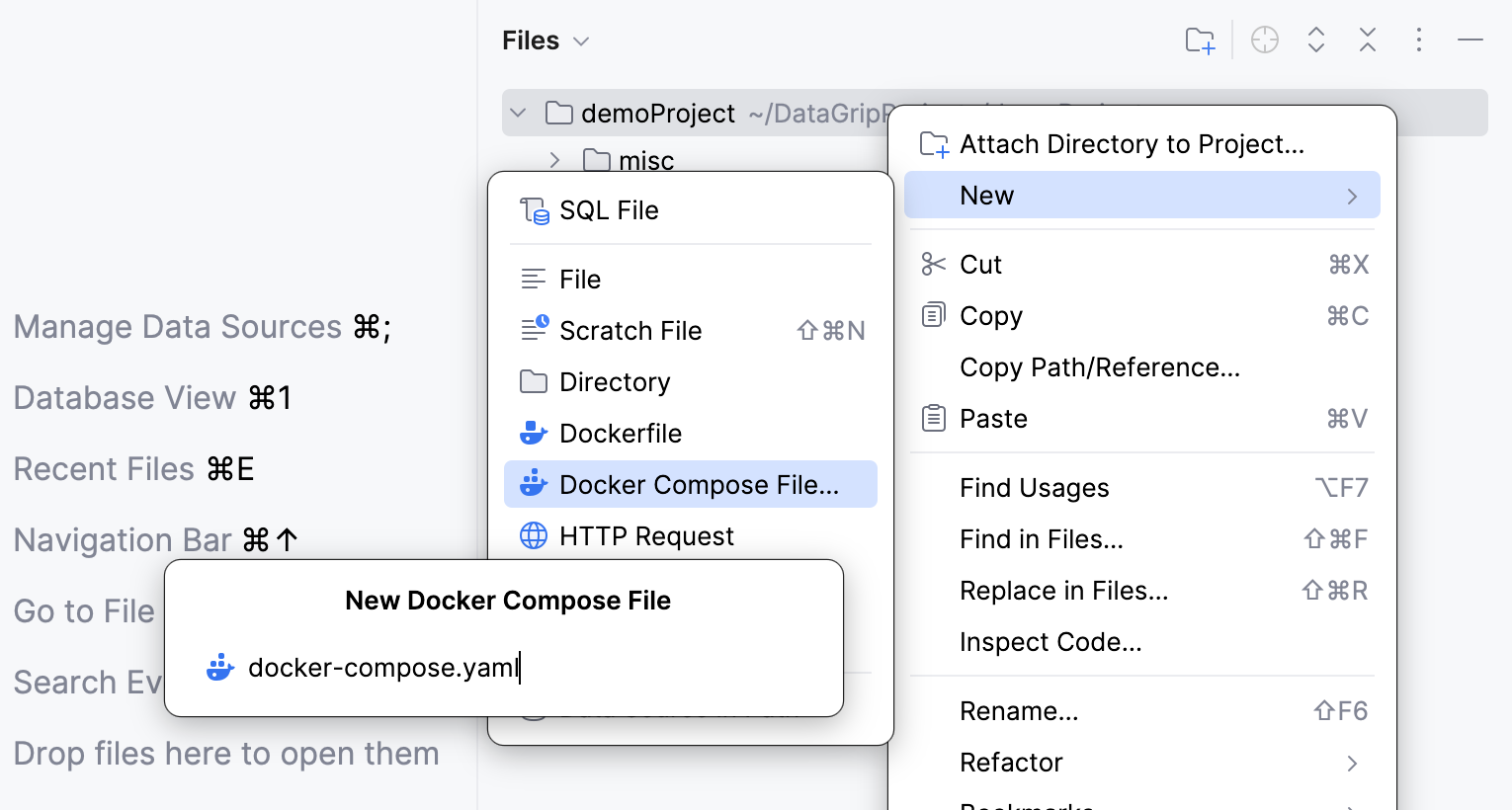
In the Files tool window (Alt+2) , right-click the project root, select New or press Alt+Insert, and then select Docker Compose File.
In the popup that opens, accept the default Docker Compose file name or specify a custom one and press Enter.
Complete a service configuration
Open a Docker Compose file in the editor.
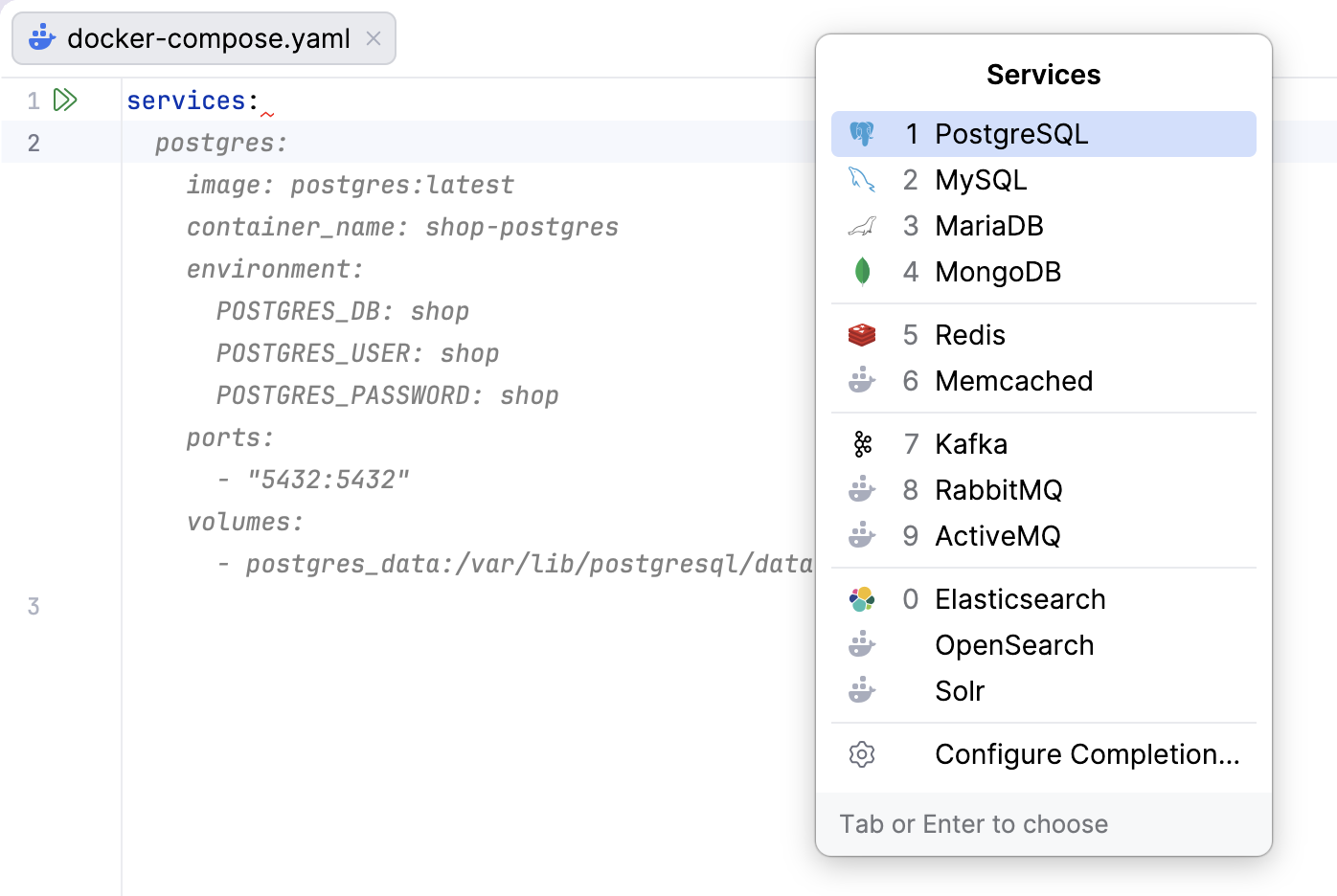
Start typing the service name. DataGrip will display the Services popup, where you can select the corresponding configuration.
Run a multi-container Docker application
Define necessary services in one or several Docker Compose files.
In the main menu, go to .
Click
 , point to Docker and then click Docker Compose.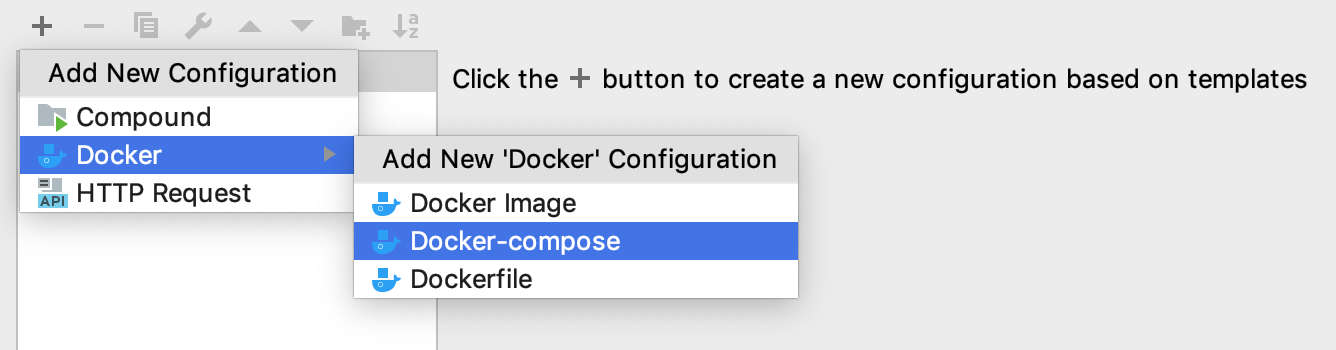
Specify the Docker Compose files with your service definitions. If necessary, you can define the services that this configuration will start, specify environment variables, and force building of images before starting corresponding containers (that is, add the
--buildoption for the docker compose up command).For more information about the available options, refer to Docker compose run configuration.
Click OK to save the Docker Compose run configuration, select it in the main toolbar, and click
 or press Shift+F10 to start the configuration.
When Docker Compose runs your multi-container application, you can use the Services tool window (Alt+8) to control specific services and interact with containers. The containers that run as part of Docker Compose are listed under the dedicated Compose nodes, not under the Containers node (which is only for standalone containers).
When you open a Docker Compose file in the editor, DataGrip displays inlay hints with statuses of services and available port actions.
Service status
A status inlay hint is displayed next to each service name and indicates whether the service is running or failed. Clicking the inlay hint you navigates you to container logs in the Services tool window.
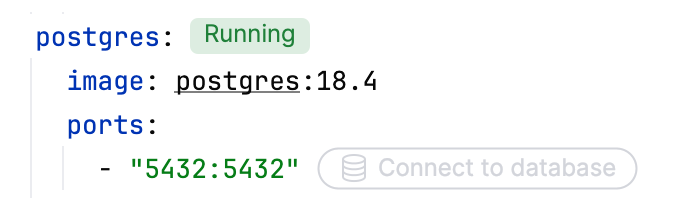
Port actions (Open URL)
For services that expose ports, DataGrip provides quick actions directly in the editor:
Open in browser: opens the service URL in the default browser.
Connect to database: opens the corresponding database connection workflow, allowing you to inspect the database and run queries directly from the IDE. For more details, refer to Data sources.
Scale a service
In the Services tool window, select the service you want to scale and click
 or select Scale from the context menu.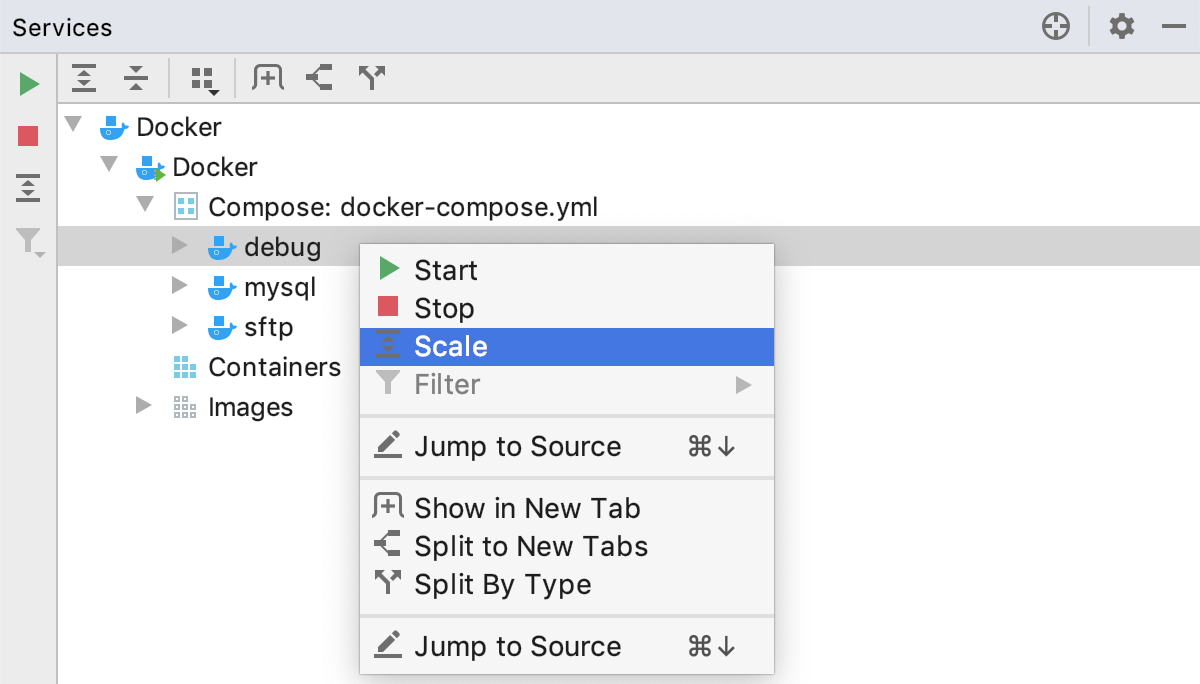
In the Scale dialog, specify how many containers you want for this service and click OK.
Stop a running service
In the Services tool window, select the service and click
 or select Stop from the context menu.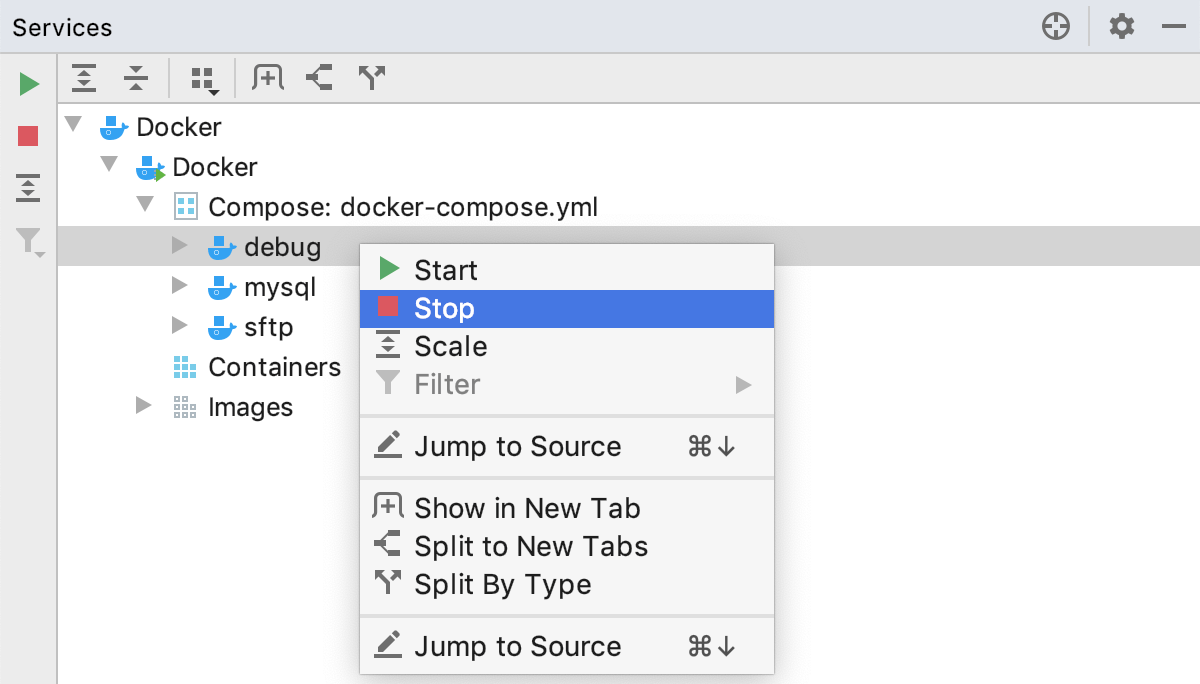
Stop all running services
In the Services tool window, select the Compose node and click
or select Stop from the context menu.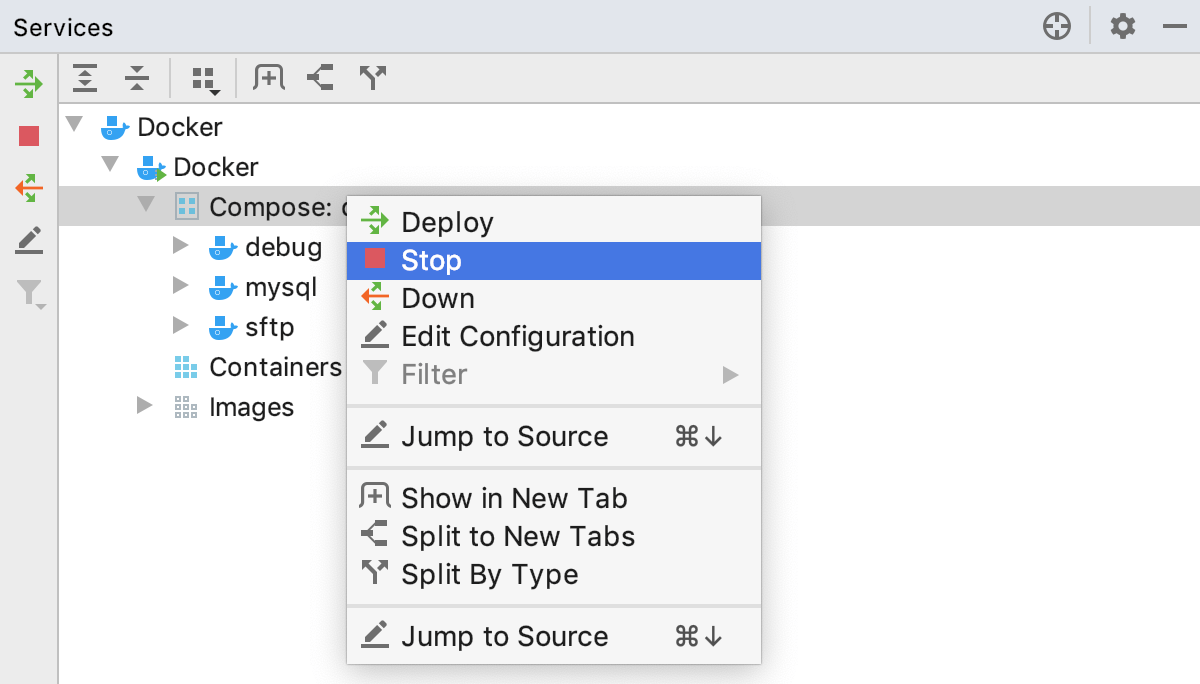
Bring your application down
In the Services tool window, select the Compose node and click
 or select Down from the context menu.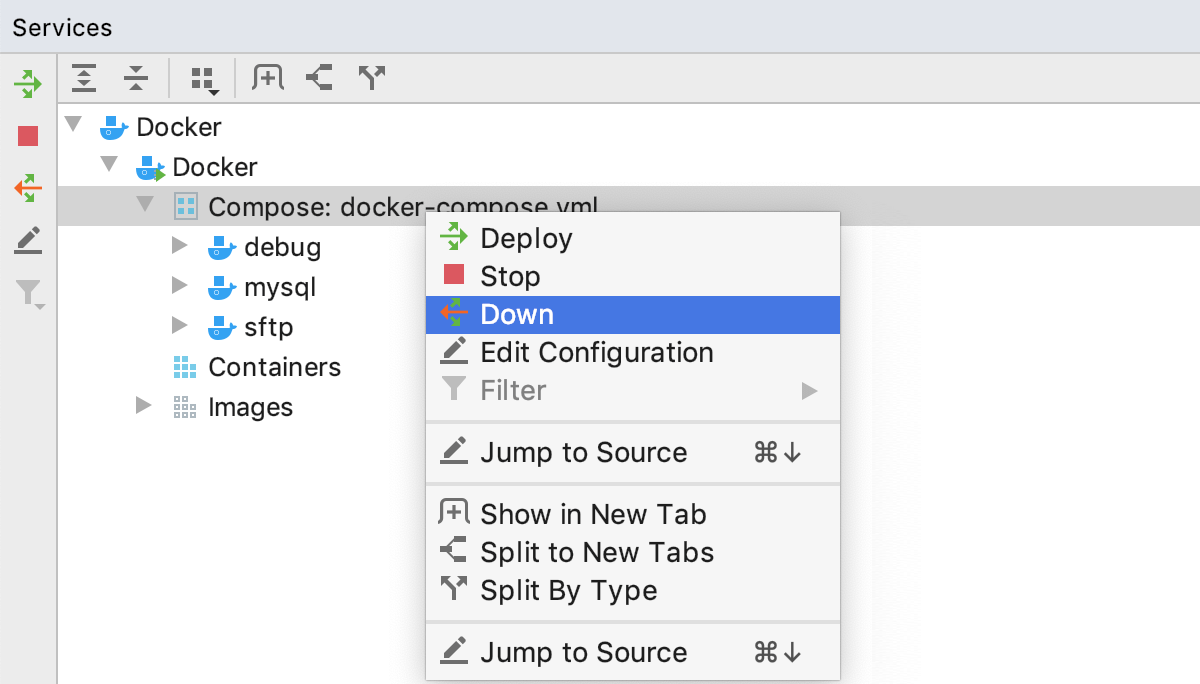
This stops and removes containers along with all related networks, volumes, and images.
Open the Docker Compose file that was used to run the application
In the Services tool window, right-click the Compose node or a nested service node and then click Jump to Source in the context menu or press F4.