DuckDB
Official documentation
For full information about DuckDB, refer to the official documentation.
Before you begin
This topic presents a general procedure on how you can create a data source for the connection to your DuckDB database in DataGrip, and run a test connection. It is assumed that you already have the necessary connection details and the database is up and running.
For example, if you want to run a database on your machine and connect to that database, the corresponding DBMS software must be installed on the machine first.
To learn about your DBMS software, refer to its official documentation.
Connect to a DuckDB database
To connect to a database, create a data source that will store your connection details.
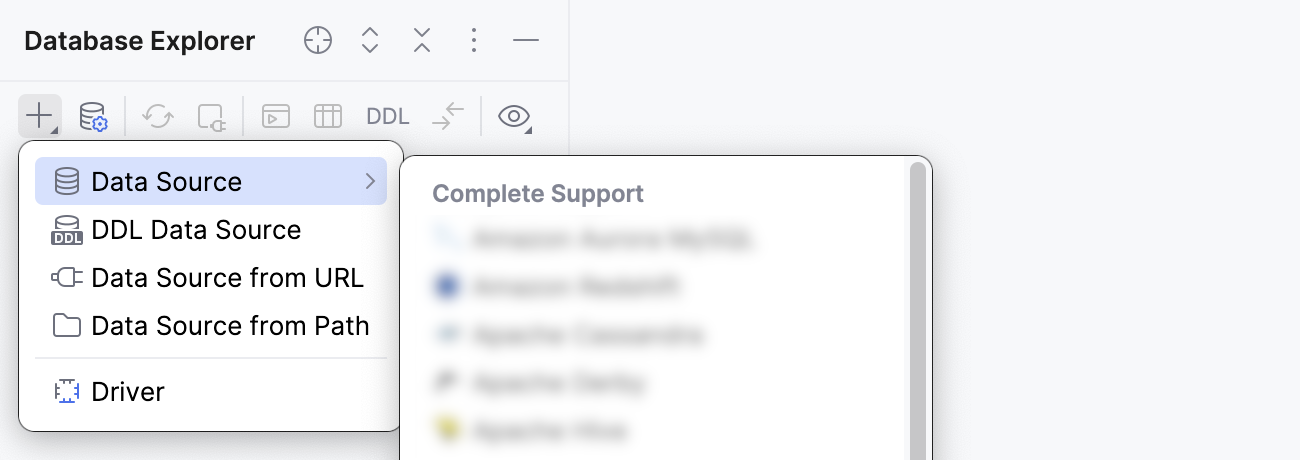
Select the data source you want to create. You can do this using one of the following ways:
In the main menu, go to and select DuckDB.
In the Database Explorer (⌘ 1) , click
 New on the toolbar. Navigate to Data Source and select DuckDB.
In the General tab of Data Sources and Drivers dialog right pane, specify the driver and connection type.
In the Driver list, leave the default driver option, unless another driver is required for your connection.
From the Connection type list, select the connection type depending on the connection details that you have:
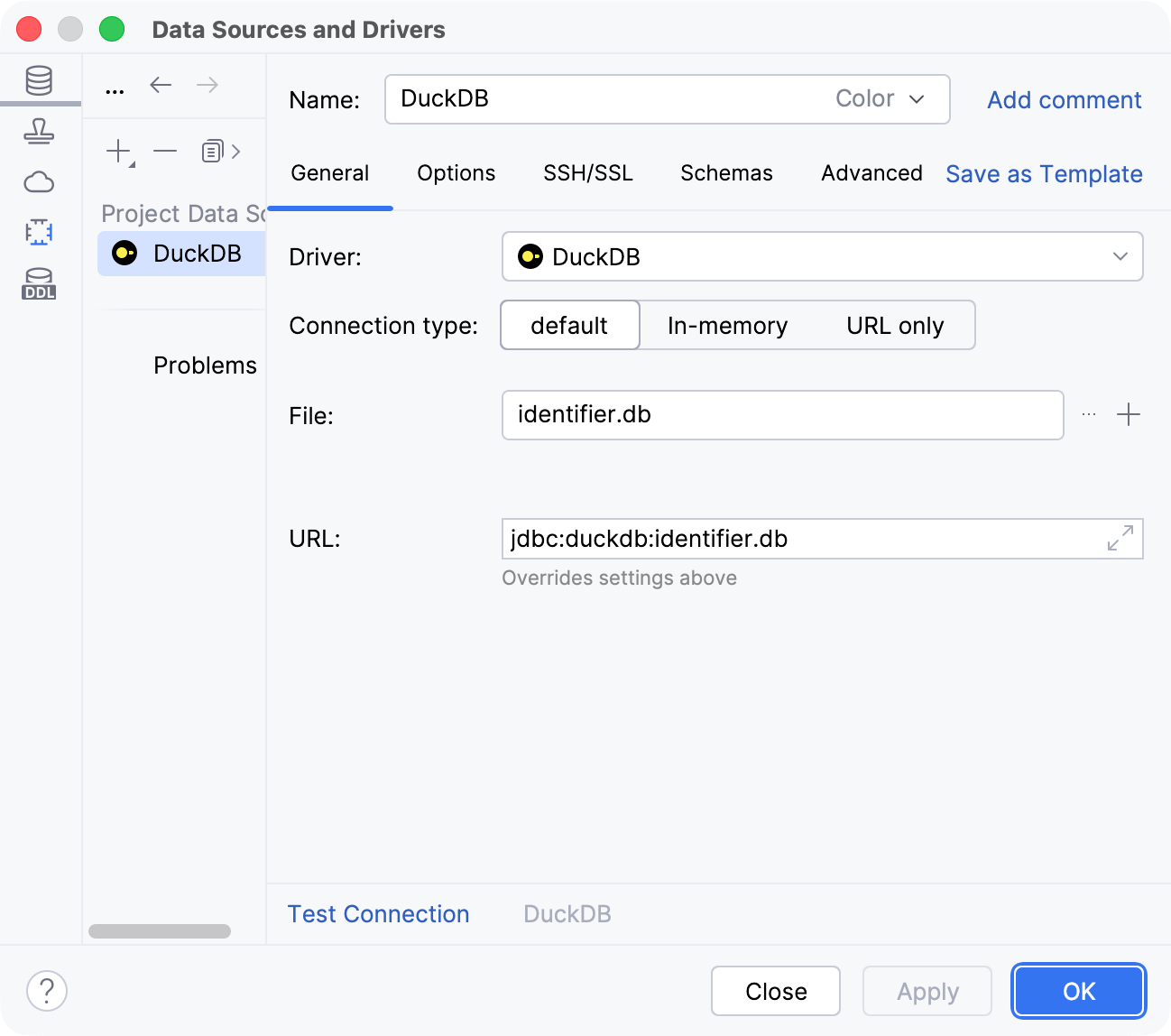
default: connect by using the path to DuckDB database file.
In-memory: use an in-memory DuckDB.
URL only: connect by using only the URL.
For the URL only connection type, the JDBC URL that you enter is used as is, including the database credentials.
For the other connection types, the JDBC URL is broken down into connection details. You can either specify them separately and use the automatically generated URL, or you can enter the URL directly in the corresponding field.
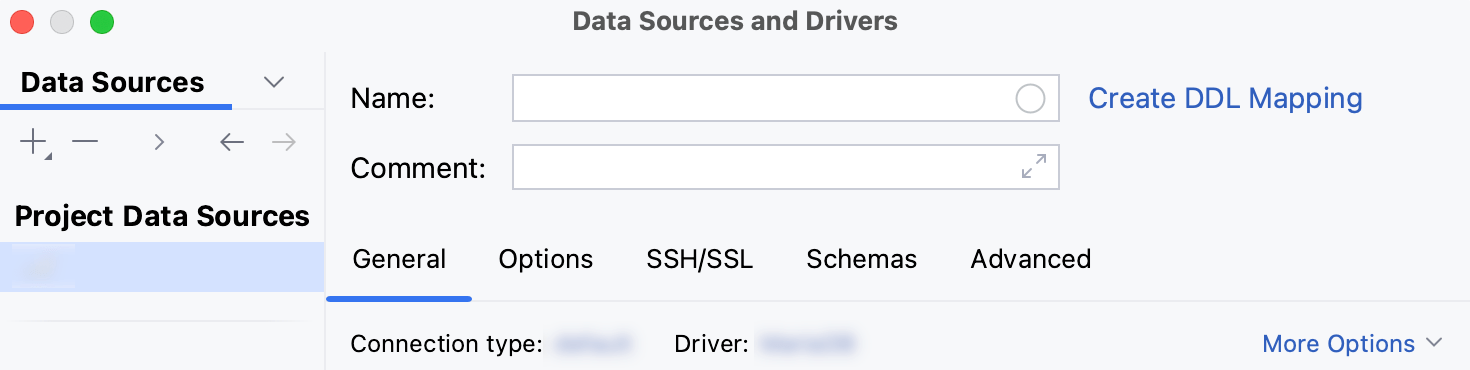
Check if there is a Download missing driver files link at the bottom of the connection settings area. Click this link to download drivers that are required to interact with a database. For a direct download link, refer to the JetBrains JDBC drivers page.

Location for the downloaded JDBC drivers is the DataGrip configuration directory.
You can also use your drivers for the database instead of the provided ones. For more information about connecting to a database with your driver, refer to Add a user driver to an existing connection.
If there is no Download missing driver files link, then you already have the required drivers.
Specify the database connection details. Alternatively, paste the JDBC URL in the URL field.
To connect to an existing DuckDB database, specify a file path to the database file in the File field. Alternatively, click
 Open and navigate to the file.
To create a new DuckDB database, click
New and specify the name and location for your new database file.Also, to create a database, you can drag an DuckDB database file to the Database Explorer.
In the URL field, DataGrip generates the JDBC URL automatically using the values of other connection settings.
If you need to use a JDBC URL with certain additional settings, paste it in the URL field. The general URL to use is as follows:
Format:
jdbc:duckdb:<path_to_database_file>Example:
jdbc:duckdb:/tmp/my_database
For more information about the URL format, refer to the DuckDB official documentation.
Create an in-memory database by using the
jdbc:duckdb:JDBC URL.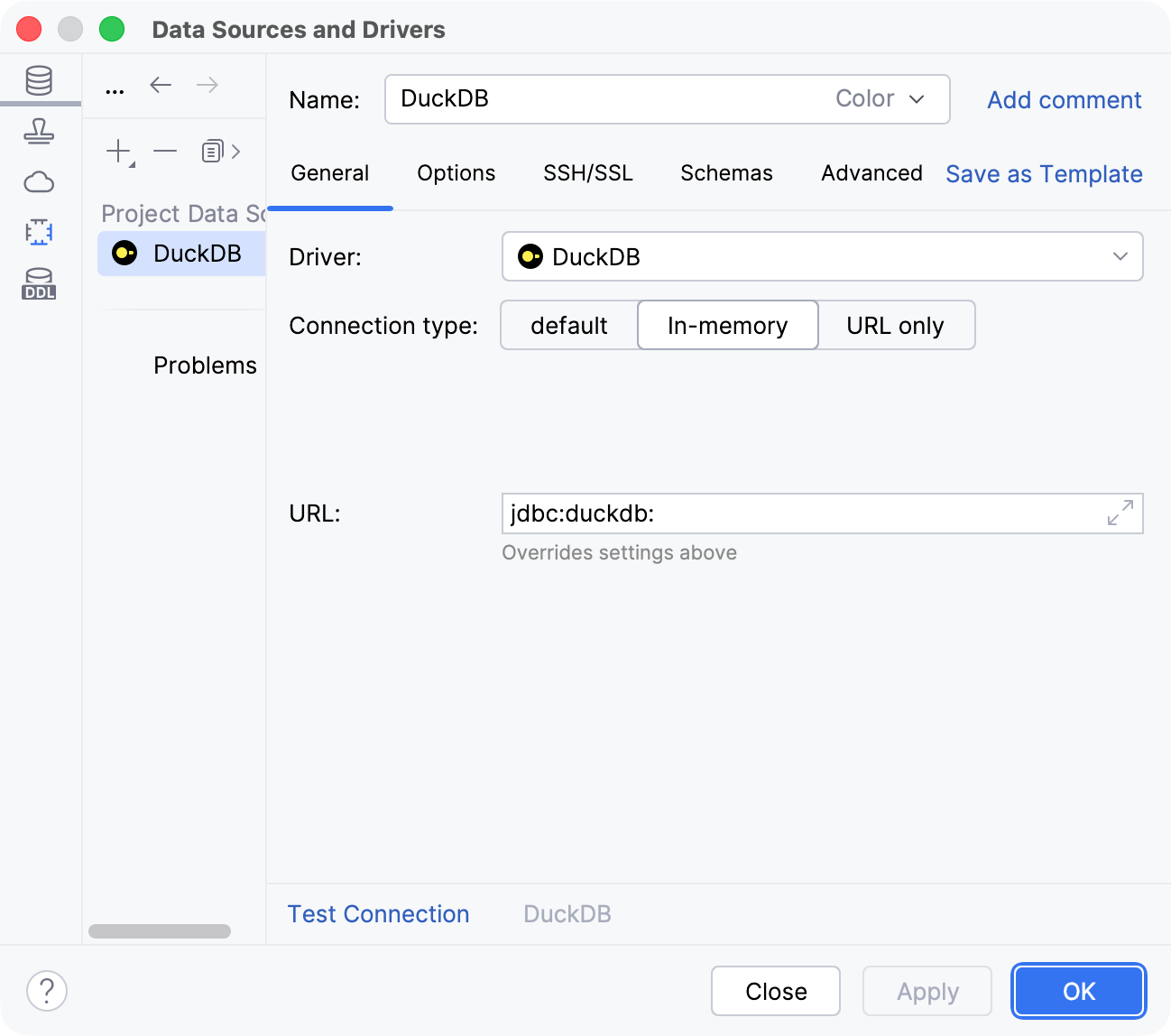
Paste your JDBC URL in the URL field. The general URL to use is as follows:
Format:
jdbc:duckdb:<path_to_database_file>Example:
jdbc:duckdb:/tmp/my_database
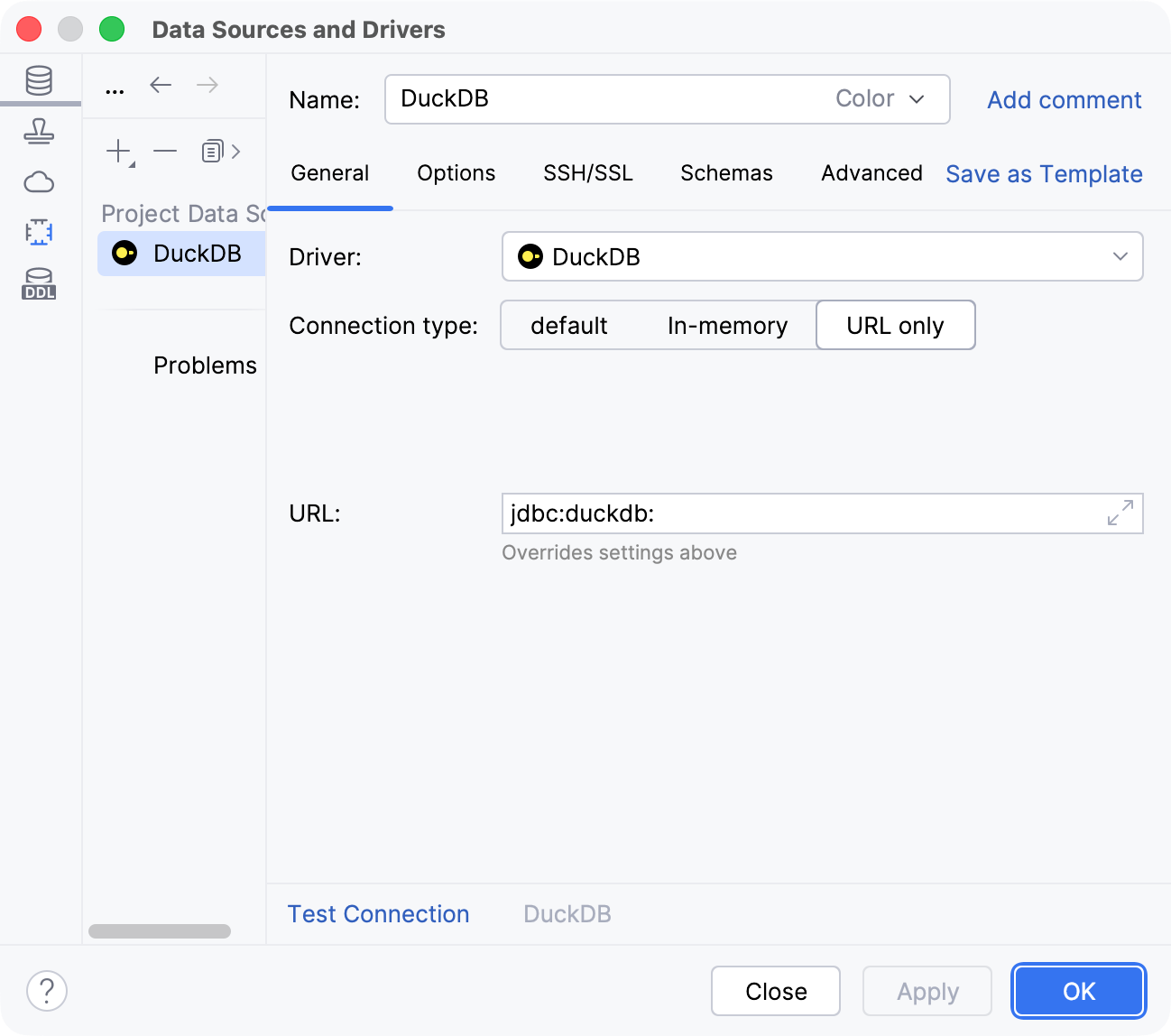
Ensure that the database connection can be established using the provided details. To do this, click the Test Connection link at the bottom of the connection details section.

If you encounter any connection issues, refer to the Cannot connect to a database page.
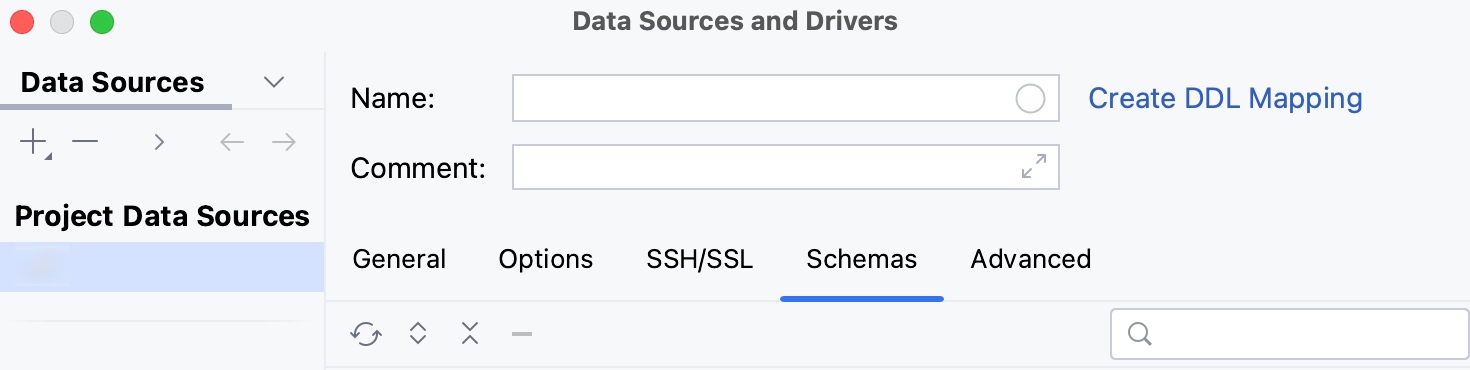
(Optional) By default, only the default database and schema are introspected and available to work with. If you also want to work with other databases and schemas, in the Schemas tab, select them for the introspection.
Click OK to create the data source.
Find your new data source in Database Explorer (⌘ 1) .
For more information about Database Explorer, see the corresponding reference topic.
For more information about working with database objects in DataGrip, refer to Database objects.
To write and run queries, open the default query console by clicking the data source and pressing F4.
To view and edit data of a database object, open Data editor and viewer by double-clicking the object.