Smart Keys settings: Markdown
Use this settings page to configure typing assistance features in Markdown.
Install the Markdown plugin
This functionality relies on the Markdown plugin, which you need to install and enable.
Press Ctrl+Alt+S to open settings and then select .
Find the Markdown plugin, and click Install. Restart the IDE if prompted.
For more information about Markdown support in DataGrip, see Markdown.
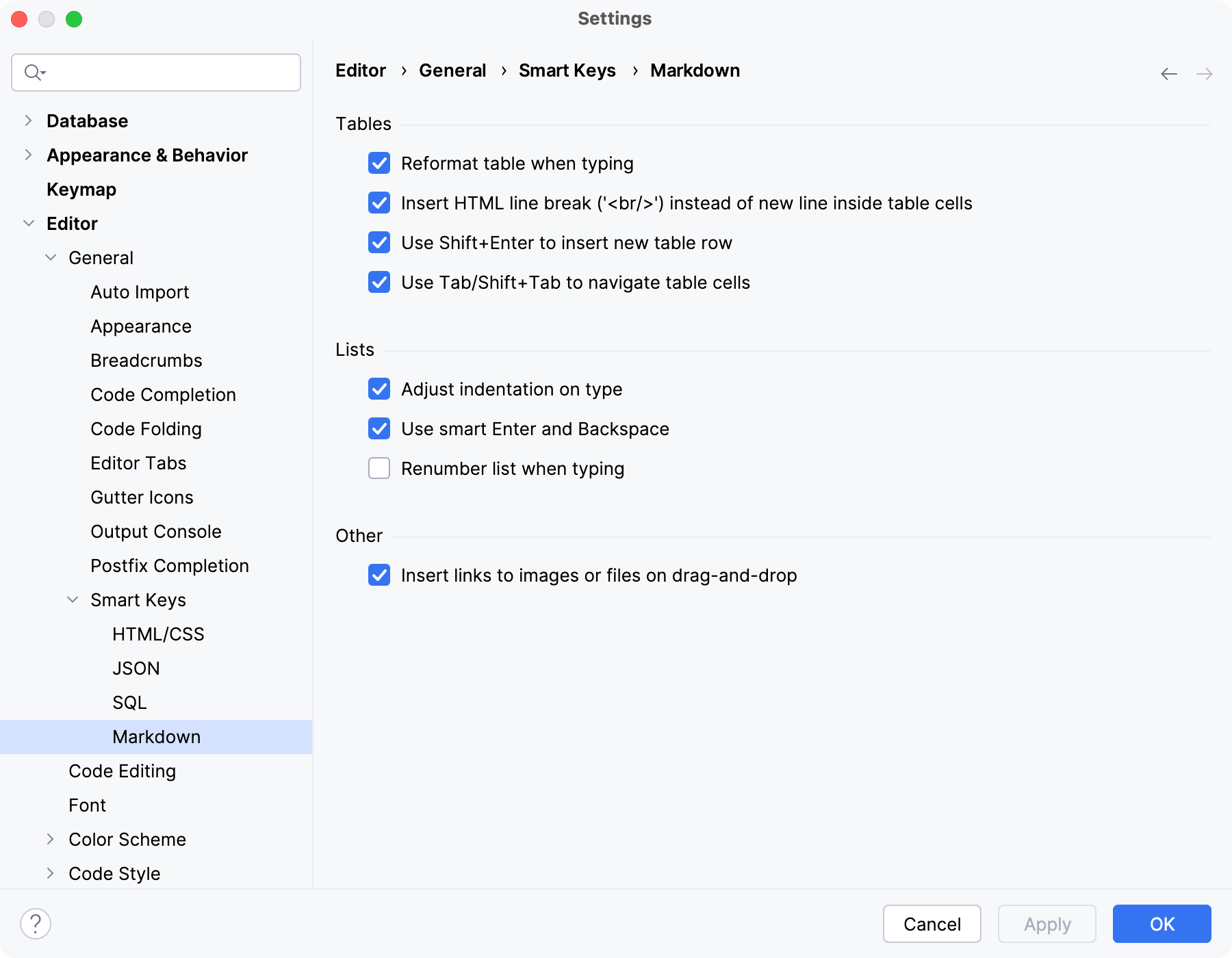
Tables
Item | Description |
|---|---|
Reformat table when typing | Automatically adjust the rows and columns of tables to fit the content into the cells. |
Insert HTML line break ('<br/>') instead of new line inside table cells | Add a proper line break when you press Enter inside a table cell. Without this option, the line will not actually break in the rendered HTML. You need to add an empty line if you want to start a new paragraph. |
Use Shift+Enter to insert new table row | Press Shift + Enter to add a new table row. |
Use Tab/Shift+Tab to navigate table cells | Press Tab to jump to the next table cell. Press Shift + Tab to jump to the previous table cell. |
Lists
Item | Description |
|---|---|
Adjust indentation on type | Automatically adjust the indentation for list items when you type. |
Use smart Enter and Backspace | Press Enter to add new list items. Press Backspace to remove the item bullets. |
Renumber list when typing | Automatically adjust the numbering of ordered lists as you type. When enabled, the IDE rewrites the ordered list after inserting an item. |
List numerating | Select how ordered lists are numbered:
|
Other
Item | Description |
|---|---|
Insert links to images or files on drag-and-drop | Drag and drop images and other files into the Markdown file editor to automatically generate a reference. |
Emphasis style | Select whether to use asterisks |
For more information, refer to the Markdown topic.