Create a live template with variables and functions
In this tutorial, you will learn how to create and use a simple live template that includes variables and functions.
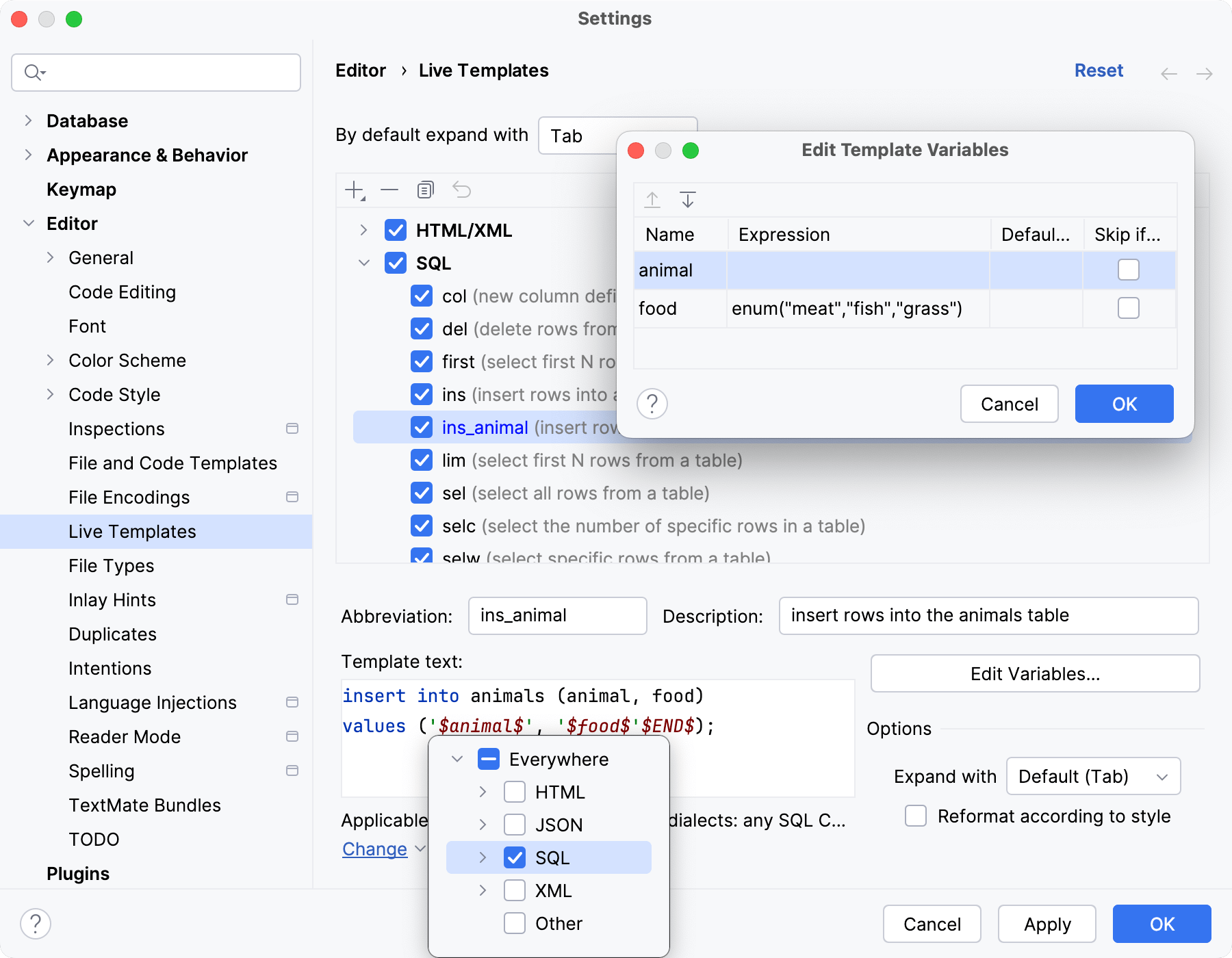
To showcase how variables and functions work in templates, we will add the following variables to the template text:
$animal$: an empty one for the users to type a value$food$: a list of three possible values: "meat", "fish", and "grass"
Create a live template with variables
Press Ctrl+Alt+S to open settings and then select .
Select the SQL group, click
 , and select Live Template.
In the Abbreviation field, specify the characters that will be used to expand the template. For example,
ins_animals.In the Template text field, paste the following template:
type $TypeName$ struct { food string } func (p *$TypeName$) PetFood() { food := "$Food$" println("The $typeName$ eats " + food) }insert into animals (animal, food) values ('$animal$', '$food$'$END$);Click Edit Variables… and, in the Edit Template Variables dialog, configure the variables:
$animal$remains untouched meaning we expect users to type a value when they apply this template.$food$: in the Expression field, enterenum("meat","fish","grass"). This function allows selecting one of the predefined values when users apply this template.
Click the link in the bottom left corner to define or change the language context where the template will be applicable:
Use the created template
In the editor, start typing the template abbreviation (
ins_animalsin our example) and select it from the completion dropdown.Type a value of the variable and press Tab to jump to the next variable.
Using the keyboard arrows, select one of the values for the variable and press Enter.