Install Datalore Enterprise in Docker containers using Docker Compose
The instruction in this article describes the installation of Datalore Enterprise in Docker containers using Docker Compose. We recommend that you choose the Docker-based installation if your primary goal is to get familiar with the product and its key features. This is the easier and quicker procedure compared to the Helm-based method.
- Prerequisites
Before installation, make sure that you have the following:
Docker
Docker Compose V2
To check the requirements, execute
docker compose version.Expected result:
$ docker compose version Docker Compose version v2.2.3- Hardware requirements
Datalore server machine: 4GB of RAM (the number of CPU is irrelevant if the load is not high)
For every concurrently run notebook: from 4GB of RAM
Basic Datalore installation
Follow the instruction to install Datalore using the selected method.
Install Datalore
Download an archive with the configuration files.
To set up Datalore, unpack the downloaded archive and open docker-compose.yaml from the [archive_folder]/docker-compose folder in any text editor. Replace the values of
DB_PASSWORDandPOSTGRES_PASSWORDproperties with any random string (both properties must have the same value). This string will be used as your database password. Make sure you keep it secret.Run the following command and wait for Datalore to start up:
docker compose upGo to http://127.0.0.1:8080/ and sign up the first user. The first signed-up user will automatically receive admin rights.
To access Datalore by a domain other than 127.0.0.1, add a URL with this host as the
DATALORE_PUBLIC_URLparameter in the docker-compose.yaml file.For example, if you want to use the https://datalore.yourcompany.com domain, add the following:
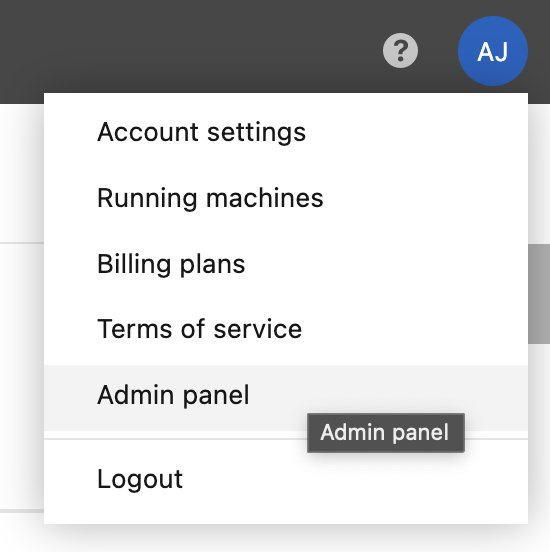
services: datalore: ... environment: ... DATALORE_PUBLIC_URL: "https://datalore.yourcompany.com"Click your avatar in the upper-right corner, select Admin panel | License and provide your license key.