Coverage Analysis with Command-Line Tool
The dotCover command-line tool lets you:
Run coverage analysis using any test runner (MSTest, NUnit, xUnit, MSpec, and so on) and record coverage of executed tests in coverage snapshots
Merge coverage snapshots with the merge command, for example, to combine snapshots of unit tests that use different testing frameworks
Generate coverage reports in different formats with the report command
and more
The tool is available for Windows (x86, x64, arm64), Linux (x64, arm32, arm64, musl-x64, musl-arm64), and macOS (x64, arm64).
Distribution format
The tool is distributed as a cross-platform framework-dependent .NET tool (requires .NET to be installed). View NuGet package
Install dotCover command-line tool
The main way to install the dotCover command-line tool is to install it as a .NET tool. It's recommended if you want to run coverage analysis locally on your computer or a CI/CD server.
Install dotCover as a global tool for all projects on the computer
Run:
dotnet tool install --global JetBrains.dotCover.CommandLineTools
Install dotCover as a local tool for a specific project/directory
Run:
dotnet tool install JetBrains.dotCover.CommandLineTools --tool-path "some/path"
After the installation, you can run the command-line tool from any directory (if installed globally) or from the directory where it was installed (if installed locally) using the dotCover command. For example:
Configure dotCover command-line tool
You can configure the dotCover command-line tool with command-line parameters or with an XML configuration file. You can use both approaches at the same time. In case of conflicts, command-line parameters override the ones specified in XML.
For example:
Regardless of the OS, you can use the same parameter syntax, e.g.,
--TargetExecutable MyApp.exeCommand-line parameters are case-insensitive. E.g., the following is equal:
--TargetExecutable MyApp.exeand--targetexecutable MyApp.exeTo specify a parameter, use a double hyphen
--, e.g.,--TargetExecutable MyApp.exe.To specify a parameter value, use a space
after the parameter name, e.g.,--TargetExecutable MyApp.exe.If a parameter value is a path with spaces, escape them with additional double quotes and a backslash, e.g.,
... --targetArguments "\"D:\My Projects\My Application\bin\Debug\AppTests.dll"\"Relative paths in command-line parameters are treated relative to the command-line tool working directory.
If you omit the
ReportTypeparameter, the tool will generate a coverage snapshot instead of a report.For the full list of parameters, refer to Command Reference.
All dotCover commands (except version and help) can accept parameters in an XML configuration file. The configuration file is a reasonable alternative to specifying all parameters inline or having them in a batch file. To avoid errors in the supported XML tags, we recommend generating a configuration stub file first and then providing it with your custom parameter values.
To generate a stub configuration file
Run:
dotCover help <command name> <configuration stub file>For example, for
cover-dotnet:dotCover help cover-dotnet C:\Temp\MyConfig.xml
To run coverage analysis based on the configuration file
Provide the configuration file with your custom parameter values to a dotCover command. For example, for
cover-dotnet:dotCover cover-dotnet C:\Temp\MyConfig.xmlRelative paths defined in the XML configuration file are treated relative to the location of this file.
Analyze unit test coverage in .NET projects
Open the solution folder.
Build the solution:
dotnet buildRun tests with coverage analysis and get a coverage snapshot:
dotCover cover-dotnet --output snapshot.dcvr -- test --no-buildTo get a report instead of a snapshot, use the
--ReportTypeparameter:dotCover cover-dotnet --output report.xml --ReportType XML -- testIf you configured
dotCoverwith an XML file and want to continue using it, specify a path to the file:dotCover cover-dotnet "C:\config\config.xml" -- test
Analyze unit test coverage in .NET Framework projects
The following procedure illustrates the simplest case of running coverage with the command-line tool on .NET Framework projects.
Make sure your unit test project is built.
Run:
dotCover cover --targetExecutable "D:\Program Files\NUnit 2.6\bin\nunit-console.exe" --targetArguments "D:\Projects\TheApplication\bin\Debug\AppTests.dll" --output AppCoverageReport.html --reportType HTMLHere:
--targetExecutableis the path to the unit testing framework runner--targetArgumentsare arguments passed to the runner – the compiled unit test assembly. Note that if these arguments contain paths with spaces, you should escape them with additional double quotes and a backslash, for example,... --targetArguments "\"D:\My Projects\My Application\bin\Debug\AppTests.dll"\"--outputis the report filename--reportTypeis the type of the report (in this case, we generate an HTML report)
On completion, the tool will generate the
AppCoverageReport.htmlfile in the same directory where it is located. Open this file to view the coverage results in a browser.
Apply coverage filters
Suppose the coverage report contains some information that you aren't interested in. In that case, you can apply filters, which tell the command-line tool what should be included or excluded from the coverage report.
You can specify include and exclude filters in any order.
Independently of the order, the command-line tool first applies 'include' filters and then 'exclude' filters.
If no 'include' filters are explicitly specified, the tool first includes everything and then excludes what is specified in the 'exclude' filters.
If there is an 'include' filter, the command-line tool first excludes everything that doesn't match the 'include' filter and then applies explicit 'exclude' filters (if any).
By default, whether you specify any 'exclude' filters or not, the command-line tool adds the following filters for system assemblies:
mscorlib,System,System.*,Microsoft .*.If necessary, you can disable these default filters with the
--disableDefaultFilterscommand-line parameter.
There are two ways to specify coverage filters: using command-line parameters or using an XML configuration file.
To exclude/include items from the coverage analysis, you should run the command-line tool with the
--filtersparameter. For example (for simplicity, we omit non-filter parameters):dotCover ... --filters -:module AdditionalTests;-:type MainTests.Unit*; -:type MainTests.IntegrationTests;function TestFeature1;This example is equivalent to the XML configuration example. Note that the semicolon (;) separates not only filter entries but also items inside filter entries.
An entry that starts with
-:is responsible for excluding, and vice versa, an entry that starts with+:- for including.If you need to exclude/include only a module, you can omit the
modulekeyword:dotCover ... --filters -:AdditionalTests;To filter out classes and methods based on their attributes, you should use the
--attributeFiltersparameter. For example, to filter out methods marked with theSystem.Diagnostics.CodeAnalysis.ExcludeFromCodeCoverageAttributeattribute:dotCover ... --attributeFilters System.Diagnostics.CodeAnalysis.ExcludeFromCodeCoverageAttribute;The semicolon (
;) works as a separator.
To exclude specific entities (modules, classes, methods) from the coverage report while keeping the others, add the corresponding entries to the
ExcludeFiltersnode. For example:... <Filters> <ExcludeFilters> <FilterEntry> <ModuleMask>AdditionalTests</ModuleMask> </FilterEntry> <FilterEntry> <ClassMask>MainTests.Unit*</ClassMask> </FilterEntry> <FilterEntry> <ClassMask>MainTests.IntegrationTests</ClassMask> <FunctionMask>TestFeature1</FunctionMask> </FilterEntry> </ExcludeFilters> </Filters>Here:
<ModuleMask>AdditionalTests</ModuleMask>- all tests from the corresponding module will be excluded.AdditionalTestshere is an assembly name without extension.<ClassMask>MainTests.Unit*</ClassMask>- all classes whose name starts withMainTests.Unitwill be excluded.<ClassMask>MainTests.IntegrationTests</ClassMask> <FunctionMask>TestFeature1</FunctionMask>- theTestFeature1method of theMainTests.IntegrationTestsclass will be excluded. Note thatFunctionMaskmust always contain method's short name. If you omit any element inFilterEntry, dotCover will consider this as a wildcard. For example, if you removeClassMaskin this particular case, dotCover will exclude allTestFeature1methods (belonging to all modules and classes).
Alternatively, to include only the desired items while excluding all others of the same kind, add the corresponding entries to the
IncludeFiltersnode.Another option is to filter out classes and methods based on their attributes. For example, to filter out methods marked with the
System.Diagnostics.CodeAnalysis.ExcludeFromCodeCoverageAttributeattribute, we can add the following to the coverage.xml configuration file:... <AttributeFilters> <AttributeFilterEntry> <ClassMask>System.Diagnostics.CodeAnalysis.ExcludeFromCodeCoverageAttribute</ClassMask> </AttributeFilterEntry> </AttributeFilters>
Change scope of coverage results
By default, when the coverage snapshot is ready, it only includes information about assemblies that were loaded for analysis, that is the assemblies that weren't filtered out and that have tests. This can make the overall coverage percentage incorrect.
If necessary, you can change the scope of assemblies whose information should be added to the snapshot. To do so, use the Scope parameter. For example, to add all assemblies from your project to the snapshot, you can add the following to the configuration file:
Note that everything excluded with filters is excluded anyway regardless of the specified scopes.
Analyze coverage for multiple test projects
If there are several unit test projects in your solution, you can run coverage analysis for all of them at once as described in the basic scenario. In this case, to avoid specifying the full path to each assembly, you can use the TargetWorkingDir parameter when specifying test assemblies. For example, with an XML config file:
However, this approach won't work if unit test projects use different unit testing frameworks. In such cases, we can break down the coverage, merging, and reporting into individual steps.
Suppose we have two unit test projects, TestProject1 that uses MSTest and TestProject2 that uses NUnit. To run coverage on both projects and get a single report, we perform the following steps:
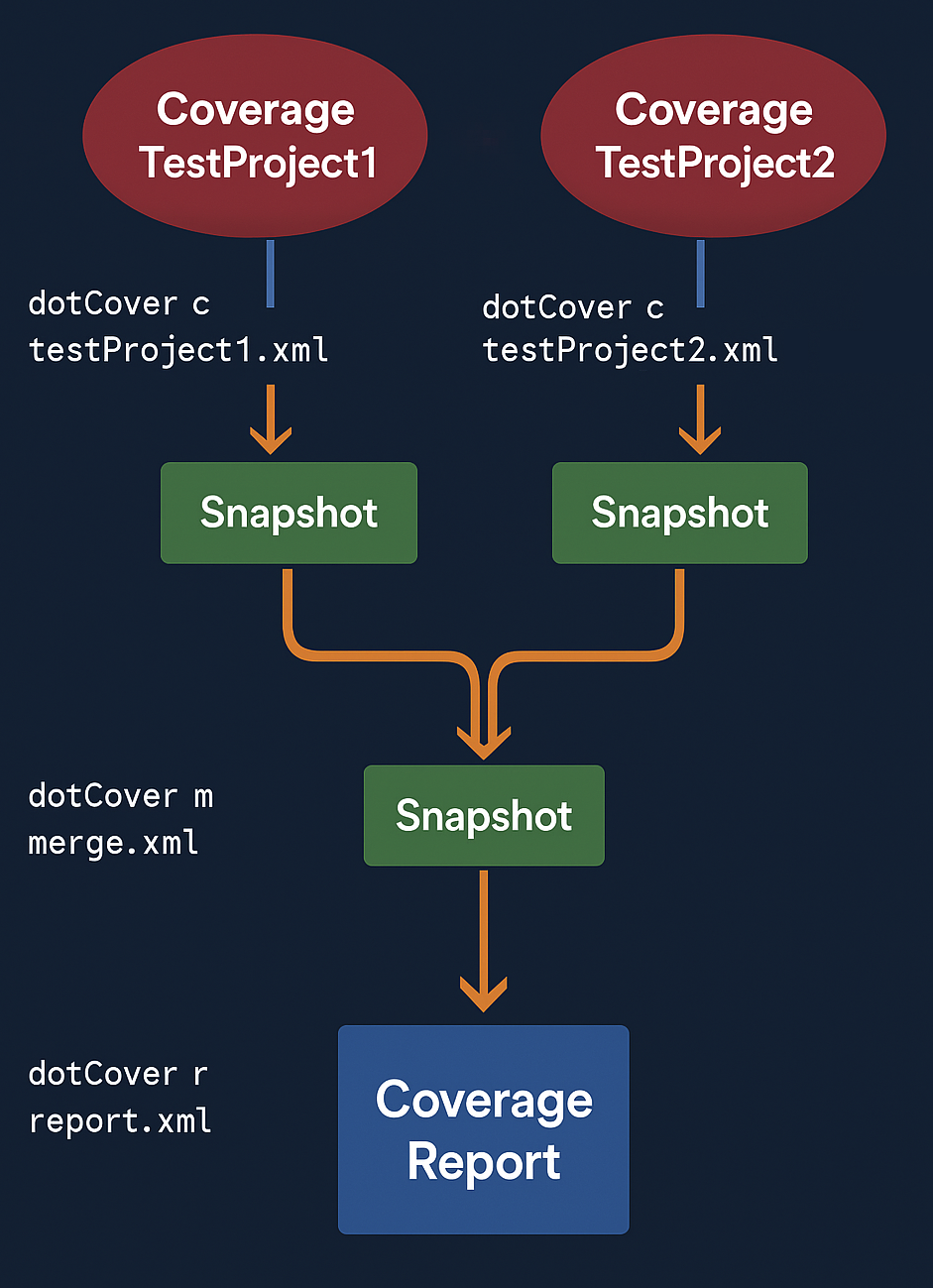
Run coverage for multiple projects in separate steps
Create two configuration files for running the cover (c) command on each of the test projects. testProject1.xml for the
TestProject1that uses MSTest:<?xml version="1.0" encoding="utf-8"?> <CoverageParams> <TargetExecutable>C:\Program Files (x86)\Microsoft Visual Studio 12.0\Common7\IDE\MSTest.exe</TargetExecutable> <TargetArguments>TestProject1.dll</TargetArguments> <TargetWorkingDir>D:\Projects\TheApplication\bin\Debug</TargetWorkingDir> <Output>Snapshot1.dcvr</Output> </CoverageParams>and testProject2.xml for the
TestProject2that uses NUnit:<?xml version="1.0" encoding="utf-8"?> <CoverageParams> <TargetExecutable>D:\Program Files\NUnit 2.6\bin\nunit-console.exe</TargetExecutable> <TargetArguments>TestProject2.dll</TargetArguments> <TargetWorkingDir>D:\Projects\TheApplication\bin\Debug</TargetWorkingDir> <Output>Snapshot2.dcvr</Output> </CoverageParams>Run the
cover (c)(orcover-dotnetfor .NET projects) command on each of the test projects using the prepared configuration files:dotCover cover testProject1.xmlanddotCover cover testProject2.xml. As a result, you will get two coverage snapshots,Snapshot1.dcvrandSnapshot2.dcvr.Run the merge (m) command to merge both snapshots:
dotCover merge merge.xmlwhere the merge.xml is the configuration file:
<?xml version="1.0" encoding="utf-8"?> <MergeParams> <Source>Snapshot1.dcvr</Source> <Source>Snapshot2.dcvr</Source> <Output>MergedSnapshots.dcvr</Output> </MergeParams>To build an HTML test report from the merged snapshots, run the report (r) command
dotCover report report.xmlwhere the report.xml is the configuration file:
<?xml version="1.0" encoding="utf-8"?> <ReportParams> <Source>MergedSnapshots.dcvr</Source> <Output>CoverageReport.html</Output> <ReportType>html</ReportType> </ReportParams>
Find symbol files (PDB)
Locating symbol files (PDB) for the target binaries is vital for calculating coverage. If you cover unit tests or cover the startup project, dotCover easily locates symbol files using the structure of the current solution.
By default, dotCover search symbol files in the following places:
in the same directory where the binary file resides;
in the debug directory specified inside the binary file;
in all directories specified in the
_NT_SYMBOL_PATHenvironment variable and in the registry;
If necessary, you can specify other places to look for symbol files. To do so, use the following parameters when using the cover or cover-dotnet command:
Use the
SymbolSearchPathsparameter to provide a semicolon-separated list of paths to search for symbol files. Each path can be either a directory path or a symbol server path (for example, srv*C:\LocalSymbols*http://symbolserver:33417/).Use the
AllowSymbolServerAccessparameter to allow dotCover access symbol servers specified either in theSymbolSearchPathsparameter, or in_NT_SYMBOL_PATHenvironment variable.