# Save projects as templates
> For the complete documentation index, see [llms.txt](https://www.jetbrains.com/help/go/2026.3/llms.txt).
You can save a project as a template. If you do so, you'll be able to create template-based projects, that is, the projects that are nearly identical to the template project.
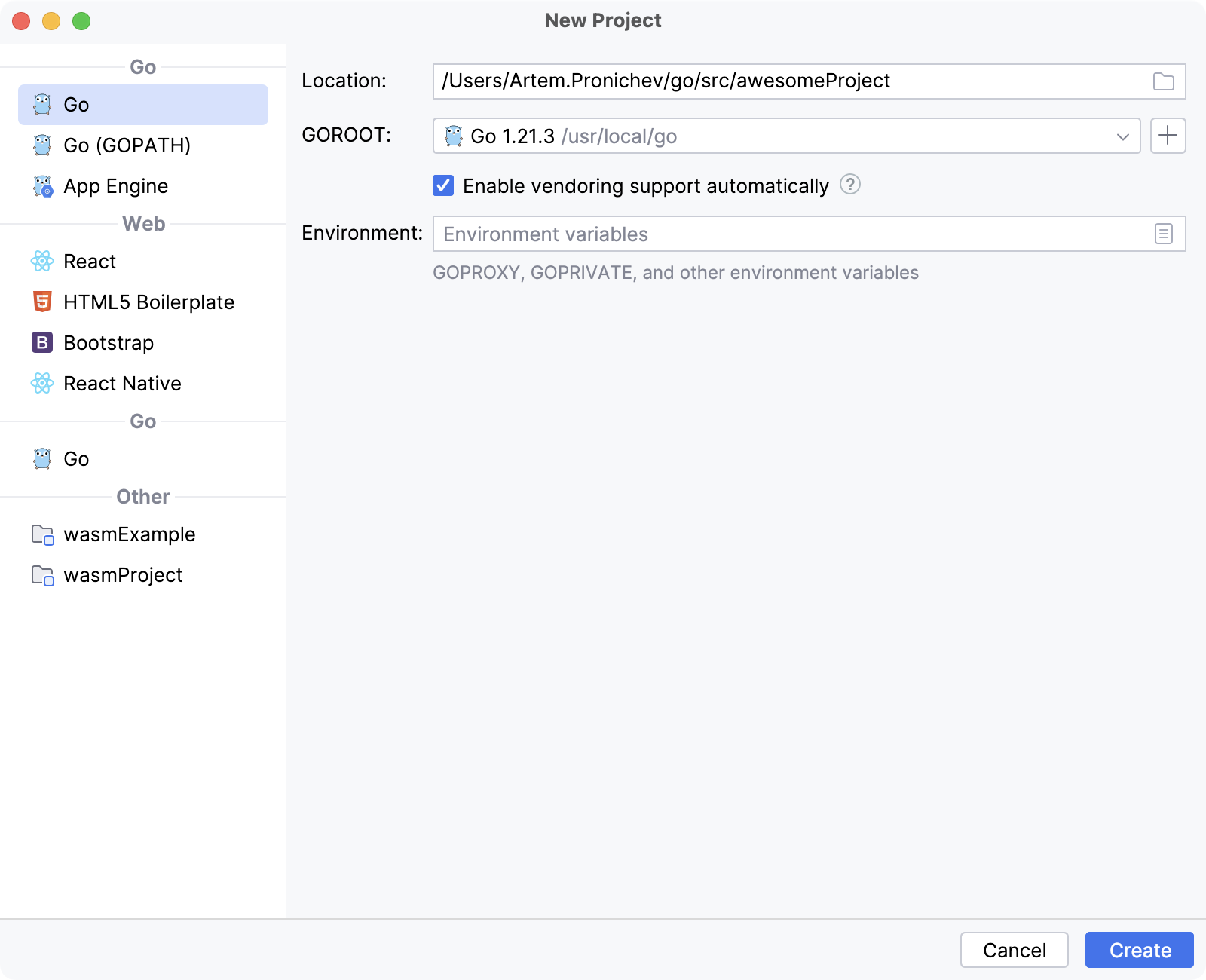
The projects that you have saved as templates appear in the User-defined category in the New Project dialog.
Procedure: Save a project as a template
1. In the main menu, go to `Tools | Save Project as Template…`.
2. In the dialog that opens, name the template and provide a description. For the description, you can use the `` and ``, and `` and `` tags for formatting.
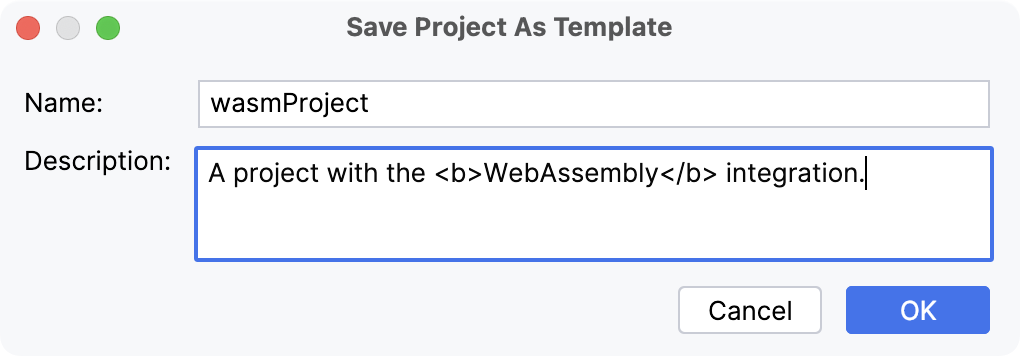
Templates are saved to the `projectTemplates` folder in the IDE [configuration directory](directories-used-by-the-ide-to-store-settings-caches-plugins-and-logs.html#config-directory).
Procedure: Create a project from a template
1. Select `File | New Project` from the main menu.
2. In the dialog that opens, click the required template in the Templates section on the left.
Procedure: Delete project templates
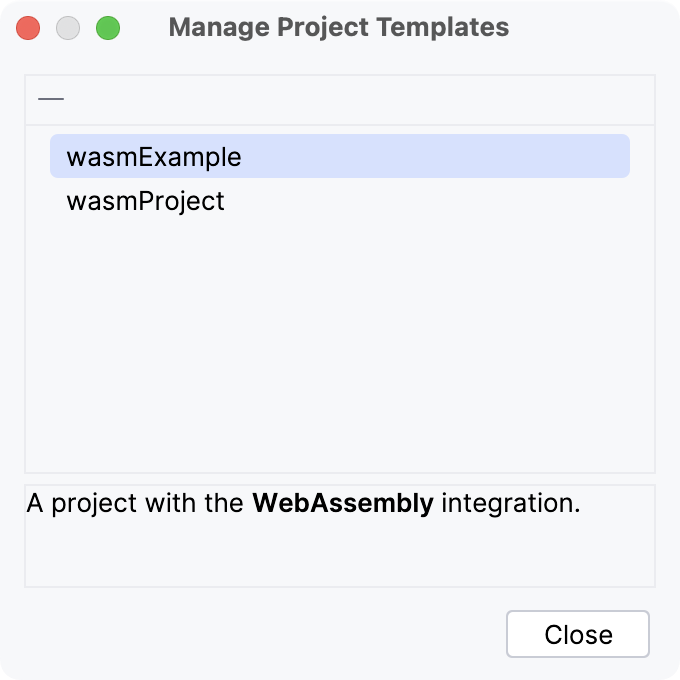
1. In the main menu, go to `Tools | Manage Project Templates…`.
2. Select the template that you want to remove and click  Remove.