# XML and HTML templates
> For the complete documentation index, see [llms.txt](https://www.jetbrains.com/help/go/2026.3/llms.txt).
## Examples for HTML and XML
The following examples show how you can use structural search in HTML and XML code.
Procedure: Delete all lines with the id attribute greater than 2
1. Create an HTML file and paste the following code:
```HTML
Structural Search Example
- Example line 1
- Example line 2
- Example line 3
- Example line a
- Example line 5
```
2. In the main menu, go to `Edit | Find | Search Structurally`.
3. From the Language list, select HTML.
4. Paste the following string to the Search template field:
```
<$tag$ $attribute$="$value$">
```
5. Click the `$tag$` variable.
6. In the filter panel, click Add modifier, select Text and type `li` in the value field.
If the filter panel is not visible, click  Toggle Modifier Panel.
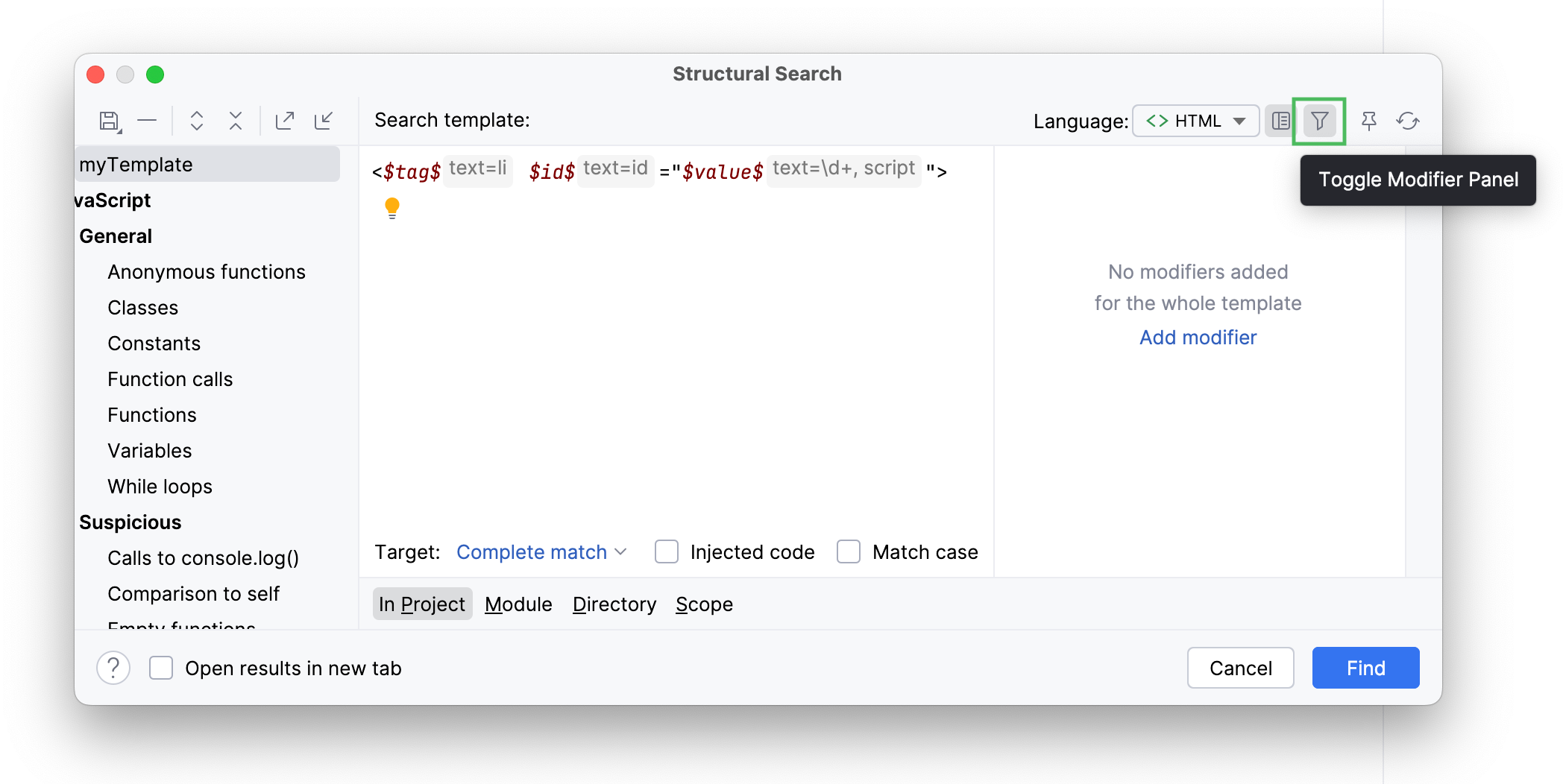
7. Click the `$attribute$` variable.
8. In the filter panel, click Add modifier, select Text and type `id` in the value field.
9. Click the `$value$` variable.
10. In the filter panel, click Add modifier, select Text and type `\d+` in the value field.
The `\d+` regular expression limits search results to numeric values. So, the line with the `id="a"` will be filtered out.
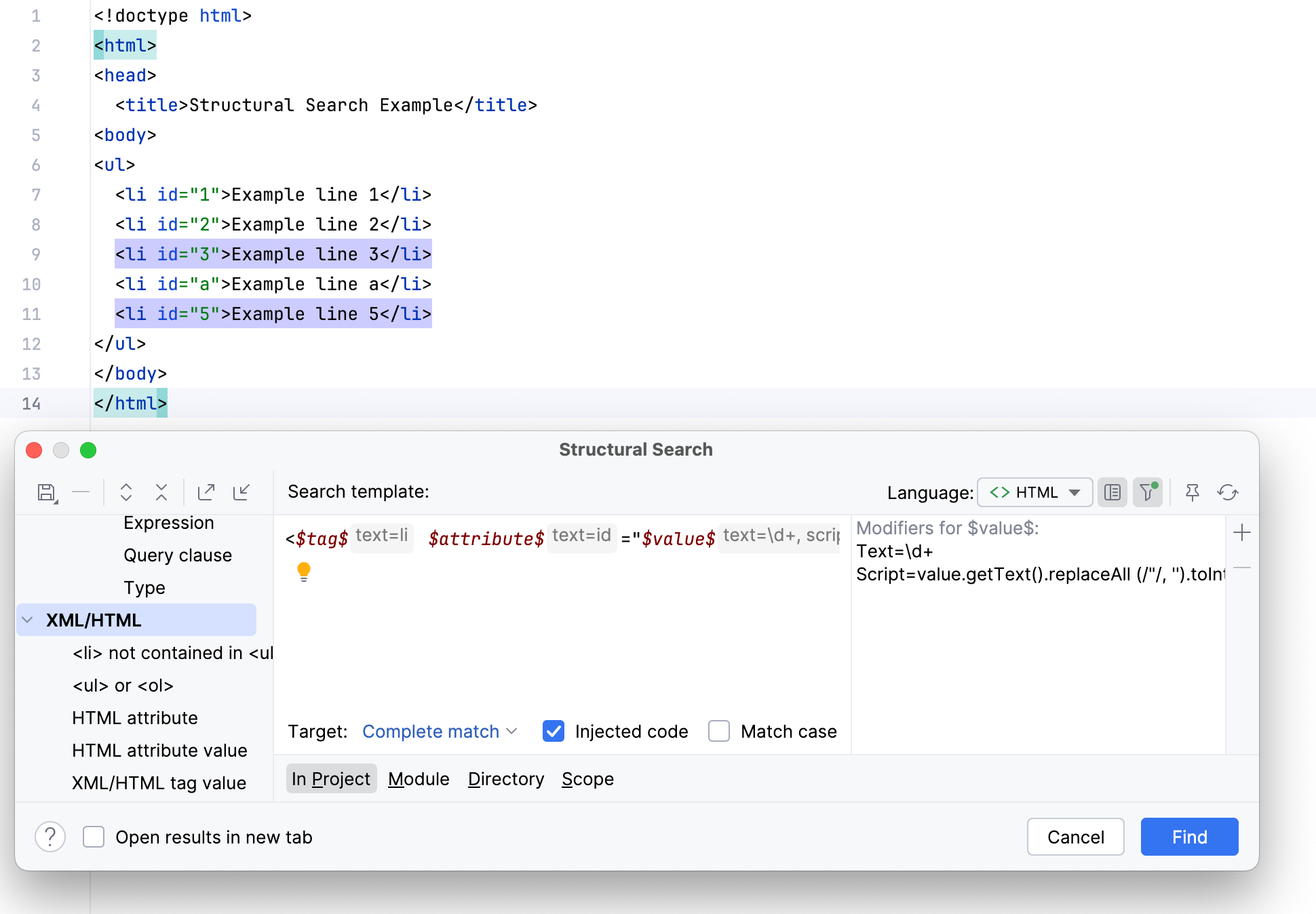
11. Without switching the focus from the filter panel, click the Add button, select Script and paste the following code:
```GROOVY
value.getText().replaceAll (/"/, '').toInteger() > 2
```
The script reads the content of the `$value$` variable and returns it as a string (for example, `"1"`). Then the script replaces all the quotes and converts the string value to integer and compares it with `2`.
> **Note:**
> To switch between different selection scopes, select the necessary value from the Target list. For example, to select the whole line that matches the template, select Complete match.
Procedure: Convert uppercase values of the class attribute in li tags to lowercase
1. Create an HTML file and paste the following code:
```HTML
Structural Replace Example
- Example line 1
- Example line 2
- Example line 3
- Example line a
- Example line 5
```
2. In the main menu, go to `Edit | Find | Replace Structurally`.
3. From the Language list, select HTML.
4. Paste the following string to the Search template field:
```
<$tag$ $attribute$="$value$">
```
5. Select the Match case checkbox.
6. Click the `$tag$` variable.
7. In the filter panel, click Add modifier, select Text and type `li` in the value field.
8. Click the `$attribute$` variable.
9. In the filter panel, click Add modifier, select Text and type `class` in the value field.
10. Click the `$value$` variable.
11. In the filter panel, click Add modifier, select Text and type `[A-Z].*` in the value field.
The `[A-Z].*` regular expression limits search results to uppercase values.
> **Note:**
> Sometimes you might need to use inline flags. In this case the regular expression will be the following: `(?-i)\b[A-Z]+\b`. `(?-i)` ensures that case-insensitive mode is turned off.
12. From the Target list, select value. This procedure highlights all the uppercase values of the `class` attribute.
13. In the Replace template field, paste the `$to_lower_case$` variable.
14. Click the `$to_lower_case$` variable.
15. In the filter panel, click Add modifier, select Script and paste the following code:
```GROOVY
value.getText().toLowerCase()
```
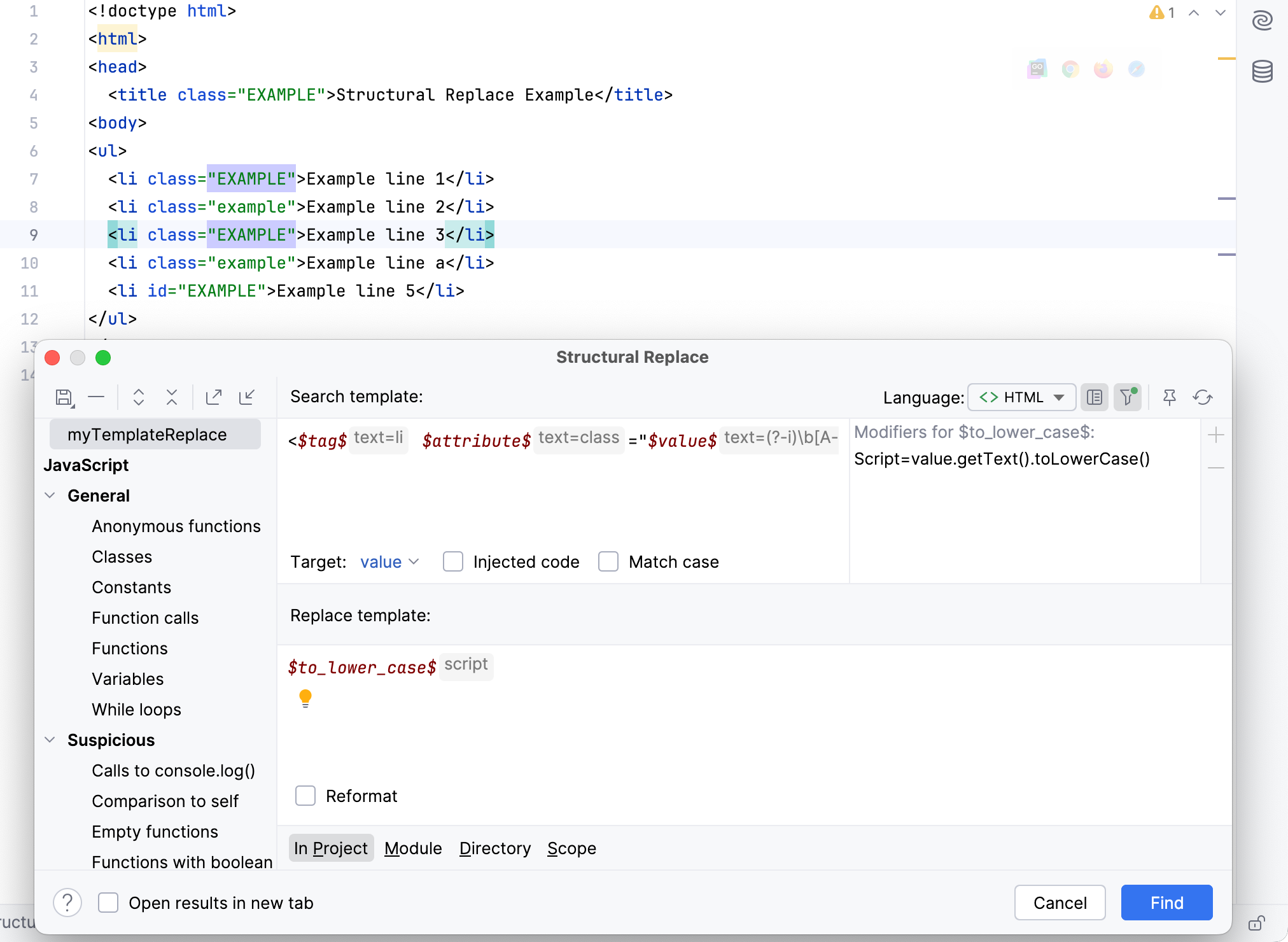
16. Click Find.
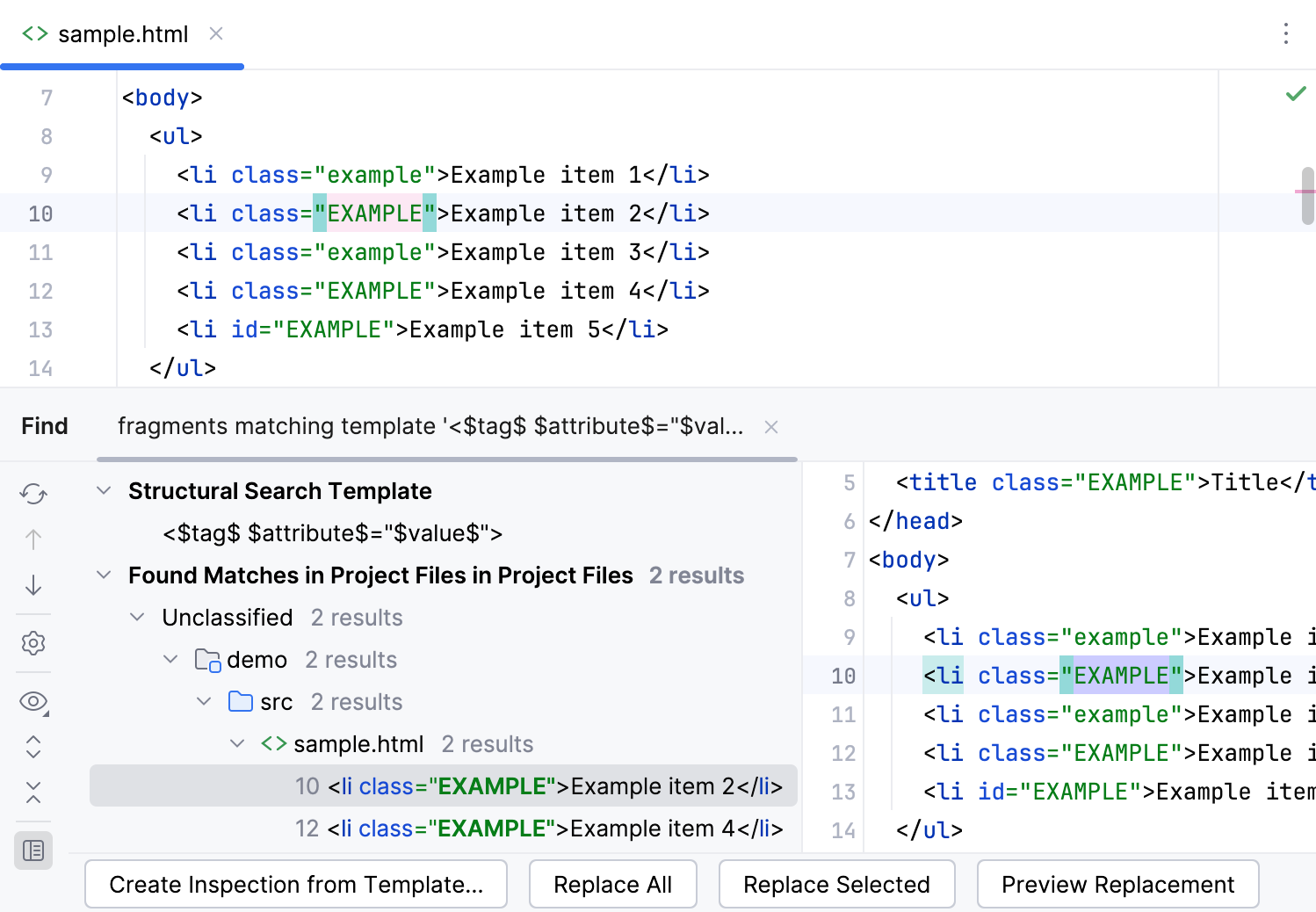
17. In the Find tool window, preview the found results and click Replace All.