Analyze code for syntax updates with go fix
GoLand provides inspections based on go fix. These inspections help you update code for language and standard library changes introduced in later Go versions.
The Go toolchain analyzes your code. GoLand displays the results as inspections in the editor. Each inspection identifies an outdated construct. Inspections that support automatic updates provide a quick-fix.
Apply a syntax update in the editor
GoLand highlights syntax updates with a blue underline and the syntax update icon ( ).
).
Apply a syntax update
Place the caret at a highlighted code element.
Click the light bulb icon or press Alt+Enter.
Select the quick-fix, then press Enter or click the quick-fix.
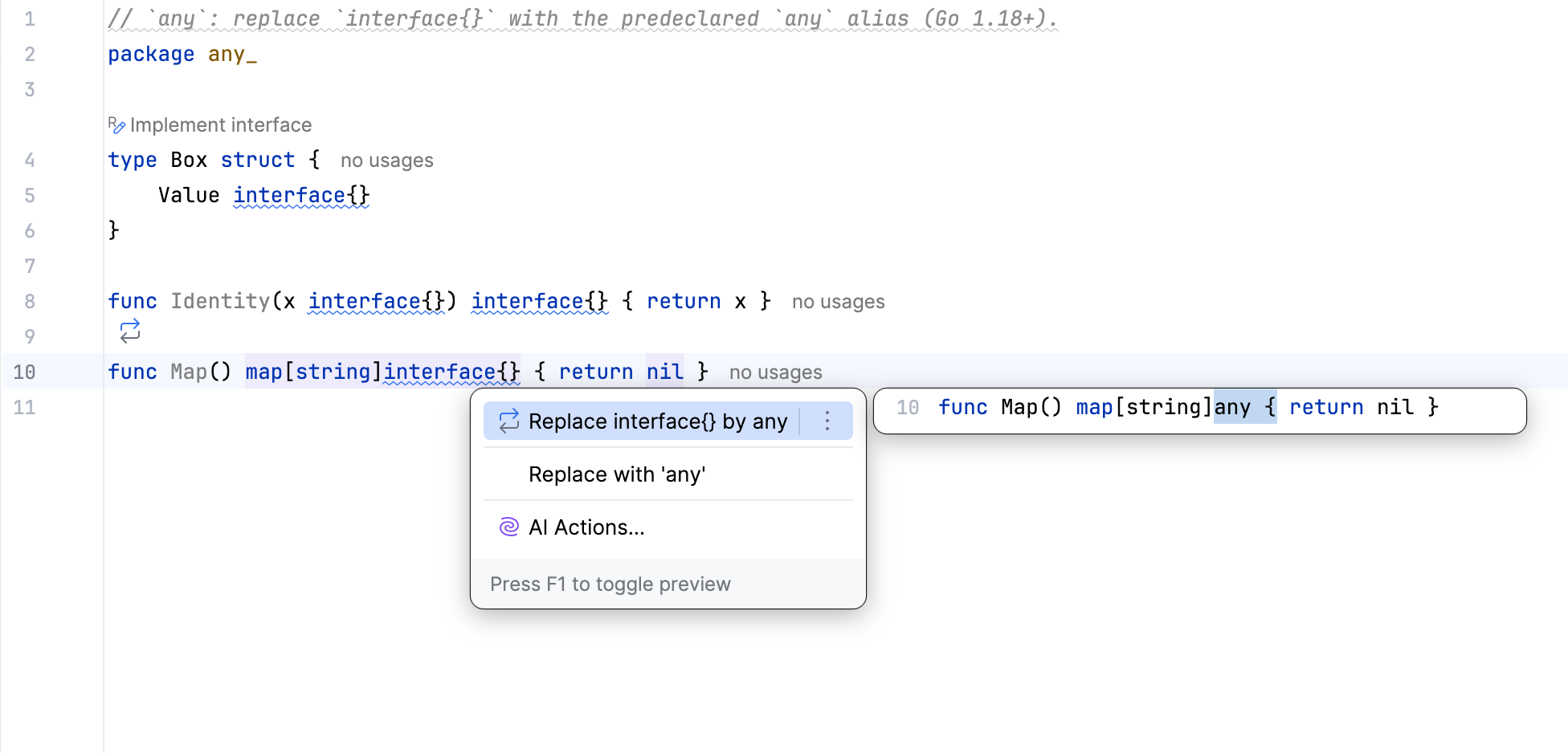
For more information about quick-fixes, refer to Intention actions.
Analyze code for additional syntax updates
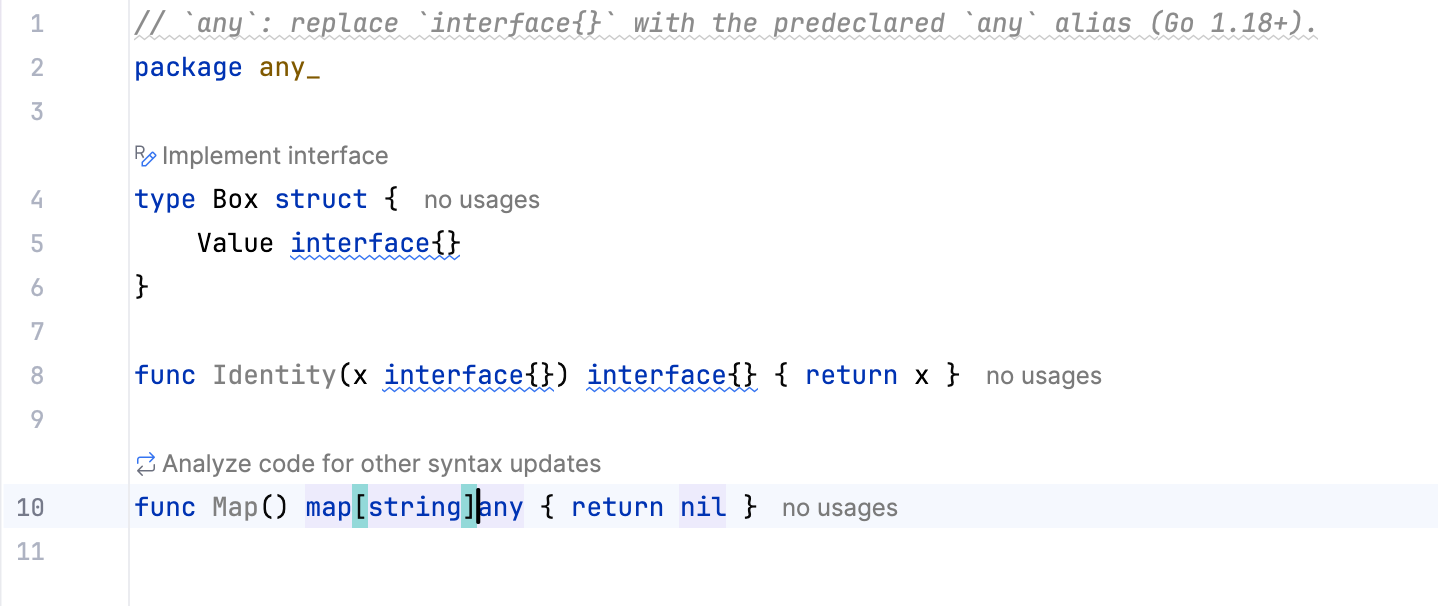
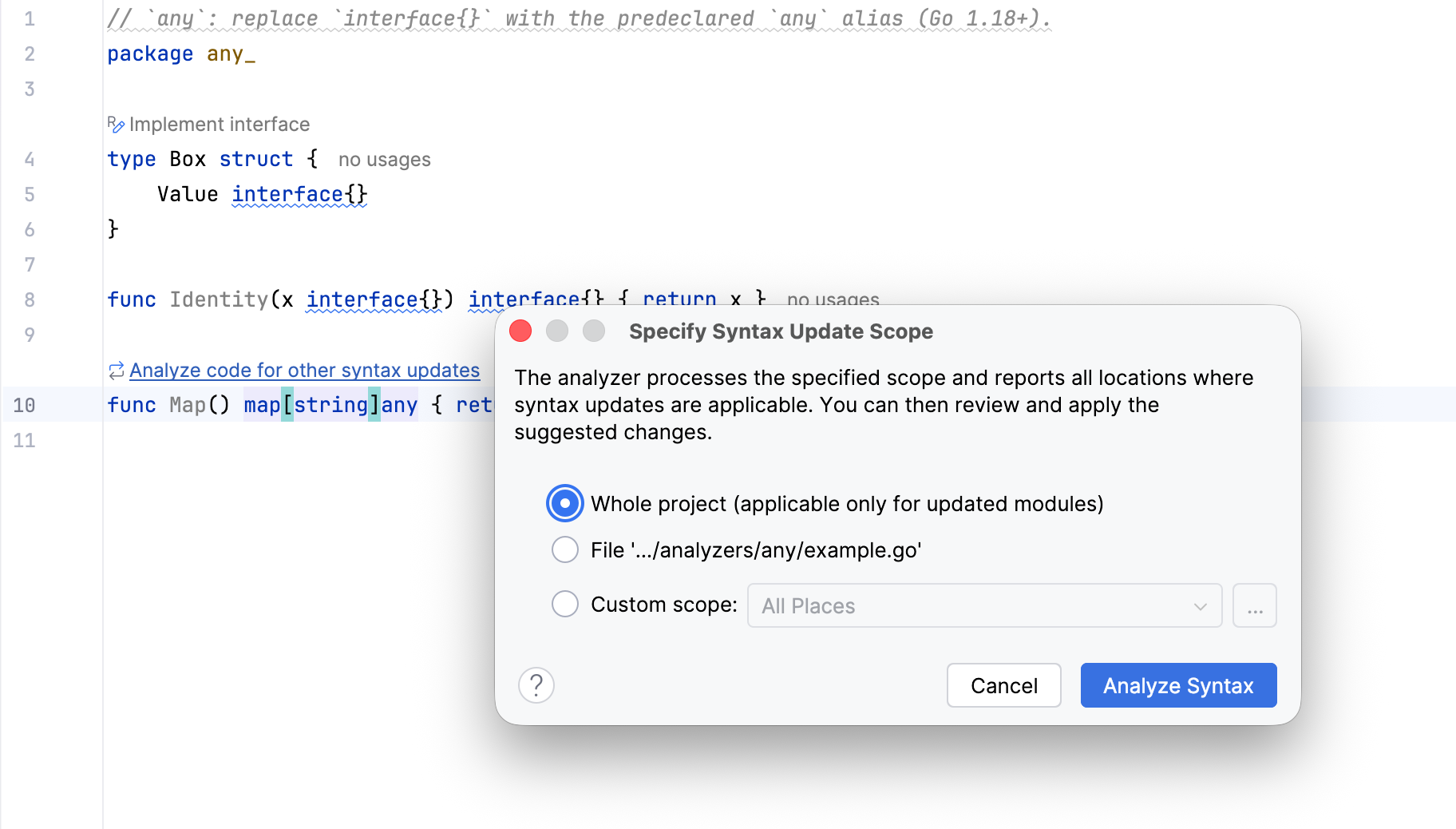
After you apply a syntax update, GoLand displays the Analyze code for other syntax updates link in the editor.
Analyze code for additional syntax updates
Click Analyze code for other syntax updates.
In the Specify Syntax Update Scope dialog, select Whole project, the current file, or Custom scope.
Click Analyze.
GoLand displays the results in the Problems tool window under .
Review and apply syntax updates
In the Problems tool window, select an inspection to review its description, affected files, and available quick-fix.
Apply syntax update quick-fixes
To update one occurrence, expand the inspection and file nodes, select the occurrence, and click the quick-fix button. The button label identifies the fix for the selected inspection.
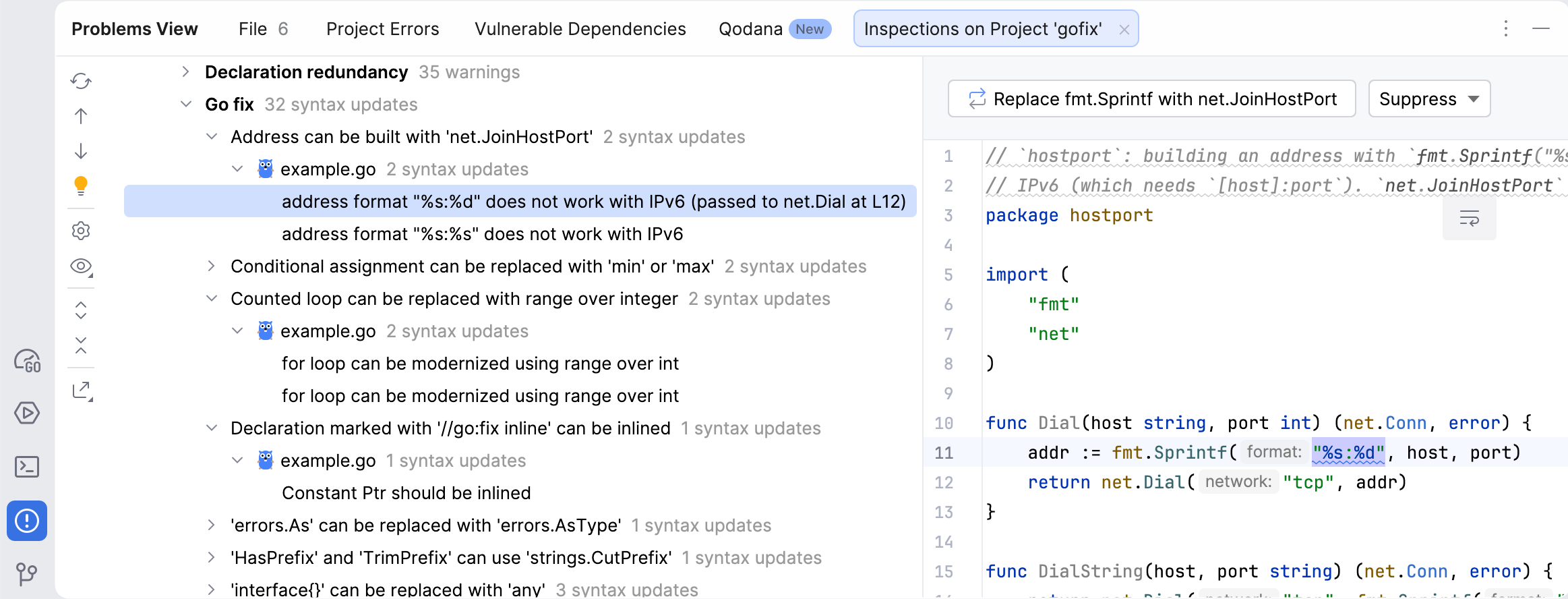
To update all occurrences in an inspection group, select the group and click Apply all go fix suggestions.
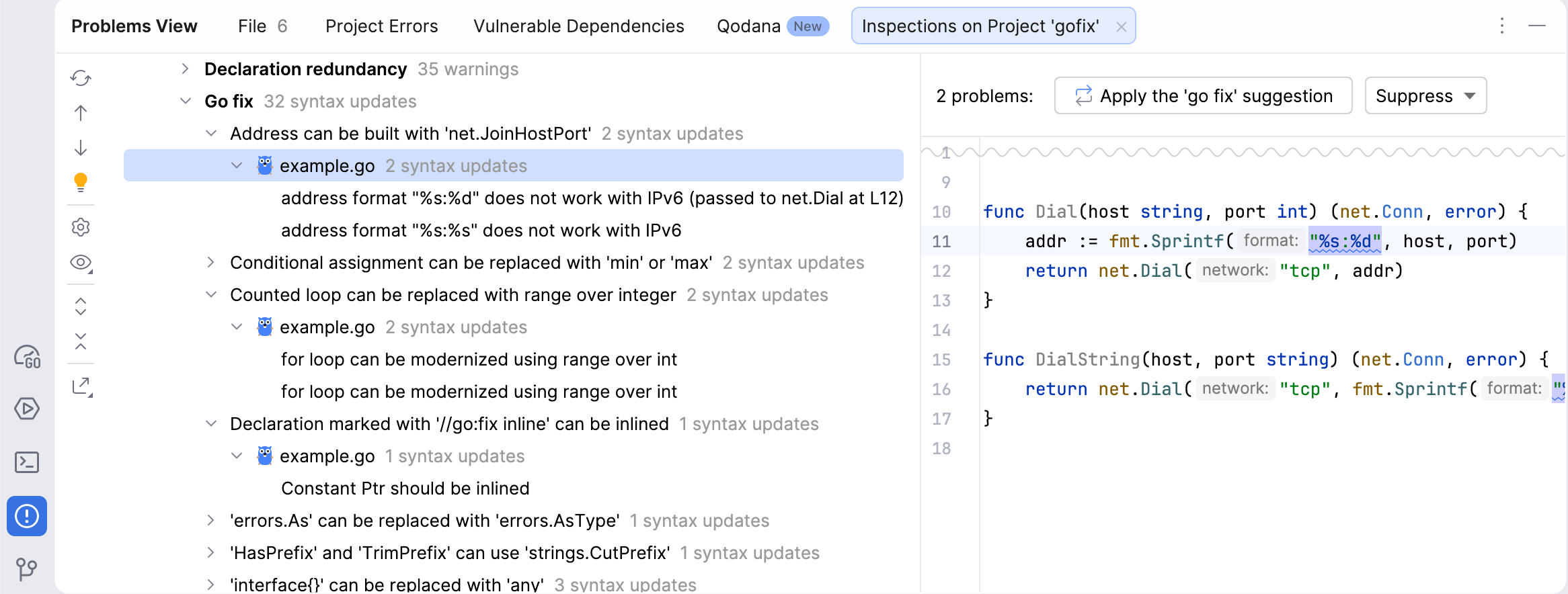
Run an inspection in another scope
In the inspection details, click Run inspection on
In the inspection scope dialog, select the whole project or a custom scope.
To include code injected into strings, select Inspect injected code.
Click OK.
Configure syntax update inspections
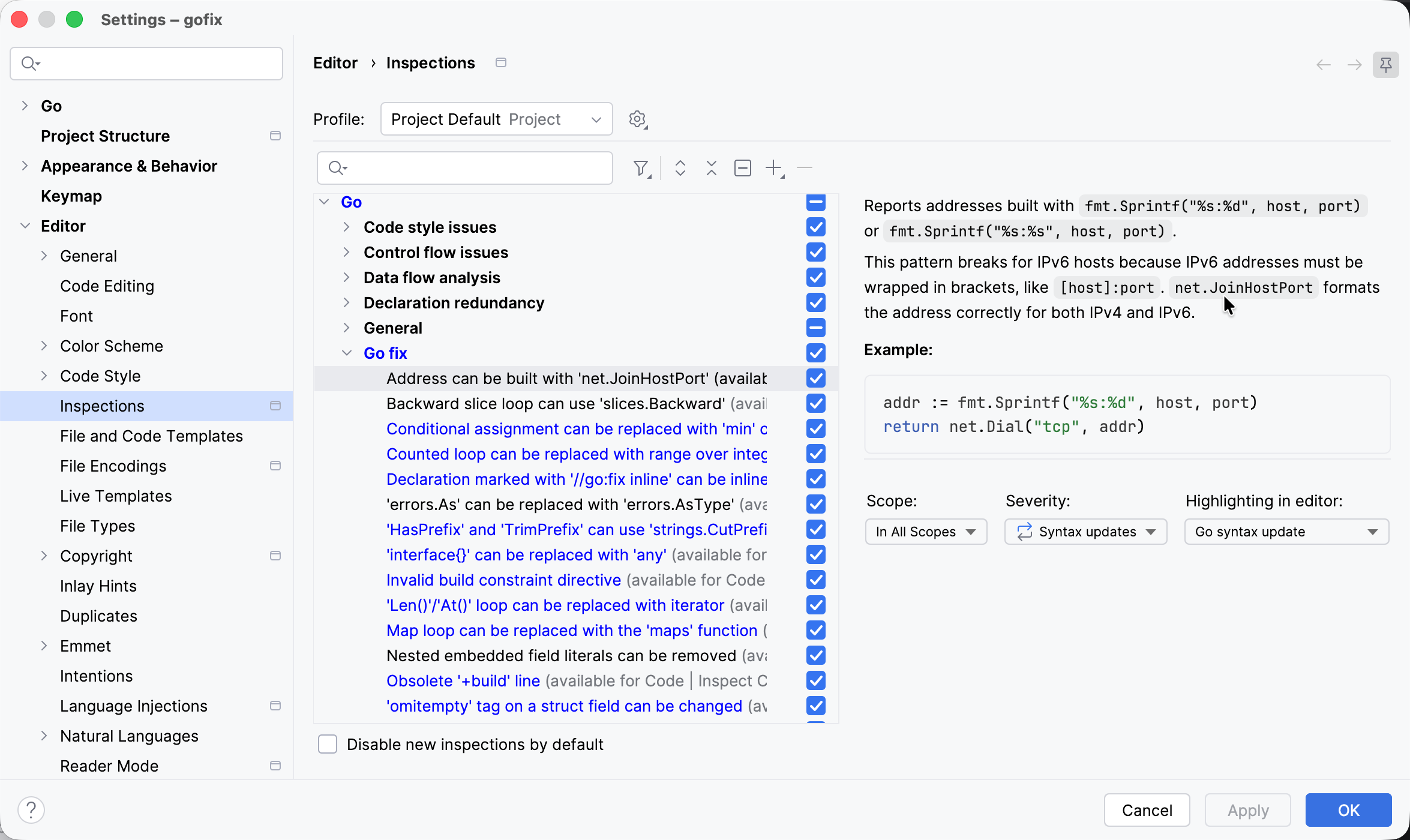
Go fix inspections use the Syntax updates severity and the Go syntax update highlighting style by default.
Configure syntax update inspections
Open settings by pressing Ctrl+Alt+S and navigate to .
Expand Go | Go fix.
Select an inspection. To configure all Go fix inspections at once, select the Go fix group.
Select a value from the Severity list.
Select a value from the Highlighting in editor list.
Apply the changes and close the dialog.