Debugging in Kubernetes
GoLand supports the following Kubernetes debugging flows: on-the-fly pod troubleshooting with ephemeral containers and remote debugging with Telepresence, so you can diagnose various issues without leaving your IDE.
Ephemeral containers
GoLand supports attaching ephemeral containers to running pods without restarting them. This way, you can inspect a live Kubernetes environment, run diagnostic commands, and investigate issues directly inside a running pod.
An ephemeral container is temporarily added to an existing pod for debugging and runs alongside your application containers. For this purpose, GoLand runs the kubectl debug command under the hood. You can either attach your custom debug container or use a lightweight BusyBox image, which provides common tools like ping, netstat, wget, and top out of the box.
For more details on debugging running pods, refer to the Kubernetes documentation.
Attach BusyBox to a running pod
Open the Services tool window: go to or press Alt+8.
Expand the node that lists running pods, right-click the pod you want to debug, and select from the context menu.
Alternatively, select the required pod, click
 on the toolbar, and select Attach Busybox from the dropdown.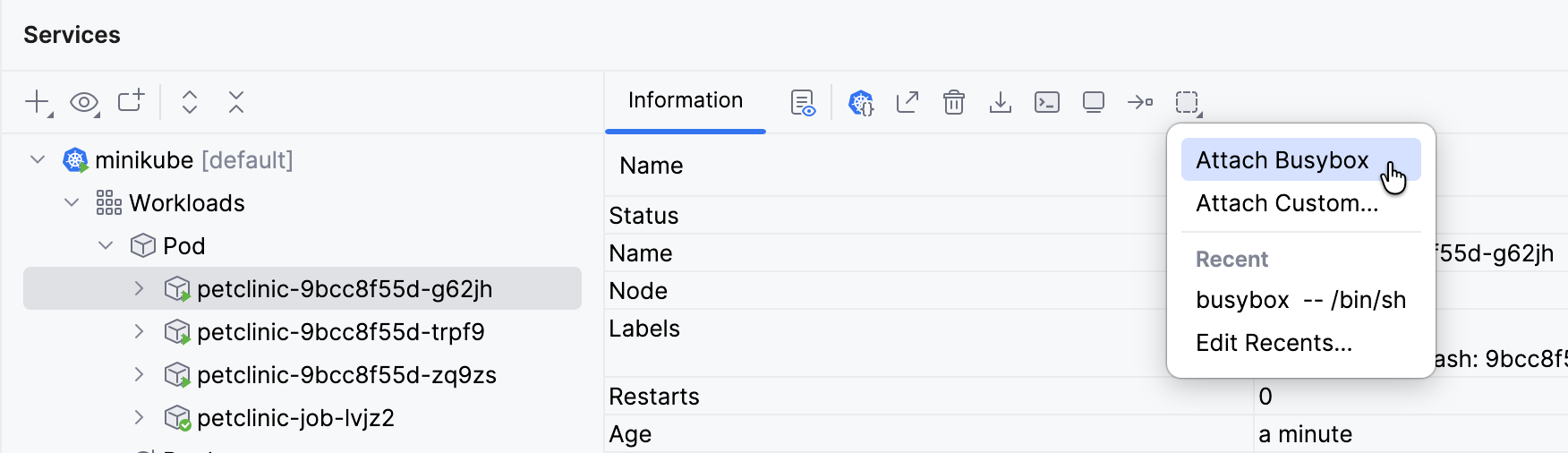
Attach a custom container to a running pod
Open the Services tool window: go to or press Alt+8.
Expand the node that lists running pods, right-click the pod you want to debug, and select from the context menu.
Alternatively, select the required pod, click
on the toolbar, and select Attach Custom from the dropdown.In the Attach Custom Debug Container dialog, use the following fields to customize the
kubectl debugcommand for starting and attaching an ephemeral container:Pod: select the pod you want to debug from the dropdown.
Target: specify the target container inside the selected pod.
Image: start typing the name of an image to use for debugging and then select it from the list of suggestions.
Executable: specify an absolute path to the shell to run inside the ephemeral container after it starts (for example,
/bin/shfor BusyBox or/bin/bashfor Ubuntu).Options: provide additional configuration parameters for the debug container. For examples, refer to the Kubernetes documentation.
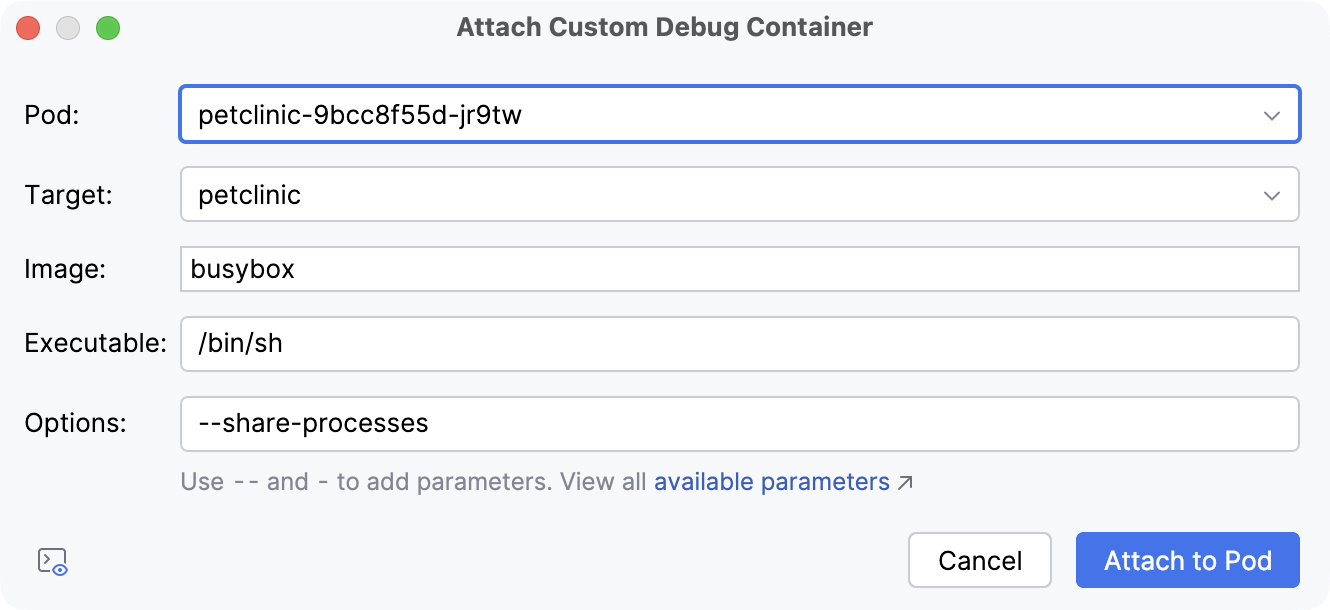
Click Attach to Pod.
When GoLand starts a new ephemeral container and successfully attaches it to the pod, the Console tab opens, where you can run commands and inspect the pod.
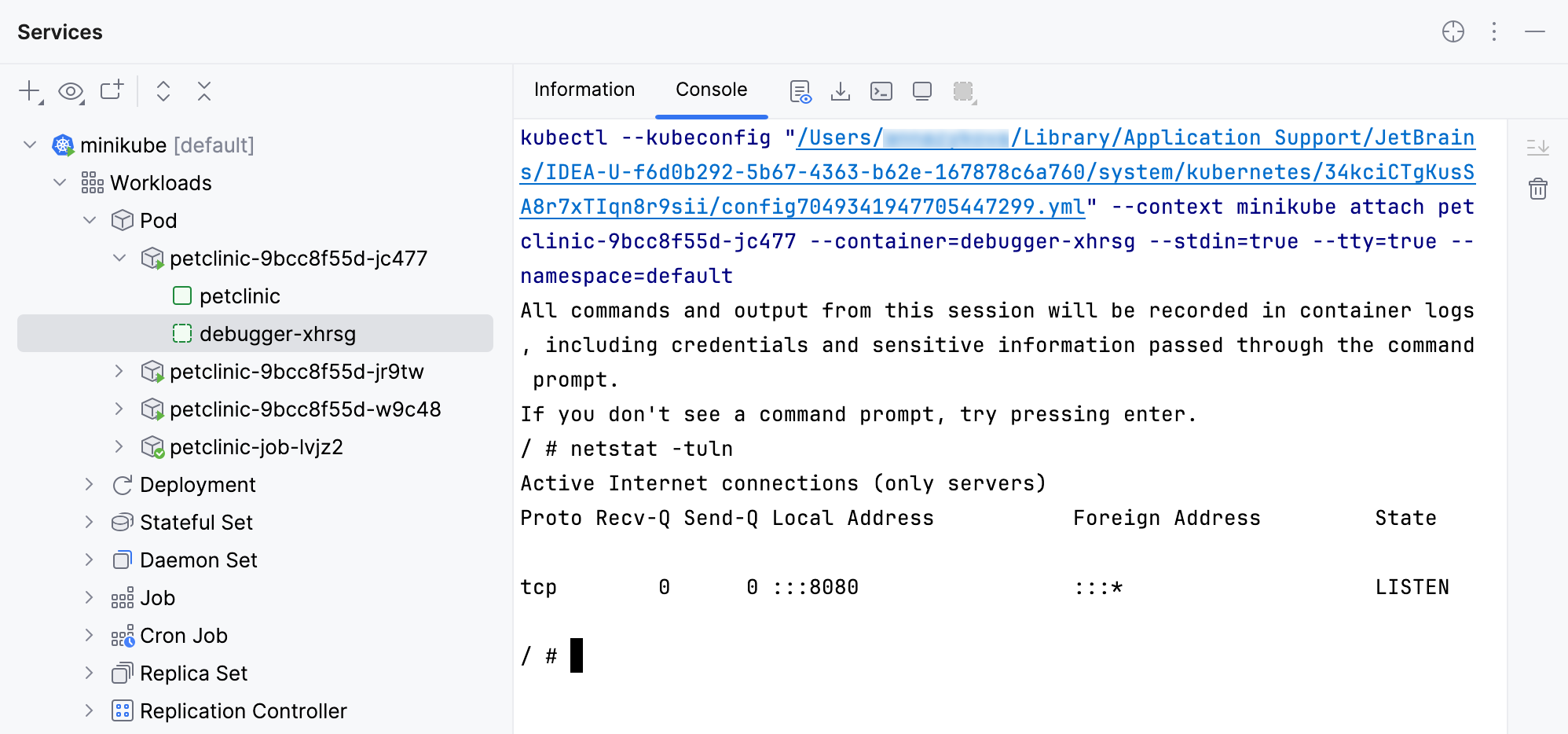
If you attach BusyBox, GoLand automatically uses sh. For custom images, the IDE uses the shell specified in the Executable field.
The container is removed when you delete the pod it is attached to.
Recent commands
When you attach an ephemeral container using the Ephemeral Debug Containers menu, GoLand automatically saves the corresponding kubectl debug command. You can access and rerun it later from the Recent section.
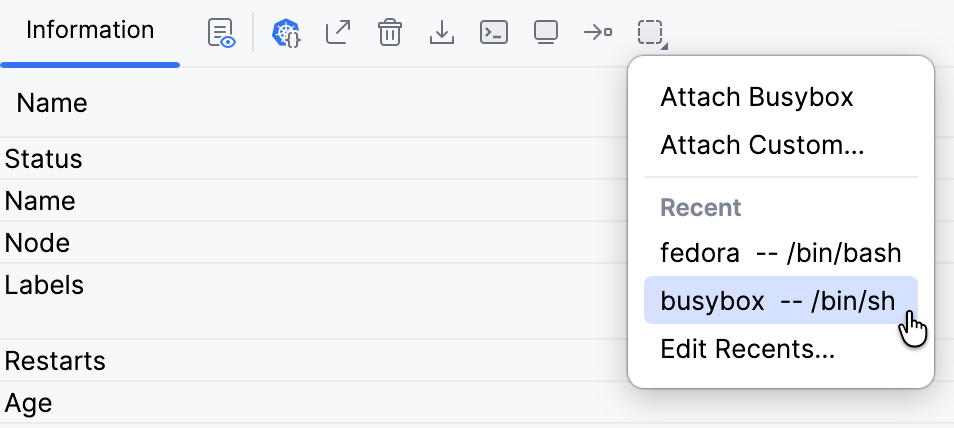
Start an ephemeral container using a recent command
Open the Services tool window: go to or press Alt+8.
Expand the node that lists running pods and right-click the pod you want to debug. Select Ephemeral Debug Containers and the required recent command from the context menu.
Alternatively, select the required pod, click
on the toolbar, and select the recent command from the dropdown.
Manage recent commands
Access recent commands:
In the Settings dialog (Ctrl+Alt+S) , select .
Open the Sevices tool window (Alt+8). Right-click any running pod and select from the context menu.
Navigate to the Ephemeral Debug Containers section.
To add a new command that you can preconfigure and quickly start new ephemeral containers, click
 . In the Add Debug Parameters dialog, you can specify an image, executable, and options for the
 kubectl debugcommand.To remove a command from recents, select it in the table and click
 .
.To edit an existing command, select it in the table and click
 . In the Add Debug Parameters dialog, change the image, executable, and options for the
 kubectl debugcommand.
Telepresence
Telepresence is a tool that lets you access services in a Kubernetes cluster, debug them, make, and test changes as if the services were running on your computer locally.
The Kubernetes plugin provides integration with Telepresence allowing you to:
Connect to Telepresence to access a service in the cluster by its DNS name.
Intercept a service to route traffic from the cluster to your local environment.
Connect to Telepresence
Open the Services tool window: select or press Alt+8.
Right-click your Kubernetes cluster and select Connect Telepresence. Alternatively, click
 in the toolbar. When prompted, enter your administrator account password required to start the Telepresence daemon. On Windows, allow telepresence.exe to be executed.
After installing Telepresence and Traffic Manager, click Connect Telepresence again.
You can now access services in the Kubernetes cluster by their DNS names as if the cluster were running on your workstation. For example, if you have an application that accepts requests to hello-node:9001, you can access it by its name.
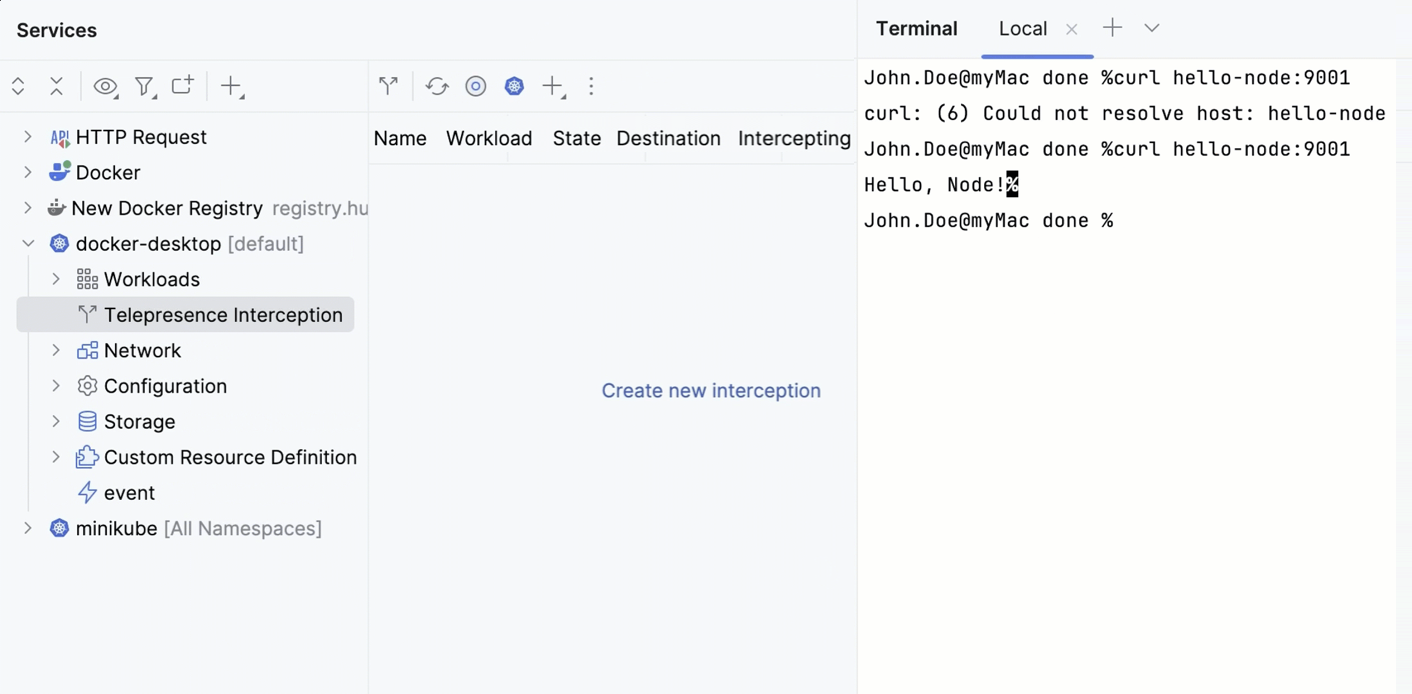
Intercept traffic from the cluster
Intercepts allow you to take traffic going to a service in the Kubernetes cluster and route it to the local service.
On the toolbar, click
(Create New Interception) and then click Create new interception.In the window that opens, in the Service list, select a workload to intercept. This can be a Deployment, a ReplicaSet, or a StatefulSet.
In the Ports field, specify the port on which the local instance of your service is running.
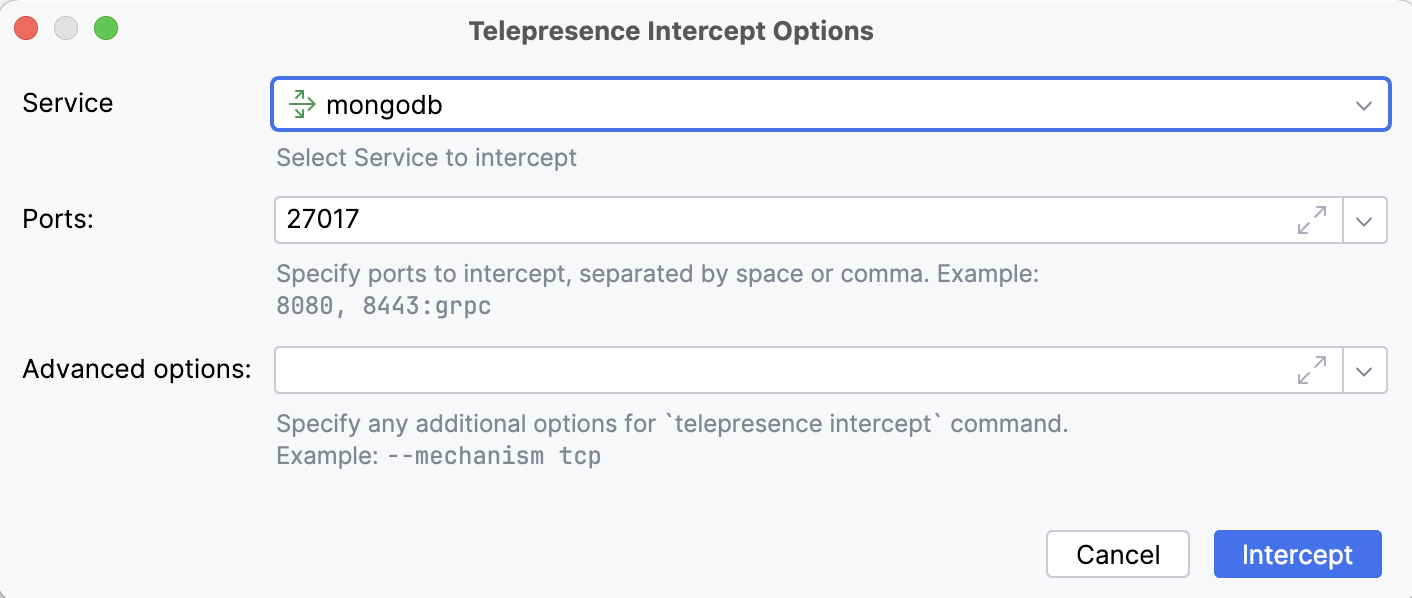
If the service is intercepted successfully, you can access it locally and use the IDE features to try, debug, and profile your application running in the cluster.
Quit Telepresence
Telepresence interacts with one cluster at a time, so you may need to stop it before connecting to another cluster. Quitting Telepresence will stop all active intercepts.
Open the Services tool window: select or press Alt+8.
Right-click your Kubernetes cluster and select Quit Telepresence. Alternatively, click
 in the toolbar.
Run the application with interception
In GoLand, with a single click, you can run your local application and, at the same time, redirect traffic destined for a service in your Kubernetes cluster to this local application.
This is achieved by configuring a tunnel (a Telepresence intercept) to your Kubernetes cluster and adding it as a Before launch task to your run configuration. Each time yourun this run configuration, GoLand creates a Telepresence intercept allowing you to debug your remote application as if it was running locally.
Add interception to your run configuration
Make sure that:
The original instance of your service is deployed and running in your Kubernetes cluster, and the source code of its local instance is opened in your editor.
Your GoLand instance is connected to your Kubernetes cluster.
Click
 in the gutter near the main class declaration and select Add Tunnel for Remote Debug. This action is available if you have at least one cluster connected in GoLand.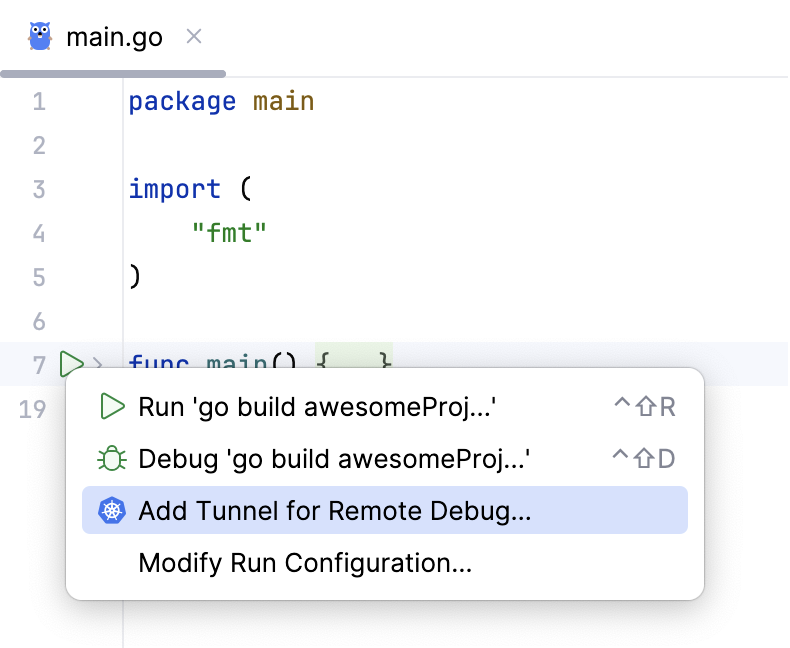
Alternatively, if a run/debug configuration already exists for your application, click
 in the run widget and select Add Tunnel for Remote Debug.
In the Add Kubernetes Tunnel to Run Configuration window that opens, select a cluster and namespace and click Connect to Cluster. When prompted, enter your administrator account password required to start the Telepresence daemon.
If you are successfully connected to the cluster, configure the intercept parameters:
In the Service list, select a workload to intercept
In the Ports field, specify the port on which the local instance of your service is running.
Optionally specify additional options to the
telepresence interceptcommand.
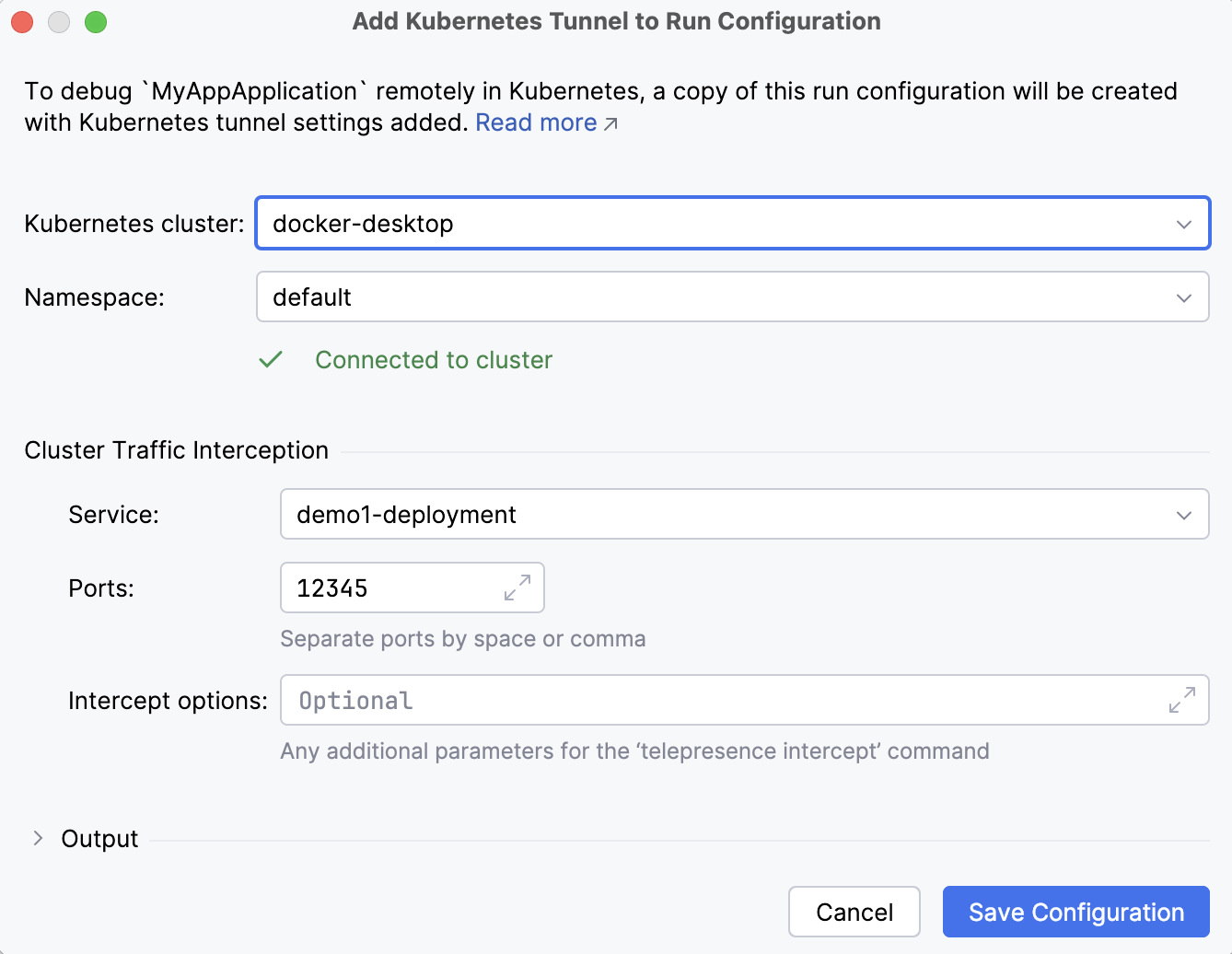
If you want to check the output of the Telepresence commands, expand the Output section. This section will be automatically expanded if you get any errors while connecting to Telepresence.
Click Save Configuration. To check the intercept parameters, GoLand will create an intercept and then leave it.
The intercept parameters are saved as a Add Tunnel for Debug before launch task in a new run configuration. To distinguish it from other run configurations, this run configuration name will include the (Telepresence) suffix, for example, MyApp (Telepresence).
You are now ready to run your application and intercept its remote version.
Run the application with interception
In the run widget, select a run configuration with the (Telepresence) suffix.
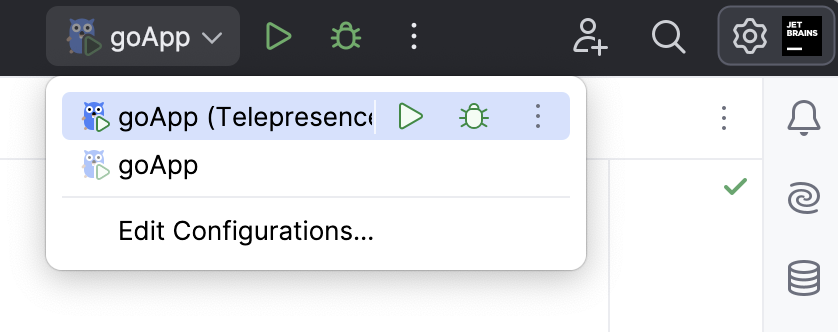
Click
to run it or  to start the debugger session.
This will run your local application, and at the same time it will run the telepresence intercept command with the parameters specified above.
Telepresence now intercepts all traffic going to a service in your cluster and routes it to your local application. You can locally code and debug your intercepted service.
The Services tool window will show the created intercept under the Telepresence interception node. The root node of your Kubernetes cluster will also display the generated telepresence command and related logs.
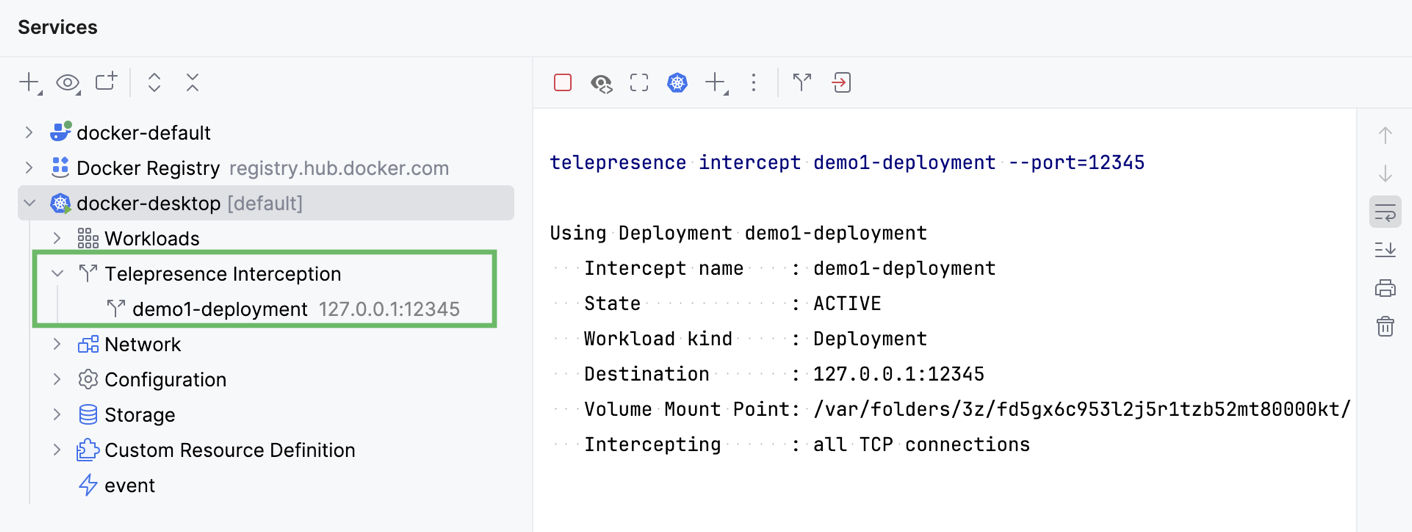
When you stop this application (by clicking  ), GoLand also stops the intercept (
telepresence leave).