Opening files
You can now open and work with individual files in GoLand without creating a full project. This mode is ideal for quick edits, code reviews, and experimenting with small code snippets.
GoLand provides several ways to open a single file.
Open a file by dragging it into the IDE
From your file browser (Finder, Explorer, or another file manager), drag the file to the Welcome screen.
GoLand opens the file in a new tab without creating a project.
Open a file from the command line
You can open a file directly from the terminal using the goland command.
In the terminal, run the following command:
You can find the executable for running GoLand in the installation directory under bin. To use this executable as the command-line launcher, add it to your system
PATHas described in Command-line interface.- Syntax
- goland64.exe [--line <number>] [--column <number>] <path>
- Examples
Open a project:
goland64.exe C:\MyProjectOpen a specific file on line number 42:
goland64.exe --line 42 C:\MyProject\main.go
By default, GoLand does not provide a command-line launcher. For more information about creating a launcher script for GoLand, refer to Command-line interface.
- Syntax
- goland [--line <number>] [--column <number>] <path>
- Examples
Open a project:
goland ~/MyProjectOpen a specific file on line number 42:
goland --line 42 ~/MyProject/main.go
You can find the script for running GoLand in the installation directory under bin. To use this script as the command-line launcher, add it to your system
PATHas described in Command-line interface.- Syntax
- goland.sh [--line <number>] [--column <number>] <number> <path>
- Examples
Open a project:
goland.sh ~/MyProjectOpen a specific file on line number 42:
goland.sh --line 42 ~/MyProject/main.go
When you specify the path to a file, GoLand opens it in the LightEdit mode, unless it belongs to a project that is already open or there is special logic to automatically open or create a project (for example, in case of Maven or Gradle files) . If you specify a directory with an existing project, GoLand opens this project. If you open a directory that is not a part of a project, GoLand adds the .idea directory to it, making it a project.
The specified file will open in GoLand without creating a new project.
Open a file by double-clicking it
In your file browser, double-click the file you want to open.
If GoLand is set as the default editor for the file type, the file will open automatically in GoLand.
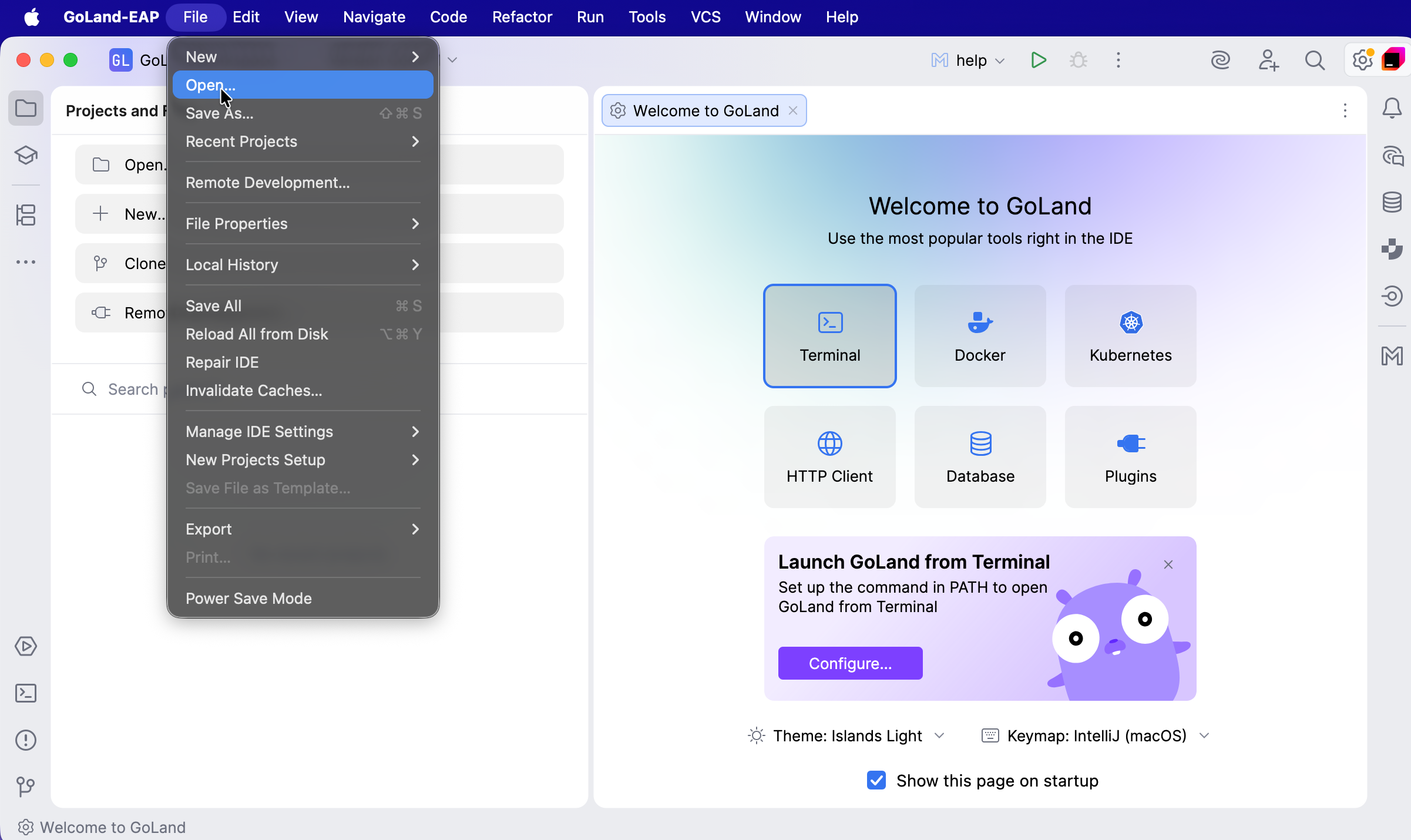
Open a file using the main menu
Select from the main menu.
In the dialog that opens, navigate to the file you want to open and click Open.
Open a file from the Welcome screen
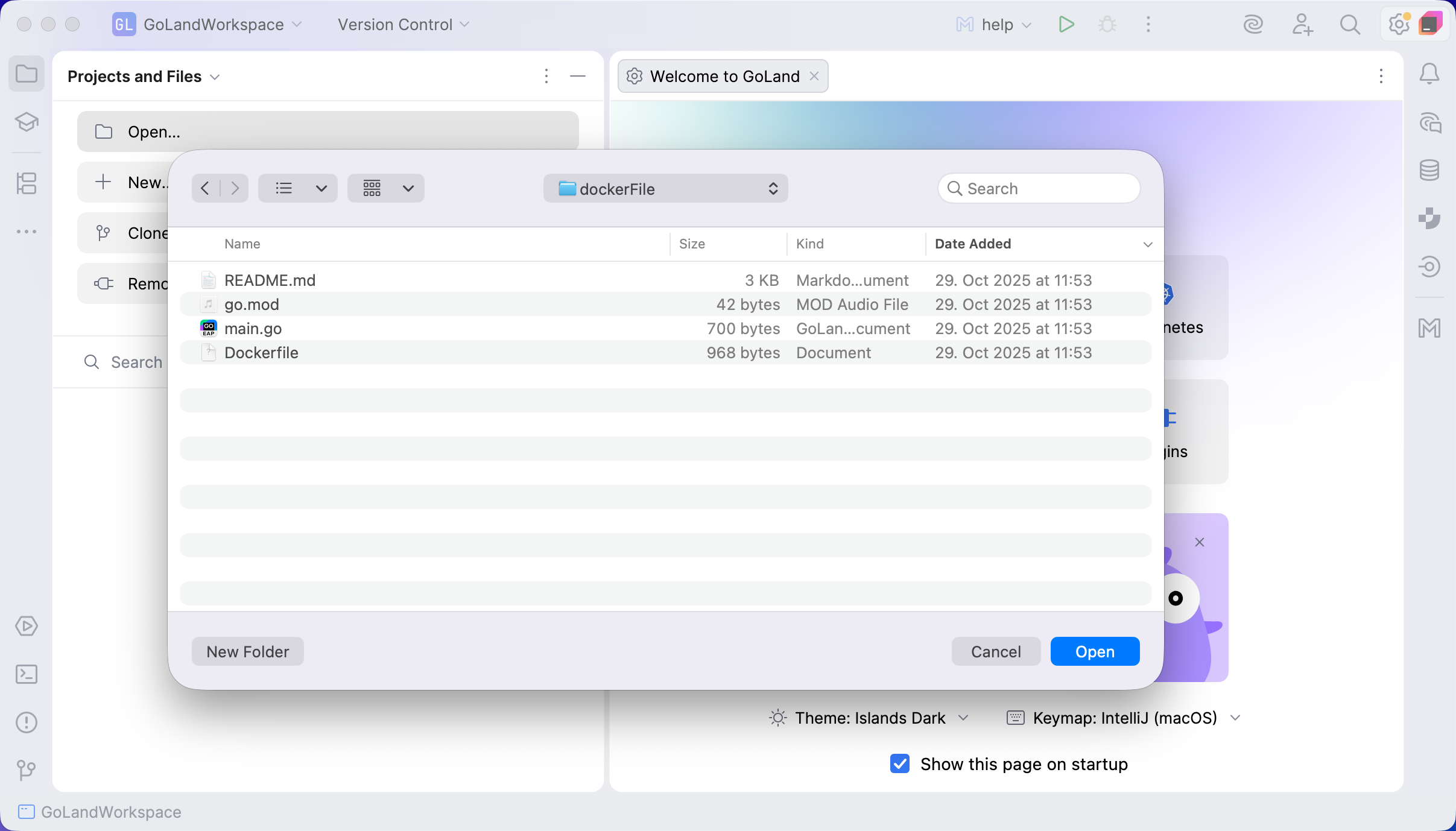
On the Welcome screen, click Open.
In the dialog that opens, select the file you want to open and click Open.