Project analysis
Project analysis allows GoLand to enable smart IDE features: code completion, inspections, refactoring, navigation, finding usages, and syntax highlighting.
GoLand triggers this process after you open or clone a new project, enable or disable plugins, and switch between branches. It is also triggered after large external file updates (for example, if multiple files are created or generated when you build your project).

During the analysis, GoLand examines the code in your project to create a virtual map of types, methods, objects, and other code elements that make up your application. The result of this process is the project files index, which allows the IDE to provide instantaneous smart features such as coding assistance, search, navigation, and so on.
While the analysis is in progress, smart IDE features might be unavailable or partially available. However, this does not prevent you from using GoLand: you can still type code, work with VCS features, configure settings, and perform other code-unrelated actions.
Tracking the project analysis progress
While project analysis is running, you can track its progress in the status bar, which is located at the bottom of GoLand.
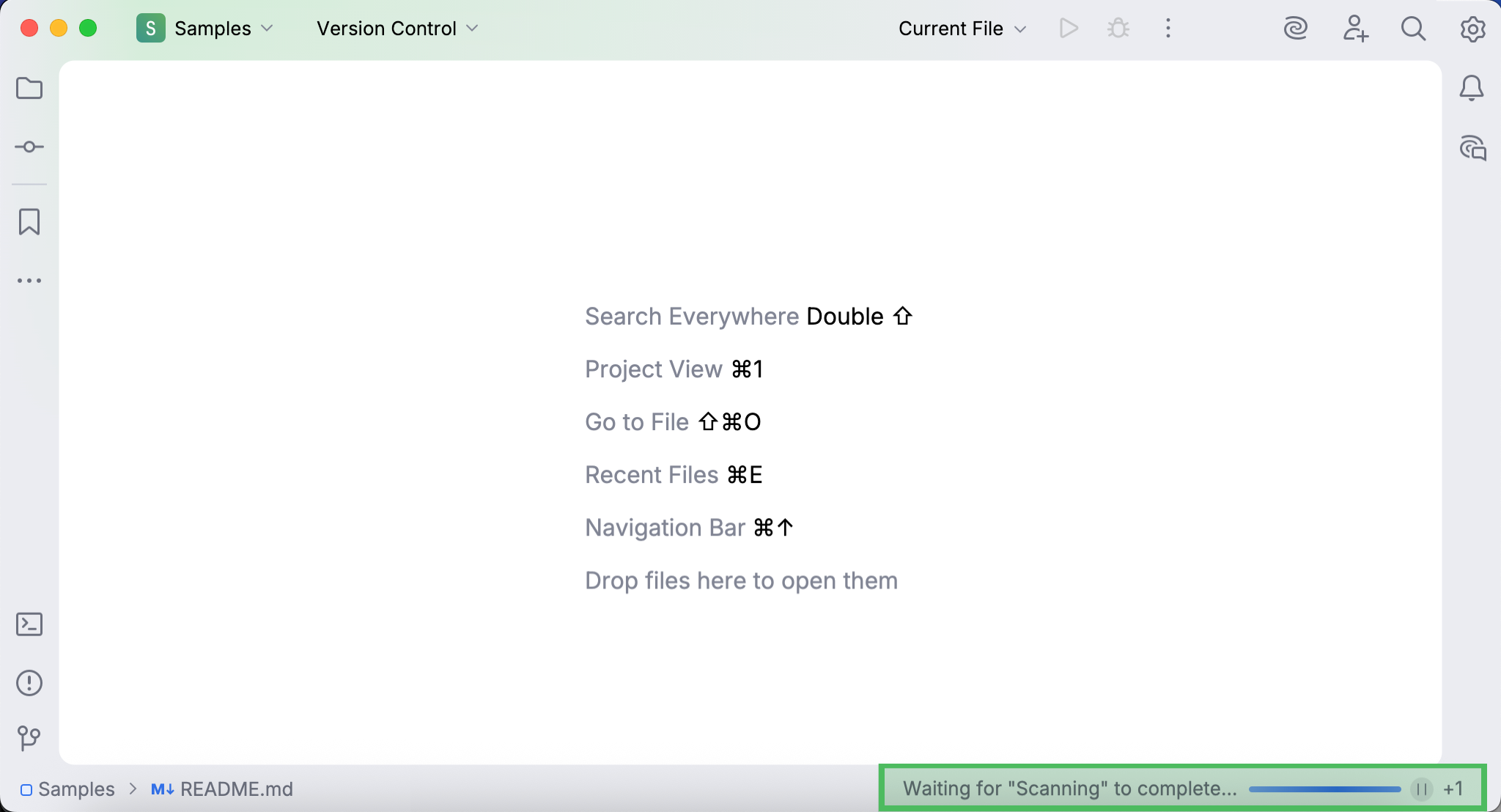
If you click the status bar, the Processes dialog opens, where you can find processes that are currently in progress or in queue.
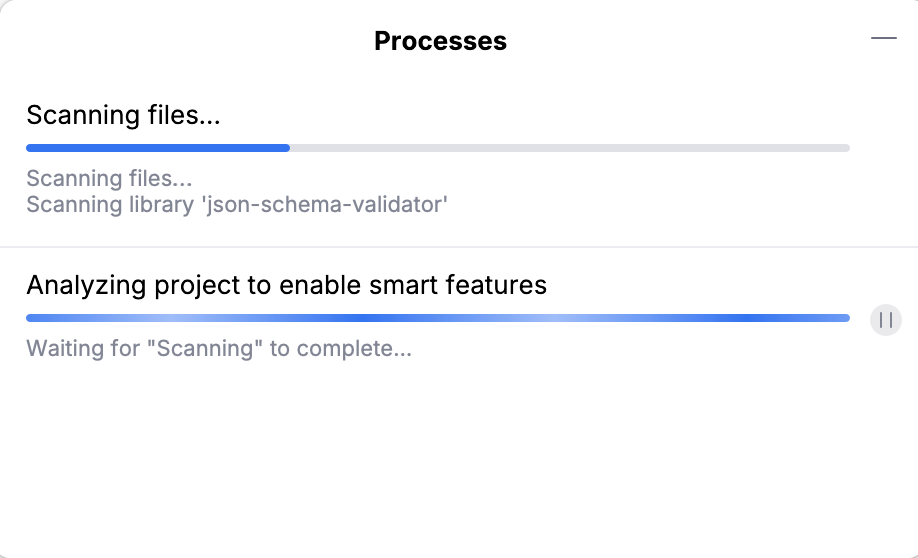
The main processes of project analysis include:
Scanning files: checking which files should be analyzed. This process cannot be paused or canceled.
Analyzing project to enable smart features: examining and indexing the file contents. This process can be paused (and resumed), but not canceled.
You can check the state of each process below its progress bar. When all processes of project analysis are completed, GoLand clears the status bar. This indicates that smart IDE features (such as coding assistance and finding usages) are ready to use.
Reducing the project analysis time
The amount of time it takes to analyze your project depends on its size: the more complex your project is, the more files it contains, and the more time the IDE needs to analyze it. You can reduce the project analysis time by excluding files and folders.
Exclude files and folders from project analysis
You can mark dynamically generated files and folders as excluded to speed up project analysis and improve the overall IDE performance. For example, it's recommended that you exclude compilation output folders. Excluded files and folders are not indexed during project analysis (therefore, smart IDE features are not available for them), but they remain part of the project.
Exclude files from project analysis
Go to the Project tool window (Alt+1).
Right-click a file and select .
Plain text files are marked with the
 icon.
icon.
Exclude folders from project analysis
Go to the Project tool window (Alt+1) .
Right-click a folder and select .
Excluded folders are marked with the
 icon.
icon.
Exclude files and folders by name patterns
In some cases, excluding files or folders one by one is not convenient. For example, this may be inconvenient if your source code files and files that are generated automatically (by a compiler, for instance) are placed in the same directories, and you want to exclude the generated files only. In this case, you can configure one or several name patterns for a specific content root.
If a folder or a filename located inside the selected content root matches one of the patterns, it will be marked as excluded. Objects outside the selected content root won't be affected.
All files within excluded folders will be excluded as well.
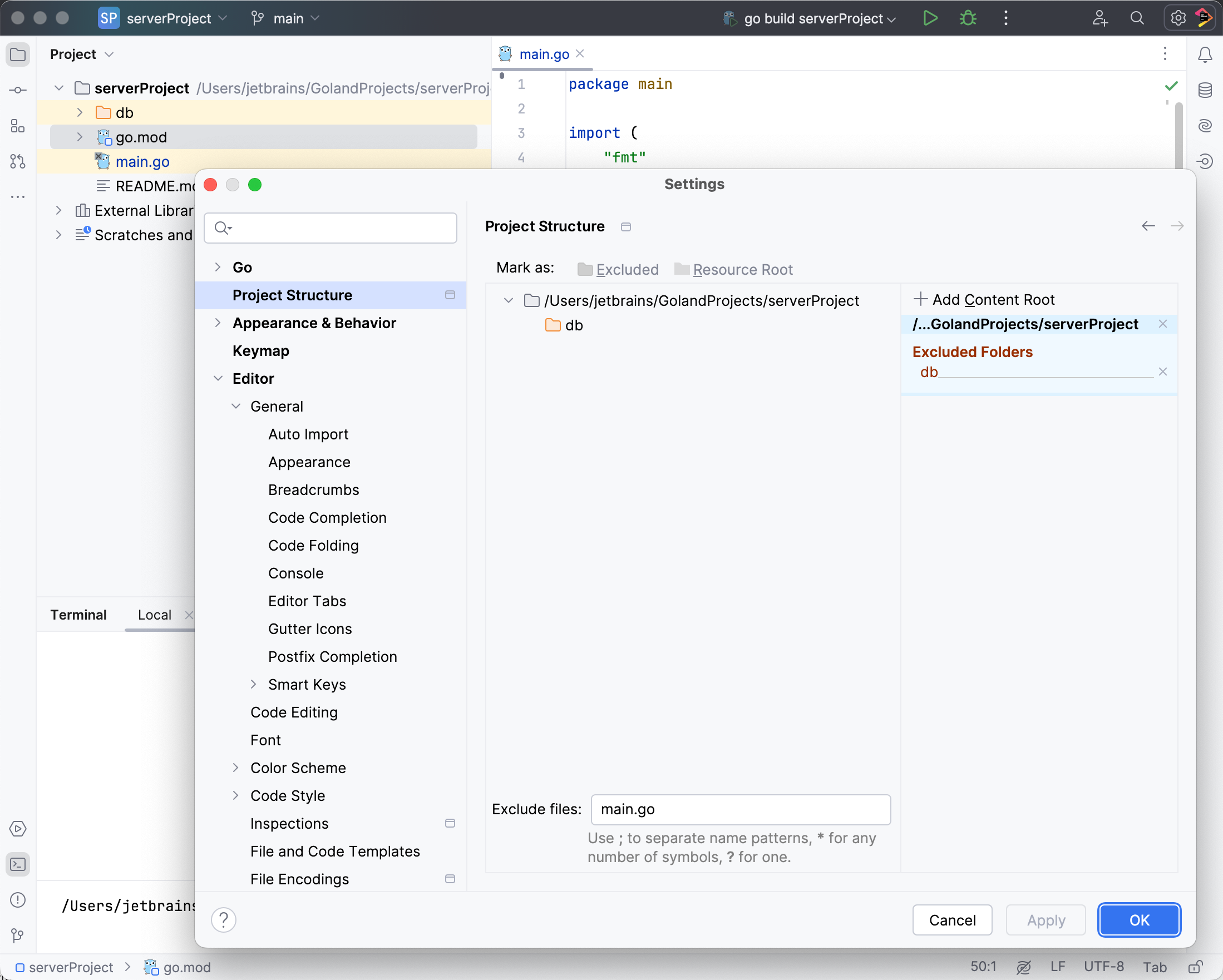
Press Ctrl+Alt+S to open settings and then select .
In the Exclude files field located at the bottom of the dialog, enter a pattern. For example, enter
*_test.goto exclude test files.You can configure multiple patterns and separate them with the semicolon symbol (
;).Patterns are applied to file and directory names only. You cannot use them to match specific paths or directories (for example, vendor/bin/* is not supported). If a directory name matches, all its contents are excluded.