Rewrite text
Grazie helps you rewrite text fragments, sentences, and paragraphs and make your text friendlier.
It is a creative tool to generate alternative ideas, like a simple brainstorming companion. It is also a great way to learn, as Grazie often suggests text with a more conventional style.
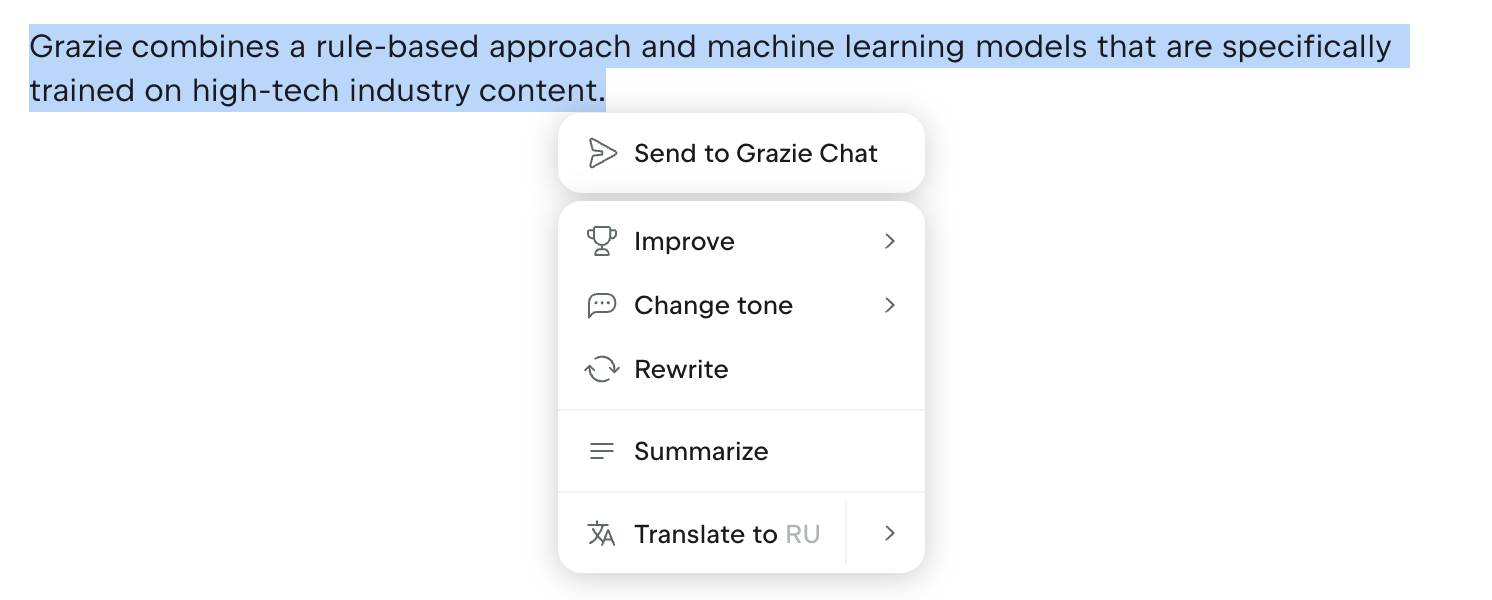
The following actions are available within the context of text rewriting:
Action | Description |
|---|---|
Make Friendlier | Generates a more polite and friendly version of the text. Use this to soften the tone and make your writing more considerate. |
Rewrite | Generates alternative text without significantly changing the tone and length. For a word or short phrase, Grazie suggests several synonyms. Use this to change the phrasing, reword your text, and remove inconsistency. |
Rephrasing and finding synonyms
The Rewrite action rephrases a selected text to create its alternative version. Depending on the size of the text, Grazie either generates a new version of the text or suggests synonyms.
To rewrite a text:
Highlight a phrase, sentence, paragraph, or long text for which you want to generate an alternative version.
Click the Grazie icon that appears and select the Rewrite option in the text selection menu.

In the Rewrite dialog, choose one of the following options:
Click the Replace button or press Enter to replace the highlighted text with the generated alternative.
Click the Paste after button or press Shift+Enter to insert the generated alternative after the highlighted text.
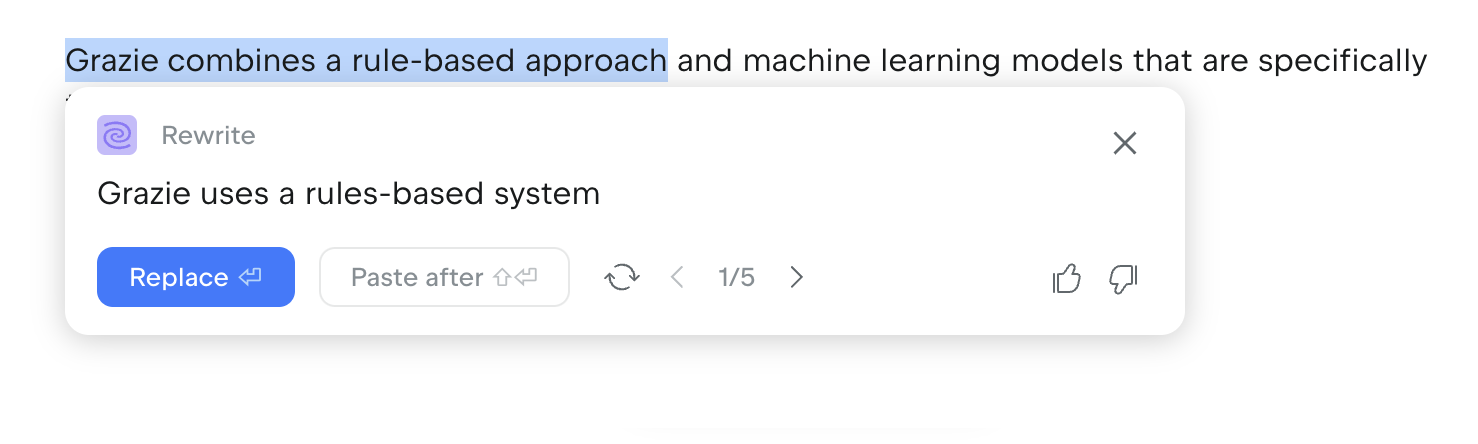
The following options are also available in the Rewrite dialog with the generated text:
Option | Description |
|---|---|
Refresh | Click the |
Previous and next version | Click the |
Like and dislike | Click the |
Close | Click the |


To find synonyms:
Highlight a word or short phrase no longer than three words.
Click the Grazie icon that appears and select the Rewrite option in the text selection menu.

In the Rewrite dialog, click the appropriate synonym to replace the highlighted text.

The following options are also available in the Rewrite dialog with the suggested synonyms:
Option | Description |
|---|---|
Show more | Click the Show more button to generate more synonyms. |
Like and dislike | Click the |
Close | Click the |
Making text friendlier
The Make Friendlier action generates a more polite and friendly version of the selected text.
To make a text friendlier:
Highlight a phrase, sentence, paragraph, or long text that you want to make friendlier.
Click the Grazie icon that appears and select the Make Friendlier option in the text selection menu.
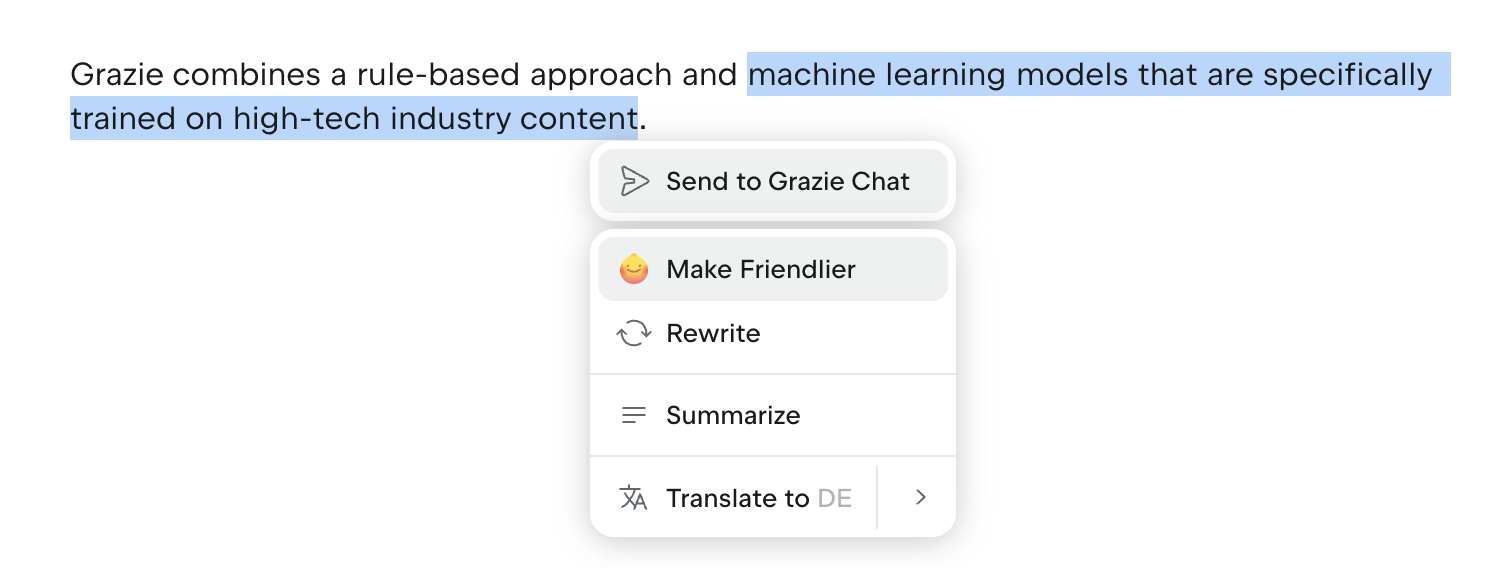
In the Make Friendlier dialog, choose one of the following:
Click the Replace button or press Enter to replace the highlighted text with the generated alternative.
Click the Paste after button or press Shift+Enter to insert the generated text after the highlighted text.
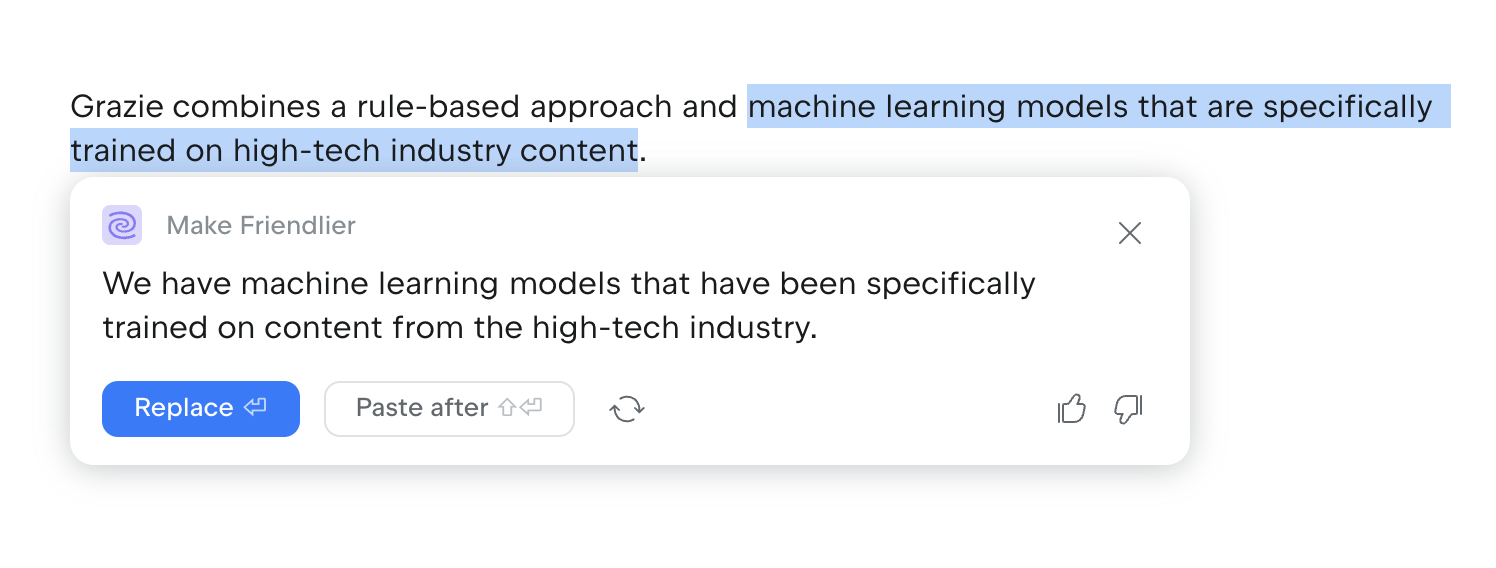
The following options are also available in the Make Friendlier dialog:
Option | Description |
|---|---|
Refresh | Click the |
Previous and next version | Click the |
Like and dislike | Click the |
Close | Click the |