This page shows a simple example of creating a custom widget. We decided to cover a very simple case: A sample widget that displays profile information of a predefined GitHub user. This widget does not perform any complex operations like, for example, authentication and authorization in a third-party service, nor does it have complex style elements. Still, we hope that it will give you the taste of how the idea of custom widgets work.
The outline of the developing a custom widget contains the following steps:
Describe the widget with the manifest.json
Create an entry point for your widget: index.html file
Create the script: index.js
Test the widget
Upload the widget to your dashboard.
Create the manifest
As the first step, we create the manifest.json file. This file defines the attributes for the custom widget.
For Hub to read and display the attributes in the widget manifest:
The file must be named manifest.json.
The file must be stored in the top-most level of the ZIP archive.
Here is the manifest file for our sample widget:
{"key":"github-user-widget","version":"0.0.1","name":"GitHub User Information","description":"Widget shows information about GitHub user.","author":"anonymous"}
Create index.html
Second step is to create an entry point for your widget: index.html file. This is a standard HTML5 file that includes the hub-dashboard-addons library that allows communicating with the dashboard. It also contains CSS styles to display the data retrieved from the GitHub profile. The body element includes the widget script itself (index.js).
<!doctype html><html><head><metacharset="utf-8"><!-- Default styles of dashboard widgets --><linkrel="stylesheet"type="text/css"href="https://unpkg.com/hub-dashboard-addons@latest/dashboard.css"><!-- Include dashboard connector from CDN --><script src="https://unpkg.com/hub-dashboard-addons@latest"></script><style>.user-avatar{width:64px;height:64px;}</style></head><body><divid="user-details">Loading...</div><script src="index.js"></script></body></html>
Create the script
The third step is to create the script itself. In our case, the script retrieves and displays the user profile of a specified GitHub user.
/* Declare a constant that contains a login of the target github user */constUSER_NAME='jetbrains';/* The following renderUserDetails(user) function creates and inserts the user profile data into the DOM */functionrenderUserDetails(user){constcontainer=document.getElementById('user-details');container.innerHTML=`<imgsrc=${user.avatar_url}class="user-avatar"/><h4>${user.name}aka<ahref="${user.html_url}">${user.login}</a></h4><div><div>Followers:${user.followers}</div><div>Repos:${user.public_repos}</div>`;}/* The following function actually retrieves the data from GitHub using the GitHub API. It uses the Fetch API (https://developer.mozilla.org/en-US/docs/Web/API/Fetch_API) */functionloadAndRenderUser(userLogin){returnfetch(`https://api.github.com/users/${userLogin}`).then(response=>{returnresponse.ok?response.json():newError(response);}).then(user=>{renderUserDetails(user);returnuser;}).catch(err=>console.warn(err));}/* The last step is to register the widget in the dashboard and initiate loading the user data. Also, this block defines displayed widget title and adds the refresh button. When you click the refresh button, the script will reload and re-render the user profile data. We use Dashboard API to implement this functionality. */// Register widget:Dashboard.registerWidget(function(dashboardAPI,registerWidgetAPI){// Load GitHub profile dataloadAndRenderUser(USER_NAME)// Set the widget title.then(user=>dashboardAPI.setTitle(`GitHubUser${user.login}`));// Add the refresh button.registerWidgetAPI({onRefresh:()=>loadAndRenderUser(USER_NAME)});});
Test the Widget
To test the widget, we need to load it in the Widgets Playground. First, we run a static server on the local directory with the custom widget files. In our case, we use npm http-server that requires Node.js. To simplify the matters even more, we use a Hub service that is available over HTTP. If you have Hub running over HTTPS, then you need to host your widget over HTTPS as well. In this case, you can give a try to https://ngrok.com service. For more information, see Test a Custom Widget.
To load your widget in the widgets playground:
Install the http-server:
npm i http-server -g
From the custom widget directory, run the http-server with the following command:
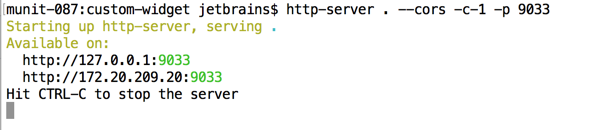
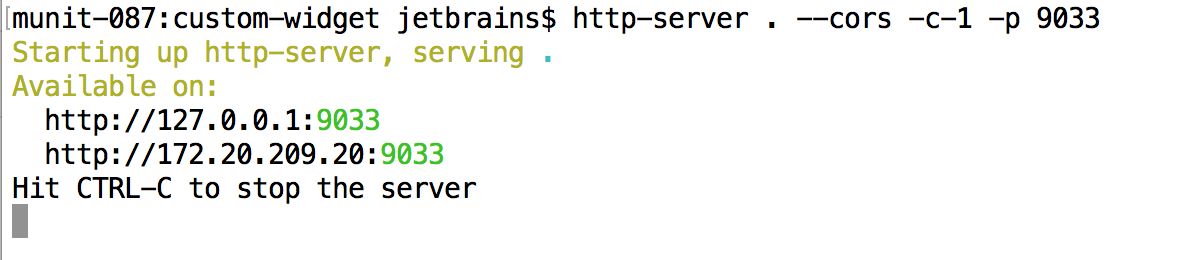
http-server . --cors -c-1 -p 9033
The http-server starts and serves the content on the current directory. In the response you see the IP addresses (both internal and external) at which the http-server is accessible. For example: We use a locally running Hub service, thus we can even load the widget into the widgets playground from the http://localhost:9033/ address.
Enter the web address for your custom widget in the input field. In our case, http://localhost:9033/
Click the Load widget button.
The widget is loaded and displayed in the widgets playground.
If you modify the code and upload these changes to your web server, use the Reload widget button to refresh the widget content and test the updates.
Upload the Widget
Now that we successfully tested the widget in the playground, we can upload it to the production environment.
First, we create a zip archive with the widget files. You can use any archive application to your liking. Just remember that manifest.json and index.html files must be located on the top-most level of the zip file.
For example, we used command line prompt in Mac OS X to create the archive. Our sample widget contains only three files and all of them are located in the same directory without any subdirectories. Thus the command to create the archive is very simple (run in the custom widget directory):
zip custom-widget.zip *
We created the custom-widget.zip file. Now we just need to upload it to the production environment:
In your production Hub, open the Custom Widgets page.
Click the New widget... button.
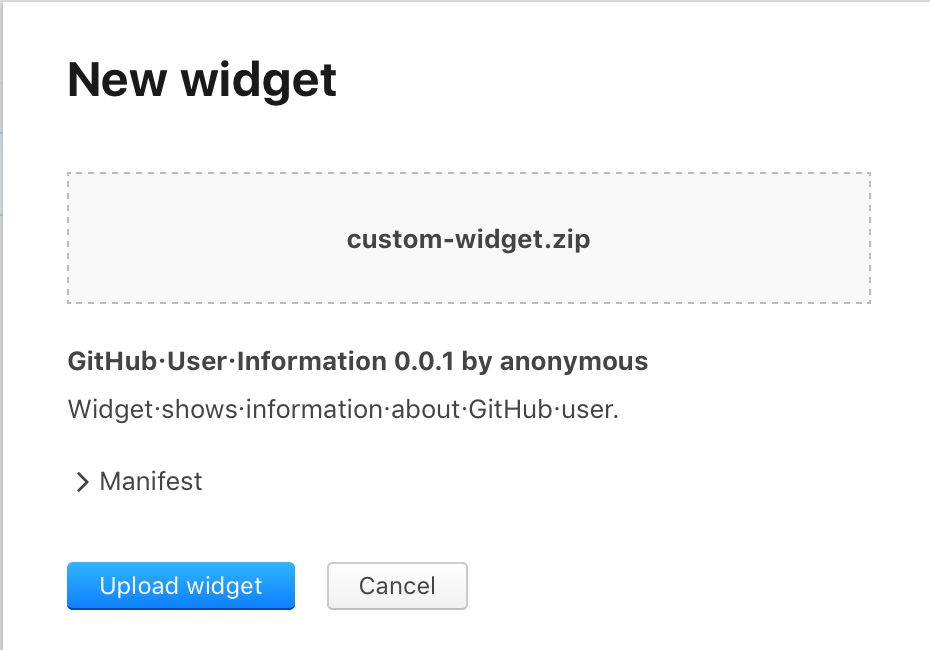
The New widget dialog is open in the side bar.
Select the zip file to upload. The information from the manifest.json should be displayed.
Click Upload widget button.
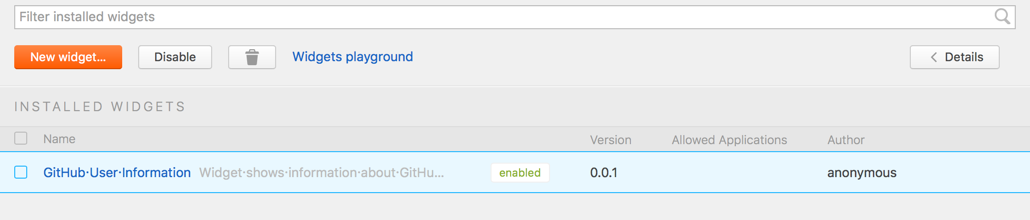
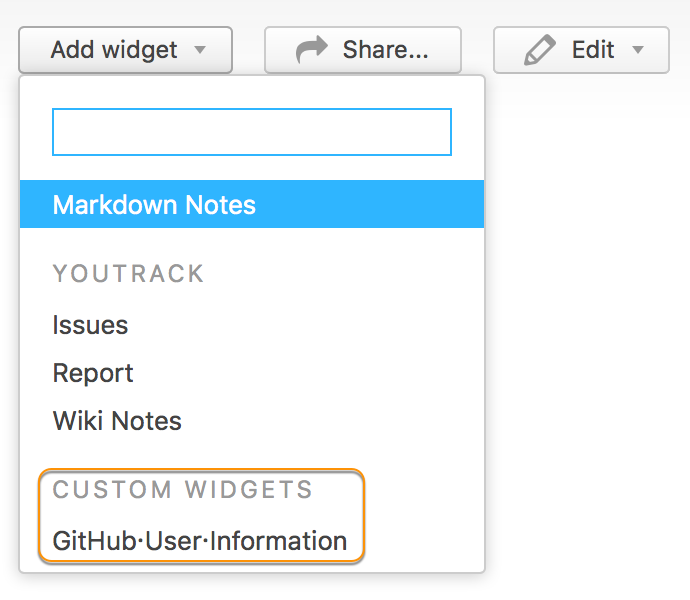
The widget is uploaded to the server and displayed in the list of available custom widgets. It also appears in the Add widget... drop-down menu on the Dashboard:
This it! Now the new custom widget is available to the users of the Dashboard in Hub.