Error highlighting
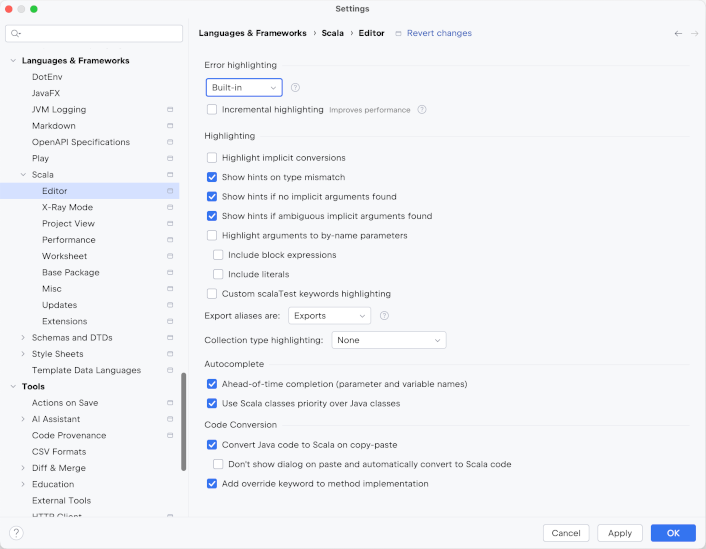
Built-in highlighting
IntelliJ IDEA with Scala Plugin offers two modes of error highlighting: Built-in and Compiler-based. Built-in highlighting is the default highlighting mode. It offers more features and faster feedback, and is overall more lightweight.
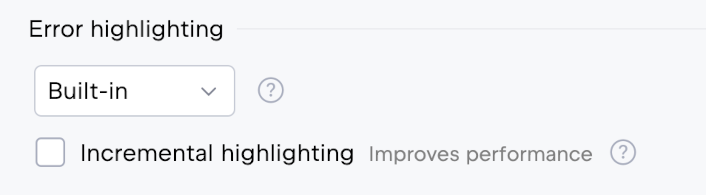
If you set the highlighting to Built-in, you will see under the main combobox, a checkbox called Incremental highlighting. If you check it, IntelliJ IDEA will highlight only what's visible in the editor. This option reduces CPU, RAM, and battery use, especially in large, complex files.
Compiler-based highlighting
Compiler-based highlighting (CBH for short) is more precise, as it uses the Scala compiler to retrieve error and warning messages. But it is also slower, uses more resources, and doesn't support some of the IntelliJ IDEA features - such as type diffs, quick-fixes, inspections, etc. Unless there are lots of false errors in a particular code base, Built-in highlighting is recommended.
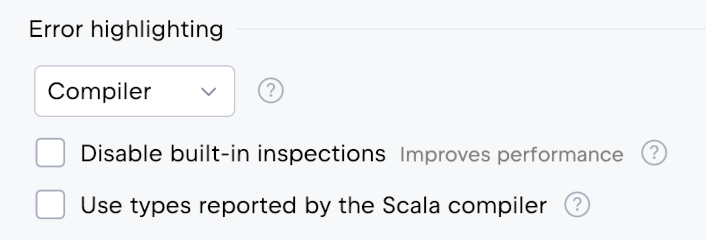
If you set the highlighting to Compiler, you will see two more checkboxes: Disable built-in inspections - some of the Scala Plugin inspections double or add only a bit more information over what the compiler provides. You can disable them to increase performance. Use types reported by the Scala compiler means that Scala Plugin will use type information provided by the compiler for type inference in macros and in transparent inline methods.
Other highlighting options
Title | Example |
|---|---|
Highlight implicit conversions | 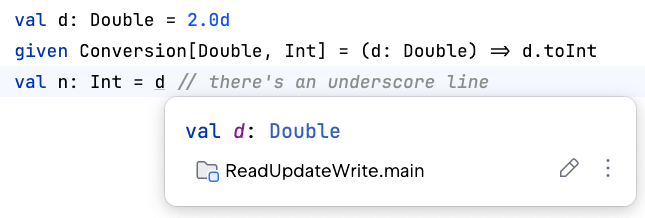 |
Show hints on type mismatch |  |
Show hints if no implicit arguments found | 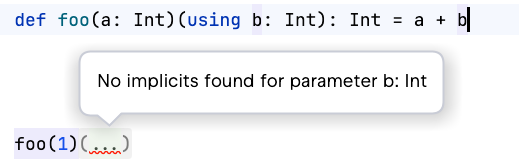 |
Show hints if ambiguous implicit arguments found | 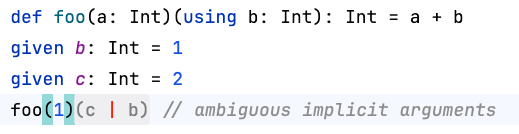 |
Highlight arguments to by-name parameters | 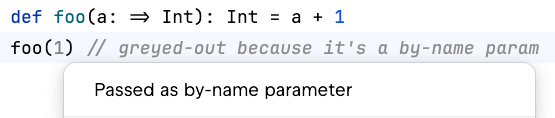 |
Custom aliases are Exports/Definitions | 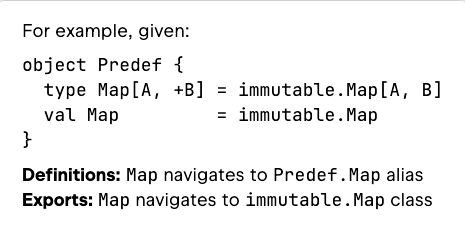 |
Collection type highlighting |  |