Add a Ruby module to your project
This procedure explains how to add a Ruby module to your project, enabling you to run Ruby code seamlessly within your IntelliJ IDEA environment. Following this procedure will ensure that the IDE recognizes your Ruby files, provides code insight, and allows proper execution of scripts and modules.
Before performing the procedure, do the following:
Download and install the Ruby distribution for your platform.
Add a Ruby module
Add a Ruby module
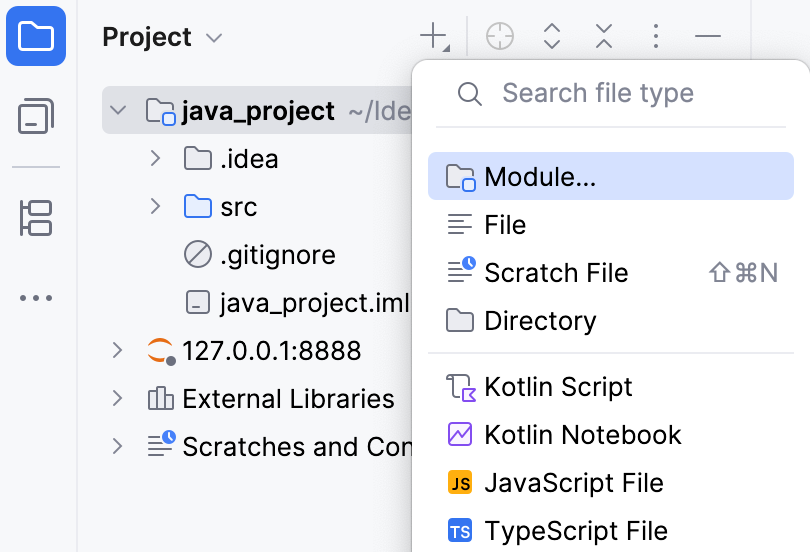
Select the top-level directory in the Project tool window and click
 on the toolbar or press Alt+Insert.
Select Module.
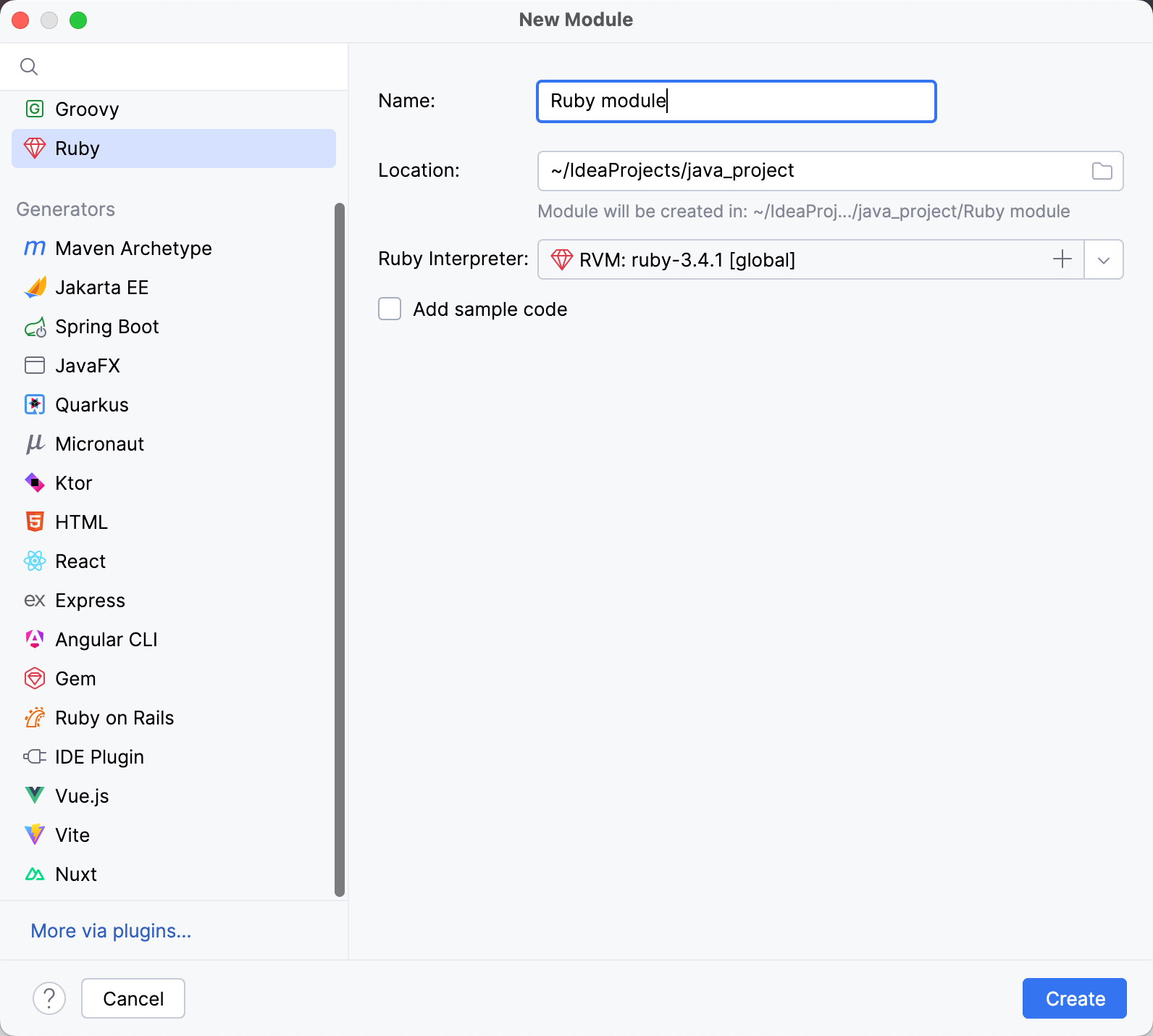
From the list on the left, select Ruby.
The IDE will detect and pre-select your Ruby interpreter.
Provide a name for the module.
(Optional) Select Add sample code to add a sample hello.rb Ruby file to the module.
Click the Create button to finish the procedure and close the dialog.
Configure a Ruby interpreter for a Ruby module
You can configure a Ruby interpreter other than the one selected when creating the module .
In your project, go to or press Ctrl+Alt+Shift+S.
Navigate to Modules and select your Ruby module.
On the Ruby Interpreters tab, use one of the following options:
Select one of the automatically detected interpreters you previously installed.
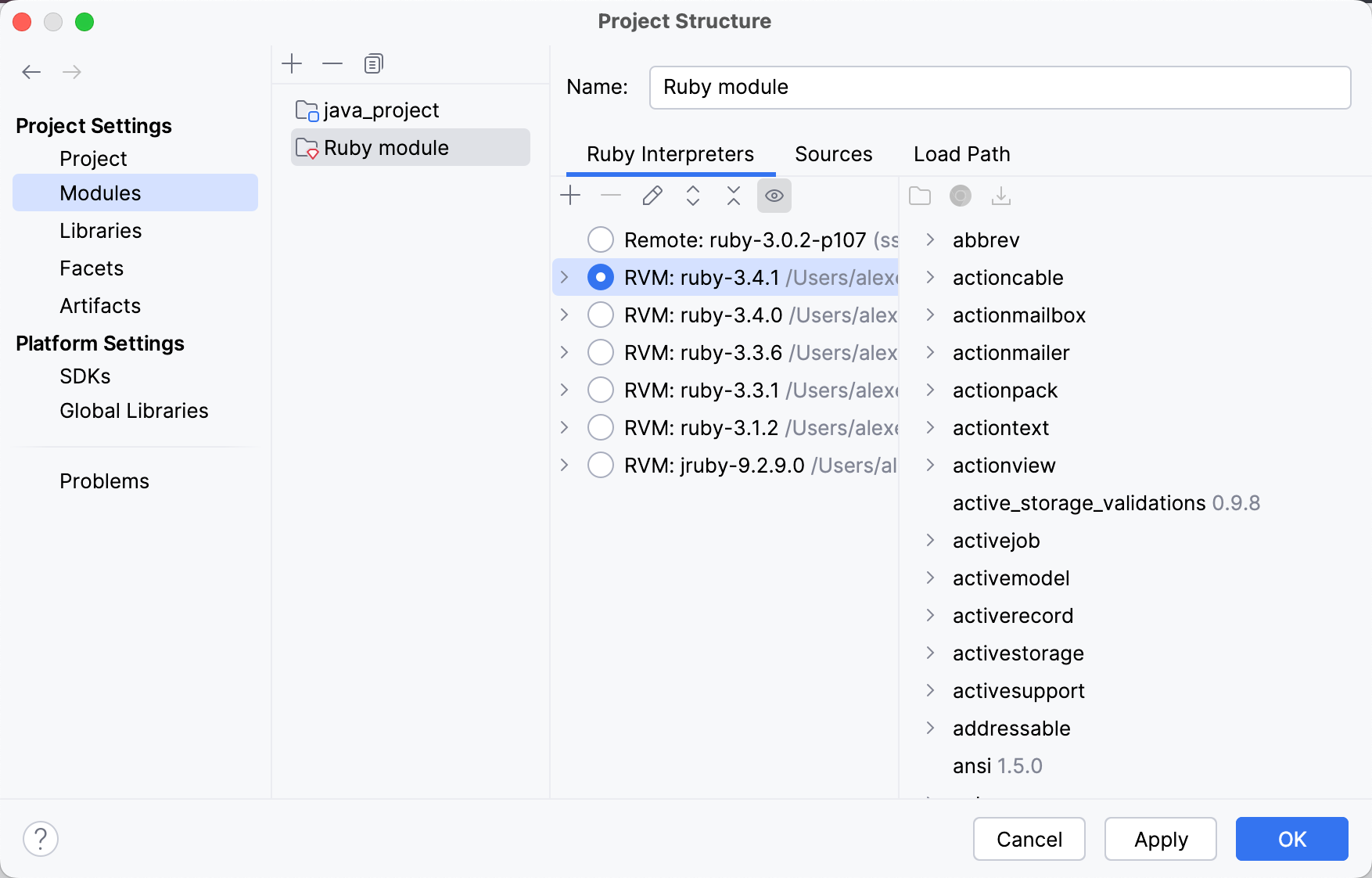
Click OK in the invoked dialog.