Bazel targets
A Bazel target is a unit that Bazel can build, run, or test. Targets are declared as rule calls inside BUILD or BUILD.bazel files and are identified by a label like //src/main:app, where //src/main is the package and app is the target name.
The main target kinds are:
Binary (rules ending in
_binary) produce an executable that can be run or debugged.Test (rules ending in
_test) produce runnable tests that can also be executed with coverage.Library and other non-executable rules. These can only be built and are consumed as dependencies of binary or test targets.
Find a target
The Bazel tool window lists every target in the project. It is the main place to browse, search for, and interact with the targets. Use it when you are looking for a specific target but do not have a source file or BUILD file open yet.
Open the Bazel tool window
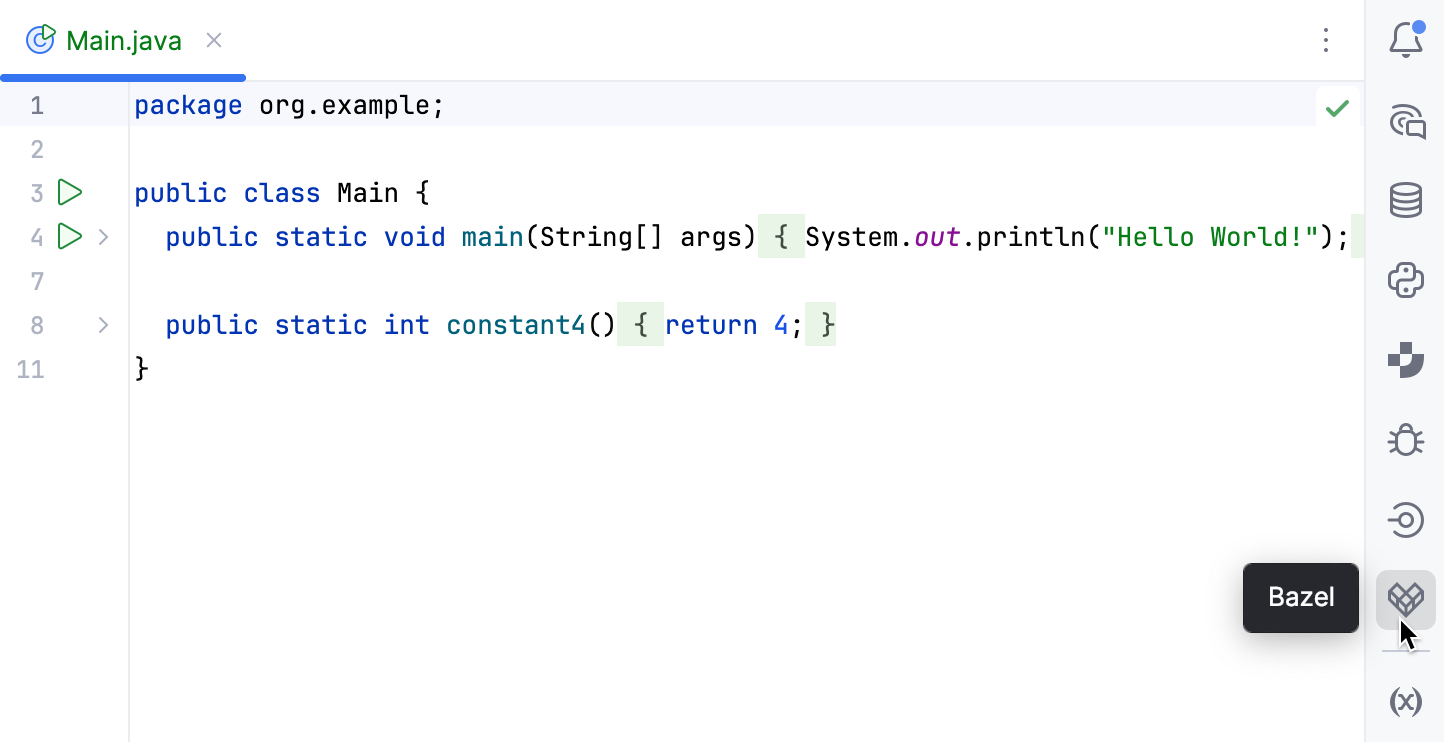
In the right sidebar, click the Bazel icon. Alternatively, select from the main menu.
Search for a target by name
In the Bazel tool window, click the search field or press Ctrl+F to focus it.
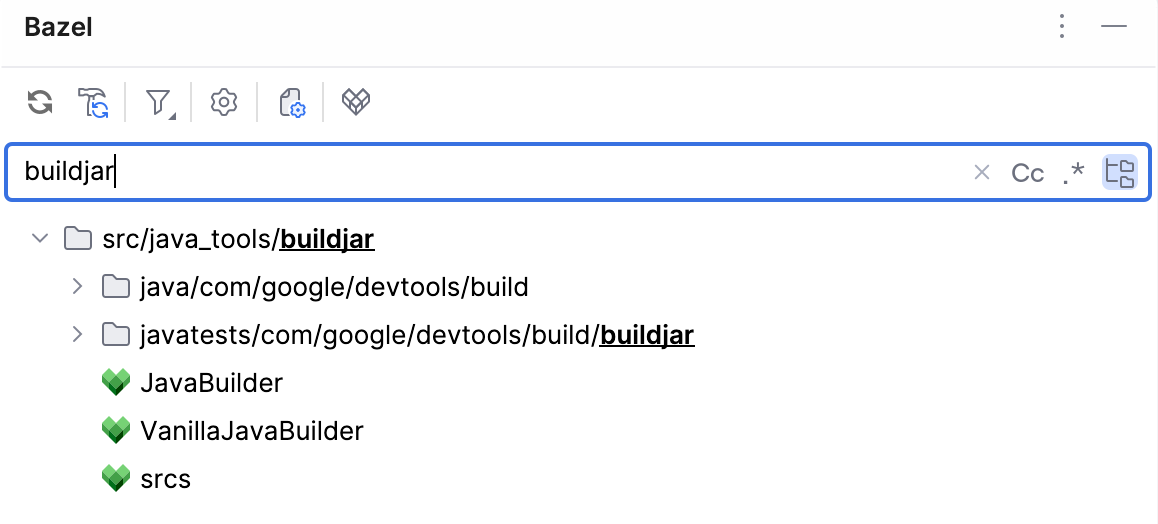
Start typing part of a target label. The tree filters to targets whose labels match the query.
Filter targets by kind
When you are looking specifically for runnable or testable targets, you can filter the tree to hide irrelevant ones.
In the Bazel tool window, click
 Filter on the toolbar.
Select one of the options:
All targets (default)
Runnable only – keep only
*_binarytargets.Testable only – keep only
*_testtargets.
Run, test, build, and debug a target
Different kinds of targets have different associated actions:
Action | Applies to |
|---|---|
Run |
|
Test |
|
Debug |
|
Build | Any target, including libraries |
Run with Coverage |
|
IntelliJ IDEA creates a temporary Bazel run configuration for each run, test, or debug action. For saving, renaming, and configuring run configurations, refer to Run/debug configurations.
From the editor: click the
 gutter icon next to the relevant code element, such as
 main()entry point the or a rule call in a BUILD file, then select the action.
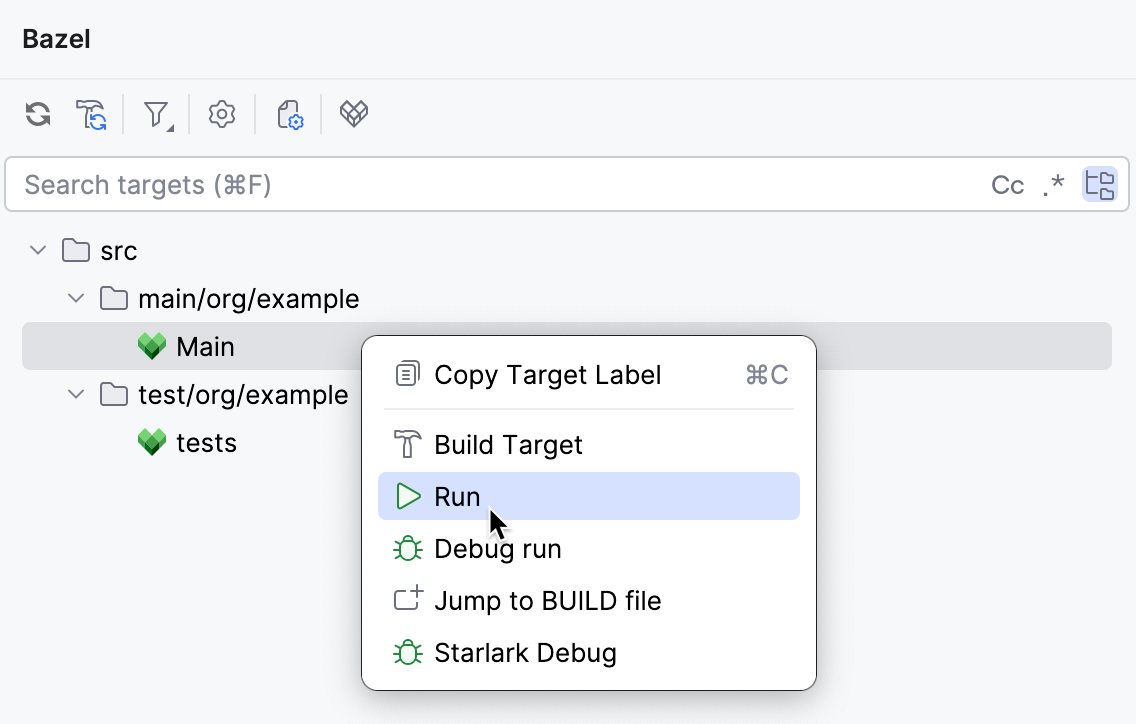
From the Bazel tool window: right-click a target and select the action. Alternatively, double-click the target: this runs executable targets (binary and test) and builds non-executable ones.
From an existing run configuration: pick a saved Bazel run configuration from the Run widget and select Run or Debug.
From the Bazel File Targets widget: with a file associated with a target open in the editor, click the widget in the status bar, expand the target, and select the action.
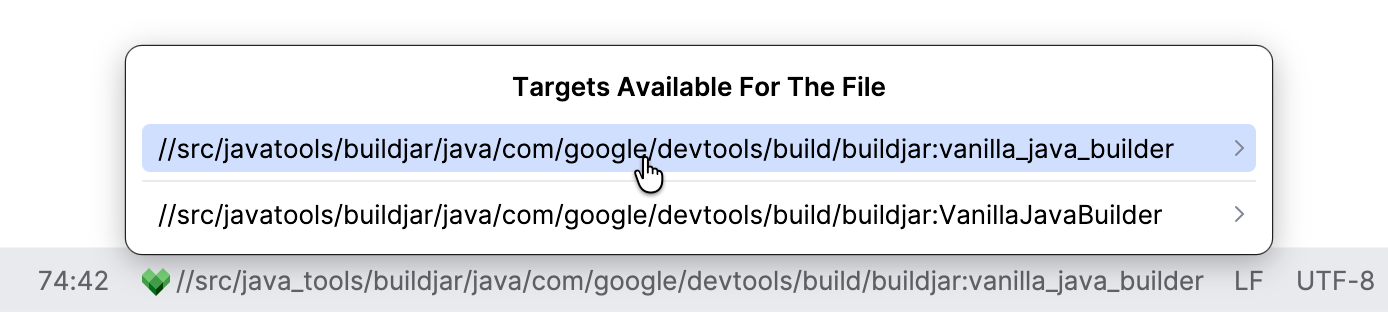
There can be more than one target associated with a given file.
If the Bazel File Targets widget is inactive, it means that the plugin could not map the current editor file to any Bazel target. Check the following:
The open file belongs to a synced Bazel target
Documentation, scripts, generated files, and other sources that are not referenced by any target's
srcsstay inactive even when opened.The project is synced.
The widget reads target information from the last project sync. After you add a file to
srcsor edit a BUILD file, resync the project so the widget picks up the change.
Run all tests under a directory
To run or cover multiple test targets at once:
In the Bazel tool window, locate the directory that contains the test targets.
Right-click the directory node and select Run All Tests or Run All Tests with Coverage respectively.
IntelliJ IDEA runs every
*_testtarget under that directory and merges the results.
Build an entire project
To build the selected project view go to or press Ctrl+F9.
Targets' sync settings
For controlling which targets get synced, indexed, and available in the IDE, refer to Bazel project view.