Integrate Perforce files
Install the Perforce plugin
This functionality relies on the Perforce plugin, which you need to install and enable.
Press Ctrl+Alt+S to open settings and then select .
Open the Marketplace tab, find the Perforce plugin, and click Install (restart the IDE if prompted).
You can merge changes between the branches into your local working copy, using the branch specification, or a changelist.
The Integrate Project command is available for both Perforce and Subversion integrations.
Integration results display in the Integrate Info tab of the tool window. Context menu of a file enables you to compare versions, view history and annotations, browse changes and more.
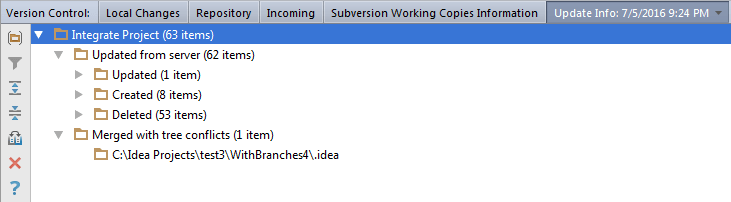
To integrate a Perforce branch into a project
From the context menu, choose .
In the Integrate dialog, select the Perforce tab (if both Perforce and Subversion integrations are used in this project).
Select the sources to be merged, and the desired revision.
Define VCS-specific merge options.
Click OK.