Query consoles
Enable the Database Tools and SQL plugin
This functionality relies on the Database Tools and SQL plugin, which is bundled and enabled in IntelliJ IDEA by default. If the relevant features are not available, make sure that you did not disable the plugin.
Press Ctrl+Alt+S to open settings and then select .
Open the Installed tab, find the Database Tools and SQL plugin, and select the checkbox next to the plugin name.
Overview
Query consoles are SQL and JS files are created for a data source automatically, always attached to it, and stored outside an IDE project. You can write and execute SQL statements in query consoles the same way as you do it in terminal. Query consoles are not included in the project context.
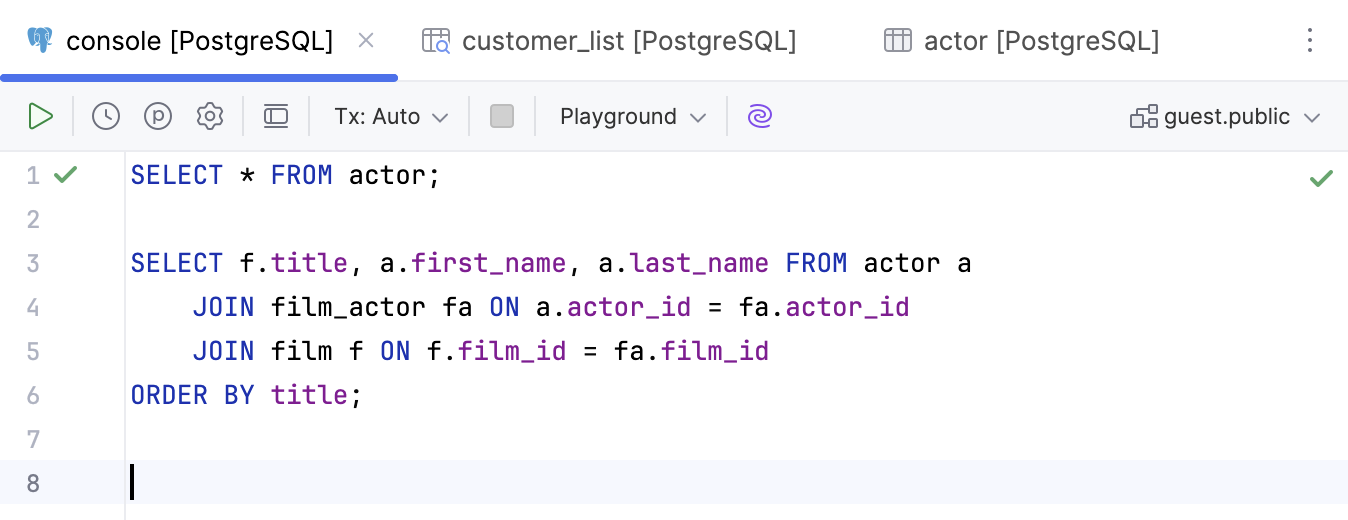
For more information about working with query results in query consoles, refer to Query results.
When you create a data source, a query console is created automatically and attached to this data source by default. If necessary, you can create additional query consoles for this data source.
Each query console creates a new connection session. If you do not want to create new connections, enable Single session mode.
Database connection session
For each query console, a database connection session is created automatically. You can create new connection sessions and attach your query console to existing ones in the console toolbar.
Location
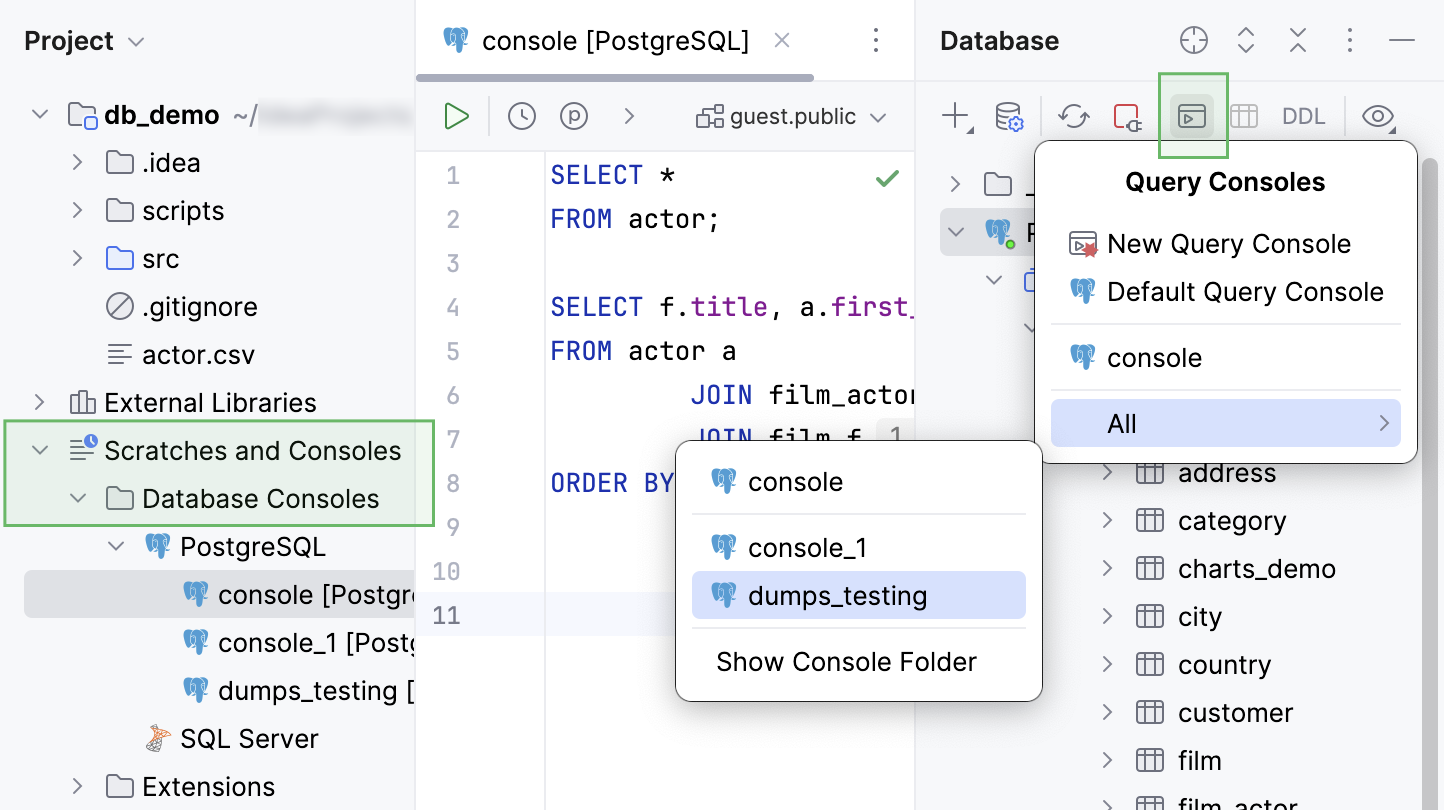
All the created query consoles are located in the internal Database Consoles directory. To open this directory, open the Project tool window (Alt+1) and navigate to .
On your machine, query consoles are stored in the consoles subdirectory of the IDE configuration directory.
Code editor
The code editor is where you compose your SQL statements using the resolve modes and coding assistance features, and execute them against the associated data source.
Find the code editor toolbar controls in Code editor controls. Read more about the editor in Editor basics.
SQL statement execution
When you execute a statement, the Services tool window opens. The Services tool window displays available connection sessions, Output and Result tabs. For more information about the tool window, refer to the Services tool window topic.
If the executed statement retrieves data (for example,
SELECT), results are displayed in the Result tab that has a title of a qualified table name. For more information about creating custom titles for result tabs, refer to Use custom titles for tabs with results.If the executed statement does not retrieve data, results are displayed in the Output tab.
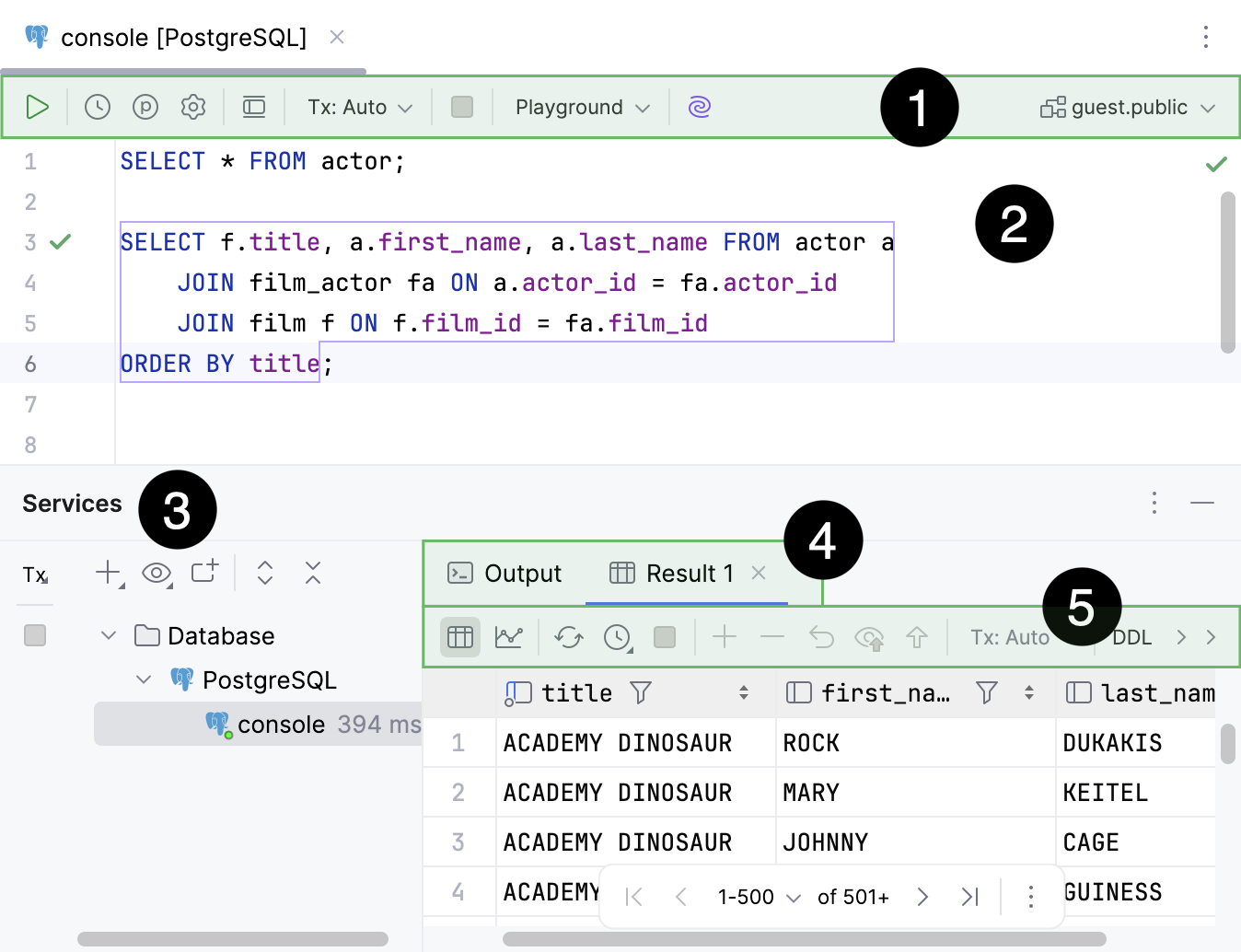
Code editor toolbar.
.
Services tool window.
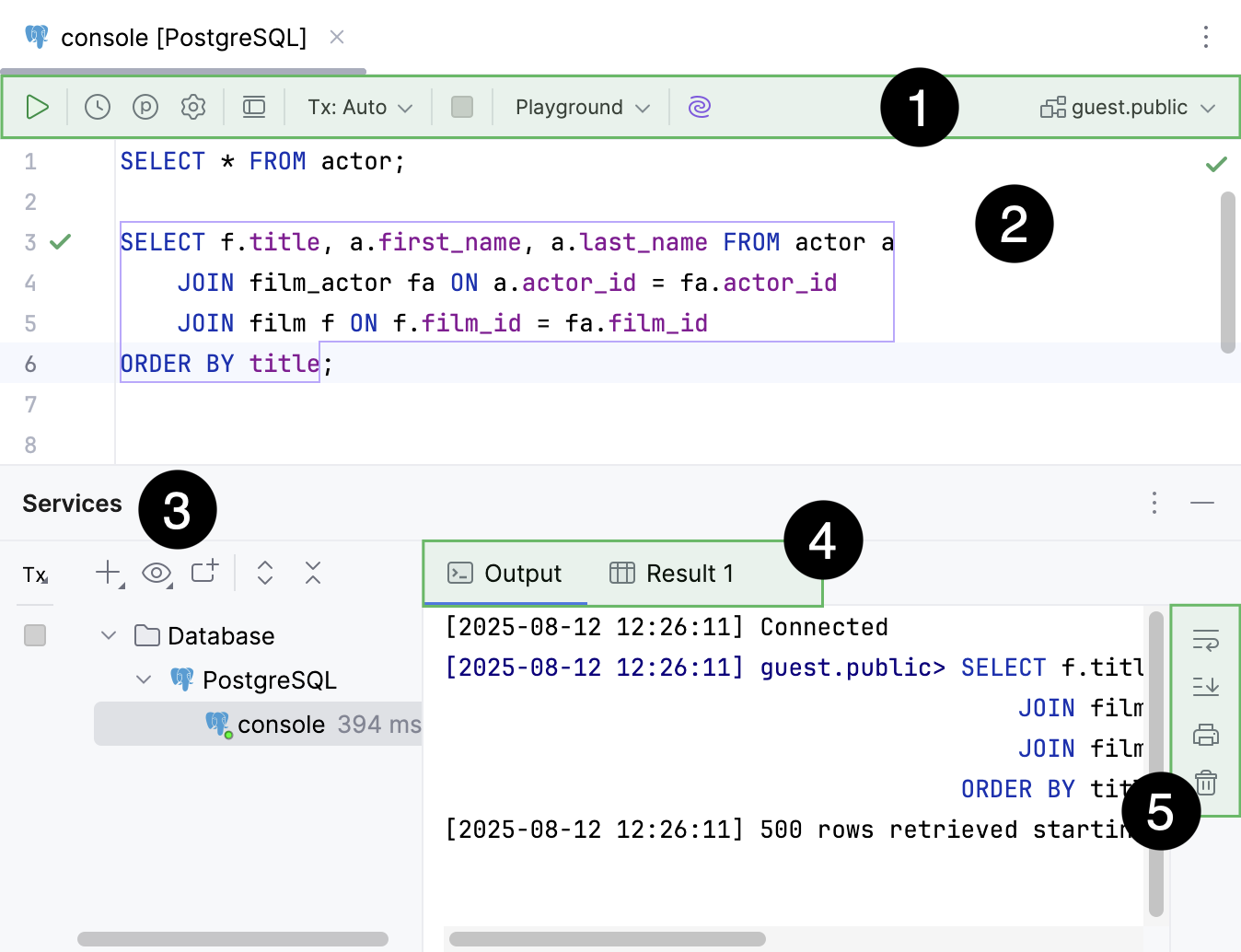
Code editor toolbar.
.
Services tool window.
Create a query console
To create a query console, use one of the following actions in the Database tool window.
Select a data source and select from the main menu.
Right-click a data source and select .
Select a data source, press Alt+Insert, and select Query Console.
Select a data source, press Ctrl+Shift+F10, and select New Query Console.
Select a data source and press Ctrl+Shift+Q.
Open a query console
In the Project tool window, navigate to the Scratches and Consoles | Database Consoles internal directory . Expand the data source group that includes your query console, then double-click the query console you want to open.
In the Database tool window, click
 Jump to Query Console, navigate to the All submenu, and double-click the query console you want to open.
To open the default query console of a data source, click the data source and press F4.
Rename a query console
To rename a query console, do one of the following:
Right-click a query console tab and select Rename File.
In the Project tool window (Alt+1) :
Navigate to the Scratches and Consoles | Database Consoles internal directory .
Expand a data source group that includes your query console.
Right-click the query console and then select Rename (Shift+F6).
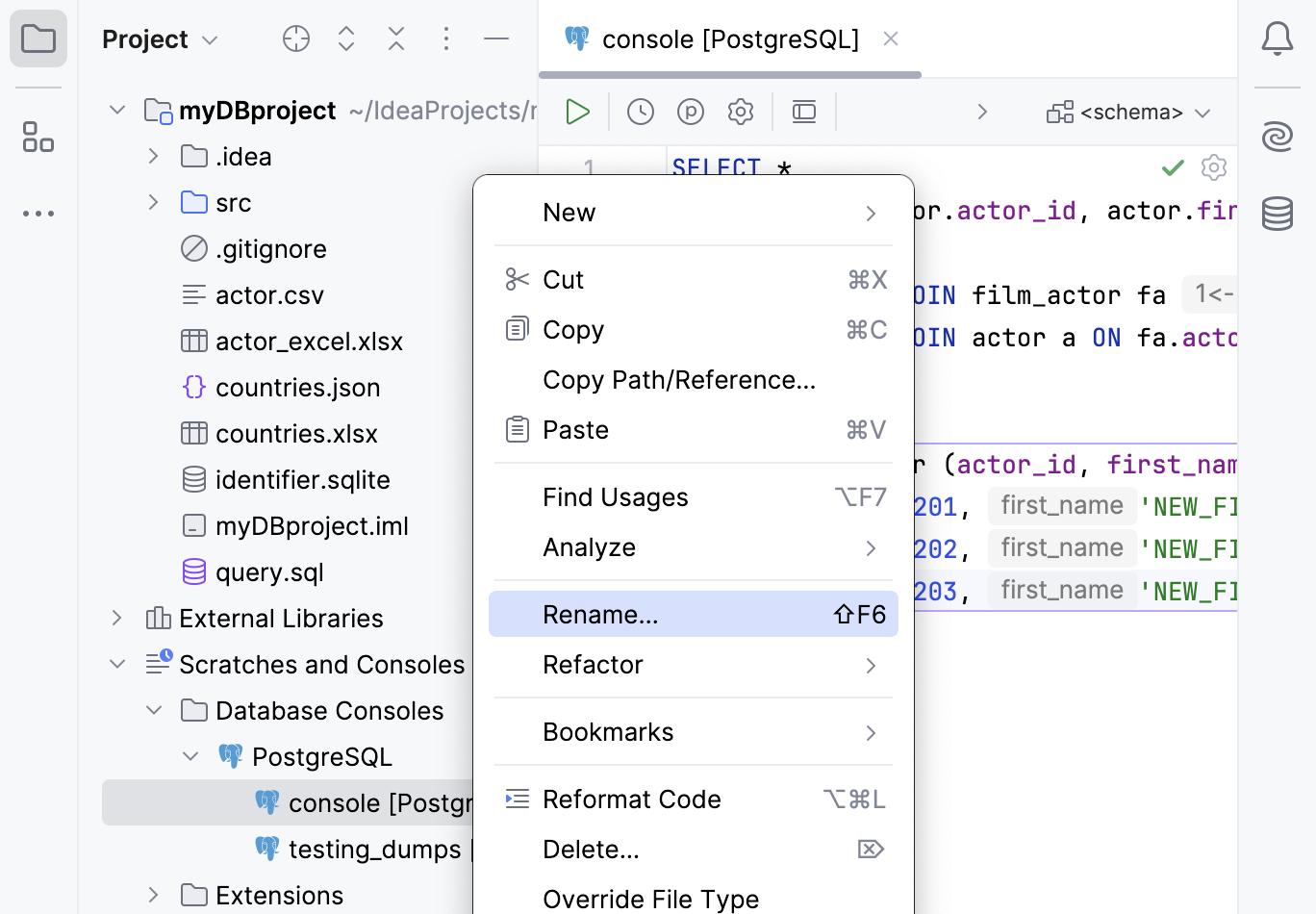
Group consoles under the data source directory
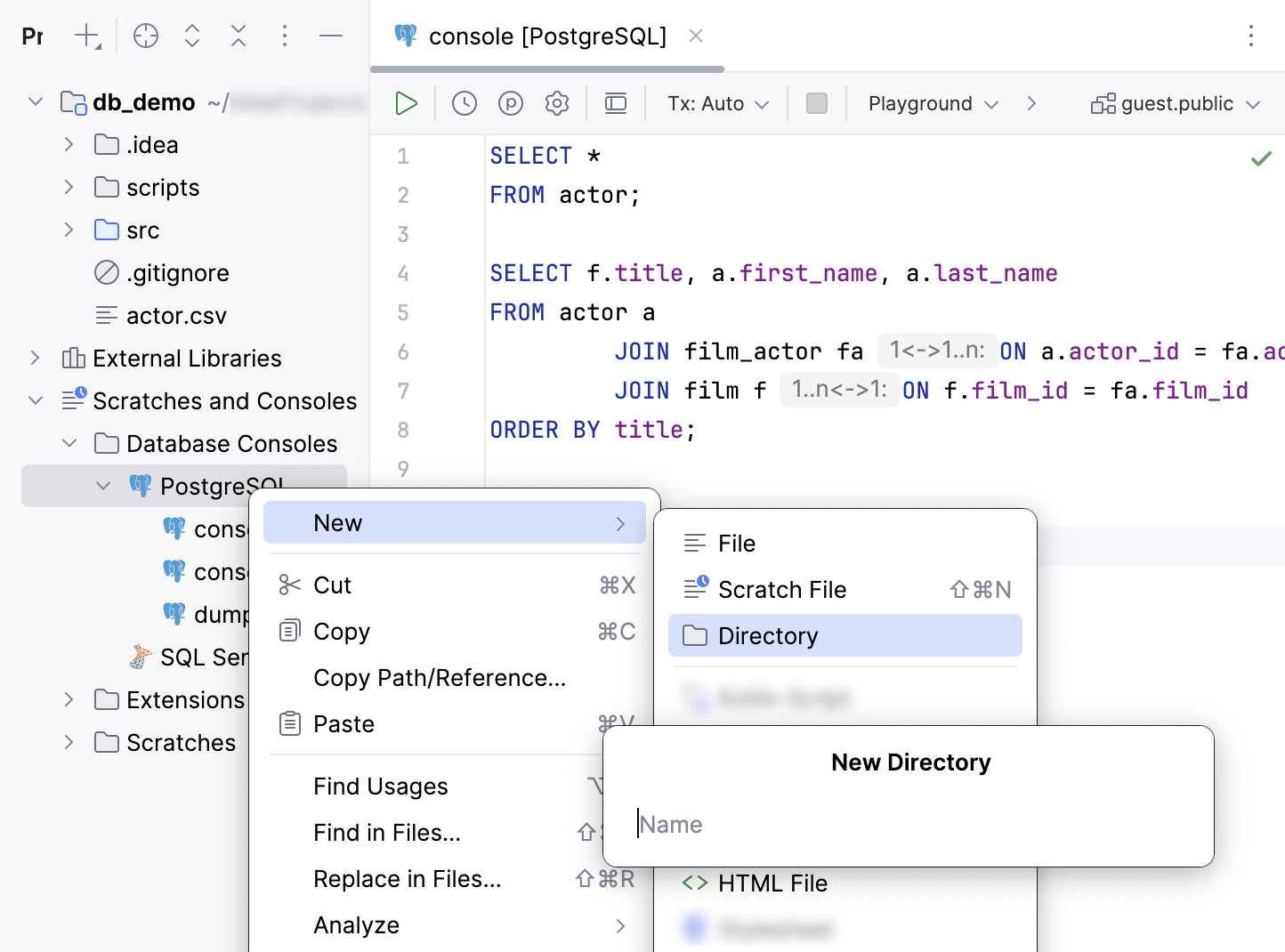
Open the Project tool window (Alt+1) and navigate to the Scratches and Consoles | Database Consoles internal directory .
Right-click a data source group where you want to create a new directory, then select .
Specify a name of the directory.
Select and drag query consoles to the directory.
In the Move dialog, click Refactor.
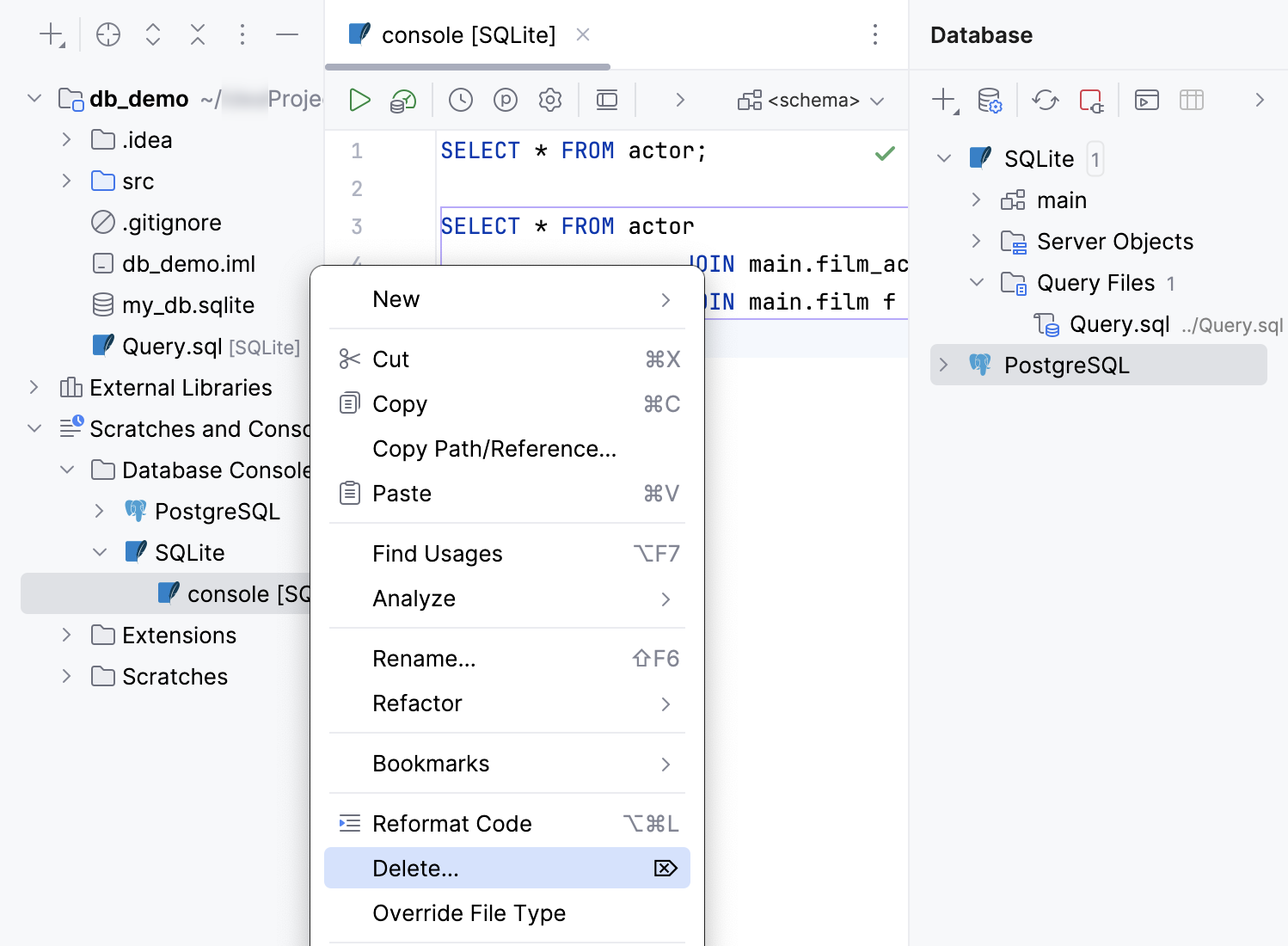
Delete a query console
In the Project tool window (Alt+1) :
Navigate to the Scratches and Consoles | Database Consoles internal directory .
Expand a data source group that includes your query console.
Right-click the query console and select Delete. Alternatively, press Delete.
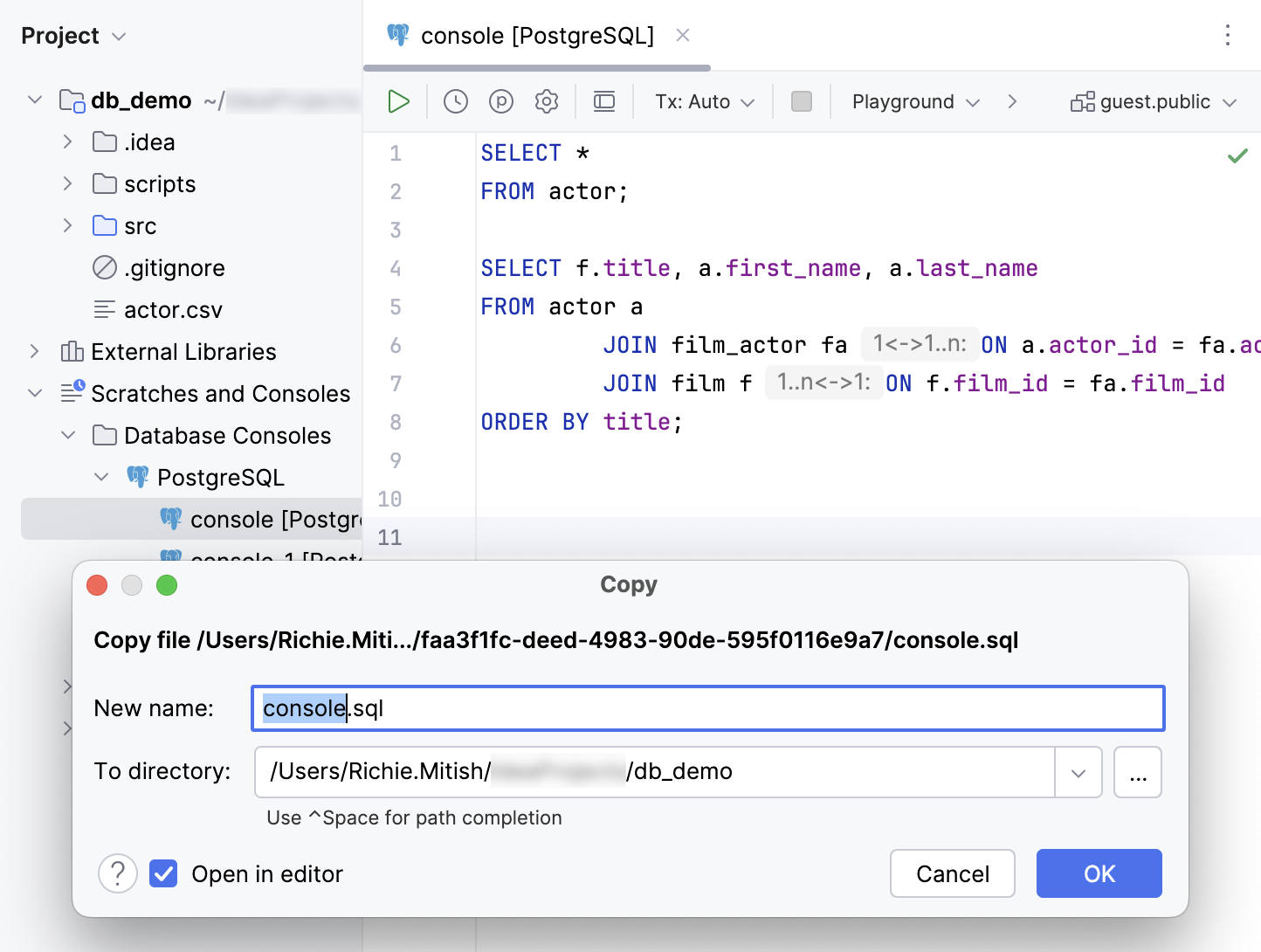
Copy a query console to a new location
In the Project tool window, navigate to the Scratches and Consoles | Database Consoles internal directory .
Expand a data source group that includes your query console.
Right-click a query console and select .
In the To directory field, specify a new location for the query console.
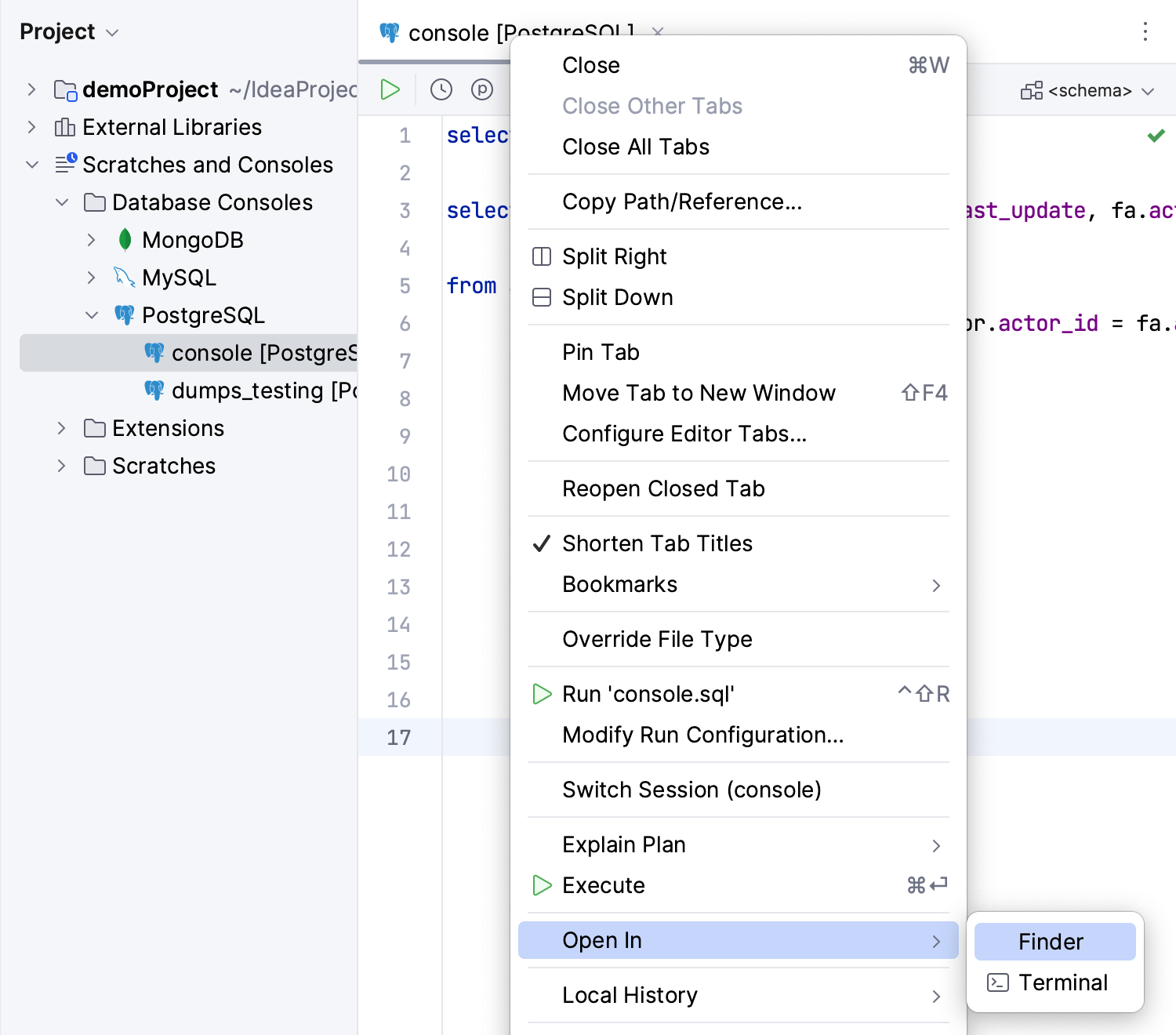
Open a query console in the file browser
To open a query console in your file browser, do one of the following:
Right-click a query console tab and navigate to .
Open the Project tool window (Alt+1) and navigate to the Scratches and Consoles | Database Consoles internal directory . Expand a data source group that includes your query console. Right-click the query console, and select .
Set the default schema
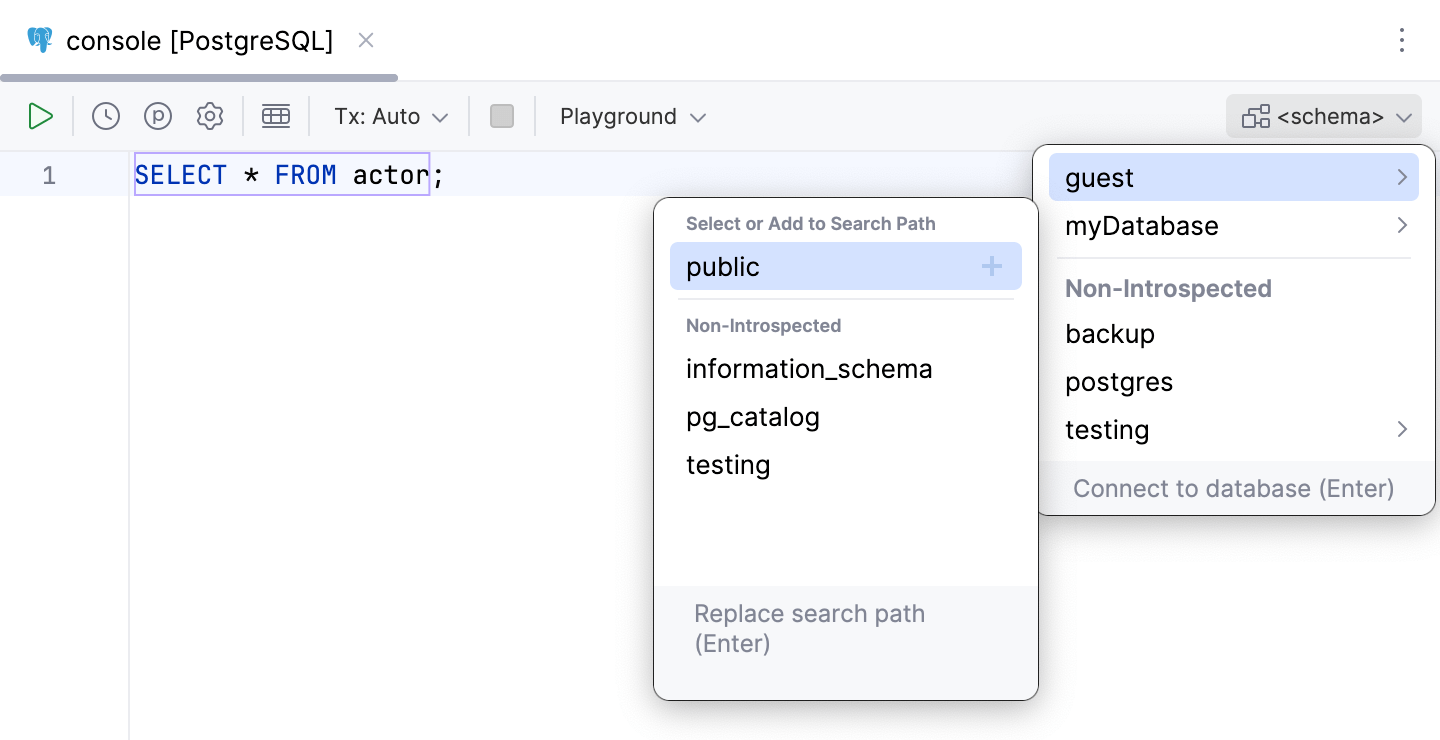
When you select the default schema for a query console, you can omit the name of that schema or database in your statements.
To set the default schema or database, click the <schema> dropdown located in the upper-right part of the toolbar. Then, select the schema that you need.
For more information about schemas, refer to the Schemas topic.
Query console reference
Find information about query console context menu and toolbar buttons in the Code editor tips and reference topic.
Read more about code editor in Editor basics.