Run a database in a Docker container
You can use Docker to run a database in a container as if it were a remote server, and test how your application interacts with it.
In this tutorial, you will learn how to run a Docker container with a PostgreSQL server and connect to it using IntelliJ IDEA.
Pull a PostgreSQL server image
In the Services tool window, expand your Docker connection and select the Images node.
In the Image to pull field, start typing
postgresand select the necessary image repository. For example, selectpostgresto pull the defaultpostgres:latestimage.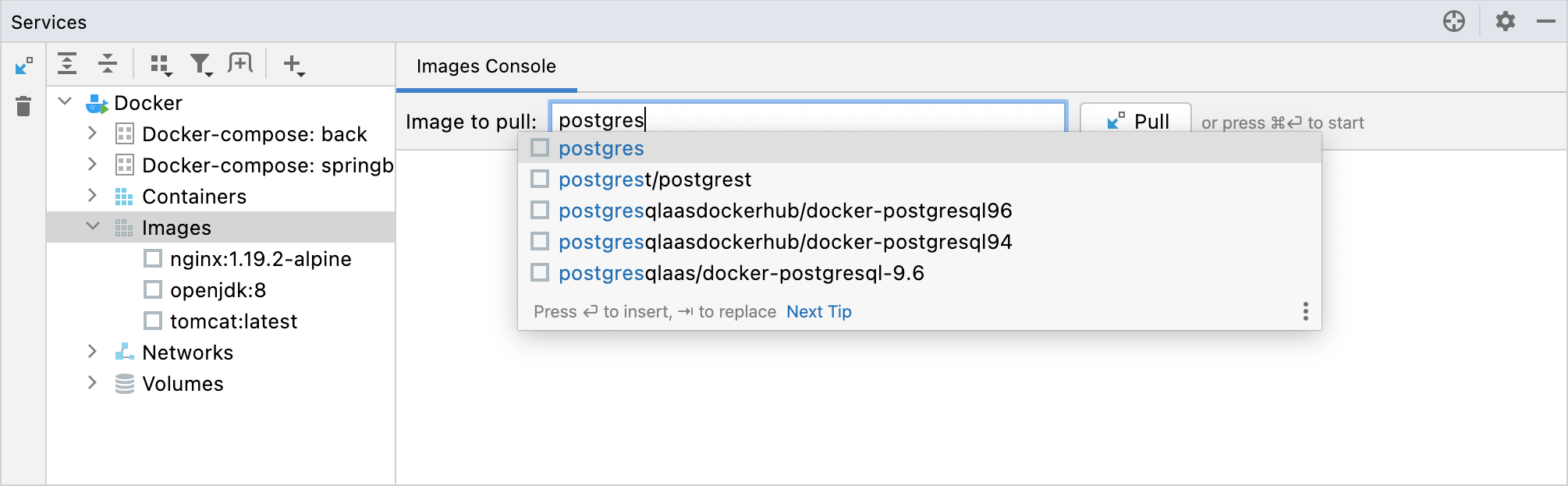
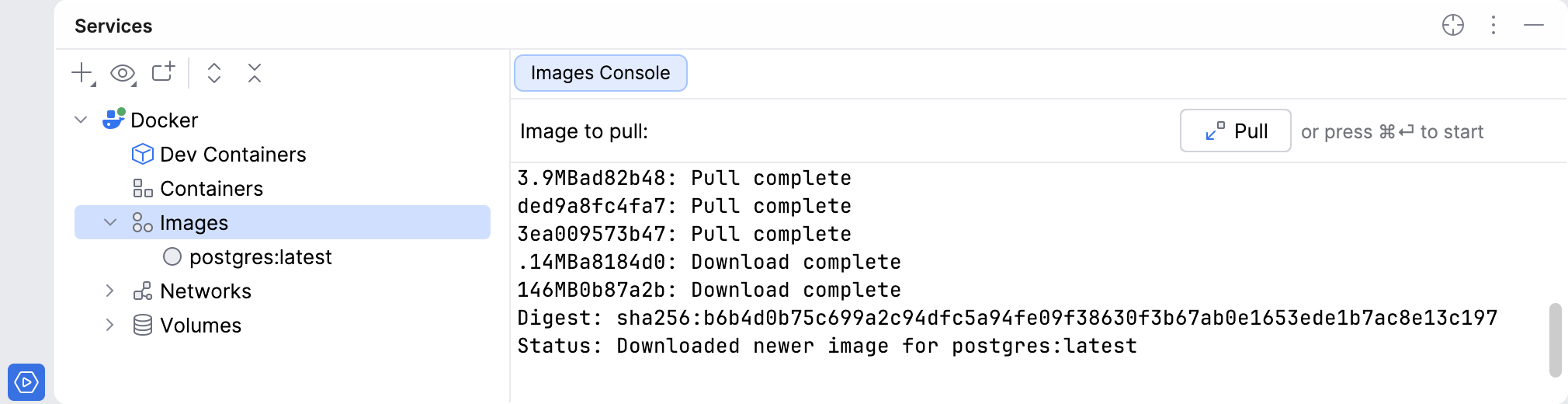
Press Ctrl+Enter and wait until Docker pulls the image.
Run a container from the PostgreSQL server image
Expand the Images node, select the PostgreSQL server image, and click
 Create Container.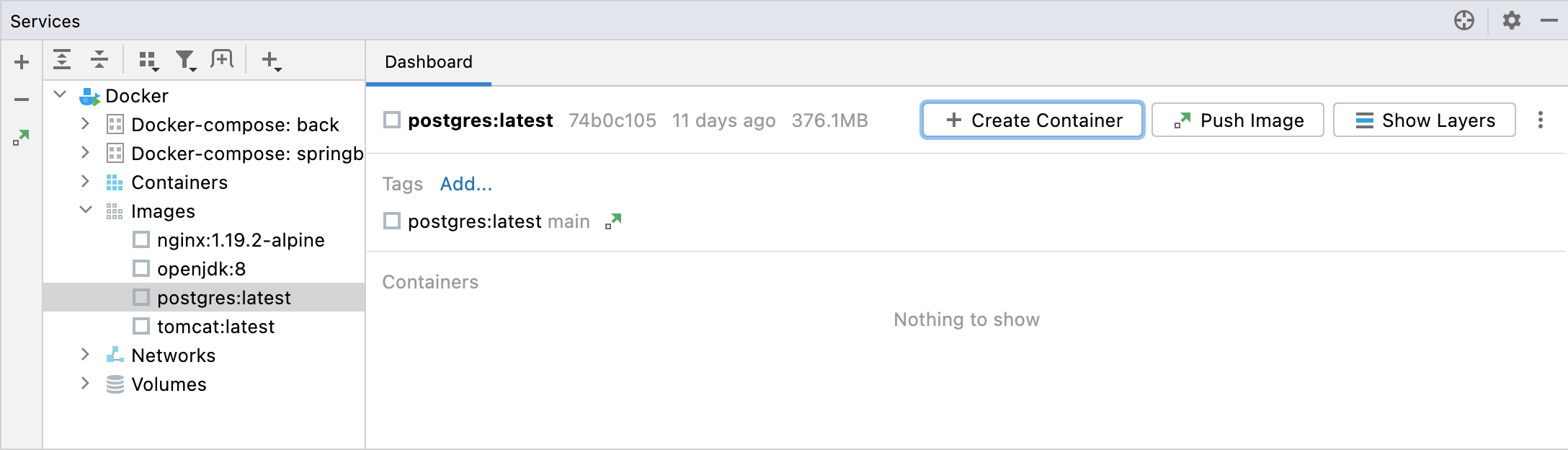
In the Create Docker Configuration dialog, click Modify options and select Randomly publish all exposed ports to publish all exposed container ports to the host interfaces.
Click Modify options and select Environment variables. In the Environment variables field that appears, you can configure the environment variables for your PostgreSQL authentication.
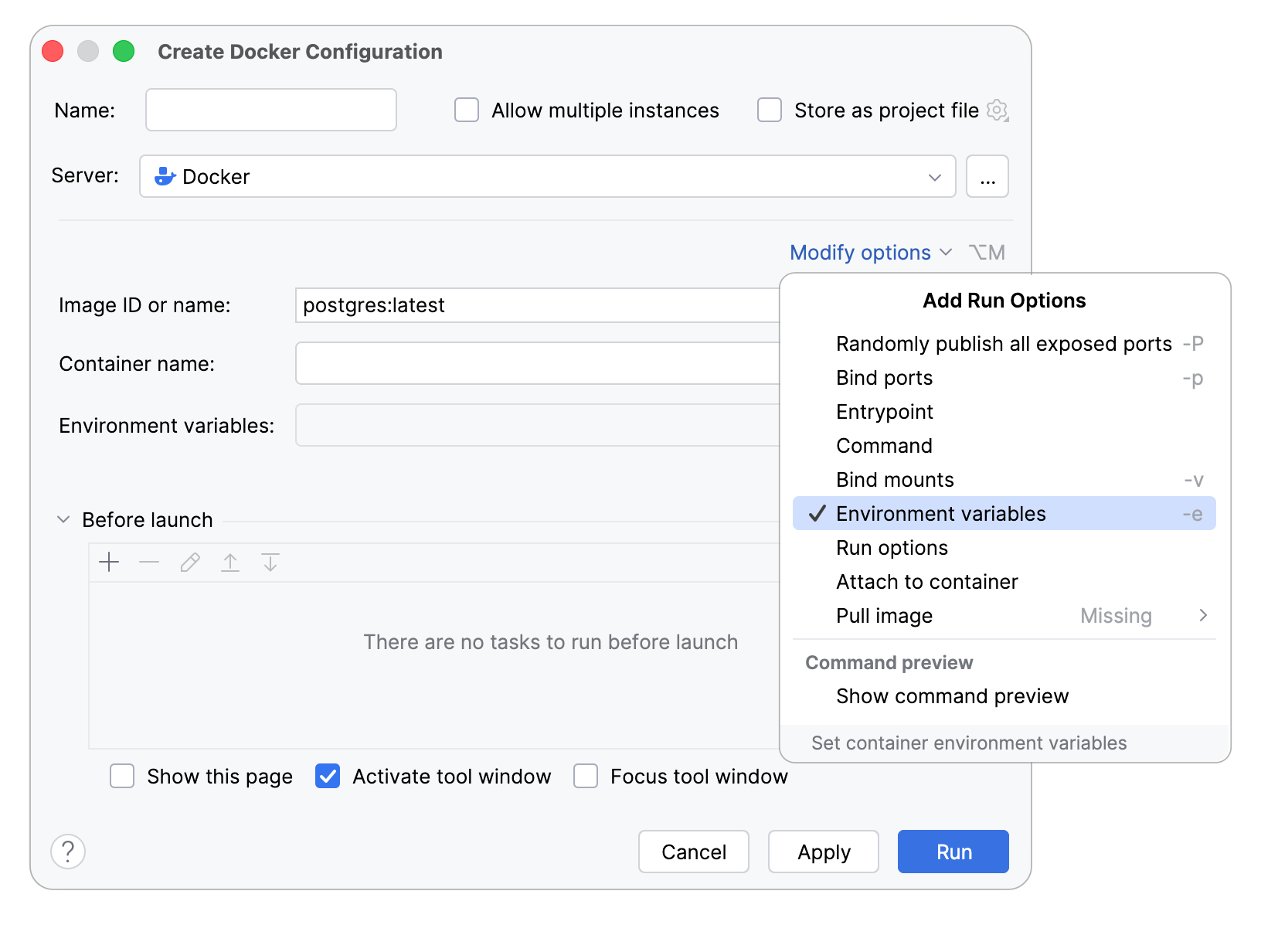
Click
 Browse. In the Environment Variables dialog that opens, click
  Add and add the
 POSTGRES_HOST_AUTH_METHODvariable with the valuetrust.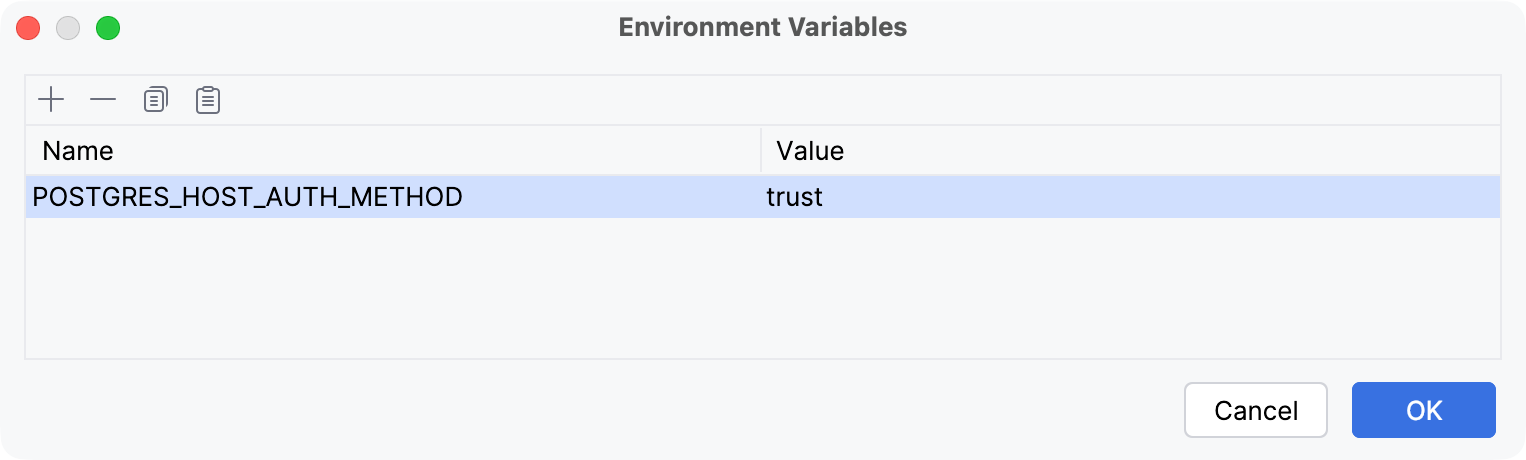
In the Name and Container name fields, specify custom names for the configuration (for example,
PostgreSQL Container) and container (for example,postgresql).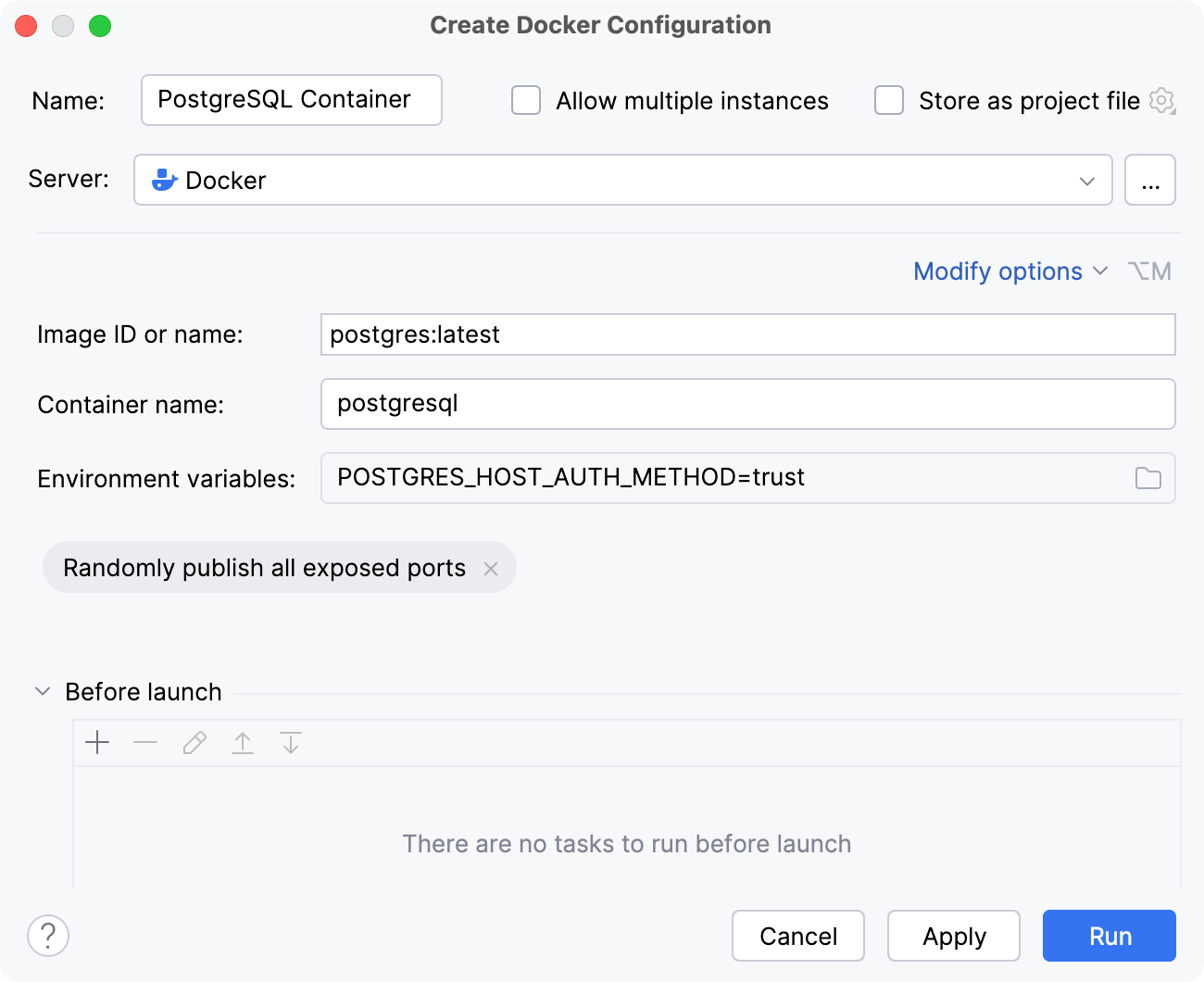
Apply the changes and click Run.
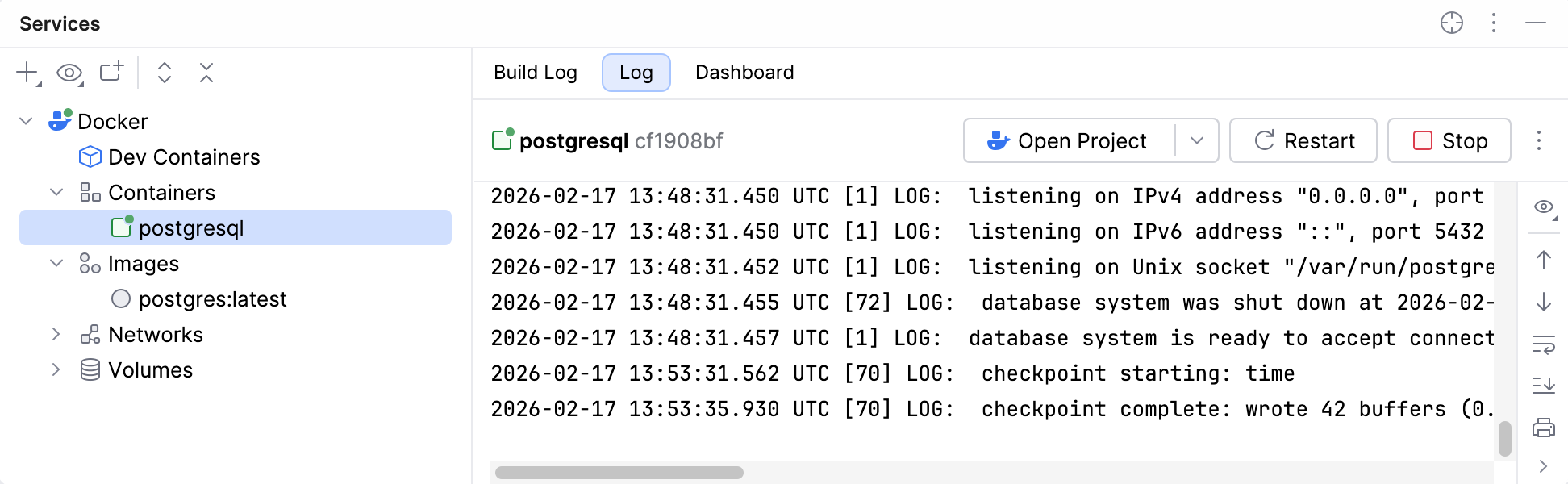
IntelliJ IDEA creates and starts a new Docker container. It will appear in the Services tool window under the Containers node.
Connect to the PostgreSQL server
Docker automatically maps the default PostgreSQL server port 5432 in the container to a host port within the ephemeral port range (typically from 32768 to 61000). In this tutorial, we use port 55000 as an example.
Open the Database tool window ().
Click
New and select .Set the hostname to
localhost, the port number to55000(or whatever host port it was mapped to), the default database and user topostgres. No password is required since we usedtrustauthentication to run the PostgreSQL server.If necessary, download the driver and test the connection.
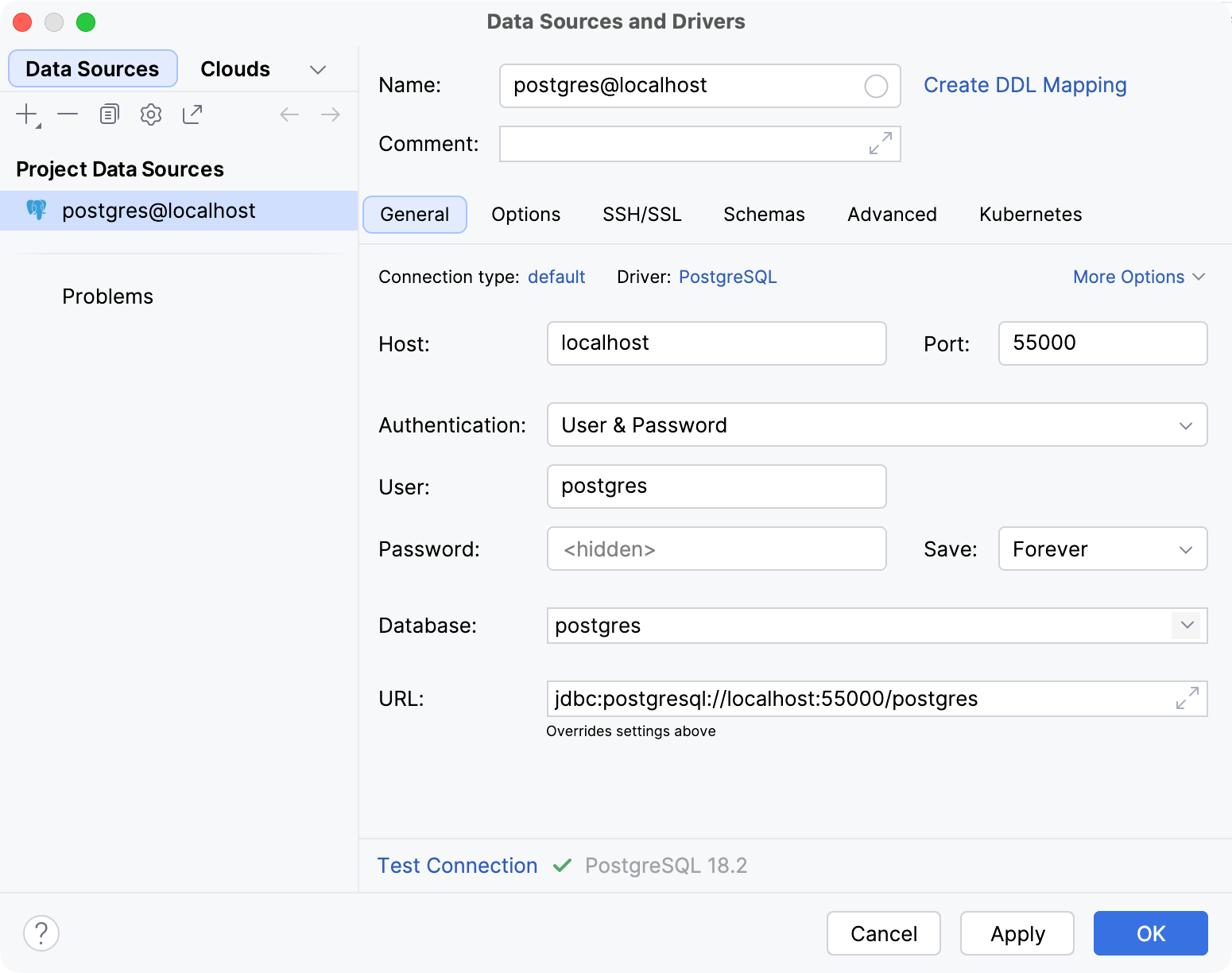
Click OK to add the PostgreSQL server as a data source.
The created data source will appear in the Database tool window. Now you can expand the connection tree to view the database objects of your PostgreSQL server running in Docker. For more information about the PostgreSQL database connection process and available options, refer to Connect to a PostgreSQL database.
Summary
In this tutorial, you have learned how to:
Pull and manage Docker images
Configure and run a container from a DBMS (like PostgreSQL) image
Establish a connection between IntelliJ IDEA and a database running inside a container