Use Git worktrees
A standard Git repository typically uses a single worktree. To switch branches in this setup, you have to either commit or stash unfinished work. Git worktrees allow you to have multiple branches checked out simultaneously in separate directories, all linked to a single .git directory.
What is a Git worktree?
A Git worktree allows you to have multiple branches of the same repository checked out simultaneously in separate directories. Common use cases for using Git worktrees include:
AI-driven development: run AI agents in separate worktrees to prevent them from overwriting local unsaved changes.
Emergency bug fixes: address critical issues in a separate directory without interrupting your current progress.
Parallel code reviews: check out and test pull and merge requests locally without disrupting your existing environment, database state, or build artifacts.
Long-running tasks: execute heavy test suites or complex builds in one worktree while continuing to write code in another.
Multi-branch context switching: manage several long-running branches without stashing changes or waiting for the reindexing of a large volume of files after a branch switch.
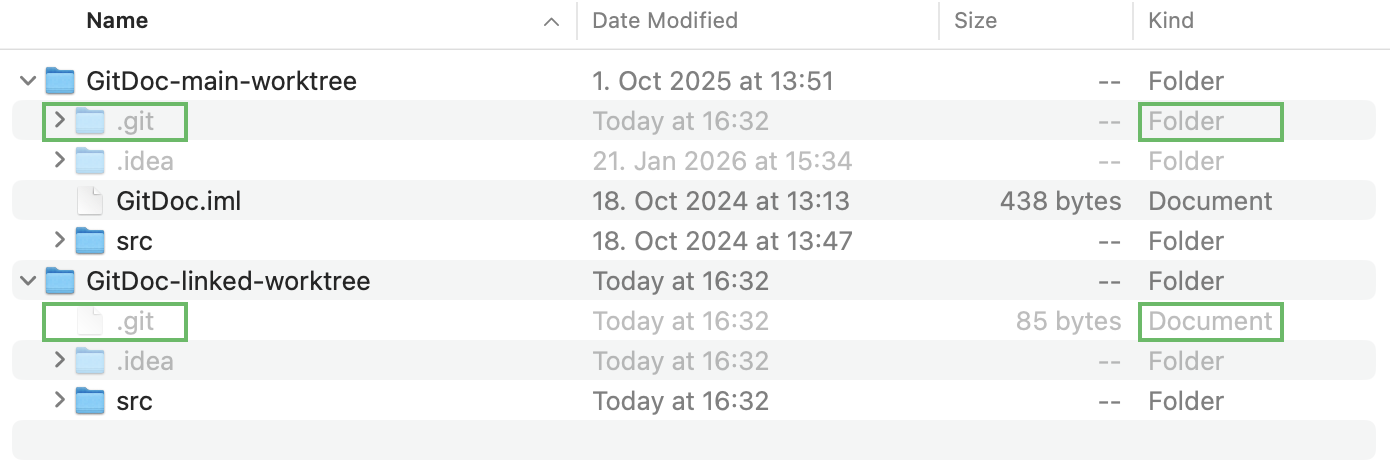
A Git worktree is a linked copy of your project. Unlike git clone, which creates a full duplicate of the repository, all worktrees share the same central .git history.
When you create a worktree, Git generates a new directory for your files. Instead of a full .git folder, this directory contains a .git file with a plain-text path pointing back to the original repository. This ensures all worktrees remain in sync while maintaining independent working environments.
For more information about Git worktrees, refer to the official Git documentation.
Create and manage Git worktrees
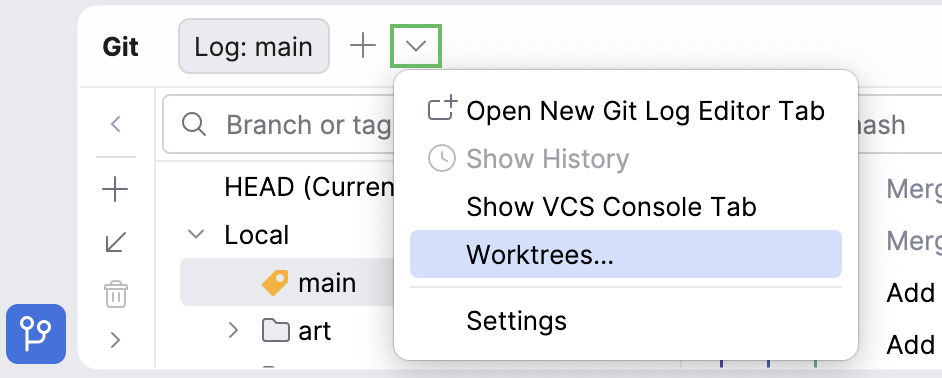
If a project already has more than one Git worktree, the Worktrees tab is available by default. Otherwise, it can be opened in the Git tool window Alt+9 by clicking  and selecting Worktrees.
Create a Git worktree
In the Git tool window Alt+9, open the Worktrees tab and click
 New Worktree.
Alternatively, in the main menu, select .
This opens the New Worktree dialog.
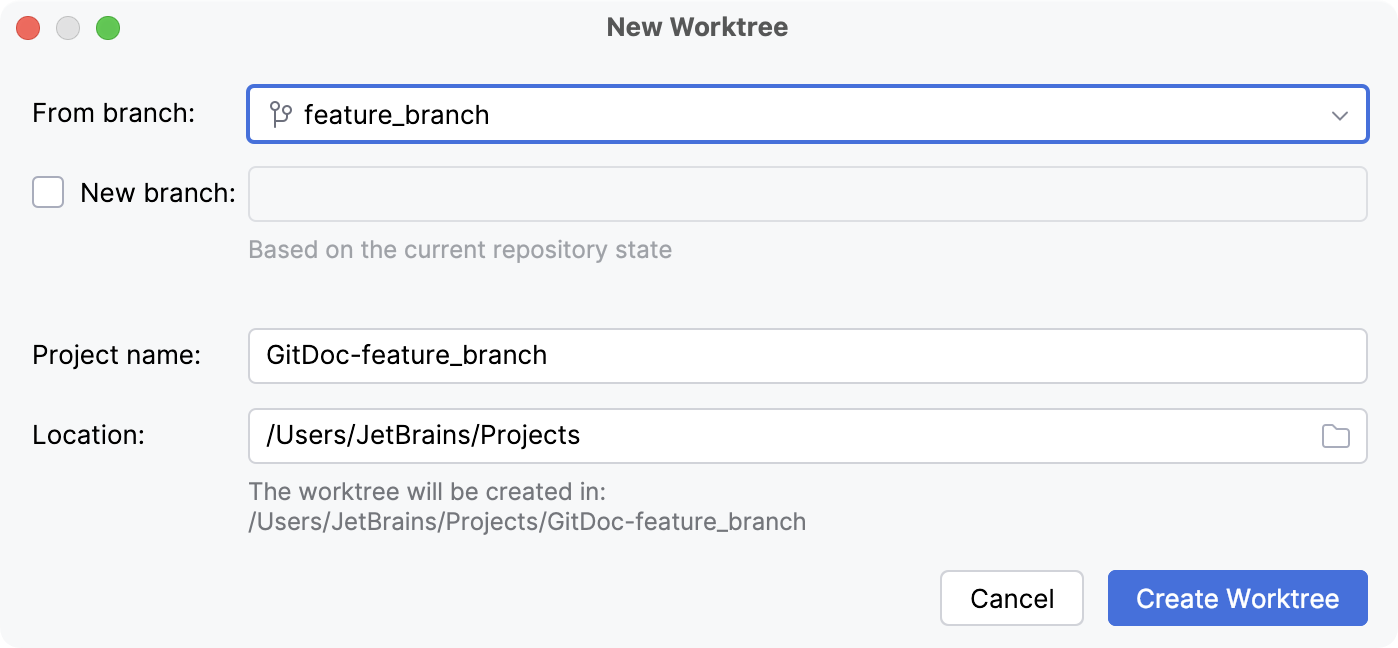
In the New Worktree dialog, specify the following:
From branch: select the source branch.
Note that you cannot check out the same branch in two worktrees simultaneously. If you want to use the currently checked-out branch as a source for the new worktree, you can create another local branch from it and use it in the new worktree. For that, select the New Branch option.
Project name: the name of the new worktree.
Location: the directory where the worktree will be stored.
Avoid nesting worktrees: it is not recommended to create a worktree inside the directory of your current project (for example,
Projects/mainProject/linkedWorktree). Currently, IntelliJ IDEA misidentifies such projects as multi-root projects, which breaks the worktree integration.
Once you create a new worktree, IntelliJ IDEA will open it as a separate project.
Switch between different worktrees
Once a worktree has been opened for the first time, it behaves like any other project. You can find it in Recent Projects in the main menu or in the project widget in the toolbar in the window header.
To switch to a worktree, including the ones created outside of IntelliJ IDEA, do the following:
In the Git tool window Alt+9, open the Worktrees tab.
Alternatively, in the main menu, select .
Double-click the target worktree.
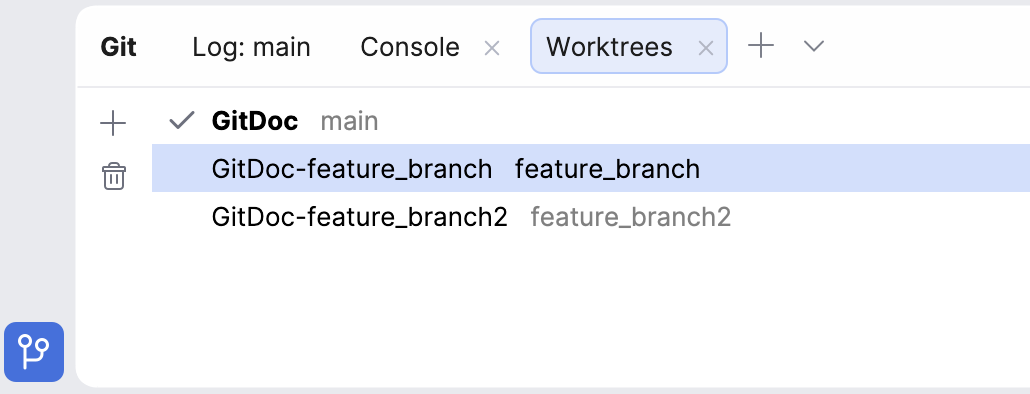
The worktree will open in a new or existing window depending on your system settings.
Delete a worktree
Before deleting a worktree, make sure you have committed all changes.
In the Git tool window Alt+9, open the Worktrees tab.
Alternatively, in the main menu, select .
Select the worktree and click
 Delete.
Note that you cannot delete the main worktree or the worktree that is currently open.