Mercurial
Install the Mercurial plugin
This functionality relies on the Mercurial plugin, which you need to install and enable.
Press Ctrl+Alt+S to open settings and then select .
Open the Marketplace tab, find the Mercurial plugin, and click Install (restart the IDE if prompted).
Mercurial support
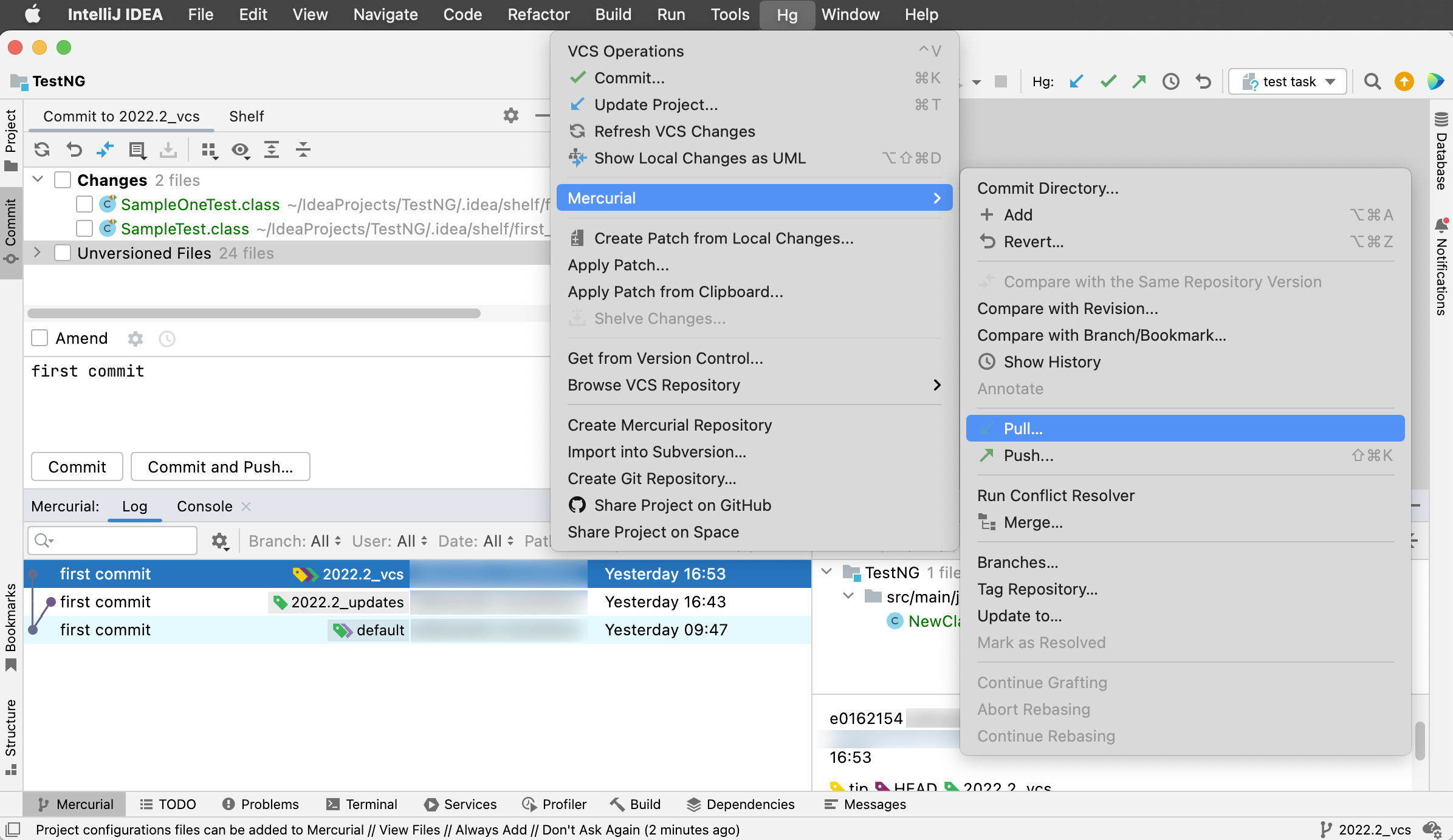
When Mercurial integration with IntelliJ IDEA is enabled, the option appears in the menu, and in the context menus of the editor and Project tool window (Alt+1) .
The files in the folders under the Mercurial control are highlighted according to their status. See Check file status for file status highlighting conventions.
Modifications' results are shown in the Commit tool window (Alt+0) .
When using Mercurial integration, it is helpful to open the Console tab of the Mercurial tool window Alt+9, which displays the following data:
All commands that are generated based on the settings you specify through the IntelliJ IDEA user interface.
Information messages concerning the results of executing generated Mercurial commands.
Error messages.
Set up Mercurial
Make sure that Mercurial is installed on your computer.
Configure Mercurial executable
Press Ctrl+Alt+S to open settings and then select .
In the Path to Mercurial executable field, specify the path to hg executable.
If you followed the standard installation procedure, the default location is /Applications/TortoiseHg.app/Contents/MacOS/hg or /usr/local/bin for Linux and macOS and /Program Files/TortoiseHG for Windows.
It is recommended that you add the path to the Mercurial executable file to the
PATHvariable. In this case, you can specify only the executable name, the full path to the executable location is not required.Click Test to make sure the path is specified correctly. Apply the changes and close the dialog.
Enable Mercurial integration for your project
Press Alt+` to open the VCS Operations Popup and select Enable Version Control Integration.
Alternatively, go to .
In the Enable Version Control Integration dialog that opens, select Mercurial.
Click OK to apply the changes.