Tutorial: Getting started with Git in IntelliJ IDEA
This tutorial will show you how to perform the most popular Git operations in IntelliJ IDEA.
You will learn how to create Git repositories for your projects, share them on GitHub, commit and push changes, create and merge branches, resolve merge conflicts, and investigate the files' history.
Step 1. Create a new project with a Git repository
In this tutorial, we will create a simple project, share it on GitHub, and perform some Git tasks.
Launch IntelliJ IDEA and click New Project on the Welcome screen.
In the New Project wizard, select the project type from the New Project list (for this tutorial, we will create an Empty Project), specify the name of the project (for example,
gitdemo), and provide the location path.Select the Create Git repository option.
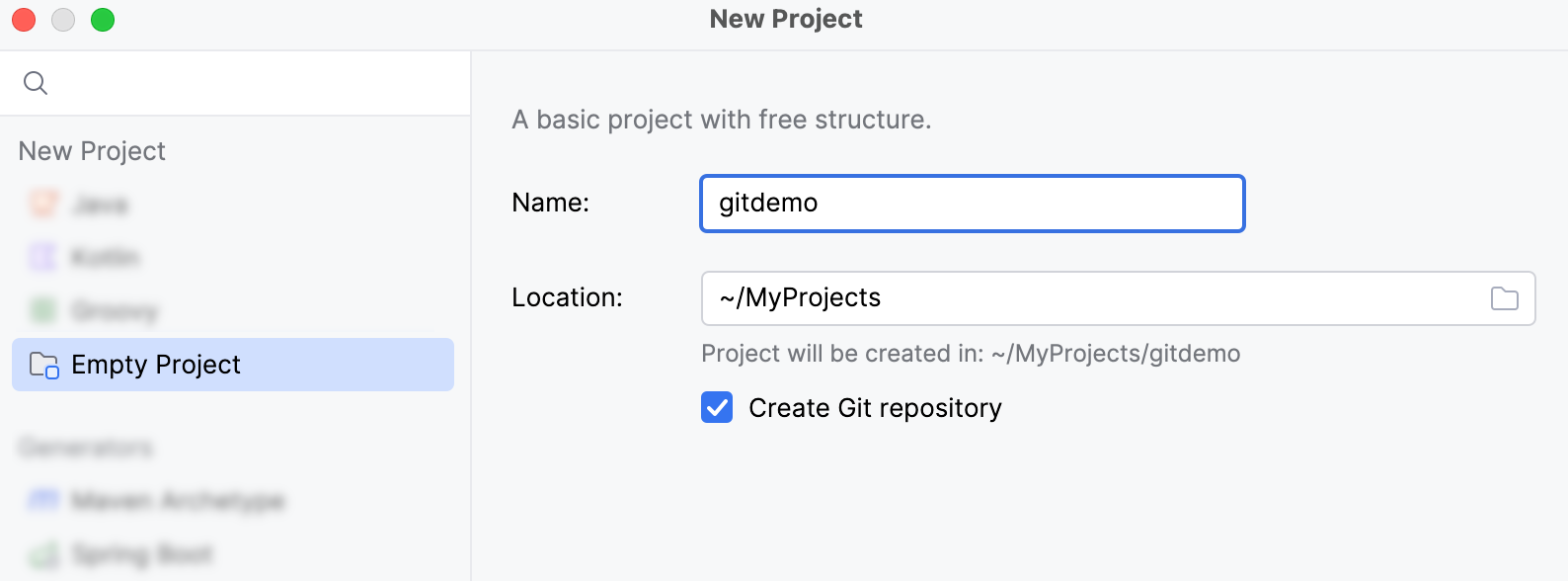
Click Create. The new project will open in IntelliJ IDEA.
You will get a notification that the local Git repository has been created for your project.
Now that you have created a new project with a Git repository, dedicated tool windows for working with Git become available.
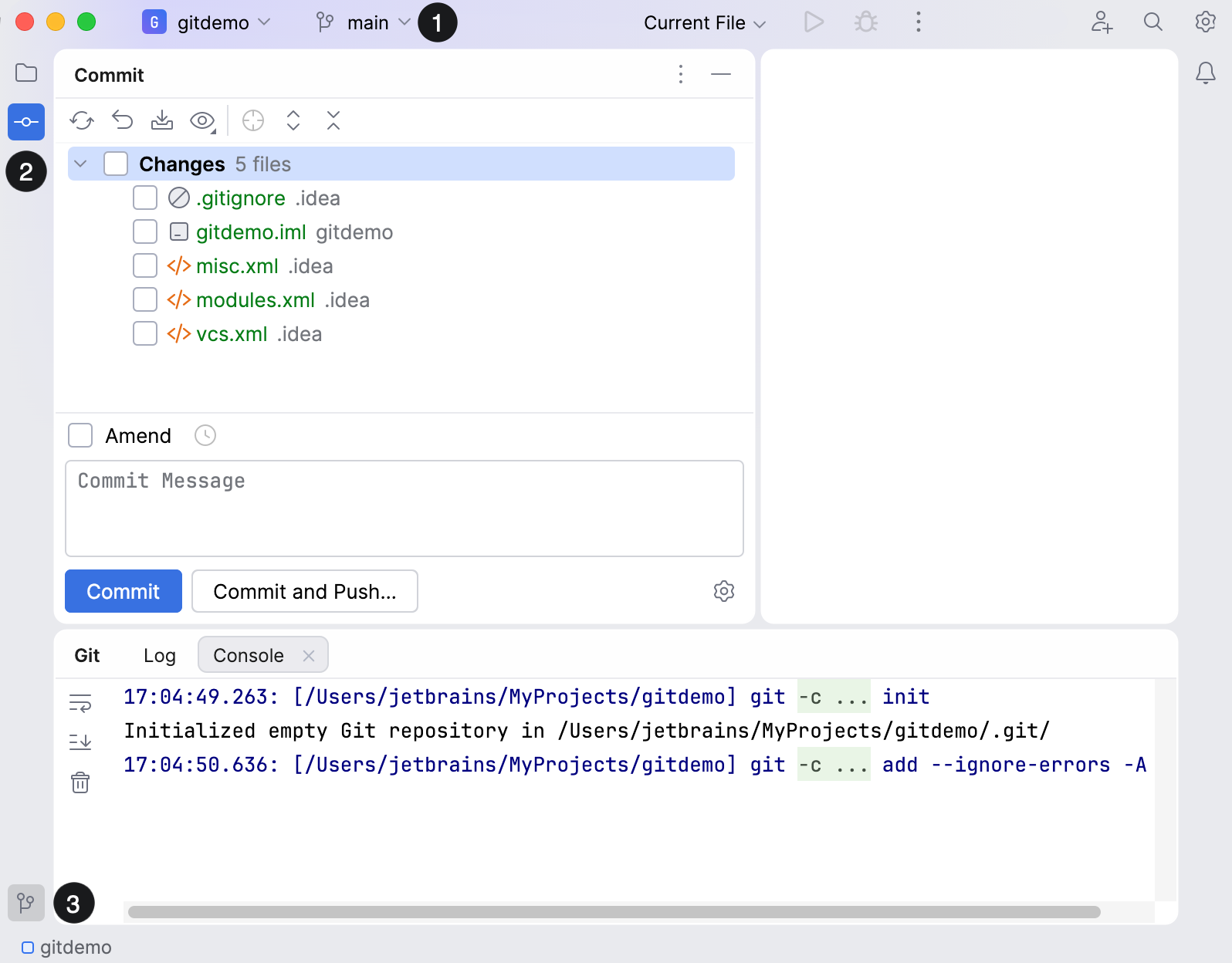
VCS widget: manage Git branches and perform basic Git operations.
Commit tool window (Ctrl+K or ): review the local changes and commit them to the local Git repository.
Git tool window (Alt+9 or ): work with the Git log and more.
Step 2. Add files to Git
Once the Git integration is enabled, IntelliJ IDEA shows which files have been modified, which new files have been added to Git, and which files are not being tracked by Git.
To learn how it works, let's create a simple README.md file with a short description and add it to Git.
In the Project tool window (Alt+1) , select the project directory (
gitdemo).Click
 New File or Directory on the tool window toolbar (or press Alt+Insert) and select File from the list. Name the file
 README.mdand press Enter.In the dialog that opens, click Add so that Git could start tracking the file.
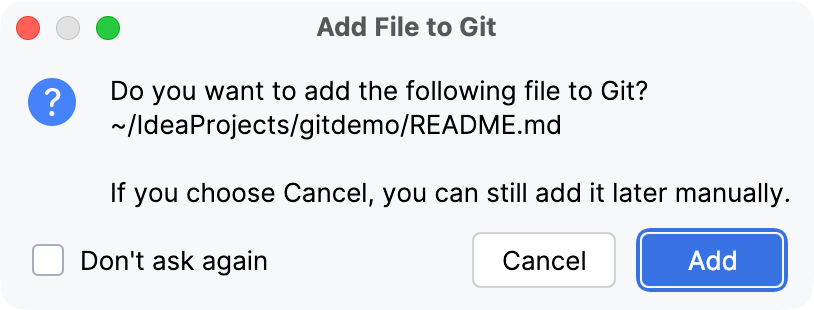
Now when you modify this file, IntelliJ IDEA automatically indexes any changes (in other words, adds them to the Git staging area) so that you do not have to do that manually.
Add the following text to the newly created file:
# Tutorial This is a tutorial where you will learn how to create Git repositories from your projects and share them on GitHub.Press Enter to make sure you create a new line in the file after this text. We will use it later to learn how to solve merge conflicts.
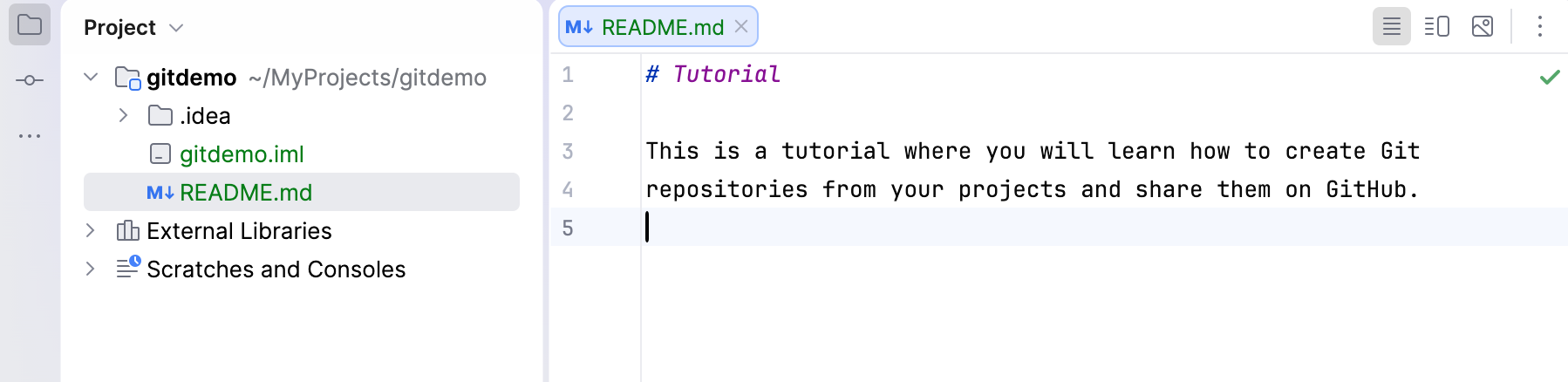
Now the new file is tracked by Git and is added to the Changes changelist in the Commit tool window (Alt+0) .
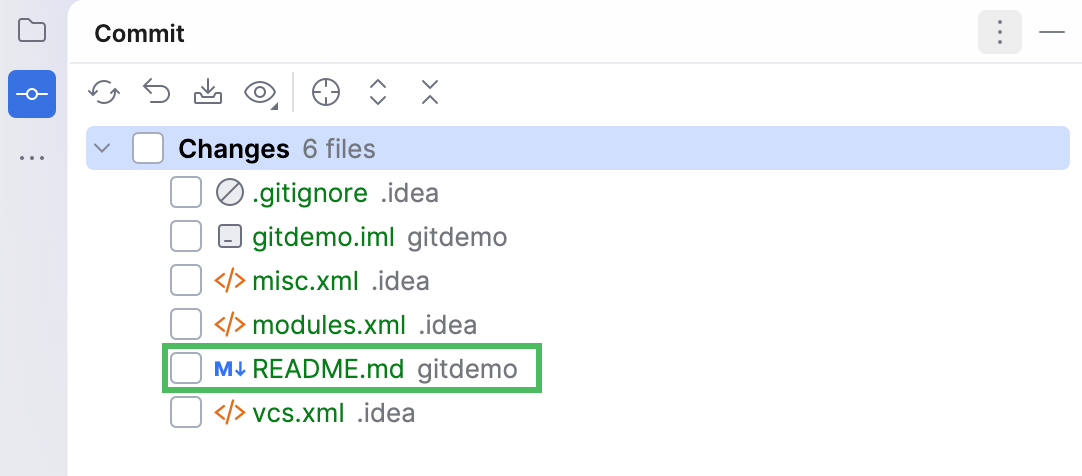
The Changes changelist helps you manage local changes that have not yet been committed to a Git repository. Learn more in Group changes into changelists.
Step 3. Commit your project to the local Git repository
Now let's add all the files you want to share to the repository and commit them to save their current state.
In the Commit tool window (Alt+0) , select the files you want to commit by clicking the checkboxes next to them.
Type a message for your first commit (for example,
Add a new project to Git):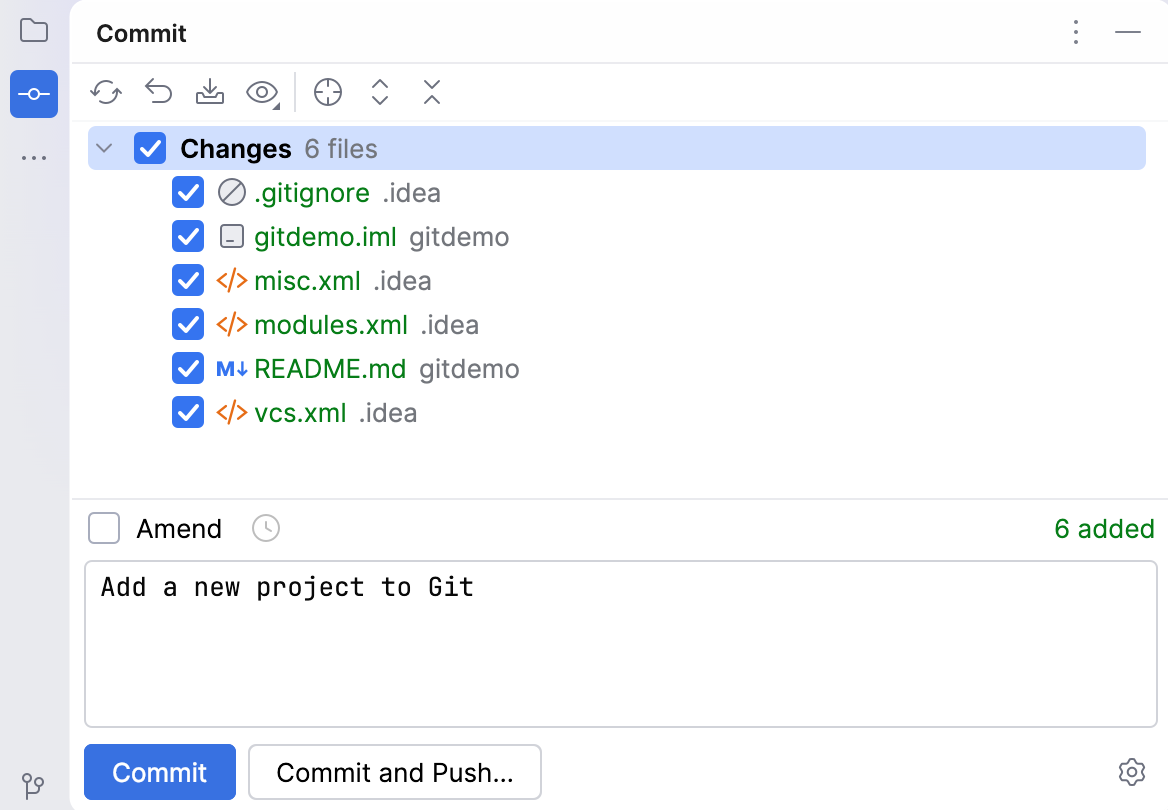
Click Commit.
If you have not used Git on your computer, right before committing your changes IntelliJ IDEA will ask you to enter your username and your email. Git will store this information in
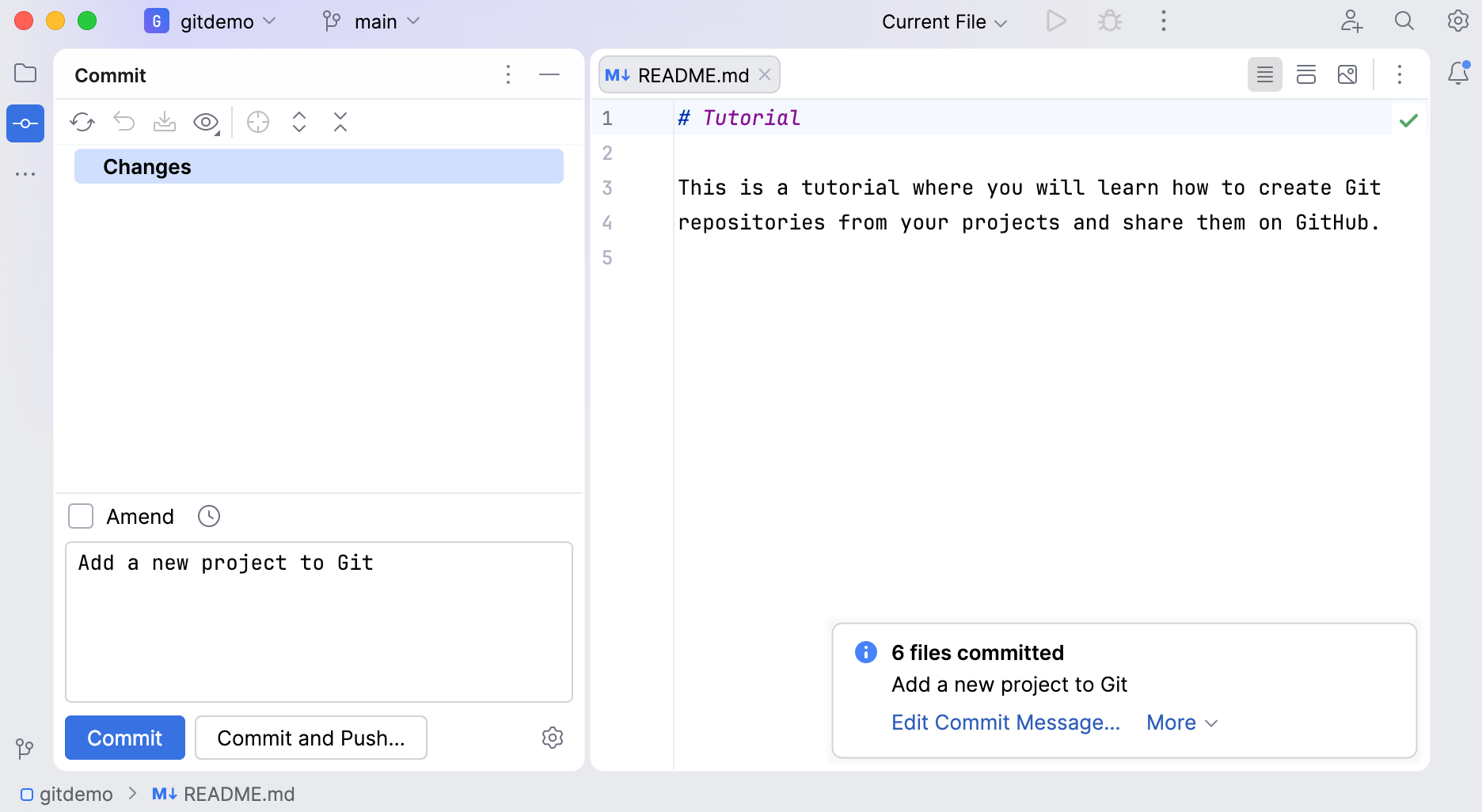
.git/configin order to assign you as an author to your commits.IntelliJ IDEA notifies you after a successful commit:
Step 4. Share your project on GitHub
To make your project available for other contributors, you need to publish it to a remote repository, for example, on GitHub or on GitLab. IntelliJ IDEA provides integration with both these platforms . Learn more details in Manage projects hosted on GitHub and Manage projects hosted on GitLab.
In this tutorial, we will publish our project on GitHub.
In the main menu, go to .
In the dialog that opens, you can change the repository name (by default, it is the same as the project name), the name of a remote (by default,
origin), choose the repository type (public or private), and add some description if needed.Leave the default values in the Repository name and Remote fields. Select the Private option.
If you are not registered on GitHub, click Add account and then Log In via GitHub.
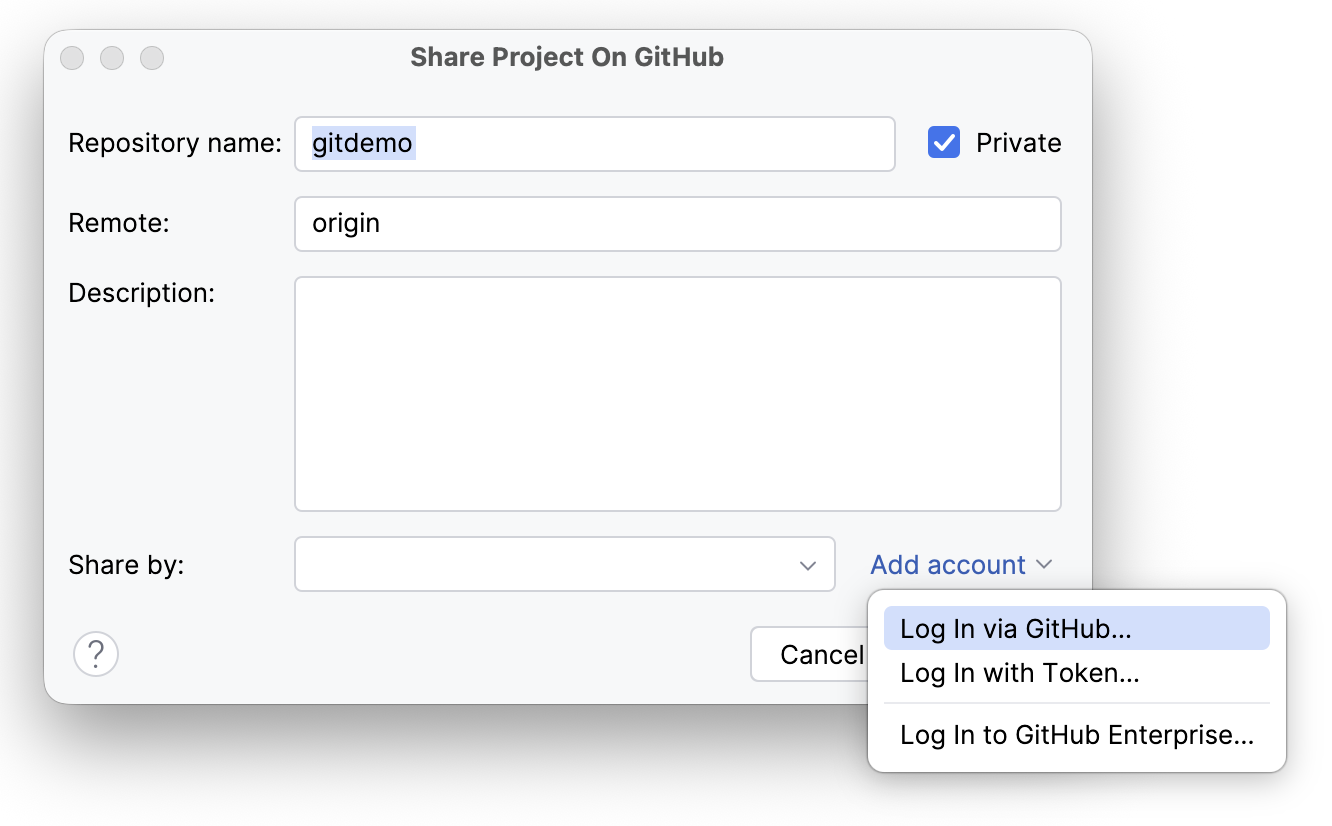
Enter your GitHub credentials in the browser window that opens or create a new account there. When you go back to IntelliJ IDEA, the Share by field will show your account's name.
Click Share. After the project is successfully published on GitHub, the following notification will appear:
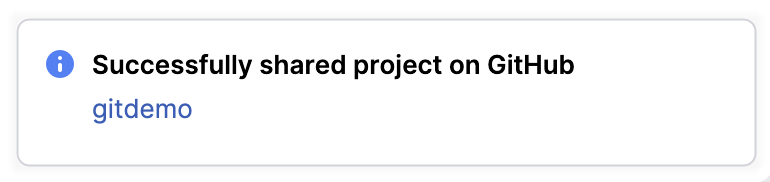
Click the link in the notification to open the repository on GitHub.
Step 5. Create a new branch
You may need to create a separate branch, for example, when you are working on a new feature and you don't want your changes to get into the main branch before they are tested.
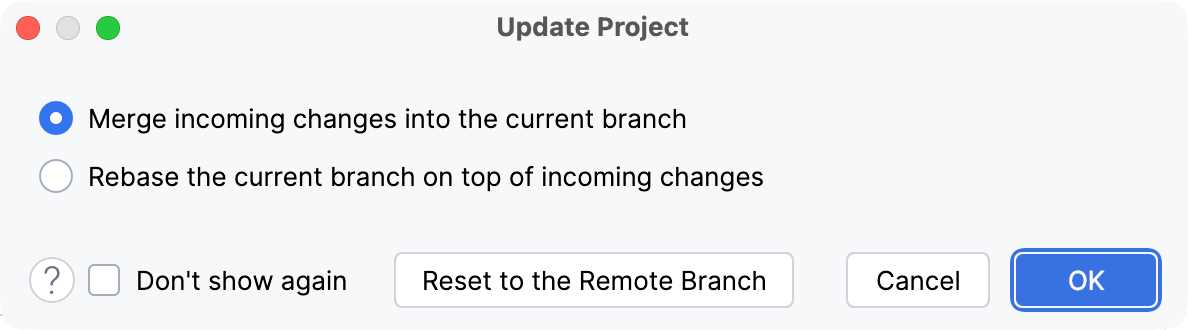
Press Ctrl+T or go to Git | Update Project. In the Update Project dialog that opens, leave the default merge option. Click OK to pull the latest version of the current branch.
The VCS widget displays the name of your current branch —
main. Click it, select themainbranch in the Local node and then New Branch from 'main'.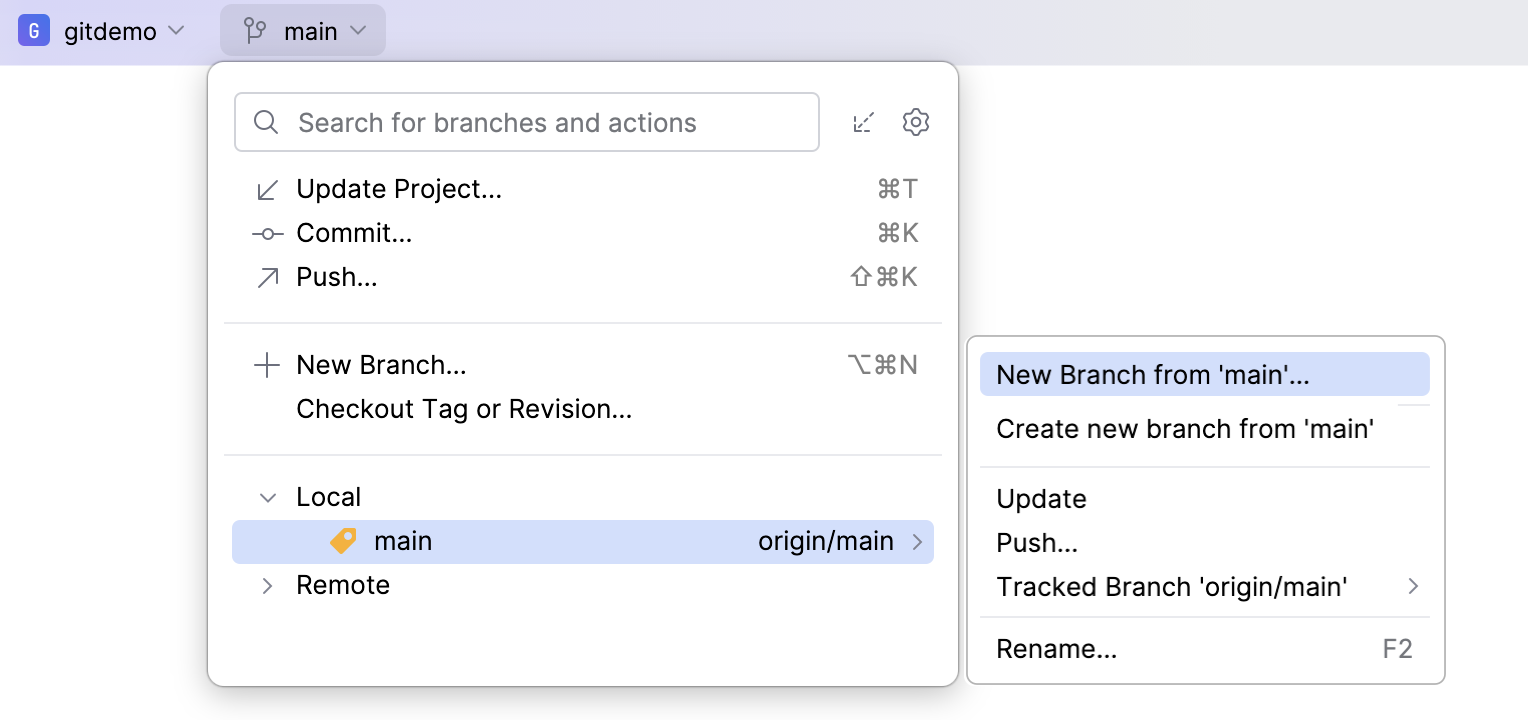
In the dialog that opens, specify the branch name, for example,
new_feature, and select the Checkout branch option to switch to the new branch right away.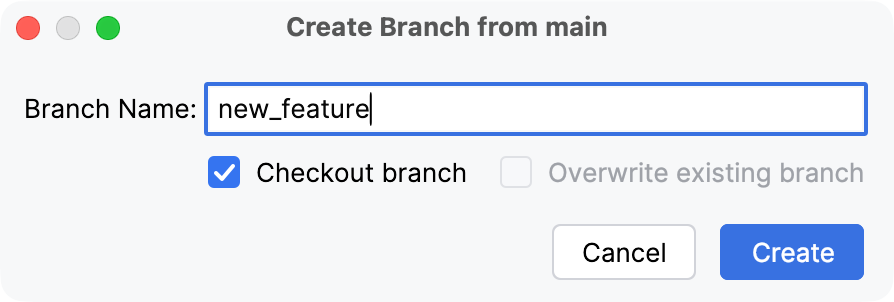
Now you are switched to the newly created branch:

Step 6. Make and view the changes
Add a new file to the project (for example,
git-features.md) and click Add when IntelliJ IDEA suggests adding it to Git version control.After that, open the
README.mdfile and replace the existing text with the new description:# Demo This is a demo project where you will learn how to commit and push changes, create and merge branches. Refer to `git-features.md` to check the list of Git operations.In the Project tool window (Alt+1) and in the editor tabs, IntelliJ IDEA applies different colors to files: blue to modified, green — to newly added. Moreover, in the gutter area of a modified file, the colored change markers appear next to the modified lines.
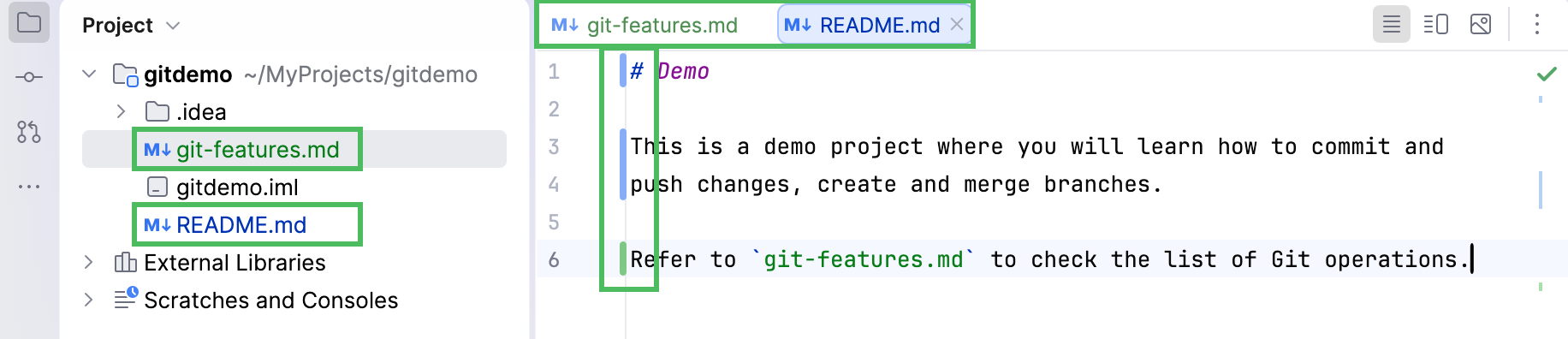
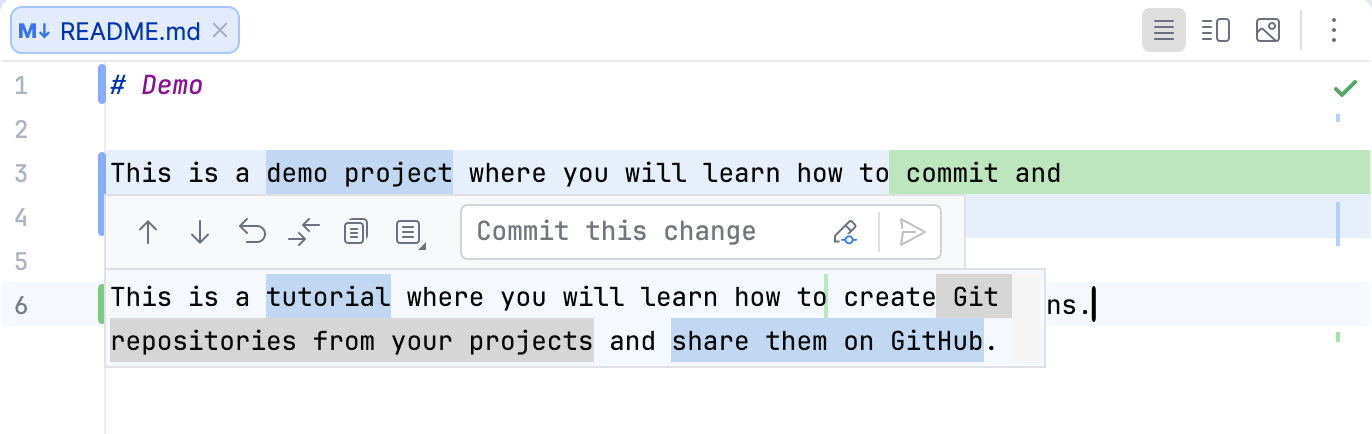
To review what exactly was changed, click the gutter marker:
To view the difference in a separate editor tab, click
 Show Diff for Lines: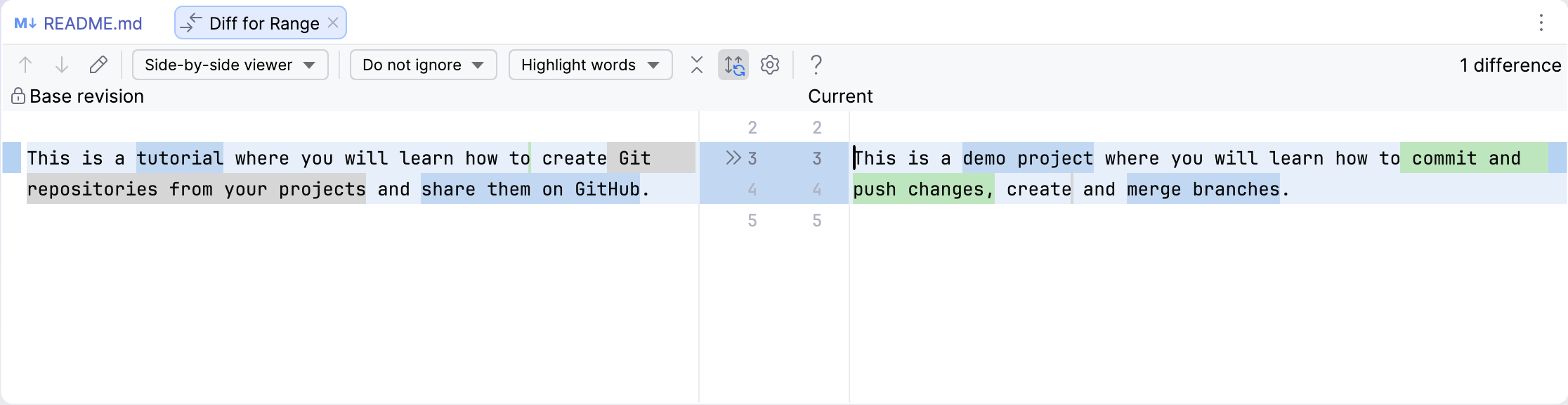
Go to the Commit tool window (Alt+0) to preview all the changes at once. Double-click a file to open the diff view in the editor:
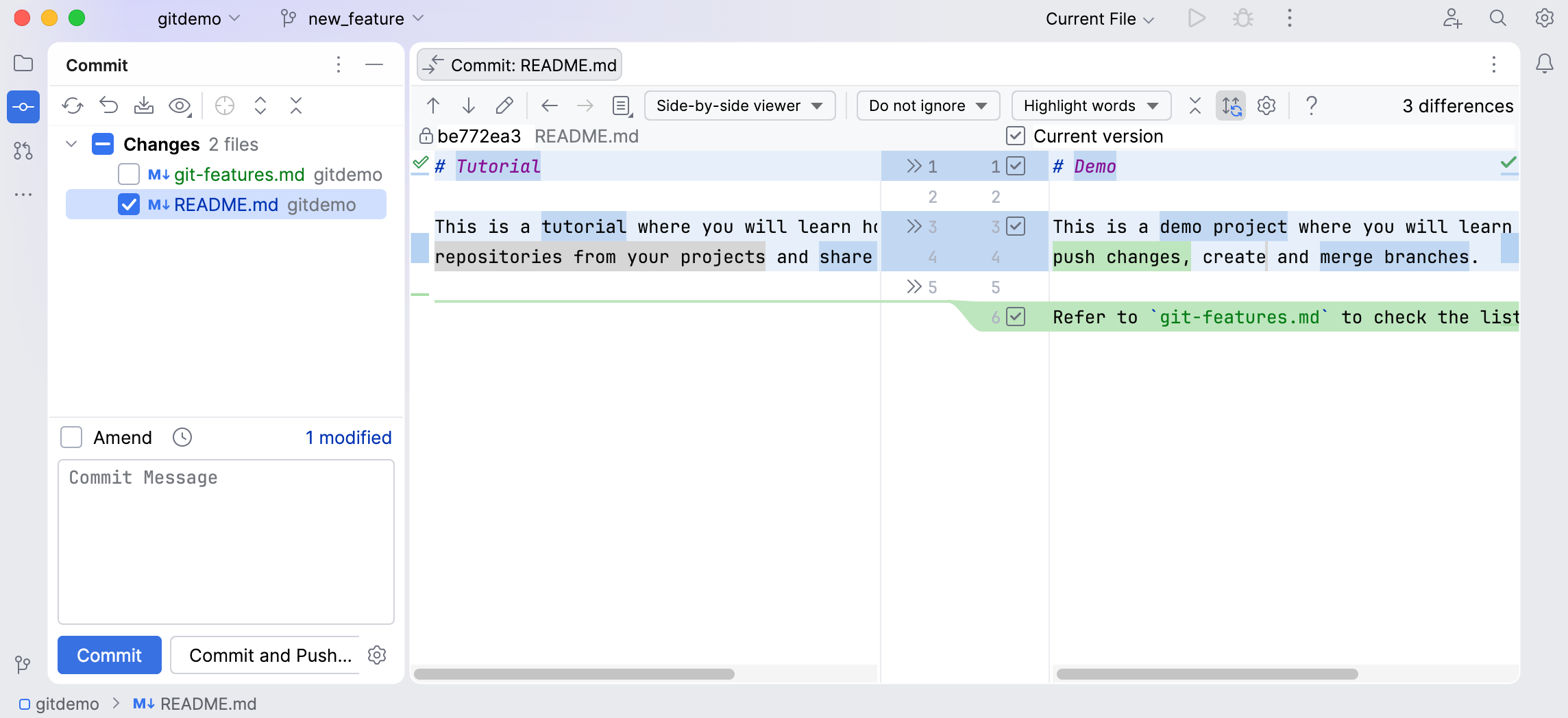
Learn more in Investigate changes in Git repository.
Step 7. Commit and push the changes
In our new_feature branch, we have created a new git-features.md file and have modified the README.md file. Let's commit our changes and push them to the remote repository.
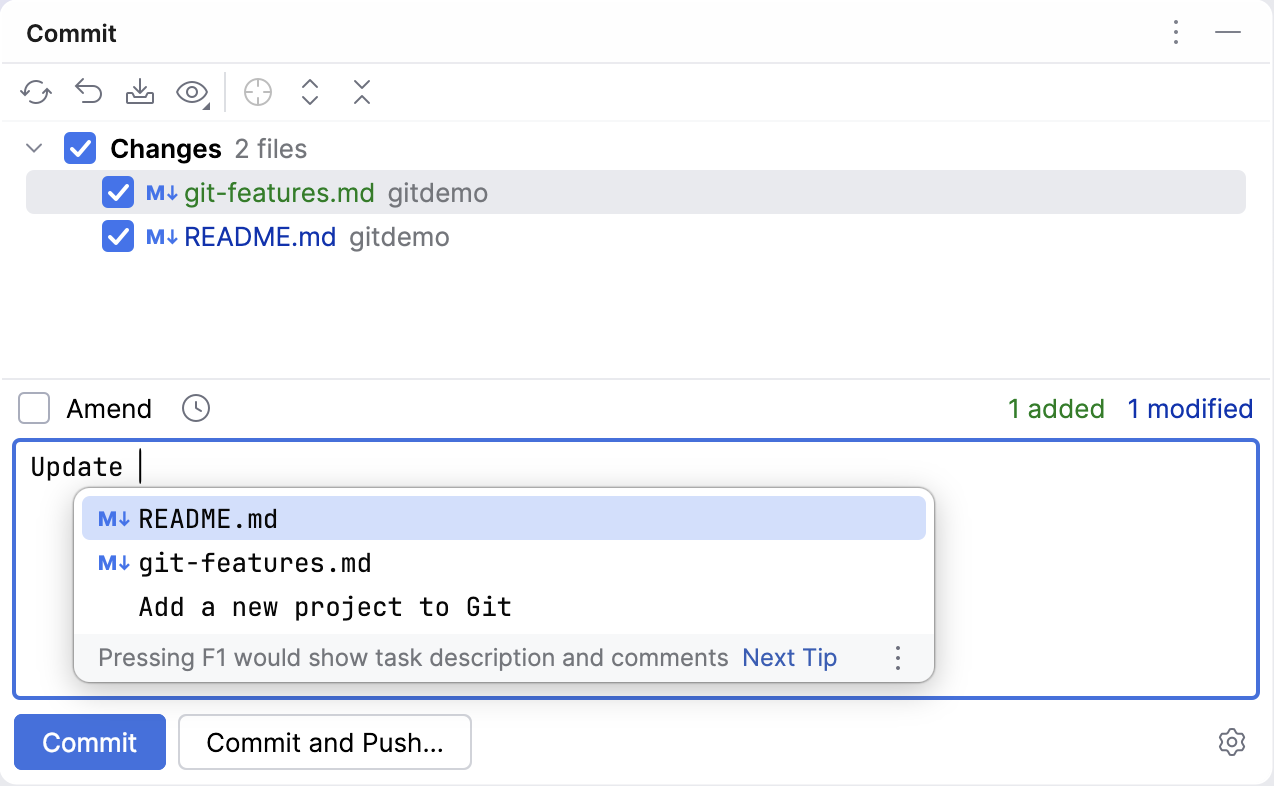
In the Commit tool window (Alt+0) , select the checkboxes next to both our files, and type the commit message (for example,
Update README.md).When typing the commit message, you can use auto-completion for the project file names (Ctrl+Space):
Click Commit.
Press Ctrl+Shift+K or select from the main menu to push the changes to the remote repository. The Push Commits dialog opens. Here you can review all the commits to be pushed as well as all the affected files.
Before pushing the changes, you can review the differences for each file. To do this, right-click a file and select
Show Diff or press Ctrl+D: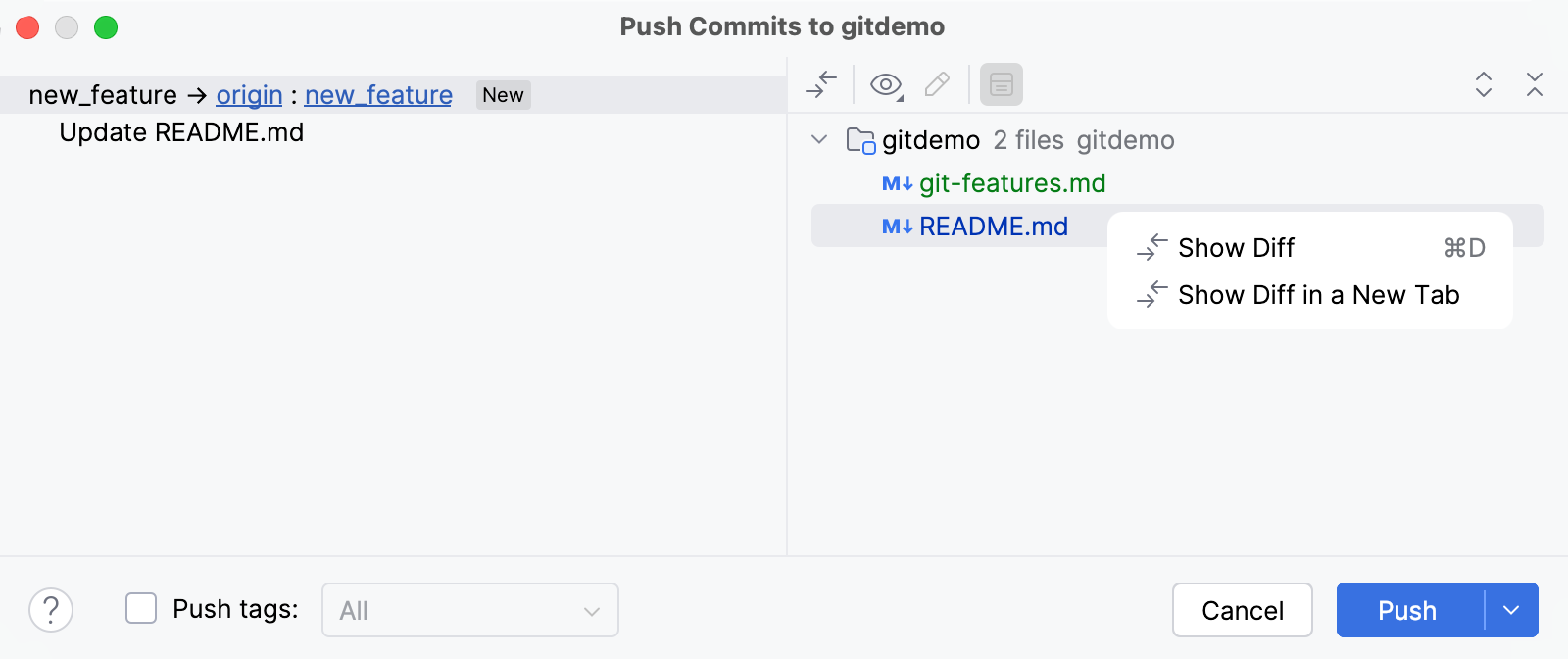
Click Push.
After that, IntelliJ IDEA will push all changes to the remote repository on GitHub.
Step 8. Merge branches and resolve conflicts
There are several ways how you can apply the changes from one branch to another, such as merging and rebasing the branches, cherry-picking commits, applying separate changes or files. All these methods are described in detail in Merge, rebase, or cherry-pick to apply changes.
In this tutorial, you will learn how to merge two branches. We will also make a merge conflict on purpose to learn how to easily resolve merge conflicts using IntelliJ IDEA's merge tool.
Merge branches
Select the
mainbranch in the Git Branches widget and click Checkout.In step 6, we have modified the
README.mdfile in ournew_featurebranch. Now let's update the text one more time in themainbranch to simulate a merge conflict:# Tutorial This is a test project where you will learn how to work with the most popular Git operations.Press Enter to make sure you create a new line in the file after this text, as you did in step 2. This will help us later with conflict resolution.
Commit and push the change as described in step 7. Write a commit message (for example,
Add information about Git tutorial).In the Local node of the VCS widget, select
new_featureand click Merge 'new_feature' into 'main'.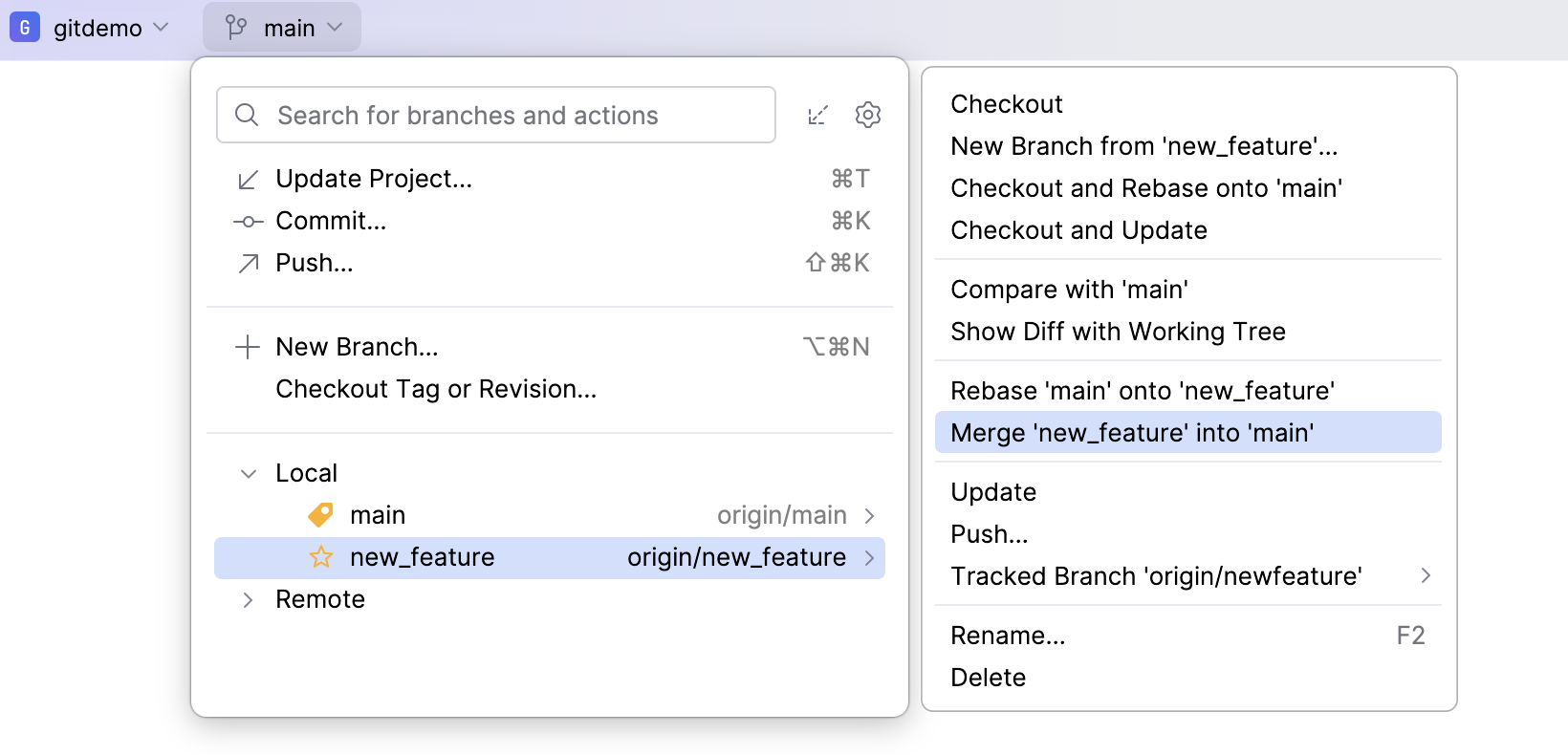
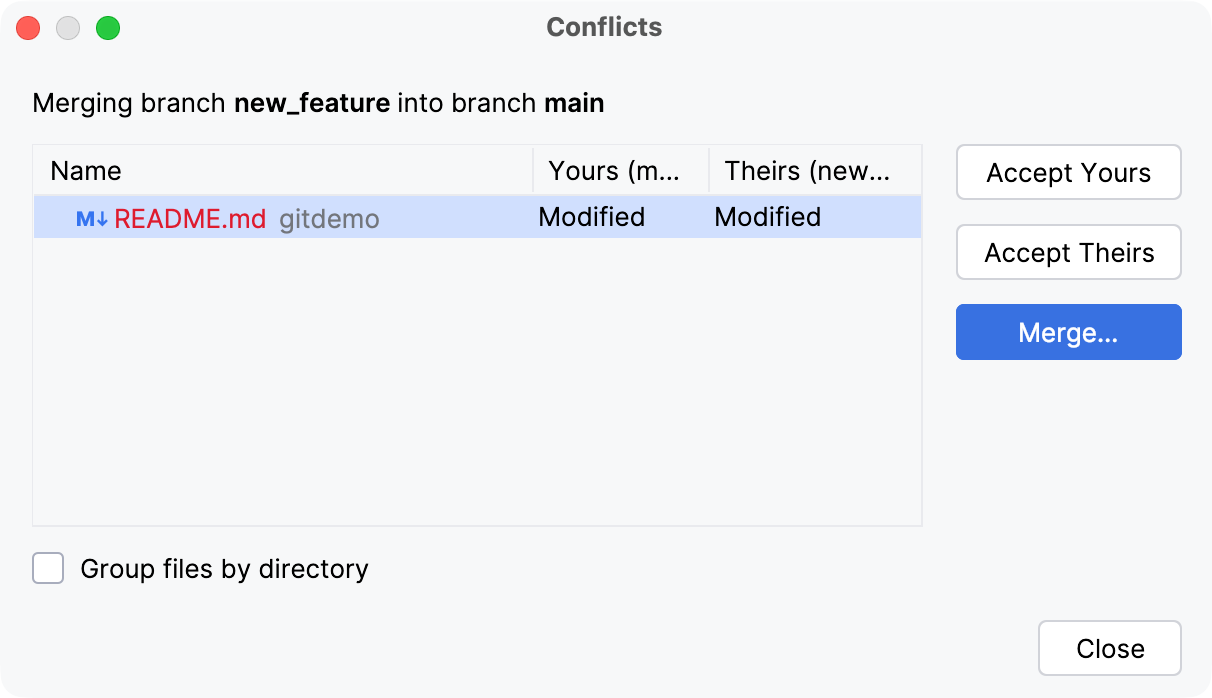
Since we have made changes for the same file in different branches, the Conflicts dialog appears.
Resolve conflicts
In the Conflicts dialog, you have several options to resolve the conflict:
Accept Yours to keep the changes made in the current branch.
Accept Theirs to apply the changes from the branch that you want to merge into the current one.
Merge to resolve conflicts manually in a dedicated dialog.
Click Merge. The Merge Revisions dialog opens:
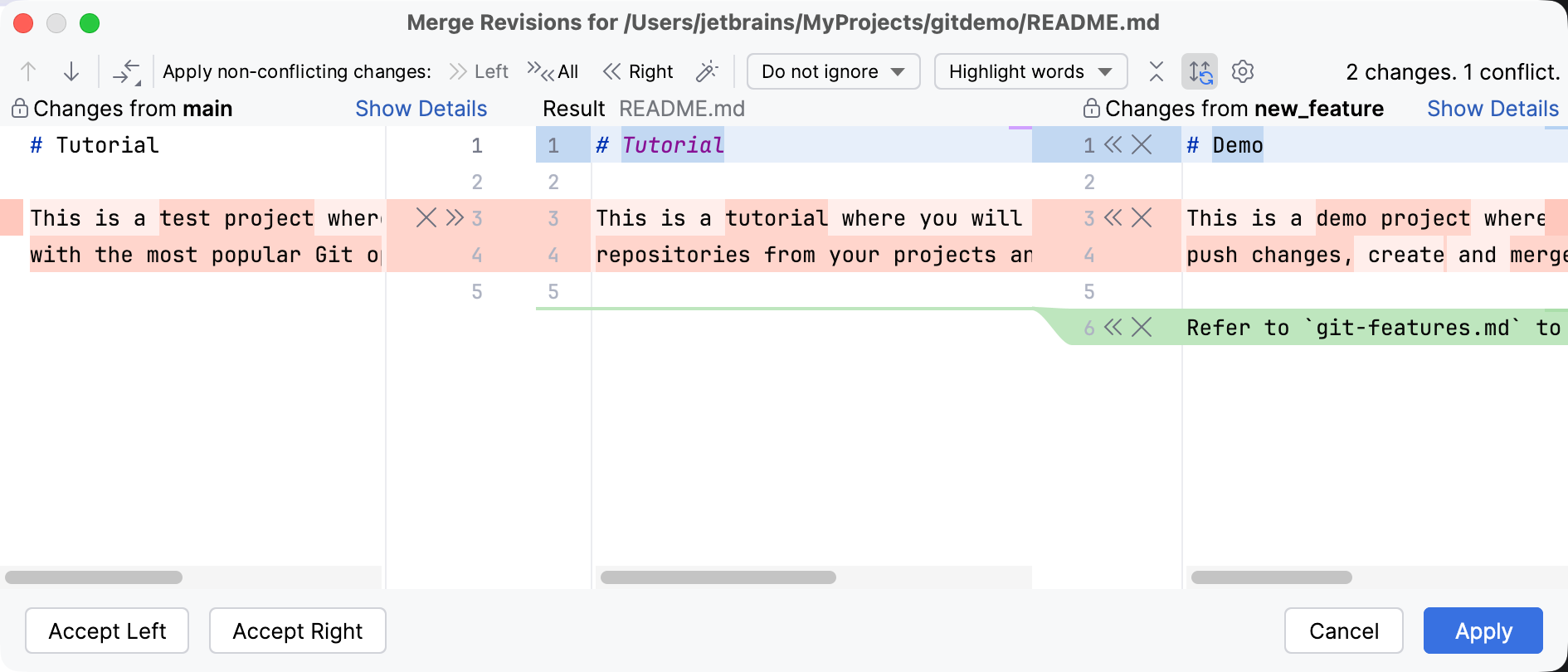
The left pane called Changes from main shows the read-only changes from the local copy.
The right pane called Changes from new_feature shows the read-only incoming changes from the
new_featurebranch that we want to merge tomain.The central pane called Result is a fully-functional editor with the results of resolving conflicts.
In this dialog, you can accept changes by clicking
 /
/ , decline them by clicking
  , and type code in the Result pane in the middle. Learn more in Resolve Git conflicts.
Let's accept one change from
mainfrom the left pane by clicking. As we do not need the changes for the same line that come from new_feature, click in the right pane in the red conflicting line to discard them.Click
on the right pane for the remaining non-conflicting changes that come from new_feature.Review merge results in the central pane. The merged text should look like this:
# Demo This is a test project where you will learn how to work with the most popular Git operations. Refer to `git-features.md` to check the list of Git operations.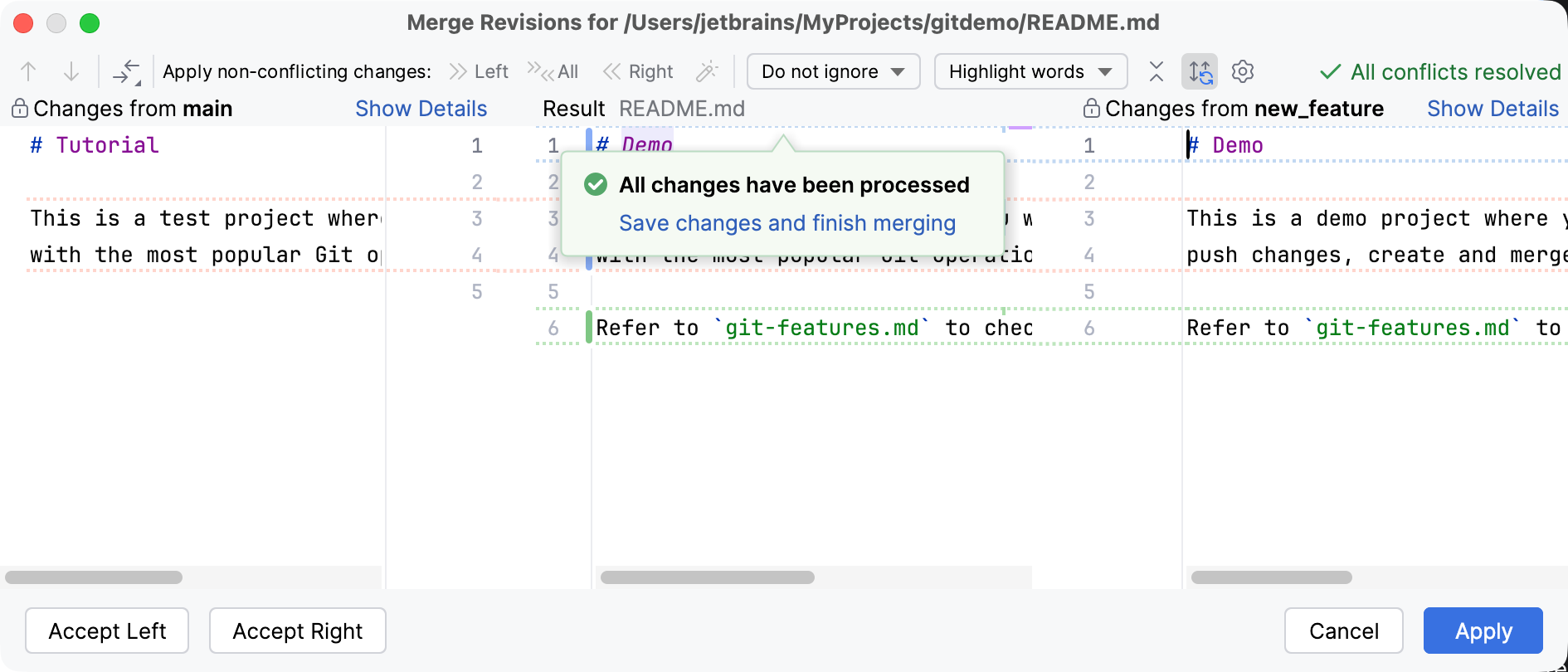
Click Apply.
IntelliJ IDEA will merge the
new_featurebranch to themainbranch.Push the changes to the remote repository by pressing Ctrl+Shift+K or selecting from the main menu.
You can review the commits in all branches in the Log tab of the Git tool window (Alt+9):
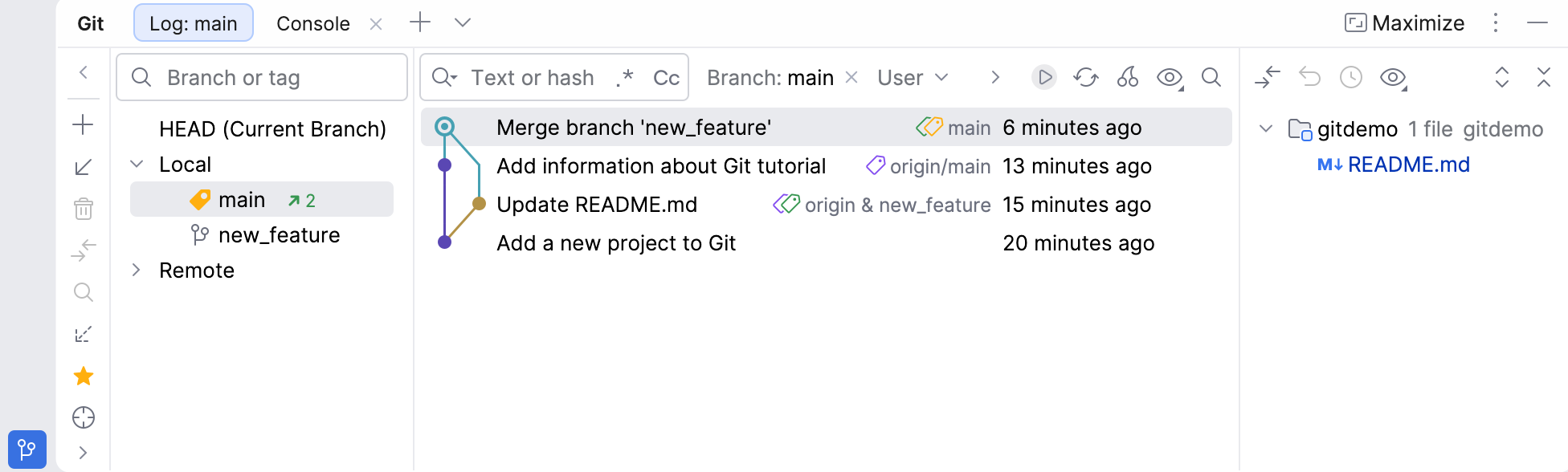
From here, you can also revert commits, cherry-pick changes from one branch to another, and more. Refer to Log tab for more details.
Step 9. View history
When you work on a project with other people, you may have questions like why, when, and how this file was changed.
In the main branch, open the README.md file. To find out in which commit these changes came from, do one of the following:
Right-click the file in the editor or in the Project tool window (Alt+1) and select . The History tab of the Git tool window opens:
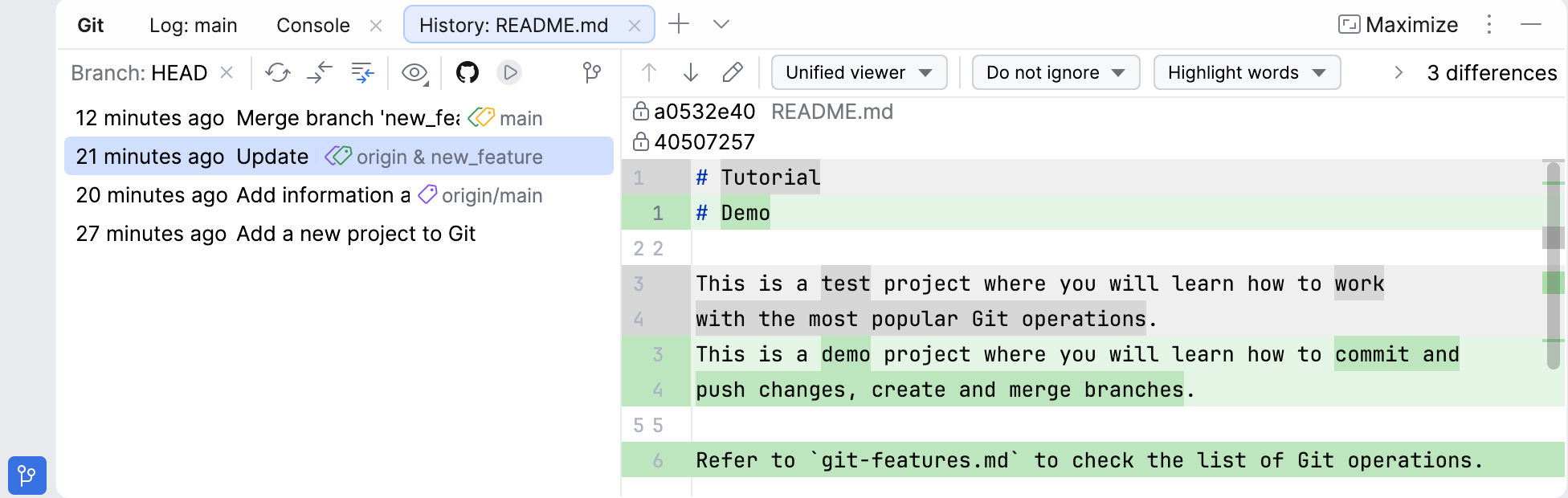
On this tab, you can view all commits that affected the file and find out in which commit the change of your interest was added.
In the editor, select a code fragment you want to view history for, right-click the selection, and choose . The History for Selection dialog will open:
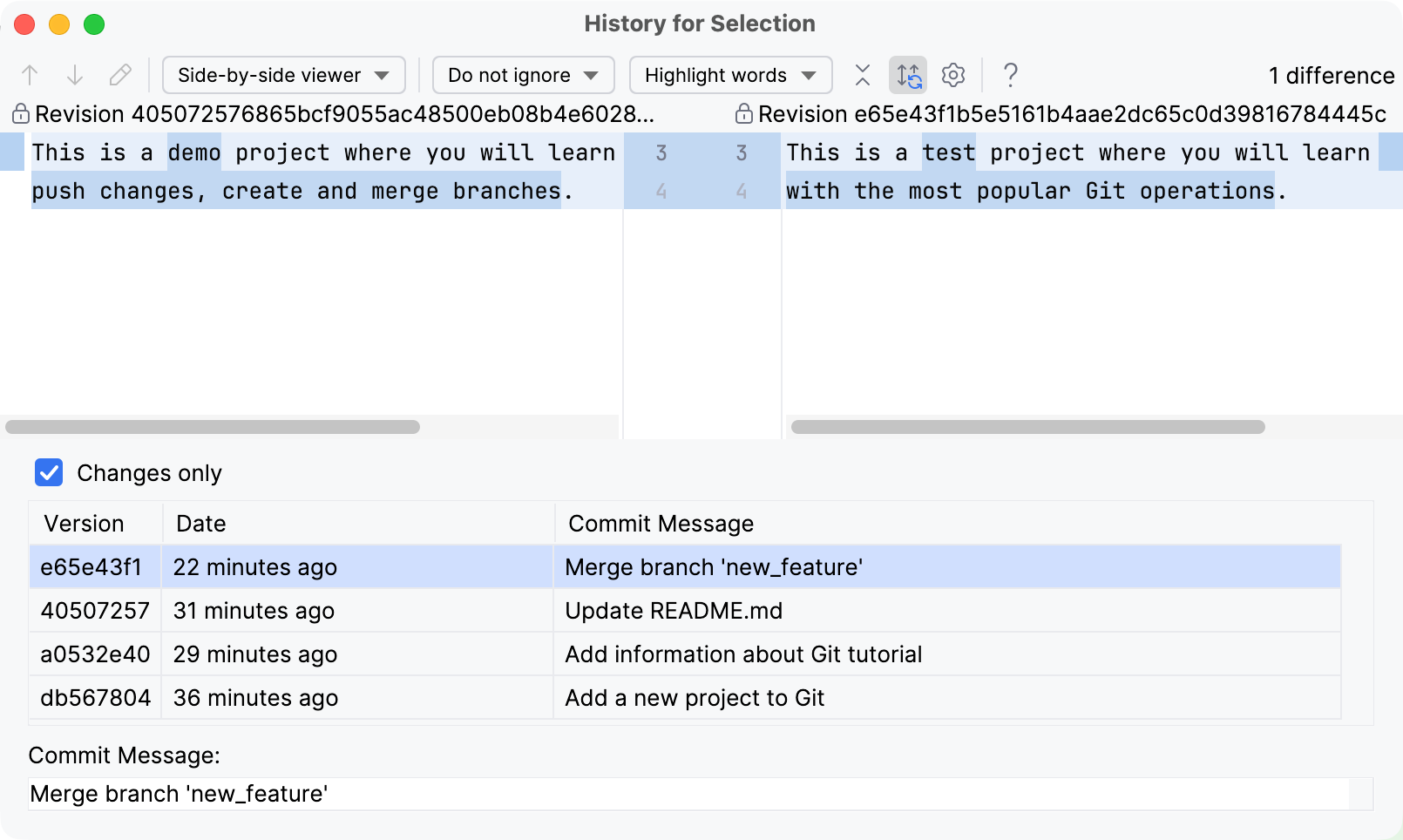
Here you can review all the commits that affected the code selection of your interest.
Find more ways of exploring the Git history in Investigate changes in Git repository.
Summary
In this tutorial, you have learned how to:
Create a project with a local Git repository
Add files to Git and track changes
Commit changes to save project states
Share your project on GitHub
Create and switch between branches
View and investigate the history of changes
Next steps
If you didn't find how to perform some specific Git task in this tutorial, refer to the Git guidelines — all the Git operations available from the IDE are described there.
If your project is not under Git, you can still track and manage local changes, roll back to the specific file state, restore deleted files, and more using the Local History feature.