Tutorial: Create your first Spring application
This tutorial describes how to create and run a Spring application in IntelliJ IDEA. It will be a Spring Boot Maven project generated by Spring Initializr. This is the quickest way to create a Spring application, and IntelliJ IDEA provides a dedicated project wizard for it.
In this tutorial, you will learn how to create a GET endpoint that returns a greeting and test this endpoint in your browser. You will also learn how to add a static HTML home page for your Spring application.
This tutorial uses Java 25 syntax.
Create a new Spring Boot project
Launch IntelliJ IDEA.
If the Welcome screen opens, click New Project. Otherwise, go to in the main menu.
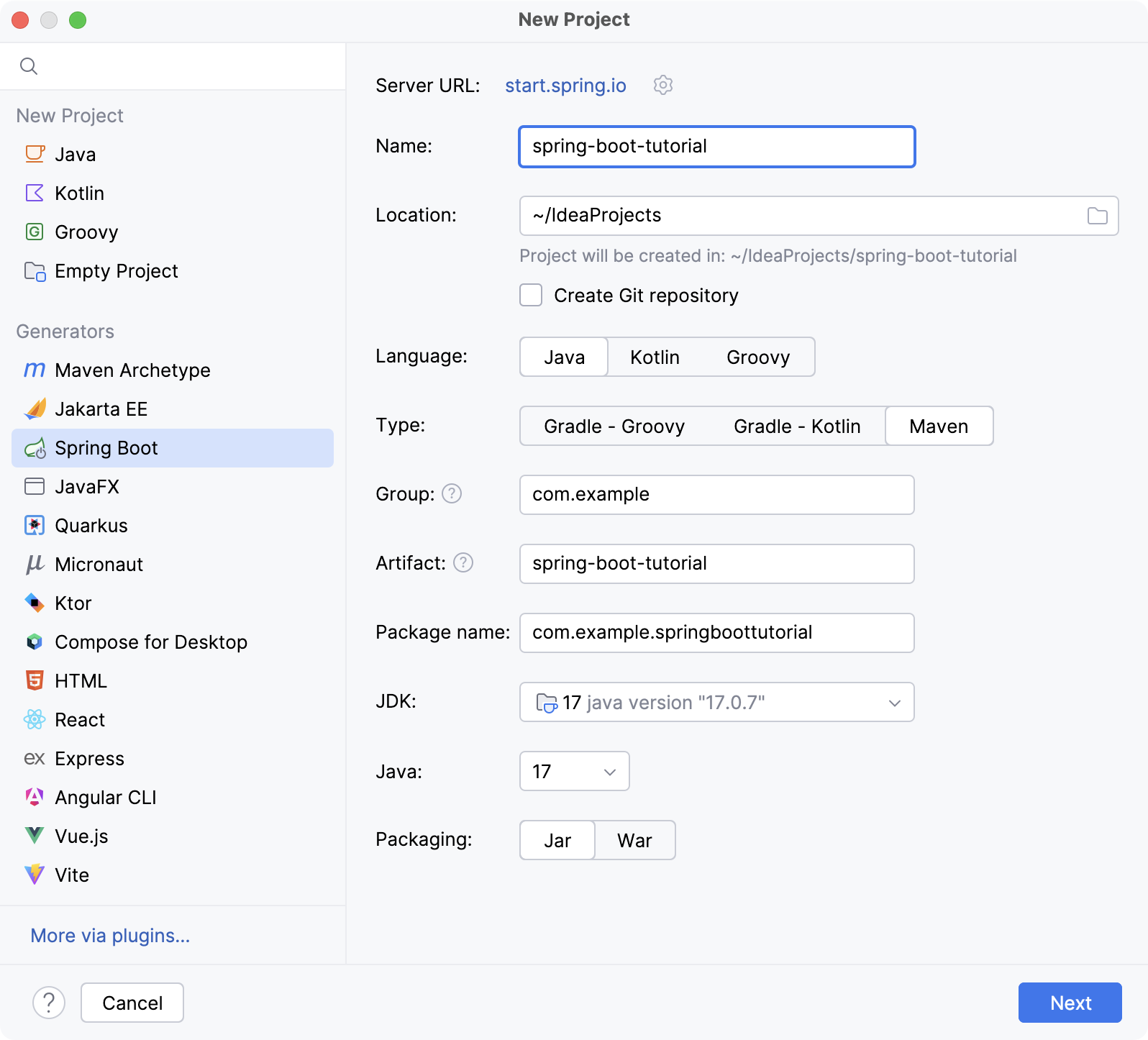
In the New Project wizard, select Spring Boot from the Generators list.
Give the project a name (for example,
spring-boot-tutorial) and change the default location path if necessary.Select Java as Language and Maven as Type.
From the JDK list, select the latest available Oracle OpenJDK version.
If the JDK is installed on your computer, but not defined in the IDE, select Add JDK and specify the path to the JDK home directory.
If you do not have the necessary JDK on your computer, select Download JDK.
From the Java list, select the latest version.
Leave the default values in other fields. Click Next to continue.
On the next screen, select the Spring Web dependency under the Web node. This dependency is required for any web application that uses Spring MVC.
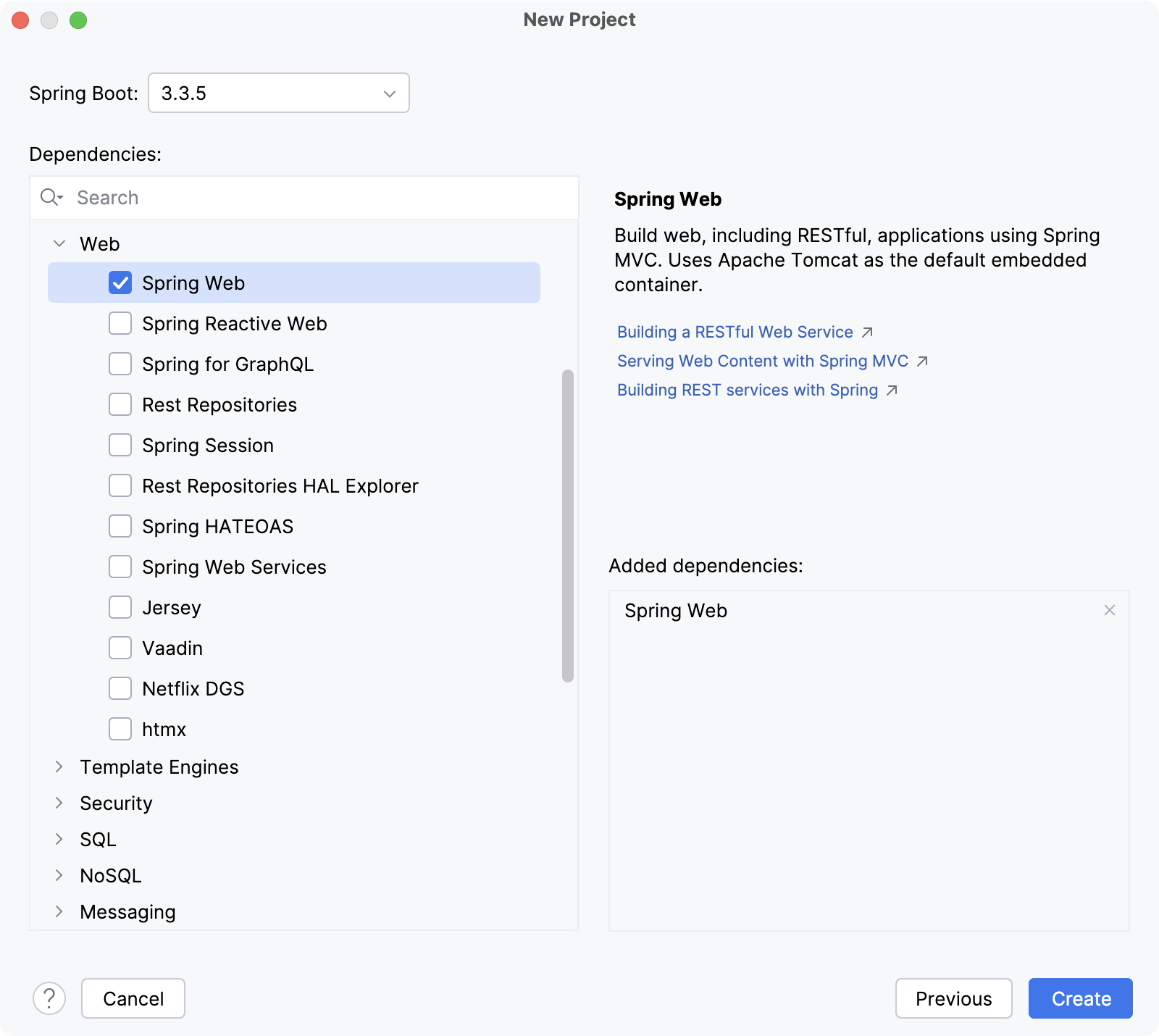
Click Create. IntelliJ IDEA will generate and set up the project.
Add a method that sends a greeting
Spring Initializr creates a class with the main() method to bootstrap your Spring application. In this tutorial, you will add a new sayHello() method directly to this class.
From the src/main/java/org/example/springboottutorial package, open the SpringBootTutorialApplication.java file.
Add the
sayHello()method that will send a greeting. To do so, add all the necessary imports and annotations in the code and a newsayHello ()method to the existingSpringBootTutorialApplicationclass so that the file looks like this:package org.example.springboottutorial; import org.springframework.boot.SpringApplication; import org.springframework.boot.autoconfigure.SpringBootApplication; import org.springframework.web.bind.annotation.GetMapping; import org.springframework.web.bind.annotation.RequestParam; import org.springframework.web.bind.annotation.RestController; @SpringBootApplication @RestController public class SpringBootTutorialApplication { static void main(String[] args) { SpringApplication.run(SpringBootTutorialApplication.class, args); } @GetMapping("/hello") public String sayHello(@RequestParam(value = "myName", defaultValue = "World") String name) { return String.format("Hello %s!", name); } }The
sayHello()method takes thenameparameter and returns the wordHellocombined with the parameter value. Everything else is handled by adding Spring annotations:The
@RestControllerannotation marks theSpringBootTutorialApplicationclass as a request handler (a REST controller).The
@GetMapping("/hello")annotation maps thesayHello()method to GET requests for/hello.The
@RequestParamannotation maps thenamemethod parameter to themyNameweb request parameter. If you do not provide themyNameparameter in your web request, it will default toWorld.
Run your Spring application
IntelliJ IDEA creates a Spring Boot run configuration that you can use to run your new Spring application.
In the Run widget in the main toolbar, select
SpringBootTutorialApplicationand click Run or press Shift+F10. You can also use the
  Run icon in the gutter next to the class declaration or the
 main()method declaration.IntelliJ IDEA will show you the Spring Boot application running in the Run tool window. The Console tab shows the output of Spring log messages.
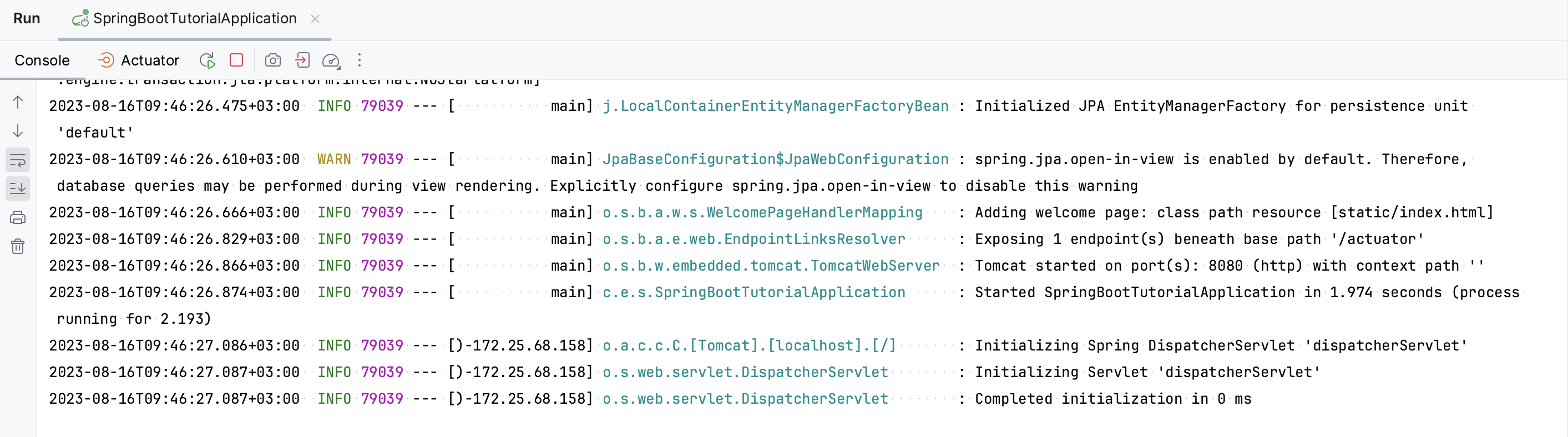
Open your web browser. By default, the built-in Apache Tomcat server is listening on port 8080, so go to http://localhost:8080/hello. If you did everything right, you should see your application respond with
Hello World!.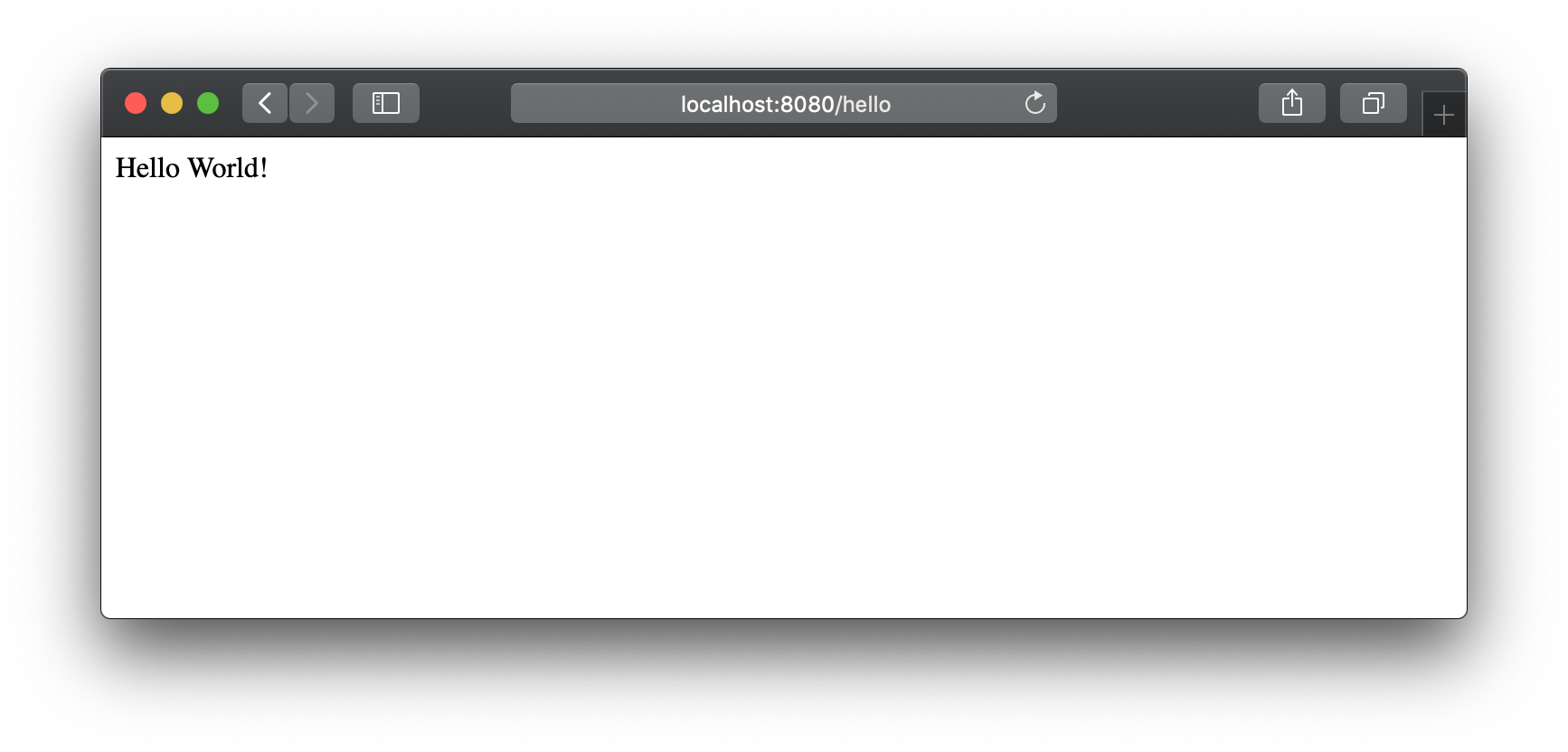
Hello World!is the default generic response. You can provide a parameter in your web request to let the application know how to greet you properly. For example, try http://localhost:8080/hello?myName=Human.
Add a home page
The created Spring Boot application has one endpoint available at /hello. However, if you open the root context of your application at http://localhost:8080/, you will get an error because there is no root resource defined. Let's add a static HTML home page with links to your endpoint.
In the Project tool window, right-click the /src/main/resources/static/ directory, select New | HTML File, specify the name index.html, and press Enter.
Modify the default template or replace it with the following HTML code:
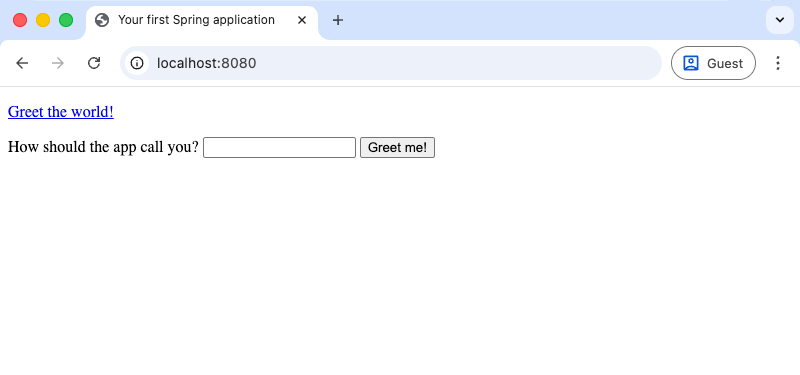
<!DOCTYPE HTML> <html> <head> <title>Your first Spring application</title> <meta http-equiv="Content-Type" content="text/html; charset=UTF-8" /> </head> <body> <p><a href="/hello">Greet the world!</a></p> <form action="/hello" method="GET" id="nameForm"> <div> <label for="nameField">How should the app call you?</label> <input name="myName" id="nameField"> <button>Greet me!</button> </div> </form> </body> </html>In the Run tool window, click
 or press Shift+F10 to restart your Spring application.
Now your application will serve index.html as the root resource at http://localhost:8080/.
Summary
In this tutorial, you have learned how to:
Create a new Spring Boot project in IntelliJ IDEA
Create an HTTP GET request using Spring annotations
Run a Spring application locally
Add a static HTML home page for your Spring application
Next steps
The simple application you created in this tutorial demonstrates how to get started with Spring. To learn how IntelliJ IDEA helps you write your code and manage the application at runtime, refer to the next tutorial, which focuses on more advanced Spring support features.
For a full list of available tutorials, refer to IntelliJ IDEA tutorials.