Reverse Engineering
Reverse engineering is the process of scaffolding JPA entity classes based on a database schema.
Generate JPA entities from database
If a database connection is not established, create one.
In the Database tool window, expand the JPA node, right-click a database or a specific table, and select .
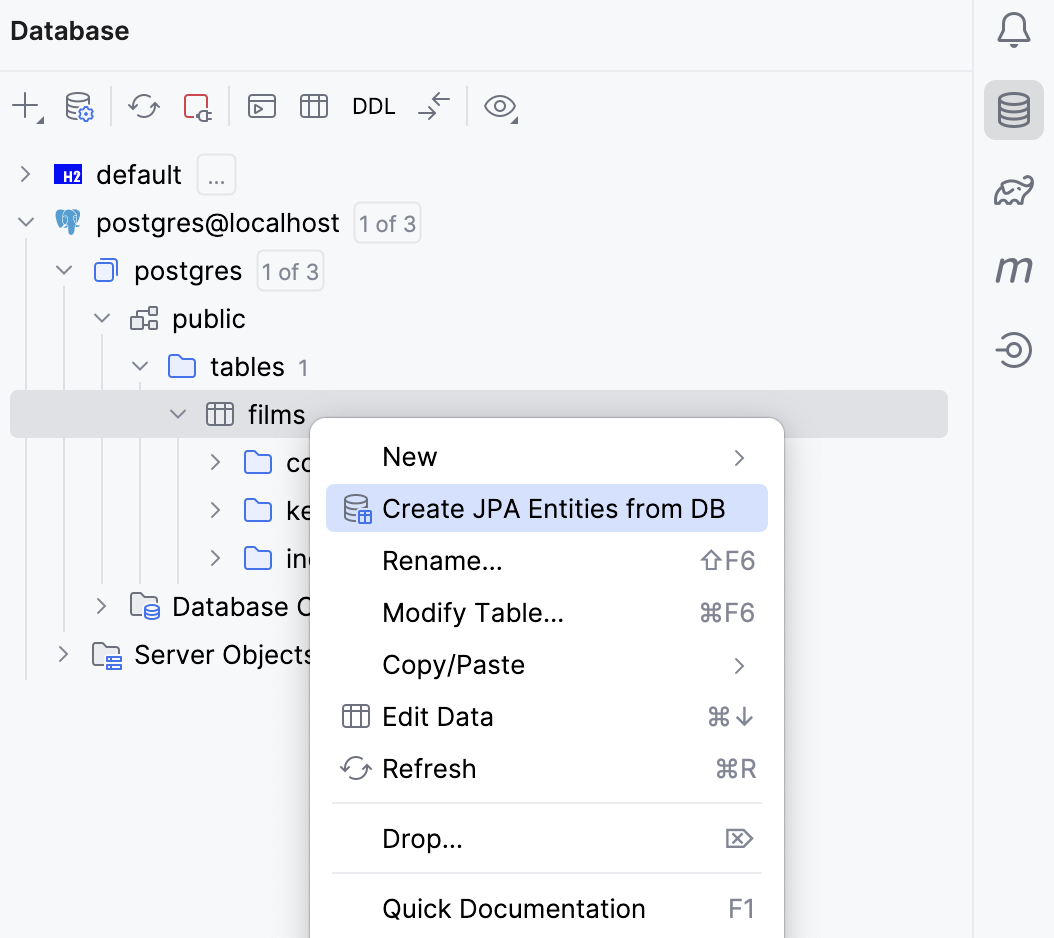
Select a database connection, tables, and attributes to be mapped. For more information, refer to Entities from DB Wizard.
While your IDE is open, the database can be modified by other clients. To get the latest data from the database, you can click  in either the Entities from DB window or in the Database tool window.
Entities from DB Wizard
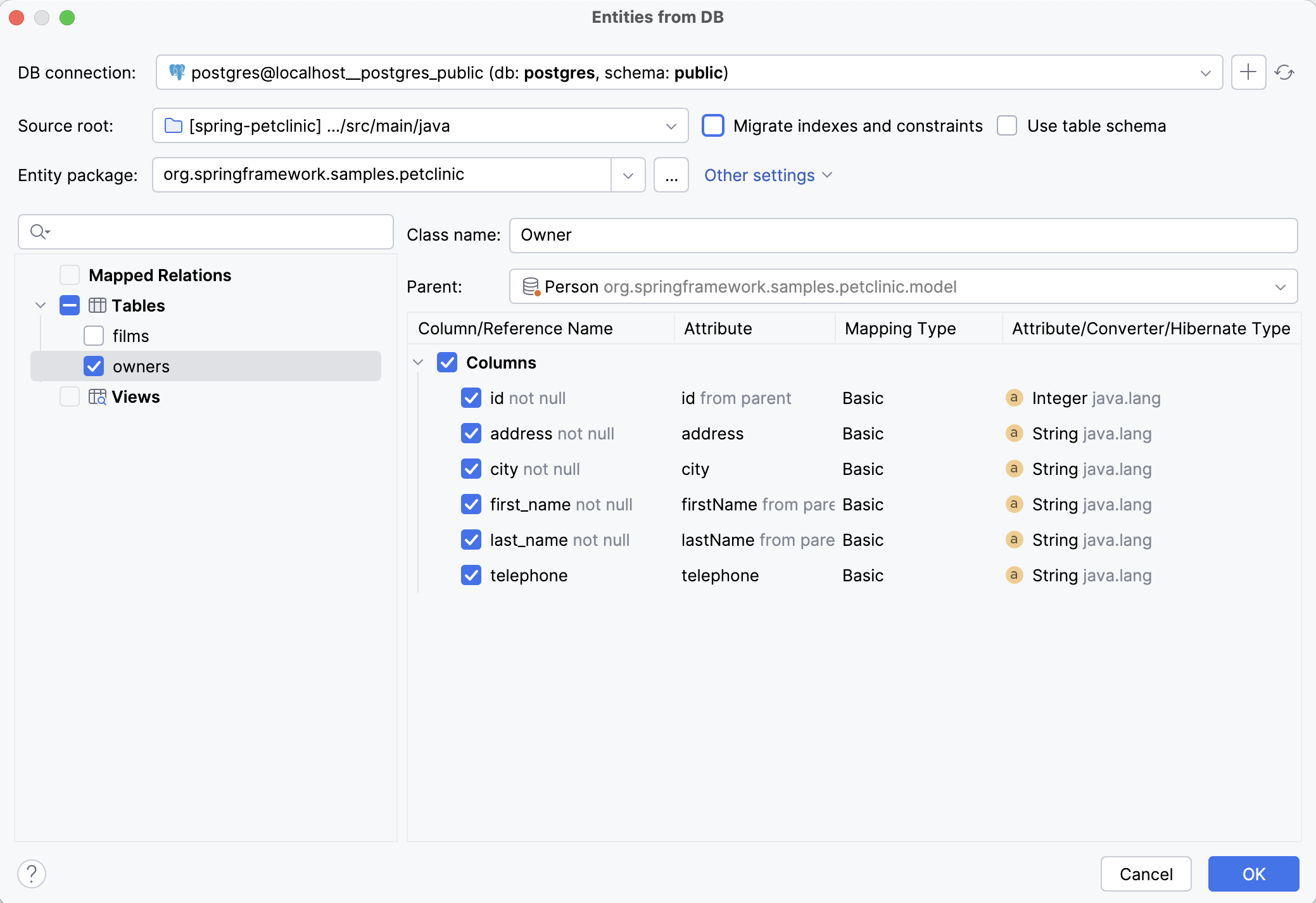
Configuration
The menu on the top of the window allows you to configure:
Source root and package where the generated entities will be saved
Whether indexes and constraints need to be migrated
Whether schema name should be specified in the
@Tableannotation
Also, from the Other settings drop-down list, you can move to the entity declaration and reverse engineering settings.
Mapped Relations, Tables and Views
On the left side of the window, you can see:
Mapped Relations: tables and views mapped to JPA entities
Tables: tables that exist in the DB but are not mapped to entities
Views: views that exist in the DB but are not mapped to entities
After selecting any element from the tree, a panel for migrating attributes from columns will appear. Also, you will be able to define a class name in the corresponding field.
Migrating Attributes
The main part of the window allows you to configure everything related to attributes. You can choose which attributes you want to add and change all their params, except Column Name. Mapping type and attribute/converter/hibernate types are represented as drop-down lists.
All attributes are divided into 3 categories:
Migrated Columns - columns that are already present in the entity (available only for mapped relations)
Columns - new columns that are not yet mapped in the entity or parent @MappedSuperclass
References - optional associations that are not represented as a column in the observed table
Parent Entities
IntelliJ IDEA offers the ability to define a parent entity by selecting a class annotated with @MappedSuperclass from the Parent drop-down box. This allows the generated entities to extend from the parent class and automatically inherit all attributes that have the same name and type.
In cases where the column name in the @MappedSuperclass doesn't match the child entity's table, we can still inherit the attribute using the @AttributeOverride annotation. By simply selecting the attribute name and choosing the one to override, IntelliJ IDEA assists in managing the inheritance.

During entity generation, IntelliJ IDEA alerts us if any inherited attributes from the @MappedSuperclass are missing in the database. To align the model with the database, access the Generate DDL by Entities action in the JPA Structure menu and select the Existing DB update option.
Creating Enums
For attributes matching the String or Integer type, you can change the mapping type from Basic to Enum, and IntelliJ IDEA will create the corresponding Enum class in the project. You need to fill the enum with proper values manually.
Dealing With Unknown Types
For some SQL types, there is no exact match to Java classes. In this case, IntelliJ IDEA does not set the type to prevent generating non-working code. You will need to choose the attribute type yourself. You can also configure default type mappings for each DBMS in the settings.
If you have the HibernateTypes library in your project dependencies list, IntelliJ IDEA can automatically suggest suitable types from the library for the unsupported SQL types during reverse engineering:
// TODO Comments
If you want to postpone an attribute creation for specific columns, you can choose //todo comment as the mapping type. IntelliJ IDEA will generate the //todo comment with the corresponding quick-fix actions depending on the column type. You can call these actions by pressing Ctrl+B:
For known basic and association types you can:
Uncomment as is
Remove column mapping
For unknown column type you can:
Define target Java type
Uncomment as is
Remove column mapping
Here is an example of generated //todo comment for the attribute with an unknown column type:
After calling the Define target Java type action, the following window will appear:
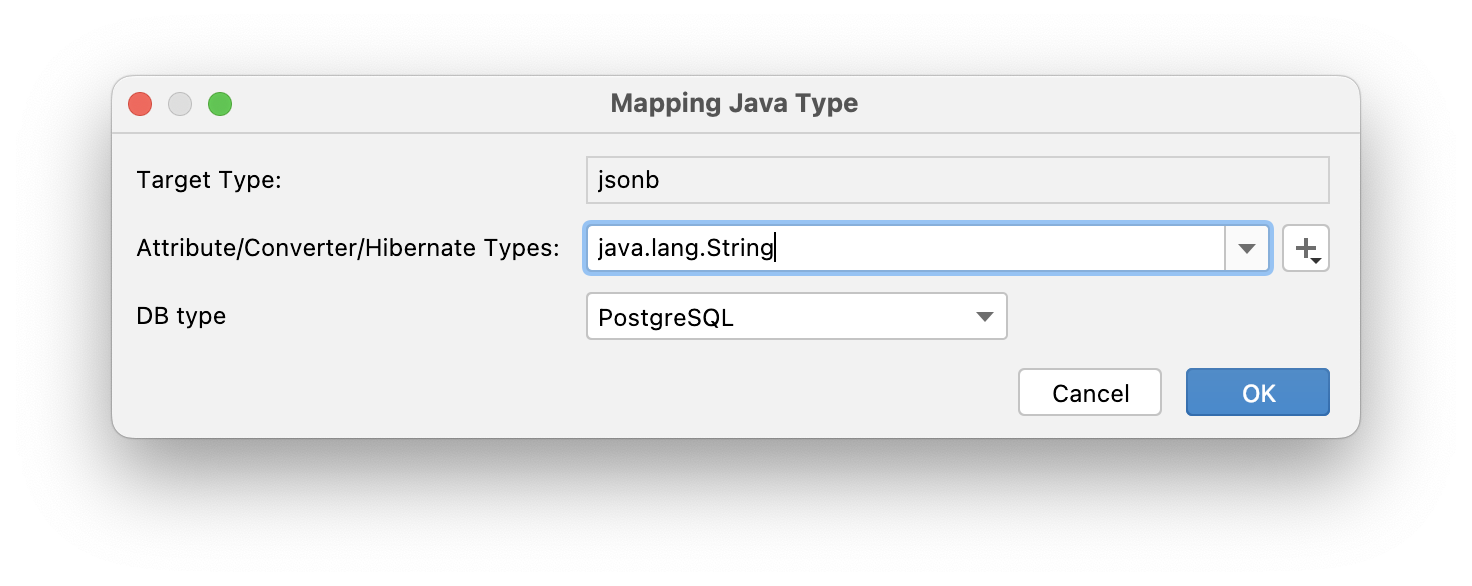
IntelliJ IDEA will remember data mappings for the subsequent reverse engineering actions. You can always change them in the settings.
Map DB Views to JPA Entities
IntelliJ IDEA follows all best practices providing the most efficient mapping for DB views while reverse engineering:
As DB views do not have a primary key, IntelliJ IDEA allows you to select a field or a set of fields to use as the identifier for the target entity.
Most DB views are immutable. So, IntelliJ IDEA adds
@Immutableannotation to the entity and generates getters only. This helps to improve application performance.IntelliJ IDEA generates only a no-arg protected constructor for entities that are mapped to a DB view, as per JPA specifications, which prevents developers from creating a new instance of such entities in the business logic code
Reverse Engineering Columns
Some developers prefer the DB-first application development approach. First, they add columns directly to the database and then update the JPA model. IntelliJ IDEA can automate this process.
Generate attributes from database
If a database connection is not established, create one.
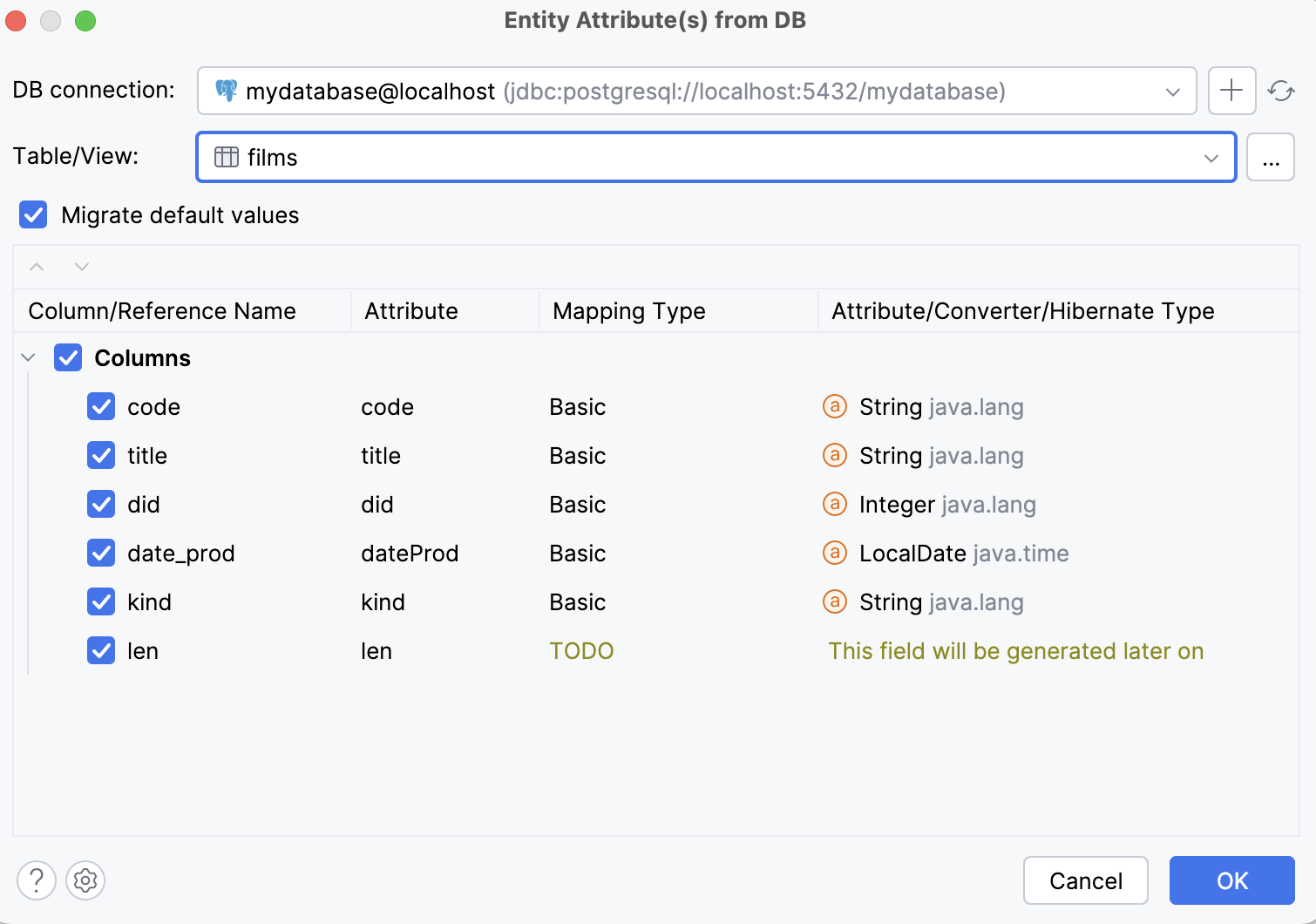
In the Persistence tool window, expand the JPA node, right-click an entity and select .
Alternatively, in your entity source code, click an entity icon
 in the gutter and select Create Entity Attributes from DB.
Select a database connection, a table or a view, and columns to be mapped. The attributes migration flow is identical to what is described in the Entities from DB wizard section.
Smart References Detection
IntelliJ IDEA deeply understands your model. In certain cases, it's able to properly detect cardinality: @OneToOne, @OneToMany, @ManyToOne, @ManyToMany. The coolest thing is that IntelliJ IDEA can show references even when there are no corresponding columns in the current table.
Let's look more closely at each of these cases.
@OneToOne
There are two situations where we can confidently assume the cardinality of the relation as @OneToOne:
Table has a column with the unique constraint that refers to the primary key of another table
Primary key of the table is a foreign key
Case 1:
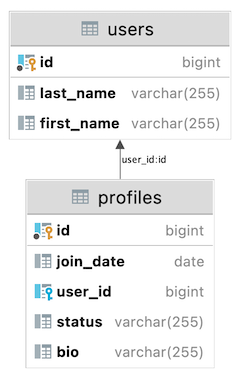
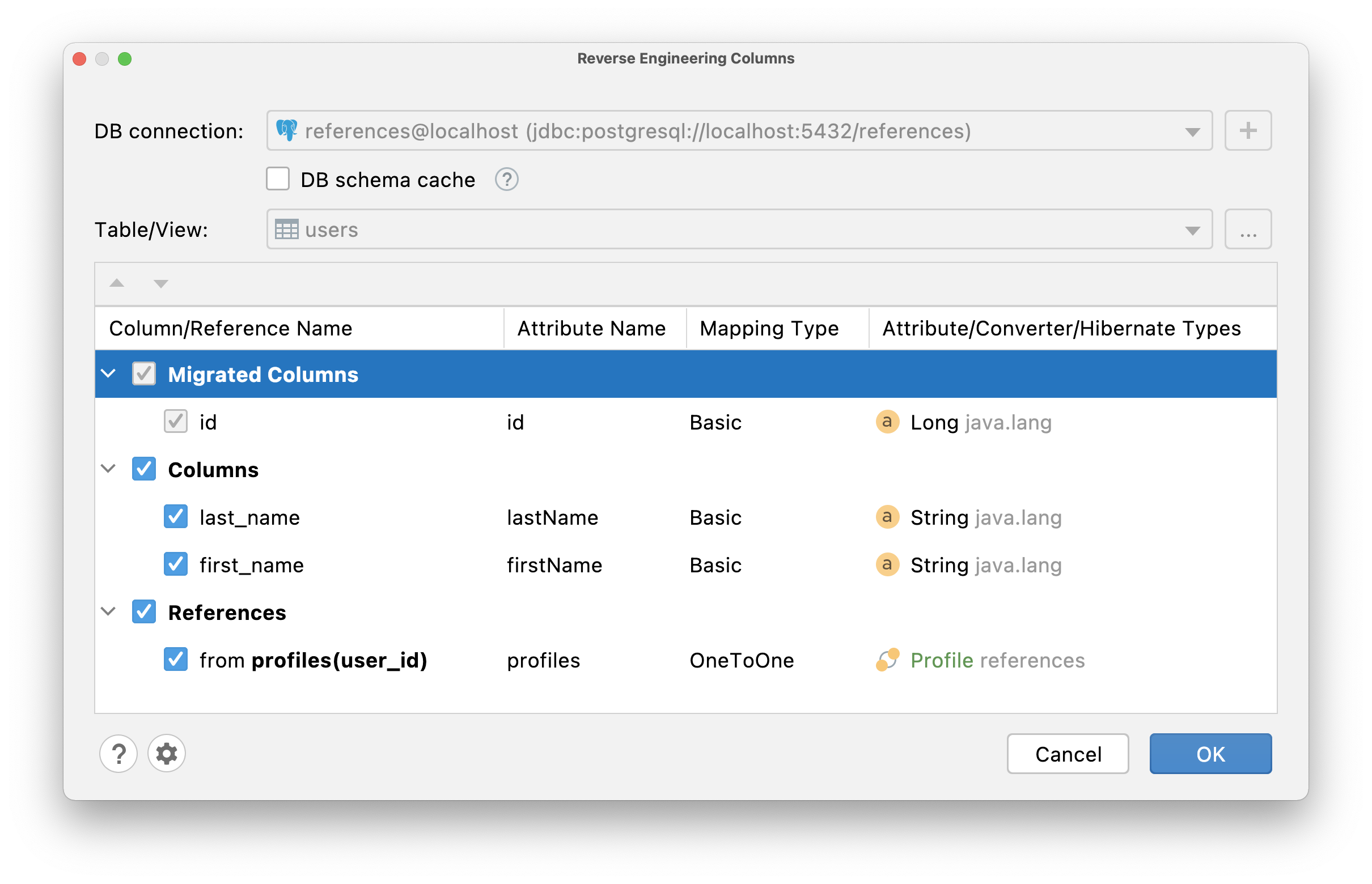
IntelliJ IDEA will generate a @OneToOne association with a @JoinColumn annotation in the User entity, and a @OneToOne association with a mappedBy parameter in the Profile entity:
Case №2:
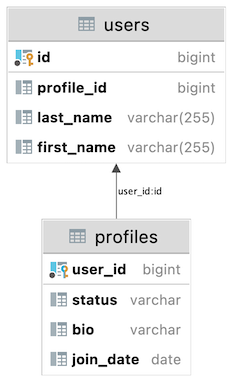
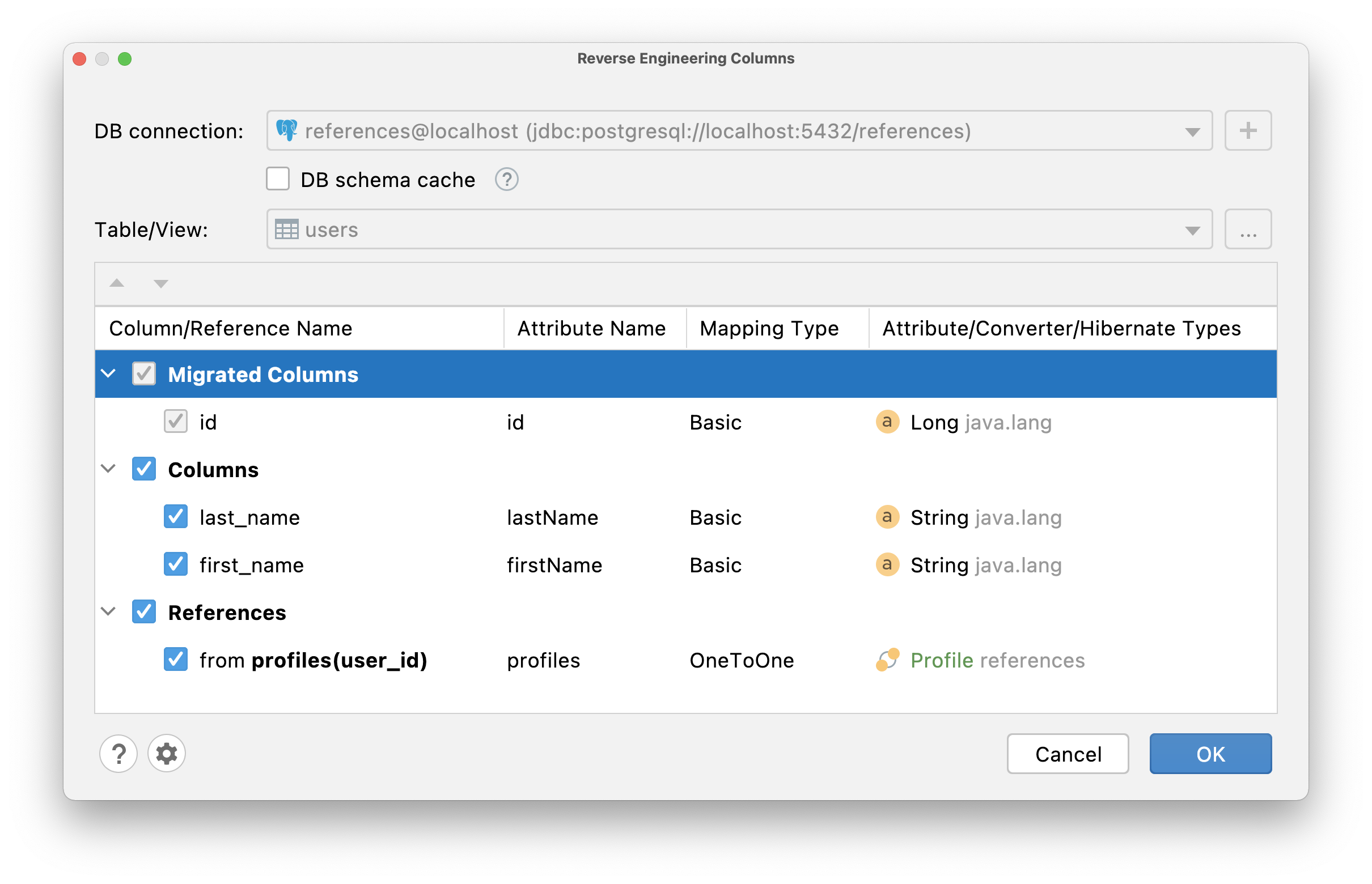
Since @Id should not be a persistence entity, IntelliJ IDEA will generate:
idattribute of a basic type and mark it with@Idannotationusers@OneToOneassociation and mark it with@MapsIdannotation
@OneToMany & @ManyToOne
If a table has the column that refers to the primary key of another table, it is most likely a @ManyToOne association. But you are also able to change cardinality to @OneToOne if required. So, depending on which table you call the reverse engineering action, IntelliJ IDEA will detect mapping type as @OneToMany or @ManyToOne:
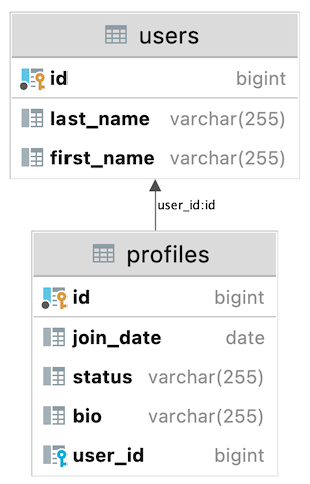
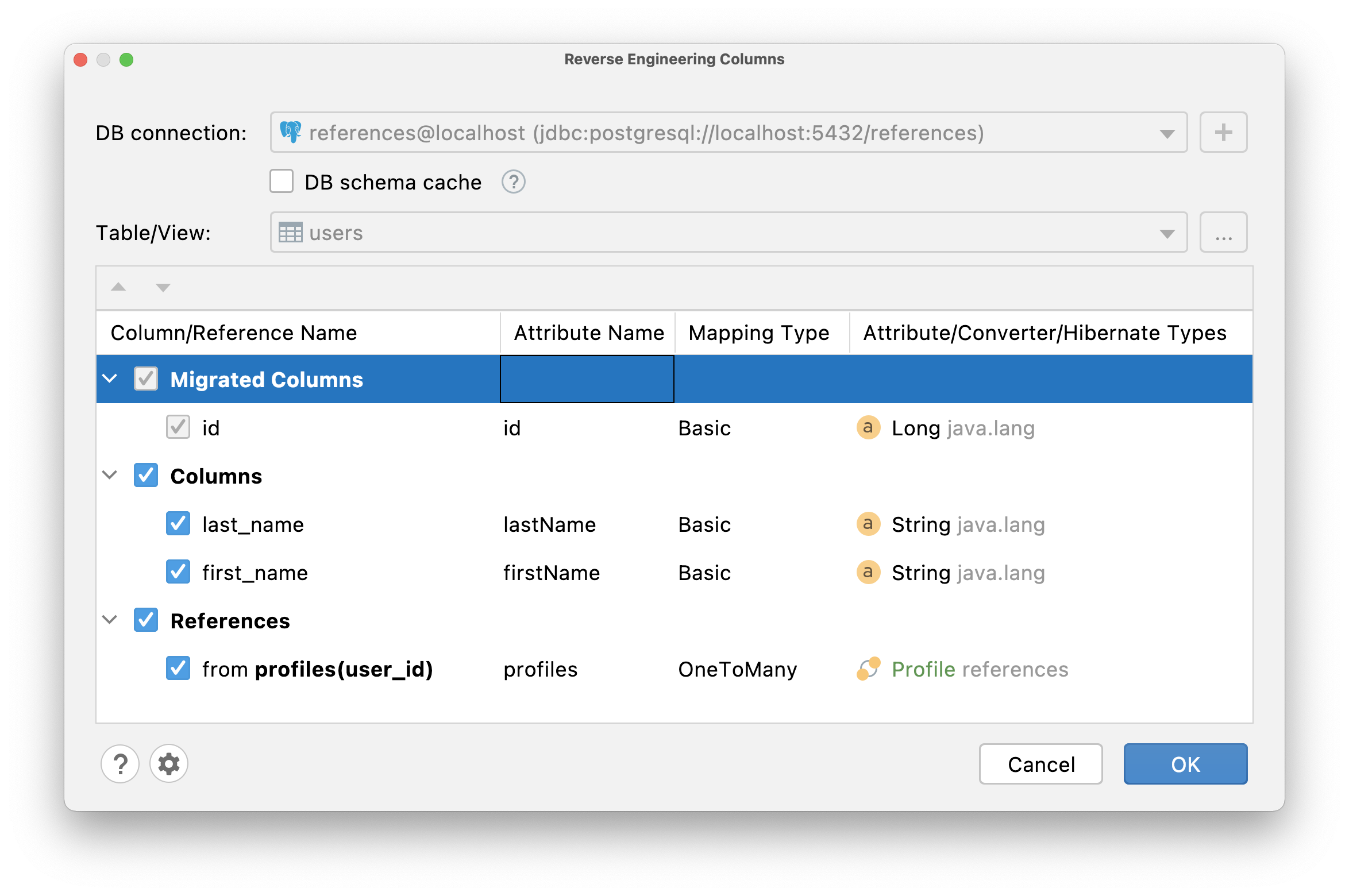
IntelliJ IDEA will generate the following code:
@ManyToMany
To establish a many-to-many relationship between two tables, you need to use a junction table. The junction table, in this case, contains only two columns - foreign keys. IntelliJ IDEA can automatically detect such a table and identify the relation cardinality between the two tables whose ids are represented as foreign keys in the junction table as @ManyToMany.
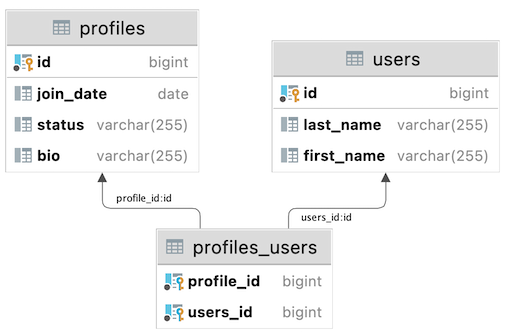
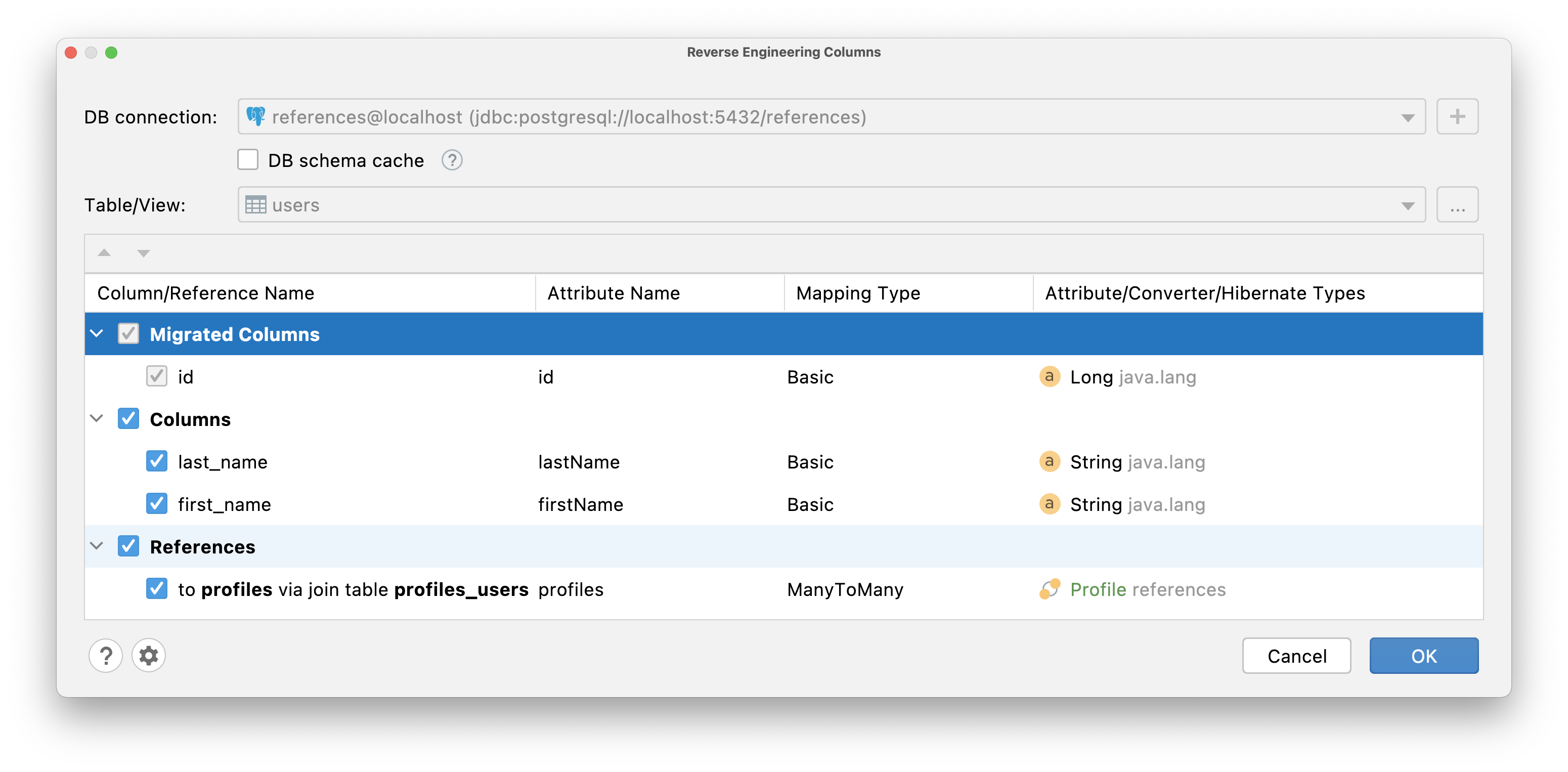
If this association does not exist in any of the entities, IntelliJ IDEA will generate it in the entity for which the reverse engineering action was called.
If this association already exists in one of the entities, then IntelliJ IDEA will generate the @ManyToMany attribute with the mappedBy parameter.
JPA Reverse Engineering settings
The JPA Reverse Engineering settings let you configure how IntelliJ IDEA should map database tables and columns into entities and entity fields during reverse engineering.
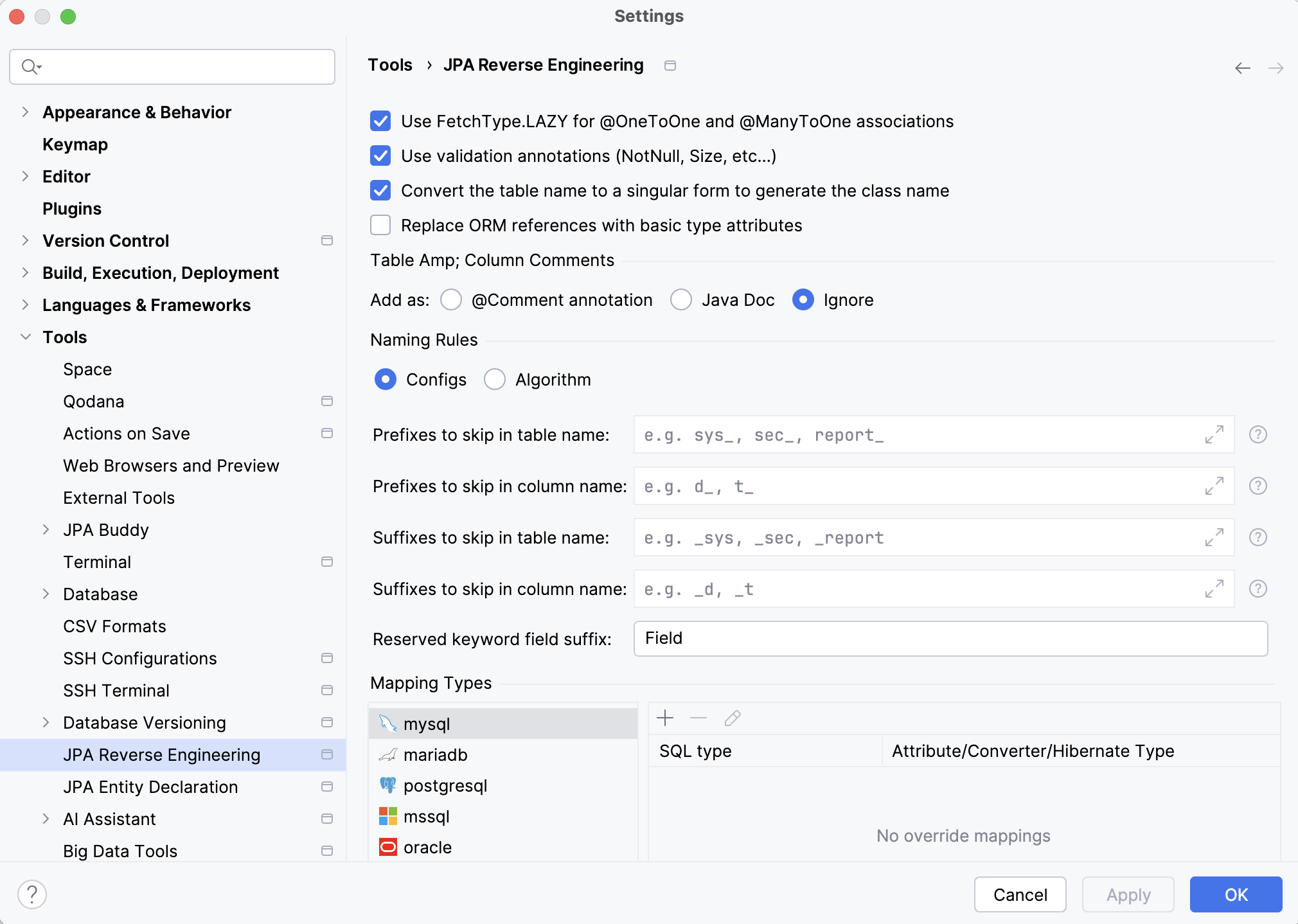
Base settings
Item | Description |
|---|---|
Use FetchType.LAZY for @OneToOne and @ManyToOne associations | Set the fetching strategy to |
Use validation annotations (NotNull, Size, etc…) | Annotate entity fields with Jakarta Bean Validation constraints (such as |
Convert the table name to a singular form to generate the class name | When naming entity classes, convert plural table names to their singular form. For example, if a table is named |
Replace ORM references with basic type attributes | Map foreign key columns as basic attributes instead of relationship fields. For example, for a foreign key column named |
Table & column comments
The Table & column comments settings let you select what to do with comments from tables and columns:
@Comment annotation: insert them into Hibernate
@Commentannotations.Java Doc: insert them into Javadoc comments.
Ignore: do not insert them into the code at all.
Naming rules
The Naming Rules settings let you configure how table and column names should be converted into the names of entity classes and fields. This is useful when your database follows specific naming conventions that you do not want to carry over to the generated code, such as prefixes or suffixes.
You can select one of the following strategies:
Configs: configure settings related to prefixes and suffixes:
Item | Description |
|---|---|
Prefixes to skip in table name | Specify which prefixes should be stripped from table names when naming entity classes. For example, if you enter If you want to enter multiple values, separate them with commas. |
Prefixes to skip in column name | Specify which prefixes should be stripped from column names when naming entity fields. If you want to enter multiple values, separate them with commas. |
Suffixes to skip in table name | Specify which suffixes should be stripped from table names when naming entity classes. If you want to enter multiple values, separate them with commas. |
Suffixes to skip in column name | Specify which suffixes should be stripped from column names when naming entity fields. If you want to enter multiple values, separate them with commas. |
Reserved keyword field suffix | Specify which suffix should be appended to the entity field name if it conflicts with a reserved Java keyword. For example, if you set this suffix to |
Algorithm: write custom naming logic in Java. If you select this option, a code editor appears. It includes method stubs that you can adapt to your database's naming conventions.
Mapping types
The Mapping Types settings let you override the default SQL-to-Java type mappings. Depending on your needs, you can map an SQL type to a Java attribute type, a JPA attribute converter, or a Hibernate custom type. This is useful when your application will work with database-specific types, encrypt data, or support multiple database management systems that use different SQL types for the same kind of data.
You can override the type mappings for the following database management systems:
The following video demonstrates how to override a type mapping to use the Hibernate @JavaType annotation: