Fully offline mode
Due to security regulations in your company, the internet access could be restricted. However, the company can configure the air-gapped environment that would allow you to work with your remote project.
While the air-gapped environment is the best solution in such case, keep in mind that clients will need to be downloaded and saved locally. Moreover, they would need to be downloaded and saved again each time you want to use the new version of IntelliJ IDEA.
Set up the air-gapped environment
Download and unpack the JetBrains Client Downloader.
On the server, which has the internet access to JetBrains servers, run the script with filters of the product (IDE), version or build number, platform (of machines that are used by developers locally). Also, run
--download-backendsflag that downloads backends matching the given filters.Check the following example:
/bin/bash jetbrains-clients-downloader --products-filter IU --build-filter 223.7255.1 --include-eap-builds --platforms-filter linux-x64 --download-backends Desktop/backends--products-filter IU: this is IntelliJ IDEA Ultimate--build-filter 223.7255.1: this is the latest EAP release number.Since the number of the build changes frequently, use the official IntelliJ IDEA download page for the correct build number.
--platforms-filter linux-x64: this is your local Linux laptop, so the Linux archives are downloadedDesktop/backends: this is the target directory where you download clients archives
For the detailed syntax, run the following command:
jetbrains-clients-downloader -hRun the script without the
--download-backendsflag.After downloading the backends, clients, and JBR, you can host them internally, according to your company's policies.
Set up a web server, such as
nginx, on the machine that hosts the backends and clients storage.The URLs of this server are the values that you specify in the JetBrains Gateway settings files.
Install or update the standalone JetBrains Gateway.
The alternative way to update JetBrains Gateway is to use the Toolbox App.
To configure JetBrains Gateway for the air-gapped environment, create a separate file for each of the settings that describe what you have downloaded:
productsInfoUrl: a path toproducts.jsonthat was generated by the backend's downloader (it could behttp://, orhttps://)clientDownloadUrl: a path for clients that you got from the clients' downloader (it could behttp://, orhttps://)jreDownloadUrl: a path for JBR that you got from the clients' downloader (it could behttp://, orhttps://)pgpPublicKeyUrl: a URL to theKEYSfile that was downloaded with the clients builds.
Check the following examples:
$ cat productsInfoUrlhttps://internal.site/backends/<PRODUCT_CODE>/products.json$ cat clientDownloadUrlhttps://internal.site/clients/$ cat jreDownloadUrlhttps://internal.site/jre/$ cat pgpPublicKeyUrlhttps://internal.site/KEYS
Place the created files in the system location on the developers' local machines:
For the user-specific settings:
/Users/UserName/Library/Application Support/JetBrains/RemoteDev/
For the system-wide settings:
/Library/Application Support/JetBrains/RemoteDev/
For the user-specific settings:
$HOME/.config/JetBrains/RemoteDev/
For the system-wide settings:
/etc/xdg/JetBrains/RemoteDev/
For the user-specific settings:
use the
HKEY_CURRENT_USERregistryFor the system-wide settings:
use the
HKEY_LOCAL_MACHINEregistry
In
SOFTWARE\JetBrains\RemoteDev, create a string for each setting with its appropriate value.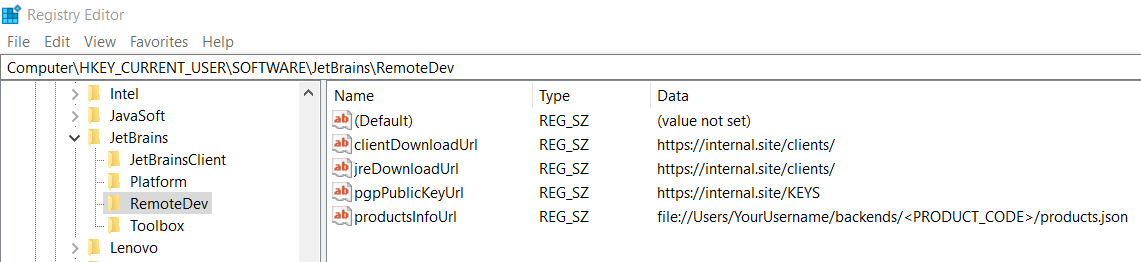
Configure the version management of JetBrains Client
In some cases, you might need to control local JetBrains Client versions.
For that purpose, you need to set a value for the versionManagementEnabled parameter in OS registry named OsRegistryConfigProvider. The location of the registry depends on your OS.
For the whole system:
For a specific user:
Write a json object with a parameter versionManagementEnabled and a value "true".
If you want this parameter disabled, add "false" instead of "true".
Example of the json file:
For the whole system:
For a specific user:
or other XDG_CONFIG_HOME if specified: https://specifications.freedesktop.org/basedir-spec/basedir-spec-0.6.html
Write a JSON object with a parameter versionManagementEnabled and a value "true".
If you want this parameter disabled, add "false" instead of "true".
For the whole system:
For a specific user:
Create REG_SZ or REG_EXPAND_SZ entry with versionManagementEnabled as the key and true as a value.
Troubleshooting
If you encounter a problem, make sure you check the following:
Make sure you have downloaded the correct client for the IDE you are currently using.
When submitting JetBrains Gateway logs to the support, include the ones from the local machine.
Make a screenshot from the step where the files were configured.