Restore default IDE settings
In IntelliJ IDEA 2020.1, the configuration paths have been changed. That is why the information in this section is valid for IntelliJ IDEA of version 2020.1 and later. If you use a previous version of IntelliJ IDEA, add the version number to the page URL in order to access the corresponding documentation. For example, if you use IntelliJ IDEA 2019.3, type www.jetbrains.com/help/idea/2019.3/configuring-project-and-ide-settings.html.
When you restore the default IDE settings, IntelliJ IDEA backs up your configuration to another directory. You can always restore your settings from that backup.
Back up your settings and restore the defaults
Go to .
Alternatively, press Shift twice and type
Restore default settings.IntelliJ IDEA shows a confirmation popup:
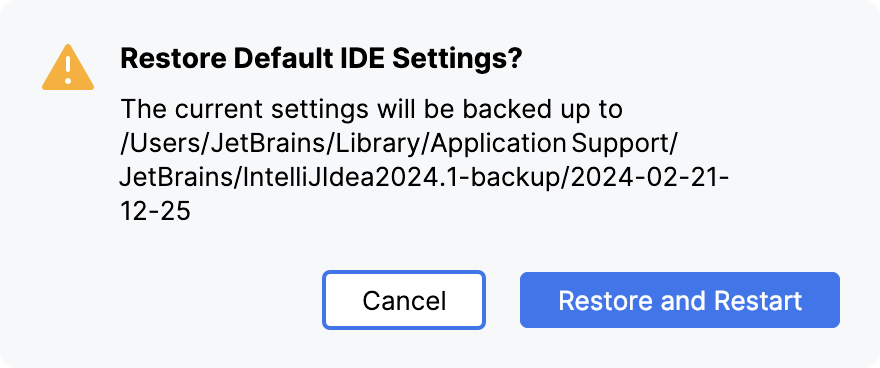
In the confirmation popup that opens, click Restore and Restart. The IDE will be restarted with the default configuration.
When IntelliJ IDEA restores the default IDE settings, it creates a backup directory with your configuration in:
- Syntax
%APPDATA%\JetBrains\<product><version>-backup
- Example
C:\Users\JohnS\AppData\Roaming\JetBrains\IntelliJIdea2026.3-backup
- Syntax
~/Library/Application Support/JetBrains/<product><version>-backup
- Example
~/Library/Application Support/JetBrains/IntelliJIdea2026.3-backup
- Syntax
~/.config/JetBrains/<product><version>-backup
- Example
~/.config/JetBrains/IntelliJIdea2026.3-backup
Apply the IDE settings from a backup
In the main menu, go to .
In the dialog that opens, specify the path to the backup directory and click Open.
IntelliJ IDEA shows a confirmation popup. Note that after you apply the settings from the backup, these settings will be overwritten with your current IDE configuration.
Apart from the backup configuration directory, you can select the configuration directory from another IntelliJ IDEA version or a .zip file with the previously exported settings.
Click Restart to apply the settings from the backup and restart the IDE.