Run/Debug Configuration: NPM
Create: 
In this dialog, create configurations for running npm and Yarn scripts locally. "Locally" in the current context means that IntelliJ IDEA itself starts Node.js installed on your computer, whereupon initiates script execution.
Learn more from npm, pnpm, and Yarn.
If a script launches an application in the development mode, you can modify the configuration, so it also starts a debugging session. To do that, go to the Browser / Live Edit tab and specify there the URL address at which the application will run. Learn more from Run and debug an Angular application with a single npm run/debug configuration, Run and debug a Vue.js application with a single npm run/debug configuration, and Run and debug a Vite application with a single npm run/debug configuration.
Before you start
Download and install Node.js. Note that npm is also installed so if you are going to use it, you are through with the preliminary steps.
To use Yarn, install it as described on the Yarn official website.
Configuration tab
Item | Description |
|---|---|
package.json | In this field, specify the package.json file to run the scripts from. Choose the file from the drop-down list which shows all the package.json files detected in the current project or click |
Command | From this list, choose the npm CLI command to execute, by default |
Scripts | From this drop-down list, choose the script to which the chosen command will be applied. The list contains all the scripts defined within the |
Arguments | In this field, specify the command-line arguments to execute a script with. Learn more from the npm official website. |
Node runtime | In this field, specify the Node.js runtime to use. If you choose the Project alias, IntelliJ IDEA will automatically use the project default interpreter from the Node runtime field on the JavaScript Runtime page . In most cases, IntelliJ IDEA detects the project default runtime and fills in the field itself. You can also choose another configured local or remote interpreter or click |
Node Options | In this field, type the Node.js-specific command-line options to be passed to the Node.js executable file. The acceptable options are:
|
Package manager | specify the package manager to use. If you choose the |
Environment Variables | In this field, specify the custom environment variables for the Node.js executable file. The definitions of variables are displayed in the Environment variables field with semicolons (
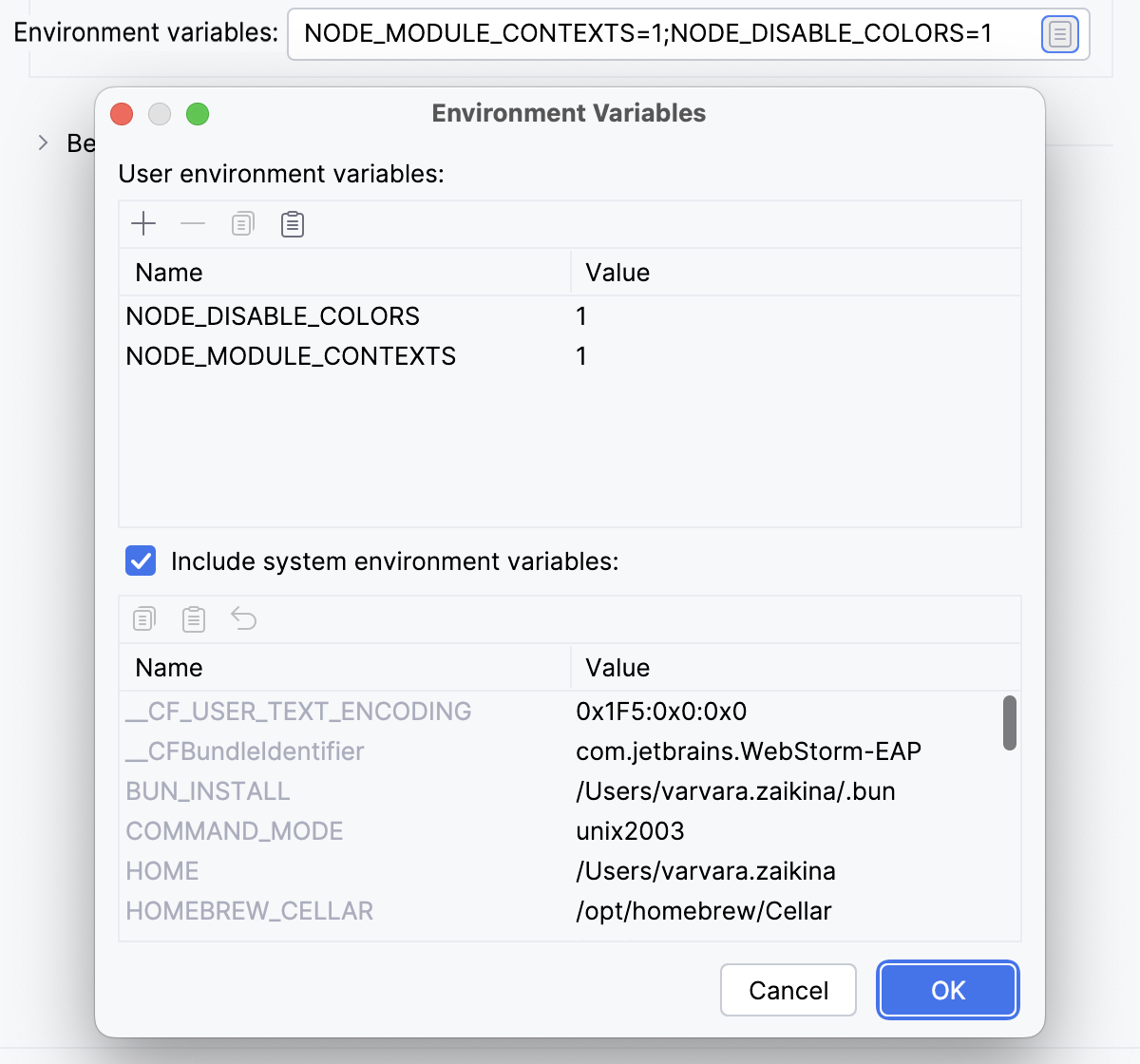 Alternatively, click Browse
|
Docker container settings | This read-only field shows port and volume bindings. Click 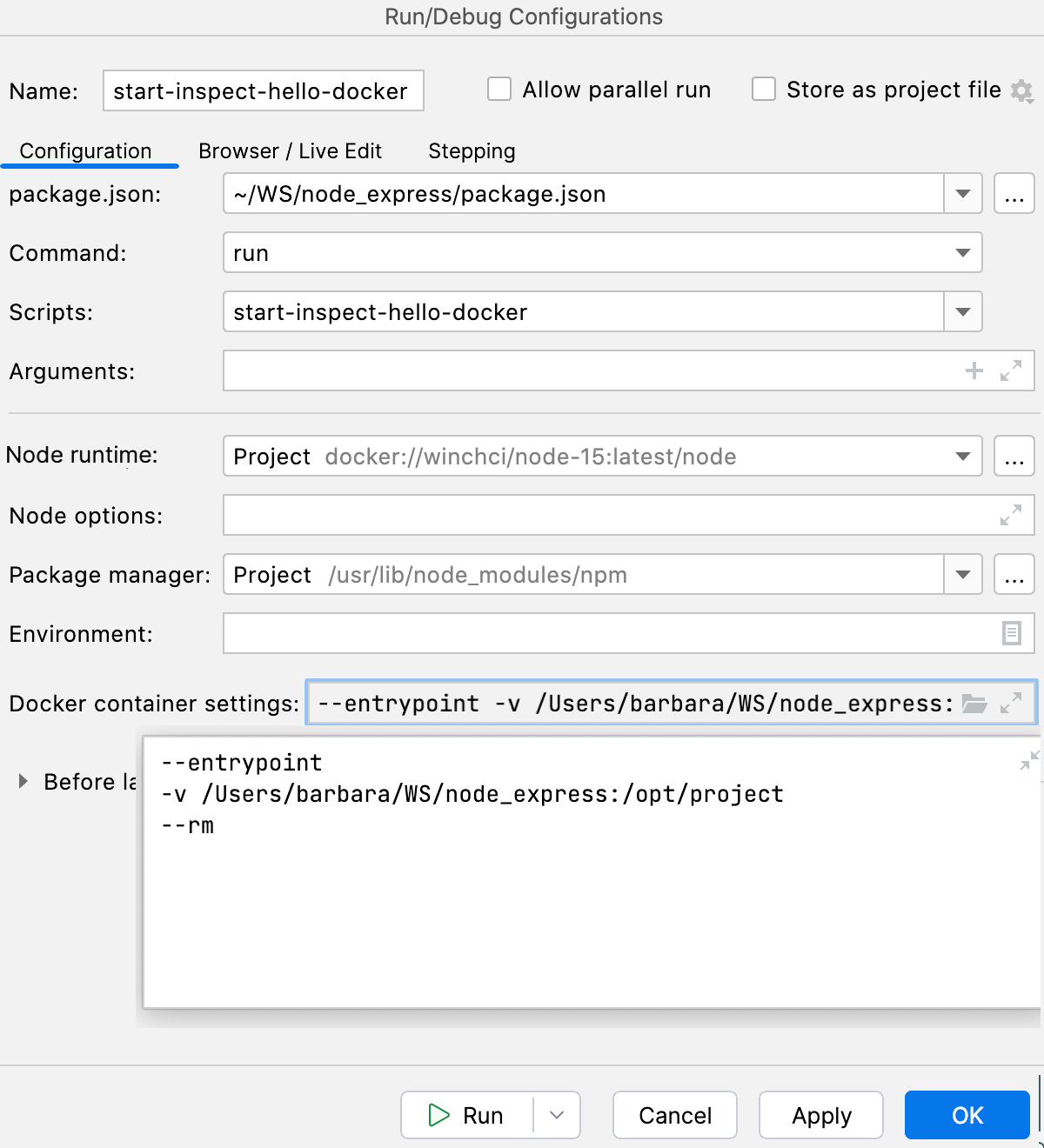 |
Docker Compose | In this area, specify the commands and options to be passed to Docker Compose. Accept the default settings or click Check the Command Preview. |
 and choose the required
 to the right of the field and configure a list of variables in the
 ,
 and
 buttons to manage the list of custom variables.
 to open the command preview.
Common settings
When you edit a run configuration (but not a run configuration template), you can specify the following options:
Item | Description |
|---|---|
Name | Specify a name for the run configuration to quickly identify it among others when editing or running. |
Allow multiple instances | Allow running multiple instances of this run configuration in parallel. By default, it is disabled, and when you start this configuration while another instance is still running, IntelliJ IDEA suggests stopping the running instance and starting another one. This is helpful when a run configuration consumes a lot of resources and there is no good reason to run multiple instances. |
Store as project file | Save the file with the run configuration settings to share it with other team members. The default location is .idea/runConfigurations. However, if you do not want to share the .idea directory, you can save the configuration to any other directory within the project. By default, it is disabled, and IntelliJ IDEA stores run configuration settings in .idea/workspace.xml. |
Toolbar
The tree view of run/debug configurations has a toolbar that helps you manage configurations available in your project as well as adjust default configurations templates.
Item | Shortcut | Description |
|---|---|---|
| Alt+Insert | Create a run/debug configuration. |
| Alt+Delete | Delete the selected run/debug configuration. Note that you cannot delete default configurations. |
| Ctrl+D | Create a copy of the selected run/debug configuration. Note that you create copies of default configurations. |
| The button is displayed only when you select a temporary configuration. Click this button to save a temporary configuration as permanent. | |
| Move into new folder / Create new folder. You can group run/debug configurations by placing them into folders. To create a folder, select the configurations within a category, click Then, to move a configuration into a folder, between the folders or out of a folder, use drag or To remove grouping, select a folder and click | |
| Click this button to sort configurations in the alphabetical order. |


 , and specify the folder name. If only a category is in focus, an empty folder is created.
 and
 buttons.

Before launch
In this area, you can specify tasks to be performed before starting the selected run/debug configuration. The tasks are performed in the order they appear in the list.
Item | Shortcut | Description |
|---|---|---|
| Alt+Insert | Click this icon to add one of the following available tasks:
|
| Alt+Delete | Click this icon to remove the selected task from the list. |
| Enter | Click this icon to edit the selected task. Make the necessary changes in the dialog that opens. |
| Alt+Up Alt+Down | Click these icons to move the selected task one line up or down in the list. The tasks are performed in the order that they appear in the list. |
Show this page | Select this checkbox to show the run/debug configuration settings prior to actually starting the run/debug configuration. | |
Activate tool window | By default this checkbox is selected and the Run or the Debug tool window opens when you start the run/debug configuration. Otherwise, if the checkbox is cleared, the tool window is hidden. However, when the configuration is running, you can open the corresponding tool window for it yourself by pressing Alt+4 or Alt+5. |

Browser / Live Edit tab
Use the controls in this tab if you want the run/debug configuration to launch an application in the development mode and at the same time start a debugging session. Learn more from Run and debug an Angular application with a single npm run/debug configuration, Run and debug a Vue.js application with a single npm run/debug configuration, and Run and debug a Vite application with a single npm run/debug configuration.
Here you can also enable IntelliJ IDEA to open the application in the browser.
Item | Description |
|---|---|
Open browser | In this area, enable the application to open in the browser.
|
Stepping tab
On this tab, specify the stepping options.
Some scripts (for example, methods of standard Java classes like System) are skipped by Step into as you normally might not need to debug them. This list can be fine-tuned on the page of the Settings dialog (Ctrl+Alt+S) .
Open the run/debug configuration to launch a debugging session with and switch to the Stepping tab.
To suppress automatic Smart Step Into, clear the Always do smart step into checkbox.
To skip scripts from the
ignoreListfield of the sourcemaps, select the Ignore known third party scripts specified in source maps checkbox.The older Chrome-specific field name
x_google_ignoreListis deprecated but may still be recognized when theignoreListfield is absent. Learn more from the source map specification.To suppress stepping into custom scripts, select the Do not step into scripts with a URL matching the patterns below checkbox and expand the default list of such scripts below. Use
*,?,**and!.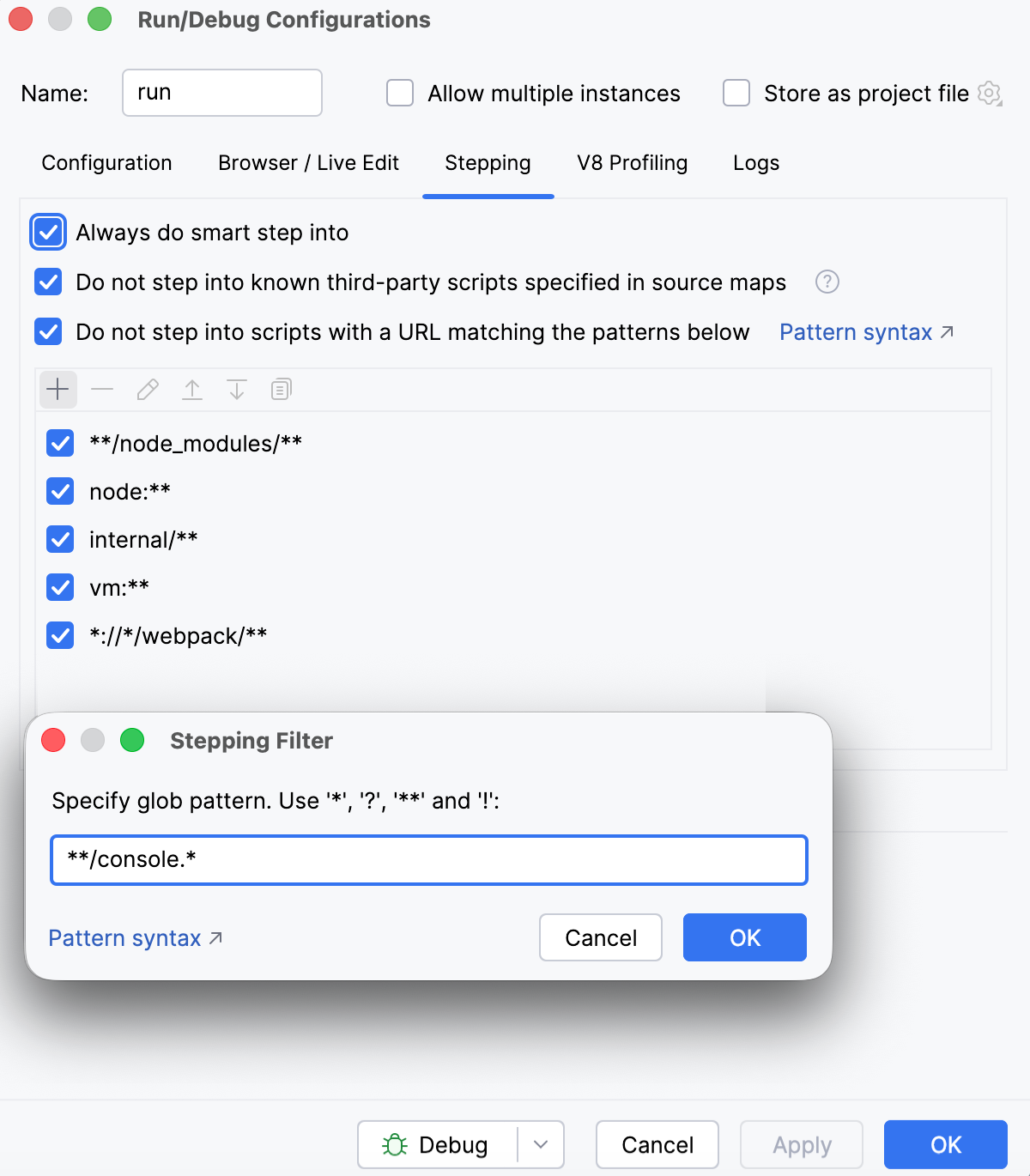
Pattern syntax
The following characters are supported in patterns:
An asterisk
*matches zero or more characters except a slash/. Use this character inside a single path part.A question mark
?matches exactly one character except a slash/.A double asterisk
**as a whole segment matches zero or more path segments. Its meaning depends on its position:As the first part, it matches any leading symbols.
As the last part, it matches any trailing symbols.
In the middle, it matches one or more parts. For example,
a/**/bmatchesa/x/banda/x/y/bbut nota/b.
A trailing double asterisk
**at the end of the last segment (not on its own a full segment, for example,foo**) matches any suffix after that segment. For example,foo**matchesfoo,foobar, andfoo/bar.A pattern that starts with and exclamation mark
!negates the given pattern and modifies the patterns added before it in the list. It does not add a new pattern of its own.
- Example 1
In the pattern list
["**/*.ts", "!**/*.test.ts"], the first glob matches every .ts file. The second pattern modifies the first glob to exclude every .test.ts file from match.- Example 2
A passed URL is split into parts by means of a slash
/. Accordingly,**/node_modules/**is split as follows::Double asterisk
**matches any path before thenode_modulessegment.node_modulesmatches against anode_modulesin the URL.Double asterisk
**matches anything trailing.
As a result, the pattern
**/node_modules/**matches any URL that containsnode_modules.Keep in mind that the URLs of the scripts are matched against the whole pattern. If we remove the second double asterisk
**, the pattern will match any URL that ends withnode_modulesof which there will likely be zero.- Example 3
Skip the second double asterisk
**to match against any pattern that ends with a particular filename.**/app.jsmatches all URLs that end withapp.js.The following pattern list will ignore all scripts in node_modules except those named app.js.
**/node_modules/** !**/app.js