Accessibility
Configure accessibility options: the IDE scale and colors, screen reader support, and sound signals for IDE events and editor line marks.
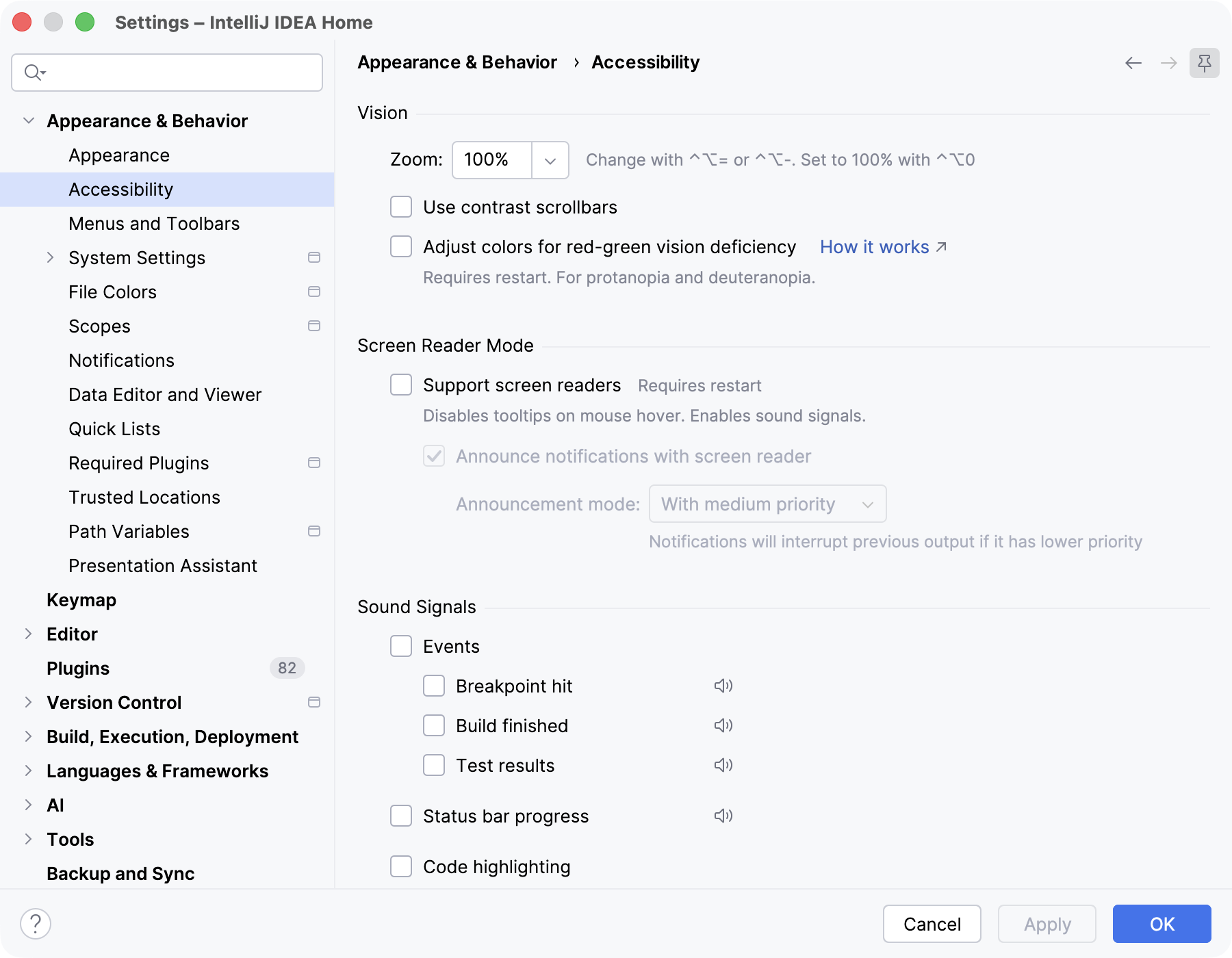
Vision
Option | Description |
|---|---|
Zoom | Zoom in and out the entire IDE, increasing or decreasing the size of all UI elements at once. You can also access this setting from the main menu: select . |
Use contrast scrollbars | Make scrollbars more visible across the IDE, including the editor, tool windows, and dialogs. |
Adjust colors for red-green vision deficiency | Adjust the editor color scheme to better perceive colors in case of protanopia and deuteranopia. |
Screen reader mode
Option | Description |
|---|---|
Support screen readers | Enable screen reader support for IntelliJ IDEA. For more information, refer to Set up a screen reader. |
Announce notifications with screen reader | This option is available when the Support screen readers checkbox is selected. Make the screen reader read out IDE notifications when they appear. |
Announcement mode | This option is available when the Announce notifications with screen reader checkbox is selected. Select how the screen reader announces notifications: On macOS:
On Windows and Linux:
|
Sound signals
Configure sounds that IntelliJ IDEA plays for IDE events and for editor line marks, such as errors, warnings, VCS changes, and folded code.
All sound signals on the list are enabled by default.
IDE plays sounds for the following notification groups: Test execution finished, Build finished, and Breakpoints, and also for progress running in the background.
These groups get sound signals along with the ones where the Play sound option is already selected in .
All sound signals on the list are disabled by default. Select the ones that you need.
IDE plays sounds only for the notification groups where the Play sound option is selected in .
Option | Description |
|---|---|
Events | Play a sound when the debugger stops at a breakpoint, when a build finishes, and when tests finish running.
|
Status bar progress | Play a sound for the progress of background tasks displayed in the status bar. |
Code highlighting | Play a sound when the current line or the code under the caret contains an error or a warning.
|
Diff view | Play a sound when the current line in the diff viewer is added, changed, or has a conflict, or when lines are removed above it.
|
Editor gutter | Play a sound when the current line has a breakpoint or a VCS change marker in the gutter.
|
Editor code folding | Play a sound when the current line or the code under the caret contains a folded code fragment.
|