Scala worksheet and Scala REPL
You can quickly evaluate and run Scala code using a Scala worksheet or Scala REPL.
Scala REPL in IntelliJ IDEA and Scala worksheets both use Scala REPL from the Scala compiler. So, you can use a Scala worksheet instead of Scala REPL to evaluate expressions.
Create an .sc file
Right-click your project and select . We recommend that you create an .sc file in the src directory to avoid problems with code highlighting.
In the New Scala Worksheet window, type the name of the file and click OK.
As a result, a file with .sc extension opens.
Run Scala code using Scala worksheet
Create a Scala worksheet file and open it in the editor.
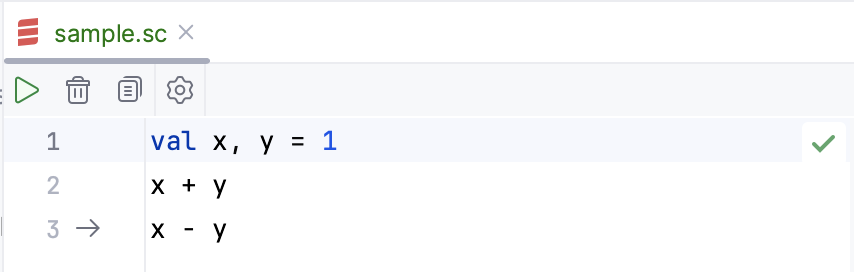
Add your code.
Besides standard actions such as code completion and string formatting, IntelliJ IDEA supports the following actions:
Evaluating Scala objects
Folding the output without affecting your code on the left side and expanding only that block of the output that matches a specific statement.
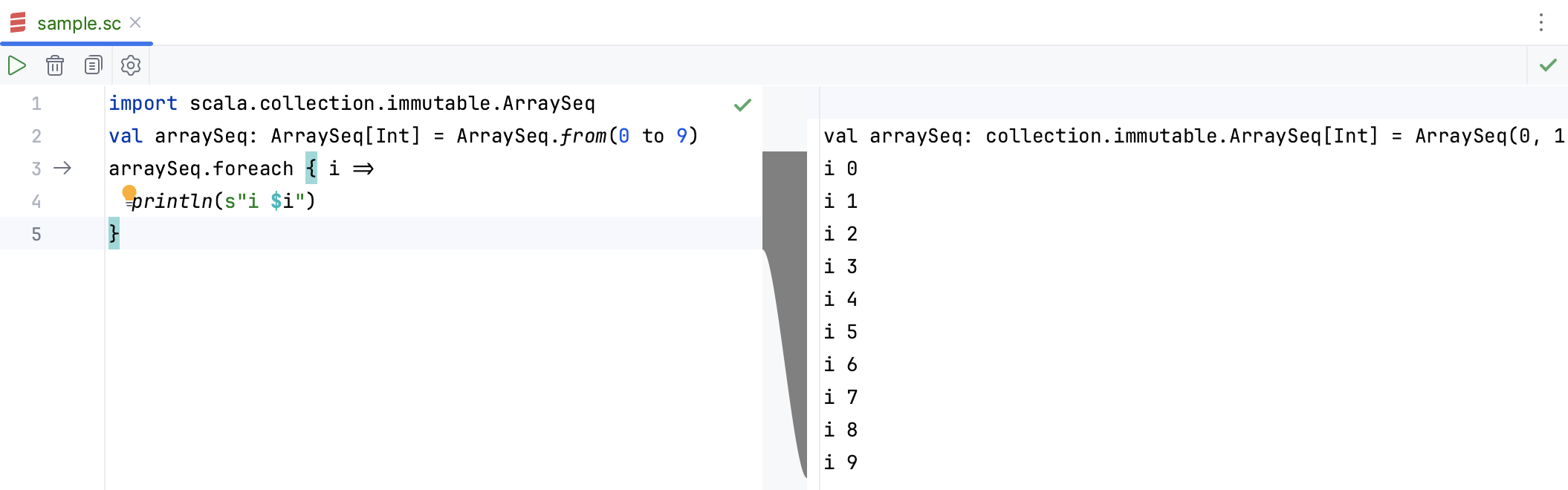
Click
 to see the results.
Work with the current worksheet settings
Open a Scala worksheet file in the editor. Click
 on the toolbar of the worksheet editor to open the Worksheet settings dialog.
In the Worksheet Settings dialog, configure the current worksheet settings or the default worksheet settings for the whole project that will affect other worksheets.
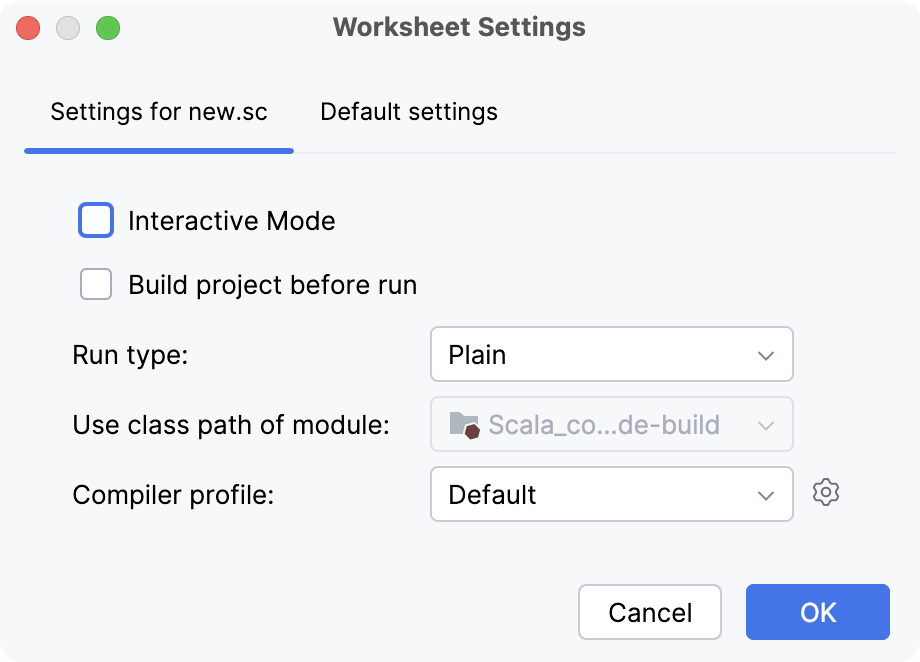
Use the following options for your configuration:
Interactive Mode: show results automatically.
Build project before run: enable or disable automatic checking of project changes. Disabling the option can improve evaluation performance.
Run type: select the appropriate evaluation mode. For example, select the REPL type to quickly evaluate Scala expressions. When you add new expressions they are executed incrementally.
Use class path of module: this field is disabled since the worksheet is a file that you can share between other projects and should stay where you created it. You can change its location in the default settings, but it will be applied across the whole project and will affect other worksheets.
If you need to change a class path, we recommend that you create and use a scratch file instead.
Compiler profile: in this field select a compiler profile for your worksheet. Select one from the list or click
to access the Scala compiler settings for more options.
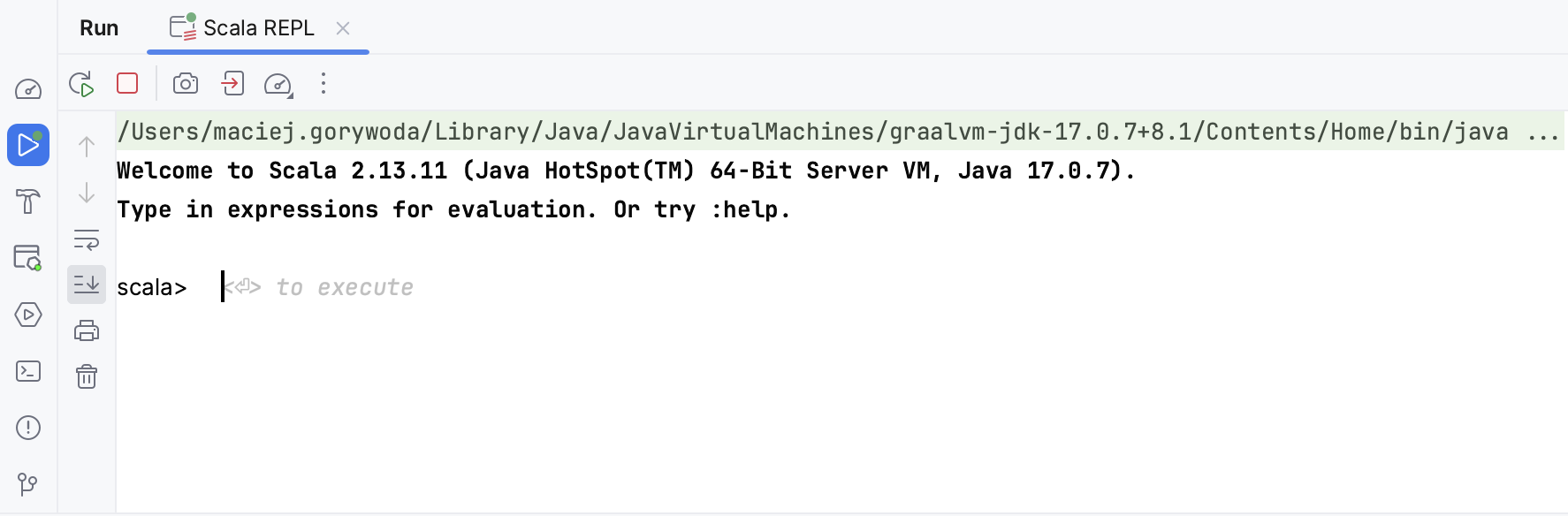
Start Scala REPL
Open Scala REPL by pressing Ctrl+Shift+D or by going to in the main menu.
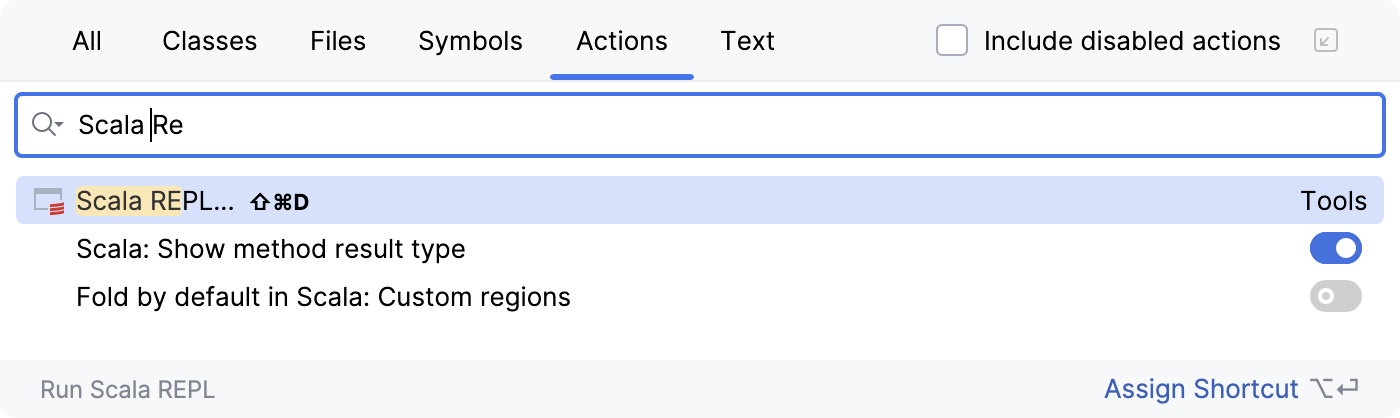
Alternatively, press Ctrl+Shift+A to open the Actions tab in the Search Everywhere window, start typing Scala REPL, and then select it from the search results.
To run a method from your project, import a given class or module, and call it, as if you were writing regular code.
Check the result in the Run tool window.