# Add files to Git and track changes
Procedure: Add files to Git
1. Open the Commit tool window (`Alt+0` (Windows), `⌘ 0` (macOS), `⌘ 0` (IntelliJ IDEA Classic (macOS)), `⌘ 0` (macOS System Shortcuts), `Alt+0` (XWin), `Alt+0` (GNOME), `Alt+0` (KDE), `Alt+0` (Emacs), `Alt+0` (Sublime Text), `⌘ 0` (Sublime Text (macOS)), `Alt+0` (NetBeans), `Alt+0` (Visual Studio), `Alt+0` (Visual Studio (macOS)), `Alt+0` (Eclipse), `⌘ 0` (Eclipse (macOS)) ) .
2. Put any files in the Unversioned Files changelist under version control by pressing `Ctrl+Alt+A` (Windows), `⌘ ⌥ A` (macOS), `⌘ ⌥ A` (IntelliJ IDEA Classic (macOS)), `⌘ ⌥ A` (macOS System Shortcuts), `Ctrl+Alt+A` (XWin), `Ctrl+Alt+A` (GNOME), `Ctrl+Alt+A` (KDE), `Ctrl+Alt+A` (Emacs), `Ctrl+Alt+A` (Sublime Text), `⌘ ⌥ A` (Sublime Text (macOS)), `Ctrl+Alt+A` (NetBeans), `Ctrl+Alt+A` (Visual Studio), `⌘ ⌥ A` (Visual Studio (macOS)), `Ctrl+Alt+A` (Eclipse), `⌘ ⌥ A` (Eclipse (macOS)) or selecting Add to VCS from the context menu. You can either add the entire changelist or select separate files.
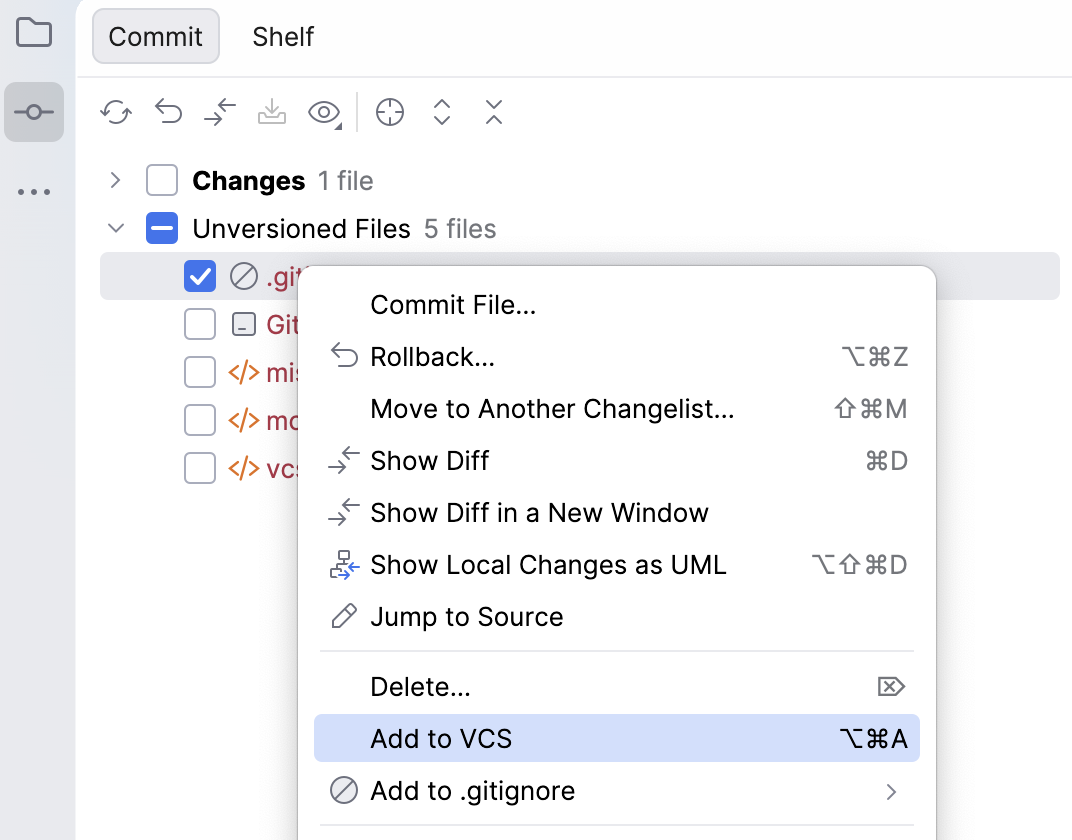
If you have enabled Git integration for your project, IntelliJ IDEA suggests adding each newly created file under version control. You can change this behavior in the Settings dialog `Ctrl+Alt+S` (Windows), `⌘ Comma` (macOS), `⌘ Comma` (IntelliJ IDEA Classic (macOS)), `⌘ Comma` (macOS System Shortcuts), `Ctrl+Alt+S` (XWin), `Ctrl+Alt+S` (GNOME), `Ctrl+Alt+S` (KDE), `Ctrl+Alt+S` (Emacs), `Ctrl+Alt+S` (Sublime Text), `⌘ Comma` (Sublime Text (macOS)), `Ctrl+Alt+S` (NetBeans), `Ctrl+Alt+S` (Visual Studio), `⌘ Comma` (Visual Studio (macOS)), `Ctrl+Alt+S` (Eclipse), `⌘ Comma` (Eclipse (macOS)) under `Version Control | Confirmation`. If you want certain files to always remain unversioned, you can configure Git to ignore them.
> **Tip:**
> You can also add files to your local repository from the Project tool window (`Alt+1` (Windows), `⌘ 1` (macOS), `⌘ 1` (IntelliJ IDEA Classic (macOS)), `⌘ 1` (macOS System Shortcuts), `Alt+1` (XWin), `Alt+1` (GNOME), `Alt+1` (KDE), `Alt+1` (Emacs), `Alt+1` (Sublime Text), `⌘ 1` (Sublime Text (macOS)), `Ctrl+1` (NetBeans), `Ctrl+Alt+L` (Visual Studio), `⌘ ⌥ L` (Visual Studio (macOS)), `Alt+1` (Eclipse), `Alt+1` (Eclipse (macOS))) . Select the files you want to add, and press `Ctrl+Alt+A` (Windows), `⌘ ⌥ A` (macOS), `⌘ ⌥ A` (IntelliJ IDEA Classic (macOS)), `⌘ ⌥ A` (macOS System Shortcuts), `Ctrl+Alt+A` (XWin), `Ctrl+Alt+A` (GNOME), `Ctrl+Alt+A` (KDE), `Ctrl+Alt+A` (Emacs), `Ctrl+Alt+A` (Sublime Text), `⌘ ⌥ A` (Sublime Text (macOS)), `Ctrl+Alt+A` (NetBeans), `Ctrl+Alt+A` (Visual Studio), `⌘ ⌥ A` (Visual Studio (macOS)), `Ctrl+Alt+A` (Eclipse), `⌘ ⌥ A` (Eclipse (macOS)) or choose `Git | Add` from the context menu.
> **Tip:**
> If you have accidentally added a file to Git, there is currently no single action to stop tracking it.
>
>
>
> * If the file has not been committed yet, open the Commit tool window (`Alt+0` (Windows), `⌘ 0` (macOS), `⌘ 0` (IntelliJ IDEA Classic (macOS)), `⌘ 0` (macOS System Shortcuts), `Alt+0` (XWin), `Alt+0` (GNOME), `Alt+0` (KDE), `Alt+0` (Emacs), `Alt+0` (Sublime Text), `⌘ 0` (Sublime Text (macOS)), `Alt+0` (NetBeans), `Alt+0` (Visual Studio), `Alt+0` (Visual Studio (macOS)), `Alt+0` (Eclipse), `⌘ 0` (Eclipse (macOS)) ) , right-click the file and select Rollback (or press `Ctrl+Alt+Z` (Windows), `⌘ ⌥ Z` (macOS), `⌘ ⌥ Z` (IntelliJ IDEA Classic (macOS)), `⌘ ⌥ Z` (macOS System Shortcuts), `Ctrl+Alt+Z` (XWin), `Ctrl+Alt+Z` (GNOME), `Ctrl+Alt+Z` (KDE), `Ctrl+Alt+Z` (Emacs), `Ctrl+Alt+Z` (Sublime Text), `⌘ ⌥ Z` (Sublime Text (macOS)), `Ctrl+Alt+Z` (NetBeans), `Ctrl+Alt+Z` (Visual Studio), `⌘ ⌥ Z` (Visual Studio (macOS)), `Ctrl+Alt+Z` (Eclipse), `⌃ ⌥ ⇧ Z` (Eclipse (macOS))). Make sure that the Delete local copies of added files checkbox is deselected.
>
> * If the file has already been committed, you can use the following workaround: Go to `Settings | Version Control | Confirmation` and set When files are created to Do not add. Then, save the necessary file outside the project, delete it from the current project, and move it back into the project folder.
>
>
>
> The file will then appear in the Unversioned files node of the Commit tool window (`Alt+0` (Windows), `⌘ 0` (macOS), `⌘ 0` (IntelliJ IDEA Classic (macOS)), `⌘ 0` (macOS System Shortcuts), `Alt+0` (XWin), `Alt+0` (GNOME), `Alt+0` (KDE), `Alt+0` (Emacs), `Alt+0` (Sublime Text), `⌘ 0` (Sublime Text (macOS)), `Alt+0` (NetBeans), `Alt+0` (Visual Studio), `Alt+0` (Visual Studio (macOS)), `Alt+0` (Eclipse), `⌘ 0` (Eclipse (macOS)) ) .
>
>
>
> To prevent such accidents in the future, you can add this file to `.gitignore` by right-clicking it and selecting Add to .gitignore.
## Check project files status
IntelliJ IDEA allows you to check the status of your local working copy compared to the repository version of the project. It lets you see which files have been modified, which new files have been added to Git, and which files are not being tracked by Git.
Open the Commit tool window (`Alt+0` (Windows), `⌘ 0` (macOS), `⌘ 0` (IntelliJ IDEA Classic (macOS)), `⌘ 0` (macOS System Shortcuts), `Alt+0` (XWin), `Alt+0` (GNOME), `Alt+0` (KDE), `Alt+0` (Emacs), `Alt+0` (Sublime Text), `⌘ 0` (Sublime Text (macOS)), `Alt+0` (NetBeans), `Alt+0` (Visual Studio), `Alt+0` (Visual Studio (macOS)), `Alt+0` (Eclipse), `⌘ 0` (Eclipse (macOS)) ) .
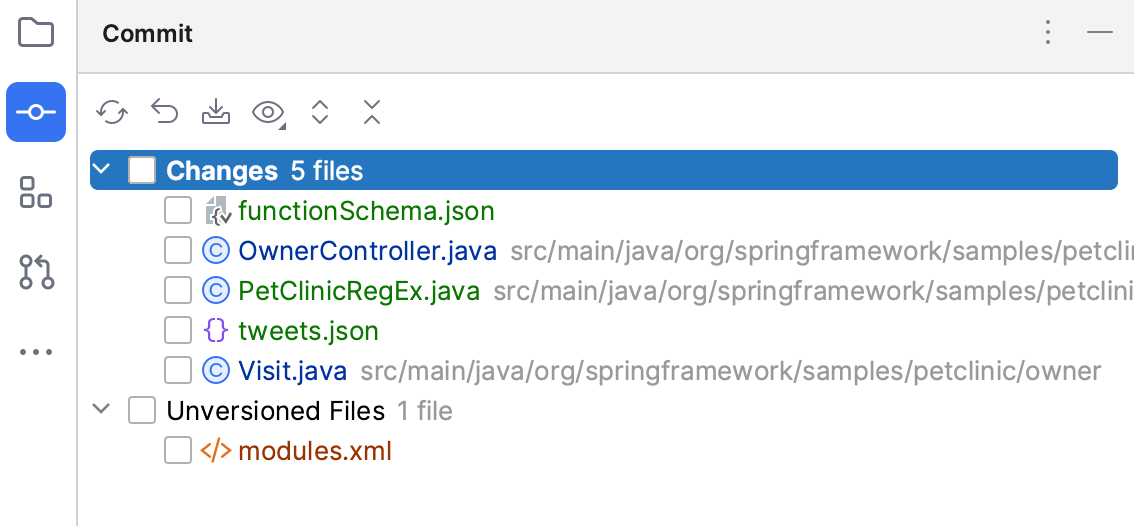
* The Changes changelist shows all files that have been modified since you last synchronized with the remote repository (highlighted in blue), and all new files that have been added to Git, but have not been committed yet (highlighted in green).
* The Unversioned Files changelist shows all files that have been added to your project, but that are not being tracked by Git.
> **Tip:**
> If you want ignored files to be also displayed in the Commit window , click  on the toolbar and select Show Ignored Files.
## Track changes to a file in the editor
You can also track changes to a file as you modify it in the editor. All changes are highlighted with change markers that appear in the gutter next to the modified lines and show the type of changes introduced since you last [synchronized with the repository](sync-with-a-remote-repository.html). When you commit changes to the repository, change markers disappear.
The changes you introduce to the text are color-coded:
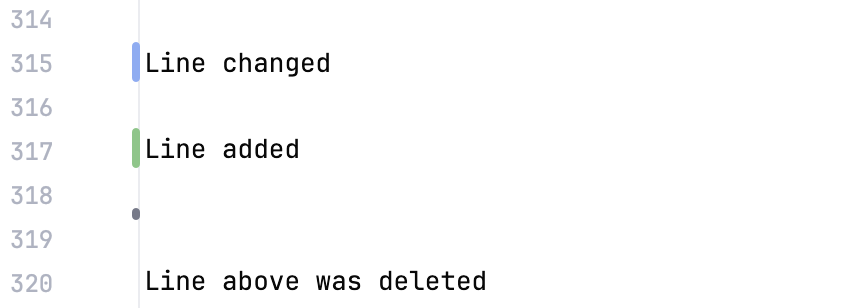
The table below lists default line highlighting colors and their meanings in some of the [color schemes](configuring-colors-and-fonts.html).
Light theme:
| Color | Line Status | Description |
| --- | --- | --- |
|  #C3D6E8 | Modified lines | Lines that have been modified since the last update. |
|  #EDDCBC | Whitespace-modified lines | Lines in which only whitespaces have been modified since the last update. |
|  #C9DEC1 | Added lines | Lines that have been added since the last update. |
|  #9F9F9F | Deleted lines | Lines that have been removed since the last update. |
Darcula theme:
| Color | Line Status | Description |
| --- | --- | --- |
|  #374752 | Modified lines | Lines that have been modified since the last update. |
|  #4C4638 | Whitespace-modified lines | Lines in which only whitespaces have been modified since the last update. |
|  #384C38 | Added lines | Lines that have been added since the last update. |
|  #656E76 | Deleted lines | Lines that have been removed since the last update. |
High-contrast theme:
| Color | Line Status | Description |
| --- | --- | --- |
|  #1AABFF | Modified lines | Lines that have been modified since the last update. |
|  #666666 | Whitespace-modified lines | Lines in which only whitespaces have been modified since the last update. |
|  #009924 | Added lines | Lines that have been added since the last update. |
|  #FFA14F | Deleted lines | Lines that have been removed since the last update. |
> **Tip:**
> You can customize the default colors for line statuses on the Editor | Color Scheme | VCS settings page `Ctrl+Alt+S` (Windows), `⌘ Comma` (macOS), `⌘ Comma` (IntelliJ IDEA Classic (macOS)), `⌘ Comma` (macOS System Shortcuts), `Ctrl+Alt+S` (XWin), `Ctrl+Alt+S` (GNOME), `Ctrl+Alt+S` (KDE), `Ctrl+Alt+S` (Emacs), `Ctrl+Alt+S` (Sublime Text), `⌘ Comma` (Sublime Text (macOS)), `Ctrl+Alt+S` (NetBeans), `Ctrl+Alt+S` (Visual Studio), `⌘ Comma` (Visual Studio (macOS)), `Ctrl+Alt+S` (Eclipse), `⌘ Comma` (Eclipse (macOS)) .
>
>
>
> To disable VCS markers in the gutter, deselect the Highlight modified lines in gutter option on the Version Control | Confirmation settings page `Ctrl+Alt+S` (Windows), `⌘ Comma` (macOS), `⌘ Comma` (IntelliJ IDEA Classic (macOS)), `⌘ Comma` (macOS System Shortcuts), `Ctrl+Alt+S` (XWin), `Ctrl+Alt+S` (GNOME), `Ctrl+Alt+S` (KDE), `Ctrl+Alt+S` (Emacs), `Ctrl+Alt+S` (Sublime Text), `⌘ Comma` (Sublime Text (macOS)), `Ctrl+Alt+S` (NetBeans), `Ctrl+Alt+S` (Visual Studio), `⌘ Comma` (Visual Studio (macOS)), `Ctrl+Alt+S` (Eclipse), `⌘ Comma` (Eclipse (macOS)) .
You can manage changes using a toolbar that appears when you hover over a change marker and then click it. The toolbar is displayed together with a frame showing the previous contents of the modified line:

You can roll back changes by clicking  and explore the differences between the current and the repository version of the current line by clicking .
Instead of reverting the whole file, you can copy any part of the contents of this popup and paste it into the editor.
## Check file status
IntelliJ IDEA allows you to check the status of project files relative to the repository. File status shows you which operations have been performed on the file since you last synchronized with the repository.
You can check the status of a file in any interface element (for example, the editor or a tool window) by the color used to highlight the filename.
You can customize the default colors for file statuses on the [Colors and Fonts](settings-colors-and-fonts.html) settings page.
You can configure VCS file status colors on the Version Control | File Status Colors settings page `Ctrl+Alt+S` (Windows), `⌘ Comma` (macOS), `⌘ Comma` (IntelliJ IDEA Classic (macOS)), `⌘ Comma` (macOS System Shortcuts), `Ctrl+Alt+S` (XWin), `Ctrl+Alt+S` (GNOME), `Ctrl+Alt+S` (KDE), `Ctrl+Alt+S` (Emacs), `Ctrl+Alt+S` (Sublime Text), `⌘ Comma` (Sublime Text (macOS)), `Ctrl+Alt+S` (NetBeans), `Ctrl+Alt+S` (Visual Studio), `⌘ Comma` (Visual Studio (macOS)), `Ctrl+Alt+S` (Eclipse), `⌘ Comma` (Eclipse (macOS)) .
> **Tip:**
> To also highlight folders and packages with modified contents, select Highlight directories that contain modified files in the Project tree on the Version Control | Confirmation settings page `Ctrl+Alt+S` (Windows), `⌘ Comma` (macOS), `⌘ Comma` (IntelliJ IDEA Classic (macOS)), `⌘ Comma` (macOS System Shortcuts), `Ctrl+Alt+S` (XWin), `Ctrl+Alt+S` (GNOME), `Ctrl+Alt+S` (KDE), `Ctrl+Alt+S` (Emacs), `Ctrl+Alt+S` (Sublime Text), `⌘ Comma` (Sublime Text (macOS)), `Ctrl+Alt+S` (NetBeans), `Ctrl+Alt+S` (Visual Studio), `⌘ Comma` (Visual Studio (macOS)), `Ctrl+Alt+S` (Eclipse), `⌘ Comma` (Eclipse (macOS)) .
The table below lists default file status colors and their meanings in some of the [color schemes](configuring-colors-and-fonts.html).
Light theme:
| Color | File Status | Description |
| --- | --- | --- |
|  #0A7700 | Added | The file in the active [changelist](managing-changelists.html) is scheduled for addition to the repository. |
|  #0EAA00 | Added in not active changelist | The file in an inactive changelist is scheduled for addition to the repository. This file status is available if the Highlight files from non-active changelists option is enabled in `Settings \| Version Control \| Changelists`. |
|  #FF0000 | Changelist conflict | The file in an inactive changelist has been modified in the active changelist. In this case, a new dialog will open, prompting you to resolve the [changelist conflict](resolve-conflicts.html). This file status is available if all options are enabled in `Settings \| Version Control \| Changelists`. |
|  #0A7700 | Copied | If a file is a copy of another file, its metadata is tracked, and such a file is marked as copied. |
|  #616161 | Deleted | The file is scheduled for deletion from the repository. |
|  #773895 | Deleted from file system | The file has been deleted locally but has not been scheduled for deletion, and it still exists in the repository. |
|  #8AA4C8 | Have changed descendants | If a file is modified, the IDE will recursively highlight all directories containing that file. This status is available if the Highlight directories that contain modified files in the Project tree option is enabled in `Settings \| Version Control \| Confirmation`. |
|  #3264B4 | Have immediate changed children | If a file is modified, the IDE will highlight its parent directory. This status is available if the Highlight directories that contain modified files in the Project tree option is enabled in `Settings \| Version Control \| Confirmation`. |
|  #B28C00 | Hijacked | [Perforce, ClearCase, VSS] The file is [modified without checkout.](null) |
|  #727238 | Ignored | A file is intentionally untracked by VCS. |
|  #7503DC | Merged | The file is merged by your VCS as a result of an update. |
|  #FF0000 | Merged with conflicts | During the last update, the file has been merged with conflicts. |
|  #FF0000 | Merged with property conflicts | During the last update, the IDE has detected differences between the properties of the local file and its server version. |
|  #FF0000 | Merged with text and property conflicts | Text and property conflicts happen when two or more developers modify the same lines of a file and the same file properties. |
|  #0032A0 | Modified | The file has changed since the last synchronization. |
|  #0047E4 | Modified in not active changelist | The file in an inactive changelist has been modified. This file status is available if the Highlight files from non-active changelists option is enabled in `Settings \| Version Control \| Changelists`. |
|  #7C7C00 | Obsolete | The file should no longer be in your working copy of the repository. |
|  #007C7C | Renamed | Since the last update, the file has been renamed. |
|  #08978F | Switched | [SVN] The file is taken from a different branch than the whole project. |
|  #993300 | (Unknown) Unversioned | The file exists locally but is not in the repository and is not scheduled for addition. |
|  None (default color) | Up to date | The file has not been changed. |
Darcula theme:
| Color | File Status | Description |
| --- | --- | --- |
|  #629755 | Added | The file in the active [changelist](managing-changelists.html) is scheduled for addition to the repository. |
|  #629755 | Added in not active changelist | The file in an inactive changelist is scheduled for addition to the repository. This file status is available if the Highlight files from non-active changelists option is enabled in `Settings \| Version Control \| Changelists`. |
|  #D5756C | Changelist conflict | The file in an inactive changelist has been modified in the active changelist. In this case, a new dialog will open, prompting you to resolve the [changelist conflict](resolve-conflicts.html). This file status is available if all options are enabled in `Settings \| Version Control \| Changelists`. |
|  #0A7700 | Copied | If a file is a copy of another file, its metadata is tracked, and such a file is marked as copied. |
|  #6C6C6C | Deleted | The file is scheduled for deletion from the repository. |
|  #6C6C6C | Deleted from file system | The file has been deleted locally but has not been scheduled for deletion, and it still exists in the repository. |
|  #6897BB | Have changed descendants | If a file is modified, the IDE will recursively highlight all directories containing that file. This status is available if the Highlight directories that contain modified files in the Project tree option is enabled in `Settings \| Version Control \| Confirmation`. |
|  #6897BB | Have immediate changed children | If a file is modified, the IDE will highlight its parent directory. This status is available if the Highlight directories that contain modified files in the Project tree option is enabled in `Settings \| Version Control \| Confirmation`. |
|  None (default color) | Hijacked | [Perforce, ClearCase, VSS] The file is [modified without checkout.](null) |
|  #848504 | Ignored | A file is intentionally untracked by VCS. |
|  #9876AA | Merged | The file is merged by your VCS as a result of an update. |
|  #D5756C | Merged with conflicts | During the last update, the file has been merged with conflicts. |
|  #D5756C | Merged with property conflicts | During the last update, the IDE has detected differences between the properties of the local file and its server version. |
|  #D5756C | Merged with text and property conflicts | Text and property conflicts happen when two or more developers modify the same lines of a file and the same file properties. |
|  #6897BB | Modified | The file has changed since the last synchronization. |
|  #6897BB | Modified in not active changelist | The file in an inactive changelist has been modified. This file status is available if the Highlight files from non-active changelists option is enabled in `Settings \| Version Control \| Changelists`. |
|  None (default color) | Obsolete | The file should no longer be in your working copy of the repository. |
|  #3A8484 | Renamed | Since the last update, the file has been renamed. |
|  None (default color) | Switched | [SVN] The file is taken from a different branch than the whole project. |
|  #D1675A | (Unknown) Unversioned | The file exists locally but is not in the repository and is not scheduled for addition. |
|  None (default color) | Up to date | The file has not been changed. |
High-contrast theme:
| Color | File Status | Description |
| --- | --- | --- |
|  #62CC47 | Added | The file in the active [changelist](managing-changelists.html) is scheduled for addition to the repository. |
|  #62CC47 | Added in not active changelist | The file in an inactive changelist is scheduled for addition to the repository. This file status is available if the Highlight files from non-active changelists option is enabled in `Settings \| Version Control \| Changelists`. |
|  #FF6666 | Changelist conflict | The file in an inactive changelist has been modified in the active changelist. In this case, a new dialog will open, prompting you to resolve the [changelist conflict](resolve-conflicts.html). This file status is available if all options are enabled in `Settings \| Version Control \| Changelists`. |
|  #62CC47 | Copied | If a file is a copy of another file, its metadata is tracked, and such a file is marked as copied. |
|  #ED864A | Deleted | The file is scheduled for deletion from the repository. |
|  #ED864A | Deleted from file system | The file has been deleted locally but has not been scheduled for deletion, and it still exists in the repository. |
|  #4FF0FF | Have changed descendants | If a file is modified, the IDE will recursively highlight all directories containing that file. This status is available if the Highlight directories that contain modified files in the Project tree option is enabled in `Settings \| Version Control \| Confirmation`. |
|  #4FF0FF | Have immediate changed children | If a file is modified, the IDE will highlight its parent directory. This status is available if the Highlight directories that contain modified files in the Project tree option is enabled in `Settings \| Version Control \| Confirmation`. |
|  None (default color) | Hijacked | [Perforce, ClearCase, VSS] The file is [modified without checkout.](null) |
|  #A9B837 | Ignored | A file is intentionally untracked by VCS. |
|  #ED94FF | Merged | The file is merged by your VCS as a result of an update. |
|  #FF6666 | Merged with conflicts | During the last update, the file has been merged with conflicts. |
|  #FF6666 | Merged with property conflicts | During the last update, the IDE has detected differences between the properties of the local file and its server version. |
|  #FF6666 | Merged with text and property conflicts | Text and property conflicts happen when two or more developers modify the same lines of a file and the same file properties. |
|  #4FF0FF | Modified | The file has changed since the last synchronization. |
|  #4FF0FF | Modified in not active changelist | The file in an inactive changelist has been modified. This file status is available if the Highlight files from non-active changelists option is enabled in `Settings \| Version Control \| Changelists`. |
|  None (default color) | Obsolete | The file should no longer be in your working copy of the repository. |
|  #4FF0FF | Renamed | Since the last update, the file has been renamed. |
|  None (default color) | Switched | [SVN] The file is taken from a different branch than the whole project. |
|  D1675A | (Unknown) Unversioned | The file exists locally but is not in the repository and is not scheduled for addition. |
|  None (default color) | Up to date | The file has not been changed. |
> **Tip:**
> This chapter is about Git file status colors. If you need to set colors for distinguishing project files of specific scopes, refer to [this page](settings-file-colors.html).
## Delete files from the repository
If you delete a file that is under version control, it still exists in the repository until you've committed the changes. The deleted file is placed in the active changelist and is highlighted in grey.
Procedure:
1. Select a file in the Project tool window (`Alt+1` (Windows), `⌘ 1` (macOS), `⌘ 1` (IntelliJ IDEA Classic (macOS)), `⌘ 1` (macOS System Shortcuts), `Alt+1` (XWin), `Alt+1` (GNOME), `Alt+1` (KDE), `Alt+1` (Emacs), `Alt+1` (Sublime Text), `⌘ 1` (Sublime Text (macOS)), `Ctrl+1` (NetBeans), `Ctrl+Alt+L` (Visual Studio), `⌘ ⌥ L` (Visual Studio (macOS)), `Alt+1` (Eclipse), `Alt+1` (Eclipse (macOS))) and press `Delete` (Windows), `⌦` (macOS), `⌦` (IntelliJ IDEA Classic (macOS)), `⌦` (macOS System Shortcuts), `Delete` (XWin), `Delete` (GNOME), `Delete` (KDE), `Delete` (Emacs), `Delete` (Sublime Text), `⌦` (Sublime Text (macOS)), `Delete` (NetBeans), `Delete` (Visual Studio), `⌦` (Visual Studio (macOS)), `Delete` (Eclipse), `⌦` (Eclipse (macOS)) or choose Delete from the context menu.
2. In the dialog that opens, you can choose whether you want to delete this file without searching for usages or to perform safe delete (to make sure that you are deleting an unused file) by checking the Safe delete option.
If any usages have been found, the Usages Detected dialog will pop up listing them. You can view these usages and remove references to this file before deleting it.
3. Commit the changes to the repository.
## See also
### Reference
[Version control settings](settings-version-control.html) [Version Control window](version-control-tool-window.html)