Advanced completion
Type-matching completion
Smart type-matching code completion filters the suggestion list and shows only the types applicable to the current context.
Type-matching completion is useful in situations when it is possible to determine the appropriate type:
 In the right part of assignment statements
 In variable initializers
 In
returnstatements In the list of arguments of a method call
 After the
newkeyword in an object declarationIn chained expressions
Invoke type-matching completion
To invoke type-matching completion, start typing and press Ctrl+Shift+Space or select from the main menu.
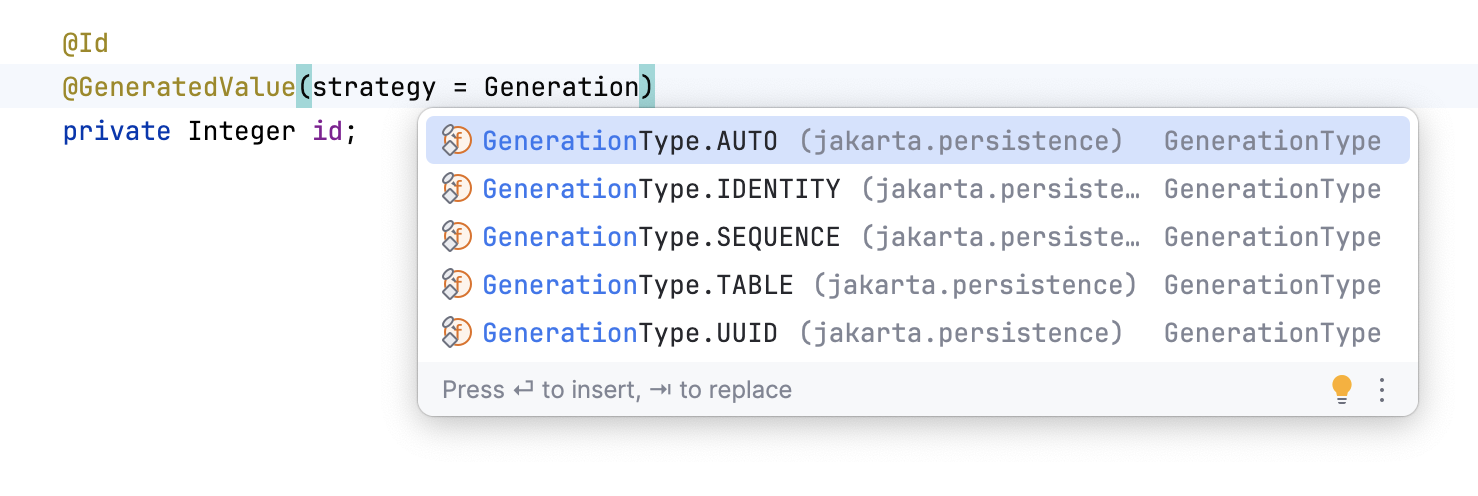
If necessary, press Ctrl+Shift+Space once again. This lets you complete:
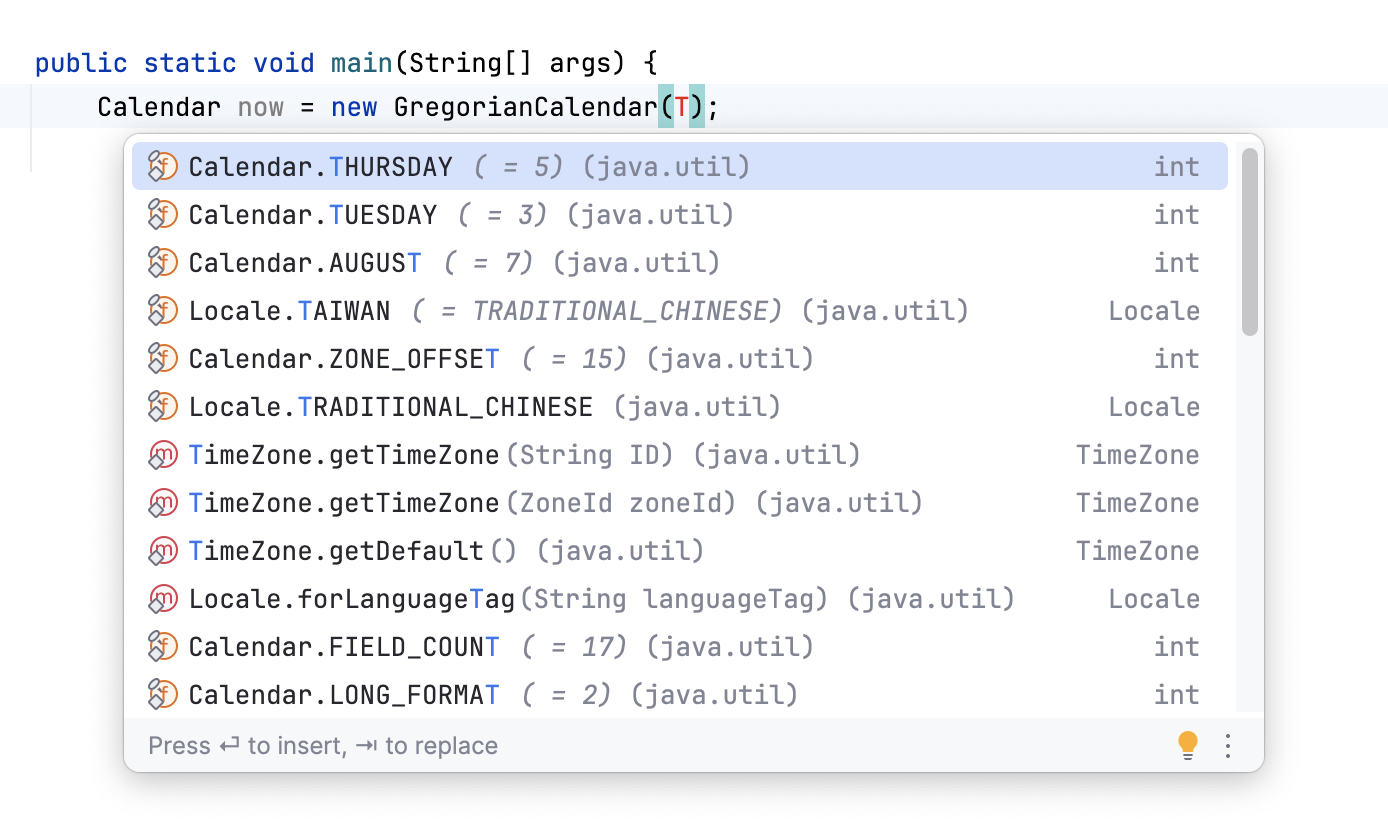
Collections, lists and arrays. IntelliJ IDEA searches for symbols with the same component type and suggests converting them.
Static method calls or constant references. IntelliJ IDEA scans for static methods and fields and suggests the ones suitable in the current context.
Statement completion
You can create syntactically correct code constructs by using statement completion. It inserts the necessary syntax elements (parentheses, braces, and semicolons) and gets you in a position where you can start typing the next statement.
To invoke statement completion, start typing a code construct and press Ctrl+Shift+Enter.
Complete a method declaration
Start typing a method declaration and press Ctrl+Shift+Enter after the parenthesis.
public class Converter{ int a = 0; static boolean RepeatConversion(//caret) }public class Converter{ int a = 0; static boolean RepeatConversion(){ //caret } }
Complete a code construct
Start typing a code construct and press Ctrl+Shift+Enter.
IntelliJ IDEA automatically completes the construct and adds
end. The caret is placed at the next editing position.} catch (ArithmeticException e) { if(//caret) }} catch (ArithmeticException e) { if(//caret){ } }
Wrap a method call argument
Type an expression. Then type a method call. When
printlngets the focus in the suggestion list, select it with Ctrl+Shift+Enter:System.out.println"Hello, world!"System.out.println("Hello, world!");
Hippie completion
Hippie completion is a completion engine that analyses your text in the visible scope and generates suggestions from the current context. It helps you complete any word from any of the currently opened files.
Expand a string at caret to an existing word
Type the initial string and do one of the following:
Press Alt+/ or choose to search for matching words before the caret.
Press Alt+Shift+/ or choose to search for matching words after the caret and in other open files.
The first suggested value appears, and the prototype is highlighted in the source code.
Accept the suggestion or hold the Alt key and keep pressing \ until you find the word you need.
Completion of tags and attributes
IntelliJ IDEA automatically completes names and values of tags and attributes in many file types:
HTML/XHTML, including completion for CSS classes and for HTML tags inside JSX.
XML/XSL
JSP/JSPX
GSP
JSON. For more information, refer to Editing package.json.
Completion of tags and attribute names is based on the DTD or Schema the file is associated with. If there is no schema association, IntelliJ IDEA will use the file content (tag and attribute names and their values) to complete your input.
In XML/XSL and JSP/JSPX files, completion for taglibs and namespaces is available.
Complete tag names
Type the opening
<and then start typing the tag name. IntelliJ IDEA displays the list of tag names appropriate in the current context.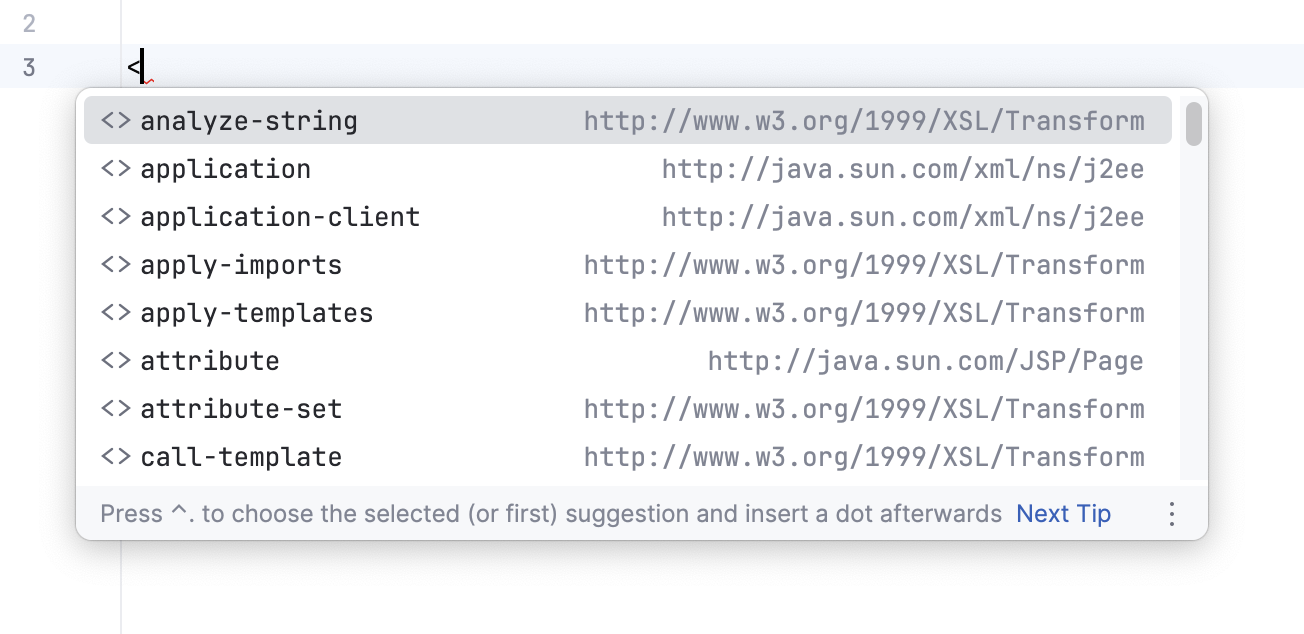
Use the Up and Down keys to scroll through the list.
Press Enter to accept a selection from the list. If your file is associated with a schema or a DTD, IntelliJ IDEA automatically inserts the mandatory attributes according to it.
Import a taglib declaration
If you need to use tags declared in a tag library, you need to import this taglib before any custom tag from it can be used.
Start typing a taglib prefix and press Alt+Insert.
Select a taglib from the list and press Enter.
IntelliJ IDEA imports the selected taglib and adds the import statement automatically.
Insert a tag declared in a taglib
Start typing a tag and press Ctrl+Alt+Space.
Select a tag from the list. The
uriof the taglib it belongs to is displayed in brackets.Select a taglib and press Enter. IntelliJ IDEA adds the declaration of the selected taglib.