# Code completion
> **TL;DR**
> Configure: Settings (`Ctrl+Alt+S` (Windows), `⌘ Comma` (macOS), `⌘ Comma` (IntelliJ IDEA Classic (macOS)), `⌘ Comma` (macOS System Shortcuts), `Ctrl+Alt+S` (XWin), `Ctrl+Alt+S` (GNOME), `Ctrl+Alt+S` (KDE), `Ctrl+Alt+S` (Emacs), `Ctrl+Alt+S` (Sublime Text), `⌘ Comma` (Sublime Text (macOS)), `Ctrl+Alt+S` (NetBeans), `Ctrl+Alt+S` (Visual Studio), `⌘ Comma` (Visual Studio (macOS)), `Ctrl+Alt+S` (Eclipse), `⌘ Comma` (Eclipse (macOS)) ) `| Editor | General | Code Completion | Popup`
>
>
>
> For automatic completion, enable Show suggestions as you type
>
>
>
> Basic completion: `Ctrl+Space` (Windows), `⌃ Space` (macOS), `⌃ Space` (IntelliJ IDEA Classic (macOS)), `⌃ Space` (macOS System Shortcuts), `Ctrl+Space` (XWin), `Ctrl+Space` (GNOME), `Ctrl+Space` (KDE), `Alt+/` (Emacs), `Ctrl+Space` (Sublime Text), `⌃ Space` (Sublime Text (macOS)), `Ctrl+Space` (NetBeans), `Ctrl+Space` (Visual Studio), `⌃ Space` (Visual Studio (macOS)), `Ctrl+Space` (Eclipse), `⌃ Space` (Eclipse (macOS))
>
>
>
> To reject all suggestions, press `Escape` (Windows), `⎋` (macOS), `⎋` (IntelliJ IDEA Classic (macOS)), `⎋` (macOS System Shortcuts), `Escape` (XWin), `Escape` (GNOME), `Escape` (KDE), `Escape, Escape` (Emacs), `Escape` (Sublime Text), `⎋` (Sublime Text (macOS)), `Escape` (NetBeans), `Escape` (Visual Studio), `⎋` (Visual Studio (macOS)), `Escape` (Eclipse), `⎋` (Eclipse (macOS))
Basic code completion helps you complete the names of classes, methods, fields, and keywords within the visibility scope.
IntelliJ IDEA analyzes the context and suggests the choices that are reachable from the current caret position. Suggestions also include [Live
templates](using-live-templates.html). Completion is available for a non-English keyboard layout.
Procedure: Invoke basic completion
* By default, IntelliJ IDEA displays the code completion popup automatically as you type.
Alternatively, you can press `Ctrl+Space` (Windows), `⌃ Space` (macOS), `⌃ Space` (IntelliJ IDEA Classic (macOS)), `⌃ Space` (macOS System Shortcuts), `Ctrl+Space` (XWin), `Ctrl+Space` (GNOME), `Ctrl+Space` (KDE), `Alt+/` (Emacs), `Ctrl+Space` (Sublime Text), `⌃ Space` (Sublime Text (macOS)), `Ctrl+Space` (NetBeans), `Ctrl+Space` (Visual Studio), `⌃ Space` (Visual Studio (macOS)), `Ctrl+Space` (Eclipse), `⌃ Space` (Eclipse (macOS)) or select `Code | Code Completion | Basic` from the main menu.
[Video](https://resources.jetbrains.com/help/img/idea/2026.2/ij_basic_completion_demo.mp4)
* Invoking code completion for the second time shows inaccessible classes and members (these can be made public by [applying an intention action](intention-actions.html)).
* When invoked for the third time in a row, completion looks for suggestions for classes and interface names in the entire project, regardless of dependencies. If the necessary class is not yet [imported](creating-and-optimizing-imports.html), it will be imported automatically.
* Code completion is available for [custom file types](creating-and-registering-file-types.html). However, IntelliJ IDEA does not recognize the structure of such files and suggests options regardless of whether they are appropriate in the current context.
Procedure: Accept a suggestion from the list
* Press `Enter` (Windows), `⏎` (macOS), `⏎` (IntelliJ IDEA Classic (macOS)), `⏎` (macOS System Shortcuts), `Enter` (XWin), `Enter` (GNOME), `Enter` (KDE), `Enter` (Emacs), `Enter` (Sublime Text), `⏎` (Sublime Text (macOS)), `Enter` (NetBeans), `Enter` (Visual Studio), `⏎` (Visual Studio (macOS)), `Enter` (Eclipse), `⏎` (Eclipse (macOS)) or double-click the relevant list item to insert it to the left of the caret.
* Press `Tab` (Windows), `⇥` (macOS), `⇥` (IntelliJ IDEA Classic (macOS)), `⇥` (macOS System Shortcuts), `Tab` (XWin), `Tab` (GNOME), `Tab` (KDE), `Tab` (Emacs), `Tab` (Sublime Text), `⇥` (Sublime Text (macOS)), `Tab` (NetBeans), `Tab` (Visual Studio), `⇥` (Visual Studio (macOS)), `Tab` (Eclipse), `⇥` (Eclipse (macOS)) to replace the characters to the right from the caret.
* Use `Ctrl+Shift+Enter` (Windows), `⌘ ⇧ ⏎` (macOS), `⌘ ⇧ ⏎` (IntelliJ IDEA Classic (macOS)), `⌘ ⇧ ⏎` (macOS System Shortcuts), `Ctrl+Shift+Enter` (XWin), `Ctrl+Shift+Enter` (GNOME), `Ctrl+Shift+Enter` (KDE), `Ctrl+Shift+Enter` (Emacs), `Ctrl+Shift+Enter` (Sublime Text), `Ctrl+Shift+Enter` (Sublime Text (macOS)), `Ctrl+Shift+Enter` (NetBeans), `Ctrl+Shift+Enter` (Visual Studio), `⌘ ⇧ ⏎` (Visual Studio (macOS)), `Ctrl+Shift+Enter` (Eclipse), `⌘ ⇧ ⏎` (Eclipse (macOS)) to make the current code construct syntactically correct (balance parentheses, add missing braces and semicolons, and so on).
* Use specific keys and custom characters to accept the selected completion suggestion. To enable these features, go to the Editor | General | Code Completion | Popup settings page `Ctrl+Alt+S` (Windows), `⌘ Comma` (macOS), `⌘ Comma` (IntelliJ IDEA Classic (macOS)), `⌘ Comma` (macOS System Shortcuts), `Ctrl+Alt+S` (XWin), `Ctrl+Alt+S` (GNOME), `Ctrl+Alt+S` (KDE), `Ctrl+Alt+S` (Emacs), `Ctrl+Alt+S` (Sublime Text), `⌘ Comma` (Sublime Text (macOS)), `Ctrl+Alt+S` (NetBeans), `Ctrl+Alt+S` (Visual Studio), `⌘ Comma` (Visual Studio (macOS)), `Ctrl+Alt+S` (Eclipse), `⌘ Comma` (Eclipse (macOS)) and do the following:
1. To use specific keys, select the Insert selected suggestion by pressing space, dot, or other context-dependent keys checkbox. These keys depend on the language, your context, and so on. For Java, such keys include `Space`, `Tab` (Windows), `Tab` (macOS), `Tab` (IntelliJ IDEA Classic (macOS)), `Tab` (macOS System Shortcuts), `Tab` (XWin), `Tab` (GNOME), `Tab` (KDE), `Tab` (Emacs), `Tab` (Sublime Text), `Tab` (Sublime Text (macOS)), `Tab` (NetBeans), `Tab` (Visual Studio), `Tab` (Visual Studio (macOS)), `Tab` (Eclipse), `Tab` (Eclipse (macOS)), `[` and `]`, `(` and `)`, and some more.
2. To also use custom characters, enter the characters into the Additional characters to accept the completion field.
> **Note:**
> While this setting helps you save time, turning it on may result in items being inserted accidentally.
> **Tip:**
> Completion in the Stream API chains is aware of type casts, so the list will not only contain items based on the existing call `filter(String.class::isInstance)`, but also automatically typecasted suggestions.
## Exclude and prioritize classes for completion
Procedure: Exclude a class or package from completion
1. Press `Ctrl+Alt+S` (Windows), `⌘ Comma` (macOS), `⌘ Comma` (IntelliJ IDEA Classic (macOS)), `⌘ Comma` (macOS System Shortcuts), `Ctrl+Alt+S` (XWin), `Ctrl+Alt+S` (GNOME), `Ctrl+Alt+S` (KDE), `Ctrl+Alt+S` (Emacs), `Ctrl+Alt+S` (Sublime Text), `⌘ Comma` (Sublime Text (macOS)), `Ctrl+Alt+S` (NetBeans), `Ctrl+Alt+S` (Visual Studio), `⌘ Comma` (Visual Studio (macOS)), `Ctrl+Alt+S` (Eclipse), `⌘ Comma` (Eclipse (macOS)) to open settings and then select `Editor | General | Auto Import`.
2. Under Exclude from import and completion, add the names of classes or packages that you want to exclude from completion. The classes you specify here will not appear in the suggestion list.
You can also exclude items from the completion list: press `Alt+Enter` (Windows), `⌥ ⏎` (macOS), `⌥ ⏎` (IntelliJ IDEA Classic (macOS)), `⌥ ⏎` (macOS System Shortcuts), `Alt+Enter` (XWin), `Alt+Enter` (GNOME), `Alt+Enter` (KDE), `Alt+Enter` (Emacs), `Alt+Enter` (Sublime Text), `⌥ ⏎` (Sublime Text (macOS)), `Alt+Enter` (NetBeans), `Alt+Enter` (Visual Studio), `⌥ ⏎` (Visual Studio (macOS)), `Ctrl+1` (Eclipse), `⌘ 1` (Eclipse (macOS)) when the list with completion suggestions is open and select the item you want to exclude.
Procedure: Prioritize classes for completion
This option allows you to import frequently used static methods automatically. When you type a method from a prioritized class, the IDE shows completion suggestions. Selecting a suggestion from the list inserts the corresponding import statement without requiring manual edits.
1. Press `Ctrl+Alt+S` (Windows), `⌘ Comma` (macOS), `⌘ Comma` (IntelliJ IDEA Classic (macOS)), `⌘ Comma` (macOS System Shortcuts), `Ctrl+Alt+S` (XWin), `Ctrl+Alt+S` (GNOME), `Ctrl+Alt+S` (KDE), `Ctrl+Alt+S` (Emacs), `Ctrl+Alt+S` (Sublime Text), `⌘ Comma` (Sublime Text (macOS)), `Ctrl+Alt+S` (NetBeans), `Ctrl+Alt+S` (Visual Studio), `⌘ Comma` (Visual Studio (macOS)), `Ctrl+Alt+S` (Eclipse), `⌘ Comma` (Eclipse (macOS)) to open settings and then select `Editor | General | Auto Import`.
2. In the Include auto-import of static members in completion section, click  or press `Alt+Insert` (Windows), `⌥ Insert` (macOS), `⌥ Insert` (IntelliJ IDEA Classic (macOS)), `⌥ Insert` (macOS System Shortcuts), `Alt+Insert` (XWin), `Alt+Insert` (GNOME), `Alt+Insert` (KDE), `Alt+Insert` (Emacs), `Alt+Insert` (Sublime Text), `⌥ Insert` (Sublime Text (macOS)), `Alt+Insert` (NetBeans), `Alt+Insert` (Visual Studio), `⌥ Insert` (Visual Studio (macOS)), `Alt+Insert` (Eclipse), `⌥ Insert` (Eclipse (macOS)).
3. Specify the class you want to add to the list.
You can exclude some members that should never be added to static imports, such as `of`, `valueOf`, and so on. To do so, use `-`, for example:
```GENERIC
-java.util.Objects.requireNonNull
```
4. To the right from the class name, you can also select whether you want to prioritize it in the current project only or in all projects (globally).
[Video](https://resources.jetbrains.com/help/img/idea/2026.2/ij_prioritized_class_auto_import.mp4)
## Configure code completion settings
To configure code completion options, go to the Editor | General | Code Completion | Popup settings page `Ctrl+Alt+S` (Windows), `⌘ Comma` (macOS), `⌘ Comma` (IntelliJ IDEA Classic (macOS)), `⌘ Comma` (macOS System Shortcuts), `Ctrl+Alt+S` (XWin), `Ctrl+Alt+S` (GNOME), `Ctrl+Alt+S` (KDE), `Ctrl+Alt+S` (Emacs), `Ctrl+Alt+S` (Sublime Text), `⌘ Comma` (Sublime Text (macOS)), `Ctrl+Alt+S` (NetBeans), `Ctrl+Alt+S` (Visual Studio), `⌘ Comma` (Visual Studio (macOS)), `Ctrl+Alt+S` (Eclipse), `⌘ Comma` (Eclipse (macOS)) .
You can choose the following settings:
| Item | Description |
| --- | --- |
| Match case | Select if you want the letter case to be taken into account for completion suggestions. Choose whether you want to match the case for the first letter or for all letters. |
| Automatically insert single suggestions for | Automatically complete code if there is only one suggestion for basic and smart type-matching completion. |
| Sort suggestions alphabetically | Select if you want to sort items in the suggestion list in the alphabetical order instead of sorting them by relevance. You can change this behavior at any time by clicking  in the suggestion list and toggling the Sort by Name option. |
| Show suggestions as you type | Select if you want the suggestion list to be invoked automatically, without having to call completion explicitly. This option is enabled by default. |
| Insert selected suggestion by pressing space, dot, or other context-dependent keys | Select if you want to insert the selected suggestion by typing certain keys that depend on the language, your context, and so on. For Java, such keys include Space, Tab, [ and ], ( and ), and some more. |
| Show the documentation popup in | Automatically [show a popup](#doc-in-completion) for each item in the suggestion list with the documentation for the class, method, or field currently highlighted in the lookup list. When this option is disabled, press `Ctrl+Q` (Windows), `F1` (macOS), `⌃ J` (IntelliJ IDEA Classic (macOS)), `⌘ I` (macOS System Shortcuts), `Ctrl+Q` (XWin), `Ctrl+Q` (GNOME), `Ctrl+Q` (KDE), `Ctrl+Q` (Emacs), `Ctrl+Q` (Sublime Text), `Ctrl+Q` (Sublime Text (macOS)), `Ctrl+Q` (NetBeans), `Ctrl+K, I` (Visual Studio), `⌘ K, I` (Visual Studio (macOS)), `Alt+Middle-Click` (Eclipse), `⌥ Middle-Click` (Eclipse (macOS)) to display documentation for elements. In the field to the right, specify the delay (in milliseconds), after which the popup should appear. |
| Insert parentheses automatically when applicable | If this option is enabled, IntelliJ IDEA automatically inserts a pair of opening and closing parentheseswhen you complete a function/method.  Clear the checkbox to suppress inserting parentheses automatically. If you use an opening parentheses `(` instead of `Enter` (Windows), `⏎` (macOS), `⏎` (IntelliJ IDEA Classic (macOS)), `⏎` (macOS System Shortcuts), `Enter` (XWin), `Enter` (GNOME), `Enter` (KDE), `Enter` (Emacs), `Enter` (Sublime Text), `⏎` (Sublime Text (macOS)), `Enter` (NetBeans), `Enter` (Visual Studio), `⏎` (Visual Studio (macOS)), `Enter` (Eclipse), `⏎` (Eclipse (macOS)) to apply the selected item from a completion list, parentheses will be inserted automatically no matter whether the option is turned on or off.  To use an opening parentheses `(` instead of `Enter` (Windows), `⏎` (macOS), `⏎` (IntelliJ IDEA Classic (macOS)), `⏎` (macOS System Shortcuts), `Enter` (XWin), `Enter` (GNOME), `Enter` (KDE), `Enter` (Emacs), `Enter` (Sublime Text), `⏎` (Sublime Text (macOS)), `Enter` (NetBeans), `Enter` (Visual Studio), `⏎` (Visual Studio (macOS)), `Enter` (Eclipse), `⏎` (Eclipse (macOS)) to apply the selected item from a completion list, open the Settings dialog (`Ctrl+Alt+S` (Windows), `⌘ Comma` (macOS), `⌘ Comma` (IntelliJ IDEA Classic (macOS)), `⌘ Comma` (macOS System Shortcuts), `Ctrl+Alt+S` (XWin), `Ctrl+Alt+S` (GNOME), `Ctrl+Alt+S` (KDE), `Ctrl+Alt+S` (Emacs), `Ctrl+Alt+S` (Sublime Text), `⌘ Comma` (Sublime Text (macOS)), `Ctrl+Alt+S` (NetBeans), `Ctrl+Alt+S` (Visual Studio), `⌘ Comma` (Visual Studio (macOS)), `Ctrl+Alt+S` (Eclipse), `⌘ Comma` (Eclipse (macOS))), go to `Editor \| General \| Code Completion \| Popup`, and select the Insert selected suggestion by pressing space, dot, or other context-dependent keys checkbox. For more information, refer to [Use specific keys to insert suggestions](#shortcuts_to_accept_suggestions). |
| Command Completion | |
| Enable command completion | Show command completion suggestions when you type a dot in the editor. [Command completion](command-completion.html) serves as an entry point to various commands that represent common code actions. |
| Show command completion as a separate group | Group command completion suggestions separately to better distinguish them from other suggestions. |
| Enable command completion for read-only files | Show command completion suggestions for navigating the codebase, searching for usages, and copying references in read-only files. |
| HTML | |
| Enable the auto-popup of tag name code completion when typing in HTML text | In the HTML context, IntelliJ IDEA by default shows completion suggestions even when you type plain text without an opening angle bracket. Clear the checkbox to turn the auto-popup off. |
| JavaScript |
| Only type-based completion | By default, IntelliJ IDEA suggests completion for symbols regardless of their types. With this approach, in complicated cases the list shows multiple completion variants. To make completion more precise, select this option. The completion list will strongly depend on the IntelliJ IDEA inference. As a result, the list may remain empty in case of poor inference. |
| Suggest items with optional chaining for nullable types | By default, IntelliJ IDEA suggests completion for symbols with the [optional chaining operator (?)](https://developer.mozilla.org/en-US/docs/Web/JavaScript/Reference/Operators/Optional_chaining). Clear this checkbox to suppress this behavior. |
| Expand method bodies in completion for overrides | By default, when you want to override a method from the parent class or interface and select this method from the list of completion suggestions, IntelliJ IDEA automatically adds parameters, generates a `super()` call, and adds the type information, if possible. Clear this checkbox to suppress automatic generation of method bodies for overrides during completion. |
| Completion of names | * Suggest variable and parameter names: By default, the checkbox is cleared. When it is selected, IntelliJ IDEA suggests names for new class fields, variables, and parameters during their declaration. These suggestions are based on the names of classes, types, and interfaces that are defined in your project, in the libraries you are using, and in standard APIs. * Suggest names for class fields The option is turned off by default. * Add type annotations for suggested parameter names: Select this checkbox to supply each completion suggestion with information on its type. The checkbox is available only when the Suggest variable and parameter names checkbox is selected. |
| Parameter Info |
| Show parameter name hints on completion | Select if you want hints for parameter values to be displayed. |
| Show the parameter info popup in | Select this checkbox to have IntelliJ IDEA automatically show a popup with all available method signatures when an opening bracket is typed in the editor, or a method is selected from the suggestion list. In the text field to the right, specify the delay (in milliseconds) after when the popup window should appear. If this checkbox is not selected, use `Ctrl+P` (Windows), `⌘ P` (macOS), `⌘ P` (IntelliJ IDEA Classic (macOS)), `⌘ P` (macOS System Shortcuts), `Ctrl+P` (XWin), `Ctrl+P` (GNOME), `Ctrl+P` (KDE), `Alt+Shift+P` (Emacs), `Ctrl+P` (Sublime Text), `Ctrl+P` (Sublime Text (macOS)), `Ctrl+P` (NetBeans), `Ctrl+Shift+Space` (Visual Studio), `⌘ P` (Visual Studio (macOS)), `Ctrl+P` (Eclipse), `⌃ ⇧ Space` (Eclipse (macOS)) to show parameter info. |
| Show full method signatures | If this checkbox is selected, the parameter info displays full signatures, including method name and returned type. |
| SQL |
| Suggest objects from | Select where the objects are suggested from: * The current search path only: only the schema selected for a console. For more information about selecting a schema, refer to [Set the default schema for a query console](schemas.html#set_default_schema_query_console). * The current scope: the schema currently selected for a console and system schemas (for example, `pg_catalog` in PostgreSQL. * All available schemas: all introspected schemas. The current path only: 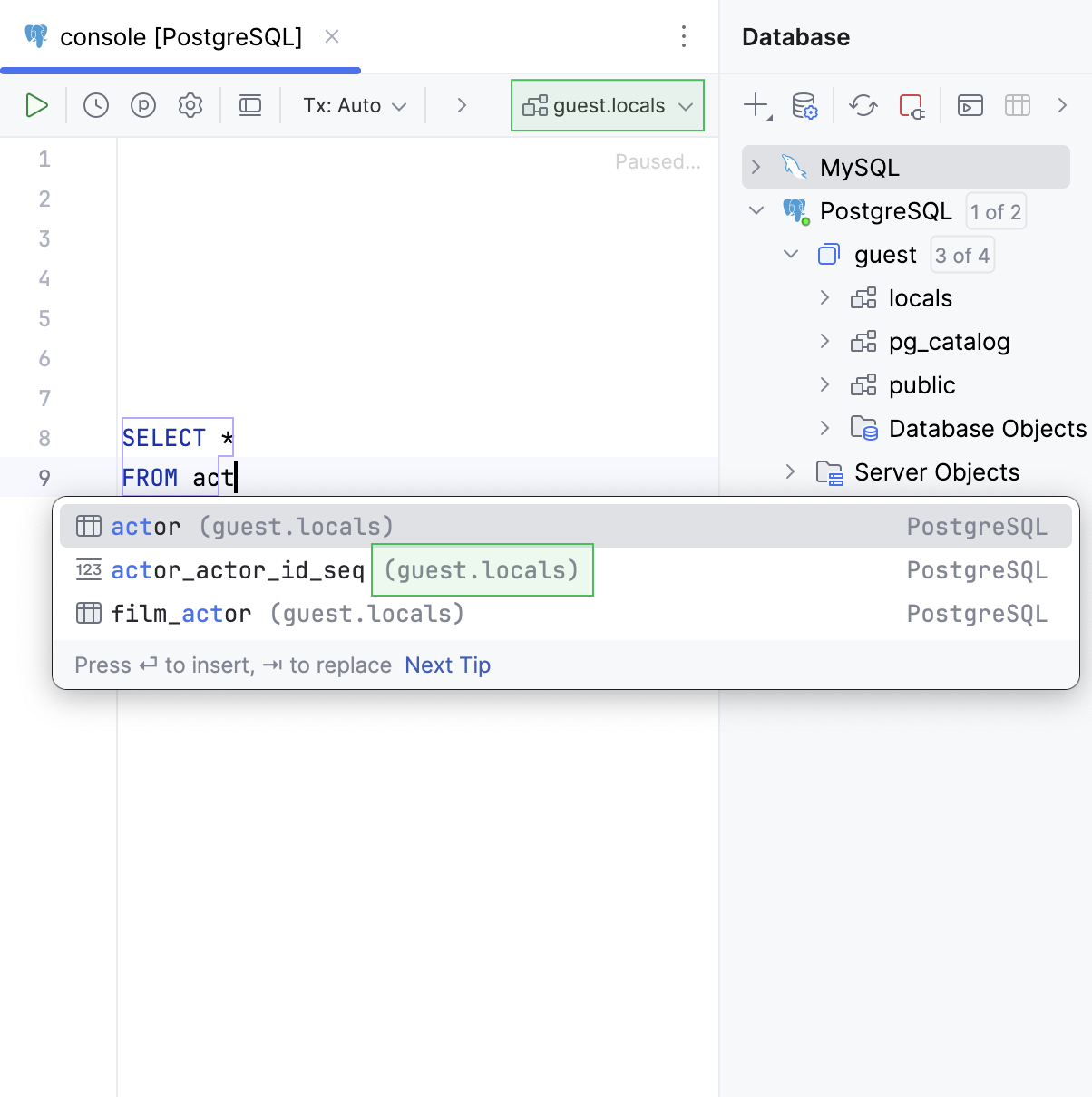 The current scope: 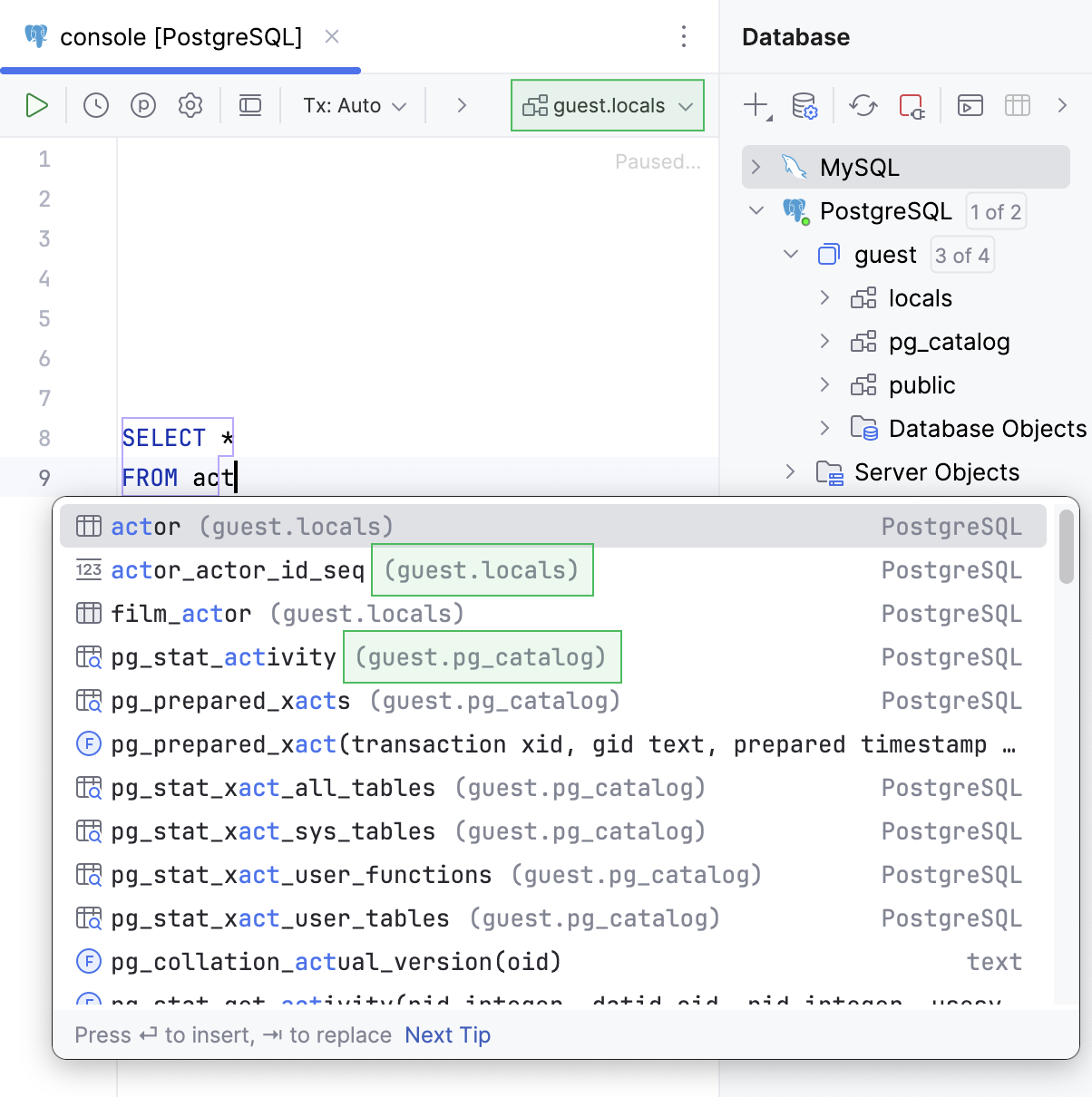 All schemas: 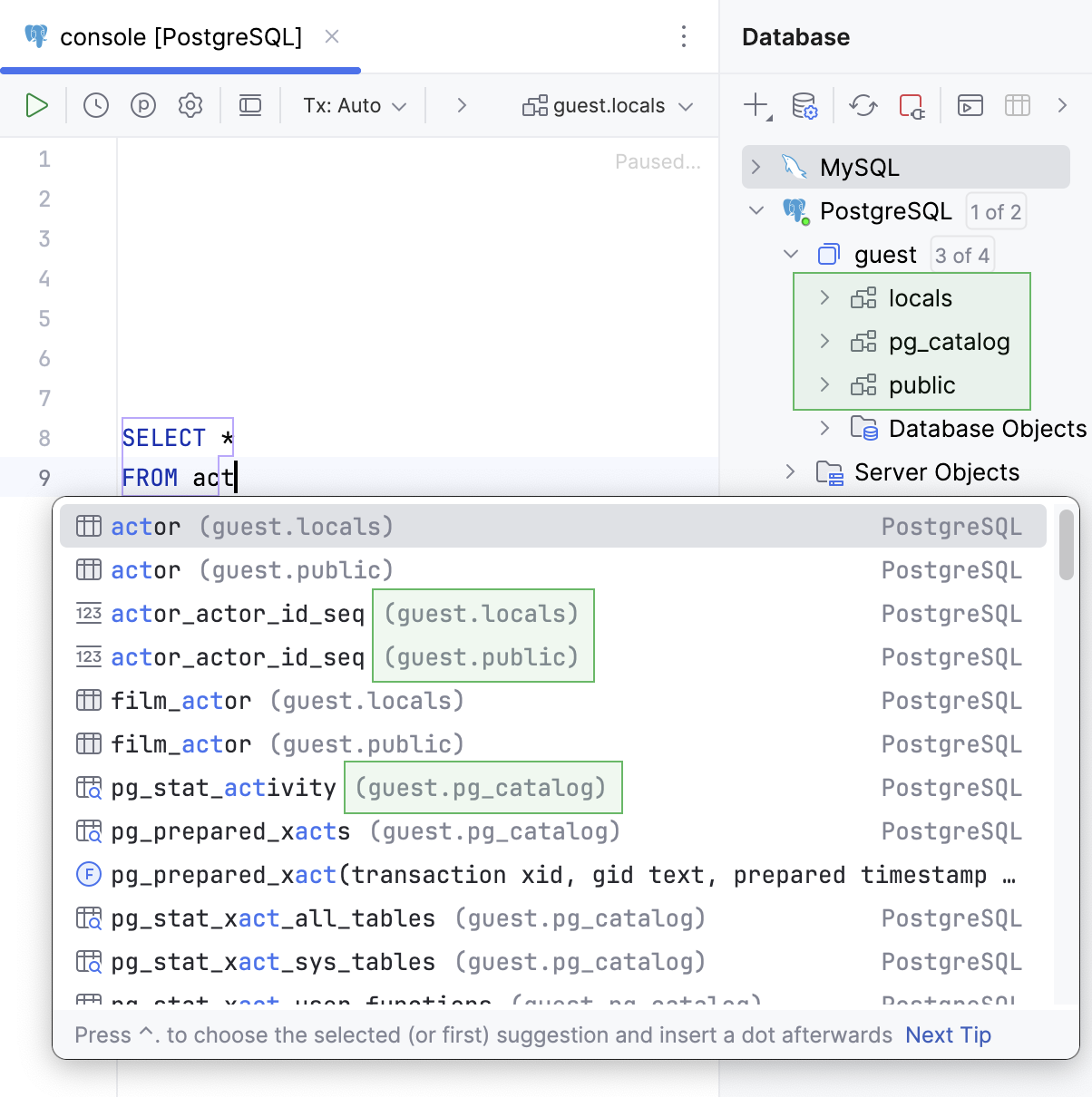 |
| Qualify objects with | Select when to qualify the objects with databases, schemas, tables and views, and aliases of tables and views. * Always: the qualified object names are always used, for example `.`. * On collisions: the qualified object name is used only if the short name is ambiguous, for example, when there is the object with the same name in more than one schema. * Never: the unqualified object names are always used. Table/View: Always: 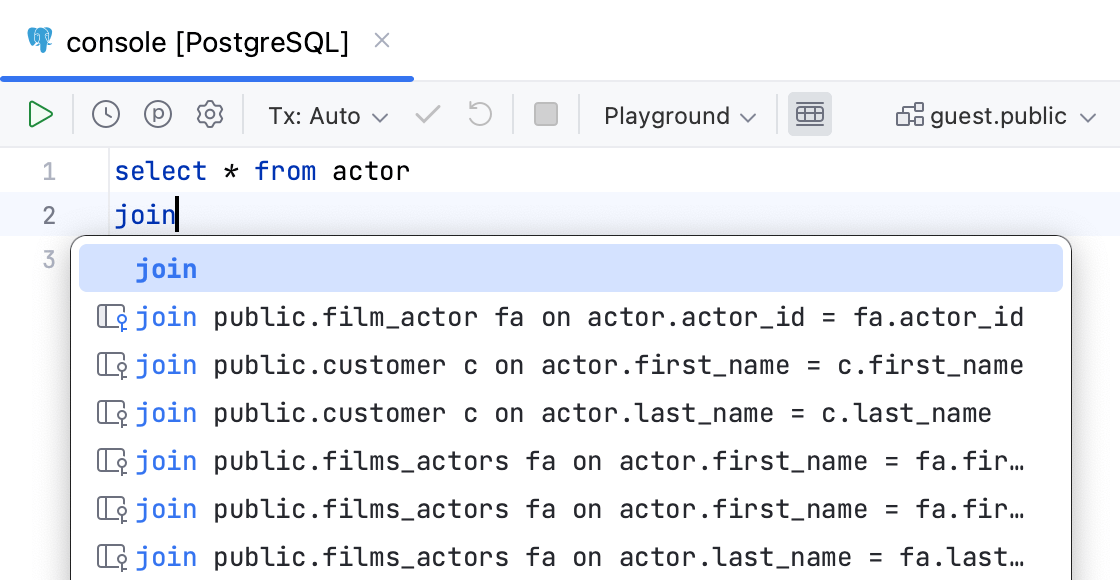 Table/View: Never: 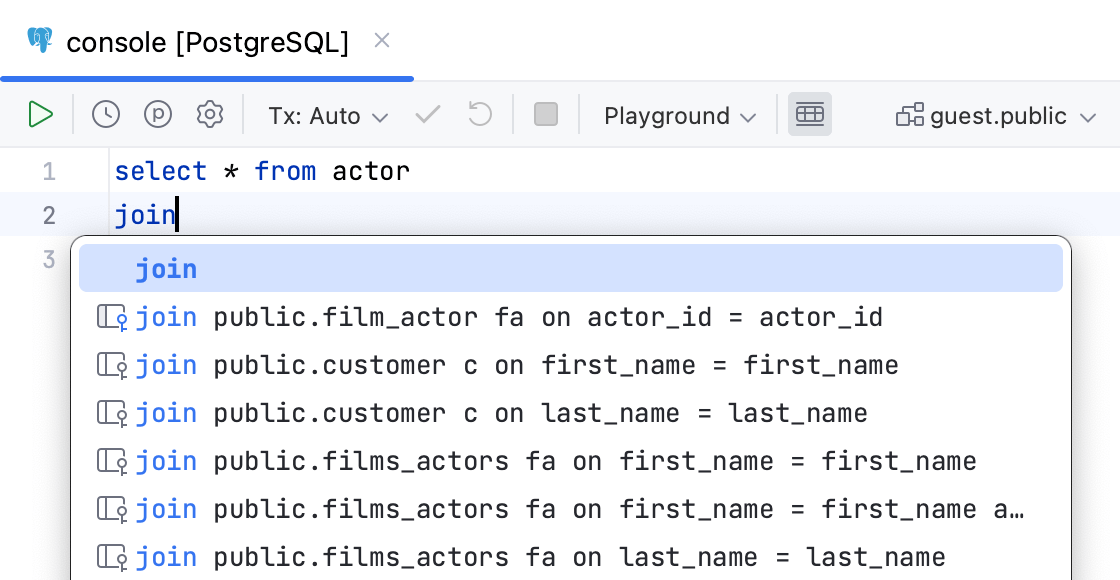 |
| Qualify objects in | Select when to qualify the objects in the given cases. * Always: the qualified object names are always used, for example `.`. * On collisions: the qualified object name is used only if the short name is ambiguous, for example, when there is the object with the same name in more than one schema. * Never: the unqualified object names are always used. JOIN completion: Always: 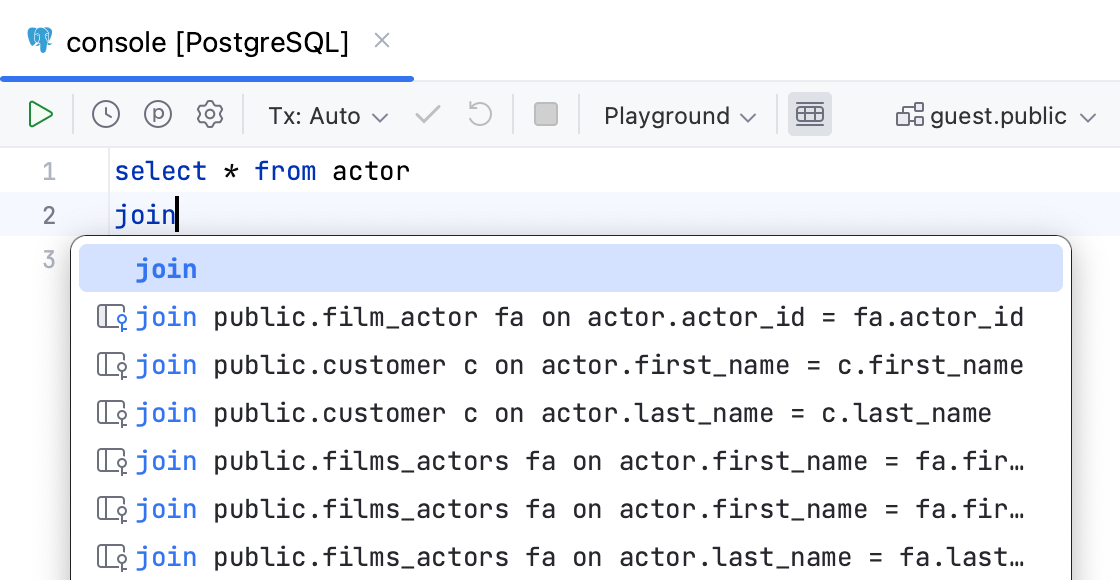 JOIN completion: Never: 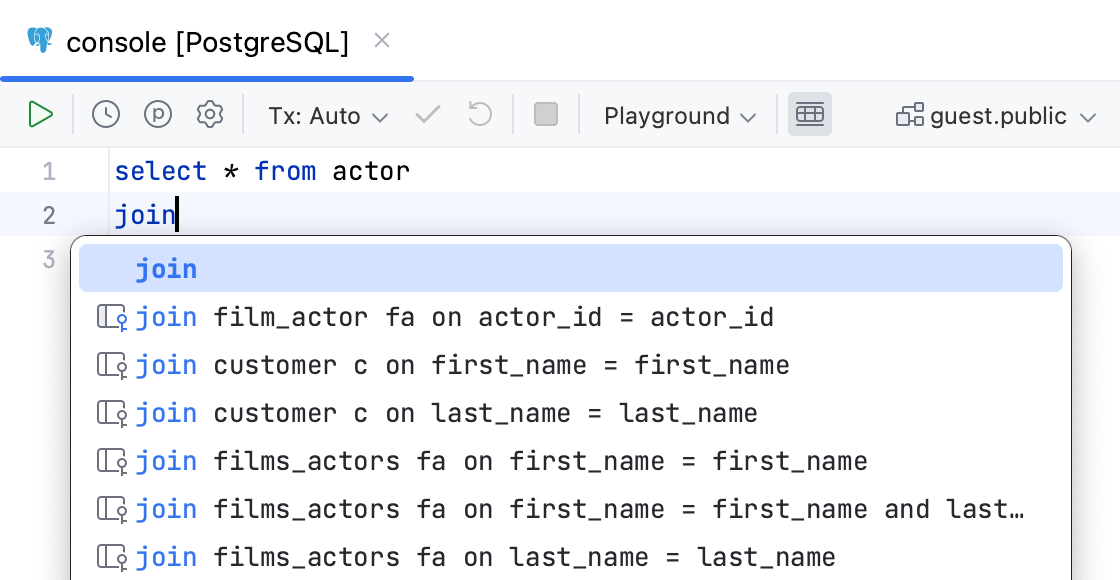 |
| Use aliases in completion for JOIN | Creates aliases for tables in the `JOIN` statement.  |
| Invert order of operands in auto-generated ON clause | Switches operands in the `ON` clause. When the checkbox is cleared, the `FROM` table comes the first in the `JOIN` condition.  |
| Suggest non-strict foreign keys based on the name matching | Generates you a list of possible code completion suggestions for `JOIN` statements. The code completion list includes suggestions of the columns from other tables that have the same names as columns from the table in the `JOIN` statement. Read more about debugging rules for this option in [Debug rules for virtual foreign keys](virtual-foreign-keys.html#debug-rules-for-virtual-foreign-keys). Checkbox selected: 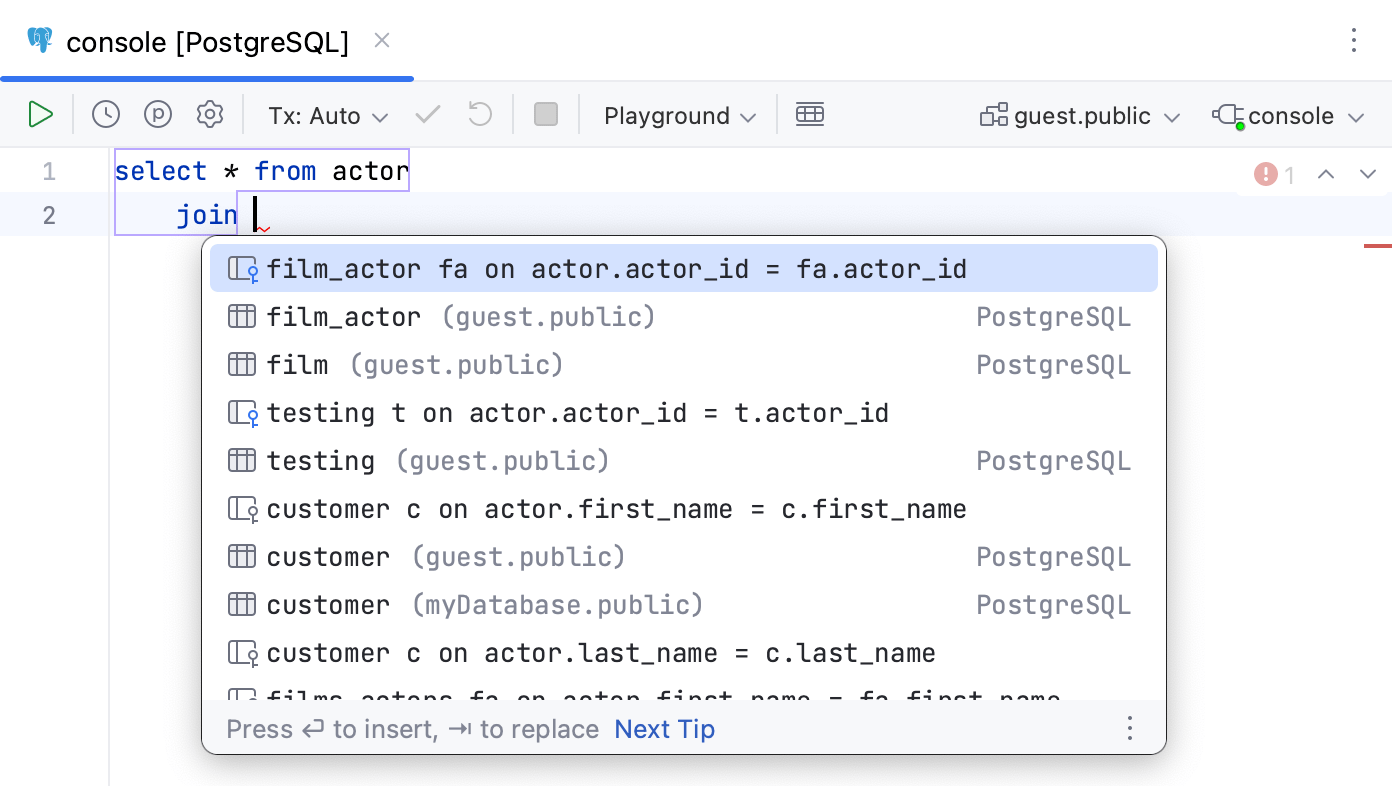 Checkbox cleared: 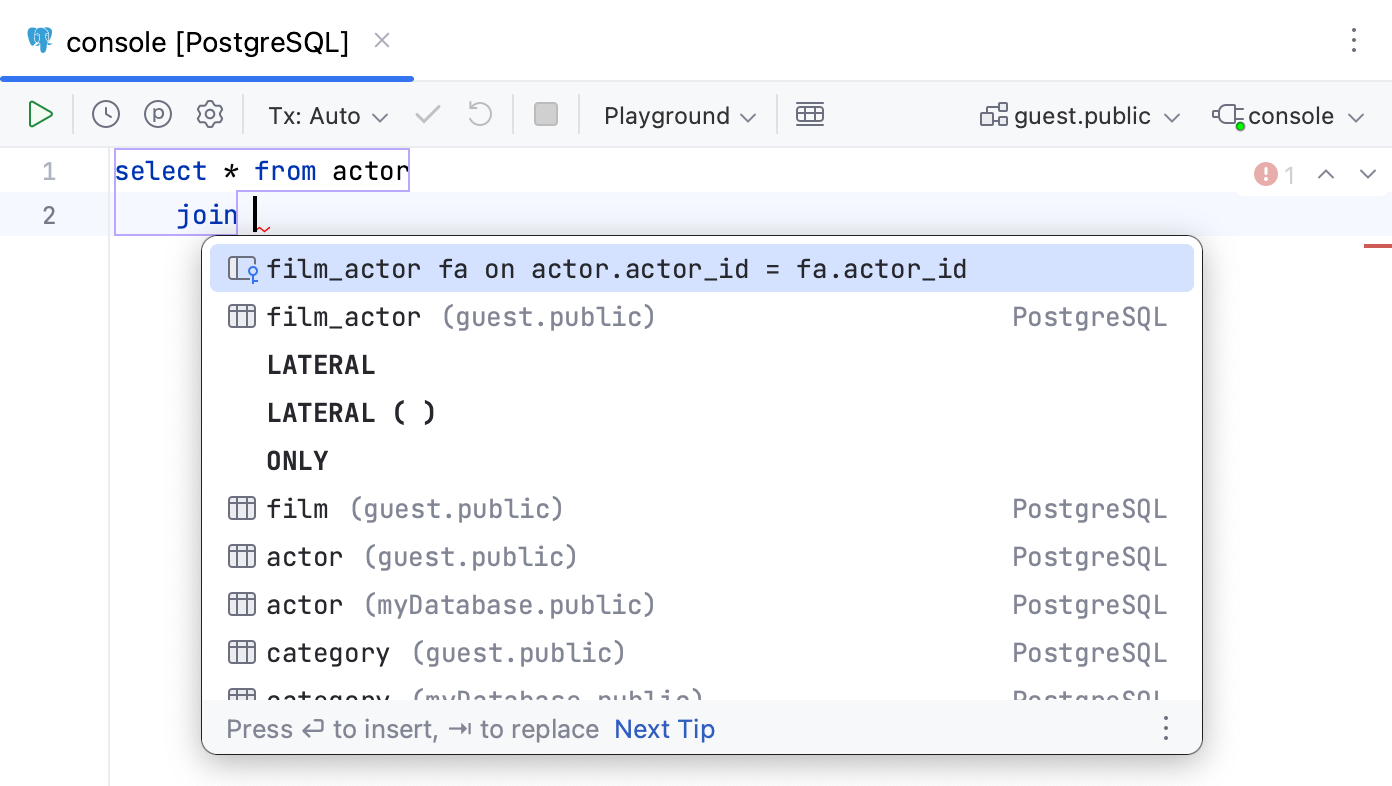 |
| Automatically add aliases when completing table names | Creates an alias for a table name.  |
| Suggest alias names in completion after table names | Suggests an alias for a table name when you use code completion (`Ctrl+Space` (Windows), `⌃ Space` (macOS), `⌃ Space` (IntelliJ IDEA Classic (macOS)), `⌃ Space` (macOS System Shortcuts), `Ctrl+Space` (XWin), `Ctrl+Space` (GNOME), `Ctrl+Space` (KDE), `Alt+/` (Emacs), `Ctrl+Space` (Sublime Text), `⌃ Space` (Sublime Text (macOS)), `Ctrl+Space` (NetBeans), `Ctrl+Space` (Visual Studio), `⌃ Space` (Visual Studio (macOS)), `Ctrl+Space` (Eclipse), `⌃ Space` (Eclipse (macOS))). 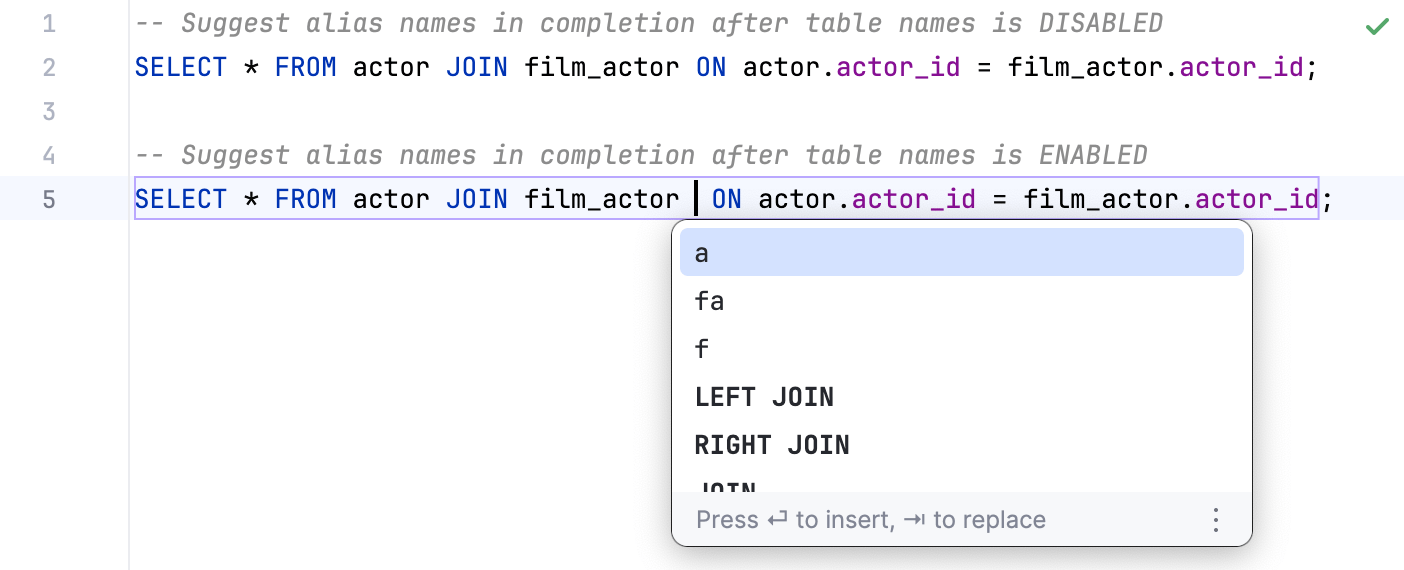 |
| Custom aliases (table) | You can add a table name and the alias that you want to use for this table. To add the table-alias pair, click the Add alias button (). |
## Completion tips and tricks
Procedure: Autocomplete HTTP constants by typing the code number
* After you specify an imported package name, such as `http`, you can type `404` to autocomplete the value to `http.StatusNotFound`.
Procedure: Narrow down the suggestion list
* Narrow down the suggestion list by typing any part of a word (even characters from somewhere in the middle) or invoking code completion after a dot separator .
IntelliJ IDEA displays suggestions containing the characters you've entered, regardless of their position. This makes the use of wildcards unnecessary.
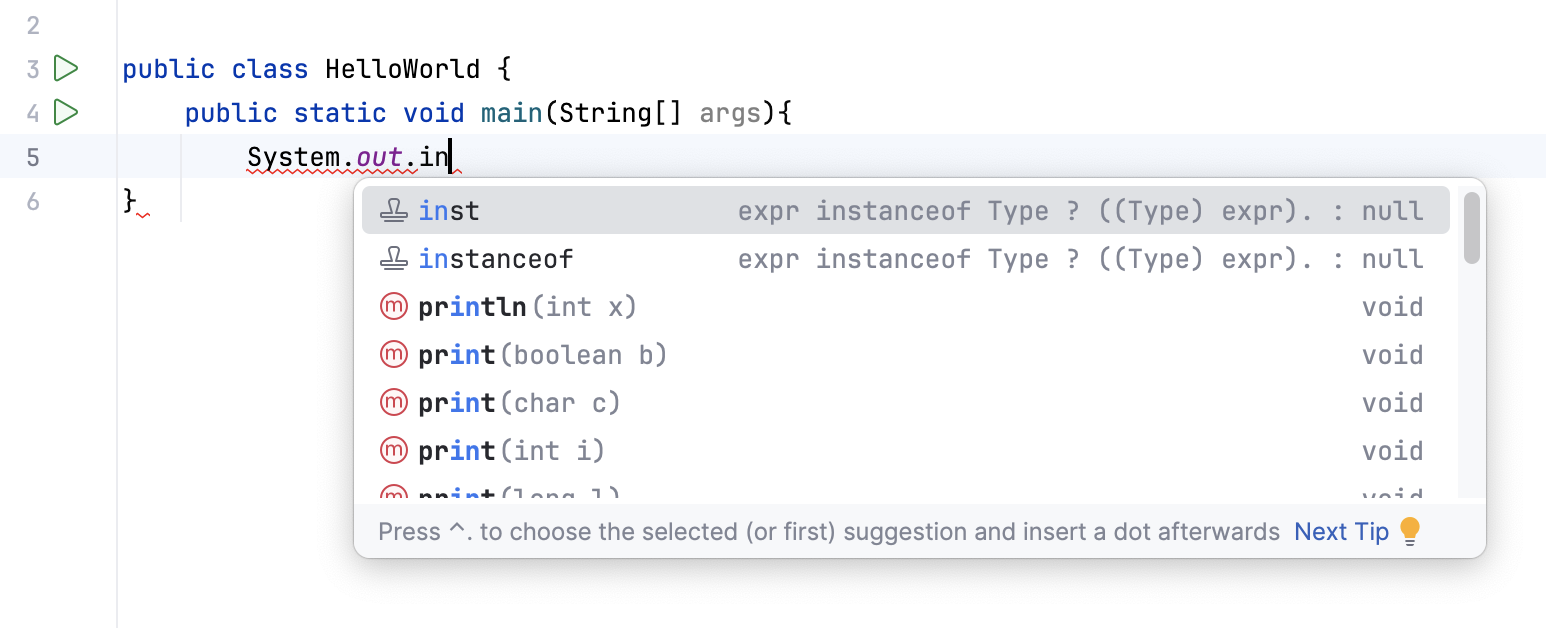
In case of CamelCase or snake_case names, type the initial letters only. IntelliJ IDEA automatically recognizes and matches the initial letters.
Procedure: Negate an expression
You can negate an expression in Java by pressing `!` (Windows), `!` (macOS), `!` (IntelliJ IDEA Classic (macOS)), `!` (macOS System Shortcuts), `!` (XWin), `!` (GNOME), `!` (KDE), `!` (Emacs), `!` (Sublime Text), `!` (Sublime Text (macOS)), `!` (NetBeans), `!` (Visual Studio), `!` (Visual Studio (macOS)), `!` (Eclipse), `!` (Eclipse (macOS)) after you have selected it from the suggestion list. As a result, the expression will be negated:
Negating an expression works this way if you have the Insert selected suggestion by pressing space, dot, or other context-dependent keys option enabled in the [Code Completion settings
page](null), or invoke code completion explicitly, or change a selection in the suggestion list explicitly.
Procedure: Completion shortcuts
You can use the following [live templates](using-live-templates.html) shortcuts for one of the most frequently used statements:
* `sout`: prints `System.out.printIn()`
* `soutm`: adds the current class and method names
* `soutp`: adds method parameter names and values
* `soutv`: adds the last variable value
* `soutc`: inserts the `System.out::printIn` method reference where a consumer function is expected
Procedure: View reference
* You can use the [Quick Definition view](viewing-definition.html) by pressing `Ctrl+Shift+I` (Windows), `⌥ Space` (macOS), `⌘ ⇧ I` (IntelliJ IDEA Classic (macOS)), `⌘ Y` (macOS System Shortcuts), `Ctrl+Shift+I` (XWin), `Ctrl+Shift+I` (GNOME), `Ctrl+Shift+I` (KDE), `Ctrl+Shift+I` (Emacs), `Ctrl+Shift+I` (Sublime Text), `⌥ Space` (Sublime Text (macOS)), `Ctrl+Shift+I` (NetBeans), `Alt+F12` (Visual Studio), `⌥ Space` (Visual Studio (macOS)), `Ctrl+Shift+I` (Eclipse), `⌥ Space` (Eclipse (macOS)) when you select an entry in the suggestion list:
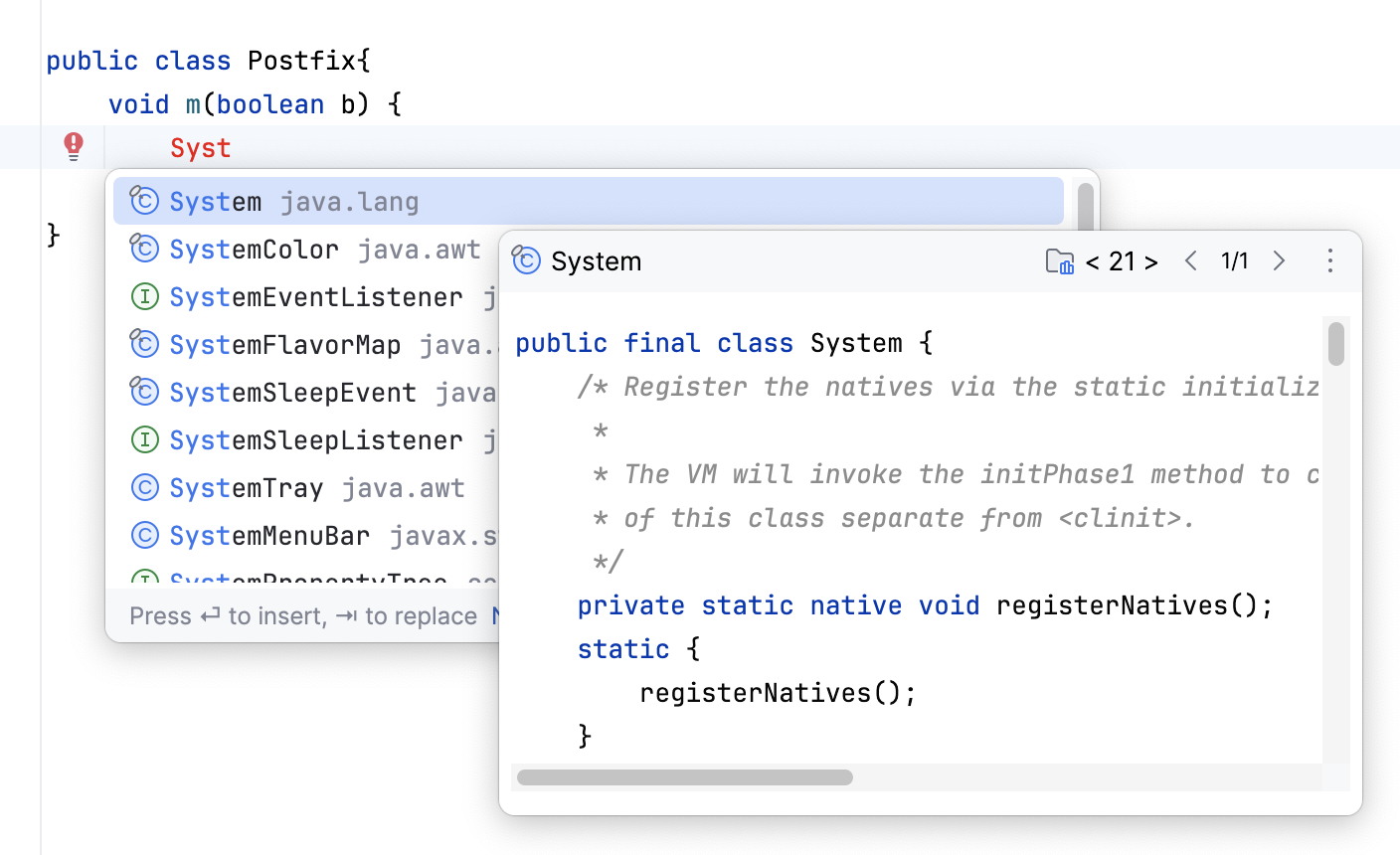
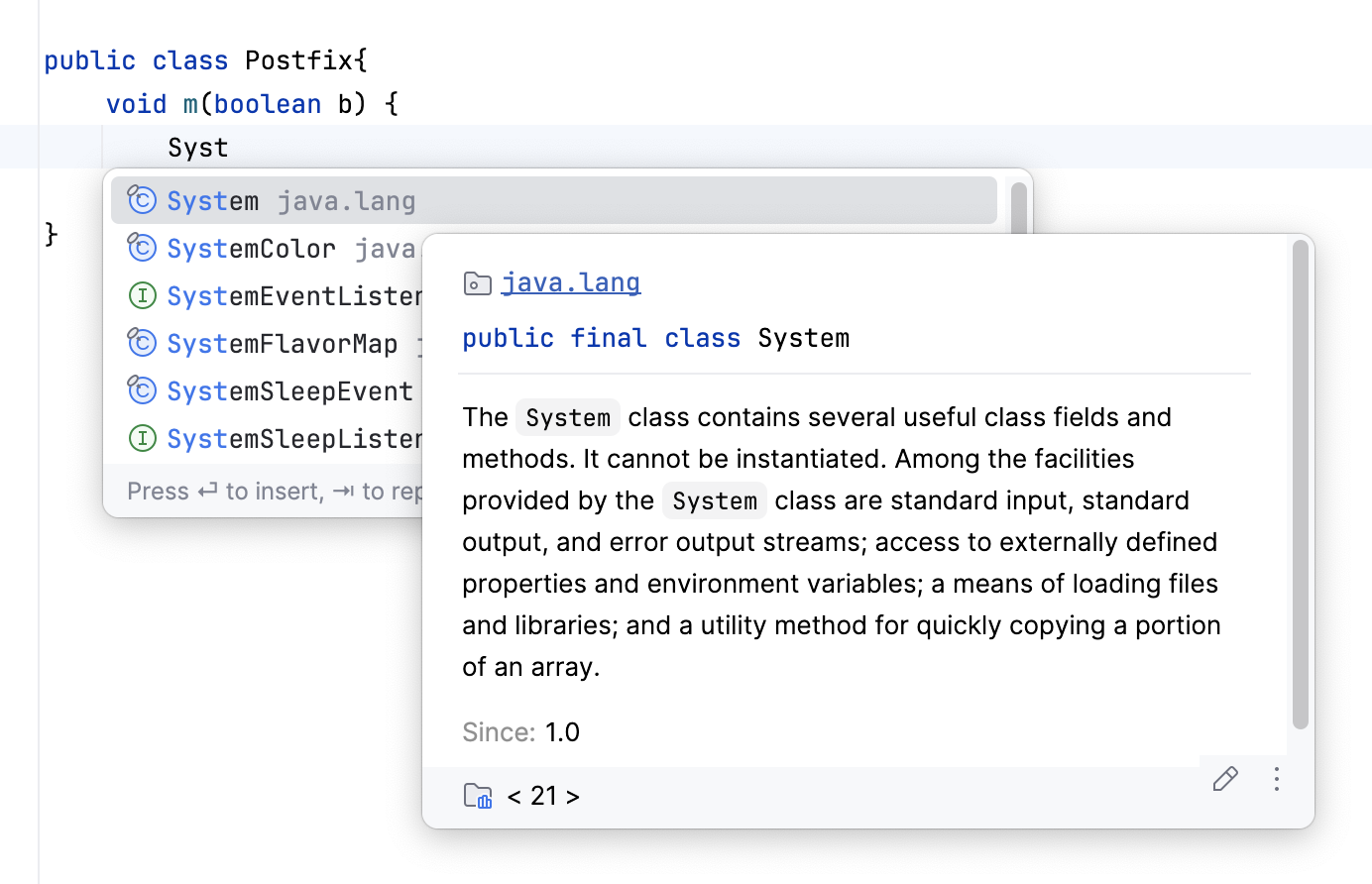
* You can use the [Quick Documentation view](viewing-reference-information.html#inline-quick-documentation) by pressing `Ctrl+Q` (Windows), `F1` (macOS), `⌃ J` (IntelliJ IDEA Classic (macOS)), `⌘ I` (macOS System Shortcuts), `Ctrl+Q` (XWin), `Ctrl+Q` (GNOME), `Ctrl+Q` (KDE), `Ctrl+Q` (Emacs), `Ctrl+Q` (Sublime Text), `Ctrl+Q` (Sublime Text (macOS)), `Ctrl+Q` (NetBeans), `Ctrl+K, I` (Visual Studio), `⌘ K, I` (Visual Studio (macOS)), `Alt+Middle-Click` (Eclipse), `⌥ Middle-Click` (Eclipse (macOS)) or [automatically](#docpopup) when you select an entry in the suggestion list:
Procedure: View code hierarchy
You can view [code hierarchy](viewing-structure-and-hierarchy-of-the-source-code.html) when you've selected an entry from the suggestion list:
* `Ctrl+H` (Windows), `⌃ H` (macOS), `⌃ H` (IntelliJ IDEA Classic (macOS)), `⌃ ⌥ H` (macOS System Shortcuts), `Ctrl+H` (XWin), `Ctrl+H` (GNOME), `Ctrl+H` (KDE), `Ctrl+H` (Emacs), `Ctrl+H` (Sublime Text), `Ctrl+H` (Sublime Text (macOS)), `Alt+Shift+F12` (NetBeans), `Ctrl+E, H` (Visual Studio), `⌘ E, H` (Visual Studio (macOS)), `F4` (Eclipse), `F4` (Eclipse (macOS)): view type hierarchy
* `Ctrl+Alt+H` (Windows), `⌃ ⌥ H` (macOS), `⌃ ⌥ H` (IntelliJ IDEA Classic (macOS)), `⌃ ⇧ H` (macOS System Shortcuts), `Ctrl+Alt+H` (XWin), `Ctrl+Alt+H` (GNOME), `Ctrl+Alt+H` (KDE), `Ctrl+Alt+H` (Emacs), `Ctrl+Alt+H` (Sublime Text), `⌃ ⌥ H` (Sublime Text (macOS)), `Ctrl+Alt+H` (NetBeans), `Ctrl+Alt+H` (Visual Studio), `⌃ ⌥ H` (Visual Studio (macOS)), `Ctrl+Alt+H` (Eclipse), `⌃ ⌥ H` (Eclipse (macOS)): view call hierarchy.
* `Ctrl+Shift+H` (Windows), `⌘ ⇧ H` (macOS), `⌘ ⇧ H` (IntelliJ IDEA Classic (macOS)), `⌘ ⇧ H` (macOS System Shortcuts), `Ctrl+Shift+H` (XWin), `Ctrl+Shift+H` (GNOME), `Ctrl+Shift+H` (KDE), `Ctrl+Shift+H` (Emacs), `Ctrl+Shift+H` (Sublime Text), `Ctrl+Shift+H` (Sublime Text (macOS)), `Ctrl+Shift+H` (NetBeans), `Ctrl+Shift+H` (Visual Studio), `Ctrl+Shift+H` (Visual Studio (macOS)), `Ctrl+Shift+H` (Eclipse), `⌘ ⇧ H` (Eclipse (macOS)): view method hierarchy.
Watch this video to learn more about how completion works in IntelliJ IDEA:
[Video](https://www.youtube.com/v/jTud6GIqVgk)
## Troubleshooting
If code completion does not work, this may be due to one of the following reasons:
* The Power Save Mode is on (`File | Power Save Mode`). Turning it on minimizes power consumption of your laptop by eliminating the background operations, including error highlighting, on-the-fly inspections, and code completion.
* JDK is not [configured](sdk.html) for your project.
* Your file does not reside in a content root and is not [bound to a build path](content-roots.html#specify_output_path), so it does not get the required class definitions and resources needed for code completion.
* A file containing classes and methods that you want to appear in the completion suggestion list is marked as a plain text file.
* External libraries that contain methods that you want to appear in the completion suggestion list are not [added as dependencies or global libraries](library.html).
* Code completion popup might not appear automatically if it takes too long to gather the completion options. For example, if the computer is busy with another task. In this case, you may still activate the completion popup manually via `Ctrl+Space` (Windows), `⌃ Space` (macOS), `⌃ Space` (IntelliJ IDEA Classic (macOS)), `⌃ Space` (macOS System Shortcuts), `Ctrl+Space` (XWin), `Ctrl+Space` (GNOME), `Ctrl+Space` (KDE), `Alt+/` (Emacs), `Ctrl+Space` (Sublime Text), `⌃ Space` (Sublime Text (macOS)), `Ctrl+Space` (NetBeans), `Ctrl+Space` (Visual Studio), `⌃ Space` (Visual Studio (macOS)), `Ctrl+Space` (Eclipse), `⌃ Space` (Eclipse (macOS)).
## See also
### Getting Started
[Editor basics](using-code-editor.html)