# Cells
## Quick documentation
The [quick
documentation](viewing-reference-information.html#inline-quick-documentation) provides details about values in the selected cell or cells. For example, if a cell contains a long text, you will see the whole text. Also, you can see records that are referenced in the current record as well as the records that reference the current one.
| Object | Quick documentation view |
| --- | --- |
| Long text | If a cell contains a long text, you will see the whole text. 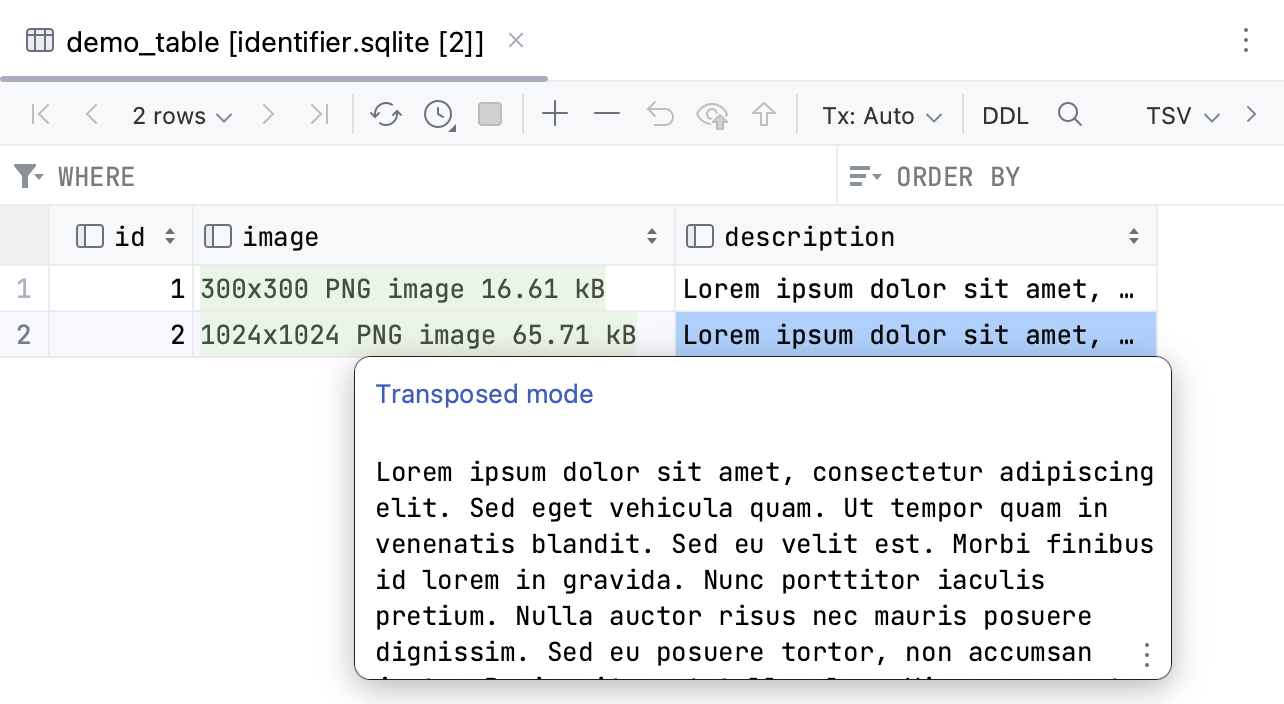 |
| Records | The quick documentation view for records displays records that are referenced in the current record and records that reference the current one. You can switch to a transposed mode. In the transposed view, rows and columns are interchanged. To switch to the transposed mode, click Transposed mode. For more information about the transposed view in tables, refer to [Transpose a table](tables-view-data.html#transposing_table). Regular mode: 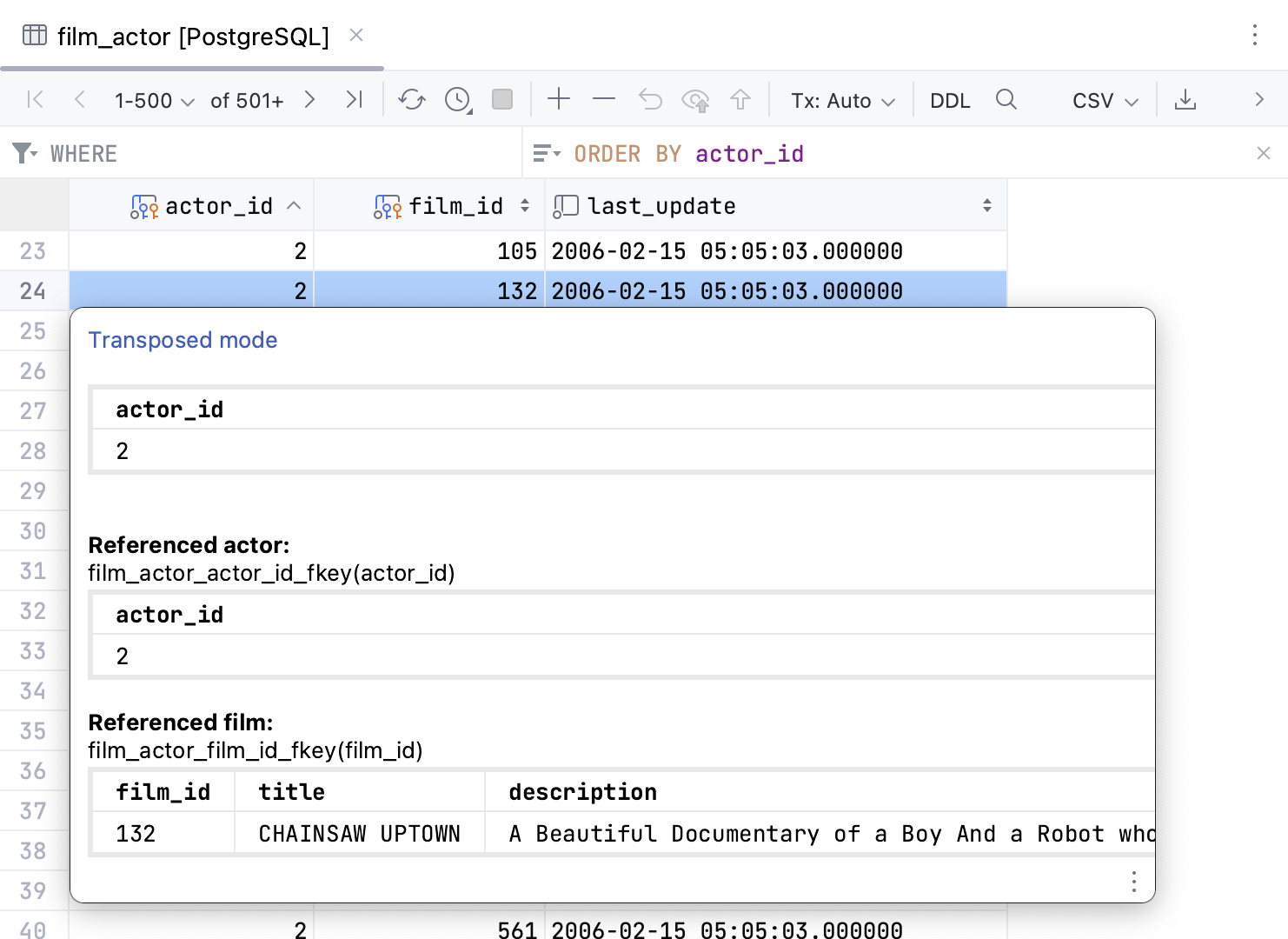 Transposed mode: 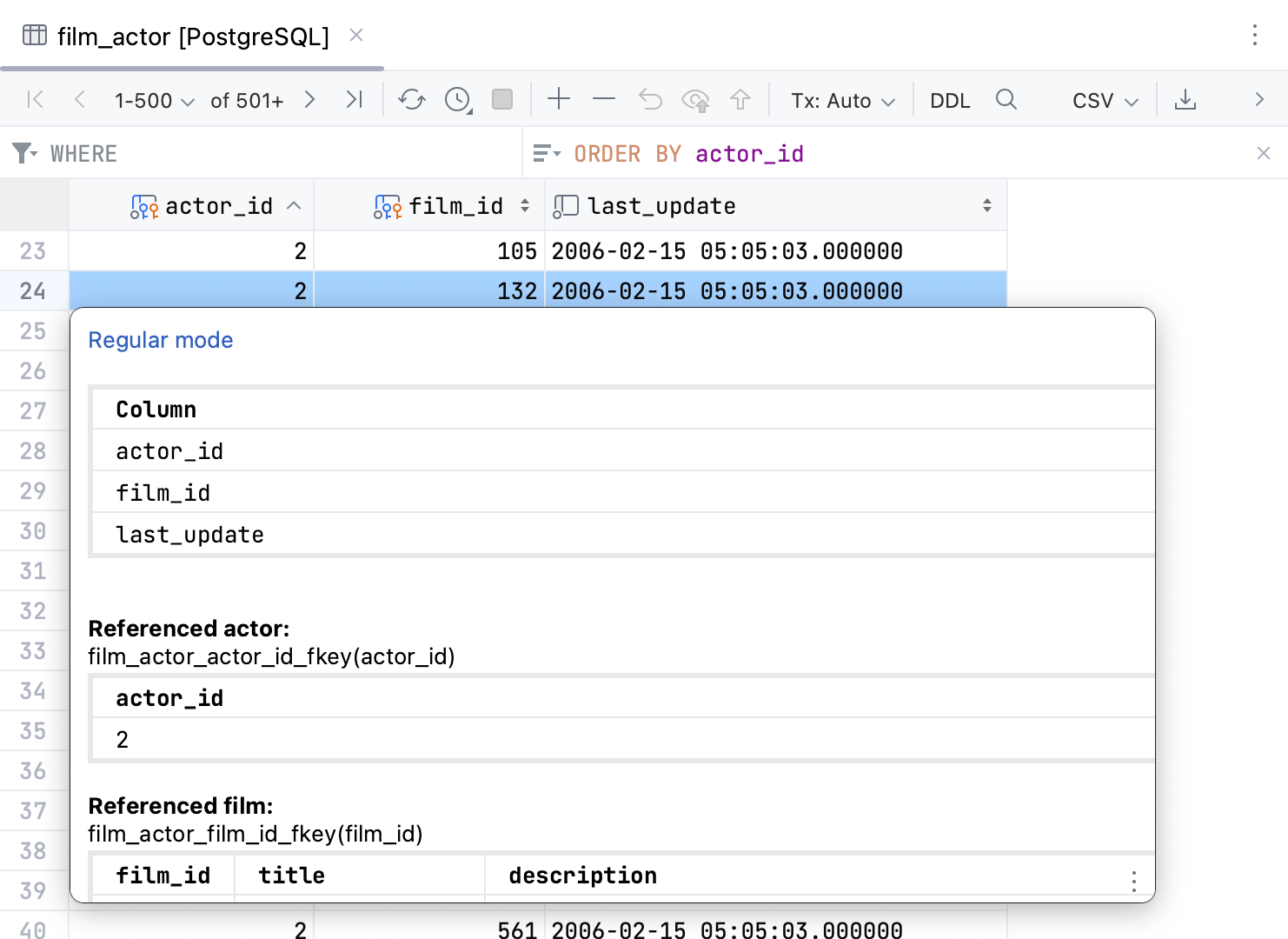 |
## Quick actions popup toolbar
When you select a grid cell, depending on the data type and contents, IntelliJ IDEA shows a popup toolbar with quick actions for working with cell contents.
Consider the following example of default actions:
* : navigate to [related rows](rows.html#navigate-between-related-rows). 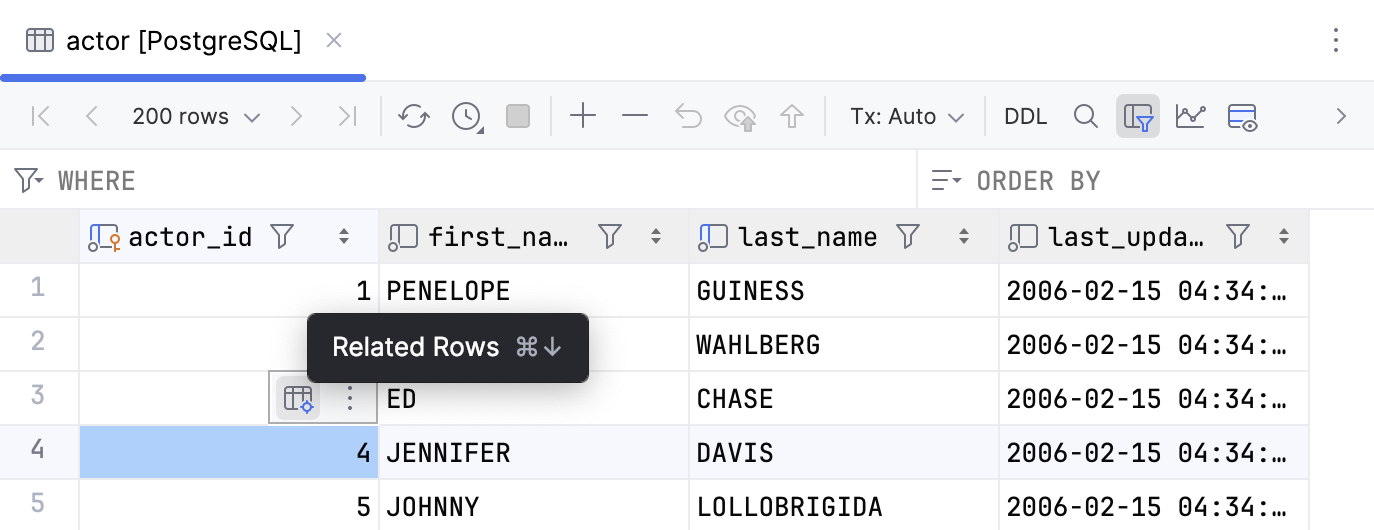
* : open URLs in OS default web browser. 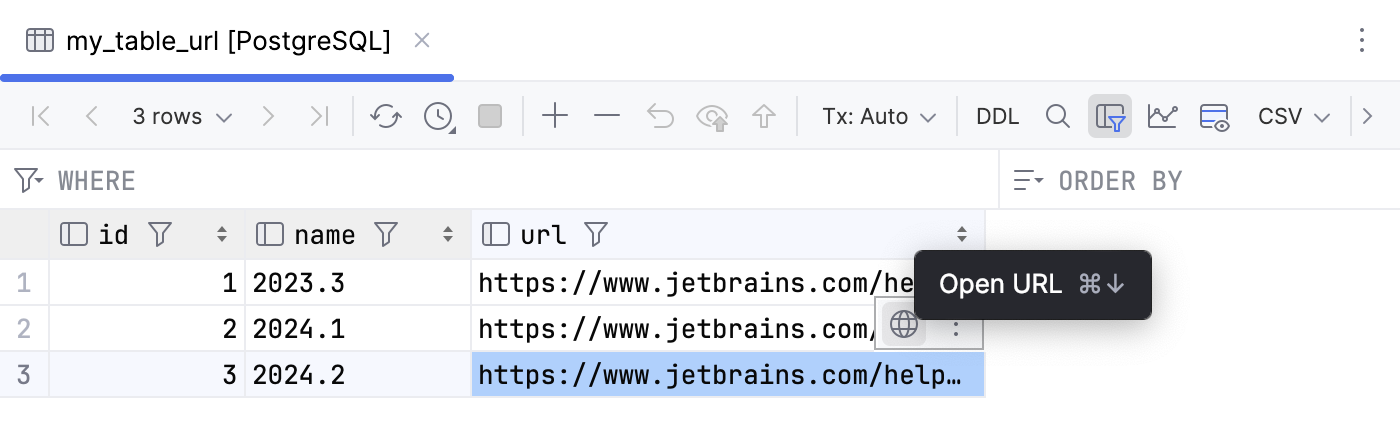
* : open file URIs in OS default file browser. 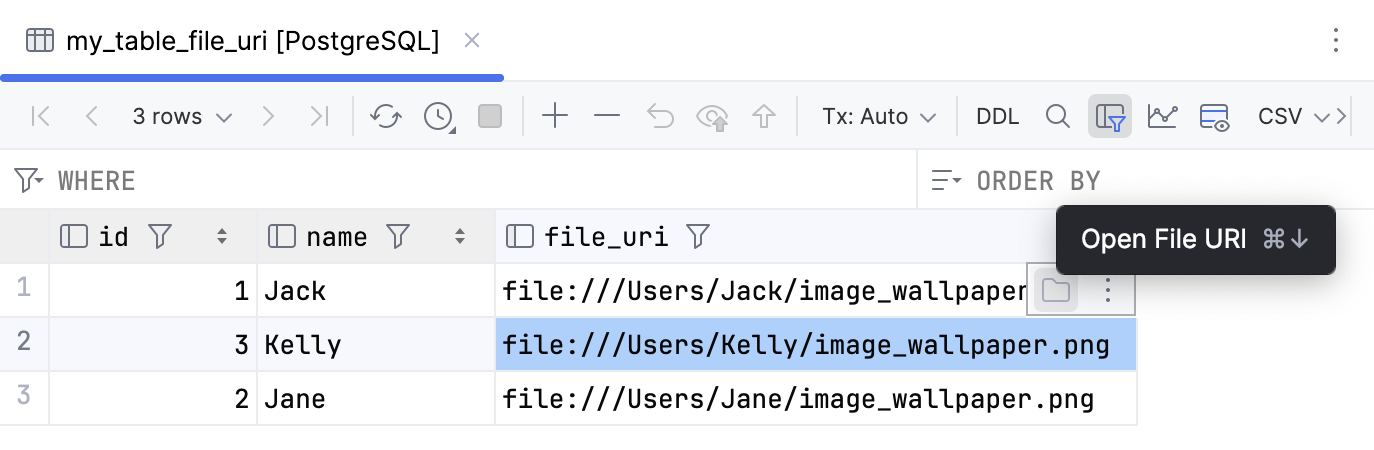
Procedure: Toggle the toolbar
1. Press `Ctrl+Alt+S` (Windows), `⌘ Comma` (macOS), `⌘ Comma` (IntelliJ IDEA Classic (macOS)), `⌘ Comma` (macOS System Shortcuts), `Ctrl+Alt+S` (XWin), `Ctrl+Alt+S` (GNOME), `Ctrl+Alt+S` (KDE), `Ctrl+Alt+S` (Emacs), `Ctrl+Alt+S` (Sublime Text), `⌘ Comma` (Sublime Text (macOS)), `Ctrl+Alt+S` (NetBeans), `Ctrl+Alt+S` (Visual Studio), `⌘ Comma` (Visual Studio (macOS)), `Ctrl+Alt+S` (Eclipse), `⌘ Comma` (Eclipse (macOS)) to open settings and then select `Tools | Database`.
2. In the Data Editor and Viewer section, disable the Show quick actions popup toolbar for grid cells option.
3. Apply the changes and close the dialog.
You can also disable the toolbar using the toolbar options: click  on the toolbar and select Disable This Toolbar.
Procedure: Customize the toolbar
1. Press `Ctrl+Alt+S` (Windows), `⌘ Comma` (macOS), `⌘ Comma` (IntelliJ IDEA Classic (macOS)), `⌘ Comma` (macOS System Shortcuts), `Ctrl+Alt+S` (XWin), `Ctrl+Alt+S` (GNOME), `Ctrl+Alt+S` (KDE), `Ctrl+Alt+S` (Emacs), `Ctrl+Alt+S` (Sublime Text), `⌘ Comma` (Sublime Text (macOS)), `Ctrl+Alt+S` (NetBeans), `Ctrl+Alt+S` (Visual Studio), `⌘ Comma` (Visual Studio (macOS)), `Ctrl+Alt+S` (Eclipse), `⌘ Comma` (Eclipse (macOS)) to open settings and then select `Appearance & Behavior | Menus and Toolbars`.
Alternatively, click  on the toolbar and select Customize This Toolbar.
2. Add or remove actions under Quick Actions Popup Toolbar.
For more information, refer to [Menus and toolbars](customize-actions-menus-and-toolbars.html).
3. Apply the changes and close the dialog.
## Productivity tips
Procedure: Manage default and NULL values for a cell
When a new row is created and no values are specified for some cells, those cells are filled with their respective default `Ctrl+Alt+D` (Windows), `⌘ ⌥ D` (macOS), `⌘ ⌥ D` (IntelliJ IDEA Classic (macOS)), `⌃ ⌥ ⇧ D` (macOS System Shortcuts), `Ctrl+Alt+D` (XWin), `Ctrl+Alt+D` (GNOME), `Ctrl+Alt+D` (KDE), `Ctrl+Alt+D` (Emacs), `Ctrl+Alt+D` (Sublime Text), `⌘ ⌥ D` (Sublime Text (macOS)), `Ctrl+Alt+D` (NetBeans), `Ctrl+Alt+D` (Visual Studio), `⌘ ⌥ D` (Visual Studio (macOS)), `Ctrl+Alt+D` (Eclipse), `⌘ ⌥ D` (Eclipse (macOS)) or NULL (`Ctrl+Alt+N` (Windows), `⌘ ⌥ N` (macOS), `⌘ ⌥ N` (IntelliJ IDEA Classic (macOS)), `⌘ ⌥ N` (macOS System Shortcuts), `Ctrl+Alt+N` (XWin), `Ctrl+Alt+N` (GNOME), `Ctrl+Alt+N` (KDE), `Ctrl+Alt+N` (Emacs), `Ctrl+Alt+N` (Sublime Text), `⌘ ⌥ N` (Sublime Text (macOS)), `Ctrl+Alt+N` (NetBeans), `Ctrl+Alt+N` (Visual Studio), `⌘ ⌥ N` (Visual Studio (macOS)), `Ctrl+Alt+N` (Eclipse), `⌘ ⌥ N` (Eclipse (macOS))) values.
When you set default values for a cell, you can use corresponding actions from the context menu (Set DEFAULT and NULL).
1. In the Database tool window , expand a data source tree.
2. Right-click the table and select Modify Table `Ctrl+F6` (Windows), `⌘ F6` (macOS), `⌘ F6` (IntelliJ IDEA Classic (macOS)), `⌘ ⌥ S` (macOS System Shortcuts), `Ctrl+F6` (XWin), `Ctrl+F6` (GNOME), `Ctrl+6` (KDE), `Ctrl+F6` (Emacs), `Ctrl+F6` (Sublime Text), `Ctrl+F6` (Sublime Text (macOS)), `Ctrl+F6` (NetBeans), `Ctrl+R, S` (Visual Studio), `⌘ R, S` (Visual Studio (macOS)), `Alt+Shift+C` (Eclipse), `⌘ ⌥ C` (Eclipse (macOS)).
3. In the table structure tree, expand the columns node and double-click the column that you want to edit.
4. In the Default Expression field, specify the default value of the cell in the column. To allow NULL values, clear the Not Null checkbox.
[Video](https://resources.jetbrains.com/help/img/idea/2026.2/set_default_null_values.mp4)
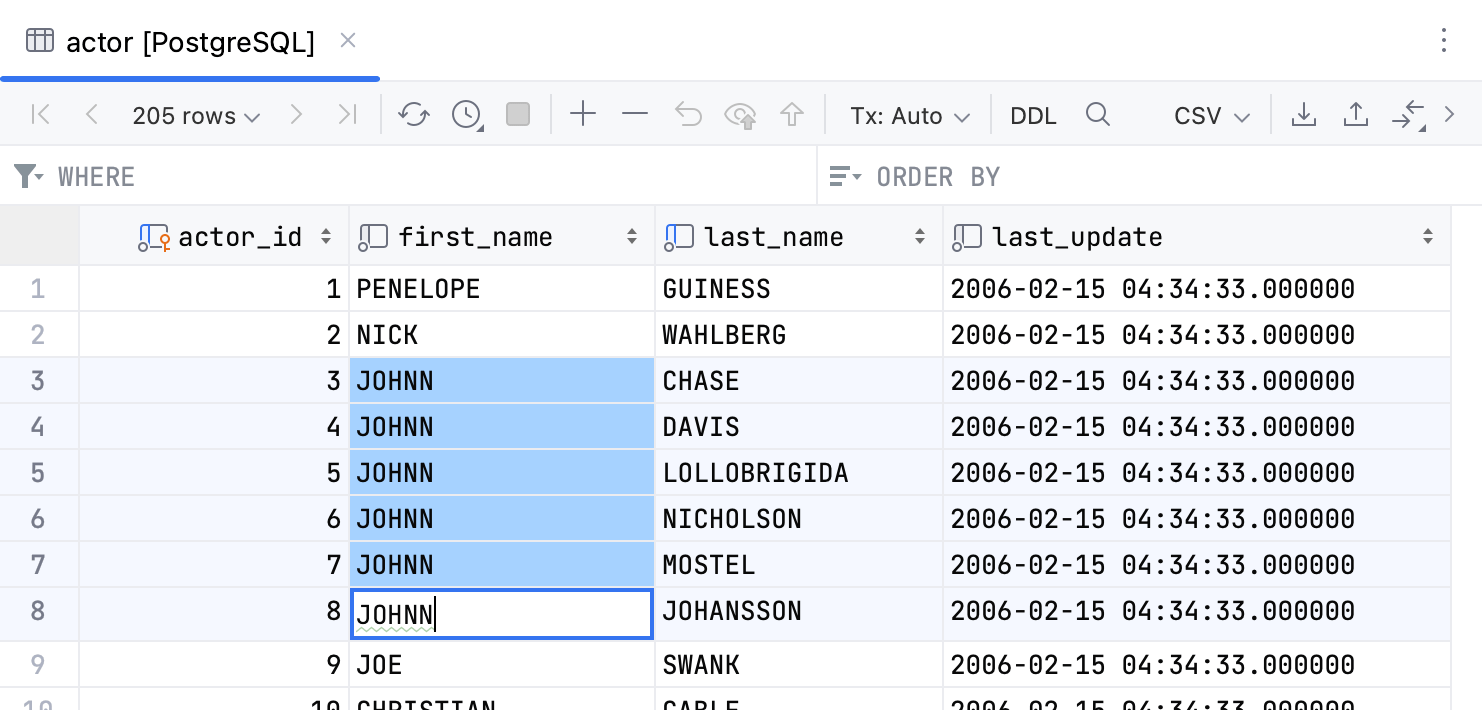
Procedure: Edit multiple cell values simultaneously
1. Select a range of cells that you want to edit.
2. Start typing a new value. The changes are applied to all the selected cells.
3. To confirm the value, press `Enter` (Windows), `⏎` (macOS), `⏎` (IntelliJ IDEA Classic (macOS)), `⏎` (macOS System Shortcuts), `Enter` (XWin), `Enter` (GNOME), `Enter` (KDE), `Enter` (Emacs), `Enter` (Sublime Text), `⏎` (Sublime Text (macOS)), `Enter` (NetBeans), `Enter` (Visual Studio), `⏎` (Visual Studio (macOS)), `Enter` (Eclipse), `⏎` (Eclipse (macOS)). To cancel editing, press `Escape` (Windows), `⎋` (macOS), `⎋` (IntelliJ IDEA Classic (macOS)), `⎋` (macOS System Shortcuts), `Escape` (XWin), `Escape` (GNOME), `Escape` (KDE), `Escape, Escape` (Emacs), `Escape` (Sublime Text), `⎋` (Sublime Text (macOS)), `Escape` (NetBeans), `Escape` (Visual Studio), `⎋` (Visual Studio (macOS)), `Escape` (Eclipse), `⎋` (Eclipse (macOS)).
4. [(Optional) Submit and commit your changes to the database.](#submit_and_commit_your_changes_to_the_database)
Procedure: Saving an LOB into a file
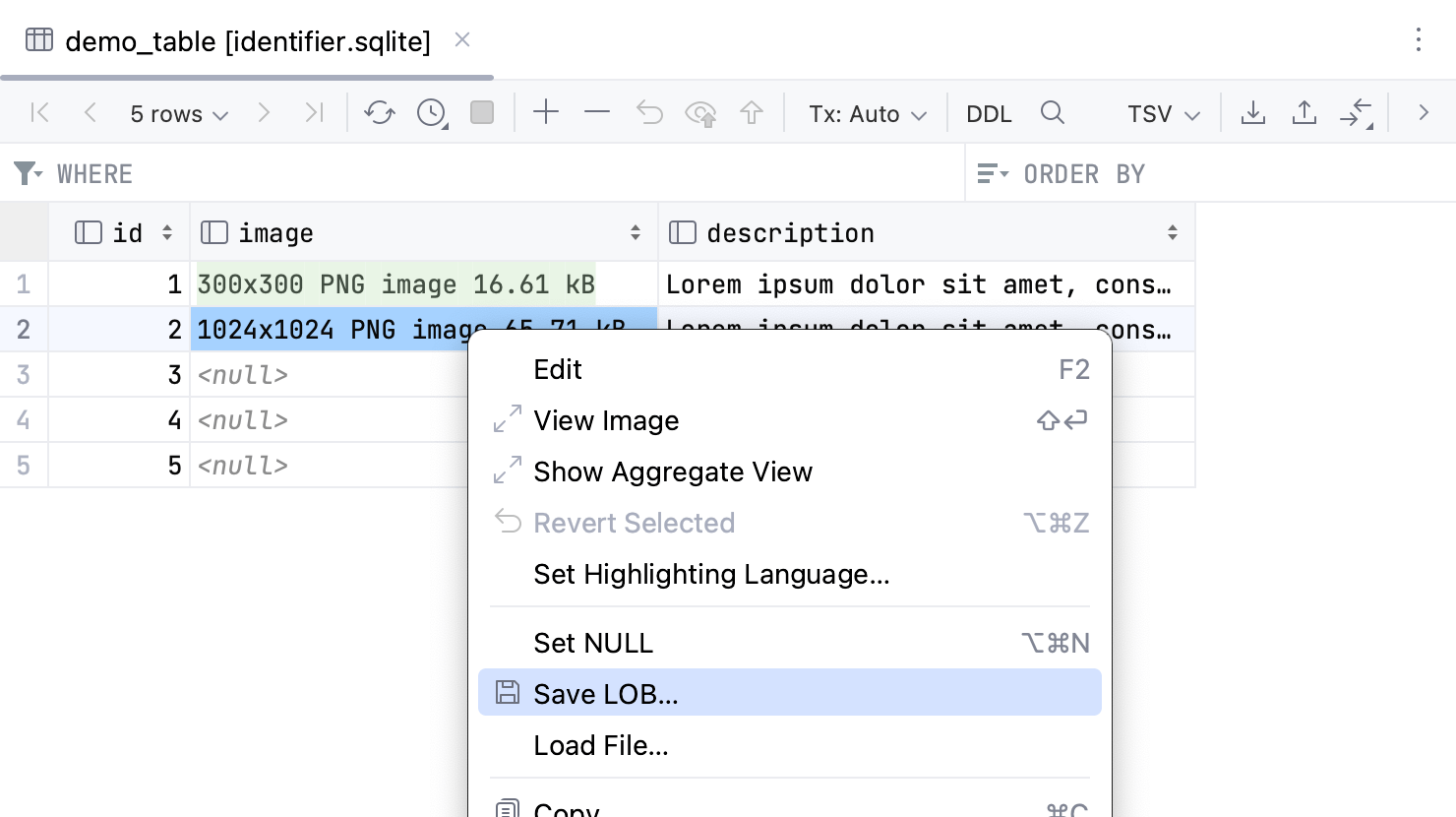
You can save a [binary large object](http://en.wikipedia.org/wiki/Binary_large_object) (BLOB or LOB) from a cell into a file.
1. Right-click the cell that contains the LOB and select Save LOB.
2. In the save dialog, specify the name and location of the file and click OK.
Procedure: Copy and paste cells between tables
You can copy and paste selected cells and ranges of cells – within the same table or from one table to another one.
* Select the cells that you want to copy and press `Ctrl+C` (Windows), `⌘ C` (macOS), `⌘ C` (IntelliJ IDEA Classic (macOS)), `⌘ C` (macOS System Shortcuts), `Ctrl+C` (XWin), `Ctrl+C` (GNOME), `Ctrl+C` (KDE), `Ctrl+Insert` (Emacs), `Ctrl+C` (Sublime Text), `⌘ C` (Sublime Text (macOS)), `Ctrl+C` (NetBeans), `Ctrl+C` (Visual Studio), `⌘ C` (Visual Studio (macOS)), `Ctrl+C` (Eclipse), `⌘ C` (Eclipse (macOS)).
* Select the cells into which you want to paste the copied values and press `Ctrl+V` (Windows), `⌘ V` (macOS), `⌘ V` (IntelliJ IDEA Classic (macOS)), `⌘ V` (macOS System Shortcuts), `Ctrl+V` (XWin), `Ctrl+V` (GNOME), `Ctrl+V` (KDE), `Shift+Insert` (Emacs), `Ctrl+Shift+V` (Sublime Text), `⌘ ⇧ V` (Sublime Text (macOS)), `Ctrl+V` (NetBeans), `Ctrl+V` (Visual Studio), `⌘ V` (Visual Studio (macOS)), `Ctrl+V` (Eclipse), `⌘ V` (Eclipse (macOS)).
When pasting, IntelliJ IDEA converts data types automatically if and as necessary.
* [(Optional) Submit and commit your changes to the database.](#submit_and_commit_your_changes_to_the_database)
[Video](https://resources.jetbrains.com/help/img/idea/2026.2/db_copy_paste_cells.mp4)
Procedure: Use value completion
You can use value completion to edit cells values.
Note that the completion is local, so its options are based on other values in the current column which are already loaded.
1. Double-click the cell to start editing its value.
2. (Optional) Enter the first letter.
3. Press `Ctrl+Space` (Windows), `⌃ Space` (macOS), `⌃ Space` (IntelliJ IDEA Classic (macOS)), `⌃ Space` (macOS System Shortcuts), `Ctrl+Space` (XWin), `Ctrl+Space` (GNOME), `Ctrl+Space` (KDE), `Alt+/` (Emacs), `Ctrl+Space` (Sublime Text), `⌃ Space` (Sublime Text (macOS)), `Ctrl+Space` (NetBeans), `Ctrl+Space` (Visual Studio), `⌃ Space` (Visual Studio (macOS)), `Ctrl+Space` (Eclipse), `⌃ Space` (Eclipse (macOS)) and select the value.
4. [(Optional) Submit and commit your changes to the database.](#submit_and_commit_your_changes_to_the_database)
[Video](https://resources.jetbrains.com/help/img/idea/2026.2/db_cell_value_completion.mp4)
Procedure: Submit and commit your changes to the database
Depending on the current [transaction mode](configuring-database-connections.html#transaction-mode), you can submit and commit your changes to the database by doing one of the following:
1. Tx:Auto mode: click  Submit on the toolbar. The changes will be committed to the database automatically.
2. Tx:Manual mode: click  Submit to submit your changes and  Submit and Commit to commit the submitted changes to the database.
For more information about committing changes to the database, refer to the [Submit changes to a database](submitting-and-reverting-changes.html) topic.
## Context menu
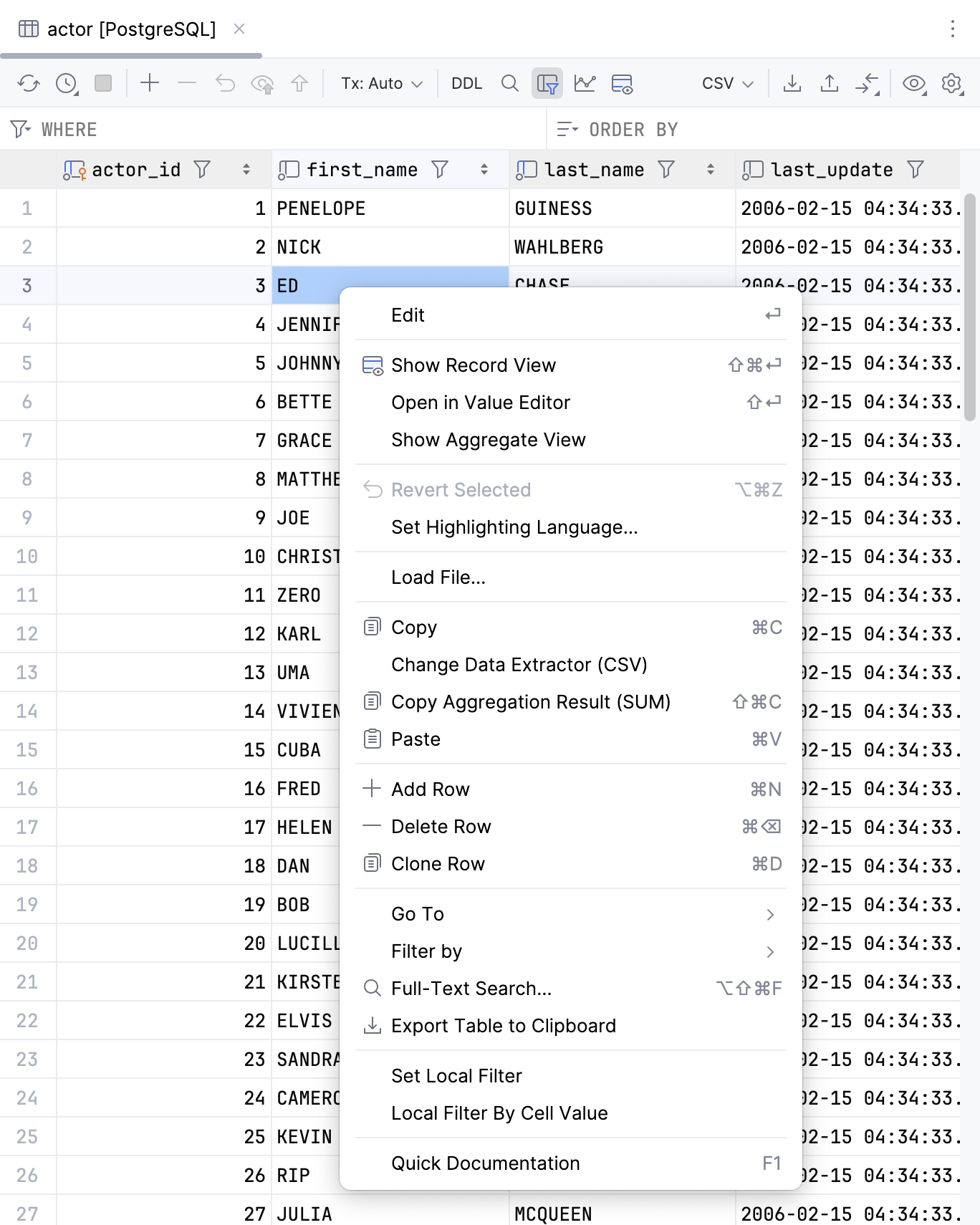
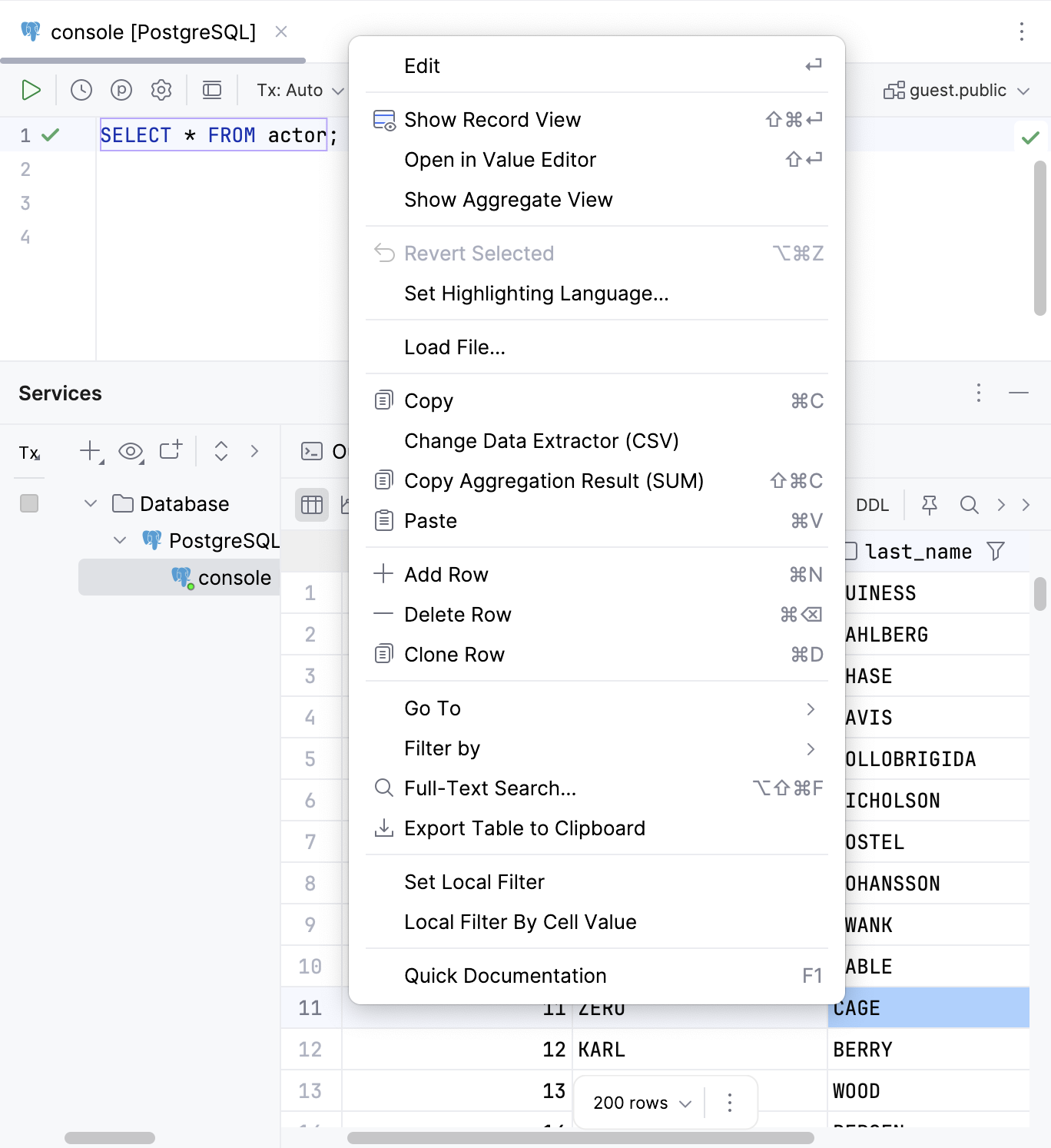
You can find all basic actions for working with cells under the context menu. To call the context menu, right-click the cell that you want to modify. The following table lists all the actions.
Database object:
Result set:
| Action | Shortcut | Description |
| --- | --- | --- |
| Edit | `Enter` (Windows), `⏎` (macOS), `⏎` (IntelliJ IDEA Classic (macOS)), `⏎` (macOS System Shortcuts), `Enter` (XWin), `Enter` (GNOME), `Enter` (KDE), `Enter` (Emacs), `Enter` (Sublime Text), `⏎` (Sublime Text (macOS)), `Enter` (NetBeans), `Enter` (Visual Studio), `⏎` (Visual Studio (macOS)), `Enter` (Eclipse), `⏎` (Eclipse (macOS)) | Edit a value in the selected cell or cells. Alternatively, you can double-click the cell and start typing a value. The Edit command is unavailable for read-only values. * To open the auto-completion list, press `Ctrl+Space` (Windows), `⌃ Space` (macOS), `⌃ Space` (IntelliJ IDEA Classic (macOS)), `⌃ Space` (macOS System Shortcuts), `Ctrl+Space` (XWin), `Ctrl+Space` (GNOME), `Ctrl+Space` (KDE), `Alt+/` (Emacs), `Ctrl+Space` (Sublime Text), `⌃ Space` (Sublime Text (macOS)), `Ctrl+Space` (NetBeans), `Ctrl+Space` (Visual Studio), `⌃ Space` (Visual Studio (macOS)), `Ctrl+Space` (Eclipse), `⌃ Space` (Eclipse (macOS)). * To confirm your changes, press `Enter` (Windows), `⏎` (macOS), `⏎` (IntelliJ IDEA Classic (macOS)), `⏎` (macOS System Shortcuts), `Enter` (XWin), `Enter` (GNOME), `Enter` (KDE), `Enter` (Emacs), `Enter` (Sublime Text), `⏎` (Sublime Text (macOS)), `Enter` (NetBeans), `Enter` (Visual Studio), `⏎` (Visual Studio (macOS)), `Enter` (Eclipse), `⏎` (Eclipse (macOS)). * To cancel editing, press `Escape` (Windows), `⎋` (macOS), `⎋` (IntelliJ IDEA Classic (macOS)), `⎋` (macOS System Shortcuts), `Escape` (XWin), `Escape` (GNOME), `Escape` (KDE), `Escape, Escape` (Emacs), `Escape` (Sublime Text), `⎋` (Sublime Text (macOS)), `Escape` (NetBeans), `Escape` (Visual Studio), `⎋` (Visual Studio (macOS)), `Escape` (Eclipse), `⎋` (Eclipse (macOS)). |
|  Show Record View | | View and edit values of a certain record in a side panel. For more information about the action, refer to the [View data](tables-view-data.html#single_record_view) topic. |
| Open in Value Editor | `Shift+Enter` (Windows), `⇧ ⏎` (macOS), `⇧ ⏎` (IntelliJ IDEA Classic (macOS)), `⇧ ⏎` (macOS System Shortcuts), `Shift+Enter` (XWin), `Shift+Enter` (GNOME), `Shift+Enter` (KDE), `Shift+Enter` (Emacs), `Shift+Enter` (Sublime Text), `⇧ ⏎` (Sublime Text (macOS)), `Shift+Enter` (NetBeans), `Shift+Enter` (Visual Studio), `⇧ ⏎` (Visual Studio (macOS)), `Shift+Enter` (Eclipse), `⇧ ⏎` (Eclipse (macOS)) | Open in a separate value editor where you can edit data that is stored in the cell. For more information about the editor, refer to [Value editor](tables-view-data.html#value-editor). |
| Show Aggregate View | | Open the aggregate view where you can select values of multiple cells and get a single summary value. For more information about the view, refer to [Aggregate view](). |
|  Revert Selected | `Ctrl+Alt+Z` (Windows), `⌘ ⌥ Z` (macOS), `⌘ ⌥ Z` (IntelliJ IDEA Classic (macOS)), `⌘ ⌥ Z` (macOS System Shortcuts), `Ctrl+Alt+Z` (XWin), `Ctrl+Alt+Z` (GNOME), `Ctrl+Alt+Z` (KDE), `Ctrl+Alt+Z` (Emacs), `Ctrl+Alt+Z` (Sublime Text), `⌘ ⌥ Z` (Sublime Text (macOS)), `Ctrl+Alt+Z` (NetBeans), `Ctrl+Alt+Z` (Visual Studio), `⌘ ⌥ Z` (Visual Studio (macOS)), `Ctrl+Alt+Z` (Eclipse), `⌃ ⌥ ⇧ Z` (Eclipse (macOS)) | Revert changes that you made to a cell value. You can select a scope of different cells and revert values in this scope. For more information about reverting changes, refer to [Submit changes to a database](submitting-and-reverting-changes.html). |
| Set Highlighting Language | | Select a language that the IDE should use to highlight data in a cell. |
| Change Display Type | | Select how the IDE should display binary data in the column. 16-byte data is displayed as UUID by default. |
| Set DEFAULT | `Ctrl+Alt+D` (Windows), `⌘ ⌥ D` (macOS), `⌘ ⌥ D` (IntelliJ IDEA Classic (macOS)), `⌃ ⌥ ⇧ D` (macOS System Shortcuts), `Ctrl+Alt+D` (XWin), `Ctrl+Alt+D` (GNOME), `Ctrl+Alt+D` (KDE), `Ctrl+Alt+D` (Emacs), `Ctrl+Alt+D` (Sublime Text), `⌘ ⌥ D` (Sublime Text (macOS)), `Ctrl+Alt+D` (NetBeans), `Ctrl+Alt+D` (Visual Studio), `⌘ ⌥ D` (Visual Studio (macOS)), `Ctrl+Alt+D` (Eclipse), `⌘ ⌥ D` (Eclipse (macOS)) | Set the current cell value to the default value or the value that you specified for the column. For more information about viewing or set a default value, refer to [Manage default and NULL values for a cell](#manage-default-values-for-a-cell). |
| NULL | `Ctrl+Alt+N` (Windows), `⌘ ⌥ N` (macOS), `⌘ ⌥ N` (IntelliJ IDEA Classic (macOS)), `⌘ ⌥ N` (macOS System Shortcuts), `Ctrl+Alt+N` (XWin), `Ctrl+Alt+N` (GNOME), `Ctrl+Alt+N` (KDE), `Ctrl+Alt+N` (Emacs), `Ctrl+Alt+N` (Sublime Text), `⌘ ⌥ N` (Sublime Text (macOS)), `Ctrl+Alt+N` (NetBeans), `Ctrl+Alt+N` (Visual Studio), `⌘ ⌥ N` (Visual Studio (macOS)), `Ctrl+Alt+N` (Eclipse), `⌘ ⌥ N` (Eclipse (macOS)) | Set the current cell value to NULL. For more information about allowing a NULL value, refer to [Manage default and NULL values for a cell](#manage-default-values-for-a-cell). |
| Generate UUID | | Generates the UUID for the selected cell. |
| Load File… | | Load a file into the field. |
| Save LOB… | | For the cells that contain a binary large object ([LOB](http://en.wikipedia.org/wiki/Binary_large_object)). Save content of a cell into a file. |
|  Copy | `Ctrl+C` (Windows), `⌘ C` (macOS), `⌘ C` (IntelliJ IDEA Classic (macOS)), `⌘ C` (macOS System Shortcuts), `Ctrl+C` (XWin), `Ctrl+C` (GNOME), `Ctrl+C` (KDE), `Ctrl+Insert` (Emacs), `Ctrl+C` (Sublime Text), `⌘ C` (Sublime Text (macOS)), `Ctrl+C` (NetBeans), `Ctrl+C` (Visual Studio), `⌘ C` (Visual Studio (macOS)), `Ctrl+C` (Eclipse), `⌘ C` (Eclipse (macOS)) | Copy selection to the clipboard. |
| Change Data Extractor | | Change the [data extractor](data-extractors.html) currently selected from the Data Extractors list on the toolbar. |
|  Copy Aggregation Result (SUM) | | Copy a summary value for a range of cells. By default, IntelliJ IDEA copies the `SUM` aggregation result. To change the default, right-click the status bar and ensure that the Aggregator option is selected. Click the aggregator widget on the status bar and select the aggregator to use as default. |
|  Paste | `Ctrl+V` (Windows), `⌘ V` (macOS), `⌘ V` (IntelliJ IDEA Classic (macOS)), `⌘ V` (macOS System Shortcuts), `Ctrl+V` (XWin), `Ctrl+V` (GNOME), `Ctrl+V` (KDE), `Shift+Insert` (Emacs), `Ctrl+Shift+V` (Sublime Text), `⌘ ⇧ V` (Sublime Text (macOS)), `Ctrl+V` (NetBeans), `Ctrl+V` (Visual Studio), `⌘ V` (Visual Studio (macOS)), `Ctrl+V` (Eclipse), `⌘ V` (Eclipse (macOS)) | Paste the contents of clipboard into the table. |
|  Add Row | | Add a row to the end of a table. |
|  Delete Row | `Alt+Delete` (Windows), `Alt+Delete` (macOS), `Alt+Delete` (IntelliJ IDEA Classic (macOS)), `Alt+Delete` (macOS System Shortcuts), `Alt+Delete` (XWin), `Alt+Delete` (GNOME), `Alt+Delete` (KDE), `Alt+Delete` (Emacs), `Alt+Delete` (Sublime Text), `Alt+Delete` (Sublime Text (macOS)), `Alt+Delete` (NetBeans), `Alt+Delete` (Visual Studio), `Alt+Delete` (Visual Studio (macOS)), `Alt+Delete` (Eclipse), `Alt+Delete` (Eclipse (macOS)) | Delete selected rows. |
|  Clone Row | | Create a duplicate of the selected row and adds the duplicate to the end of a table. |
| Go To | Navigation Bar | `Alt+Home` (Windows), `⌘ ↑` (macOS), `⌥ Home` (IntelliJ IDEA Classic (macOS)), `⌘ ⌃ ↑` (macOS System Shortcuts), `Alt+Home` (XWin), `Alt+Home` (GNOME), `Alt+Home` (KDE), `Alt+Home` (Emacs), `Alt+Home` (Sublime Text), `⌥ Home` (Sublime Text (macOS)), `Alt+Home` (NetBeans), `Ctrl+F2` (Visual Studio), `⌘ F2` (Visual Studio (macOS)), `Alt+Home` (Eclipse), `⌘ ⌥ B` (Eclipse (macOS)) | Jump to a navigation bar. |
| Database | `Alt+Shift+B` (Windows), `⌥ ⇧ B` (macOS), `⌥ ⇧ B` (IntelliJ IDEA Classic (macOS)), `⌥ ⇧ B` (macOS System Shortcuts), `Alt+Shift+B` (XWin), `Alt+Shift+B` (GNOME), `Alt+Shift+B` (KDE), `Alt+Shift+B` (Emacs), `Alt+Shift+B` (Sublime Text), `⌥ ⇧ B` (Sublime Text (macOS)), `Alt+Shift+B` (NetBeans), `Alt+Shift+B` (Visual Studio), `⌥ ⇧ B` (Visual Studio (macOS)), `Alt+Shift+B` (Eclipse), `⌥ ⇧ B` (Eclipse (macOS)) | Open the selected object in the Database tool window . |
| Related Symbol… | `Ctrl+Alt+Home` (Windows), `⌘ ⌃ ↑` (macOS), `⌘ ⌥ Home` (IntelliJ IDEA Classic (macOS)), `⌘ ⌃ ↓` (macOS System Shortcuts), `Ctrl+Alt+Home` (XWin), `Ctrl+Alt+Home` (GNOME), `Ctrl+Alt+Home` (KDE), `Ctrl+Alt+Home` (Emacs), `Ctrl+Alt+Home` (Sublime Text), `Ctrl+Alt+Home` (Sublime Text (macOS)), `Ctrl+Alt+Home` (NetBeans), `Ctrl+Alt+F7` (Visual Studio), `⌘ ⇧ F7` (Visual Studio (macOS)), `Ctrl+Alt+Home` (Eclipse), `⌘ ⌃ ↑` (Eclipse (macOS)) | Navigate to one of the related objects. |
| DDL | `Ctrl+Alt+Home` (Windows), `⌘ ⌃ ↑` (macOS), `⌘ ⌥ Home` (IntelliJ IDEA Classic (macOS)), `⌘ ⌃ ↓` (macOS System Shortcuts), `Ctrl+Alt+Home` (XWin), `Ctrl+Alt+Home` (GNOME), `Ctrl+Alt+Home` (KDE), `Ctrl+Alt+Home` (Emacs), `Ctrl+Alt+Home` (Sublime Text), `Ctrl+Alt+Home` (Sublime Text (macOS)), `Ctrl+Alt+Home` (NetBeans), `Ctrl+Alt+F7` (Visual Studio), `⌘ ⇧ F7` (Visual Studio (macOS)), `Ctrl+Alt+Home` (Eclipse), `⌘ ⌃ ↑` (Eclipse (macOS)) | Open an object definition (DDL). |
| Row… | `Ctrl+G` (Windows), `⌘ L` (macOS), `⌘ G` (IntelliJ IDEA Classic (macOS)), `⌘ L` (macOS System Shortcuts), `Ctrl+G` (XWin), `Ctrl+G` (GNOME), `Ctrl+G` (KDE), `Alt+G` (Emacs), `Ctrl+G` (Sublime Text), `⌃ G` (Sublime Text (macOS)), `Ctrl+G` (NetBeans), `Ctrl+G` (Visual Studio), `⌘ G` (Visual Studio (macOS)), `Ctrl+L` (Eclipse), `⌘ L` (Eclipse (macOS)) | Jump to a specified row. In the Go to Row dialog, specify the column and row number (use the `column:row` pattern). |
|  Related Rows | `F4` (Windows), `⌘ ↓` (macOS), `F4` (IntelliJ IDEA Classic (macOS)), `F4` (macOS System Shortcuts), `F4` (XWin), `F4` (GNOME), `F4` (KDE), `F4` (Emacs), `F4` (Sublime Text), `F4` (Sublime Text (macOS)), `F4` (NetBeans), `F4` (Visual Studio), `⌘ ↓` (Visual Studio (macOS)), `F12` (Eclipse), `F3` (Eclipse (macOS)) | Navigates to the related records: * Records that the current record references. * Records that reference the current record. If more than one record is referenced or referencing the current one, select the target record in the popup that appears. The action is not available if there are no related records. For more information about related data, refer to [Navigate between related rows](rows.html#navigate-between-related-rows). For more information about action behavior options, refer to [Advanced Settings](advanced-settings.html#related_rows_action_behavior). |
|  Open URL | `F4` (Windows), `⌘ ↓` (macOS), `F4` (IntelliJ IDEA Classic (macOS)), `F4` (macOS System Shortcuts), `F4` (XWin), `F4` (GNOME), `F4` (KDE), `F4` (Emacs), `F4` (Sublime Text), `F4` (Sublime Text (macOS)), `F4` (NetBeans), `F4` (Visual Studio), `⌘ ↓` (Visual Studio (macOS)), `F12` (Eclipse), `F3` (Eclipse (macOS)) | Opens URL in OS default browser. Requires the links opening URL Click Settings enabled in the Tools \| Database \| Data Editor and Viewer settings page `Ctrl+Alt+S` (Windows), `⌘ Comma` (macOS), `⌘ Comma` (IntelliJ IDEA Classic (macOS)), `⌘ Comma` (macOS System Shortcuts), `Ctrl+Alt+S` (XWin), `Ctrl+Alt+S` (GNOME), `Ctrl+Alt+S` (KDE), `Ctrl+Alt+S` (Emacs), `Ctrl+Alt+S` (Sublime Text), `⌘ Comma` (Sublime Text (macOS)), `Ctrl+Alt+S` (NetBeans), `Ctrl+Alt+S` (Visual Studio), `⌘ Comma` (Visual Studio (macOS)), `Ctrl+Alt+S` (Eclipse), `⌘ Comma` (Eclipse (macOS)) . |
|  Open File | `F4` (Windows), `⌘ ↓` (macOS), `F4` (IntelliJ IDEA Classic (macOS)), `F4` (macOS System Shortcuts), `F4` (XWin), `F4` (GNOME), `F4` (KDE), `F4` (Emacs), `F4` (Sublime Text), `F4` (Sublime Text (macOS)), `F4` (NetBeans), `F4` (Visual Studio), `⌘ ↓` (Visual Studio (macOS)), `F12` (Eclipse), `F3` (Eclipse (macOS)) | Open file URI in OS default file browser. For example, `file:///Users/Username/image.png`. Requires the links opening URL Click Settings enabled in the Tools \| Database \| Data Editor and Viewer settings page `Ctrl+Alt+S` (Windows), `⌘ Comma` (macOS), `⌘ Comma` (IntelliJ IDEA Classic (macOS)), `⌘ Comma` (macOS System Shortcuts), `Ctrl+Alt+S` (XWin), `Ctrl+Alt+S` (GNOME), `Ctrl+Alt+S` (KDE), `Ctrl+Alt+S` (Emacs), `Ctrl+Alt+S` (Sublime Text), `⌘ Comma` (Sublime Text (macOS)), `Ctrl+Alt+S` (NetBeans), `Ctrl+Alt+S` (Visual Studio), `⌘ Comma` (Visual Studio (macOS)), `Ctrl+Alt+S` (Eclipse), `⌘ Comma` (Eclipse (macOS)) . |
| Filter by | | > **Note:** > Server side filtering is only available for the [database objects data](data-editor-and-viewer.html#open_database_object_data), not for the [query results set](data-editor-and-viewer.html#view_query_result_set). Select a filter that you want to a column. |
|  Full-Text Search… | `Ctrl+Alt+Shift+F` (Windows), `⌘ ⌥ ⇧ F` (macOS), `⌘ ⌥ ⇧ F` (IntelliJ IDEA Classic (macOS)), `⌘ ⌥ ⇧ F` (macOS System Shortcuts), `Ctrl+Alt+Shift+F` (XWin), `Ctrl+Alt+Shift+F` (GNOME), `Ctrl+Alt+Shift+F` (KDE), `Ctrl+Alt+Shift+F` (Emacs), `Ctrl+Alt+Shift+F` (Sublime Text), `⌘ ⌥ ⇧ F` (Sublime Text (macOS)), `Ctrl+Alt+Shift+F` (NetBeans), `Ctrl+Alt+Shift+F` (Visual Studio), `⌘ ⌥ ⇧ F` (Visual Studio (macOS)), `Ctrl+Alt+Shift+F` (Eclipse), `⌘ ⌥ ⇧ F` (Eclipse (macOS)) | Open a search window where you can search for data in your database or a group of databases. For more information about full-text search, refer to [Full-text search in databases](full-text-search-for-databases.html). |
|  Export Table to Clipboard | | Copy the whole table to the clipboard. This action does not depend on Limit page size to setting. |
| Switch Session | | Open a window to select another session or create a new one. For more information about sessions, refer to [Sessions](managing-connection-sessions.html). |
| Quick Documentation | `Ctrl+Q` (Windows), `F1` (macOS), `⌃ J` (IntelliJ IDEA Classic (macOS)), `⌘ I` (macOS System Shortcuts), `Ctrl+Q` (XWin), `Ctrl+Q` (GNOME), `Ctrl+Q` (KDE), `Ctrl+Q` (Emacs), `Ctrl+Q` (Sublime Text), `Ctrl+Q` (Sublime Text (macOS)), `Ctrl+Q` (NetBeans), `Ctrl+K, I` (Visual Studio), `⌘ K, I` (Visual Studio (macOS)), `Alt+Middle-Click` (Eclipse), `⌥ Middle-Click` (Eclipse (macOS)) | Show information about selected objects. For different database objects, Quick Documentation shows corresponding information. For example, for a group of cells, you will see a summary for the selection. You can preview it in a regular or in a transposed view and also see the related records by their foreign keys. |