Configure SDK documentation
You can add documentation to IntelliJ IDEA so that you can get information about symbols and method signatures right from the editor in the Quick Documentation popup.
You can also configure external documentation by specifying the path to the reference information online. External documentation opens the necessary information in a browser so that you can navigate to related symbols and keep the information for further reference at the same time.
In SDKs, documentation is normally bundled. However, you can configure it manually in case you need additional or specific documentation or if you work offline.
Specify SDK documentation paths
To view external SDK documentation, configure the documentation URL first.
In the Project Structure dialog Ctrl+Alt+Shift+S, select SDKs.
Select the necessary SDK version if you have several SDKs configured and open the Documentation Path tab on the right.
Click the
 icon, enter the external documentation URL, and click OK.
For example, for Java 20, type
https://docs.oracle.com/en/java/javase/25/docs/api/.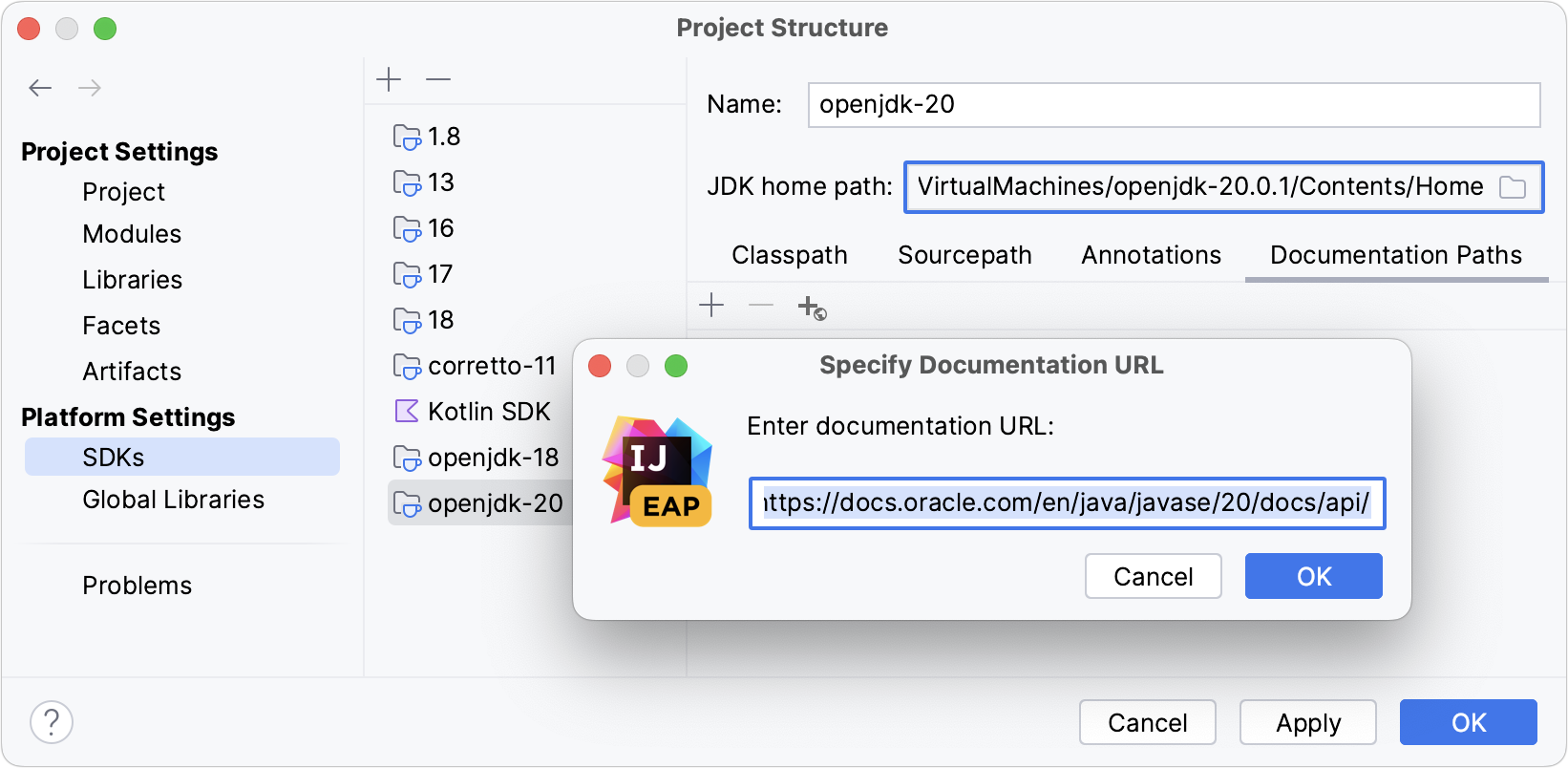
Apply the changes and close the dialog.
Access SDK documentation offline
If you work offline, you can view external documentation locally.
Download the documentation package of the necessary version.
The documentation package is normally distributed in a ZIP archive that you need to unpack once it is downloaded.
For example, you can download the official Java SE Development Kit 25 Documentation and unzip it.
In the Project Structure dialog Ctrl+Alt+Shift+S, select SDKs.
Select the necessary JDK version if you have several JDKs configured and open the Documentation Path tab on the right.
Click the
 icon and specify the directory with the downloaded documentation package (for example, C:\Users\jetbrains\Desktop\docs\api).
Apply the changes and close the dialog.
When the documentation is configured, you can open it in the editor.