# Auto import
> **Tip:**
> This page describes Java imports. For more information about imports in Kotlin, refer to [Packages and Imports](https://kotlinlang.org/docs/reference/packages.html).
If you are using a class, a static method, or a static field that you have not imported yet, the IDE shows you a tooltip prompting you to add a missing import statement so that you do not have to add it manually. Press `Alt+Enter` (Windows), `⌥ ⏎` (macOS), `⌥ ⏎` (IntelliJ IDEA Classic (macOS)), `⌥ ⏎` (macOS System Shortcuts), `Alt+Enter` (XWin), `Alt+Enter` (GNOME), `Alt+Enter` (KDE), `Alt+Enter` (Emacs), `Alt+Enter` (Sublime Text), `⌥ ⏎` (Sublime Text (macOS)), `Alt+Enter` (NetBeans), `Alt+Enter` (Visual Studio), `⌥ ⏎` (Visual Studio (macOS)), `Ctrl+1` (Eclipse), `⌘ 1` (Eclipse (macOS)) to accept the suggestion.
If there's more than one possible source of import, pressing `Alt+Enter` (Windows), `⌥ ⏎` (macOS), `⌥ ⏎` (IntelliJ IDEA Classic (macOS)), `⌥ ⏎` (macOS System Shortcuts), `Alt+Enter` (XWin), `Alt+Enter` (GNOME), `Alt+Enter` (KDE), `Alt+Enter` (Emacs), `Alt+Enter` (Sublime Text), `⌥ ⏎` (Sublime Text (macOS)), `Alt+Enter` (NetBeans), `Alt+Enter` (Visual Studio), `⌥ ⏎` (Visual Studio (macOS)), `Ctrl+1` (Eclipse), `⌘ 1` (Eclipse (macOS)) will open the list of suggestions.
[Video](https://resources.jetbrains.com/help/img/idea/2026.2/auto-import.mp4)
To change the background color for the import tooltip, press `Ctrl+Alt+S` (Windows), `⌘ Comma` (macOS), `⌘ Comma` (IntelliJ IDEA Classic (macOS)), `⌘ Comma` (macOS System Shortcuts), `Ctrl+Alt+S` (XWin), `Ctrl+Alt+S` (GNOME), `Ctrl+Alt+S` (KDE), `Ctrl+Alt+S` (Emacs), `Ctrl+Alt+S` (Sublime Text), `⌘ Comma` (Sublime Text (macOS)), `Ctrl+Alt+S` (NetBeans), `Ctrl+Alt+S` (Visual Studio), `⌘ Comma` (Visual Studio (macOS)), `Ctrl+Alt+S` (Eclipse), `⌘ Comma` (Eclipse (macOS)) and go to `Editor | Color Scheme | General | Popups and Hints | Question hint`.
> **Tip:**
> Statically imported methods, classes, fields have a different style in the editor.
## Automatically add import statements
Procedure:
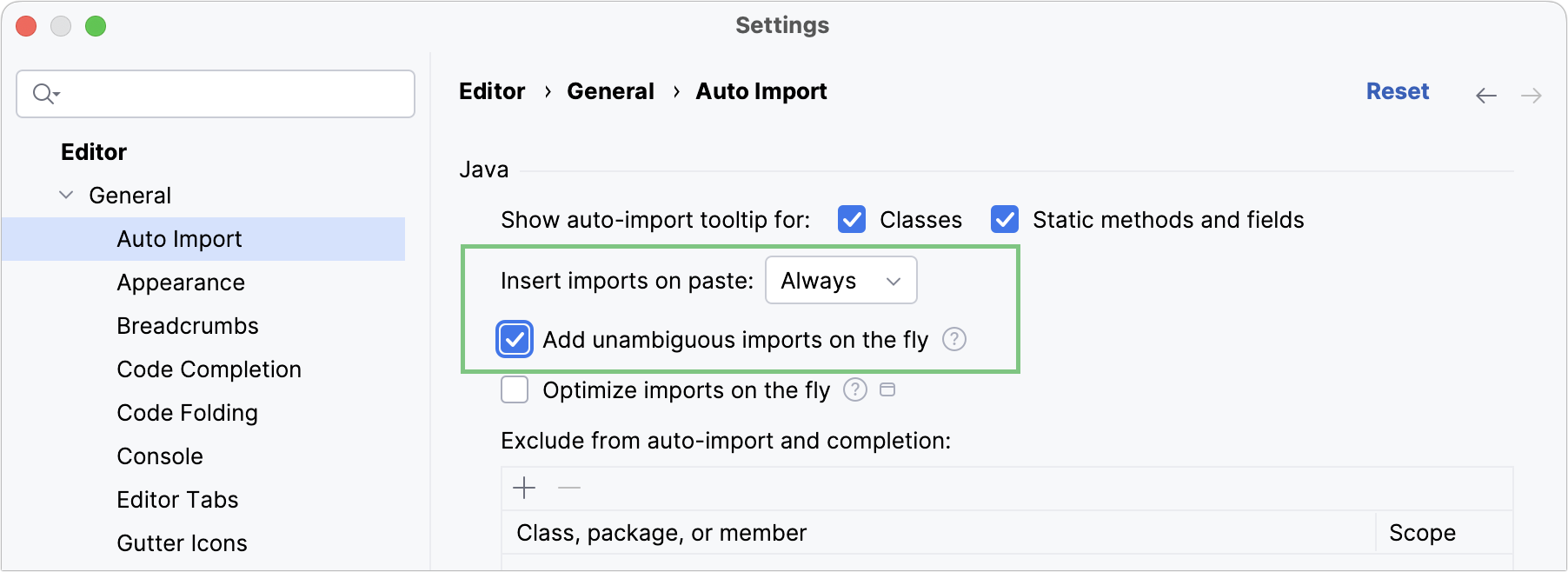
You can configure the IDE to automatically add import statements if there are no options to choose from.
1. Press `Ctrl+Alt+S` (Windows), `⌘ Comma` (macOS), `⌘ Comma` (IntelliJ IDEA Classic (macOS)), `⌘ Comma` (macOS System Shortcuts), `Ctrl+Alt+S` (XWin), `Ctrl+Alt+S` (GNOME), `Ctrl+Alt+S` (KDE), `Ctrl+Alt+S` (Emacs), `Ctrl+Alt+S` (Sublime Text), `⌘ Comma` (Sublime Text (macOS)), `Ctrl+Alt+S` (NetBeans), `Ctrl+Alt+S` (Visual Studio), `⌘ Comma` (Visual Studio (macOS)), `Ctrl+Alt+S` (Eclipse), `⌘ Comma` (Eclipse (macOS)) to open settings and then select `Editor | General | Auto Import`.
2. Select the Add unambiguous imports on the fly checkbox, and apply the changes.
When you are pasting blocks of code that contain references to classes or static methods and fields that are not yet imported, the IDE automatically inserts the missing import statements. If you want to change that, from the Insert imports on paste list, select Ask to confirm every insertion or Never to insert import statements manually.
## Import packages instead of single classes
Procedure:
IntelliJ IDEA suggests importing single classes by default. You can change the settings to import entire packages instead.
1. Press `Ctrl+Alt+S` (Windows), `⌘ Comma` (macOS), `⌘ Comma` (IntelliJ IDEA Classic (macOS)), `⌘ Comma` (macOS System Shortcuts), `Ctrl+Alt+S` (XWin), `Ctrl+Alt+S` (GNOME), `Ctrl+Alt+S` (KDE), `Ctrl+Alt+S` (Emacs), `Ctrl+Alt+S` (Sublime Text), `⌘ Comma` (Sublime Text (macOS)), `Ctrl+Alt+S` (NetBeans), `Ctrl+Alt+S` (Visual Studio), `⌘ Comma` (Visual Studio (macOS)), `Ctrl+Alt+S` (Eclipse), `⌘ Comma` (Eclipse (macOS)) to open settings and then select `Editor | Code Style | Java | Imports`.
2. Clear the Use single class import checkbox and apply the changes.
## Disable import tooltips
When tooltips are disabled, unresolved references are underlined and marked with the red bulb icon . To view the list of suggestions, click this icon (or press `Alt+Enter` (Windows), `⌥ ⏎` (macOS), `⌥ ⏎` (IntelliJ IDEA Classic (macOS)), `⌥ ⏎` (macOS System Shortcuts), `Alt+Enter` (XWin), `Alt+Enter` (GNOME), `Alt+Enter` (KDE), `Alt+Enter` (Emacs), `Alt+Enter` (Sublime Text), `⌥ ⏎` (Sublime Text (macOS)), `Alt+Enter` (NetBeans), `Alt+Enter` (Visual Studio), `⌥ ⏎` (Visual Studio (macOS)), `Ctrl+1` (Eclipse), `⌘ 1` (Eclipse (macOS))) and select Import class.
Procedure: Disable all tooltips
* Hover over the inspection widget in the top-right corner of the editor, click , and disable the Show Auto-Import Tooltip option.
[Video](https://resources.jetbrains.com/help/img/idea/2026.2/auto-import-popups-disabled.mp4)
Procedure: Disable tooltips for classes or static methods and fields
1. Press `Ctrl+Alt+S` (Windows), `⌘ Comma` (macOS), `⌘ Comma` (IntelliJ IDEA Classic (macOS)), `⌘ Comma` (macOS System Shortcuts), `Ctrl+Alt+S` (XWin), `Ctrl+Alt+S` (GNOME), `Ctrl+Alt+S` (KDE), `Ctrl+Alt+S` (Emacs), `Ctrl+Alt+S` (Sublime Text), `⌘ Comma` (Sublime Text (macOS)), `Ctrl+Alt+S` (NetBeans), `Ctrl+Alt+S` (Visual Studio), `⌘ Comma` (Visual Studio (macOS)), `Ctrl+Alt+S` (Eclipse), `⌘ Comma` (Eclipse (macOS)) to open settings and then select `Editor | General | Auto Import`.
2. Make sure the necessary options are selected for the Show auto-import tooltip for setting (both checkboxes, Classes and Static methods and fields, are enabled by default).
## Disable wildcard imports
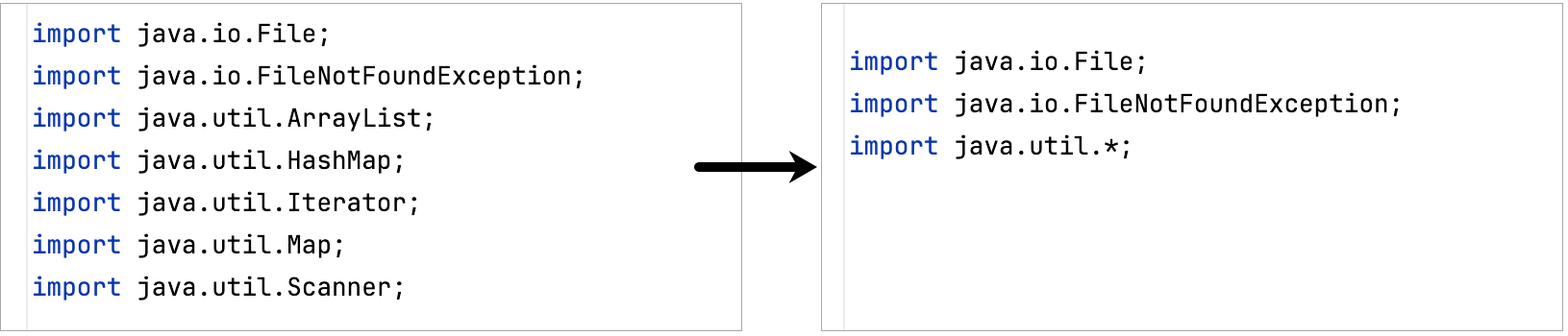
When the number of classes that IntelliJ IDEA has imported from the same package reaches the limit (`5` by default), the IDE modifies the statements to import the entire package instead of importing several single classes from this package:
Procedure: Disable wildcard imports to always import single classes
1. Press `Ctrl+Alt+S` (Windows), `⌘ Comma` (macOS), `⌘ Comma` (IntelliJ IDEA Classic (macOS)), `⌘ Comma` (macOS System Shortcuts), `Ctrl+Alt+S` (XWin), `Ctrl+Alt+S` (GNOME), `Ctrl+Alt+S` (KDE), `Ctrl+Alt+S` (Emacs), `Ctrl+Alt+S` (Sublime Text), `⌘ Comma` (Sublime Text (macOS)), `Ctrl+Alt+S` (NetBeans), `Ctrl+Alt+S` (Visual Studio), `⌘ Comma` (Visual Studio (macOS)), `Ctrl+Alt+S` (Eclipse), `⌘ Comma` (Eclipse (macOS)) to open settings and then select `Editor | Code Style | Java`.
2. Make sure that the Use single class import option is enabled.
3. In the Class count to use import with '*' and Names count to use static import with '*' fields, specify values that definitely exceed the number of classes in a package and the number of names in a class (for example, `999`).
To replace an import statement with single class imports in a file without changing the settings, place the caret at the import statement, press `Alt+Enter` (Windows), `⌥ ⏎` (macOS), `⌥ ⏎` (IntelliJ IDEA Classic (macOS)), `⌥ ⏎` (macOS System Shortcuts), `Alt+Enter` (XWin), `Alt+Enter` (GNOME), `Alt+Enter` (KDE), `Alt+Enter` (Emacs), `Alt+Enter` (Sublime Text), `⌥ ⏎` (Sublime Text (macOS)), `Alt+Enter` (NetBeans), `Alt+Enter` (Visual Studio), `⌥ ⏎` (Visual Studio (macOS)), `Ctrl+1` (Eclipse), `⌘ 1` (Eclipse (macOS)) (or use the intention action  icon), and select Replace with single class imports.
## Disable auto import
If you want to completely disable auto-import, make sure that:
* [All import tooltips are disabled](#disable-import-popups).
* The [automatic insertion of import statements](#automatically-add-import-statements) is disabled.
## Prioritize classes for auto-import
This option allows you to import frequently used static methods automatically. When you type a method from a prioritized class, the IDE shows completion suggestions. Selecting a suggestion from the list inserts the corresponding import statement without requiring manual edits.
[Video](https://resources.jetbrains.com/help/img/idea/2026.2/ij_prioritized_class_auto_import.mp4)
Procedure:
1. Press `Ctrl+Alt+S` (Windows), `⌘ Comma` (macOS), `⌘ Comma` (IntelliJ IDEA Classic (macOS)), `⌘ Comma` (macOS System Shortcuts), `Ctrl+Alt+S` (XWin), `Ctrl+Alt+S` (GNOME), `Ctrl+Alt+S` (KDE), `Ctrl+Alt+S` (Emacs), `Ctrl+Alt+S` (Sublime Text), `⌘ Comma` (Sublime Text (macOS)), `Ctrl+Alt+S` (NetBeans), `Ctrl+Alt+S` (Visual Studio), `⌘ Comma` (Visual Studio (macOS)), `Ctrl+Alt+S` (Eclipse), `⌘ Comma` (Eclipse (macOS)) to open settings and then select `Editor | General | Auto Import`.
2. In the Include auto-import of static members in completion section, click  or press `Alt+Insert` (Windows), `⌥ Insert` (macOS), `⌥ Insert` (IntelliJ IDEA Classic (macOS)), `⌥ Insert` (macOS System Shortcuts), `Alt+Insert` (XWin), `Alt+Insert` (GNOME), `Alt+Insert` (KDE), `Alt+Insert` (Emacs), `Alt+Insert` (Sublime Text), `⌥ Insert` (Sublime Text (macOS)), `Alt+Insert` (NetBeans), `Alt+Insert` (Visual Studio), `⌥ Insert` (Visual Studio (macOS)), `Alt+Insert` (Eclipse), `⌥ Insert` (Eclipse (macOS)).
3. Specify the class you want to add to the list.
You can exclude some members that should never be added to static imports, such as `of`, `valueOf`, and so on. To do so, use `-`, for example:
```GENERIC
-java.util.Objects.requireNonNull
```
4. To the right from the class name, you can also select whether you want to prioritize it in the current project only or in all projects (globally).
5. Apply the changes and close the dialog.
## Exclude classes and packages from auto import
The list of import suggestions may include classes and packages that you don't need. You can exclude redundant entries from automatic import so that the list of suggestions contains only relevant items.
> **Tip:**
> The list of excluded classes and packages is common for auto-import and [code completion](auto-completing-code.html).
Procedure:
1. Press `Ctrl+Alt+S` (Windows), `⌘ Comma` (macOS), `⌘ Comma` (IntelliJ IDEA Classic (macOS)), `⌘ Comma` (macOS System Shortcuts), `Ctrl+Alt+S` (XWin), `Ctrl+Alt+S` (GNOME), `Ctrl+Alt+S` (KDE), `Ctrl+Alt+S` (Emacs), `Ctrl+Alt+S` (Sublime Text), `⌘ Comma` (Sublime Text (macOS)), `Ctrl+Alt+S` (NetBeans), `Ctrl+Alt+S` (Visual Studio), `⌘ Comma` (Visual Studio (macOS)), `Ctrl+Alt+S` (Eclipse), `⌘ Comma` (Eclipse (macOS)) to open settings and then select `Editor | General | Auto Import`.
2. In the Exclude from auto-import and completion section, click  or press `Alt+Insert` (Windows), `⌥ Insert` (macOS), `⌥ Insert` (IntelliJ IDEA Classic (macOS)), `⌥ Insert` (macOS System Shortcuts), `Alt+Insert` (XWin), `Alt+Insert` (GNOME), `Alt+Insert` (KDE), `Alt+Insert` (Emacs), `Alt+Insert` (Sublime Text), `⌥ Insert` (Sublime Text (macOS)), `Alt+Insert` (NetBeans), `Alt+Insert` (Visual Studio), `⌥ Insert` (Visual Studio (macOS)), `Alt+Insert` (Eclipse), `⌥ Insert` (Eclipse (macOS)) and specify a class or a package that you want to exclude.
You can also select whether you want to exclude items from the current project or from all projects (globally).
Procedure: Exclude a class or a package on the fly
1. Press `Alt+Enter` (Windows), `⌥ ⏎` (macOS), `⌥ ⏎` (IntelliJ IDEA Classic (macOS)), `⌥ ⏎` (macOS System Shortcuts), `Alt+Enter` (XWin), `Alt+Enter` (GNOME), `Alt+Enter` (KDE), `Alt+Enter` (Emacs), `Alt+Enter` (Sublime Text), `⌥ ⏎` (Sublime Text (macOS)), `Alt+Enter` (NetBeans), `Alt+Enter` (Visual Studio), `⌥ ⏎` (Visual Studio (macOS)), `Ctrl+1` (Eclipse), `⌘ 1` (Eclipse (macOS)) on a missing class to open the list of import suggestions.
2. Click the right arrow next to a package and select an item (a class or an entire package) that you want to exclude.
3. In the Exclude from auto-import and completion section of the Auto Import dialog, select whether you want to exclude items from the current project or from all projects, and apply the changes.
## Optimize imports
The Optimize Imports feature helps you remove unused imports and organize import statements in the current file or in all files in a directory at once according to the rules specified in `Settings | Editor | Code Style | | Imports`.
> **Tip:**
> You can exclude specific files and folders from import optimization. For more information, refer to [Exclude files from reformatting](reformat-and-rearrange-code.html#exclude_file_from_reformat).
Procedure: Optimize all imports
1. Select a file or a directory in the Project tool window (`View | Tool Windows | Project`).
2. Do any of the following:
* In the main menu, go to `Code | Optimize Imports` (or press `Ctrl+Alt+O` (Windows), `⌃ ⌥ O` (macOS), `⌘ ⌥ O` (IntelliJ IDEA Classic (macOS)), `⌃ ⌥ O` (macOS System Shortcuts), `Ctrl+Alt+O` (XWin), `Ctrl+Alt+O` (GNOME), `Ctrl+Alt+O` (KDE), `Ctrl+Alt+O` (Emacs), `Ctrl+Alt+O` (Sublime Text), `⌃ ⌥ O` (Sublime Text (macOS)), `Ctrl+Shift+I` (NetBeans), `Ctrl+R, G` (Visual Studio), `⌃ ⌥ O` (Visual Studio (macOS)), `Ctrl+Alt+O` (Eclipse), `⌘ ⇧ O` (Eclipse (macOS))).
* From the context menu, select Optimize Imports.
3. (If you've selected a directory) Choose whether you want to optimize imports in all files in the directory, or only in locally modified files (if your project is under version control), and click Run.
Procedure: Remove unused imports
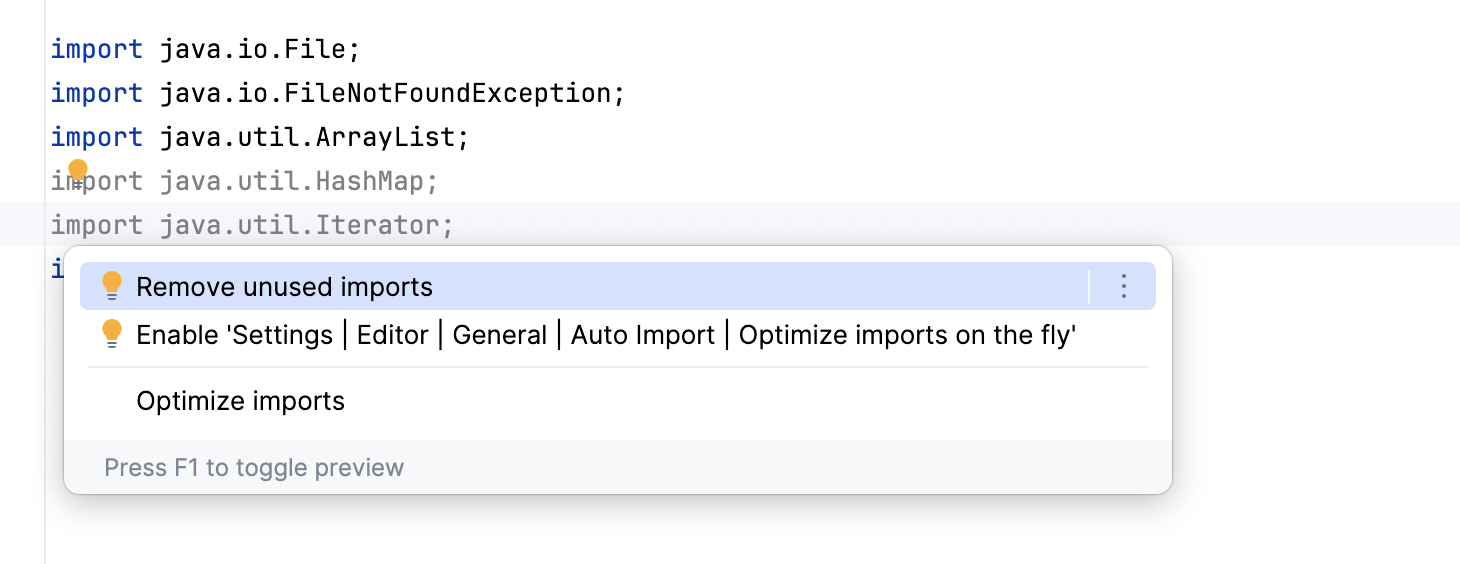
1. Place the caret at the unused import statement and press `Alt+Enter` (Windows), `⌥ ⏎` (macOS), `⌥ ⏎` (IntelliJ IDEA Classic (macOS)), `⌥ ⏎` (macOS System Shortcuts), `Alt+Enter` (XWin), `Alt+Enter` (GNOME), `Alt+Enter` (KDE), `Alt+Enter` (Emacs), `Alt+Enter` (Sublime Text), `⌥ ⏎` (Sublime Text (macOS)), `Alt+Enter` (NetBeans), `Alt+Enter` (Visual Studio), `⌥ ⏎` (Visual Studio (macOS)), `Ctrl+1` (Eclipse), `⌘ 1` (Eclipse (macOS)) or use the  icon.
Unused statements are greyed out by default.
2. From the list of suggestions, select Remove unused imports.
Procedure: Optimize imports on commit
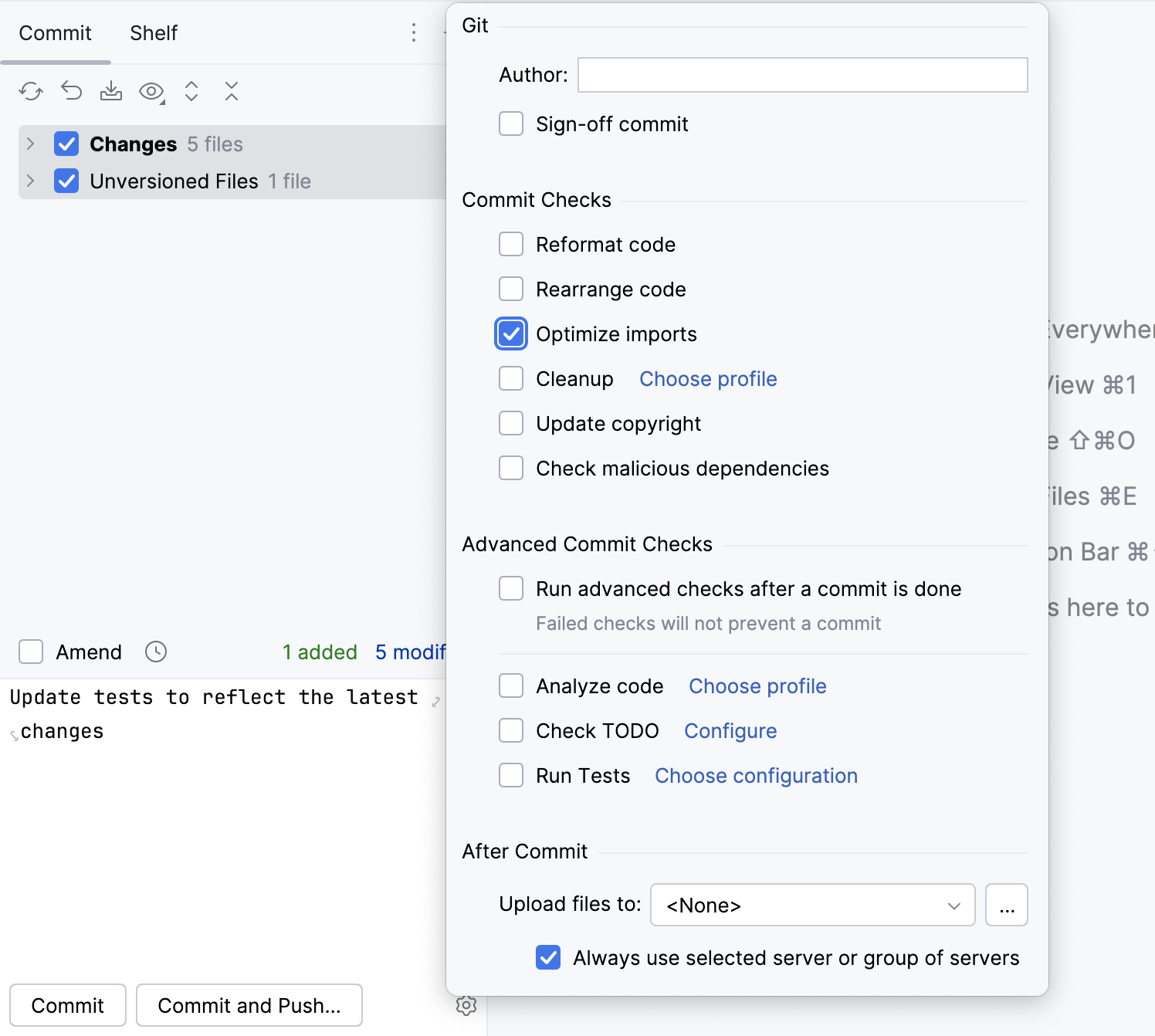
If your project is under version control, you can configure IntelliJ IDEA to optimize imports in modified files before committing them to VCS.
> **Note:**
> This feature is only available for [Git](using-git-integration.html) and [Mercurial](using-mercurial-integration.html).
1. Press `Alt+0` (Windows), `⌘ 0` (macOS), `⌘ 0` (IntelliJ IDEA Classic (macOS)), `⌘ 0` (macOS System Shortcuts), `Alt+0` (XWin), `Alt+0` (GNOME), `Alt+0` (KDE), `Alt+0` (Emacs), `Alt+0` (Sublime Text), `⌘ 0` (Sublime Text (macOS)), `Alt+0` (NetBeans), `Alt+0` (Visual Studio), `Alt+0` (Visual Studio (macOS)), `Alt+0` (Eclipse), `⌘ 0` (Eclipse (macOS)) to open the Commit tool window and click Show Commit Options .
2. Click  and in the commit message area, select the Optimize imports checkbox.
Procedure: Automatically optimize imports on save
You can configure the IDE to optimize imports in modified files automatically when your changes are [saved](saving-and-reverting-changes.html).
1. Press `Ctrl+Alt+S` (Windows), `⌘ Comma` (macOS), `⌘ Comma` (IntelliJ IDEA Classic (macOS)), `⌘ Comma` (macOS System Shortcuts), `Ctrl+Alt+S` (XWin), `Ctrl+Alt+S` (GNOME), `Ctrl+Alt+S` (KDE), `Ctrl+Alt+S` (Emacs), `Ctrl+Alt+S` (Sublime Text), `⌘ Comma` (Sublime Text (macOS)), `Ctrl+Alt+S` (NetBeans), `Ctrl+Alt+S` (Visual Studio), `⌘ Comma` (Visual Studio (macOS)), `Ctrl+Alt+S` (Eclipse), `⌘ Comma` (Eclipse (macOS)) to open settings and then select `Tools | Actions on Save`.
2. Enable the Optimize imports option.
Additionally, from the All file types list, select the types of files in which you want to optimize imports.
3. Apply the changes and close the dialog.
Procedure: Optimize imports when reformatting a file
You can tell IntelliJ IDEA to optimize imports in a file every time it is reformatted.
* Open the file in the editor, press `Ctrl+Alt+Shift+L` (Windows), `⌘ ⌥ ⇧ L` (macOS), `⌘ ⌥ ⇧ L` (IntelliJ IDEA Classic (macOS)), `⌘ ⌥ ⇧ L` (macOS System Shortcuts), `Ctrl+Alt+Shift+L` (XWin), `Ctrl+Alt+Shift+L` (GNOME), `Ctrl+Alt+Shift+L` (KDE), `Ctrl+Alt+Shift+L` (Emacs), `Ctrl+Alt+Shift+L` (Sublime Text), `⌘ ⌥ ⇧ L` (Sublime Text (macOS)), `Ctrl+Alt+Shift+L` (NetBeans), `Ctrl+Alt+Shift+L` (Visual Studio), `⌘ ⌥ ⇧ L` (Visual Studio (macOS)), `Ctrl+Alt+Shift+L` (Eclipse), `⌘ ⌥ ⇧ L` (Eclipse (macOS)), and make sure the Optimize imports checkbox is selected in the Reformat File dialog that opens.
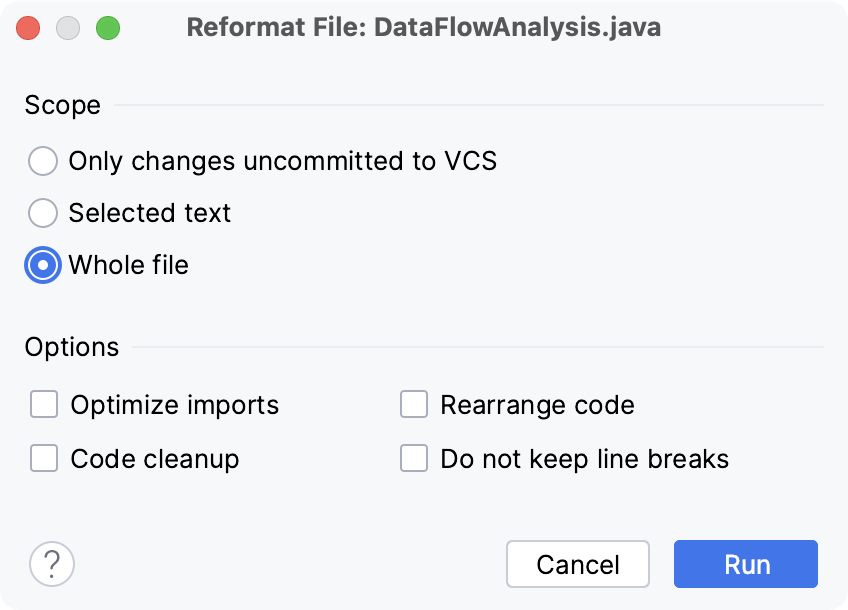
After that every time you press `Ctrl+Alt+L` (Windows), `⌘ ⌥ L` (macOS), `⌘ ⌥ L` (IntelliJ IDEA Classic (macOS)), `⌘ ⌥ L` (macOS System Shortcuts), `Ctrl+Alt+L` (XWin), `Ctrl+Alt+L` (GNOME), `Alt+Shift+L` (KDE), `Ctrl+Alt+L` (Emacs), `Ctrl+Alt+L` (Sublime Text), `⌘ ⌥ L` (Sublime Text (macOS)), `Alt+Shift+F` (NetBeans), `Ctrl+Alt+Enter` (Visual Studio), `⌘ ⌥ ⏎` (Visual Studio (macOS)), `Ctrl+Alt+L` (Eclipse), `⌘ ⇧ F` (Eclipse (macOS)) in this project, IntelliJ IDEA will optimize its imports automatically.
Procedure: Optimize imports for all files in the folder
1. Right-click a folder in the Project tool window and select Optimize Imports.
2. In the Optimize Imports dialog, click Run.
Procedure: Optimize imports on the fly
> **Note:**
> When you create a class from a template with the Optimize imports on the fly option enabled, IntelliJ IDEA will optimize imports from this template only after you reopen the project.
You can also configure the IDE to automatically optimize imports. IntelliJ IDEA will remove or modify import statements according to the rules specified in `Settings | Editor | Code Style | | Imports` as you work in the editor.
1. Press `Ctrl+Alt+S` (Windows), `⌘ Comma` (macOS), `⌘ Comma` (IntelliJ IDEA Classic (macOS)), `⌘ Comma` (macOS System Shortcuts), `Ctrl+Alt+S` (XWin), `Ctrl+Alt+S` (GNOME), `Ctrl+Alt+S` (KDE), `Ctrl+Alt+S` (Emacs), `Ctrl+Alt+S` (Sublime Text), `⌘ Comma` (Sublime Text (macOS)), `Ctrl+Alt+S` (NetBeans), `Ctrl+Alt+S` (Visual Studio), `⌘ Comma` (Visual Studio (macOS)), `Ctrl+Alt+S` (Eclipse), `⌘ Comma` (Eclipse (macOS)) to open settings and then select `Editor | General | Auto Import`.
2. Enable the Optimize imports on the fly option and apply the changes.
## See also
### External Links
[Imports in Kotlin](https://kotlinlang.org/docs/reference/packages.html) [Imports in Python](https://www.jetbrains.com/help/pycharm/creating-and-optimizing-imports.html) [Imports in PHP](https://www.jetbrains.com/help/phpstorm/creating-and-optimizing-imports.html) [Imports in JavaScript](https://www.jetbrains.com/help/webstorm/creating-and-optimizing-imports.html)