Exposed
Exposed is a lightweight SQL library for Kotlin that supports both JDBC and R2DBC drivers for blocking and reactive database access. It provides two APIs for working with databases: a type-safe SQL DSL and an object-oriented DAO API.
The Exposed plugin for IntelliJ IDEA provides a range of features to enhance your development experience with Exposed. These features include:
Code completion for Exposed entities and tables.
Database-aware code inspections.
Navigation between code and database.
Generation of Exposed table definitions and DAO entity classes.
Install the Exposed plugin
This functionality relies on the Exposed plugin, which you need to install and enable.
Press Ctrl+Alt+S to open settings and then select .
Open the Marketplace tab, find the Exposed plugin, and click Install (restart the IDE if prompted).
Configure a data source
Some Exposed plugin features use your database schema for code generation, code inspections, and navigation to mapped references.
Before using these features, configure a data source in the Database tool window.
Code completion
The plugin improves code completion when working with Exposed entities and tables. This helps reduce the need to manually type repetitive property declarations.
Database-aware code inspections
When a database connection and schema context are available from the Database tool window, the Exposed plugin uses it to validate references in Exposed table definitions and queries.
During code analysis, the plugin resolves database objects against the selected schema and reports inconsistencies such as unresolved tables, columns, foreign keys, and other schema-related references.
In the editor, IntelliJ IDEA highlights unresolved references, displays inspection warnings, and provides quick-fix suggestions. For example, if a table referenced in an Exposed definition cannot be found in the connected database schema, the plugin shows an inspection warning and a corresponding hint:
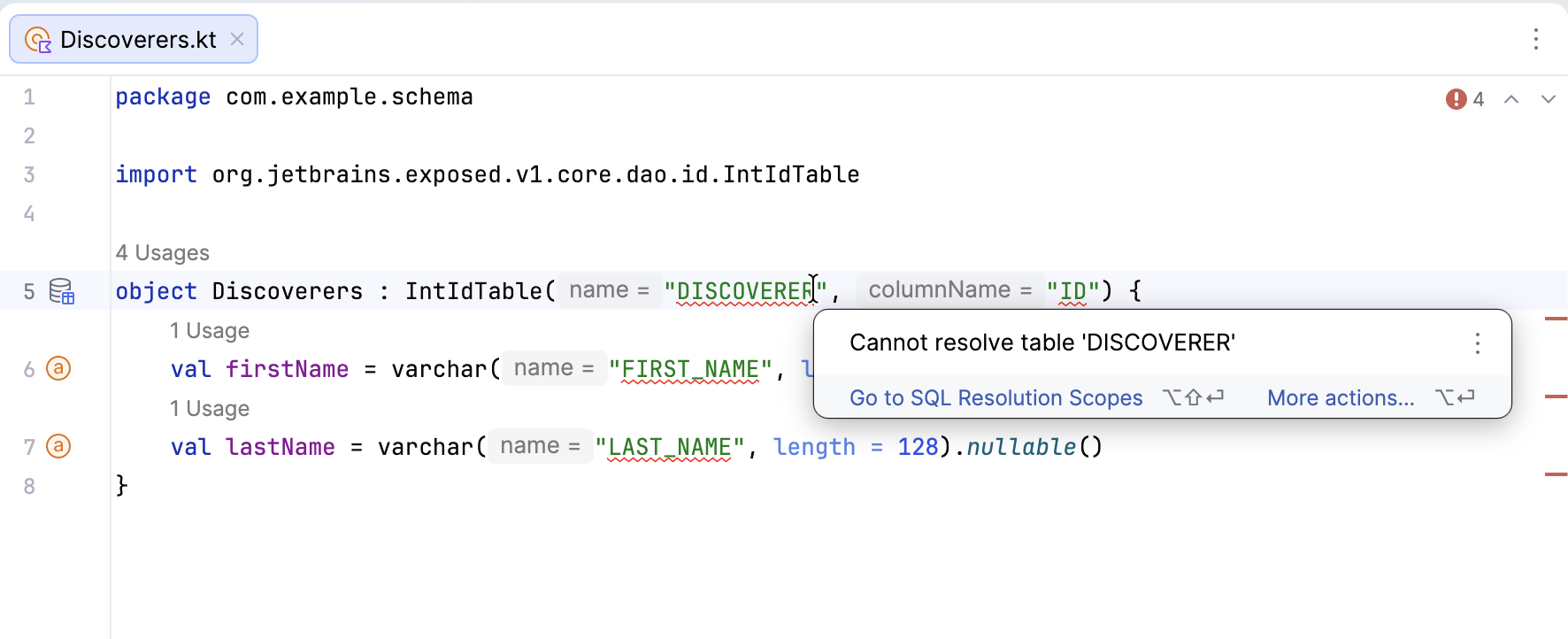
To review or modify the schemas used for validation, select Go to SQL Resolution Scopes. This allows you to configure the database sources and schemas that IntelliJ IDEA uses for SQL resolution and validation.
Navigate to mapped tables and columns
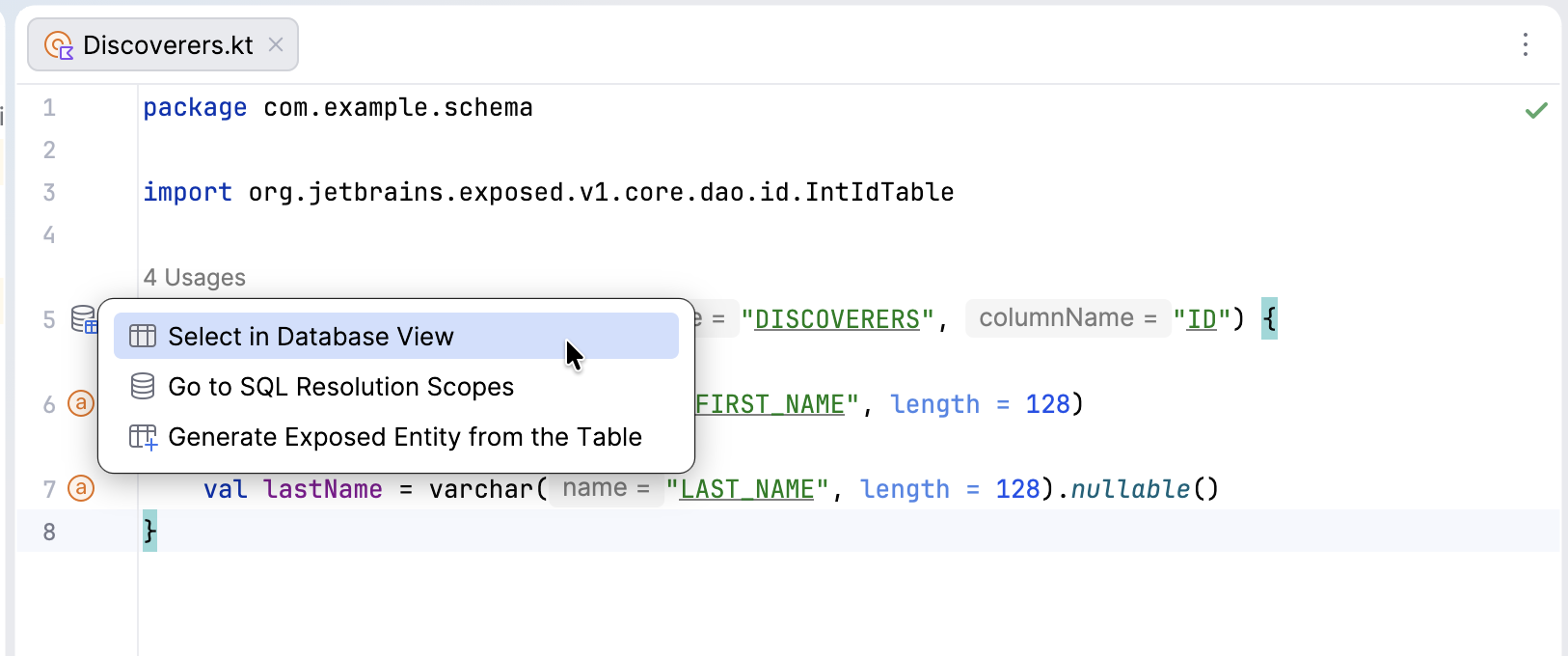
The plugin adds gutter icons next to Exposed table and column declarations that allow you to navigate to the mapped reference in the Database tool window.
Open a file containing an Exposed table object.
Click the gutter icon next to the table definition.
Choose the Select in Database View option.
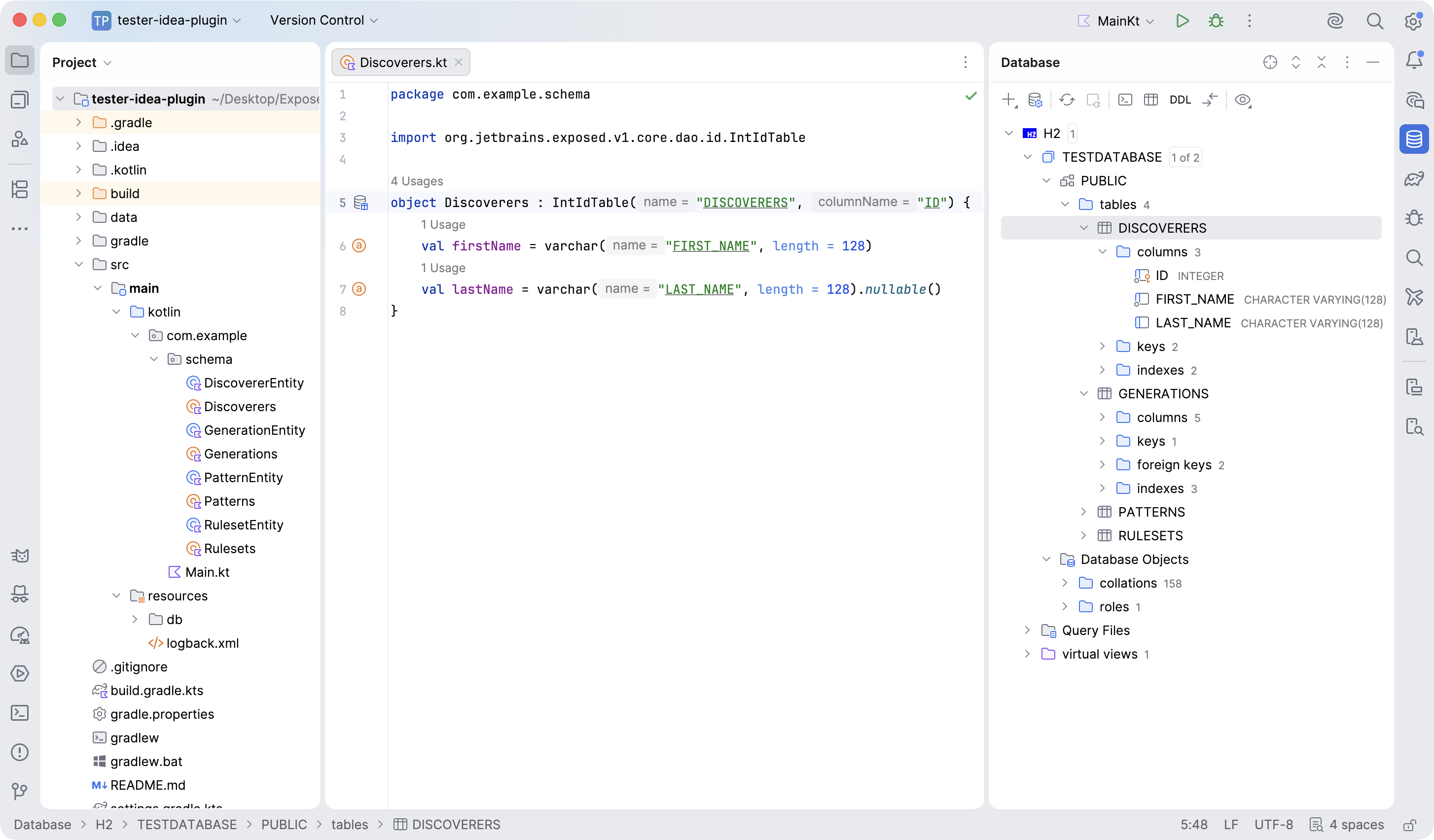
IntelliJ IDEA opens the Database tool window and navigates to the corresponding table:
Generate code
Generate tables from an existing database schema
You can use the Database tool window to generate Exposed table definitions from existing database objects.
Open the Database tool window.
Right-click a schema, table, or other supported database element.
Choose Create Exposed Tables from DB.
If your project includes the
org.jetbrains.exposed:exposed-daodependency, choose Create Exposed Entities from DB.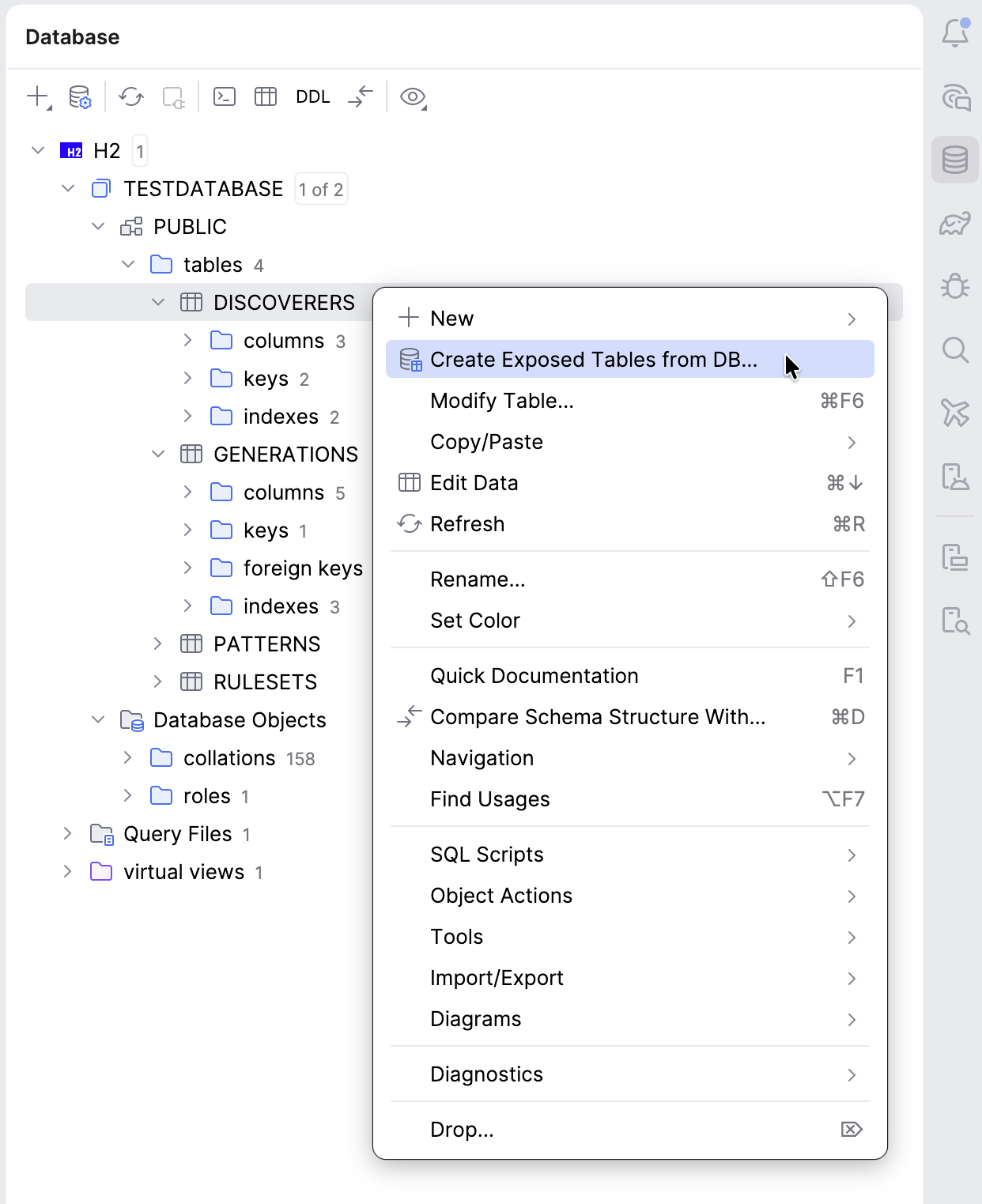
In the open dialog, you can select and customize the output, for example:
Use the Target package field to specify where the generated tables or DAO entity classes will be placed.
Review and modify the suggested property names.
Adjust the inferred Exposed column types, if necessary.
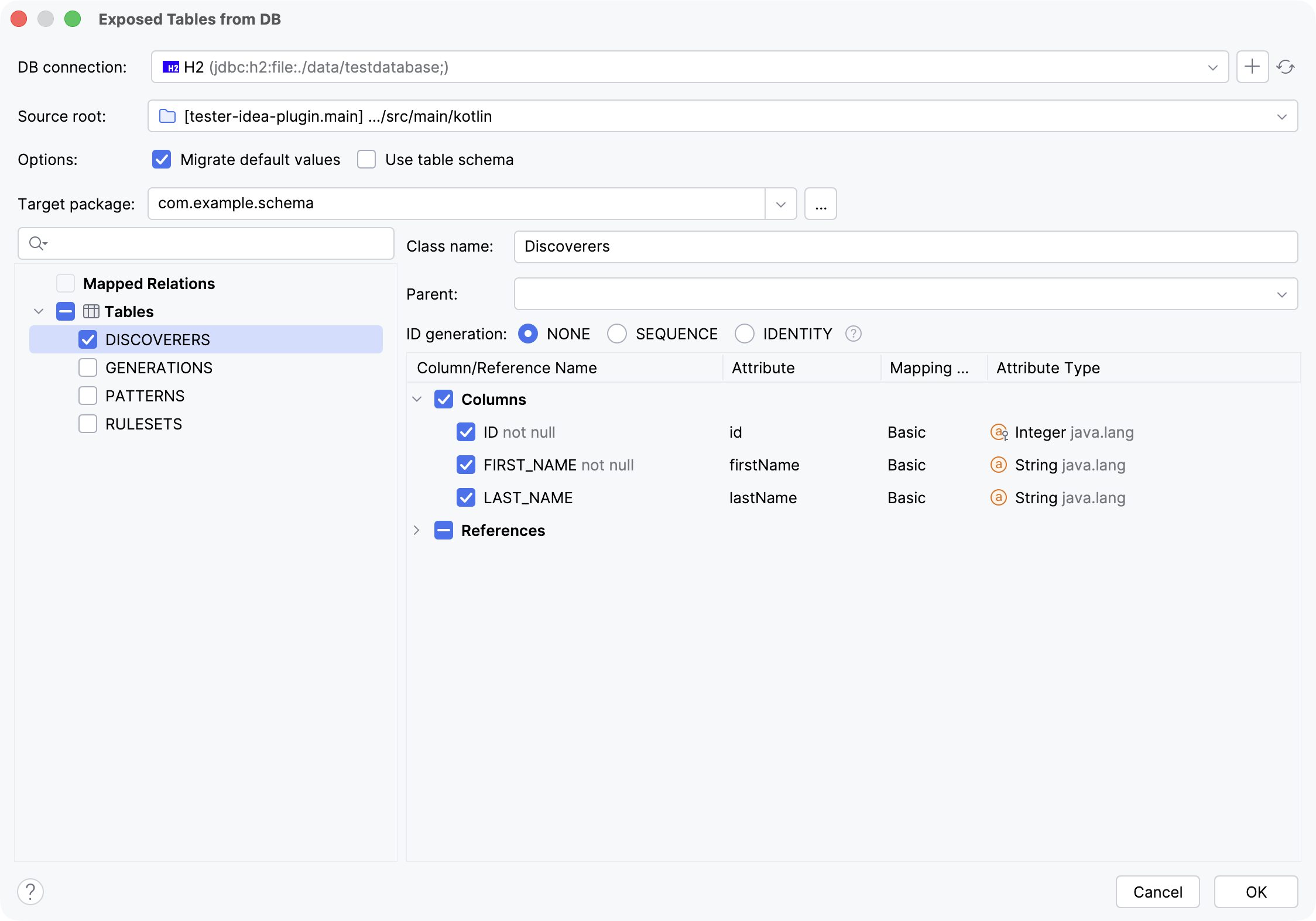
Click OK to generate the code.
Generate entities from existing tables
You can use the plugin to generate DAO entity classes for an existing Exposed table object.
Open a file containing an Exposed table object.
Click the gutter icon next to the table definition.
Select the Generate Exposed Entity from the Table option.
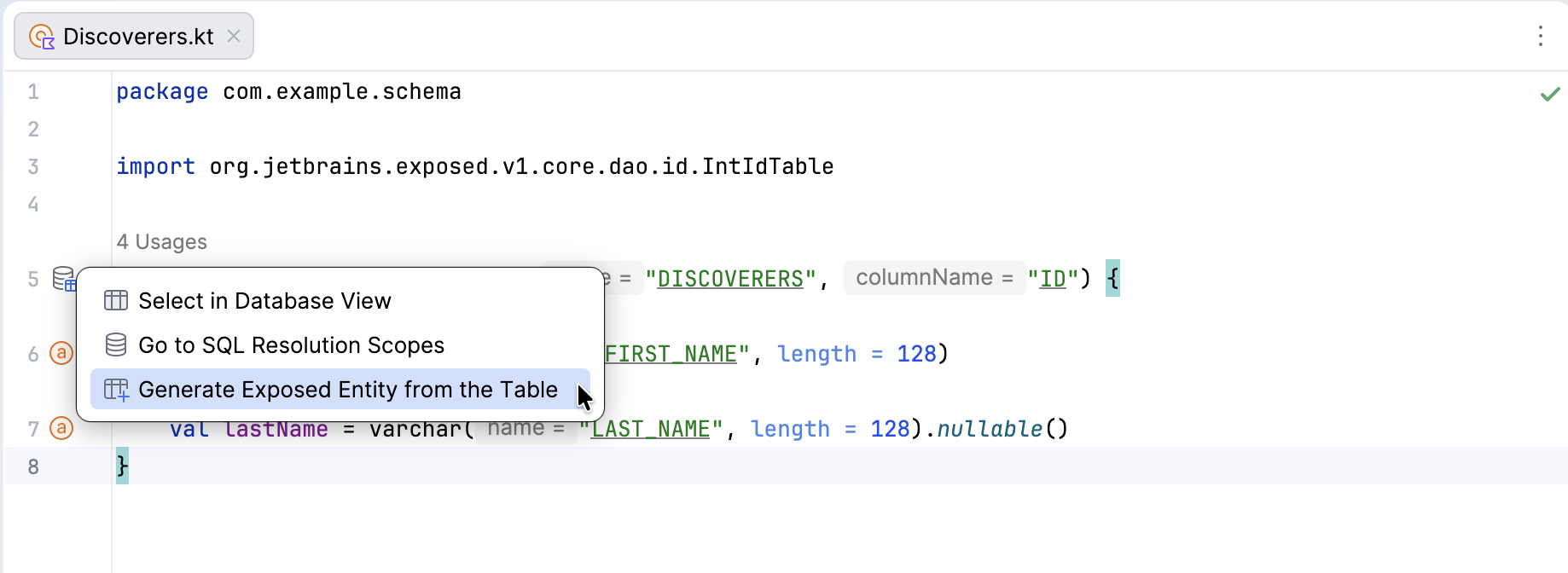
The generated entity class is created in the same Kotlin file as the table object. The plugin generates both the Entity class and its companion EntityClass.
Exposed live templates
The Exposed plugin provides live templates that help you quickly create common Exposed code constructs in your Kotlin files. Live templates generate predefined code snippets based on the template name, reducing the amount of boilerplate code you need to write.
To expand a live template, type the corresponding abbreviation and press Tab.
Database templates
Use the following live templates to generate database-related code:
Abbreviation | Description |
|---|---|
| Generates a database connection configuration for Exposed JDBC. |
| Generates a database connection configuration for Exposed R2DBC. |
Table templates
Use the following templates to generate Exposed table objects:
Abbreviation | Description |
|---|---|
| Generates a |
| Generates an |
| Generates an |
| Generates a |
| Generates a |
DAO entity templates
Use the following templates to generate Exposed DAO entity classes:
Abbreviation | Description |
|---|---|
| Generates an |
| Generates an |
| Generates a |
| Generates a |
Configure live templates
You can view and customize Exposed live templates in IntelliJ IDEA settings:
Press Ctrl+Alt+S to open settings and then select .
In the list of options, click the Exposed node to expand the list of provided live templates.
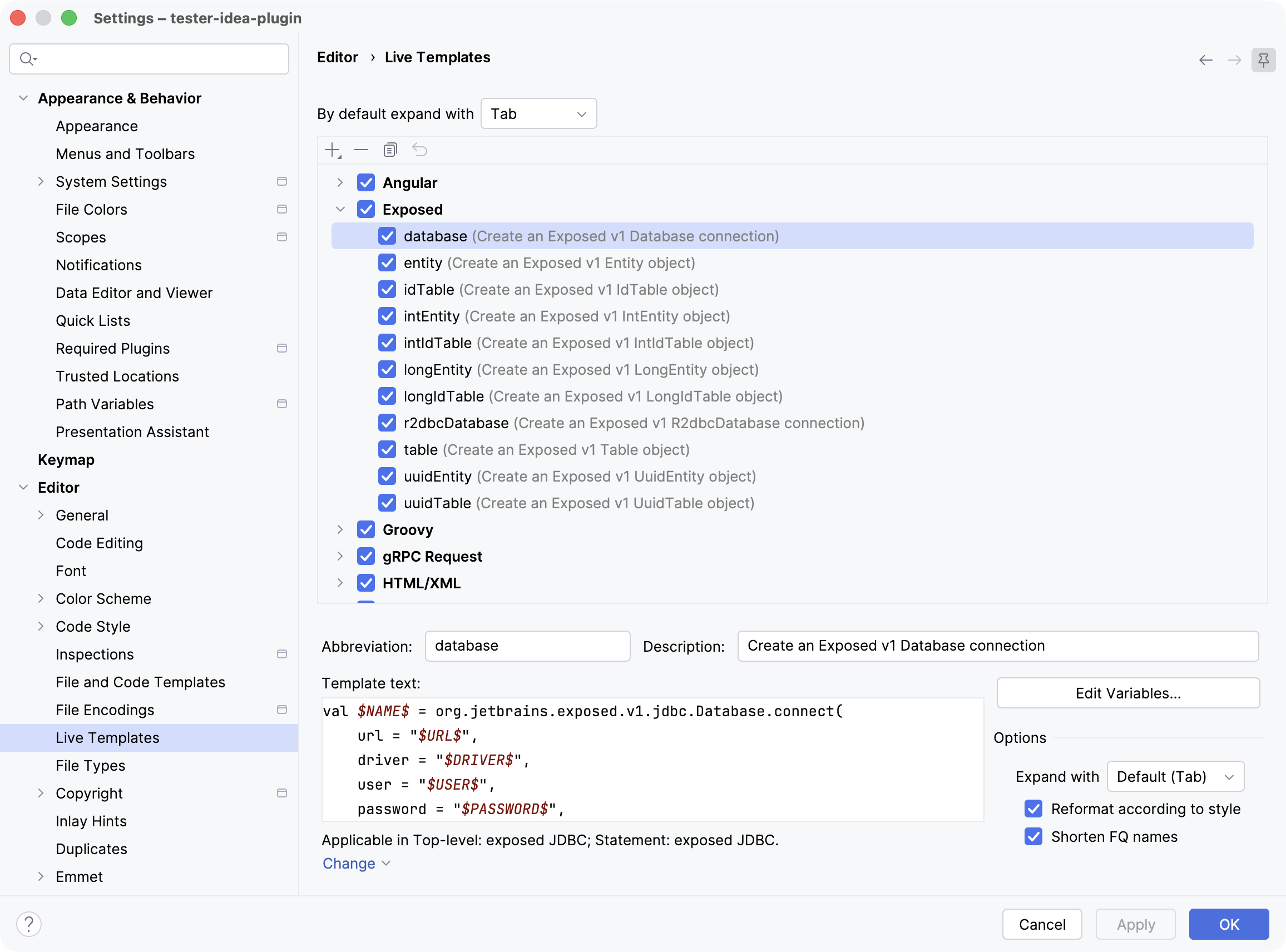
You can then enable and disable them using checkboxes, edit existing templates, and create new ones.