# Extract constant
> **TL;DR**
> `Refactor | Extract/Introduce | Constant`
>
>
>
> `Ctrl+Alt+C` (Windows), `⌘ ⌥ C` (macOS), `⌘ ⌥ C` (IntelliJ IDEA Classic (macOS)), `⌘ ⌥ C` (macOS System Shortcuts), `Ctrl+Alt+C` (XWin), `Ctrl+Alt+C` (GNOME), `Ctrl+Alt+C` (KDE), `Ctrl+Alt+C` (Emacs), `Ctrl+Alt+C` (Sublime Text), `⌘ ⌥ C` (Sublime Text (macOS)), `Alt+Shift+C` (NetBeans), `Ctrl+Alt+C` (Visual Studio), `⌘ ⌥ C` (Visual Studio (macOS)), `Ctrl+Alt+C` (Eclipse), `Ctrl+Alt+C` (Eclipse (macOS))
The Extract Constant refactoring makes your source code easier to read and maintain. It also helps you avoid usage of hardcoded constants without any explanation about their values or purpose.
Procedure:
1. In the editor, select an expression or declaration of a variable you want to replace with a constant.
2. Press `Ctrl+Alt+C` (Windows), `⌘ ⌥ C` (macOS), `⌘ ⌥ C` (IntelliJ IDEA Classic (macOS)), `⌘ ⌥ C` (macOS System Shortcuts), `Ctrl+Alt+C` (XWin), `Ctrl+Alt+C` (GNOME), `Ctrl+Alt+C` (KDE), `Ctrl+Alt+C` (Emacs), `Ctrl+Alt+C` (Sublime Text), `⌘ ⌥ C` (Sublime Text (macOS)), `Alt+Shift+C` (NetBeans), `Ctrl+Alt+C` (Visual Studio), `⌘ ⌥ C` (Visual Studio (macOS)), `Ctrl+Alt+C` (Eclipse), `Ctrl+Alt+C` (Eclipse (macOS)) to introduce a constant or select `Refactor | Extract | Constant` in the main menu.
Alternatively, on the [toolbar](working-with-source-code.html#floating_toolbar) that appears, click Extract and select Constant.
> **Note:**
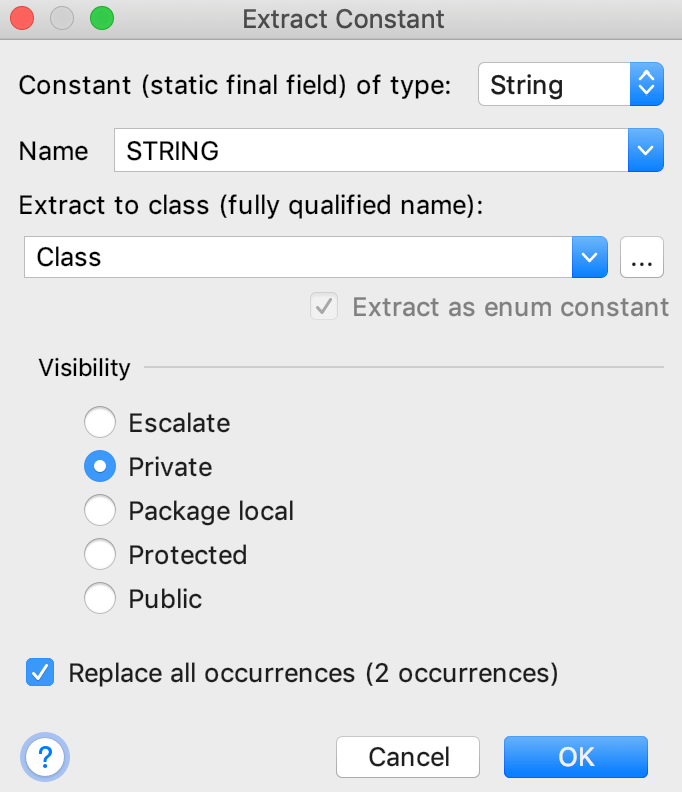
> By default, IntelliJ IDEA uses the in-place refactoring. To use the [Extract Constant](extract-constant-refactoring-dialog.html) dialog for the refactoring, open the Settings dialog (`Ctrl+Alt+S` (Windows), `⌘ Comma` (macOS), `⌘ Comma` (IntelliJ IDEA Classic (macOS)), `⌘ Comma` (macOS System Shortcuts), `Ctrl+Alt+S` (XWin), `Ctrl+Alt+S` (GNOME), `Ctrl+Alt+S` (KDE), `Ctrl+Alt+S` (Emacs), `Ctrl+Alt+S` (Sublime Text), `⌘ Comma` (Sublime Text (macOS)), `Ctrl+Alt+S` (NetBeans), `Ctrl+Alt+S` (Visual Studio), `⌘ Comma` (Visual Studio (macOS)), `Ctrl+Alt+S` (Eclipse), `⌘ Comma` (Eclipse (macOS))), go to Editor | Code Editing, and select the In modal dialogs refactoring option in the Refactorings area.
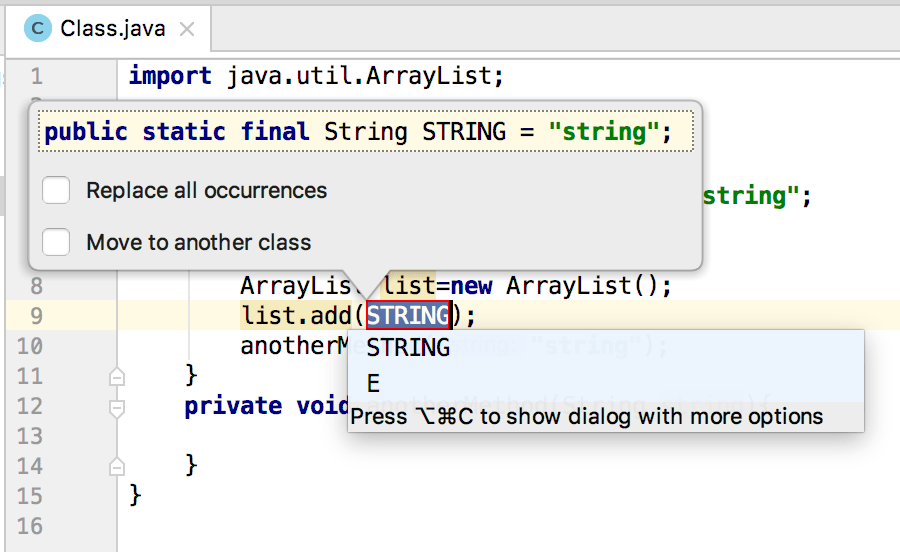
3. Select a name from a list that opens or type your own name and press `Enter` (Windows), `⏎` (macOS), `⏎` (IntelliJ IDEA Classic (macOS)), `⏎` (macOS System Shortcuts), `Enter` (XWin), `Enter` (GNOME), `Enter` (KDE), `Enter` (Emacs), `Enter` (Sublime Text), `⏎` (Sublime Text (macOS)), `Enter` (NetBeans), `Enter` (Visual Studio), `⏎` (Visual Studio (macOS)), `Enter` (Eclipse), `⏎` (Eclipse (macOS)).
Alternatively, press `Ctrl+Alt+C` (Windows), `⌘ ⌥ C` (macOS), `⌘ ⌥ C` (IntelliJ IDEA Classic (macOS)), `⌘ ⌥ C` (macOS System Shortcuts), `Ctrl+Alt+C` (XWin), `Ctrl+Alt+C` (GNOME), `Ctrl+Alt+C` (KDE), `Ctrl+Alt+C` (Emacs), `Ctrl+Alt+C` (Sublime Text), `⌘ ⌥ C` (Sublime Text (macOS)), `Alt+Shift+C` (NetBeans), `Ctrl+Alt+C` (Visual Studio), `⌘ ⌥ C` (Visual Studio (macOS)), `Ctrl+Alt+C` (Eclipse), `Ctrl+Alt+C` (Eclipse (macOS)) twice to open the [Extract Constant](extract-constant-refactoring-dialog.html) dialog where you can specify the additional options for the constant such as making it `private` or `public`, move the constant to another class, and so on.
> **Tip:**
> Use mnemonics to quickly change visibility. For example, press `Alt` (Windows), `Alt` (macOS), `Alt` (IntelliJ IDEA Classic (macOS)), `Alt` (macOS System Shortcuts), `Alt` (XWin), `Alt` (GNOME), `Alt` (KDE), `Alt` (Emacs), `Alt` (Sublime Text), `Alt` (Sublime Text (macOS)), `Alt` (NetBeans), `Alt` (Visual Studio), `Alt` (Visual Studio (macOS)), `Alt` (Eclipse), `Alt` (Eclipse (macOS)) to display mnemonics and then press `V` to change visibility to `private`
## Example
Before:
Let's introduce a constant for the expression `"string"` that occurs twice throughout code.
```JAVA
public class Class {
public void method() {
ArrayList list = new ArrayList();
list.add("string");
anotherMethod("string");
}
private void anotherMethod(String string) {
}
}
```
After:
IntelliJ IDEA extracts the constant and replaces the expression with the constant `STRING`.
```JAVA
public class Class {
private static final String STRING = "string";
public void method() {
ArrayList list = new ArrayList();
list.add(STRING);
anotherMethod(STRING);
}
private void anotherMethod(String string) {
}
}
```
## See also
### External Links