# Testing
Testing ensures that behavior of your code is correct and expected. Good-written tests allow you to develop with confidence that your code will work and will not break your existing code.
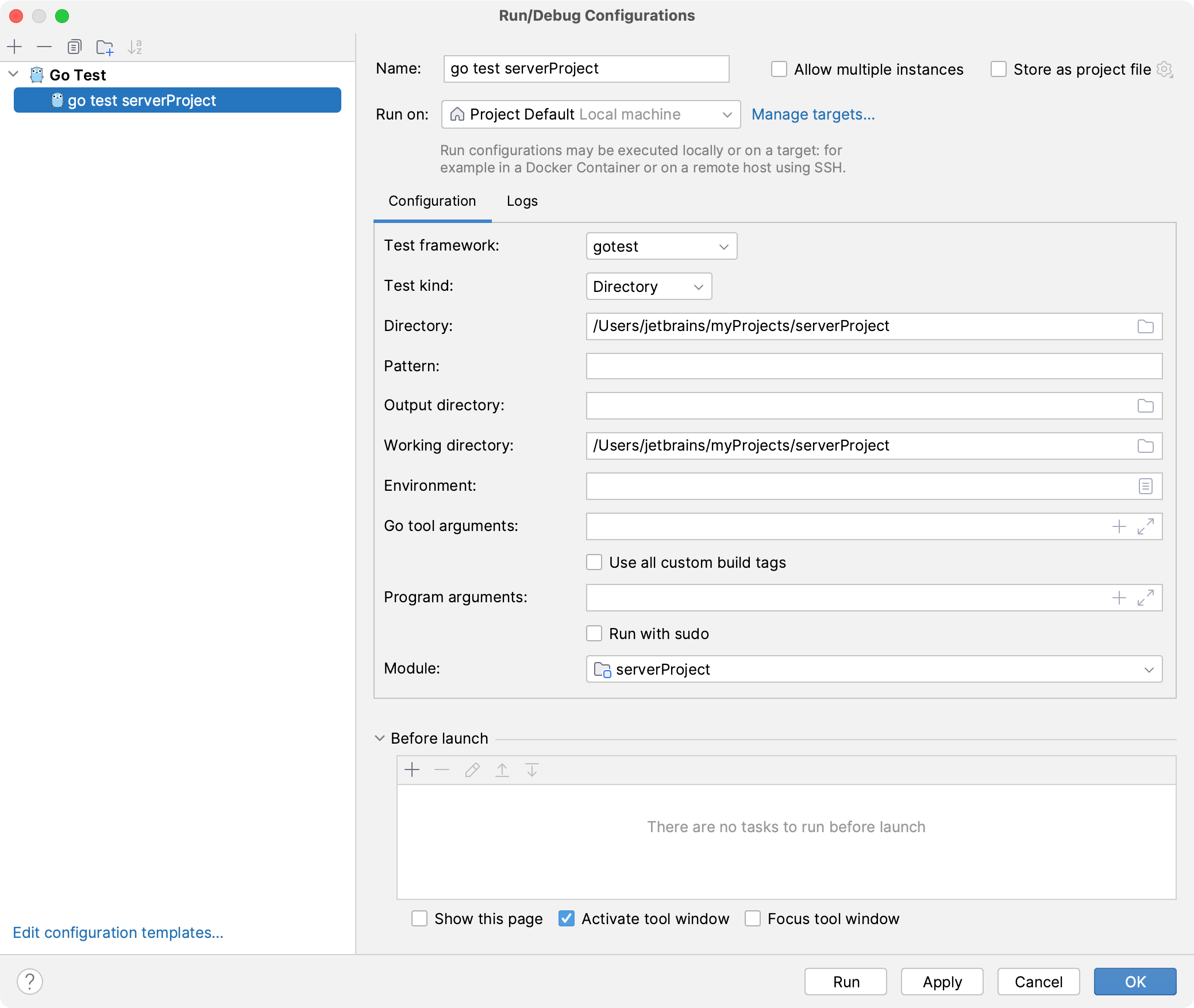
IntelliJ IDEA includes several packages that you can use to run your tests. Also, you can apply a specific testing scope for the selected package.
## Packages for testing
For testing purposes, IntelliJ IDEA includes the following packages:
gotest
: Use for running standard unit tests. For more information about `go test`, refer to [Package testing](https://pkg.go.dev/testing).
gocheck
: Use to have extended functionality of `go check` and running more complex tests. For more information about `go check`, refer to [go check](https://pkg.go.dev/gopkg.in/check.v1).
gobench
: Use for running performance tests. For more information about `gobench`, refer to [Package testing:
: Benchmarks](https://pkg.go.dev/testing#hdr-Benchmarks).
go test -fuzz
: Use for running fuzzing tests. Fuzzing in Go is a technique used to automatically test software by providing it with a large amount of random or unexpected input to uncover vulnerabilities or bugs. For more information about `go test -fuzz`, refer to [Go Fuzzing](https://go.dev/security/fuzz/).
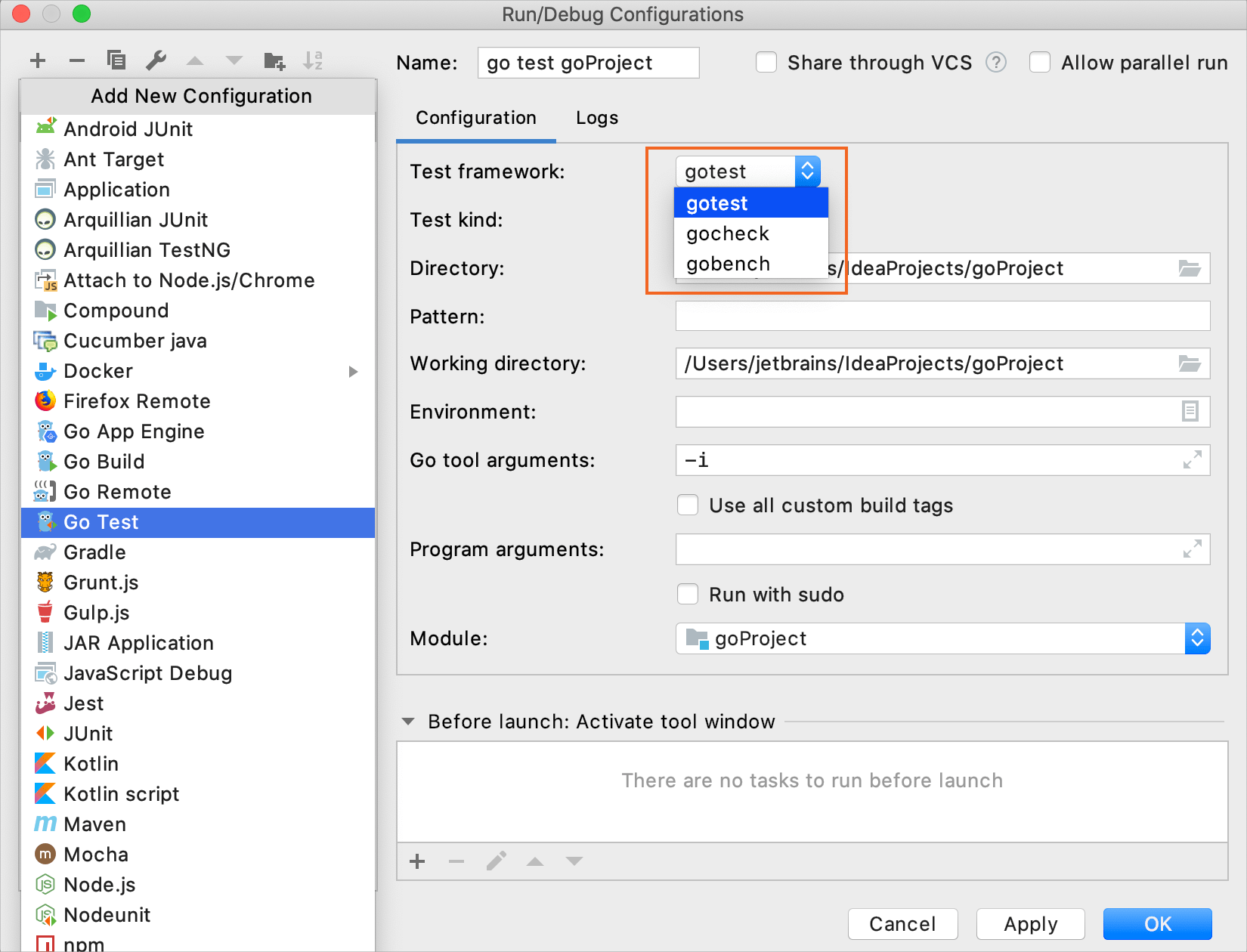
Templates for Go tests work the same way as templates for Go applications (Go Build). But instead of selecting Go Build, you should select Go Test.
Procedure: Run/debug configuration templates for tests
1. Navigate to `Run | Edit Configurations`.
2. In the Run/Debug Configurations dialog, click Add New Configuration `Alt+Insert` (Windows), `⌘ N` (macOS), `⌃ N` (IntelliJ IDEA Classic (macOS)), `⌘ N` (macOS System Shortcuts), `Alt+Insert` (XWin), `Alt+Insert` (GNOME), `Alt+Insert` (KDE), `Alt+Insert` (Emacs), `Ctrl+N` (Sublime Text), `⌘ N` (Sublime Text (macOS)), `Alt+Insert` (NetBeans), `Ctrl+N` (Visual Studio), `⌘ N` (Visual Studio (macOS)), `Alt+Insert` (Eclipse), `⌘ N` (Eclipse (macOS)) and select Go Test.
3. (Optional) Customize settings by modifying [additional fields](run-debug-configuration.html).
4. Click Apply.