# Hard-coded string literals
If your source code contains hard-coded string literals, you can enable the Internationalization code inspections to highlight them. You can then extract those strings into [properties files](properties-files.html) for localization or ignore them if they are not meant to be localized.
Procedure: Enable highlighting of hard-coded string literals
1. Open the Settings dialog `Ctrl+Alt+S` (Windows), `⌘ Comma` (macOS), `⌘ Comma` (IntelliJ IDEA Classic (macOS)), `⌘ Comma` (macOS System Shortcuts), `Ctrl+Alt+S` (XWin), `Ctrl+Alt+S` (GNOME), `Ctrl+Alt+S` (KDE), `Ctrl+Alt+S` (Emacs), `Ctrl+Alt+S` (Sublime Text), `⌘ Comma` (Sublime Text (macOS)), `Ctrl+Alt+S` (NetBeans), `Ctrl+Alt+S` (Visual Studio), `⌘ Comma` (Visual Studio (macOS)), `Ctrl+Alt+S` (Eclipse), `⌘ Comma` (Eclipse (macOS)), expand Editor and click Inspections.
2. Select the desired profile, and under Java, locate the node Internationalization.
3. Enable the Hardcoded strings inspection to highlight hard-coded string literals in the editor.
> **Note:**
> You can configure the severity of this inspection and specify exactly in which cases the hard-coded strings should be recognized. For example, you can opt to skip the content of the `toString()` method, or literals with no alphabetic characters.
4. Apply the changes and close the dialog.
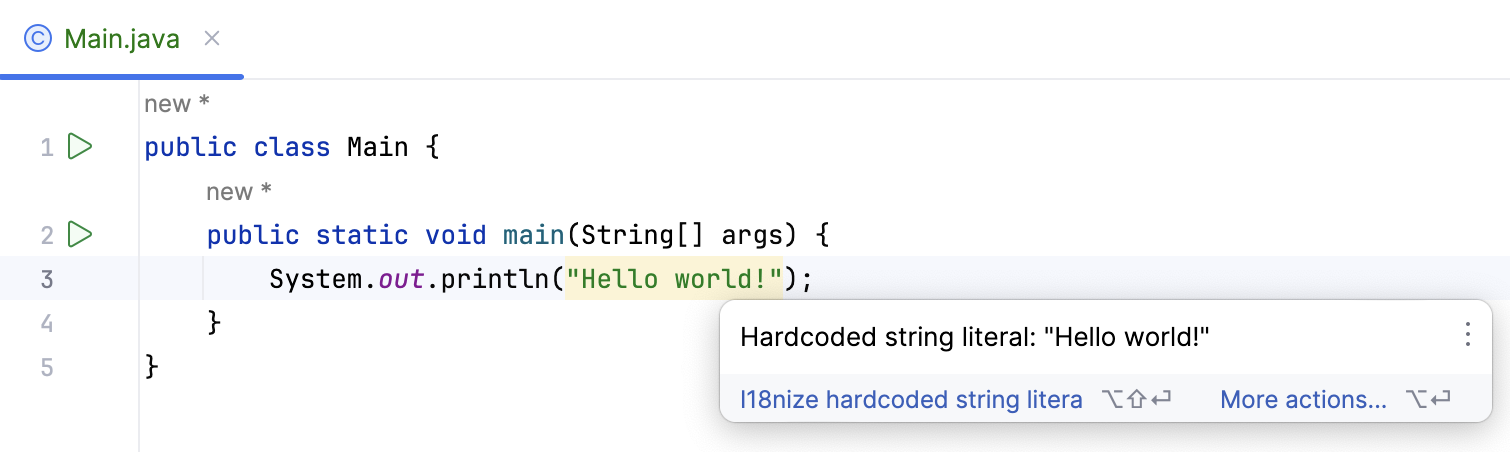
Now the editor will highlight hard-coded string literals, as shown in the screenshot below:
## Internationalize Hardcoded String dialog
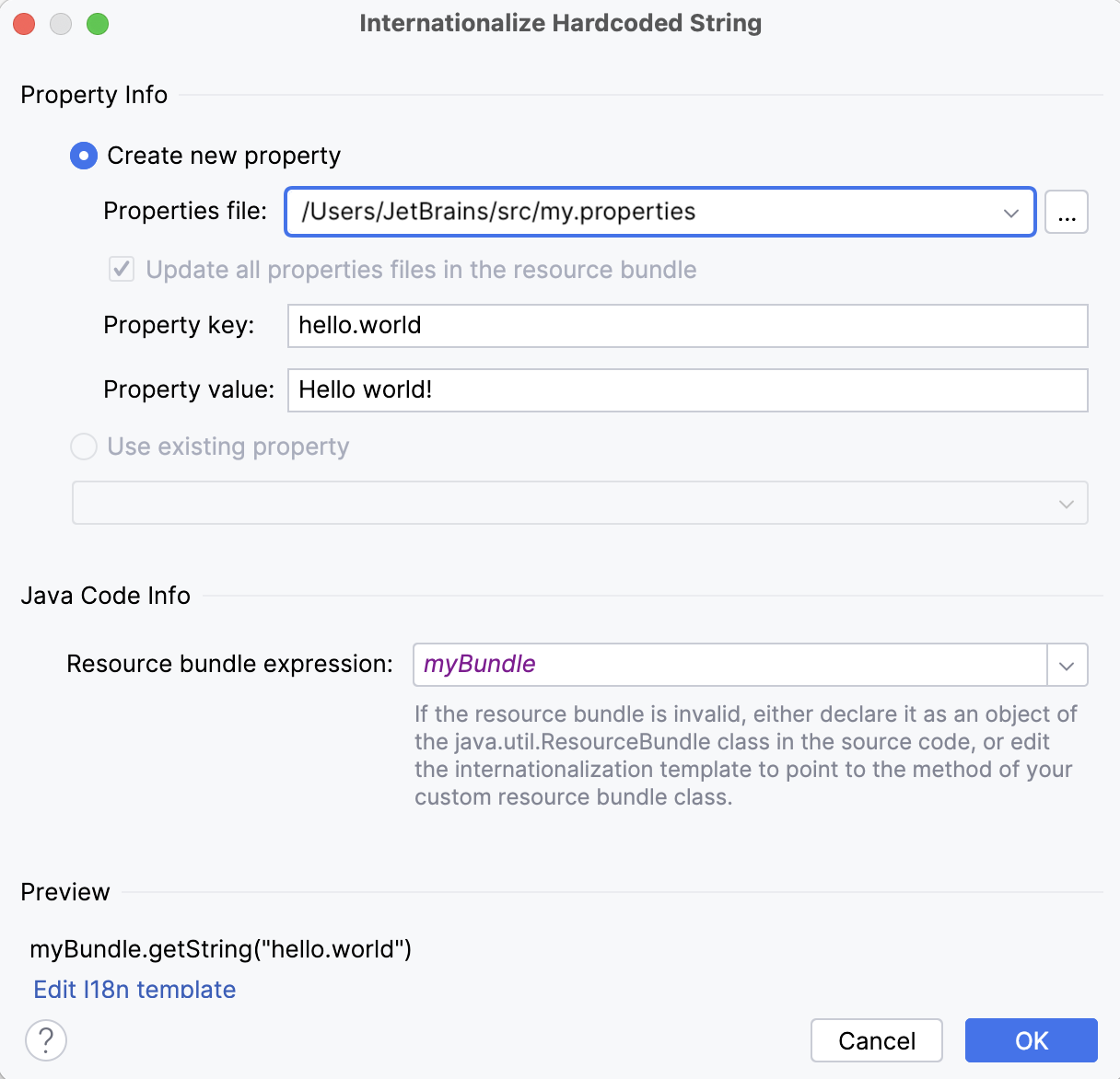
IntelliJ IDEA provides a special intention action i18nize hard coded string literal to extract string literals into your properties files. You can access the resource bundle using either the [java.util.ResourceBundle class](#extract-using-java.util.ResourceBundle) or a custom utility class.
| Item | Description |
| --- | --- |
| Properties file | In this field, specify an existing `.properties` file to store the extracted string literal. Type the path to the file manually or click Browse  to open the Choose Properties File dialog, where you can select the desired location using the project tree view or through a search by name. |
| Update all properties files in resource bundle | Select this checkbox to have all properties files in the target bundle updated. |
| Property key | By default, this field displays the suggested key name, based on the value of the string to be extracted. Keep the default name or type the desired one. |
| Property value | By default, this field displays the value of the string to be extracted. Keep the default value or type the desired one. |
| Resource bundle expression | By default, this field displays a resource bundle expression from the resource bundle declaration in the source code. If the resource bundle is not declared in the source code, the field does not appear. To define the desired expression, do one of the following: * Enter an expression of the ResourceBundle type, as described in the section [Extract a string literal using java.util.ResourceBundle](#extract-using-java.util.ResourceBundle). * Use your own custom utility class. > **Tip:** > Basic code completion `Ctrl+Space` (Windows), `⌃ Space` (macOS), `⌃ Space` (IntelliJ IDEA Classic (macOS)), `⌃ Space` (macOS System Shortcuts), `Ctrl+Space` (XWin), `Ctrl+Space` (GNOME), `Ctrl+Space` (KDE), `Alt+/` (Emacs), `Ctrl+Space` (Sublime Text), `⌃ Space` (Sublime Text (macOS)), `Ctrl+Space` (NetBeans), `Ctrl+Space` (Visual Studio), `⌃ Space` (Visual Studio (macOS)), `Ctrl+Space` (Eclipse), `⌃ Space` (Eclipse (macOS)) is available in this field. |
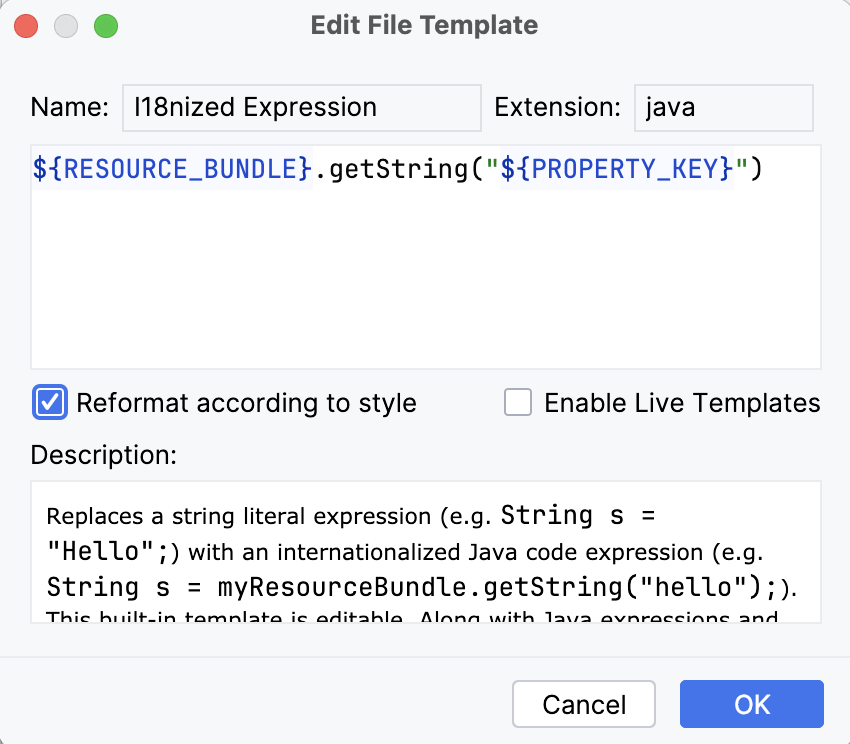
| Edit i18n template | Click this link to open the Edit File Template dialog, where you can change the I18nized Expression template to point to the method of a custom utility class that will be used to access a resource bundle. For more information, refer to [Edit the internationalized expression template](#edit-internationalized-expression-template). A changed file template is a global setting that affects all projects. If you want to restore defaults, open the [File and Code Templates](settings-file-and-code-templates.html) dialog, find the I18nized Expression template in the Code tab, and click the Reset button . |
| Preview | This read-only field displays the results of applying the `I18nize hard-coded string literal` intention action. |
## Extracting hard-coded string literals
Procedure: Extract a string literal using java.util.ResourceBundle
1. First, you must have at least one properties file in your project, for example, `my .properties`.
2. In your source code, specify the resource bundle that will be used to store the extracted literals in the following form:
```JAVA
private static ResourceBundle = ResourceBundle.getBundle("");
```
For example:
```JAVA
private static ResourceBundle myBundle = ResourceBundle.getBundle("awesomeBundle");
```
> **Note:**
> You can skip this step and specify the desired resource bundle expression in the Internationalize Hardcoded String dialog.
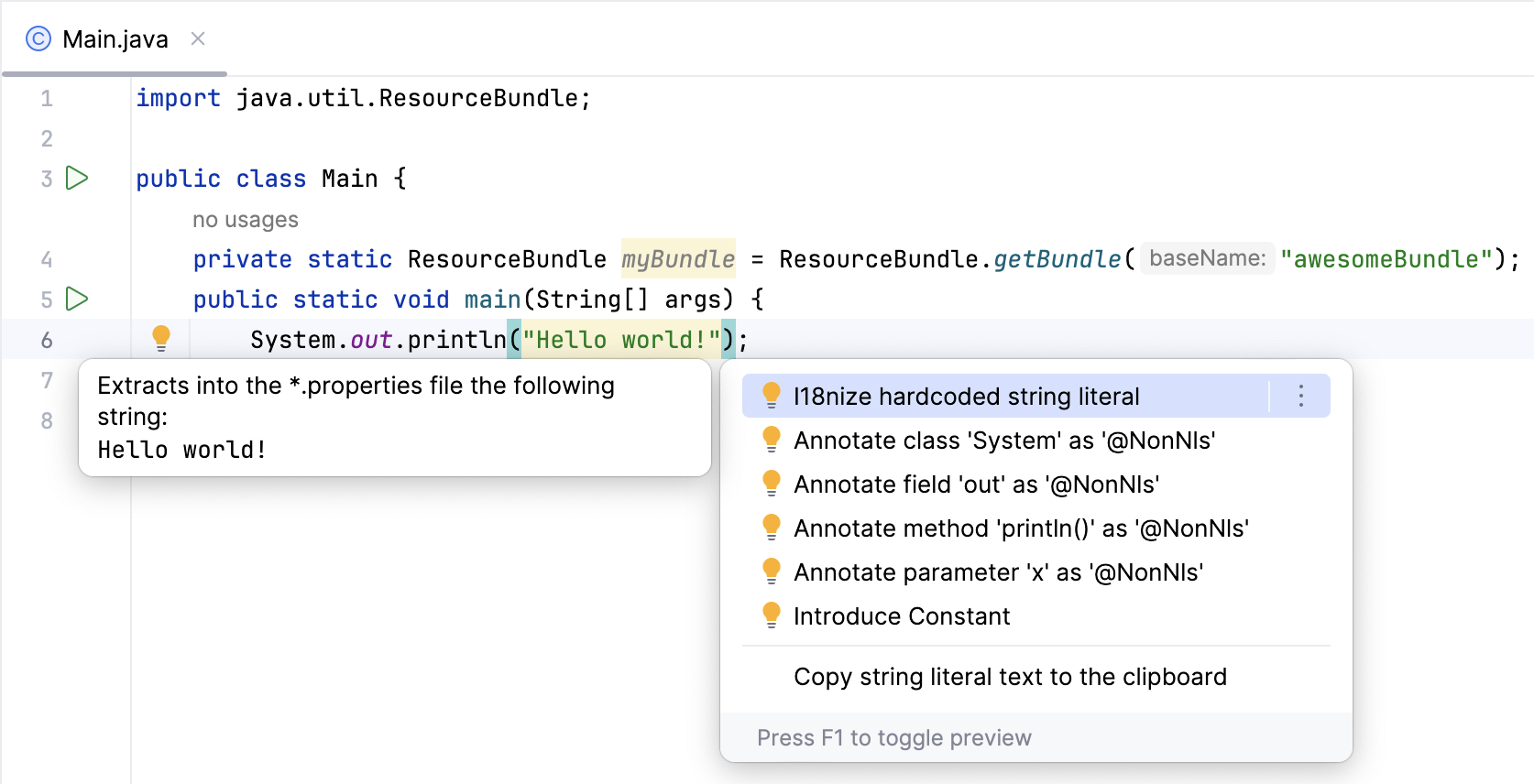
3. Click the highlighted string, press `Alt+Enter` (Windows), `⌥ ⏎` (macOS), `⌥ ⏎` (IntelliJ IDEA Classic (macOS)), `⌥ ⏎` (macOS System Shortcuts), `Alt+Enter` (XWin), `Alt+Enter` (GNOME), `Alt+Enter` (KDE), `Alt+Enter` (Emacs), `Alt+Enter` (Sublime Text), `⌥ ⏎` (Sublime Text (macOS)), `Alt+Enter` (NetBeans), `Alt+Enter` (Visual Studio), `⌥ ⏎` (Visual Studio (macOS)), `Ctrl+1` (Eclipse), `⌘ 1` (Eclipse (macOS)) and select `i18nize hard coded string literal`. In this example, we are using the optional sample code included when you create a new Java project using IntelliJ IDEA.
4. In the [Internationalize
Harcoded String](#internationalize-hardcoded-string-dialog) dialog, specify an existing target properties file, the key and value of the property, and the resource bundle expression.
If the `ResourceBundle` field has been declared in the source code, IntelliJ IDEA suggests its name by default. If you haven't declared this field in the source code, this field won't appear. You must include an expression of the ResourceBundle type in your source code.
> **Tip:**
> You can use [basic code completion](auto-completing-code.html) when specifying the resource bundle expression. Type the class name and press `Ctrl+Space` (Windows), `⌃ Space` (macOS), `⌃ Space` (IntelliJ IDEA Classic (macOS)), `⌃ Space` (macOS System Shortcuts), `Ctrl+Space` (XWin), `Ctrl+Space` (GNOME), `Ctrl+Space` (KDE), `Alt+/` (Emacs), `Ctrl+Space` (Sublime Text), `⌃ Space` (Sublime Text (macOS)), `Ctrl+Space` (NetBeans), `Ctrl+Space` (Visual Studio), `⌃ Space` (Visual Studio (macOS)), `Ctrl+Space` (Eclipse), `⌃ Space` (Eclipse (macOS)) after the period to select a method.
5. Click OK. The line with the hard-coded string literal is replaced.
* If the resource bundle has been declared in the source code: ```JAVA System.out.println(myBundle.getString("hello.world")); ```
* If the resource bundle has been defined in the dialog: ```JAVA System.out.println(ResourceBundle.getBundle("awesomeBundle").getString("hello.world")); ```
Procedure: Edit the internationalized expression template
If you want to access a resource bundle using a custom utility class, you may define the I18nized Expression template either via your settings or the [Internationalize
Harcoded String](#internationalize-hardcoded-string-dialog) dialog to point to the method of your custom utility class.
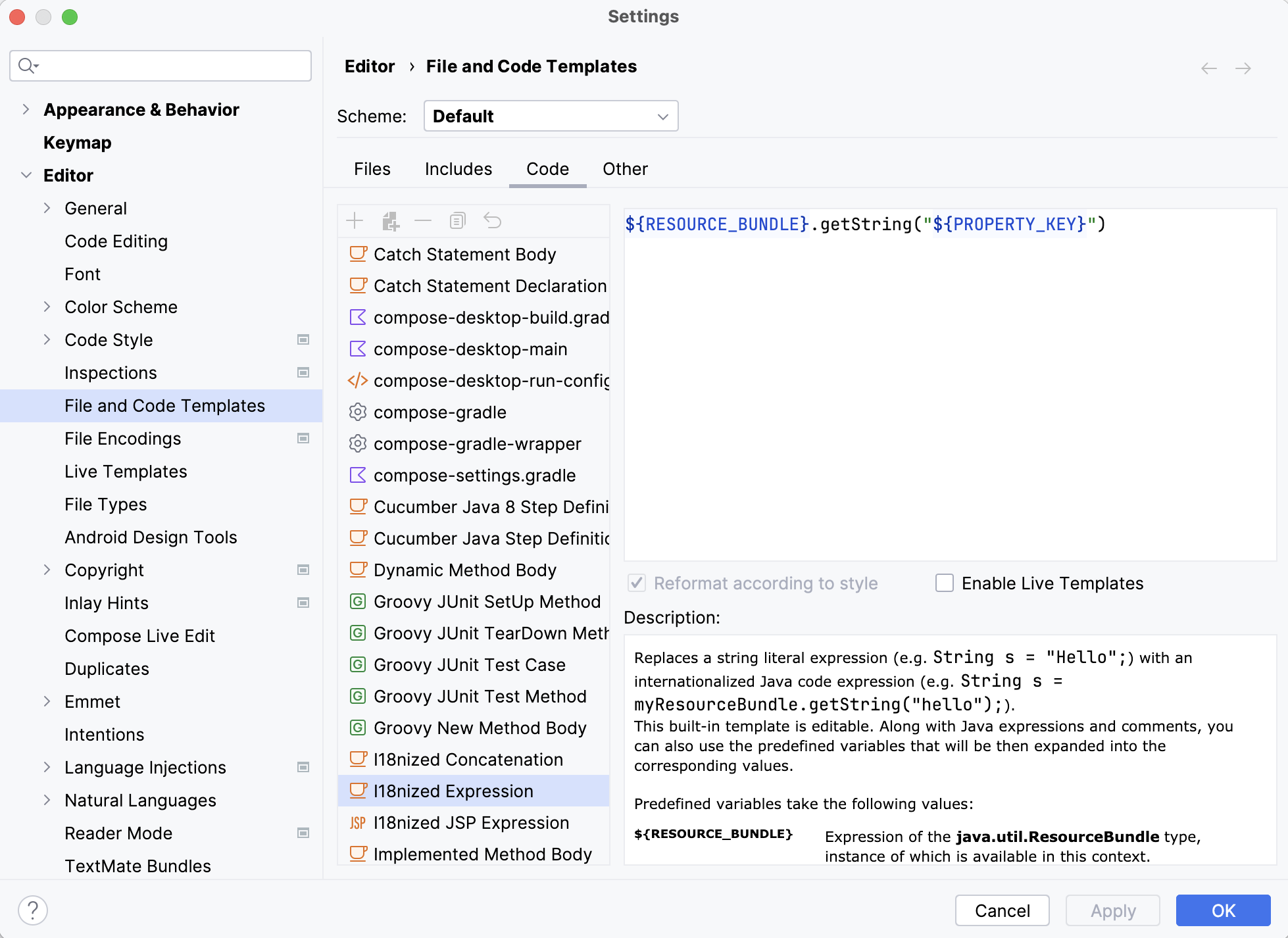
* Open the Settings dialog `Ctrl+Alt+S` (Windows), `⌘ Comma` (macOS), `⌘ Comma` (IntelliJ IDEA Classic (macOS)), `⌘ Comma` (macOS System Shortcuts), `Ctrl+Alt+S` (XWin), `Ctrl+Alt+S` (GNOME), `Ctrl+Alt+S` (KDE), `Ctrl+Alt+S` (Emacs), `Ctrl+Alt+S` (Sublime Text), `⌘ Comma` (Sublime Text (macOS)), `Ctrl+Alt+S` (NetBeans), `Ctrl+Alt+S` (Visual Studio), `⌘ Comma` (Visual Studio (macOS)), `Ctrl+Alt+S` (Eclipse), `⌘ Comma` (Eclipse (macOS)), then go to `Editor | File and Code Templates | Code | I18ized Expression`. Here you can edit the template.
* In the [Internationalize
Harcoded String](#internationalize-hardcoded-string-dialog) dialog, select Edit i18n template. In the File Templates dialog, change the I18nized Expression to point to the method of your custom utility class.
> **Warning:**
> This change is global and affects all projects!
## Ignoring hard-coded string literals
If you want to ignore a hard-coded string literal, use the Not requiring internationalization annotation.
Procedure:
1. Press `Alt+Enter` (Windows), `⌥ ⏎` (macOS), `⌥ ⏎` (IntelliJ IDEA Classic (macOS)), `⌥ ⏎` (macOS System Shortcuts), `Alt+Enter` (XWin), `Alt+Enter` (GNOME), `Alt+Enter` (KDE), `Alt+Enter` (Emacs), `Alt+Enter` (Sublime Text), `⌥ ⏎` (Sublime Text (macOS)), `Alt+Enter` (NetBeans), `Alt+Enter` (Visual Studio), `⌥ ⏎` (Visual Studio (macOS)), `Ctrl+1` (Eclipse), `⌘ 1` (Eclipse (macOS)) to show the intention actions for the string literal.
2. Select Annotate field 'out' as '@NonNls' from the list of actions.
3. Specify the location where you would like to store the `annotations.xml` file.