# Hibernate
> **TL;DR**
> Required plugins: [Jakarta EE: Persistence (JPA)](https://plugins.jetbrains.com/plugin/20202) and [Hibernate](https://plugins.jetbrains.com/plugin/20214) (both bundled)
[Hibernate](http://hibernate.org/) is an object-relational mapping framework that implements the [Jakarta Persistence (JPA)](jakarta-persistence-jpa.html) specification.
IntelliJ IDEA provides the following:
* Coding assistance specific to Hibernate.
* A dedicated facet for managing the Hibernate configuration `hibernate.cfg.xml`.
* Additions to the [Persistence](persistence-tool-window.html) tool window for managing your Hibernate items, creating configuration files and persistent classes, navigating to related source code in the editor, opening diagrams and consoles, and more.
* Entity-relationship (ER) diagrams that you can access from the [Persistence](persistence-tool-window.html) tool window.
* An ability to generate managed entity classes and object-relational mappings for them by importing a database schema or an EJB deployment descriptor file `ejb-jar.xml`.
* The [Hibernate console](working-with-the-hibernate-console.html) for writing and running HQL queries, and analyzing the query results.
Procedure: Create a new Jakarta EE project with Hibernate
1. Open the New Project wizard:
* If you are on the Welcome screen, click New Project.
* If you are in the IDE, go to `File | New | Project`.
2. From the Generators list, select Jakarta EE.
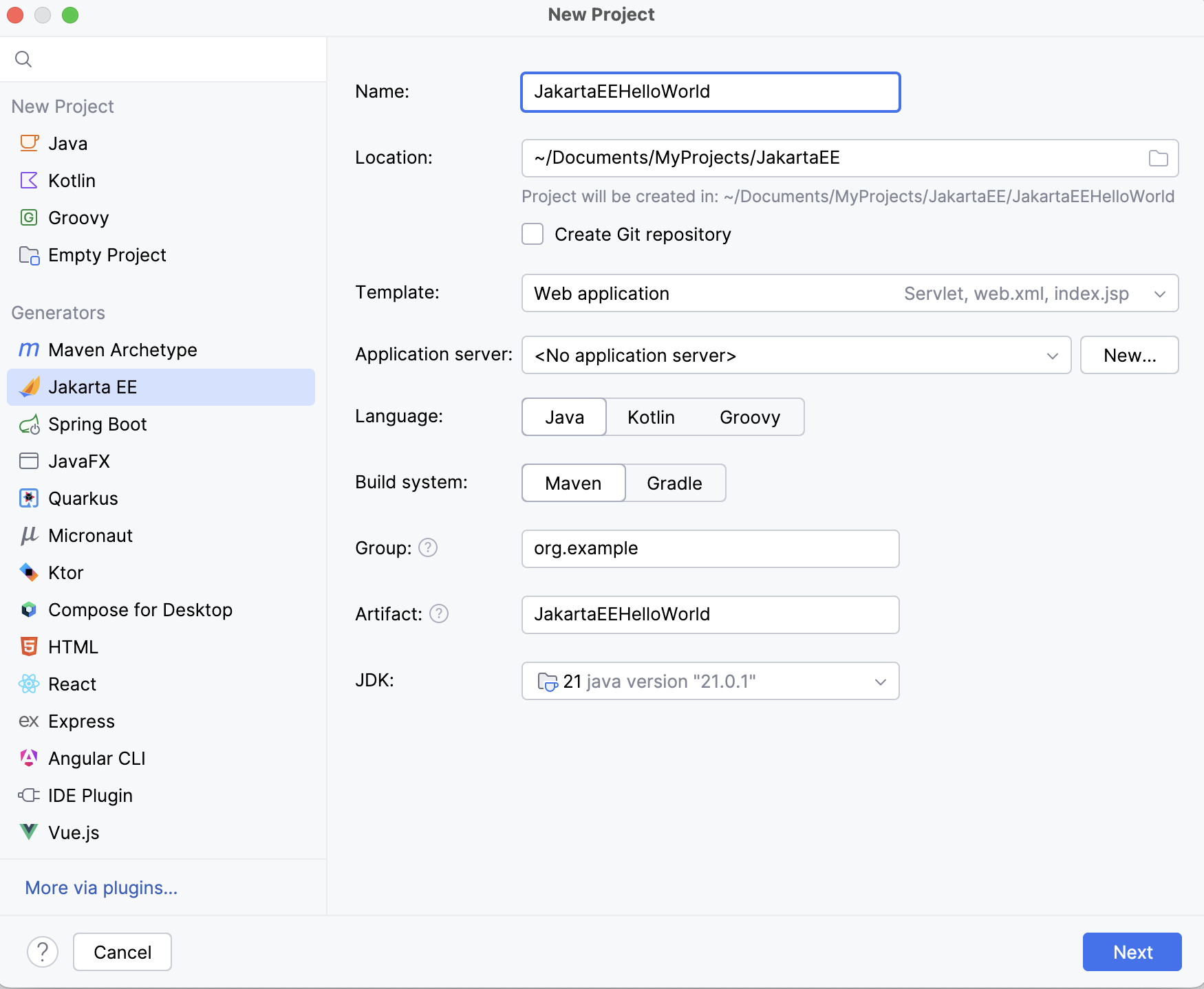
3. Set up the [Jakarta EE project settings](new-project-wizard.html#java-ee).
4. Go to the next step of the wizard. In the upper-left corner, select the Jakarta EE version you want to use.
5. From the Dependencies list, select the Persistence (JPA) specification and Hibernate as the implementation.
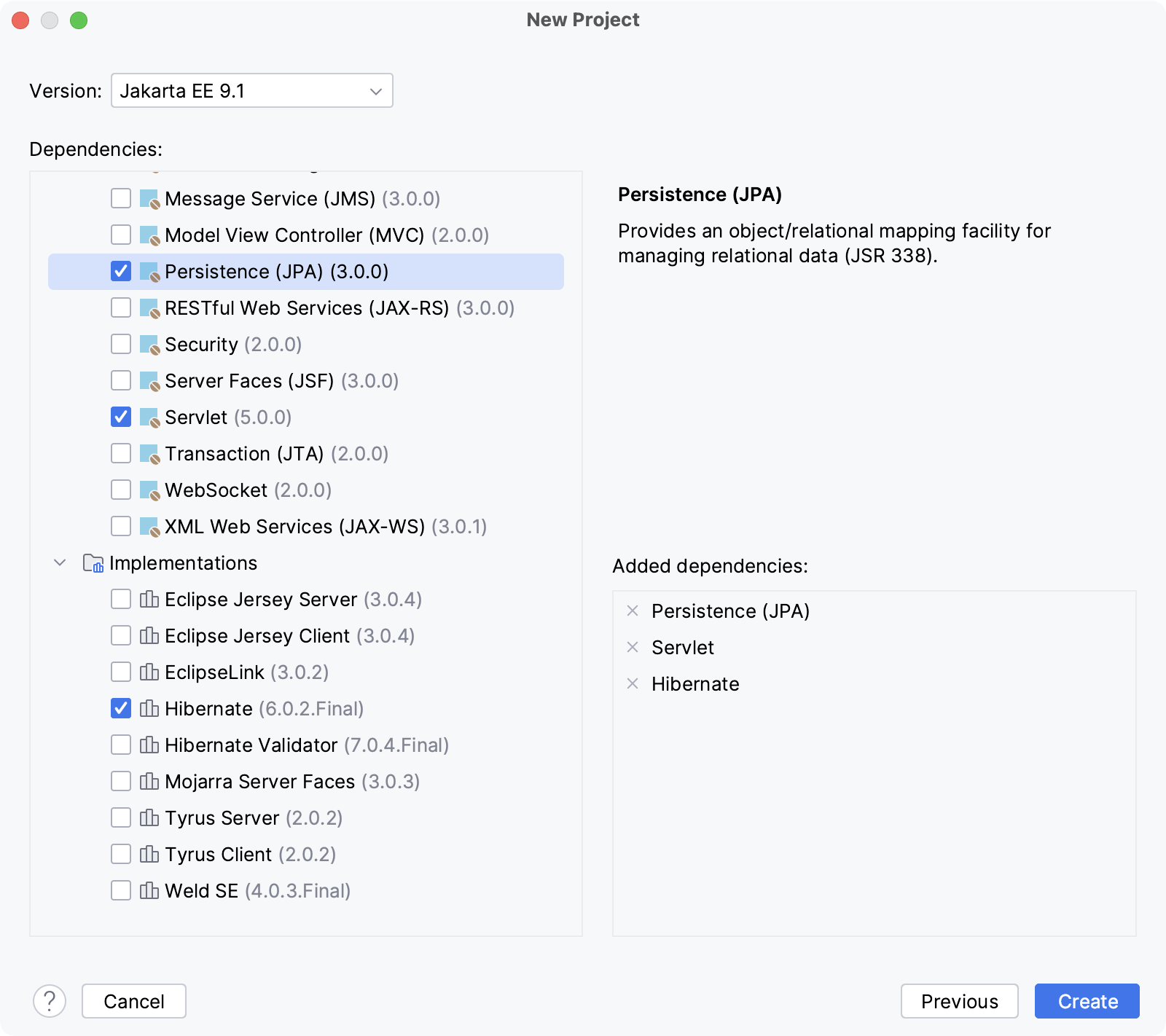
6. Click Create.
For more information about creating Jakarta EE projects, such as how to set up an application server, refer to [Tutorial: Your first Jakarta EE application](creating-and-running-your-first-jakarta-ee-application.html).
IntelliJ IDEA creates the default project structure with the JPA [facet](adding-support-for-frameworks-and-technologies.html) and all the necessary libraries as external dependencies, such as `javax.persistence` for the JPA specification and `org.hibernate` for the Hibernate framework. If you specified an [application server](application-servers-support.html), IntelliJ IDEA will also create a run configuration to start the server, build and deploy the artifact.
Procedure: Add Hibernate to an existing project
1. Open the build file in the editor (`pom.xml` or `build.gradle` depending on the [build tool](build-tools.html) used in your project).
2. Add the Hibernate library, and make sure its version matches the rest of your project:
Maven:
```XML
org.hibernate.orm
hibernate-core
7.4.5.Final
```
Gradle (Groovy):
```GROOVY
implementation 'org.hibernate.orm:hibernate-core:7.4.5.Final'
```
Gradle (Kotlin):
```KOTLIN
implementation("org.hibernate.orm:hibernate-core:7.4.5.Final")
```
> **Note:**
> Hibernate may require additional dependencies. Refer to the [official documentation](https://docs.hibernate.org/orm/7.4/repositories/html_single/#configuration-integration) for guidance.
3. Press `Ctrl+Shift+O` (Windows), `Ctrl+Shift+O` (macOS), `Ctrl+Shift+O` (IntelliJ IDEA Classic (macOS)), `Ctrl+Shift+O` (macOS System Shortcuts), `Ctrl+Shift+O` (XWin), `Ctrl+Shift+O` (GNOME), `Ctrl+Shift+O` (KDE), `Ctrl+Shift+O` (Emacs), `Ctrl+Shift+O` (Sublime Text), `Ctrl+Shift+O` (Sublime Text (macOS)), `Ctrl+Shift+O` (NetBeans), `Ctrl+Shift+O` (Visual Studio), `Ctrl+Shift+O` (Visual Studio (macOS)), `Ctrl+Shift+O` (Eclipse), `Ctrl+Shift+O` (Eclipse (macOS)) to import the changes.
For more information about working with build tools, refer to [Maven](maven-support.html) or [Gradle](gradle.html).