# Groovy Interactive Console
> **TL;DR**
> Required plugin: Groovy (bundled)
You can open an interactive Groovy console in any project, including a Java one, and use the console as a temporary file to write and evaluate your code.
If dependencies in your project contain a Groovy library, then the specified Groovy library is used to launch the Groovy console. If the dependencies do not contain a Groovy library, then the bundled Groovy library will be used.
> **Note:**
> The Groovy console becomes available if there is a Groovy library dependency in your project. So, ensure that your existing project has one or create a [new Groovy project](getting-started-with-groovy.html#create_groovy_project).
Procedure:
1. In the main menu, go to `Tools | Groovy Console`.
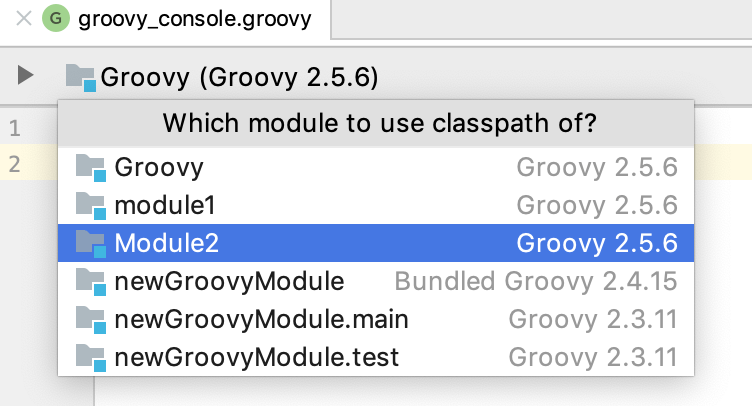
2. If you have more than one module in your project, click the project's name on the console toolbar and select a module from the list to change a classpath for the console.
The Groovy console starts in a separate tab in the editor.
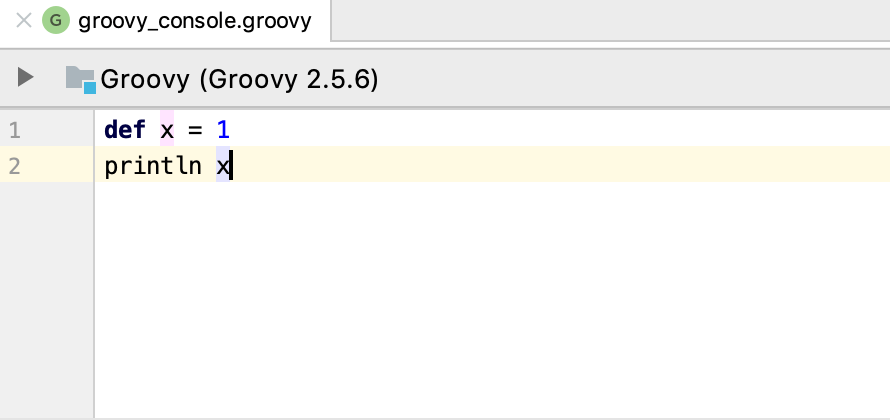
Procedure: Perform different actions inside the Groovy console
* You can enter code, the coding assistance is available as you type, or paste code from a different file. Press `Ctrl+Enter` (Windows), `⌘ ⏎` (macOS), `⌘ ⏎` (IntelliJ IDEA Classic (macOS)), `⌘ ⏎` (macOS System Shortcuts), `Ctrl+Enter` (XWin), `Ctrl+Enter` (GNOME), `Ctrl+Enter` (KDE), `Ctrl+Enter` (Emacs), `Ctrl+Enter` (Sublime Text), `⌘ ⏎` (Sublime Text (macOS)), `Ctrl+Enter` (NetBeans), `Ctrl+Enter` (Visual Studio), `⌘ ⏎` (Visual Studio (macOS)), `Ctrl+Enter` (Eclipse), `⌘ ⏎` (Eclipse (macOS)) or click  to execute code and view the results in the Run tool window.
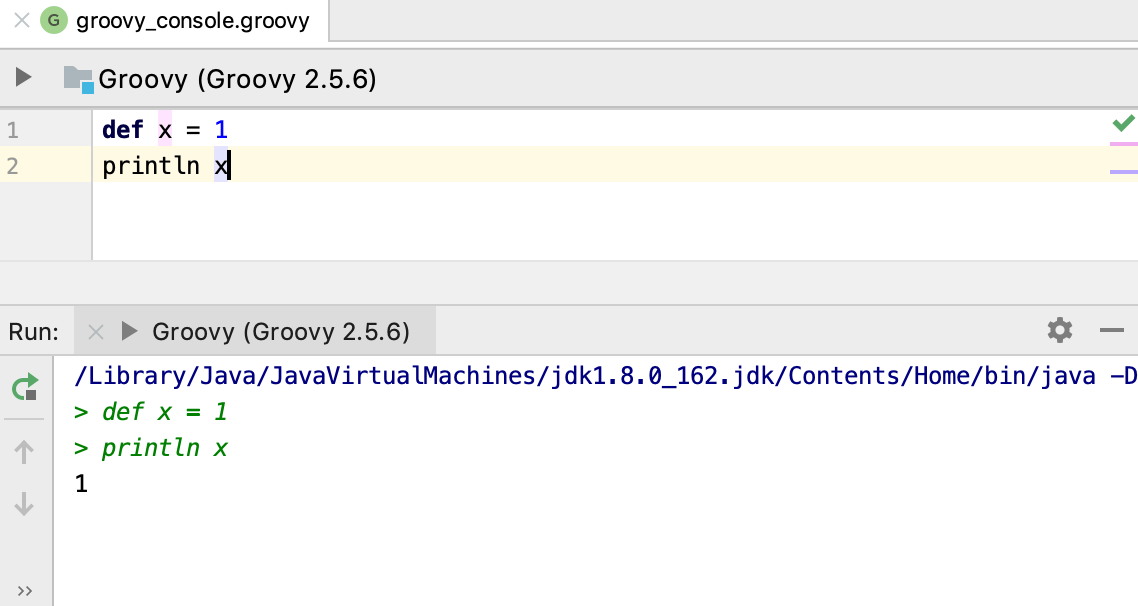
* You can refer to a class from the Groovy console. Type the name of the class you need, select it and press `Ctrl+B` (Windows), `⌘ B` (macOS), `⌘ B` (IntelliJ IDEA Classic (macOS)), `⌘ B` (macOS System Shortcuts), `Ctrl+B` (XWin), `Ctrl+B` (GNOME), `Ctrl+B` (KDE), `Ctrl+Alt+G` (Emacs), `F12` (Sublime Text), `F12` (Sublime Text (macOS)), `Ctrl+B` (NetBeans), `F12` (Visual Studio), `F12` (Visual Studio (macOS)), `F3` (Eclipse), `F3` (Eclipse (macOS)) to jump to its declaration.

* If you have an import statement in your code, you can run a partial selection of code omitting the import statement. The Groovy console will include the omitted part during the execution.

## See also
### Concepts
[General](settings-editor-general.html)
### Reference
[Interactive Groovy console](interactive-groovy-console.html)