# Group changes into changelists
A changelist is a set of local changes that have not yet been committed to a Git repository.
With changelists, you can group changes related to different tasks and commit these sets of changes independently. For more information, refer to [Commit changes locally](commit-and-push-changes.html#commit).
> **Tip:**
> Changelists are just one of the ways to [work on several features simultaneously](manage-branches.html).
Changelists are displayed in the Commit window of the Commit tool window (`Alt+0` (Windows), `⌘ 0` (macOS), `⌘ 0` (IntelliJ IDEA Classic (macOS)), `⌘ 0` (macOS System Shortcuts), `Alt+0` (XWin), `Alt+0` (GNOME), `Alt+0` (KDE), `Alt+0` (Emacs), `Alt+0` (Sublime Text), `⌘ 0` (Sublime Text (macOS)), `Alt+0` (NetBeans), `Alt+0` (Visual Studio), `Alt+0` (Visual Studio (macOS)), `Alt+0` (Eclipse), `⌘ 0` (Eclipse (macOS)) ) . Initially, there is a single default changelist called Changes. All new changes are automatically placed in the Changes changelist. There is also an Unversioned Files changelist that groups newly created files that haven't been [added to Git](adding-files-to-version-control.html#add-files-to-vcs) yet.
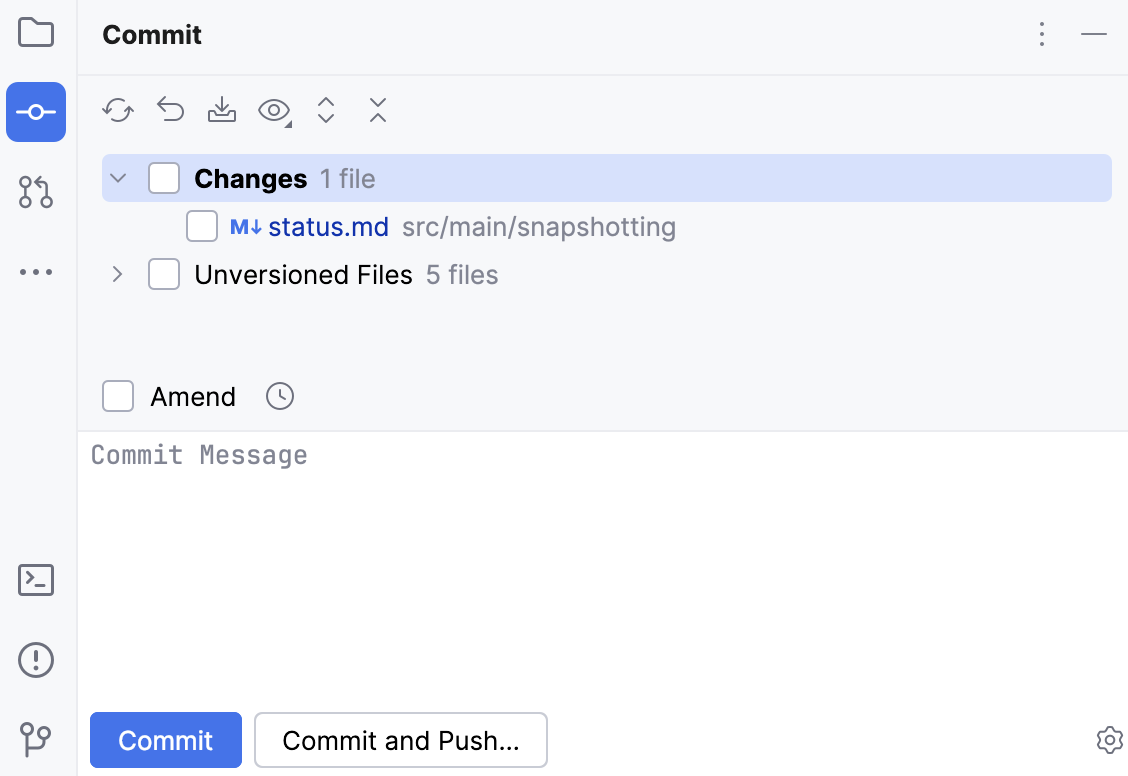
You can [create as many changelists](#new_changelist) as needed and [make any of them active](#active-changelist) at any moment. You can [move](#move-between-changelists) any uncommitted changes to any changelist.
Procedure: Create a new changelist
1. In the Changes view, right-click a file to open the context menu and select  New Changelist.
2. In the New Changelist dialog, specify the name of the new changelist and add a description (optional).
Procedure: Set the active changelist
* In the Changes view, select a non-active changelist and press `Ctrl+Space` (Windows), `⌃ Space` (macOS), `⌃ Space` (IntelliJ IDEA Classic (macOS)), `⌃ Space` (macOS System Shortcuts), `Ctrl+Space` (XWin), `Ctrl+Space` (GNOME), `Ctrl+Space` (KDE), `Ctrl+Space` (Emacs), `Ctrl+Space` (Sublime Text), `⌃ Space` (Sublime Text (macOS)), `Ctrl+Space` (NetBeans), `Ctrl+Space` (Visual Studio), `⌃ Space` (Visual Studio (macOS)), `Ctrl+Space` (Eclipse), `⌃ Space` (Eclipse (macOS)) or right-click it and choose Set Active Changelist from the context menu. All new changes will be automatically placed in this changelist.
Procedure: Move changes between changelists
1. In the Changes view, select the changes that you want to move to another changelist.
2. Right-click the selection and choose Move to Another Changelist `Alt+Shift+M` (Windows), `⌘ ⇧ M` (macOS), `Alt+Shift+M` (IntelliJ IDEA Classic (macOS)), `⌘ ⌃ M` (macOS System Shortcuts), `Alt+Shift+M` (XWin), `Alt+Shift+M` (GNOME), `Alt+Shift+M` (KDE), `Alt+Shift+M` (Emacs), `Alt+Shift+M` (Sublime Text), `⌘ ⇧ M` (Sublime Text (macOS)), `Alt+Shift+M` (NetBeans), `Alt+Shift+M` (Visual Studio), `⌘ ⇧ M` (Visual Studio (macOS)), `Alt+Shift+M` (Eclipse), `⌘ ⇧ M` (Eclipse (macOS)).
3. In the dialog that opens, select an existing changelist or enter the name for a new changelist.
Type an optional comment. When the new changelist is submitted to the repository, this comment will appear in the Comment text area of the [Commit Changes](commit-and-push-changes.html#commit) dialog.
4. Select the Set active checkbox to set the active status for the new changelist right after the changes are restored in it.
When this checkbox is cleared, the current active changelist remains active.
5. Select the Track context checkbox to have IntelliJ IDEA preserve the context of the task associated with the new changelist on its deactivation and restore the context when the changelist becomes active.
For more information, refer to [Manage tasks](managing-tasks-and-context.html).
> **Tip:**
> You can also drag files between changelists.
> **Note:**
> For more information about placing changes within one file into different changelists in Git, refer to [Put changes into
> different changelists](commit-and-push-changes.html#put_changes_into_different_changelists).
Procedure: Delete a changelist
* Right-click a changelist and choose Delete Changelist from the context menu.
## See also
### Reference
[Version Control window](version-control-tool-window.html)