<html><head><link rel="canonical" href="https://www.jetbrains.com/help/idea/npm-tool-window.html.md/" data-react-helmet="true"/></head><body># NPM tool window

&gt; **TL;DR**
&gt; `Context menu of a package.json |  Show npm Scripts`
&gt;
&gt;
&gt;
&gt; `View | Tool Windows | npm`

Use the tool window to [run npm, pnpm, or Yarn scripts](installing-and-removing-external-software-using-node-package-manager.html).

## Before you start

Procedure:

1. Download and install [Node.js](http://nodejs.org/#download).  Note that npm is also installed so if you are going to use it, you are through with the preliminary steps.

2. To use Yarn, install it as described on the [Yarn official website](https://yarnpkg.com/en/docs/install).

## Running scripts

&gt; **Tip:**
&gt; * When you build a tree of tasks for the first time during an IntelliJ&nbsp;IDEA session, the npm tool window is not opened yet.
&gt;
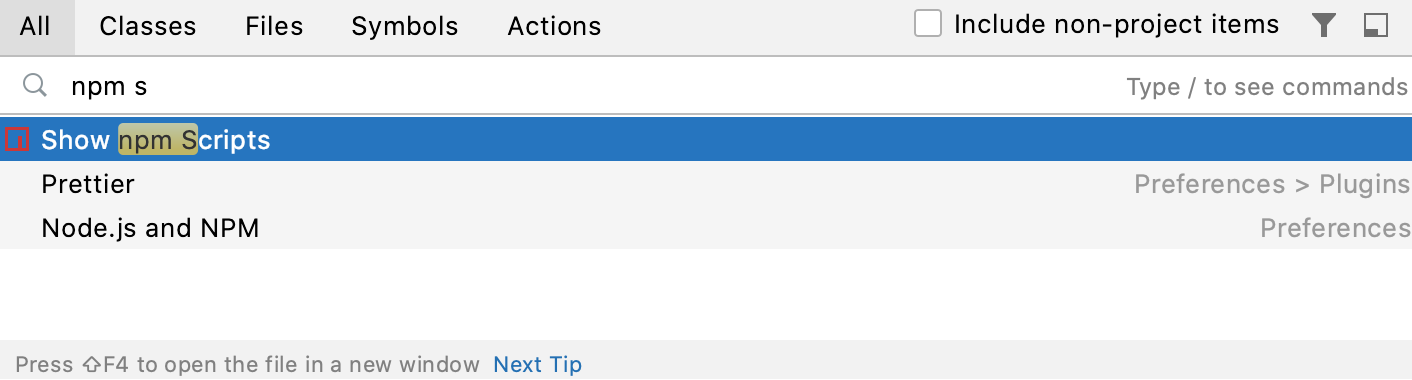
&gt; * If you already opened the npm tool window, you can access it with [Search everywhere](searching-everywhere.html). Press `Shift` (Windows), `Shift` (macOS), `Shift` (IntelliJ IDEA Classic (macOS)), `Shift` (macOS System Shortcuts), `Shift` (XWin), `Shift` (GNOME), `Shift` (KDE), `Shift` (Emacs), `Shift` (Sublime Text), `Shift` (Sublime Text (macOS)), `Shift` (NetBeans), `Shift` (Visual Studio), `Shift` (Visual Studio (macOS)), `Shift` (Eclipse), `Shift` (Eclipse (macOS)) twice to open the search window, start typing your query, for example, `npm scripts`, and select Show npm scripts from the list. ![Open the npm tool window with Search Everywhere](https://resources.jetbrains.com/help/img/idea/2026.2/ws_open_npm_tw_search_everywhere.png) Alternatively, select `View | Tool Windows | npm` from the main menu.
The npm tool window opens when you select a `package.json` file in the    Project tool window   (`Alt+1` (Windows), `⌘ 1` (macOS), `⌘ 1` (IntelliJ IDEA Classic (macOS)), `⌘ 1` (macOS System Shortcuts), `Alt+1` (XWin), `Alt+1` (GNOME), `Alt+1` (KDE), `Alt+1` (Emacs), `Alt+1` (Sublime Text), `⌘ 1` (Sublime Text (macOS)), `Ctrl+1` (NetBeans), `Ctrl+Alt+L` (Visual Studio), `⌘ ⌥ L` (Visual Studio (macOS)), `Alt+1` (Eclipse), `Alt+1` (Eclipse (macOS)))  or open it in the editor and select Show npm Scripts from the context menu.

As soon as you invoke npm, pnpm, or Yarn, the tool starts building a tree of scripts defined within the `scripts` property  of the `package.json` file on which it was invoked.

If you have several `package.json` files in your project, you can build a separate script tree for each of them and run scripts without dropping the previously built trees. Each tree is shown under a separate node.

The tool window shows the script output, reports the errors occurred, lists the packages or plugins that have not been found, etc. The name of the last executed script is displayed on the title bar of the tool window.

Procedure: To build a tree of scripts, do one of the following:

* Select the required `package.json` file in the    Project tool window   (`Alt+1` (Windows), `⌘ 1` (macOS), `⌘ 1` (IntelliJ IDEA Classic (macOS)), `⌘ 1` (macOS System Shortcuts), `Alt+1` (XWin), `Alt+1` (GNOME), `Alt+1` (KDE), `Alt+1` (Emacs), `Alt+1` (Sublime Text), `⌘ 1` (Sublime Text (macOS)), `Ctrl+1` (NetBeans), `Ctrl+Alt+L` (Visual Studio), `⌘ ⌥ L` (Visual Studio (macOS)), `Alt+1` (Eclipse), `Alt+1` (Eclipse (macOS)))  or open it in the editor and choose Show npm Scripts from the context menu.

* In the npm tool window, click ![the Add button](https://resources.jetbrains.com/help/img/idea/2026.2/app.expui.general.add.svg) on the toolbar and choose the required `package.json` file from the list. By default, IntelliJ&nbsp;IDEA shows the `package.json` file in the root of your project. If you have another `package.json` file, click Choose package.json and select the `package.json` file you need in the dialog that opens. IntelliJ&nbsp;IDEA adds a new node with the path to the chosen `package.json` file on  its title and builds a scripts tree under the new node.

Procedure: To re-build a tree

* Switch to the required node and click ![Reload Scripts](https://resources.jetbrains.com/help/img/idea/2026.2/app.actions.refresh.svg) on the toolbar.

Procedure: To sort the scripts in a tree by their names

* Click ![Settings](https://resources.jetbrains.com/help/img/idea/2026.2/app.general.gear.svg) on the toolbar, choose Sort by from the menu, and then choose Name.

By default, a tree shows the scripts in the order in which they are defined in `package.json` (option Definition order).

Procedure: Run one script

1. Double-click the script.

2. Select the script in the tree and press `Enter` (Windows), `⏎` (macOS), `⏎` (IntelliJ IDEA Classic (macOS)), `⏎` (macOS System Shortcuts), `Enter` (XWin), `Enter` (GNOME), `Enter` (KDE), `Enter` (Emacs), `Enter` (Sublime Text), `⏎` (Sublime Text (macOS)), `Enter` (NetBeans), `Enter` (Visual Studio), `⏎` (Visual Studio (macOS)), `Enter` (Eclipse), `⏎` (Eclipse (macOS)) or choose Run <script name> from the context menu.

Procedure: Run several scripts

* Use the multiselect mode: hold `Shift` (Windows), `Shift` (macOS), `Shift` (IntelliJ IDEA Classic (macOS)), `Shift` (macOS System Shortcuts), `Shift` (XWin), `Shift` (GNOME), `Shift` (KDE), `Shift` (Emacs), `Shift` (Sublime Text), `Shift` (Sublime Text (macOS)), `Shift` (NetBeans), `Shift` (Visual Studio), `Shift` (Visual Studio (macOS)), `Shift` (Eclipse), `Shift` (Eclipse (macOS)) (for adjacent items) or `Ctrl` (Windows), `Ctrl` (macOS), `Ctrl` (IntelliJ IDEA Classic (macOS)), `Ctrl` (macOS System Shortcuts), `Ctrl` (XWin), `Ctrl` (GNOME), `Ctrl` (KDE), `Ctrl` (Emacs), `Ctrl` (Sublime Text), `Ctrl` (Sublime Text (macOS)), `Ctrl` (NetBeans), `Ctrl` (Visual Studio), `Ctrl` (Visual Studio (macOS)), `Ctrl` (Eclipse), `Ctrl` (Eclipse (macOS)) (for non-adjacent items) keys and select the required scripts, then choose Run or Debug from the context menu of the selection.

## Toolbar

|  ![](https://resources.jetbrains.com/help/img/idea/2026.2/app.expui.general.add.svg)  |  Add package.json  |  Click this button to have a tree of scripts for another `package.json` file built. Choose the required `package.json` file from the list. IntelliJ IDEA adds a new node and builds a tree of scripts under it.  |
|  ![minusSign.png](https://resources.jetbrains.com/help/img/idea/2026.2/minusSign.png)  |  Remove package.json  |  Click this button to remove the tree of scripts under the selected node.  |
|  ![Reload scripts](https://resources.jetbrains.com/help/img/idea/2026.2/app.actions.refresh.svg)  |  Reload scripts  |  Click this button to have the tree of scripts under the selected node re-built. You may need a tree re-built after updating the corresponding `package.json` file because npm does not apply changes to trees on the fly.  |
|  ![Collapse all](https://resources.jetbrains.com/help/img/idea/2026.2/app.expui.general.collapseAll.svg)  |  Collapse all  |  Click this button to hide all the scripts trees and have only package.json nodes displayed.  |
|  ![View Modes](https://resources.jetbrains.com/help/img/idea/2026.2/app.general.gear.svg)  |                |     Click this button to configure the current view and to change the viewing modes of the tool window . For more information, refer to [Tool window view modes](viewing-modes.html) .       Note that most of the menu items are options that you can turn on or off. An option which is on has a check mark to the left of its name. The npm-specific options are:        * Edit npm Configurations: select this option to open the [npm Run/Debug Configuration dialog](run-debug-configuration-npm.html) and update the current settings for npm and for the Node.js runtime, refer to [npm, pnpm, and Yarn](installing-and-removing-external-software-using-node-package-manager.html).    * Sort by: select this option to configure the order in which scripts are shown in trees. Click ![Settings](https://resources.jetbrains.com/help/img/idea/2026.2/app.general.gear.svg) on the toolbar, choose Sort by from the menu, and then choose Name. By default, a tree shows the scripts in the order in which they are defined in `package.json` (option Definition order).    |
|  ![Hide](https://resources.jetbrains.com/help/img/idea/2026.2/app.general.hideToolWindow.svg)  |  Hide  |  Click this button to hide the tool window. To have it displayed again, select `View \| Tool Windows \| npm` in the main menu. The tool window appears again showing all the previously built trees of tasks.  |

## Context menu of a tree

|  npm Settings  |  Choose this menu item to open the npm Settings dialog and view or edit the Node.js configuration  |
|  Jump to Source  |  Choose this menu item to open the `package.json` file for which the current tree is built.  |
|  Reload scripts  |  Choose this menu item to have the tree of scripts under the selected node re-built.  |
|  Copy Path  |  Choose this menu item to save the path to the `package.json` file according to which the current tree was built to the clipboard.  |
|  Remove package.json  |  Choose this menu item to remove the tree of scripts under the selected node.  |

## Context menu of a script

|  Run <script name>  |  Choose this menu item to run the selected script.  |
|  Edit <script name> settings  |  Choose this menu item to open the Run/Debug Configuration dialog and edit the predefined settings for the selected script.  |
|  Jump to Source  |  Choose this menu item to open the `package.json` file for which the current tree is built and navigate to the definition of the selected script.  |

## See also

### Procedures

[npm, pnpm, and Yarn](installing-and-removing-external-software-using-node-package-manager.html)

### Reference

[Run/Debug Configuration: NPM](run-debug-configuration-npm.html)

</script></body></html>