# Passwords
> **TL;DR**
> `File | Settings | Appearance & Behavior | System Settings | Passwords` for Windows and Linux
>
>
>
> `IntelliJ IDEA | Settings | Appearance & Behavior | System Settings | Passwords` for macOS
>
>
>
> `Ctrl+Alt+S` (Windows), `⌘ Comma` (macOS), `⌘ Comma` (IntelliJ IDEA Classic (macOS)), `⌘ Comma` (macOS System Shortcuts), `Ctrl+Alt+S` (XWin), `Ctrl+Alt+S` (GNOME), `Ctrl+Alt+S` (KDE), `Ctrl+Alt+S` (Emacs), `Ctrl+Alt+S` (Sublime Text), `⌘ Comma` (Sublime Text (macOS)), `Ctrl+Alt+S` (NetBeans), `Ctrl+Alt+S` (Visual Studio), `⌘ Comma` (Visual Studio (macOS)), `Ctrl+Alt+S` (Eclipse), `⌘ Comma` (Eclipse (macOS)) 
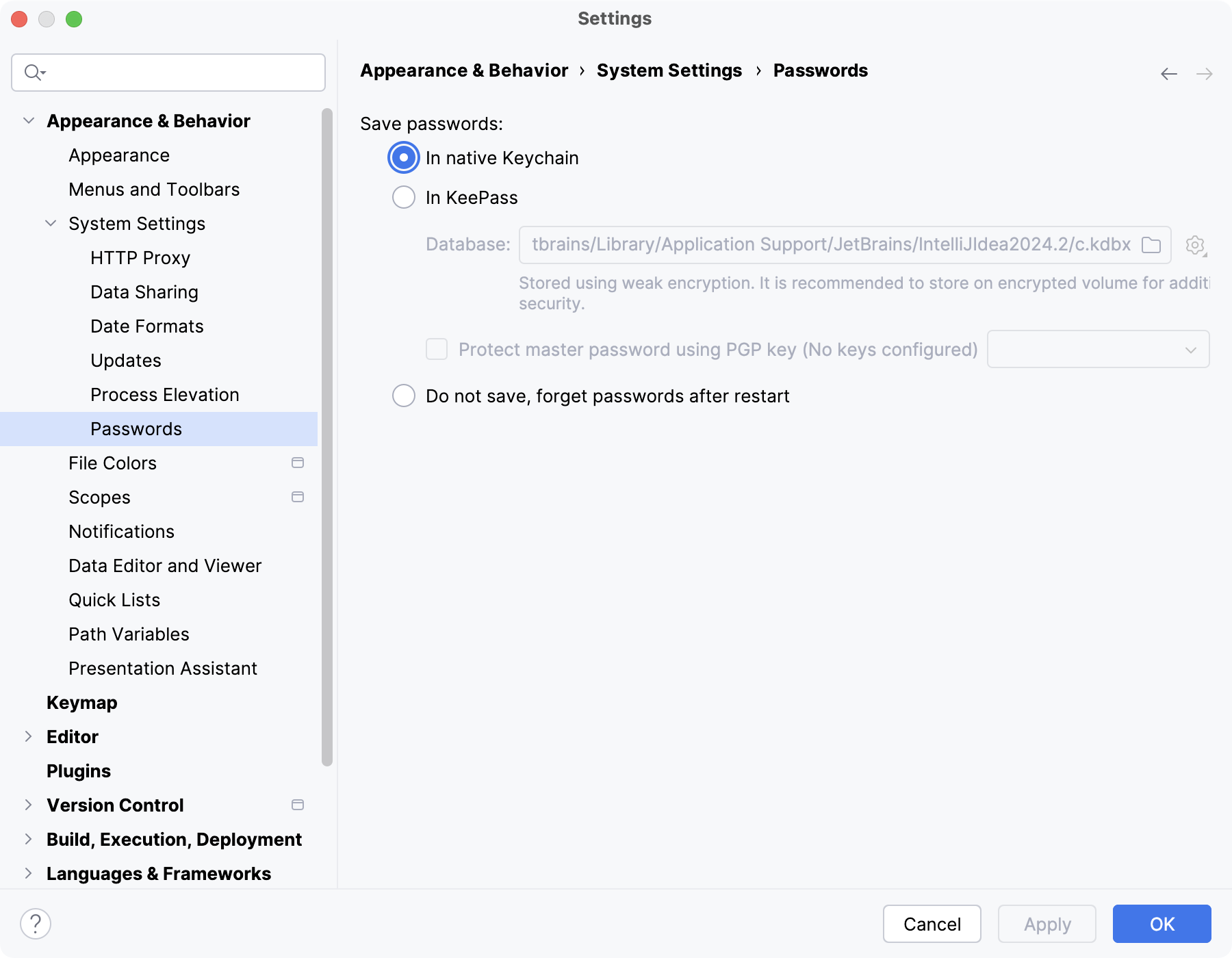
Configure the way IntelliJ IDEA saves your passwords for version control repositories, databases, and other protected resources.
> **Note:**
> IntelliJ IDEA does not have its own password store. It uses either the native password management system or KeePass. If your credentials on a resource change, you will have to update them yourself in the corresponding password store. To view and modify your passwords, open the currently used password manager and check the records there. For instance, here is the official documentation on how to do it in the Keychain Access app on macOS: [https://support.apple.com/en-am/guide/keychain-access/kyca1085/mac](https://support.apple.com/en-am/guide/keychain-access/kyca1085/mac).
In native Keychain
: Use the native keychain app.
:
:
:
: This option is not available for Windows. macOS uses Keychain Access. For Linux, it depends on the desktop environment and available apps: if you have both GNOME Keyring and KWallet, IntelliJ IDEA will use GNOME Keyring for compatibility reasons because KWallet was not supported in previous versions.
In KeePass
: Use the [KeePass](https://keepass.info/) password manager.
:
:
:
: * Database: Specifies the location of the password database file `c.kdbx`. To change the location, click  and select the new directory. To import another `c.kdbx` file, click  and select Import. To remove the existing passwords in the `c.kdbx` file, select Clear. Use the master password to access the password database `c.kdbx`. To set the master password for the database, click  and select Set Master Password. Once IntelliJ IDEA remembers your passwords, it will not ask for the passwords again including the master password unless you need to access the password database.
:
: * Protect master password using PGP key: Encrypt the master password for the password database using PGP.
Do not save, forget passwords after restart
: Do not remember any passwords and always prompt for credentials to protected resources.
> **Warning:**
> ([Database Tools and SQL](relational-databases.html) plugin only) In the Data Sources and Drivers dialog ( `Shift+Enter` (Windows), `⌘ I` (macOS), `⇧ ⏎` (IntelliJ IDEA Classic (macOS)), `⌘ I` (macOS System Shortcuts), `Shift+Enter` (XWin), `Shift+Enter` (GNOME), `Shift+Enter` (KDE), `Shift+Enter` (Emacs), `Shift+Enter` (Sublime Text), `⌘ I` (Sublime Text (macOS)), `Shift+Enter` (NetBeans), `Shift+Enter` (Visual Studio), `⌘ I` (Visual Studio (macOS)), `Shift+Enter` (Eclipse), `⌘ I` (Eclipse (macOS)) ) , for the URL only connection type, the URL field contents are stored in plain text, and are also available in the [IDE log file](troubleshooting-materials.html#locate-ide-log) and [data source settings file](managing-data-sources.html#locate_the_datasources_xml_file).
>
>
>
> Use the designated Password field of the dialog to provide your database user passwords instead of putting them into the URL field.