# Reformat code
IntelliJ IDEA lets you reformat your code according to the requirements you have specified in your current [code style scheme](configuring-code-style.html#configure-code-style-schemes) or the [.editorconfig](editorconfig.html) file. If anything is not defined in `.editorconfig`, it is taken from the project settings.
You can reformat a part of code, the whole file, a group of files, a directory, and a module. You can also exclude part of code or some files from the reformatting.
Procedure: Reformat a code fragment
1. In the editor, select a code fragment you want to reformat.
> **Note:**
> If you do not select a code fragment, IntelliJ IDEA will reformat the whole file.
Before reformatting, you can take a look at the code style settings that are applied to the selected code: press `Alt+Enter` (Windows), `⌥ ⏎` (macOS), `⌥ ⏎` (IntelliJ IDEA Classic (macOS)), `⌥ ⏎` (macOS System Shortcuts), `Alt+Enter` (XWin), `Alt+Enter` (GNOME), `Alt+Enter` (KDE), `Alt+Enter` (Emacs), `Alt+Enter` (Sublime Text), `⌥ ⏎` (Sublime Text (macOS)), `Alt+Enter` (NetBeans), `Alt+Enter` (Visual Studio), `⌥ ⏎` (Visual Studio (macOS)), `Ctrl+1` (Eclipse), `⌘ 1` (Eclipse (macOS)) and click Adjust code style settings.
2. In the main menu, go to `Code | Reformat Code` or press `Ctrl+Alt+L` (Windows), `⌘ ⌥ L` (macOS), `⌘ ⌥ L` (IntelliJ IDEA Classic (macOS)), `⌘ ⌥ L` (macOS System Shortcuts), `Ctrl+Alt+L` (XWin), `Ctrl+Alt+L` (GNOME), `Alt+Shift+L` (KDE), `Ctrl+Alt+L` (Emacs), `Ctrl+Alt+L` (Sublime Text), `⌘ ⌥ L` (Sublime Text (macOS)), `Alt+Shift+F` (NetBeans), `Ctrl+Alt+Enter` (Visual Studio), `⌘ ⌥ ⏎` (Visual Studio (macOS)), `Ctrl+Alt+L` (Eclipse), `⌘ ⇧ F` (Eclipse (macOS)).
Alternatively, on the [toolbar](working-with-source-code.html#floating_toolbar) that appears, click  Reformat Code.
Procedure: Reformat a file
1. Either open your file in the editor and press `Ctrl+Alt+Shift+L` (Windows), `⌘ ⌥ ⇧ L` (macOS), `⌘ ⌥ ⇧ L` (IntelliJ IDEA Classic (macOS)), `⌘ ⌥ ⇧ L` (macOS System Shortcuts), `Ctrl+Alt+Shift+L` (XWin), `Ctrl+Alt+Shift+L` (GNOME), `Ctrl+Alt+Shift+L` (KDE), `Ctrl+Alt+Shift+L` (Emacs), `Ctrl+Alt+Shift+L` (Sublime Text), `⌘ ⌥ ⇧ L` (Sublime Text (macOS)), `Ctrl+Alt+Shift+L` (NetBeans), `Ctrl+Alt+Shift+L` (Visual Studio), `⌘ ⌥ ⇧ L` (Visual Studio (macOS)), `Ctrl+Alt+Shift+L` (Eclipse), `⌘ ⌥ ⇧ L` (Eclipse (macOS)) or in the Project tool window , right-click the file and select `Reformat Code`.
> **Note:**
> Keep pressing `Shift` (Windows), `Shift` (macOS), `Shift` (IntelliJ IDEA Classic (macOS)), `Shift` (macOS System Shortcuts), `Shift` (XWin), `Shift` (GNOME), `Shift` (KDE), `Shift` (Emacs), `Shift` (Sublime Text), `Shift` (Sublime Text (macOS)), `Shift` (NetBeans), `Shift` (Visual Studio), `Shift` (Visual Studio (macOS)), `Shift` (Eclipse), `Shift` (Eclipse (macOS)) and select additional files for a group reformatting.
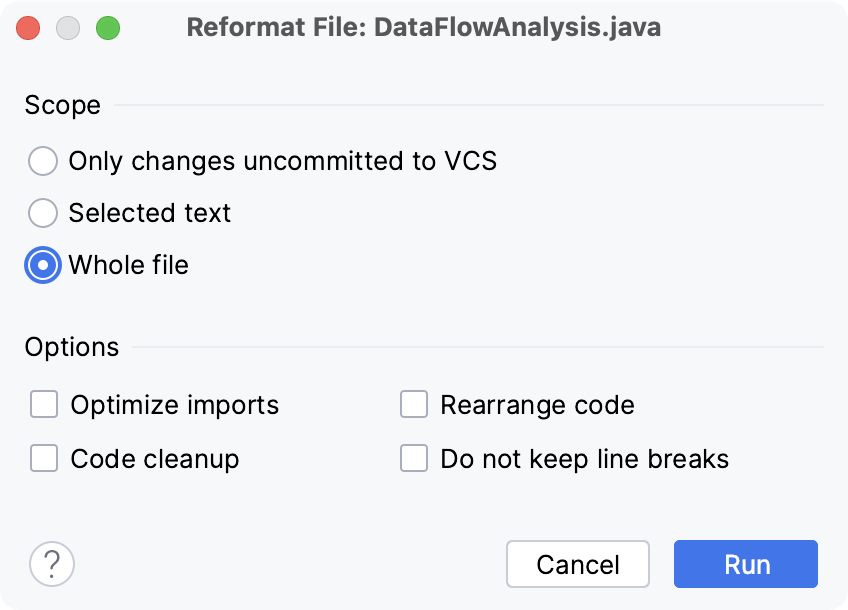
2. In the [Reformat File](null) dialog that opens, if you need, select the following reformatting options:
* Optimize imports: select this option if you want to remove unused imports, add missing ones, or organize import statements. For more information, refer to the [Optimize imports](creating-and-optimizing-imports.html#optimize-imports) section.
* Rearrange entries: select this option if you need to rearrange your code based on the [arrangement rules](rearrange-code.html) specified in the code style settings.
* Code cleanup: select this option to run the code cleanup inspections.
* Do not keep line breaks: reformat line breaks according to the code style settings. This option is available only when `Keep when reformatting | Line breaks` is enabled for the current language in `Settings | Editor | Code Style | | Wrapping and Braces`. If you select Do not keep line breaks, the IDE temporarily overrides that setting and removes existing line breaks according to the current code style. You can also use the [Reformat again to remove custom line breaks](settings-smart-keys.html#remove-custom-line-breaks) option in `Settings | Editor | Smart Keys`.
3. Click Run.
If you want to see the exact changes made to your code during the reformatting, use the [Local History](local-history.html) feature.
Procedure: Reformat a module or a directory
1. In the Project tool window, right-click a module or a directory and select Reformat Code or press `Ctrl+Alt+L` (Windows), `⌘ ⌥ L` (macOS), `⌘ ⌥ L` (IntelliJ IDEA Classic (macOS)), `⌘ ⌥ L` (macOS System Shortcuts), `Ctrl+Alt+L` (XWin), `Ctrl+Alt+L` (GNOME), `Alt+Shift+L` (KDE), `Ctrl+Alt+L` (Emacs), `Ctrl+Alt+L` (Sublime Text), `⌘ ⌥ L` (Sublime Text (macOS)), `Alt+Shift+F` (NetBeans), `Ctrl+Alt+Enter` (Visual Studio), `⌘ ⌥ ⏎` (Visual Studio (macOS)), `Ctrl+Alt+L` (Eclipse), `⌘ ⇧ F` (Eclipse (macOS)).
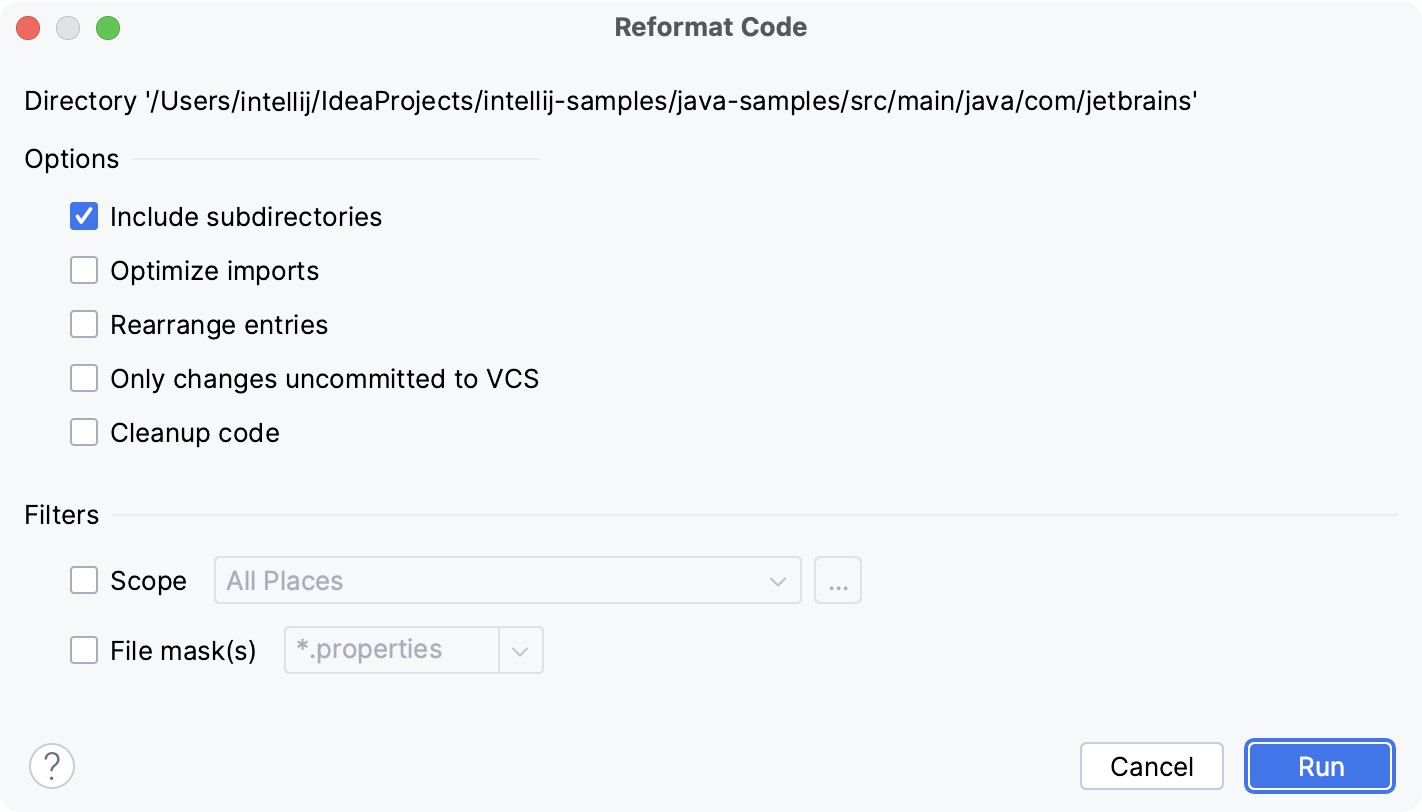
2. In the dialog that opens, specify the [reformatting options](#reformat_options).
3. Optionally, you can apply filters:
* You can select a [scope](configuring-scopes-and-file-colors.html) of files to process.
* Alternatively, you can narrow down the reformatting to the specific file types by enabling the File mask(s) checkbox. The File mask(s) option helps you narrow down the files to process. Specify one or more file name patterns using wildcards to match the files you want to include. Separate multiple file masks with commas. Learn more from [Search in the specific file types](finding-and-replacing-text-in-project.html#exclude_type).
Procedure: Reformat line indents
You can reformat line indents based on the specified settings.
1. While in the editor, select the necessary code fragment and press `Ctrl+Alt+I` (Windows), `⌃ ⌥ I` (macOS), `⌘ ⌥ I` (IntelliJ IDEA Classic (macOS)), `⌃ ⌥ I` (macOS System Shortcuts), `Ctrl+Alt+I` (XWin), `Ctrl+Alt+I` (GNOME), `Ctrl+Alt+I` (KDE), `Ctrl+Alt+I` (Emacs), `Ctrl+Alt+I` (Sublime Text), `⌃ ⌥ I` (Sublime Text (macOS)), `Ctrl+Alt+I` (NetBeans), `Ctrl+Alt+I` (Visual Studio), `⌃ ⌥ I` (Visual Studio (macOS)), `Ctrl+I` (Eclipse), `⌘ I` (Eclipse (macOS)).
2. If you need to adjust indentation settings, in the Settings dialog (`Ctrl+Alt+S` (Windows), `⌘ Comma` (macOS), `⌘ Comma` (IntelliJ IDEA Classic (macOS)), `⌘ Comma` (macOS System Shortcuts), `Ctrl+Alt+S` (XWin), `Ctrl+Alt+S` (GNOME), `Ctrl+Alt+S` (KDE), `Ctrl+Alt+S` (Emacs), `Ctrl+Alt+S` (Sublime Text), `⌘ Comma` (Sublime Text (macOS)), `Ctrl+Alt+S` (NetBeans), `Ctrl+Alt+S` (Visual Studio), `⌘ Comma` (Visual Studio (macOS)), `Ctrl+Alt+S` (Eclipse), `⌘ Comma` (Eclipse (macOS))), go to `Editor | Code Style`. Select the language for which you want to change indentation.
3. On the Tabs and Indents tab, specify the appropriate indents options and click OK.
> **Note:**
> [Automatic indent detection](indentation.html#detect-indentation) can override the indents that you configure on the Tabs and Indents tab. In this case, IntelliJ IDEA displays a notification.
Procedure: Automatically reformat code on save
You can configure the IDE to reformat code in modified files automatically when your changes are [saved](saving-and-reverting-changes.html).
1. Press `Ctrl+Alt+S` (Windows), `⌘ Comma` (macOS), `⌘ Comma` (IntelliJ IDEA Classic (macOS)), `⌘ Comma` (macOS System Shortcuts), `Ctrl+Alt+S` (XWin), `Ctrl+Alt+S` (GNOME), `Ctrl+Alt+S` (KDE), `Ctrl+Alt+S` (Emacs), `Ctrl+Alt+S` (Sublime Text), `⌘ Comma` (Sublime Text (macOS)), `Ctrl+Alt+S` (NetBeans), `Ctrl+Alt+S` (Visual Studio), `⌘ Comma` (Visual Studio (macOS)), `Ctrl+Alt+S` (Eclipse), `⌘ Comma` (Eclipse (macOS)) to open settings and then select `Tools | Actions on Save`.
2. Enable the Reformat code option.
3. Additionally, you can configure the way the IDE will reformat your code:
* Click Configure scope… to specify the patterns of filenames and directories that you want to [exclude from reformatting](#exclude_file_from_reformat).
* From the All file types list, select the types of files in which you want to reformat code.
* Select Whole file or Changed lines if your project is under version control. If you select Changed lines, reformatting will apply only to the lines of code that have been changed locally, but not yet checked in to the repository.
Procedure: Reformat code on commit
You can reformat your code automatically when you commit your changes to the repository if your project is under [version control](version-control-integration.html). In this case, only the added or modified code will be reformatted.
> **Note:**
> This feature is only available for [Git](using-git-integration.html) and [Mercurial](using-mercurial-integration.html).
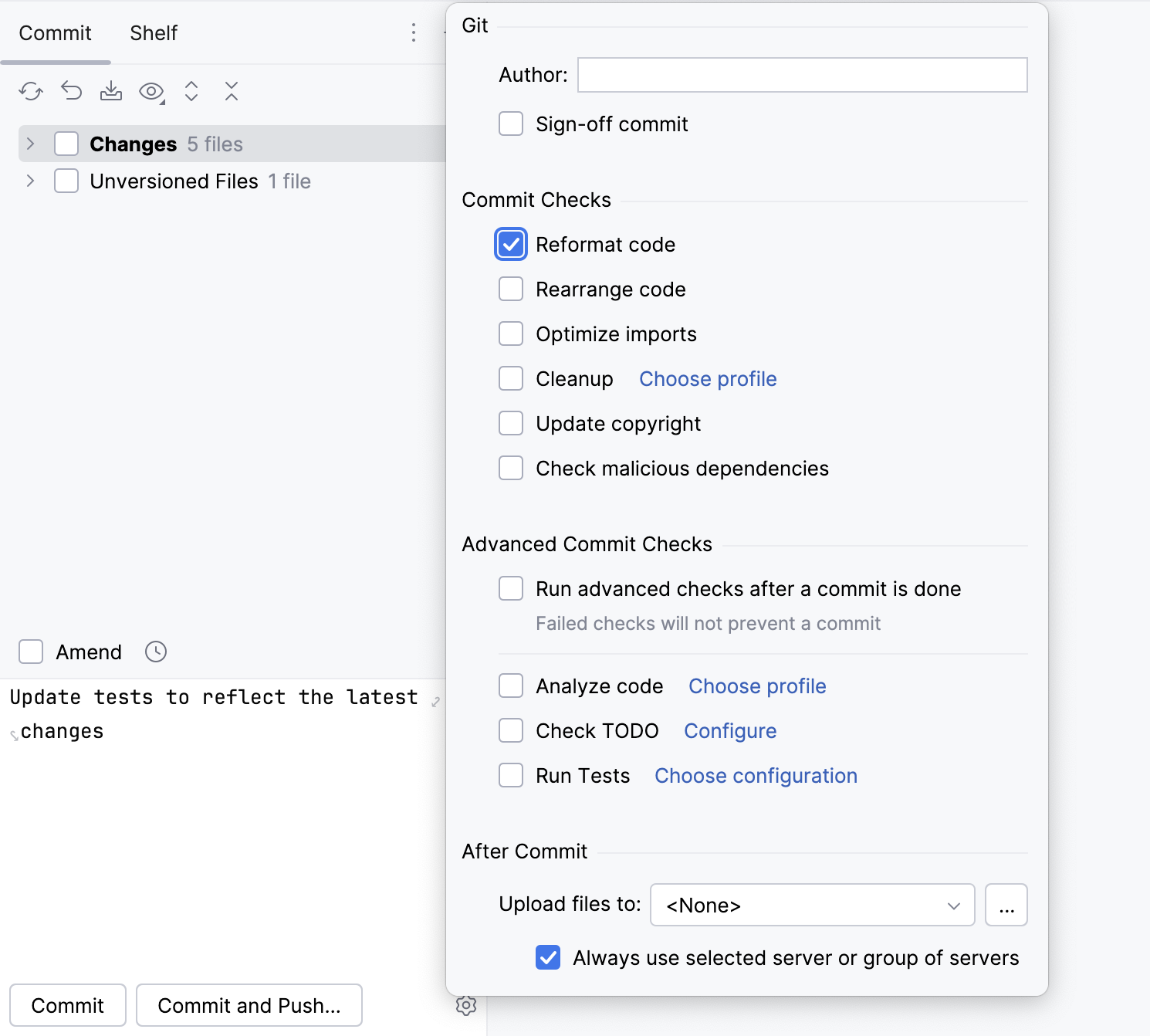
1. Press `Alt+0` (Windows), `⌘ 0` (macOS), `⌘ 0` (IntelliJ IDEA Classic (macOS)), `⌘ 0` (macOS System Shortcuts), `Alt+0` (XWin), `Alt+0` (GNOME), `Alt+0` (KDE), `Alt+0` (Emacs), `Alt+0` (Sublime Text), `⌘ 0` (Sublime Text (macOS)), `Alt+0` (NetBeans), `Alt+0` (Visual Studio), `Alt+0` (Visual Studio (macOS)), `Alt+0` (Eclipse), `⌘ 0` (Eclipse (macOS)) to open the Commit tool window and click Show Commit Options .
2. Under the Commit Checks menu, enable the Reformat code option.
After you have enabled the option, the added or modified code will be reformatted every time you make a commit.
Procedure: Reformat code from the command line
IntelliJ IDEA can apply your code style formatting to the specified files from the command line.
1. Make sure you have a command-line launcher for your OS.
2. Run the `format` command.
Learn more from [Format files from the command line](command-line-formatter.html).
Procedure: Exclude files from reformatting
You can exclude a group of files and directories from reformatting, [code arrangement](rearrange-code.html), and [import optimization](creating-and-optimizing-imports.html#optimize-imports) .
1. In the Settings dialog (`Ctrl+Alt+S` (Windows), `⌘ Comma` (macOS), `⌘ Comma` (IntelliJ IDEA Classic (macOS)), `⌘ Comma` (macOS System Shortcuts), `Ctrl+Alt+S` (XWin), `Ctrl+Alt+S` (GNOME), `Ctrl+Alt+S` (KDE), `Ctrl+Alt+S` (Emacs), `Ctrl+Alt+S` (Sublime Text), `⌘ Comma` (Sublime Text (macOS)), `Ctrl+Alt+S` (NetBeans), `Ctrl+Alt+S` (Visual Studio), `⌘ Comma` (Visual Studio (macOS)), `Ctrl+Alt+S` (Eclipse), `⌘ Comma` (Eclipse (macOS))), go to `Editor | Code Style`.
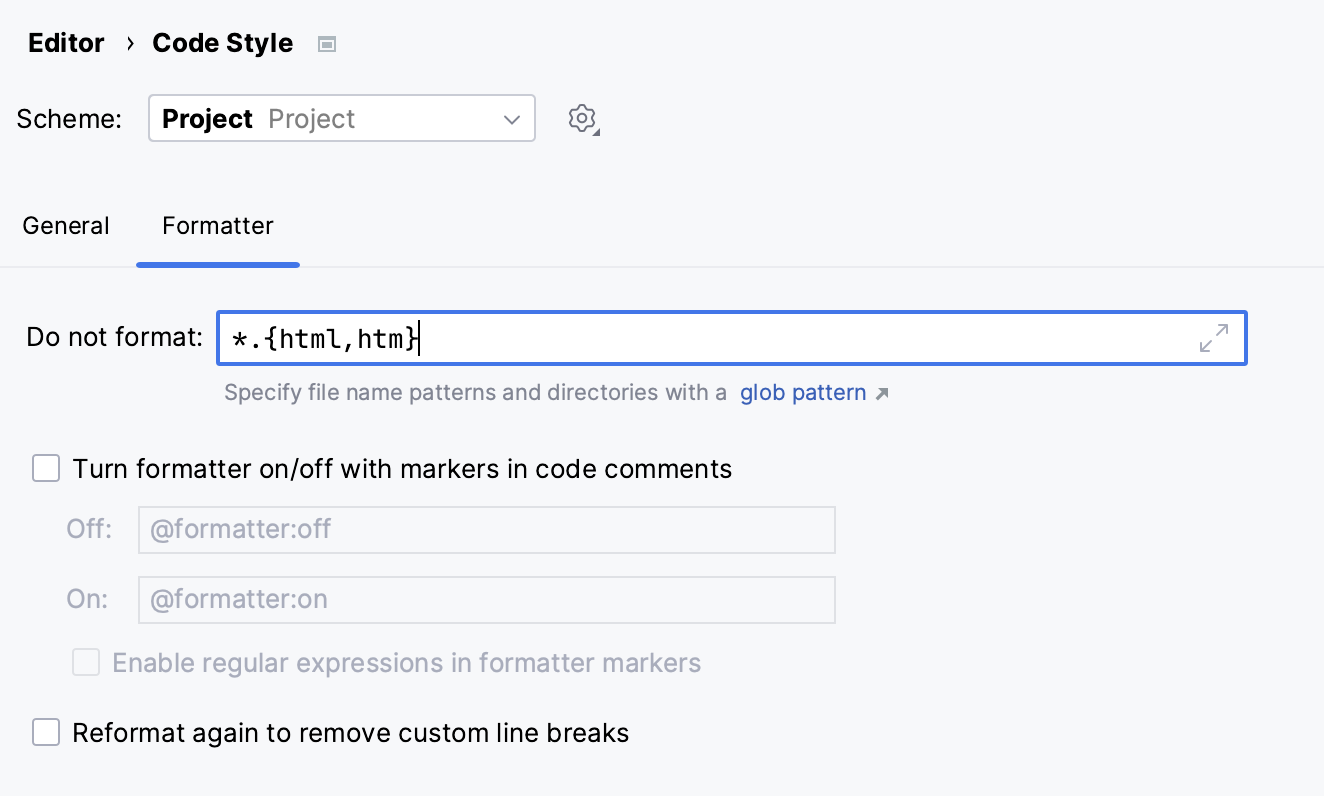
2. Switch to the Formatter tab and in the Do not format field, enter the files and directories that you want to exclude using a [glob pattern](https://en.wikipedia.org/wiki/Glob_(programming)).
You can specify several glob patterns separated with a semicolon `;`. If you click , the field will expand, and each pattern will be shown on a separate line.
> **Tip:**
> Enter the asterisk `*` wildcard to disable reformatting altogether.
3. Apply the changes and close the dialog.
Procedure: Exclude code fragments from reformatting in the editor
1. In the Settings dialog (`Ctrl+Alt+S` (Windows), `⌘ Comma` (macOS), `⌘ Comma` (IntelliJ IDEA Classic (macOS)), `⌘ Comma` (macOS System Shortcuts), `Ctrl+Alt+S` (XWin), `Ctrl+Alt+S` (GNOME), `Ctrl+Alt+S` (KDE), `Ctrl+Alt+S` (Emacs), `Ctrl+Alt+S` (Sublime Text), `⌘ Comma` (Sublime Text (macOS)), `Ctrl+Alt+S` (NetBeans), `Ctrl+Alt+S` (Visual Studio), `⌘ Comma` (Visual Studio (macOS)), `Ctrl+Alt+S` (Eclipse), `⌘ Comma` (Eclipse (macOS))), go to `Editor | Code Style`.
2. Switch to the Formatter tab and enable the Turn formatter on/off with markers in code comments option.
3. In the editor, at the beginning of a region that you want to exclude, create a line comment `Ctrl+/` (Windows), `⌘ /` (macOS), `⌘ /` (IntelliJ IDEA Classic (macOS)), `⌘ /` (macOS System Shortcuts), `Ctrl+/` (XWin), `Ctrl+/` (GNOME), `Ctrl+/` (KDE), `Alt+;` (Emacs), `Ctrl+/` (Sublime Text), `⌘ /` (Sublime Text (macOS)), `Ctrl+/` (NetBeans), `Ctrl+Alt+/` (Visual Studio), `⌘ ⌥ /` (Visual Studio (macOS)), `Ctrl+/` (Eclipse), `⌘ /` (Eclipse (macOS)) and type `@formatter:off`. At the end of the region, create another line comment and type `@formatter :on`.
The code between the markers won't be reformatted.
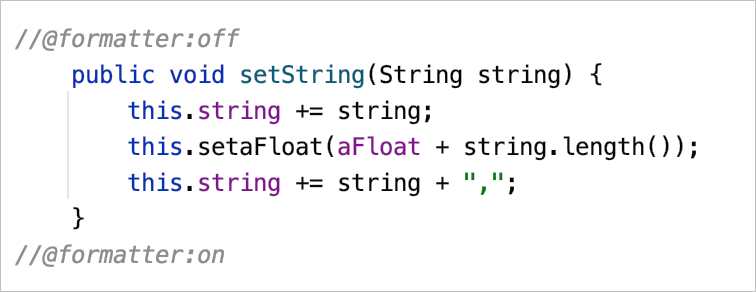
## Example of using formatting markers
[Video](https://resources.jetbrains.com/help/img/idea/2026.2/code-formatting-markers.mp4)
Procedure: Keep the existing formatting
You can select formatting rules which will be ignored when you reformat the code. For example, you can adjust the IDE to keep simple methods and functions in one line, whereas normally they are expanded into multiple lines after code reformatting.
1. In the main menu, go to `Settings | Editor | Code Style`, select your programming language, and open the Wrapping and Braces tab.
2. In the Keep when reformatting section, select the types of existing formatting that you want the IDE to preserve during reformatting. Clear the checkboxes for the formatting that you want the IDE to apply according to the current code style.
3. [Reformat your code](#reformat_code) (`Ctrl+Alt+L` (Windows), `⌘ ⌥ L` (macOS), `⌘ ⌥ L` (IntelliJ IDEA Classic (macOS)), `⌘ ⌥ L` (macOS System Shortcuts), `Ctrl+Alt+L` (XWin), `Ctrl+Alt+L` (GNOME), `Alt+Shift+L` (KDE), `Ctrl+Alt+L` (Emacs), `Ctrl+Alt+L` (Sublime Text), `⌘ ⌥ L` (Sublime Text (macOS)), `Alt+Shift+F` (NetBeans), `Ctrl+Alt+Enter` (Visual Studio), `⌘ ⌥ ⏎` (Visual Studio (macOS)), `Ctrl+Alt+L` (Eclipse), `⌘ ⇧ F` (Eclipse (macOS))).
IntelliJ IDEA will reformat your code in accordance with the current style settings, keeping existing formatting for the rules which you've selected.
## Formatter settings
To access the settings, in the Settings dialog (`Ctrl+Alt+S` (Windows), `⌘ Comma` (macOS), `⌘ Comma` (IntelliJ IDEA Classic (macOS)), `⌘ Comma` (macOS System Shortcuts), `Ctrl+Alt+S` (XWin), `Ctrl+Alt+S` (GNOME), `Ctrl+Alt+S` (KDE), `Ctrl+Alt+S` (Emacs), `Ctrl+Alt+S` (Sublime Text), `⌘ Comma` (Sublime Text (macOS)), `Ctrl+Alt+S` (NetBeans), `Ctrl+Alt+S` (Visual Studio), `⌘ Comma` (Visual Studio (macOS)), `Ctrl+Alt+S` (Eclipse), `⌘ Comma` (Eclipse (macOS))), go to `Editor | Code Style`, and switch to the Formatter tab.
| Item | Description |
| --- | --- |
| Do not format | In the Do not format field, specify a [glob pattern](https://en.wikipedia.org/wiki/Glob_(programming)) with the names of files and directories that you want to exclude from [reformatting](), [code arrangement](), and [import optimization](creating-and-optimizing-imports.html#optimize-imports) , for example: `*.{html,htm}`. You can specify several glob patterns separated with a semicolon `;`. Use the asterisk `*` wildcard to disable reformatting altogether. |
| Turn formatter on/off with markers in code comments | * If this option is enabled, fragments of code between line comments with the formatting markers will be reformatted according to these markers: code fragments with on-markers will be reformatted, and the fragments with off-markers will remain intact after you reformat your code. See [Example of using formatting markers](#formatting-markers-usage-example). After you select this checkbox, the fields below become available, and you can specify the character strings to be treated as formatting markers. * If this option is disabled, the formatting markers will be ignored and the code between the line comments with markers will be reformatted. |
| Off: | In this field, specify the character string that will indicate the beginning of a code fragment which you want to exclude from reformatting. Type a character string with the `@` symbol in preposition or leave the predefined value `@formatter:off`. |
| On: | In this field, specify the character string that will indicate the end of a code fragment which you want to exclude from reformatting. Type a character string with the `@` symbol in preposition or leave the predefined value `@formatter:on`. |
| Enable regular expressions in formatter markers | Select this checkbox to use regular expressions instead of specifying the formatting markers explicitly. IntelliJ IDEA matches formatter on/off markers using the regular expression specified instead of the exact string. For example, using regular expressions allows you to have several markers for enabling the formatter and for disabling it. In that case, you can use the following regular expressions: `@formatter:(off\|disable\|no)` and `@formatter:(on\|enable\|yes)`. See [Example of using formatting markers](#formatting-markers-usage-example) for a demo. 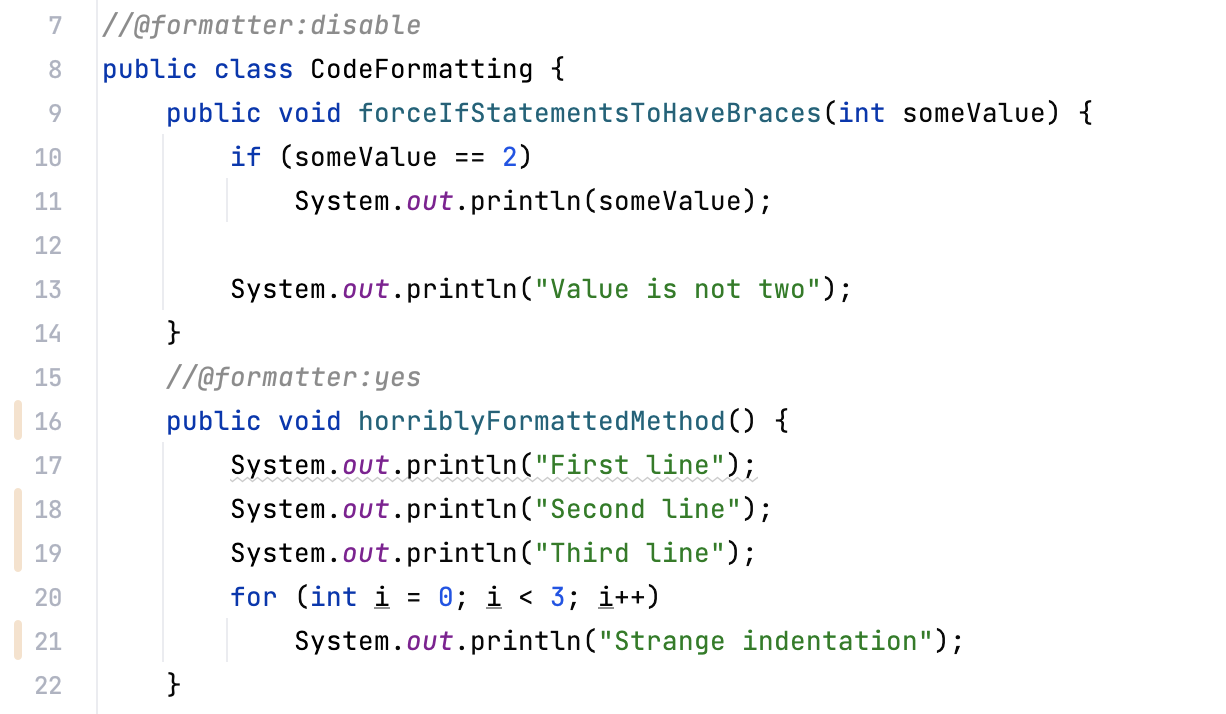 |
## See also
### Procedures
[EditorConfig](editorconfig.html) [Code style schemes](configuring-code-style.html)
### Reference
[Settings | Code Style](settings-code-style.html) [Settings | Code Style | Java](code-style-java.html)