String conversions
IntelliJ IDEA with the Scala plugin provides tools to help with string manipulations in Scala programming. This page highlights some of the most popular actions and shortcuts.
Concatenation with + +
An idiomatic Scala way to include computation results in strings is to use interpolation.
If you need to split a string and concatenate it with an expression using the + operator, place the caret at the desired position within the string and invoke the intention actions menu by pressing Alt+Enter. Then select Insert gap with concatenation (" + + ").
IntelliJ IDEA splits the string and inserts the concatenation placeholders at the caret position.
Triple-quote strings
If you want to include a quote character ('"') in a regular string, you need to escape it by writing a backslash in front of the character ('\"'). It is tedious if you have many quote characters in the string, and it may also lead to typos that are difficult to spot. Instead, you can convert your regular string into a triple-quote one. To do that, enter your string, press Alt+Enter and from the list of intentions, select Convert to """string""".
Multi-line strings
With the same Convert to """string""" intention you can convert a regular string with escaped newline characters ('\n') into a multi-line string. Press Alt+Enter to open the list of intentions. Select Convert to "string" and press Enter. You can use the same intention once again to revert it.
To enter a multi-line string from scratch, type triple quotes in the editor. If you press Enter, it will automatically invoke the stripMargin method. The stripMargin method removes the left part of a multi-line string up to a specified delimiter. The whitespaces are also preserved.
Multi-line strings settings
Use the Multi-line strings tab in Scala settings to set a different format for multi-line string options such as Margin char indent or disable a multi-line strings support.
Press Ctrl+Alt+S to open settings and then select .
On the Scala page, select the Multi-line strings tab.
Edit the settings and click OK.
Use the Inject language or reference intention to insert a language or a reference into your multi-line string literals. For more information, refer to Language Injections.
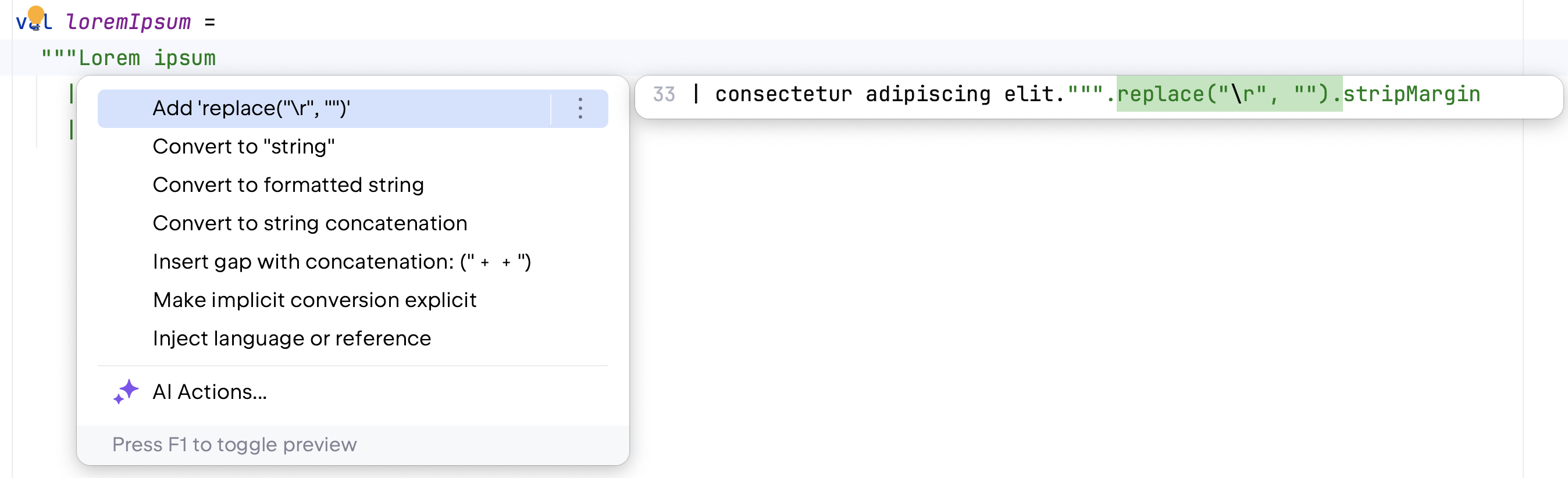
The 'replace '\r'' intention
This intention lets you keep the caret at the correct place on the next line in the multi-line strings regardless of what operating system you have at the moment. Enter a multi-line string, press Alt+Enter and select the appropriate intention from the list.