Using ScalaCLI with IntelliJ IDEA
ScalaCLI is a command-line tool designed to simplify the process of working with Scala code. ScalaCLI is not intended to replace full-fledged build tools like sbt or Mill but is well-suited for simpler projects and tasks where a lightweight, easy-to-use tool is beneficial. It is particularly useful for single-module projects, such as terminal-based applications, basic web applications, or serverless lambdas, as well as for scripting, and to quickly prototype ideas without the overhead of more complex build tools.
Setting up ScalaCLI
To set up ScalaCLI on your computer, visit the ScalaCLI website and follow the instructions.
After installation, verify that ScalaCLI is working by running: scala-cli --version
Create a new ScalaCLI project
In IntelliJ IDEA, select
In the New Project wizard, choose ScalaCLI as your build system.
Decide what Scala version and what syntax you want to use.
Click Create.
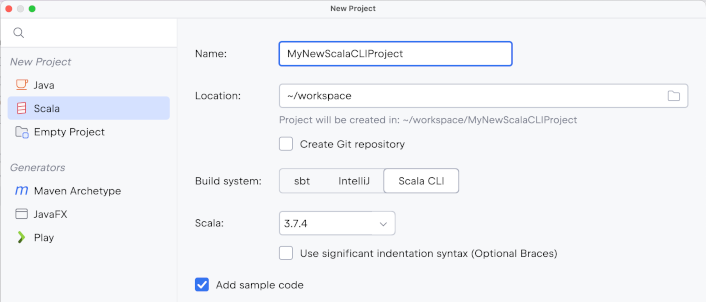
Import a new ScalaCLI project
Open a terminal and navigate to the directory where you want to create your project.
Run the following command to create a new ScalaCLI project:
scala-cli new project-name. This will create a new directory with the basic structure of a ScalaCLI project.In IntelliJ IDEA, select
Select the directory of your new ScalaCLI project.
Choose BSP as the external model. If BSP doesn't show up, generate the .bsp folder using
the scala-cli setup-ide .command in your project directory.
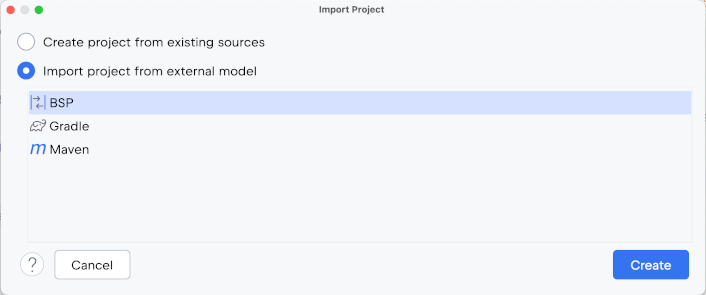
Once the project is imported, IntelliJ IDEA will use Scala CLI's BSP command to handle running, testing, and debugging your code. You can manage your project structure through the command line, and changes will be reflected in IntelliJ IDEA.
Importing an existing ScalaCLI project
In IntelliJ IDEA, select .
Select the directory of your new ScalaCLI project.
Choose BSP as the external model. If BSP doesn't show up, generate the .bsp folder using the
scala-cli setup-ide .command in your project directory.
Working with ScalaCLI
In simple one-file scripts, ScalaCLI directives can be put at the top of the file. In larger projects, the directives are usually put in project.scala. When you import a ScalaCLI project into IntelliJ IDEA, or when you use the scala-cli setup-ide . command, a BSP configuration file is being generated (.bsp/scala-cli.json). IntelliJ IDEA uses this BSP configuration to import the project. This allows IntelliJ IDEA to understand the project structure and dependencies. Once imported, IntelliJ IDEA uses BSP to handle various project management tasks such as compiling, running, testing, and debugging your Scala code.
If you make changes to dependencies in the editor, a popup with a BSP icon will appear in the top-right corner. By clicking it, you can reload the BSP configuration.
Other changes to the project structure or dependencies, for example done via the command line, can be refreshed in the project in IntelliJ IDEA using the BSP panel.
If you write a ScalaCLI program based on another project with configuration in sbt, you can copy-paste an sbt dependency to a line starting with //> using dep and the text format will be changed automatically.