# SDKs
A Software Development Kit, or an SDK, is a collection of tools that you need to develop an application for a specific software framework. For example, to develop applications in Java, you need a Java SDK (JDK). SDKs contain binaries, source code for the binaries, and documentation for the source code. JDK builds also contain annotations.
Generally, SDKs are global. It means that one SDK can be used in multiple projects and modules. After you create a new project and define an SDK for it, you can configure modules in this project to inherit its SDK. You can also specify an SDK for each module individually. For more information, refer to [Change module SDK](#change-module-sdk).
[Video](https://www.youtube.com/v/W4EK_KVgfkw)
## Supported SDKs
* [Java Development Kit (JDK)](#jdk)
* [Kotlin SDK](#kotlin_sdk)
* [Android SDK](https://developer.android.com/studio)
* [IntelliJ Platform Plugin SDK](https://plugins.jetbrains.com/docs/intellij/ide-development-instance.html?from=jetbrains.org)
* [JavaFX SDK](https://gluonhq.com/products/javafx/)
* [Grails SDK](https://grails.org/download.html)
## Configure SDKs
To define an SDK means to let IntelliJ IDEA know in which folder on your computer the necessary SDK version is installed. This folder is called an SDK home directory.
Procedure: Add a global SDK
1. In the main menu, go to `File | Project Structure | Platform Settings | SDKs`.
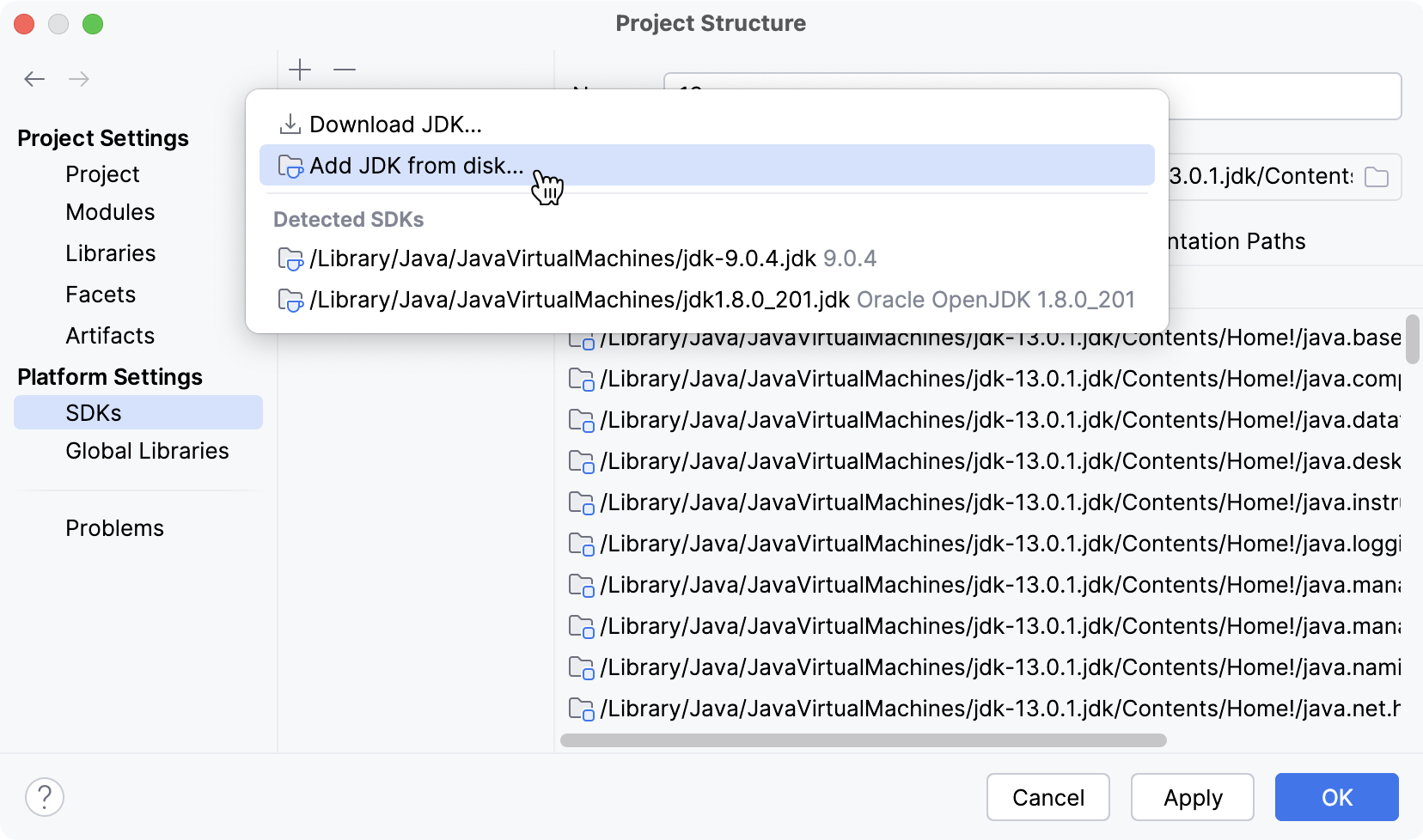
2. Click  and select the necessary option from the list of SDKs detected on your computer.
3. Only for JDKs: if the IDE cannot find the necessary JDK on your computer automatically, click Add JDK from disk and specify its home directory in the dialog that opens.
If you don't have the necessary JDK on your computer, select Download JDK. In the next dialog, specify the JDK vendor, version, change the installation path if required, and click Download.
Procedure: Remove an SDK
You can remove unnecessary SDKs from your IDE.
1. In the main menu, go to `File | Project Structure | Platform Settings | SDKs`.
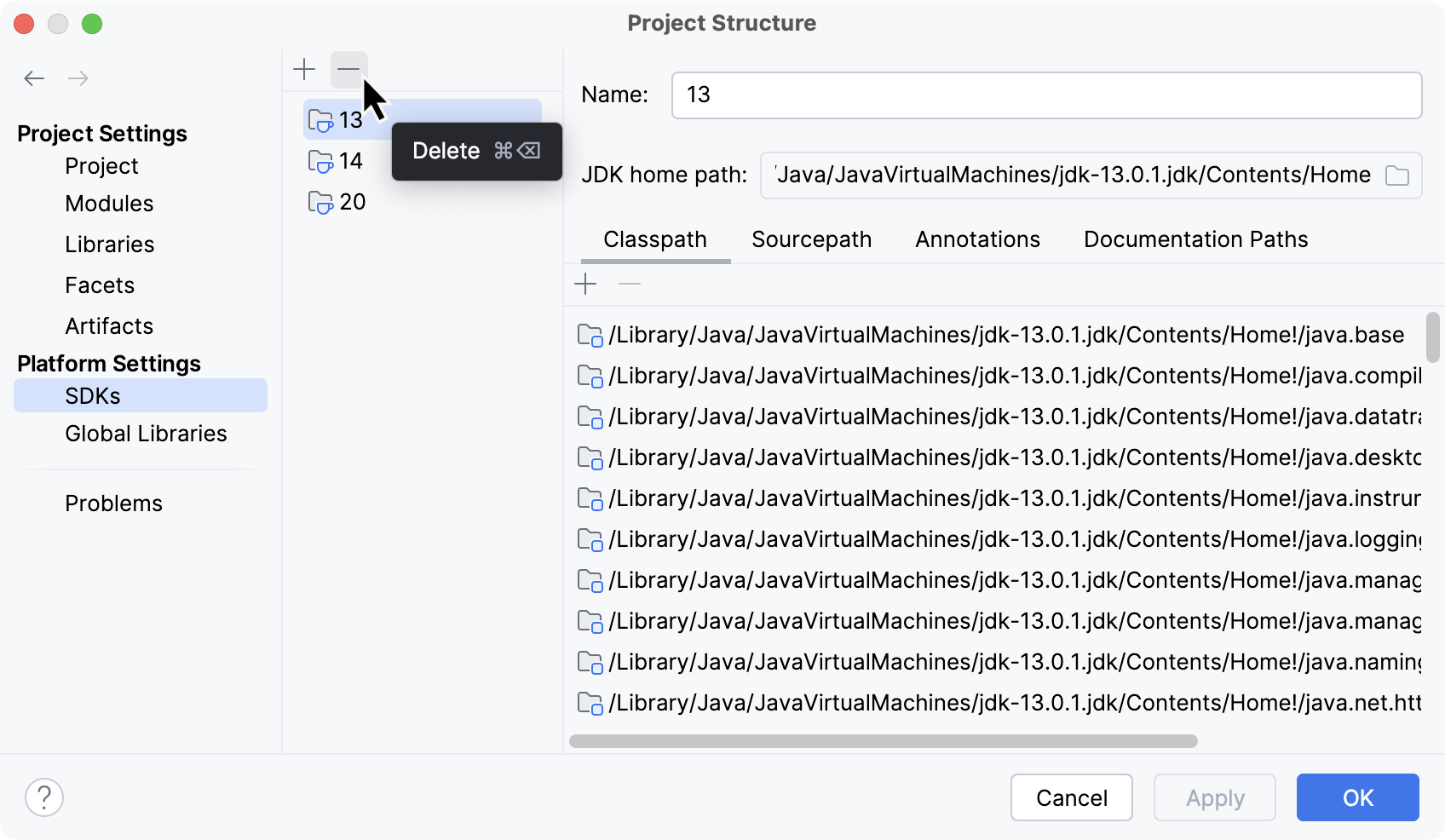
2. Select the SDK you want to remove and click .
3. Apply the changes and close the dialog.
Procedure: Add a project SDK
1. In the main menu, go to `File | Project Structure | Project Settings | Project`.
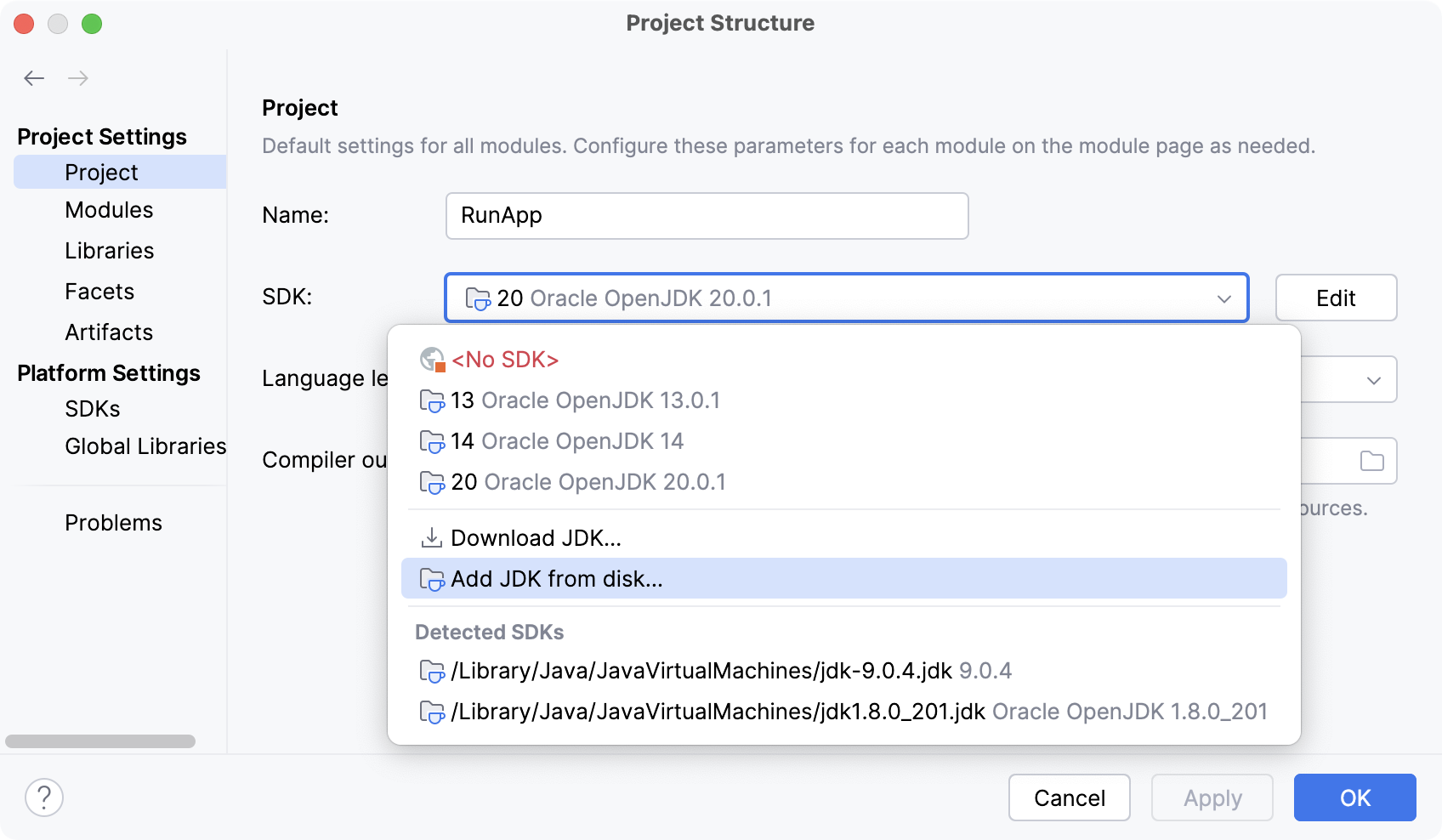
2. If the necessary SDK is already defined in IntelliJ IDEA, select it from the Detected SDKs list.
3. Only for JDKs: if the IDE cannot find the necessary JDK on your computer automatically, click Add JDK from disk and specify its home directory in the dialog that opens.
If you don't have the necessary JDK on your computer, select Download JDK. In the next dialog, specify the JDK vendor, version, change the installation path if required, and click Download.
Procedure: Add a module SDK
1. In the main menu, go to `File | Project Structure | Project Settings | Modules`.
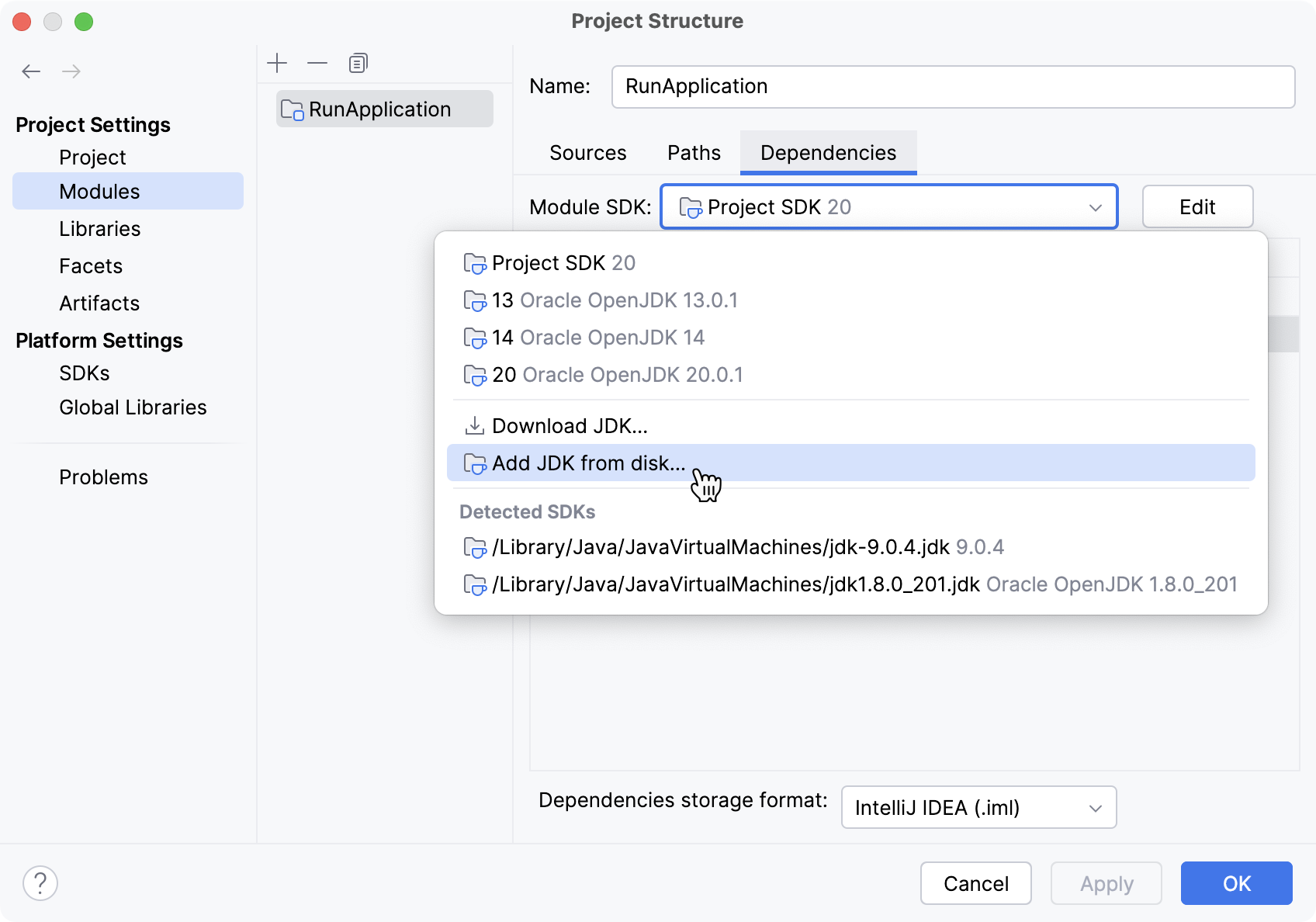
2. Select the module for which you want to set an SDK and click Dependencies.
3. If the necessary SDK is already defined in IntelliJ IDEA, select it from the Detected SDKs list.
4. Only for JDKs: if the IDE cannot find the necessary JDK on your computer automatically, click Add JDK from disk and specify its home directory in the dialog that opens.
If you don't have the necessary JDK on your computer, select Download JDK. In the next dialog, specify the JDK vendor, version, change the installation path if required, and click Download.
> **Tip:**
> If you want a module to inherit the project SDK, select the Project SDK option from the Module SDK list.
## Java Development Kit (JDK)
To develop applications in IntelliJ IDEA, you need a Java SDK (JDK). A JDK is a software package that contains libraries, tools for developing and testing Java applications (development tools), and tools for running applications on the Java platform (Java Runtime Environment – JRE).
The JRE can be obtained separately from the JDK, but it is not suitable for application development, as it doesn't have essential components such as compilers and debuggers.
> **Note: Important notice**
> * The bundled JRE is used for running the IDE itself, and it is not sufficient for developing Java applications. Before you start developing in Java, download and install a standalone JDK build.
>
> * Due to the [changes in the Oracle Java License](https://java.com/en/download/release_notice.jsp), you might not have the rights to use Oracle's Java SE for free. We recommend that you use one of the [OpenJDK builds](#openjdk-list) to avoid potential compliance failures.
In IntelliJ IDEA, you can [download a JDK package right from the IDE](#jdk-from-ide), or you can manually download the necessary JDK distribution and define it in the IDE.
For a manual download, use any [available distribution](https://en.wikipedia.org/wiki/OpenJDK#OpenJDK_builds) that you like, for example:
* [Oracle OpenJDK](https://jdk.java.net/)
* [Adoptium](https://adoptium.net/)
* [Amazon Corretto](https://aws.amazon.com/corretto/)
> **Tip:**
> If you don't know which distribution to choose, and you don't have specific requirements that instruct you to use one of the existing distributions, use Oracle OpenJDK.
Procedure: Set up the project JDK
1. In the main menu, go to `File | Project Structure | Project Settings | Project`.
2. If the necessary JDK is already defined in IntelliJ IDEA, select it from the SDK list.
If the JDK is installed on your computer but not defined in the IDE, select Add SDK from disk and specify the path to the JDK home directory (for example, `/Library/Java/JavaVirtualMachines/jdk-12.0.1.jdk`).

3. If you don't have the necessary JDK on your computer, select Download JDK. In the next dialog, specify the JDK vendor, version, change the installation path if required, and click Download.
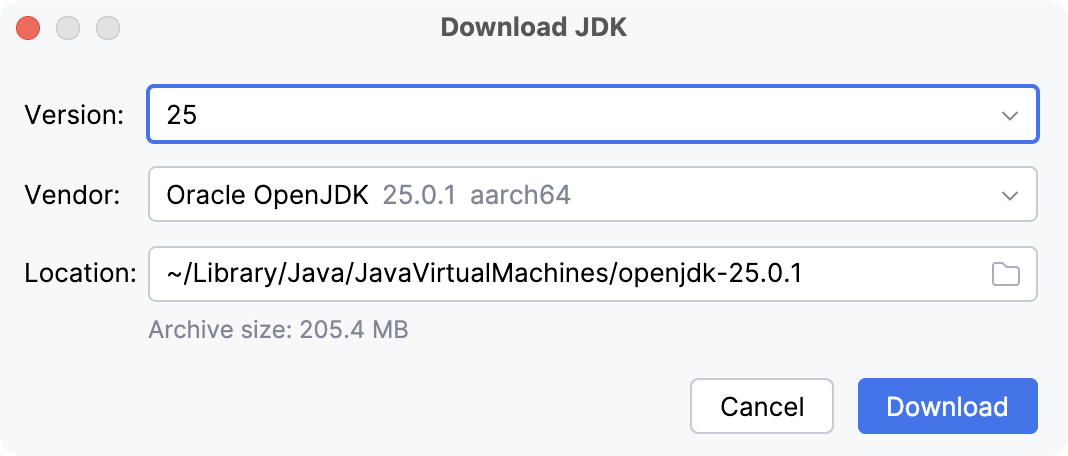
4. Apply the changes and close the dialog.
> **Note:**
> For more information about working with JDK, refer to [Change the JDK version in a Maven project](maven-support.html#change_jdk) and [Gradle JVM selection](gradle-jvm-selection.html) if you build your project with Maven or Gradle.
> **Tip:**
> IntelliJ IDEA also makes the project JDK available in the built-in terminal through the `JAVA_HOME` and `PATH` environment variables, so you can run `java`, `javac`, and build tools there without extra setup. For more information, refer to [JDK in the Terminal](terminal-emulator.html#terminal-jdk).
### Configure JDKs using a version manager
When you use command-line tools like [SDKMAN!](https://sdkman.io/) or [asdf](https://asdf-vm.com/) to install, manage, and switch between different JDK versions in your IntelliJ IDEA, you can use inlay hints to make version management more convenient.
For example, if your `.sdkmanrc` or `.tool-versions` file specifies a JDK version that is not yet installed, an inlay hint will appear, allowing you to download it directly.
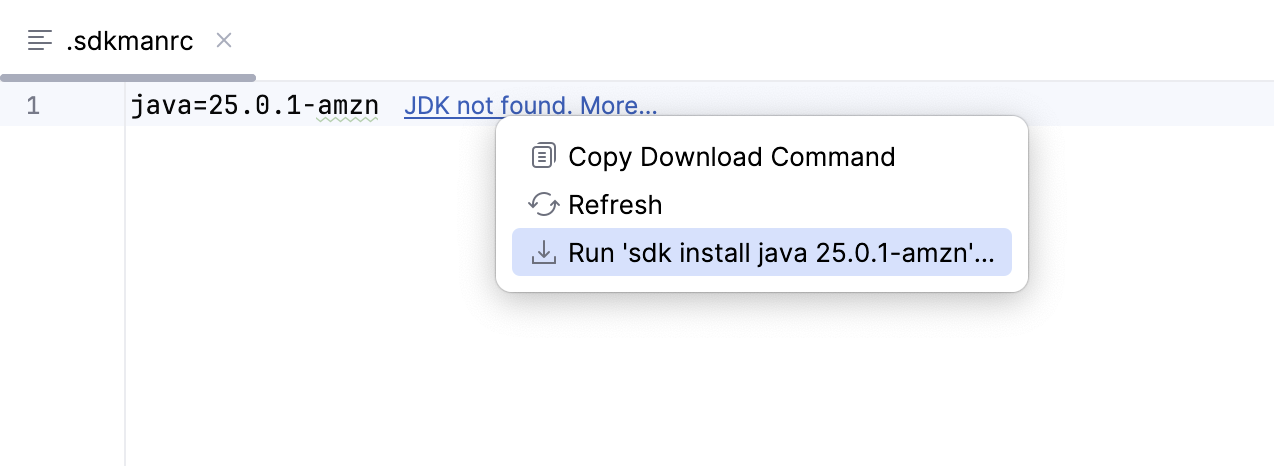
IntelliJ IDEA can suggest downloading a JDK declared in a project `.sdkmanrc` file even when SDKMAN! is not installed. When a matching JDK is available through the IDE built-in JDK downloader, IntelliJ IDEA offers to install it directly from the IDE instead of requiring SDKMAN!: use the Download JDK option from the inlay hint menu to download the JDK.
If the required JDK version is already installed but not configured for the project, the hint will let you quickly set it as the project JDK.
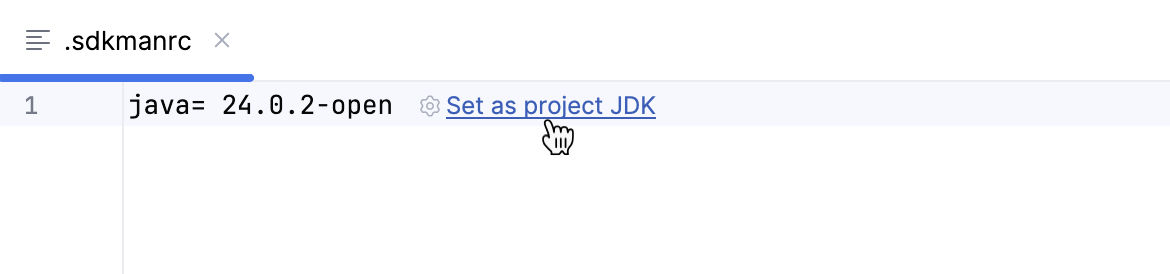
You can find the settings for this inlay hint in `Settings | Editor | Inlay Hints | Code Vision | Java Configuration`. Learn more about other available inlay hints and how to use them from [Inlay hints](inlay-hints.html).
Procedure: Disable automatic configuration from version manager files
When you open a project that uses a version manager, the IDE automatically configures the JDK defined in the corresponding configuration file (for example, `.sdkmanrc` or `.tool-versions`). You can change this behavior in settings.
1. Press `Ctrl+Alt+S` (Windows), `⌘ Comma` (macOS), `⌘ Comma` (IntelliJ IDEA Classic (macOS)), `⌘ Comma` (macOS System Shortcuts), `Ctrl+Alt+S` (XWin), `Ctrl+Alt+S` (GNOME), `Ctrl+Alt+S` (KDE), `Ctrl+Alt+S` (Emacs), `Ctrl+Alt+S` (Sublime Text), `⌘ Comma` (Sublime Text (macOS)), `Ctrl+Alt+S` (NetBeans), `Ctrl+Alt+S` (Visual Studio), `⌘ Comma` (Visual Studio (macOS)), `Ctrl+Alt+S` (Eclipse), `⌘ Comma` (Eclipse (macOS)) to open settings and then select `Advanced Settings`.
2. Disable option Configure JDK with external tool files on project opening ('.sdkmanrc', '.tool-versions', …) and apply the changes.
## Kotlin SDK
Kotlin SDK is distributed differently from JDKs. It is added to your project as a regular library dependency and resides in the `.m2` folder. The IDE downloads it for you when you [create a new Kotlin project](get-started-with-kotlin.html#new-kotlin-project-no-frameworks) or sync an existing project. You can also [add Kotlin to an existing JVM project](get-started-with-kotlin.html#add-kotlin-dependency).
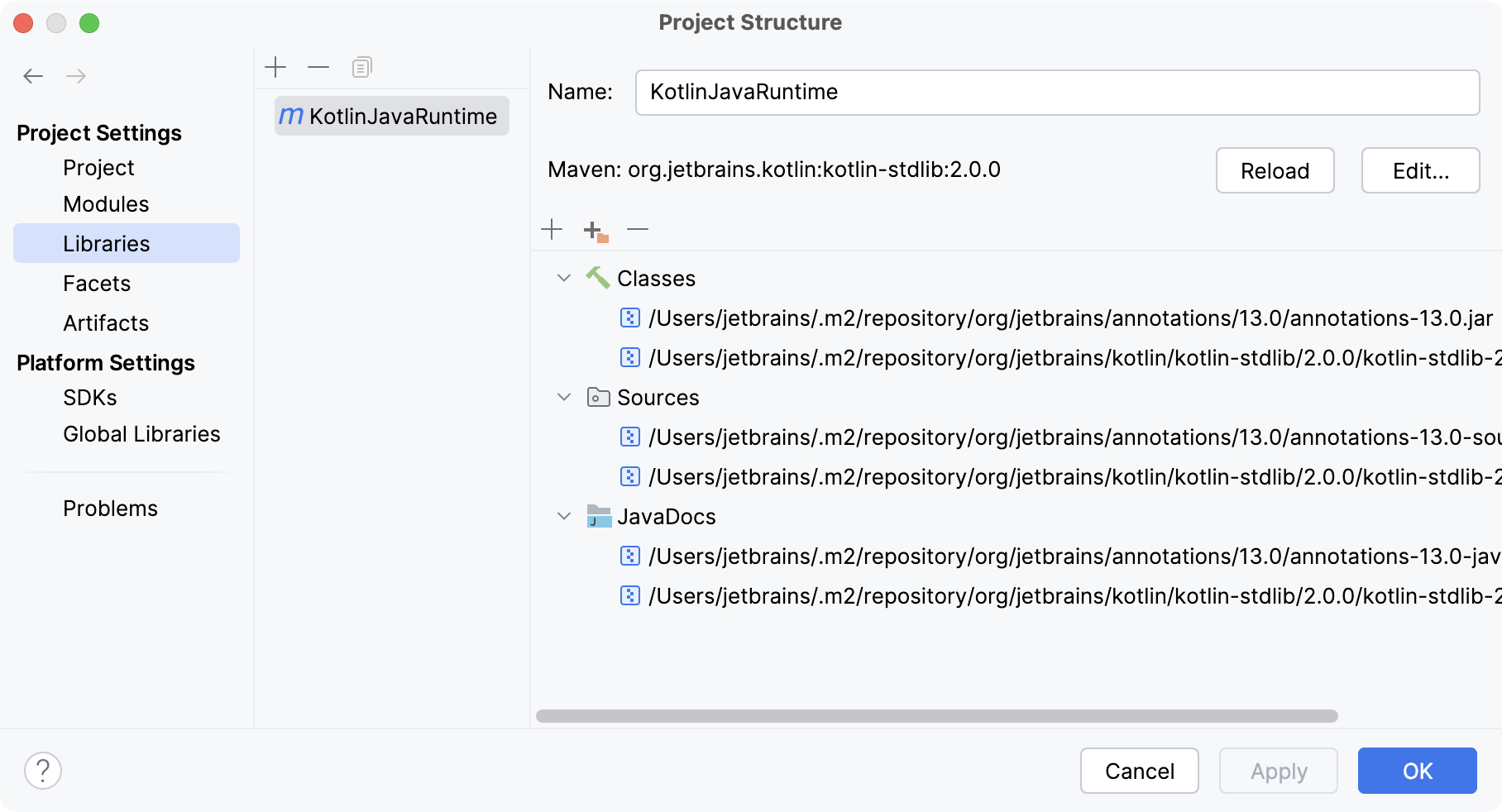
Learn more about Kotlin from the [Kotlin
documentation](https://kotlinlang.org/docs/jvm-get-started.html).
## See also
### Python Support
[Configure Python SDK in IntelliJ IDEA](configuring-python-sdk.html)
### Ruby Support
[Configure Ruby interpreter](configuring-language-interpreter.html)